kuva
kuva is a scientific plotting library for Rust that renders plots to SVG. It targets bioinformatics use cases and ships with 64 plot types — from standard scatter and bar charts to Manhattan plots, UpSet plots, phylogenetic trees, and synteny diagrams. A kuva CLI binary lets you render plots directly from the shell without writing any Rust.
Design
The API follows a builder pattern. Every plot type is constructed with ::new(), configured with method chaining, and rendered through a single pipeline:
plot struct → Plot enum → Layout → SVG / PNG / PDF
Quick start
#![allow(unused)]
fn main() {
use kuva::prelude::*;

let data = vec![(1.0_f64, 2.0_f64), (3.0, 5.0), (5.0, 4.0)];

let plot = ScatterPlot::new()
    .with_data(data)
    .with_color("steelblue")
    .with_size(5.0);

let plots: Vec<Plot> = vec![plot.into()];
let layout = Layout::auto_from_plots(&plots)
    .with_title("My Plot")
    .with_x_label("X")
    .with_y_label("Y");

let svg = render_to_svg(plots, layout);
std::fs::write("my_plot.svg", svg).unwrap();
}
Prelude
use kuva::prelude::* brings all 64 plot structs, Plot, Layout, Figure, Theme, Palette, render_to_svg, and everything else you typically need into scope in one line.
Every plot struct implements Into<Plot>, so you can write plot.into() instead of Plot::Scatter(plot).
For PNG or PDF output, use render_to_png and render_to_pdf (require feature flags png and pdf respectively):
#![allow(unused)]
fn main() {
use kuva::prelude::*;

let plots: Vec<Plot> = vec![/* ... */];
let layout = Layout::auto_from_plots(&plots);

// SVG — always available
let svg: String = render_to_svg(plots, layout);

// PNG — feature = "png"
let png: Vec<u8> = render_to_png(plots, layout, 2.0).unwrap();

// PDF — feature = "pdf"
let pdf: Vec<u8> = render_to_pdf(plots, layout).unwrap();
}
Regenerating documentation assets
The SVG images embedded in these docs are generated by standalone example programs in the examples/ directory. Regenerate all assets at once with:
bash scripts/gen_docs.sh
Or regenerate a single plot type:
cargo run --example scatter
cargo run --example histogram
# etc. — one example per plot type in examples/
Building the book
Install mdBook, then:
mdbook build docs    # produce docs/book/
mdbook serve docs    # live-reload preview at http://localhost:3000
Gallery
All plot types at a glance
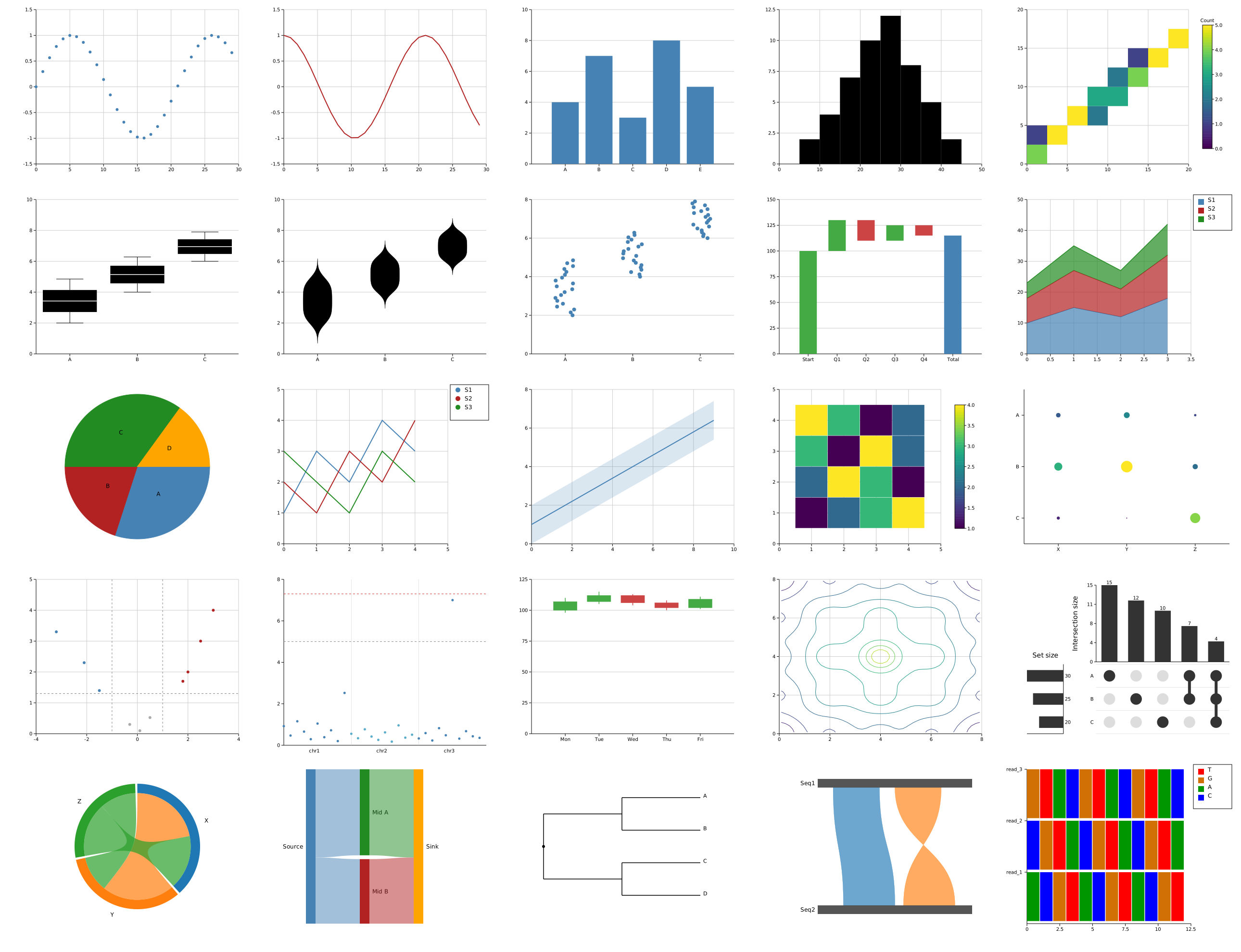
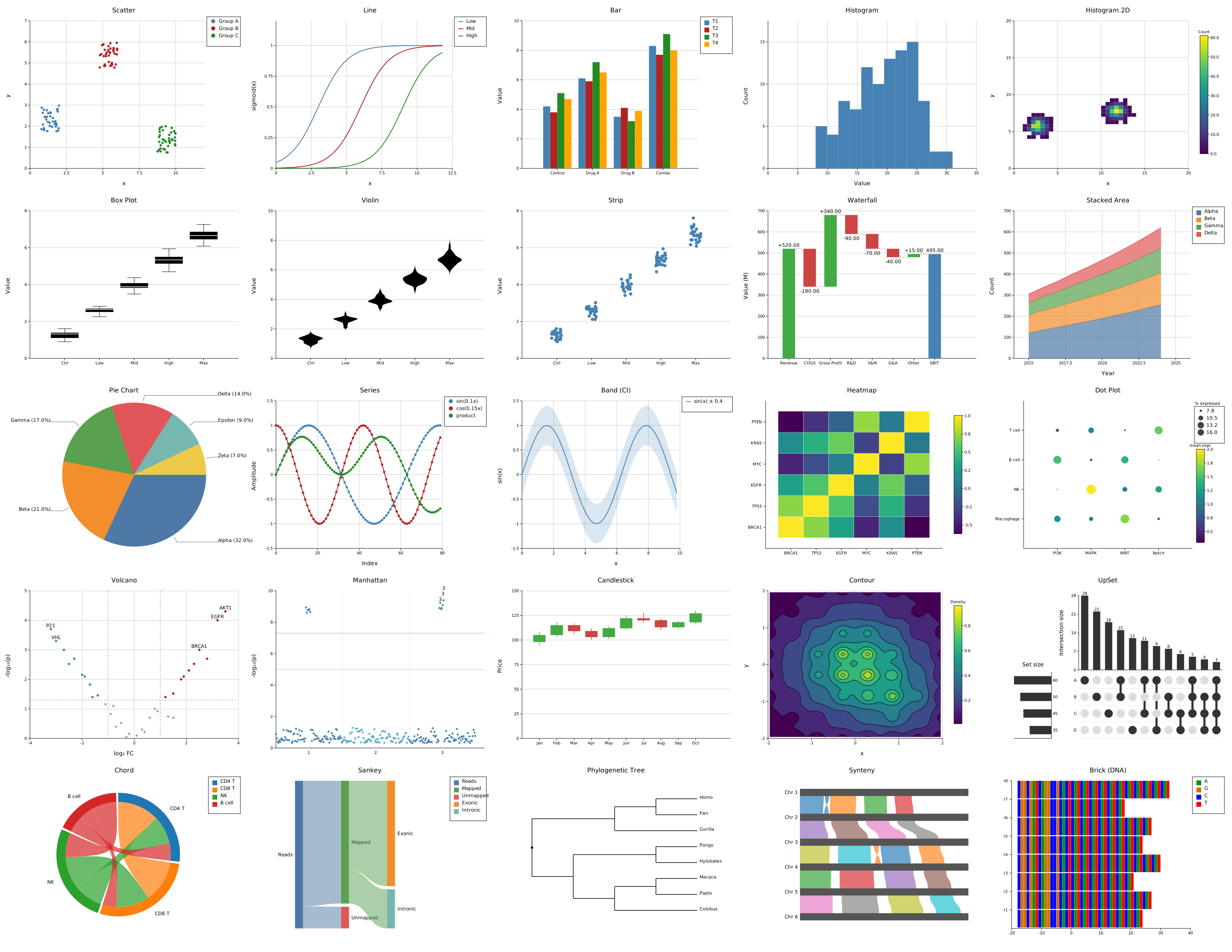
64 plot types, one figure — generated by running cargo run --example all_plots_simple and cargo run --example all_plots_complex.
Simple overview (compact, minimal data):
Full-featured (larger datasets, titles, axis labels, legends):
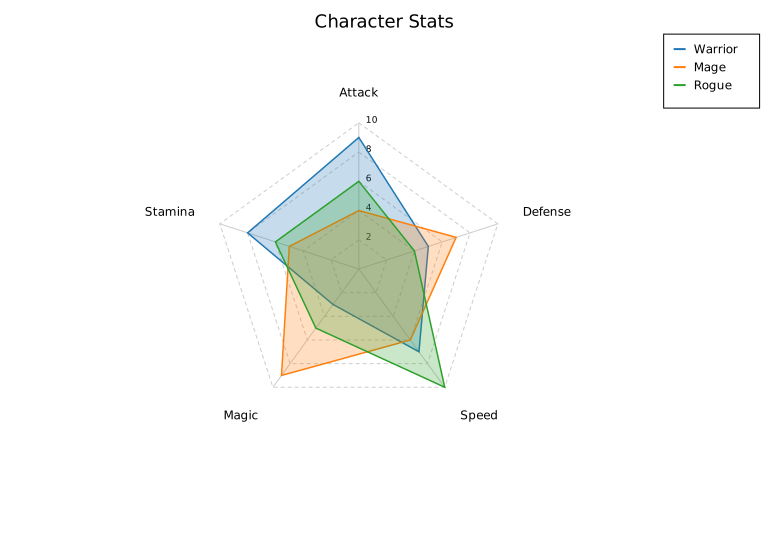
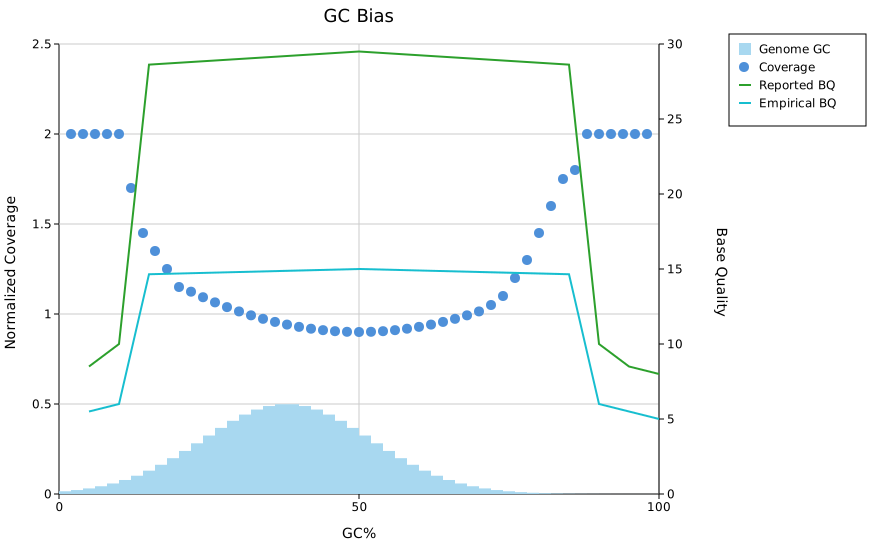
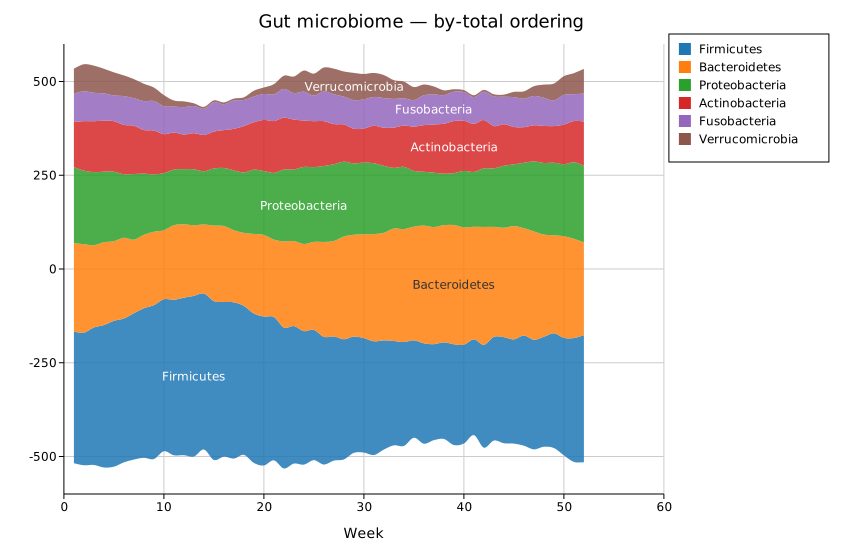
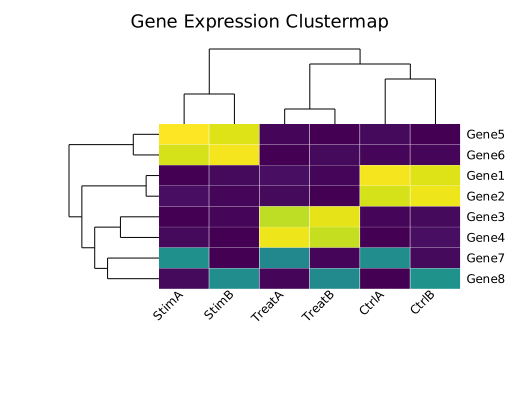
Individual plot types
Click any image to go to the full documentation page.
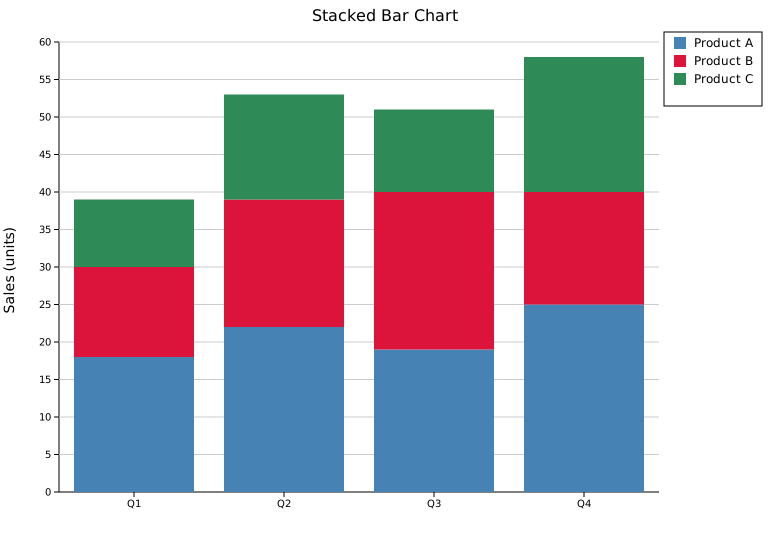
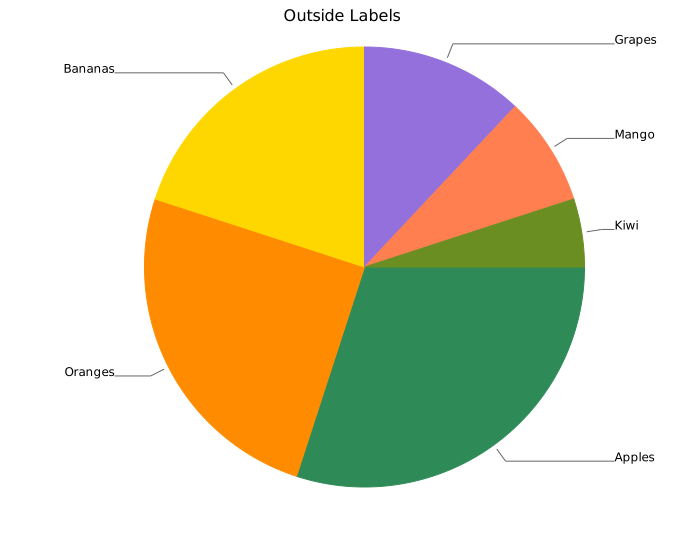
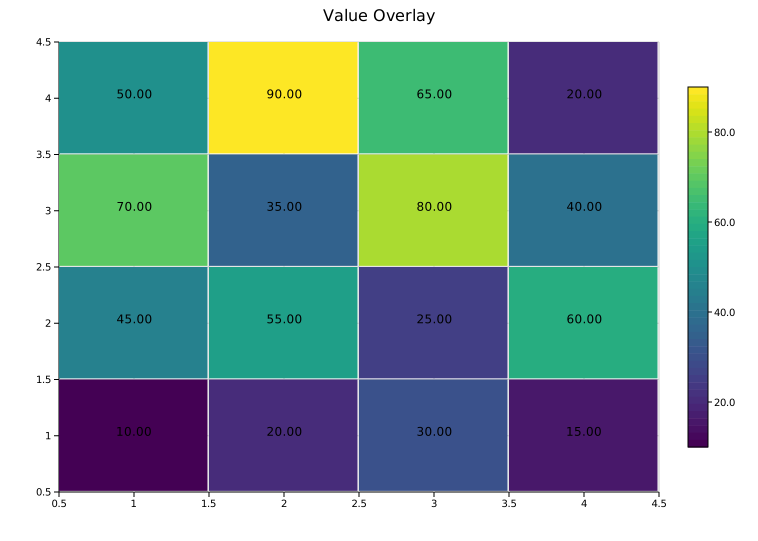
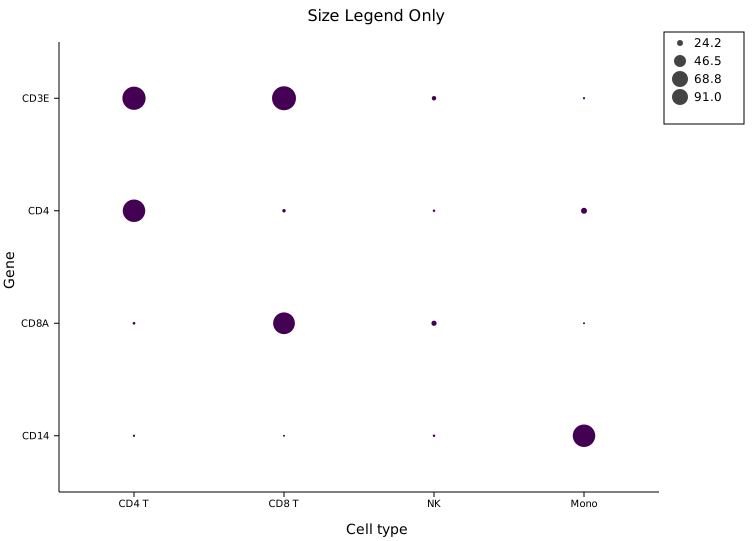
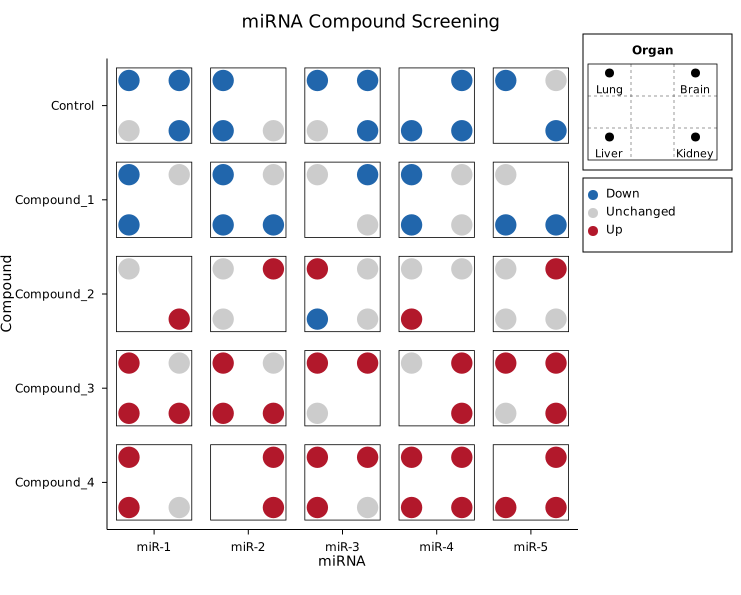
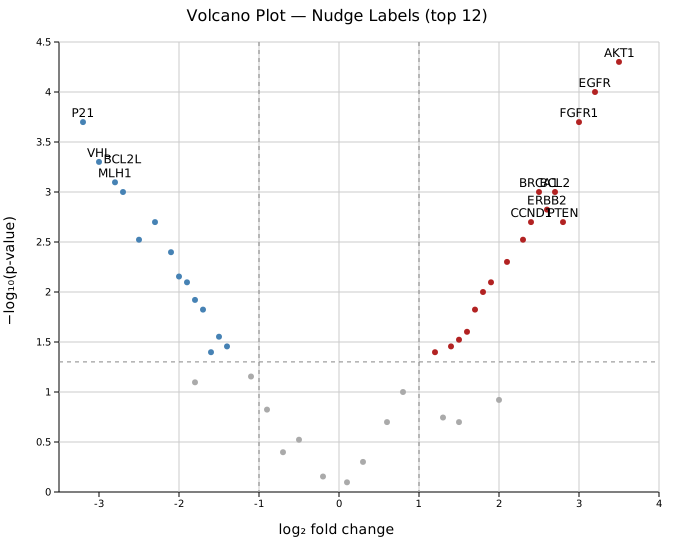
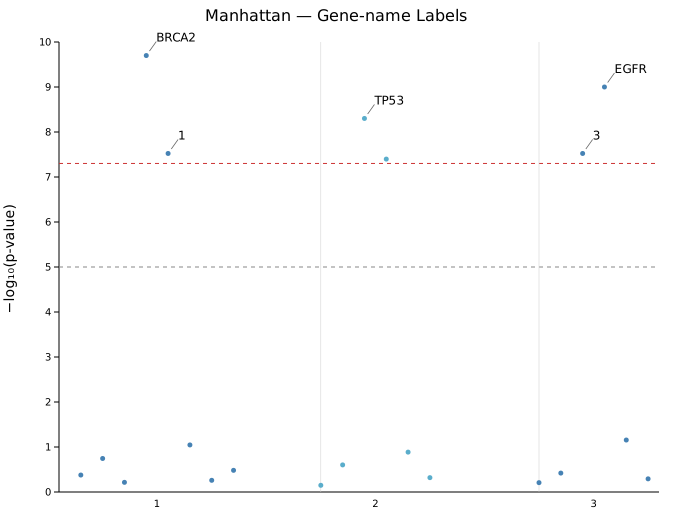
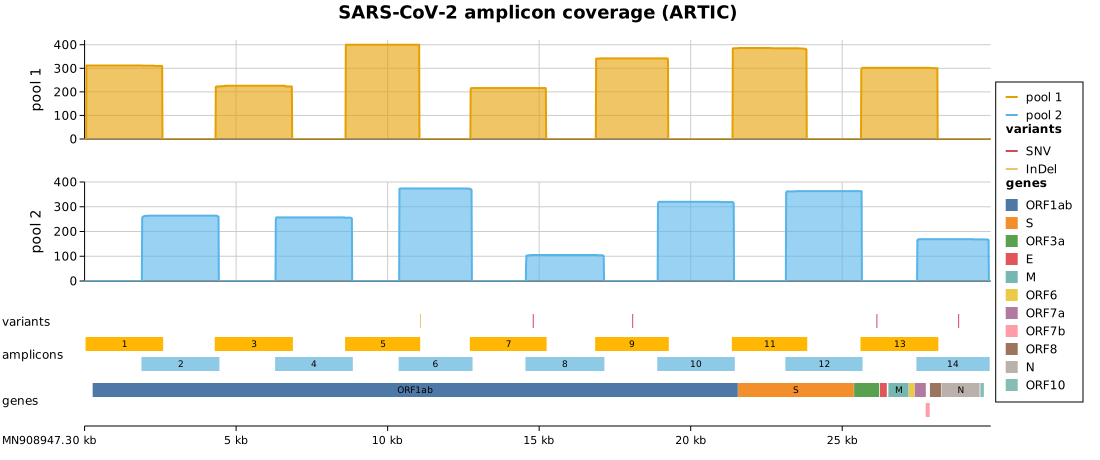
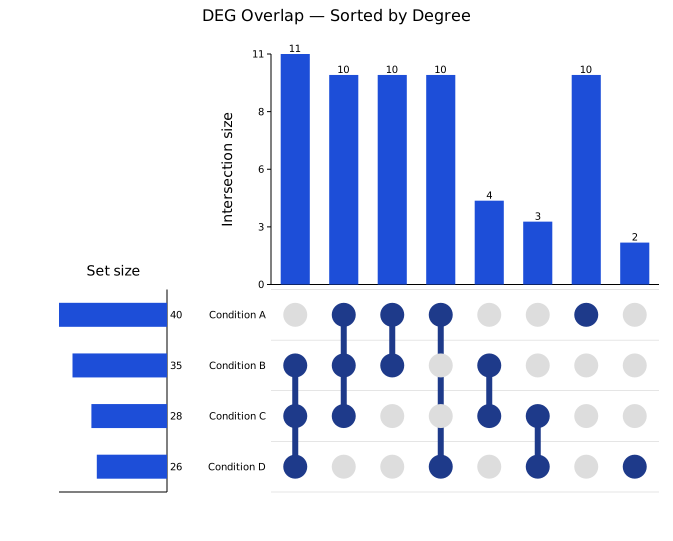
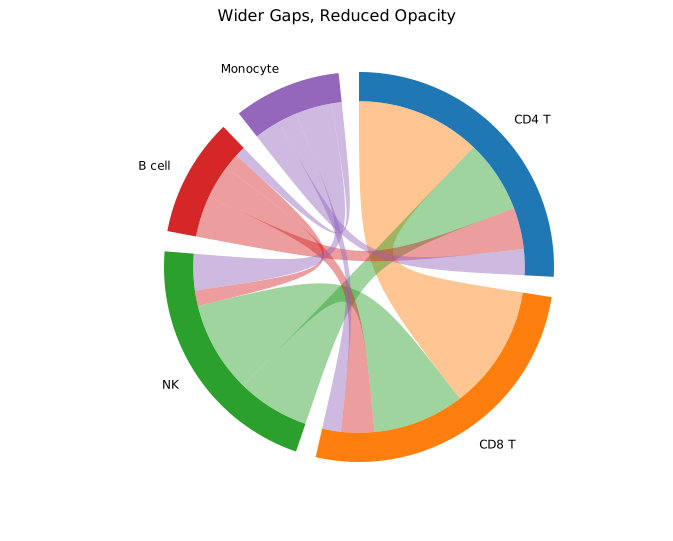
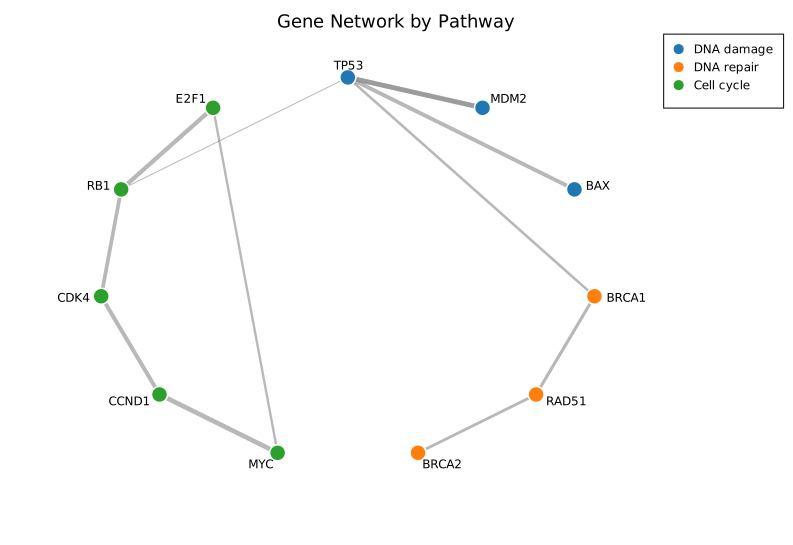
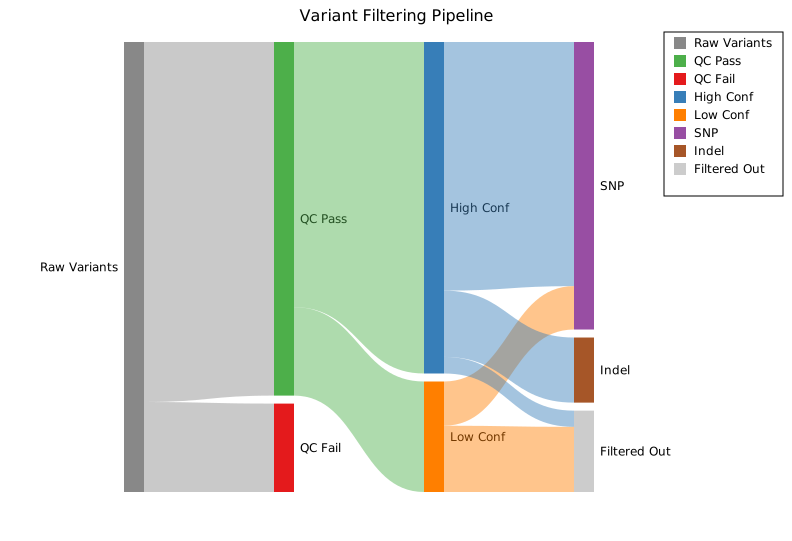
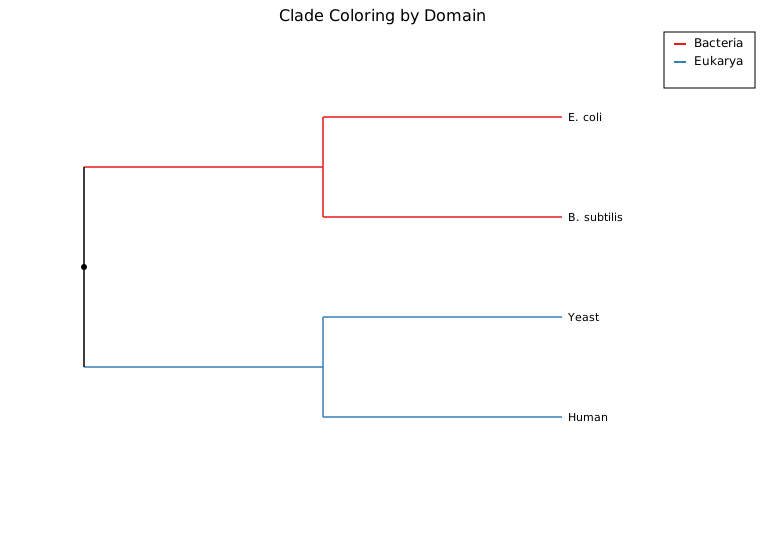
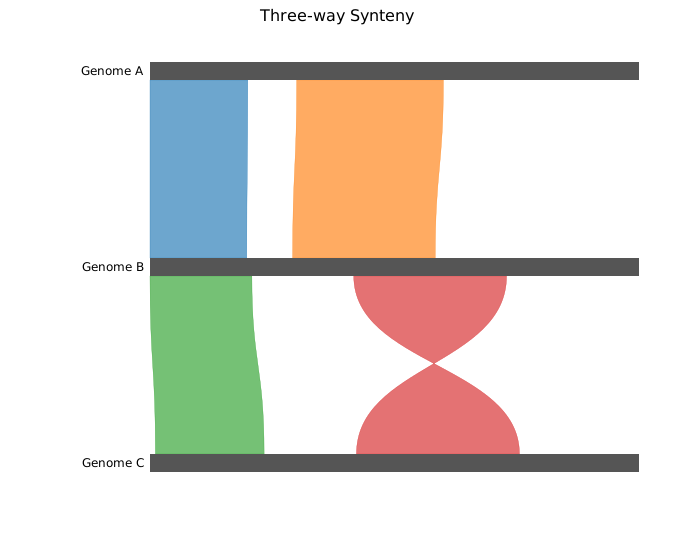
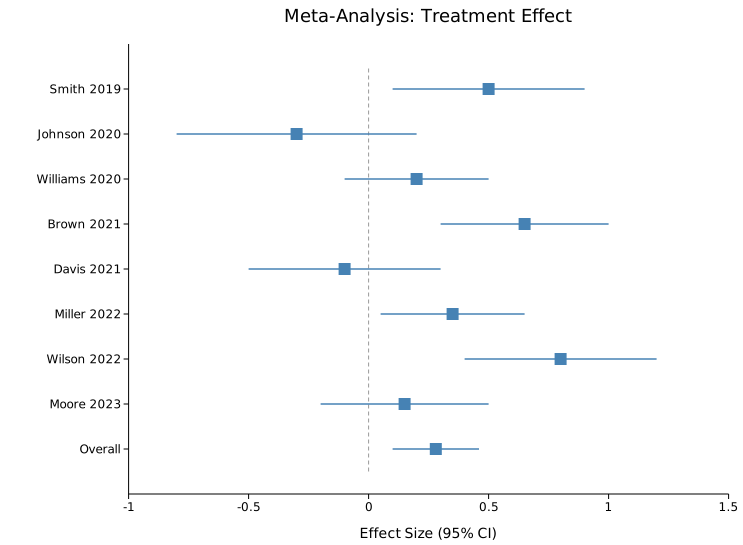
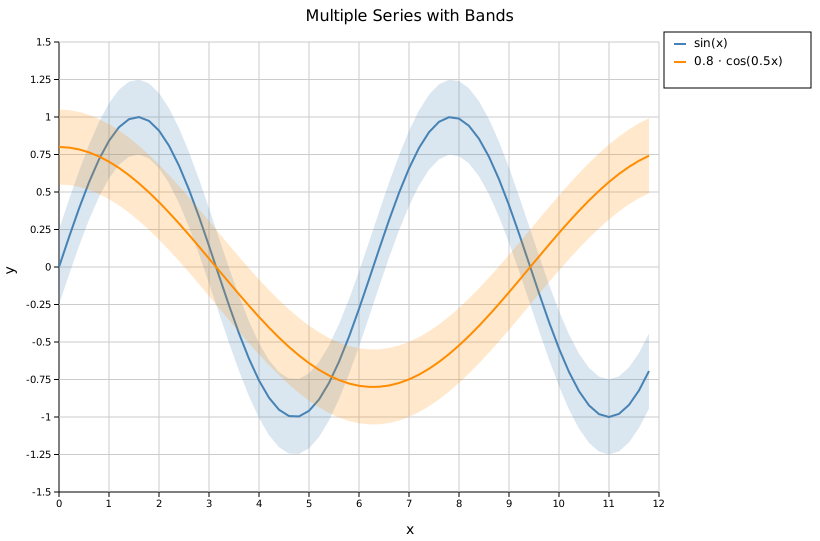
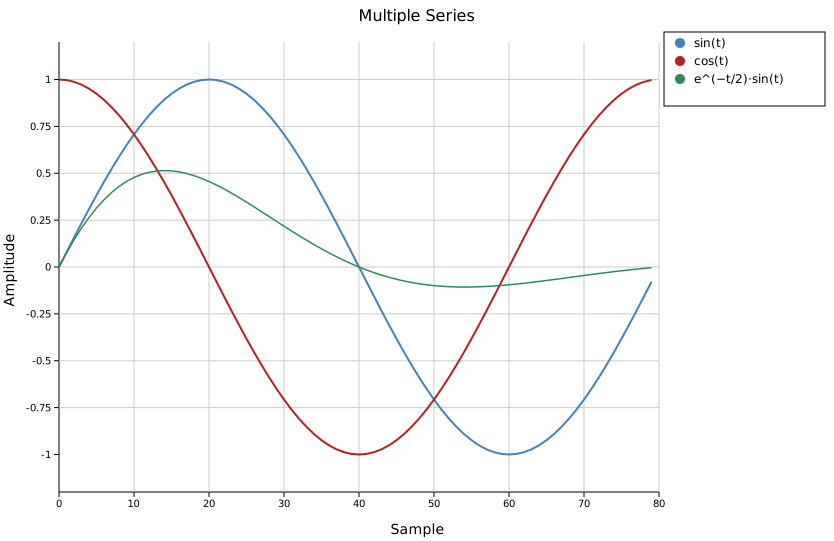
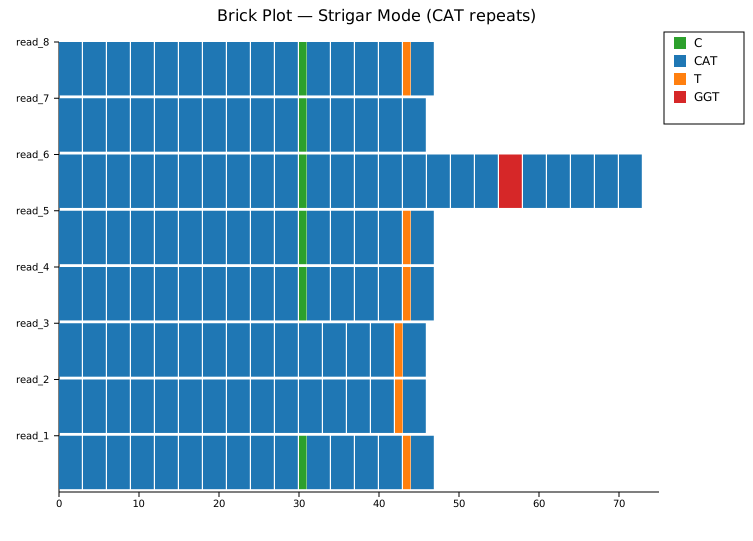
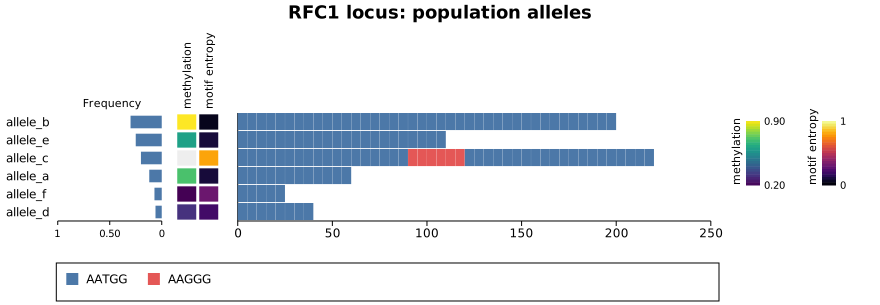
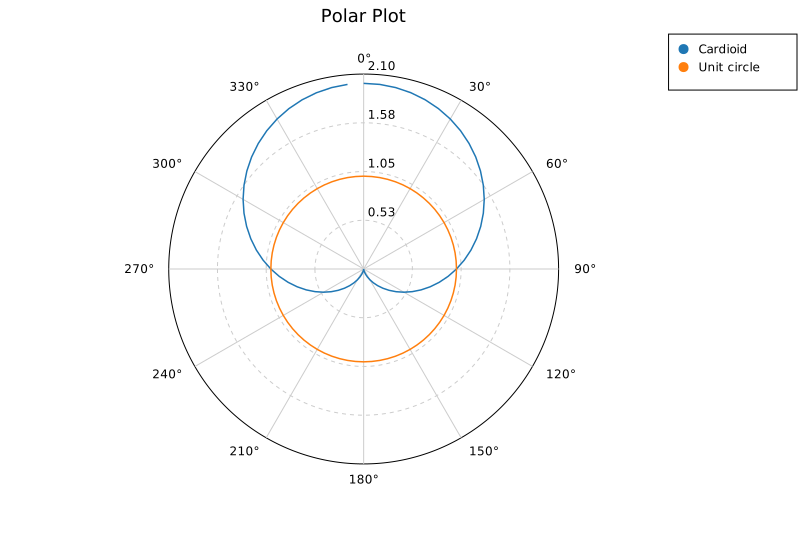
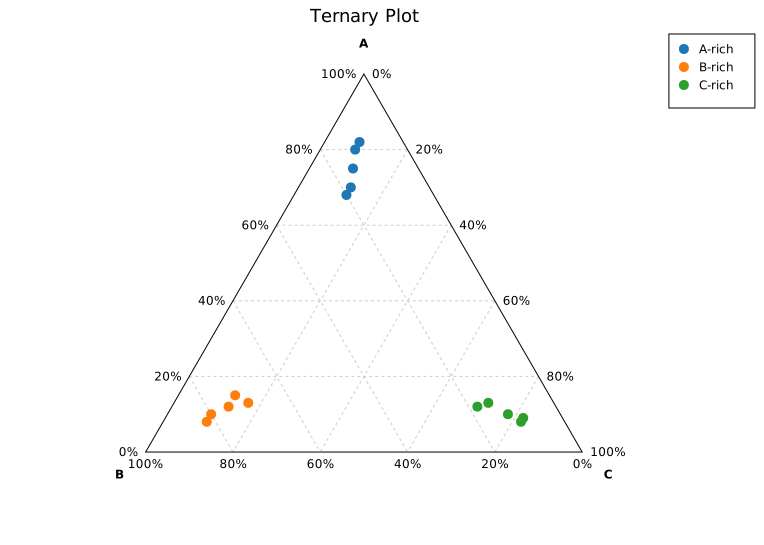
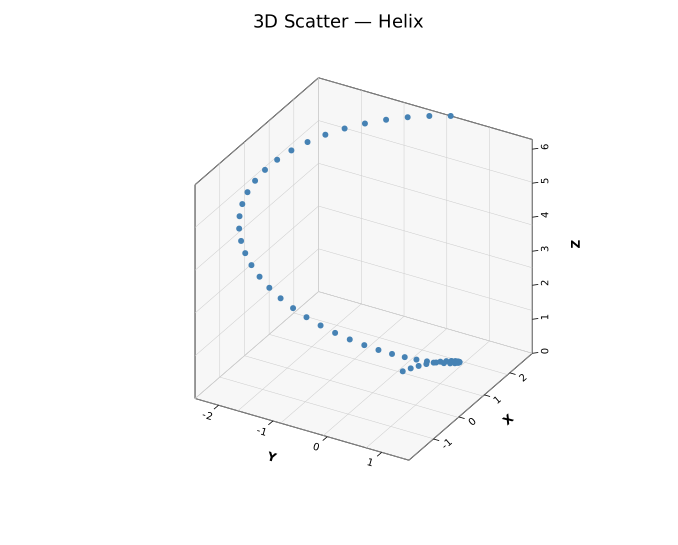
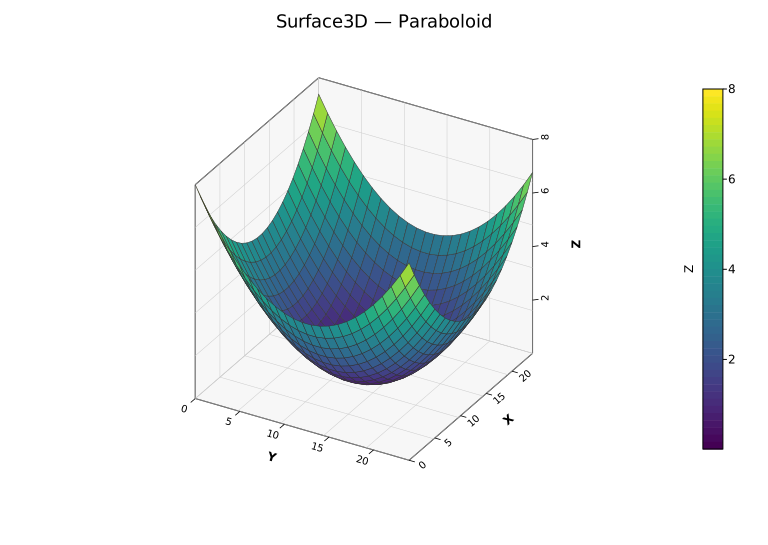
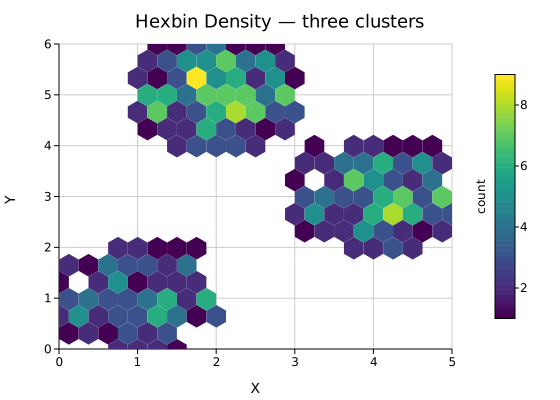
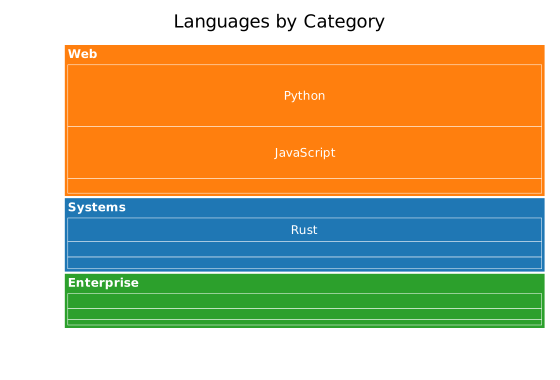
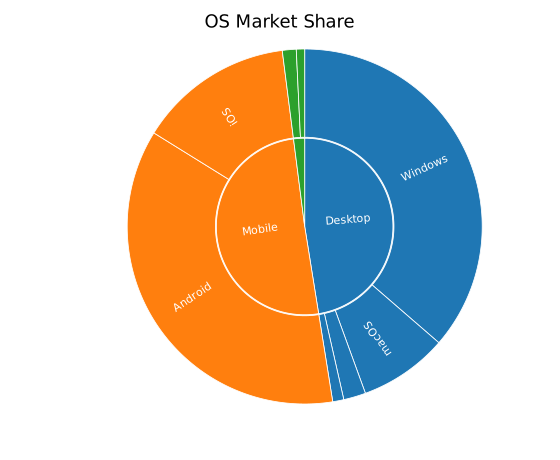
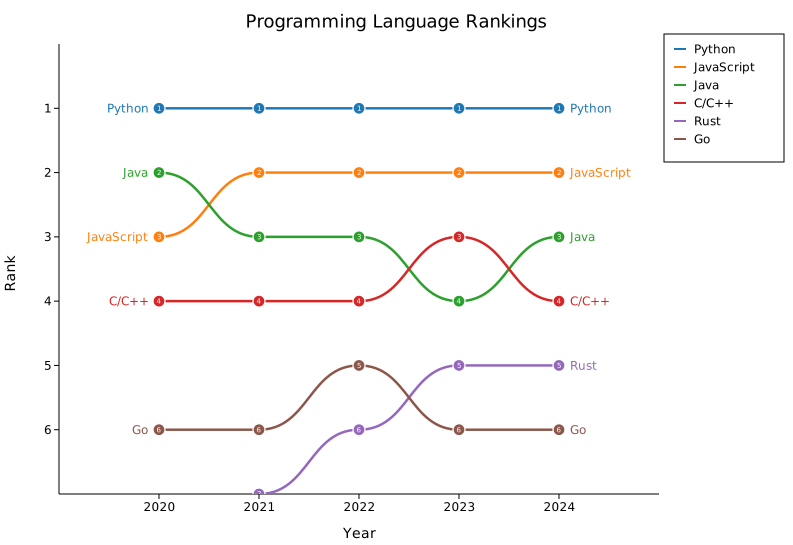
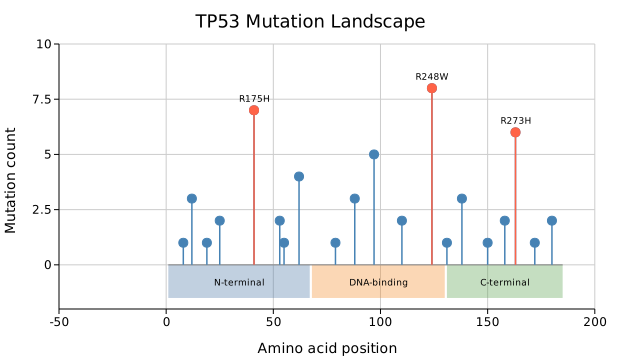
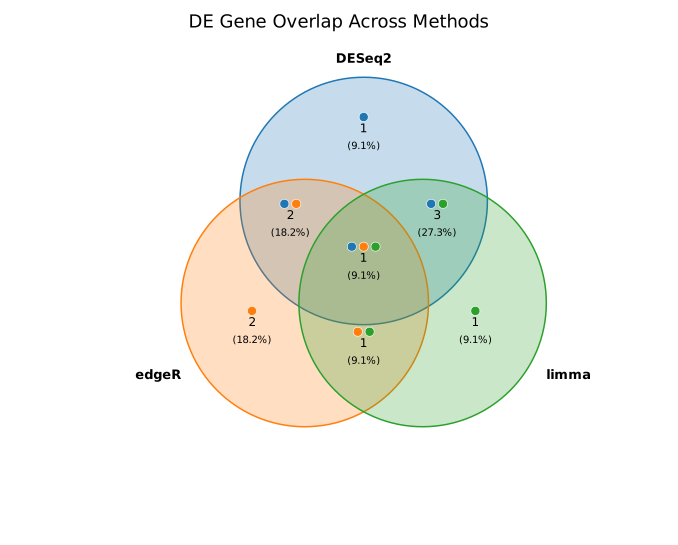
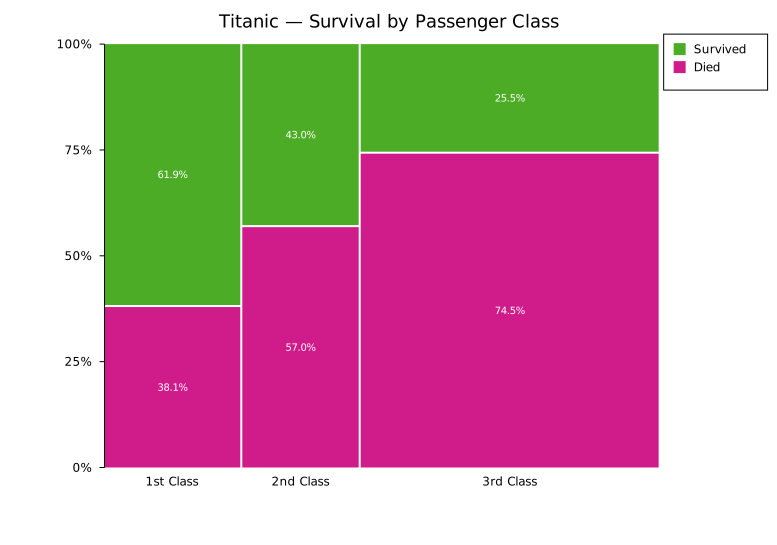
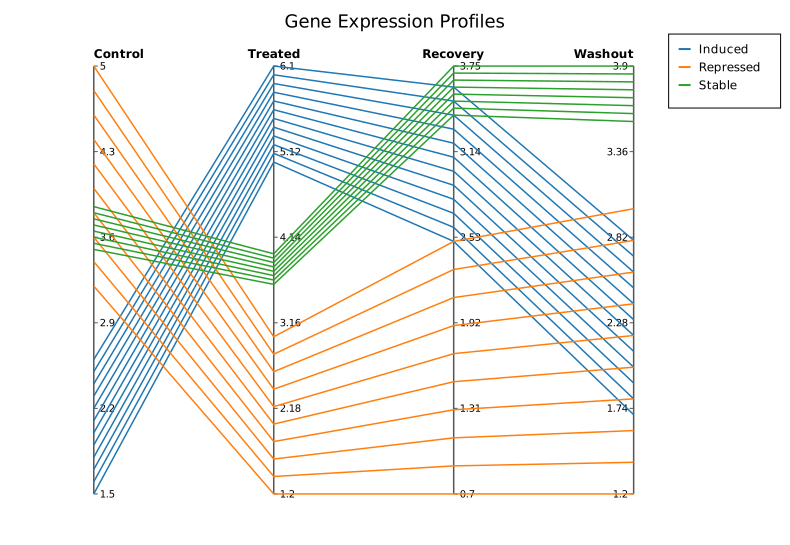
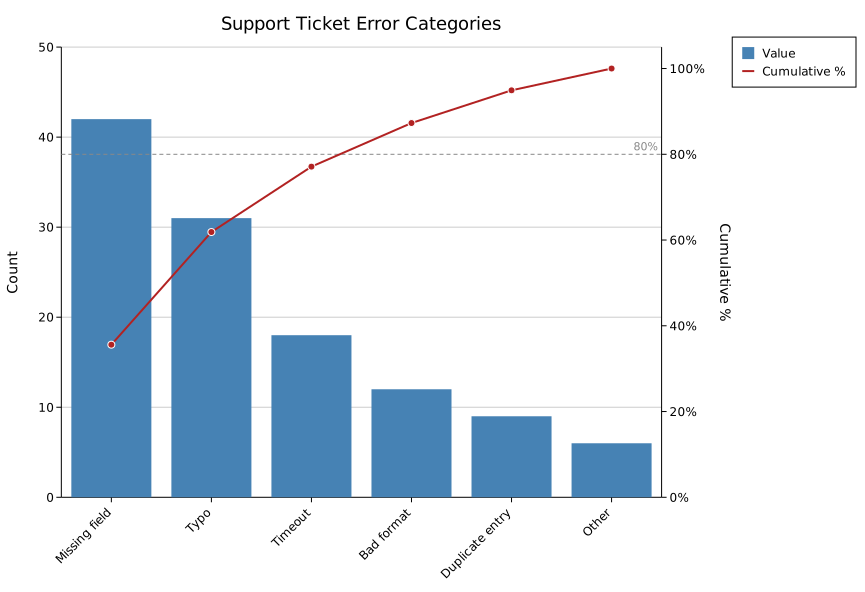
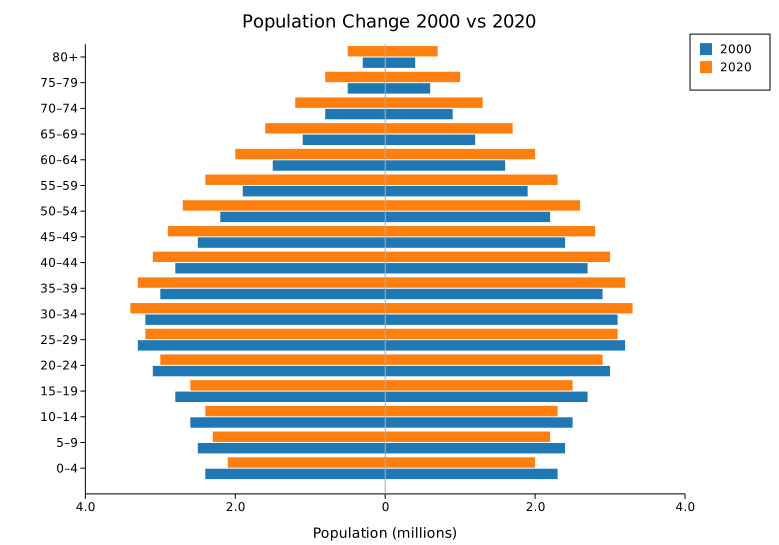
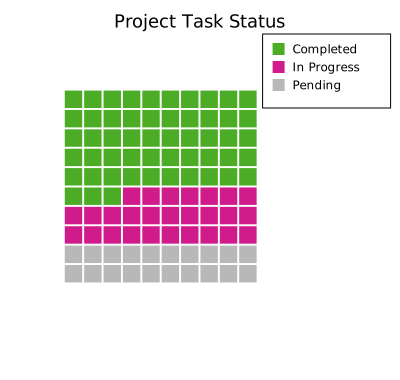
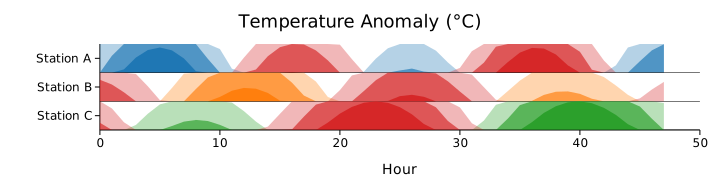
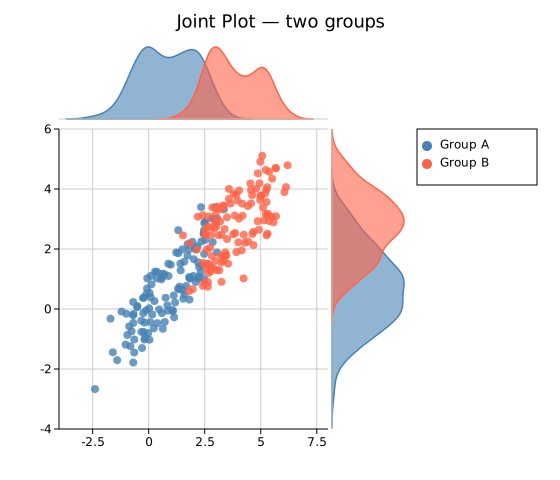
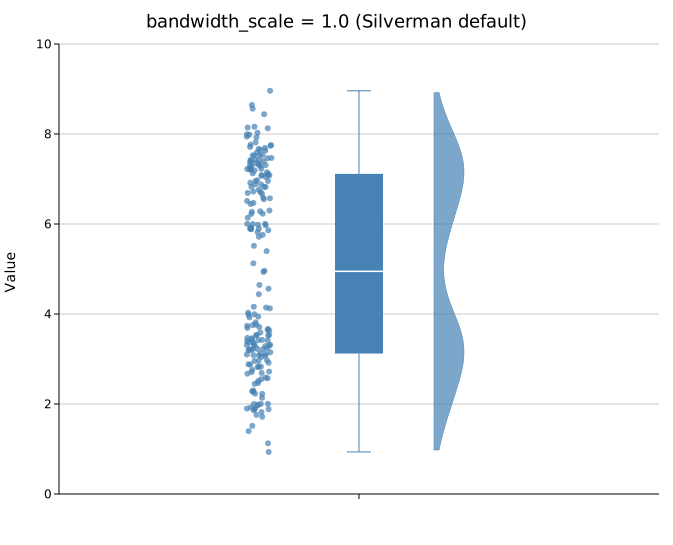
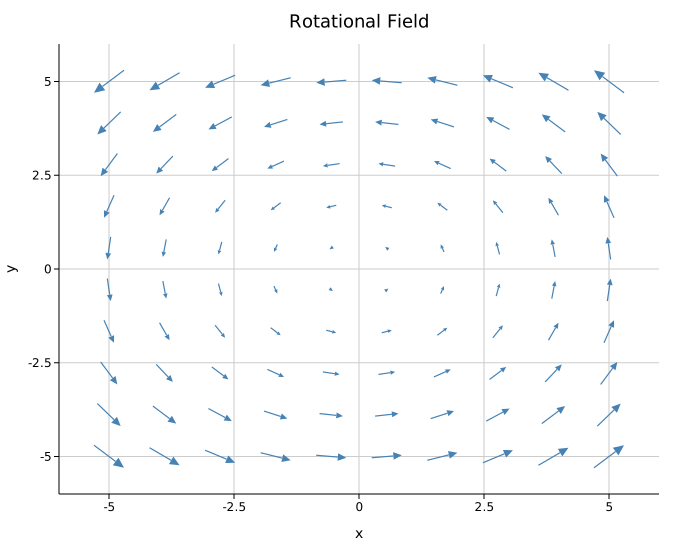
Showcase
The Gallery is one card per plot type. This page is the opposite: a few elaborate compositions that show what kuva looks like pushed further, not a catalog. Full source for everything below lives in examples/showcase.rs (SVGs) and docs/tapes/ (terminal recordings).
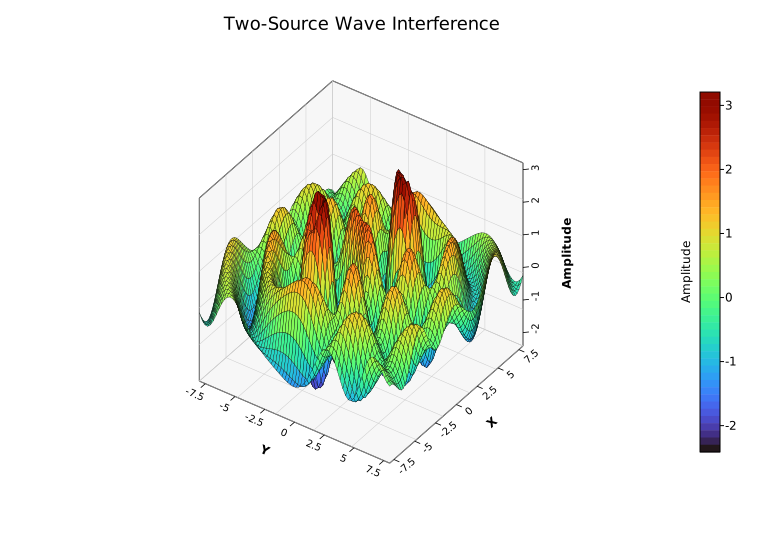
Two-source wave interference
One plot, pushed hard: no multi-panel layout, no dashboard framing, just a single 3D Surface Plot evaluated over a 70x70 grid from two interfering ripple sources, like two stones dropped in a pond. Surface3DPlot::with_data_fn builds the grid directly from a closure, so the whole shape is one function.
#![allow(unused)]
fn main() {
use kuva::backend::svg::SvgBackend;
use kuva::plot::surface3d::Surface3DPlot;
use kuva::plot::ColorMap;
use kuva::render::layout::Layout;
use kuva::render::plots::Plot;
use kuva::render::render::render_multiple;

let source_a = (-3.2, -1.5);
let source_b = (2.6, 2.0);

let z_fn = |x: f64, y: f64| {
    let r_a = ((x - source_a.0).powi(2) + (y - source_a.1).powi(2)).sqrt();
    let r_b = ((x - source_b.0).powi(2) + (y - source_b.1).powi(2)).sqrt();
    let ripple_a = (r_a * 2.2).sin() / (r_a * 0.6 + 1.0);
    let ripple_b = (r_b * 2.2).sin() / (r_b * 0.6 + 1.0);
    3.5 * (ripple_a + ripple_b)
};

let surface = Surface3DPlot::new(vec![])
    .with_data_fn(z_fn, -8.0..=8.0, -8.0..=8.0, 70, 70)
    .with_z_colormap(ColorMap::Turbo)
    .with_wireframe_color("#00000030")
    .with_wireframe_width(0.3)
    .with_azimuth(-55.0)
    .with_elevation(38.0)
    .with_x_label("X")
    .with_y_label("Y")
    .with_z_label("Amplitude");

let plots = vec![Plot::Surface3D(surface)];
let layout = Layout::auto_from_plots(&plots).with_title("Two-Source Wave Interference");
let svg = SvgBackend.render_scene(&render_multiple(plots, layout));
std::fs::write("interference.svg", svg).unwrap();
}
Multi-panel dashboard
A Figure with a twin-Y panel (two independent y-axes sharing one x-axis) next to a plain scatter panel with a fitted trend line, all sharing one legend on the right.
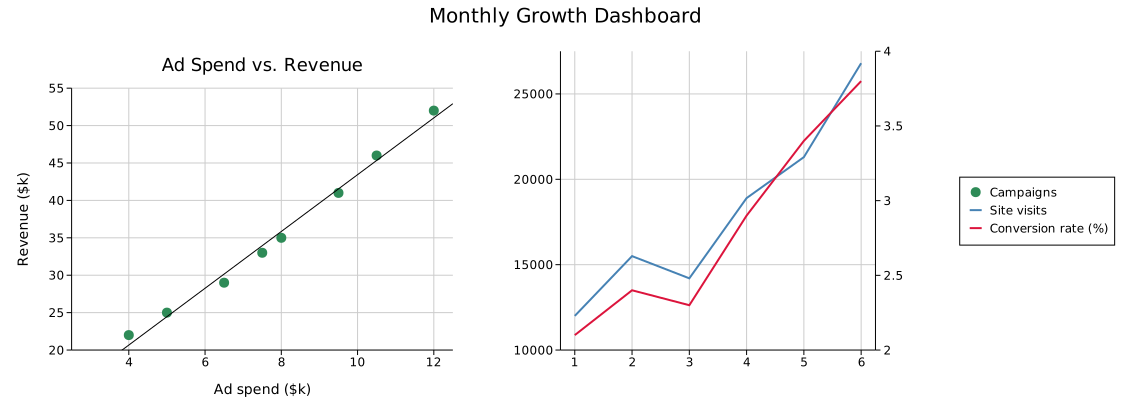
#![allow(unused)]
fn main() {
use kuva::backend::svg::SvgBackend;
use kuva::plot::scatter::TrendLine;
use kuva::plot::{LinePlot, ScatterPlot};
use kuva::render::figure::Figure;
use kuva::render::layout::Layout;
use kuva::render::plots::Plot;

let visits = vec![(1.0, 12_000.0), (2.0, 15_500.0), (3.0, 14_200.0), (4.0, 18_900.0)];
let conversion = vec![(1.0, 2.1), (2.0, 2.4), (3.0, 2.3), (4.0, 2.9)];

let primary = vec![Plot::Line(LinePlot::new().with_data(visits).with_color("steelblue").with_legend("Site visits"))];
let secondary = vec![Plot::Line(LinePlot::new().with_data(conversion).with_color("crimson").with_legend("Conversion rate (%)"))];

let spend_revenue = vec![(4.0, 22.0), (6.5, 29.0), (8.0, 35.0), (12.0, 52.0)];
let scatter_panel = vec![Plot::Scatter(
    ScatterPlot::new()
        .with_data(spend_revenue)
        .with_color("seagreen")
        .with_legend("Campaigns")
        .with_trend(TrendLine::Linear),
)];

// `with_layouts` matches cells positionally by index, so the twin-Y cell
// (which has no entry here) must come *after* every cell that does: it
// falls through to `Layout::auto_from_twin_y_plots` automatically.
let layouts = vec![Layout::auto_from_plots(&scatter_panel).with_title("Ad Spend vs. Revenue")];

let scene = Figure::new(1, 2)
    .with_title("Monthly Growth Dashboard")
    .with_plots(vec![scatter_panel, vec![]])
    .with_twin_y_plots(1, primary, secondary)
    .with_layouts(layouts)
    .with_shared_legend()
    .render();

std::fs::write("dashboard.svg", SvgBackend.render_scene(&scene)).unwrap();
}
Genomics dashboard
Leaning into kuva's bioinformatics niche: a GWAS Manhattan plot, a gene-expression Clustermap, and a Phylogenetic Tree, composed in one Figure.
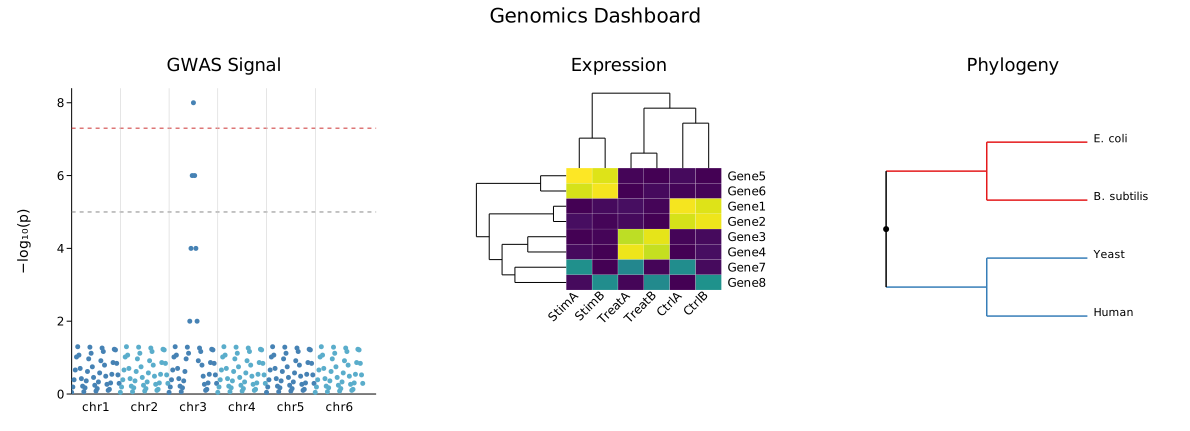
Notice the Manhattan panel has full axes and tick labels, while the Clustermap and Phylogeny panels don't: both are pixel-space plot types (their own dendrograms/branch layouts stand in for axes), so this mix of "with axes" and "without" is what combining different plot personalities in one Figure actually looks like, not a rendering bug.
#![allow(unused)]
fn main() {
use kuva::backend::svg::SvgBackend;
use kuva::plot::{Clustermap, ColorMap, ManhattanPlot, PhyloTree};
use kuva::render::figure::Figure;
use kuva::render::layout::Layout;
use kuva::render::plots::Plot;

// `with_data` takes *raw* p-values (0..1) and computes -log10(p) itself.
let gwas: Vec<(String, f64)> = vec![
    ("chr1".into(), 0.42), ("chr1".into(), 0.08),
    ("chr3".into(), 3e-8), ("chr3".into(), 0.31),
];
let manhattan = vec![Plot::Manhattan(ManhattanPlot::new().with_data(gwas))];

let expr = vec![
    vec![8.2, 7.9, 0.4, 0.2, 0.1, 0.3],
    vec![0.2, 0.3, 7.5, 8.0, 0.1, 0.2],
];
let clustermap = vec![Plot::Clustermap(
    Clustermap::new()
        .with_data(expr)
        .with_row_labels(["Gene1", "Gene3"])
        .with_col_labels(["CtrlA", "CtrlB", "TreatA", "TreatB", "StimA", "StimB"])
        .with_color_map(ColorMap::Viridis),
)];

let edges: Vec<(&str, &str, f64)> = vec![
    ("root", "Bacteria", 1.5),
    ("root", "Eukarya", 2.0),
    ("Bacteria", "E. coli", 0.5),
    ("Eukarya", "Human", 0.8),
];
let phylo = vec![Plot::PhyloTree(PhyloTree::from_edges(&edges))];

let layouts = vec![
    Layout::auto_from_plots(&manhattan).with_title("GWAS Signal").with_y_label("−log₁₀(p)"),
    Layout::auto_from_plots(&clustermap).with_title("Expression"),
    Layout::auto_from_plots(&phylo).with_title("Phylogeny"),
];

let scene = Figure::new(1, 3)
    .with_title("Genomics Dashboard")
    .with_plots(vec![manhattan, clustermap, phylo])
    .with_layouts(layouts)
    .render();

std::fs::write("genomics_dashboard.svg", SvgBackend.render_scene(&scene)).unwrap();
}
The Iris dataset
The real Fisher/Anderson iris dataset: 150 flowers, three species, petal length vs. petal width. One marker shape and fitted trend line per species. Setosa's famous linear separability from the other two species gets an arrowed TextAnnotation.
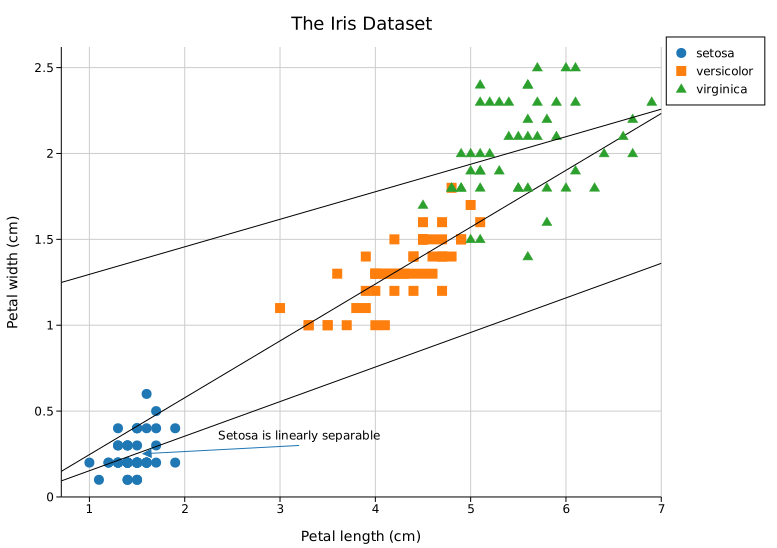
#![allow(unused)]
fn main() {
use kuva::backend::svg::SvgBackend;
use kuva::plot::scatter::TrendLine;
use kuva::plot::{MarkerShape, ScatterPlot};
use kuva::render::annotations::TextAnnotation;
use kuva::render::layout::Layout;
use kuva::render::plots::Plot;
use kuva::render::render::render_multiple;

// (petal_length, petal_width): real data, a handful of rows per species
let setosa = vec![(1.4, 0.2), (1.4, 0.2), (1.3, 0.2), (1.5, 0.2)];
let versicolor = vec![(4.7, 1.4), (4.5, 1.5), (4.9, 1.5), (4.0, 1.3)];
let virginica = vec![(6.0, 2.5), (5.1, 1.9), (5.9, 2.1), (5.6, 1.8)];

let species: [(&str, MarkerShape, &str, Vec<(f64, f64)>); 3] = [
    ("setosa", MarkerShape::Circle, "#1f77b4", setosa),
    ("versicolor", MarkerShape::Square, "#ff7f0e", versicolor),
    ("virginica", MarkerShape::Triangle, "#2ca02c", virginica),
];

let plots: Vec<Plot> = species
    .into_iter()
    .map(|(label, marker, color, data)| {
        Plot::Scatter(
            ScatterPlot::new()
                .with_data(data)
                .with_color(color)
                .with_marker(marker)
                .with_legend(label)
                .with_trend(TrendLine::Linear),
        )
    })
    .collect();

let layout = Layout::auto_from_plots(&plots)
    .with_title("The Iris Dataset")
    .with_annotation(
        TextAnnotation::new("Setosa is linearly separable", 3.2, 0.3).with_arrow(1.5, 0.25),
    );

std::fs::write("iris.svg", SvgBackend.render_scene(&render_multiple(plots, layout))).unwrap();
}
Global temperature anomaly
Real NASA GISS annual global temperature anomaly data, 1980 to 2025, against the 1951-1980 baseline. A raw annual LinePlot plus a computed 5-year rolling mean, the same annual-plus-smoothed presentation NASA's own public charts use for this series. Two reference lines (the baseline and the Paris Agreement's 1.5°C threshold) and an annotation on the warmest year on record.
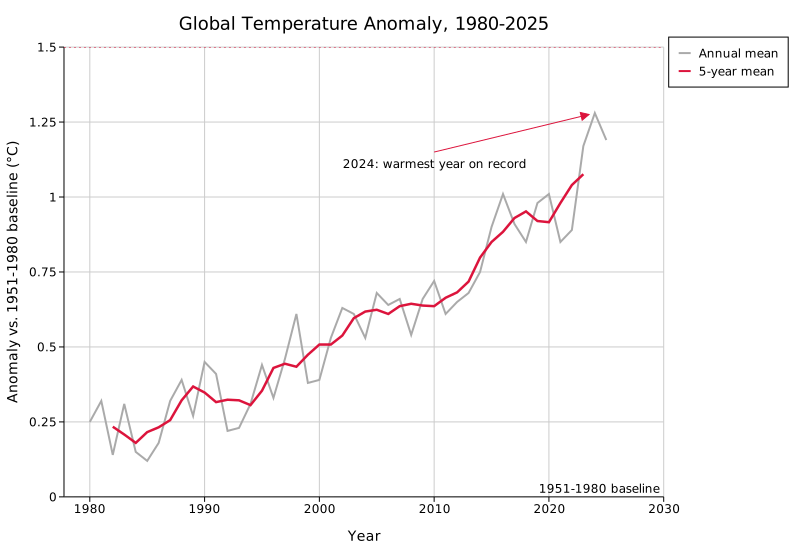
#![allow(unused)]
fn main() {
use kuva::backend::svg::SvgBackend;
use kuva::plot::LinePlot;
use kuva::render::annotations::{ReferenceLine, TextAnnotation};
use kuva::render::layout::Layout;
use kuva::render::plots::Plot;
use kuva::render::render::render_multiple;

// Real data, data.giss.nasa.gov/gistemp, GLB.Ts+dSST.csv, J-D column
let annual: Vec<(i32, f64)> = vec![
    (2021, 0.85), (2022, 0.89), (2023, 1.17), (2024, 1.28), (2025, 1.19),
];

let annual_line = Plot::Line(
    LinePlot::new()
        .with_data(annual.iter().map(|&(y, v)| (y as f64, v)))
        .with_color("#aaaaaa")
        .with_legend("Annual mean"),
);

// 5-year centered rolling mean
let smoothed: Vec<(f64, f64)> = annual
    .windows(5)
    .map(|w| (w[2].0 as f64, w.iter().map(|&(_, v)| v).sum::<f64>() / 5.0))
    .collect();
let smoothed_line = Plot::Line(
    LinePlot::new()
        .with_data(smoothed)
        .with_color("crimson")
        .with_stroke_width(2.5)
        .with_legend("5-year mean"),
);

let plots = vec![annual_line, smoothed_line];
let layout = Layout::auto_from_plots(&plots)
    .with_title("Global Temperature Anomaly, 1980-2025")
    .with_reference_line(ReferenceLine::horizontal(0.0).with_label("1951-1980 baseline"))
    .with_reference_line(
        ReferenceLine::horizontal(1.5).with_color("crimson").with_label("Paris Agreement 1.5°C"),
    )
    .with_annotation(
        TextAnnotation::new("2024: warmest year on record", 2010.0, 1.15)
            .with_arrow(2024.0, 1.28)
            .with_color("crimson"),
    );

std::fs::write("temperature.svg", SvgBackend.render_scene(&render_multiple(plots, layout))).unwrap();
}
Airway smooth muscle: dexamethasone response
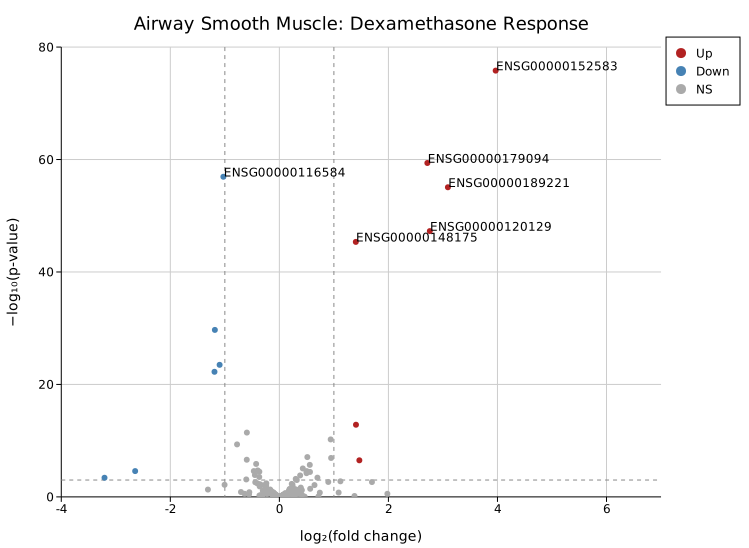
A Volcano Plot built entirely from real DESeq2 output for the classic Himes et al. 2014 airway RNA-seq experiment (dexamethasone-treated airway smooth muscle cells): around 230 genes taken directly, in their original file order, from a published results table, plus the 6 most significant genes overall from a separate real run of the same dataset. No synthetic filler; the non-significant cloud and the graded tail of increasingly significant genes leading up to the extreme hits are both real, which is what actually gives it a volcano shape instead of two disconnected clusters. Significance coloring and the dashed fold-change/p-value threshold lines are automatic, and .with_label_top(6) picks out the 6 real most-significant genes and labels them by their Ensembl gene ID.
#![allow(unused)]
fn main() {
use kuva::backend::svg::SvgBackend;
use kuva::plot::VolcanoPlot;
use kuva::render::layout::Layout;
use kuva::render::plots::Plot;
use kuva::render::render::render_multiple;

// Real DESeq2 output for the airway dataset (Himes et al. 2014): a broad,
// unsorted sample plus the most significant genes overall
let points = vec![
    ("ENSG00000000003".to_string(), 0.381, 1.52e-4),
    ("ENSG00000003402".to_string(), -1.190, 5.66e-23),
    ("ENSG00000152583".to_string(), 3.966942, 1.541835e-76),
    ("ENSG00000116584".to_string(), -1.026994, 1.160615e-57),
];

let volcano = VolcanoPlot::new()
    .with_points(points)
    .with_fc_cutoff(1.0)
    .with_p_cutoff(0.001)
    .with_label_top(6);

let plots = vec![Plot::Volcano(volcano)];
let layout = Layout::auto_from_plots(&plots).with_title("Airway Smooth Muscle: Dexamethasone Response");

std::fs::write("volcano.svg", SvgBackend.render_scene(&render_multiple(plots, layout))).unwrap();
}
Breast cancer diagnosis: feature discriminative power
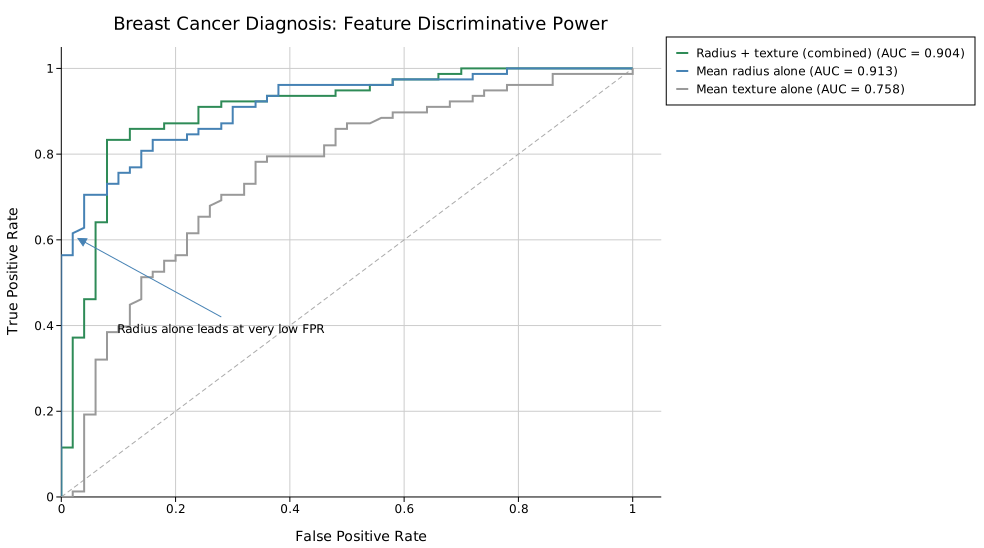
Three naive "classifiers" compared on one ROC axes, built from real diagnostic measurements in the UCI Breast Cancer Wisconsin (Diagnostic) dataset: mean radius alone, mean texture alone, and a simple combined z-score of both. RocGroup::with_raw takes raw (score, is_malignant) pairs and computes AUC (with the diagonal reference line) automatically per group; no manual curve-fitting or AUC math required.
The real result is genuinely counterintuitive, and worth spelling out rather than just reading off the legend: the two curves actually cross. In the middle of the false-positive-rate range the combined score has a higher true-positive rate than radius alone, which is the more visually obvious "knee" in the chart. But right at the very start, from FPR 0 up to about 0.05, radius alone has a much larger lead (TPR 0.56–0.70 for radius alone vs. 0.11–0.46 for the combined score at those same false-positive rates). AUC integrates the entire curve, not just the region a viewer's eye is drawn to, and radius's dominant early lead outweighs the combined score's smaller mid-range advantage once the whole curve is summed. That's why radius alone still wins on total AUC (0.913 vs. 0.904) despite not having the more dramatic knee.
#![allow(unused)]
fn main() {
use kuva::backend::svg::SvgBackend;
use kuva::plot::{RocGroup, RocPlot};
use kuva::render::annotations::TextAnnotation;
use kuva::render::layout::Layout;
use kuva::render::plots::Plot;
use kuva::render::render::render_multiple;

// (is_malignant, radius_mean, texture_mean): real data, UCI Breast Cancer
// Wisconsin (Diagnostic) dataset
let samples: Vec<(bool, f64, f64)> = vec![
    (true, 17.99, 10.38), (true, 20.57, 17.77), (false, 13.54, 14.36), (false, 13.08, 15.71),
];

let radius = RocGroup::new("Mean radius alone")
    .with_raw(samples.iter().map(|&(m, r, _)| (r, m)))
    .with_color("steelblue");
let texture = RocGroup::new("Mean texture alone")
    .with_raw(samples.iter().map(|&(m, _, t)| (t, m)))
    .with_color("#999999");

let roc = RocPlot::new().with_groups([radius, texture]).with_legend("Naive classifiers");

let plots = vec![Plot::Roc(roc)];
let layout = Layout::auto_from_plots(&plots)
    .with_title("Breast Cancer Diagnosis: Feature Discriminative Power")
    .with_annotation(
        TextAnnotation::new("Radius alone leads at very low FPR", 0.28, 0.42)
            .with_arrow(0.02, 0.61)
            .with_color("steelblue"),
    );

std::fs::write("roc.svg", SvgBackend.render_scene(&render_multiple(plots, layout))).unwrap();
}
E-commerce's share of US retail sales
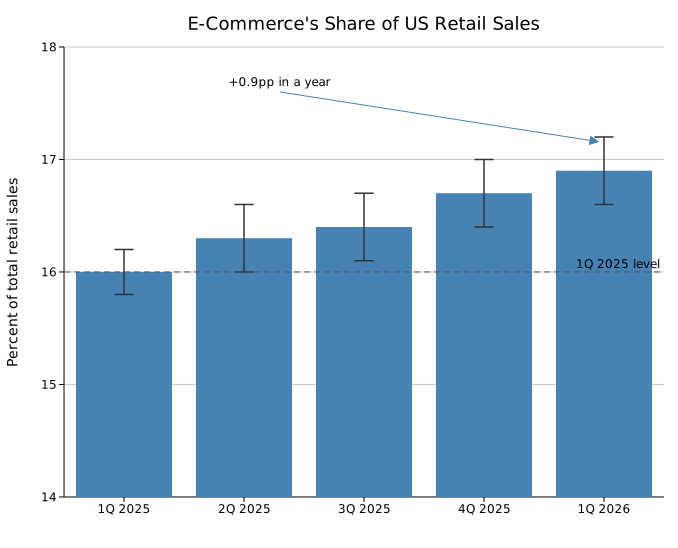
A Bar Chart with symmetric error bars from the real reported standard error, real Census Bureau quarterly e-commerce share of total US retail sales, and a reference line at the year-ago level. The y-axis starts at 14%, not zero, so the real quarter-over-quarter rise (a genuine but small change relative to a 0-100% scale) is actually visible; a bar chart zoomed in like this is worth saying so plainly rather than leaving it for the reader to notice.
#![allow(unused)]
fn main() {
use kuva::backend::svg::SvgBackend;
use kuva::plot::BarPlot;
use kuva::render::annotations::{ReferenceLine, TextAnnotation};
use kuva::render::layout::Layout;
use kuva::render::plots::Plot;
use kuva::render::render::render_multiple;

// Real data, Census Bureau Quarterly Retail E-Commerce Sales, 1st Quarter 2026 report
let quarters = [("1Q 2025", 16.0), ("2Q 2025", 16.3), ("3Q 2025", 16.4), ("4Q 2025", 16.7), ("1Q 2026", 16.9)];
let errors = vec![0.2, 0.3, 0.3, 0.3, 0.3]; // real reported standard error

let bar = BarPlot::new().with_bars(quarters.to_vec()).with_color("steelblue").with_error(errors);

let plots = vec![Plot::Bar(bar)];
let layout = Layout::auto_from_plots(&plots)
    .with_title("E-Commerce's Share of US Retail Sales")
    .with_y_axis_min(14.0)
    .with_reference_line(ReferenceLine::horizontal(16.0).with_label("1Q 2025 level"))
    .with_annotation(TextAnnotation::new("+0.9pp in a year", 2.3, 17.6).with_arrow(5.0, 17.15));

std::fs::write("ecommerce.svg", SvgBackend.render_scene(&render_multiple(plots, layout))).unwrap();
}
Terminal rendering
Every plot above also renders directly in a terminal, via braille-grid graphics and ANSI color: no SVG, no browser needed. --terminal is supported on 20+ subcommands (see CLI: Terminal Output for the full list); a couple of the more visually striking ones, tying back into the genomics theme above:


These are generated with VHS from tape scripts in docs/tapes/; see CONTRIBUTING.md § "Setting up VHS" if you want to record a new one.
Every composition on this page is plain library code: build the Plot/Figure/Layout values, call .render(), write the SVG. That's also the shape of the CLI's --emit-code flag: build a plot from the command line, then get back the exact Rust source that reproduces it. The next step, sketched in issue #84 and not yet started, is a WASM-compiled composer in the browser, so this page's "paste the code, see the plot" loop works without a local Rust toolchain at all.
Origins
Before kuva had axes, themes, or 25 plot types, it had three blue circles. (It was also called visus back then)
The first output: three hardcoded circles, no background, no axes.
The very first proof-of-concept was just three blue dots on a transparent 500×500 canvas. No coordinate system, no margins, no layout. Just enough to confirm that the SVG pipeline worked end-to-end.
The next milestone was getting the library to automatically compute a layout from data:
- margins
- tick marks
- grid lines
- axis labels
all derived from the data bounds with no manual positioning.
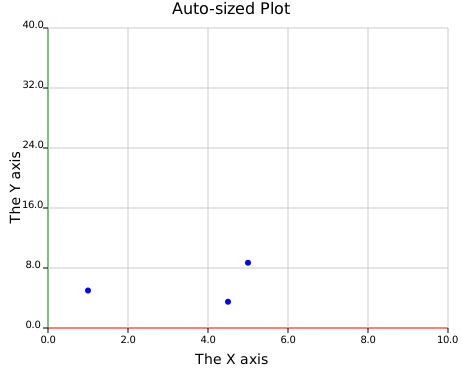
The first auto-sized plot: real ticks and labels computed from data.
scatter_autosized.svg was the moment the coordinate mapping started making sense. Data values mapped to
pixel positions, axes drawn automatically, tick intervals chosen from the data range. The red
x-axis and green y-axis are relics of the earliest rendering code, colour-coded for debugging.
That was the first plot that felt like a real plot. The rush I felt when this plot first rendered...wow.
Everything since has been built on that foundation.
Before LLM assistance
The first Claude Code session was opened on 20 February 2026, just to run /init and
generate a CLAUDE.md file. At that point the library already had 11 plot types, all
written from scratch:
ScatterPlot, LinePlot, BarPlot, Histogram, Histogram2D, BoxPlot, ViolinPlot,
PiePlot, SeriesPlot, Heatmap, BrickPlot
(Technically 10 compiled. BrickPlot had a syntax error on day one, because I was still figuring out STRIGAR processing from bladerunner, an STR calling tool I wrote)
The 14 plot types added with AI assistance:
BandPlot, WaterfallPlot, StripPlot, VolcanoPlot, ManhattanPlot, DotPlot,
UpSetPlot, StackedAreaPlot, CandlestickPlot, ContourPlot, ChordPlot, SankeyPlot,
PhyloTree, SyntenyPlot
The architecture, the rendering pipeline, the builder pattern API, and the core plotting logic were all designed and written before any LLM was involved.
On using LLM assistance
I want to be honest about this, because I think the discourse around AI and software is often dishonest in one direction or the other.
I am perfectly capable of writing everything in this library myself. I've been doing bioinformatics software development for years. The architecture here (the pipeline, the builder pattern, the primitive-based renderer) is all mine. I designed it, and I would have made the same design choices with or without an LLM. The deep domain knowledge of what a bioinformatician actually needs from a plotting library, the aesthetics, the decisions about which plot types to include and how their APIs should feel. None of that came from an LLM.
What LLM assistance changed was pace. Going from 11 plot types to 25, adding a full CLI, a terminal backend, a documentation book, smoke tests, and integration tests, all in roughly a week, that would have taken me much longer alone. Not because I couldn't do it, but because translating a clear mental model into working, tested code takes time, and that's where the acceleration is real.
It isn't a one-way process either. The LLM gets things wrong, proposes approaches that don't fit the existing code, or misses the intent entirely. Every feature required my involvement at every step: reviewing, redirecting, and often rejecting what was produced. A good example is the x-axis label positioning in the terminal backend. Getting tick labels to sit correctly in braille character cells, snapping to the right row, spacing correctly across different terminal heights, went through several wrong approaches before landing on the solution that actually works. That kind of problem requires someone who understands both what the output should look like and why a given implementation is producing the wrong result. The LLMs can generate absolute shit sometimes, and it's up to us to decide what is correct, and take responsibility for any of the output.
The honest summary: this is my library, reflecting my vision and expertise. The LLM is a fast, capable collaborator that I direct. I would not be publishing this so soon without that acceleration, but the work is mine. Your opinion of this may differ, and that's fine. But I really don't care and kuva exists, rather than not. That's all the validation I need.
Search
Search the kuva docs
Histogram
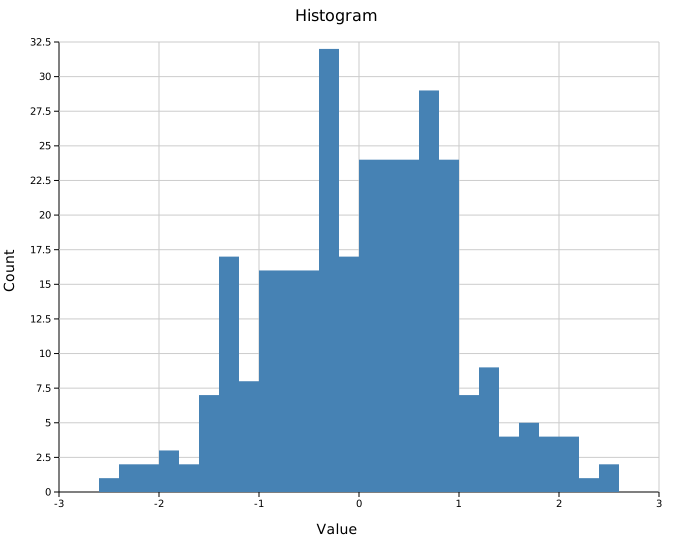
A histogram bins a 1-D dataset into equal-width intervals and renders each bin as a vertical bar. It supports explicit ranges, normalization, and overlapping distributions.
Import path: kuva::plot::Histogram
Basic usage
.with_range((min, max)) is required — without it Layout::auto_from_plots cannot determine the axis extent and will produce an empty chart. Compute the range from your data before building the histogram:
#![allow(unused)]
fn main() {
use kuva::plot::Histogram;
use kuva::backend::svg::SvgBackend;
use kuva::render::render::render_multiple;
use kuva::render::layout::Layout;
use kuva::render::plots::Plot;

let data: Vec<f64> = vec![/* your samples */];

// Compute range from data first.
let min = data.iter().cloned().fold(f64::INFINITY, f64::min);
let max = data.iter().cloned().fold(f64::NEG_INFINITY, f64::max);

let hist = Histogram::new()
    .with_data(data)
    .with_bins(20)
    .with_range((min, max))   // required for auto_from_plots
    .with_color("steelblue");

let plots = vec![Plot::Histogram(hist)];
let layout = Layout::auto_from_plots(&plots)
    .with_title("Histogram")
    .with_x_label("Value")
    .with_y_label("Count");

let scene = render_multiple(plots, layout);
let svg = SvgBackend.render_scene(&scene);
std::fs::write("histogram.svg", svg).unwrap();
}
Bin count
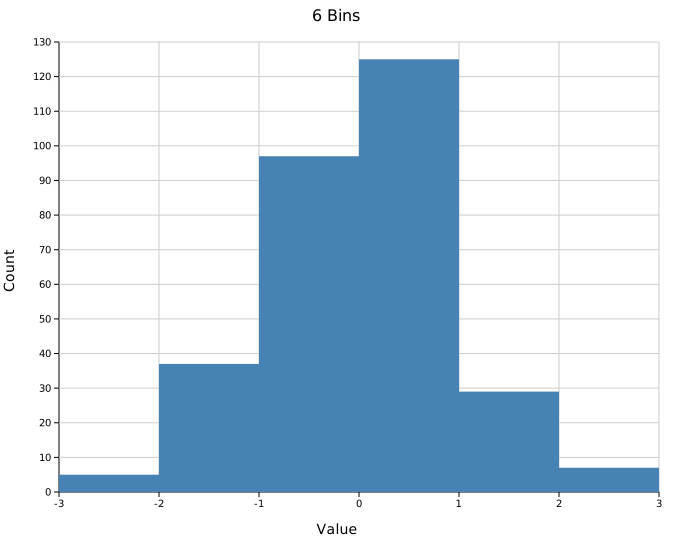
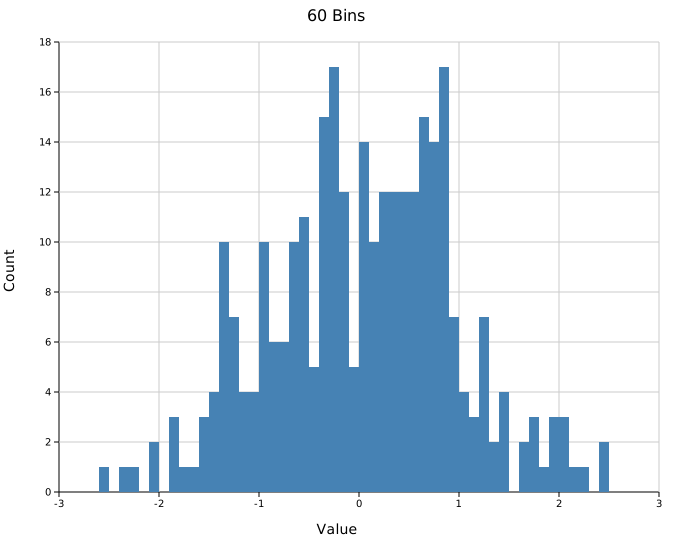
.with_bins(n) sets the number of equal-width bins (default 10). Fewer bins smooth out noise; more bins reveal finer structure at the cost of per-bin counts. The same range is used in both cases so the x-axis stays comparable.
#![allow(unused)]
fn main() {
use kuva::plot::Histogram;
// Coarse — few bins, clear shape
let hist = Histogram::new().with_data(data.clone()).with_bins(5).with_range(range);

// Fine — many bins, more detail
let hist = Histogram::new().with_data(data).with_bins(40).with_range(range);
}
 |
 |
Fixed range
Pass an explicit (min, max) to .with_range() to fix the bin edges regardless of the data. Values outside the range are silently ignored. This is useful when you want to focus on a sub-range, exclude outliers, or ensure two independent histograms cover the same x-axis scale.
#![allow(unused)]
fn main() {
use kuva::plot::Histogram;
let hist = Histogram::new()
    .with_data(data)
    .with_bins(20)
    .with_range((-3.0, 3.0))   // bins fixed to [-3, 3]; outliers ignored
    .with_color("steelblue");
}
Normalized histogram
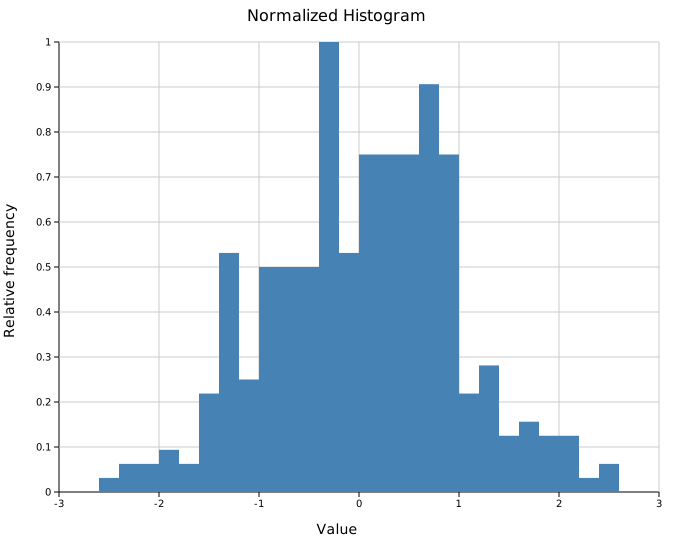
.with_normalize() rescales bar heights so the tallest bar equals 1.0. This is peak-normalization — useful for comparing the shape of distributions with different sample sizes. The y-axis shows relative frequency, not counts or probability density.
#![allow(unused)]
fn main() {
use kuva::plot::Histogram;
use kuva::backend::svg::SvgBackend;
use kuva::render::render::render_multiple;
use kuva::render::layout::Layout;
use kuva::render::plots::Plot;

let min = data.iter().cloned().fold(f64::INFINITY, f64::min);
let max = data.iter().cloned().fold(f64::NEG_INFINITY, f64::max);

let hist = Histogram::new()
    .with_data(data)
    .with_bins(20)
    .with_range((min, max))
    .with_color("steelblue")
    .with_normalize();

let plots = vec![Plot::Histogram(hist)];
let layout = Layout::auto_from_plots(&plots)
    .with_title("Normalized Histogram")
    .with_x_label("Value")
    .with_y_label("Relative frequency");
}
Overlapping distributions
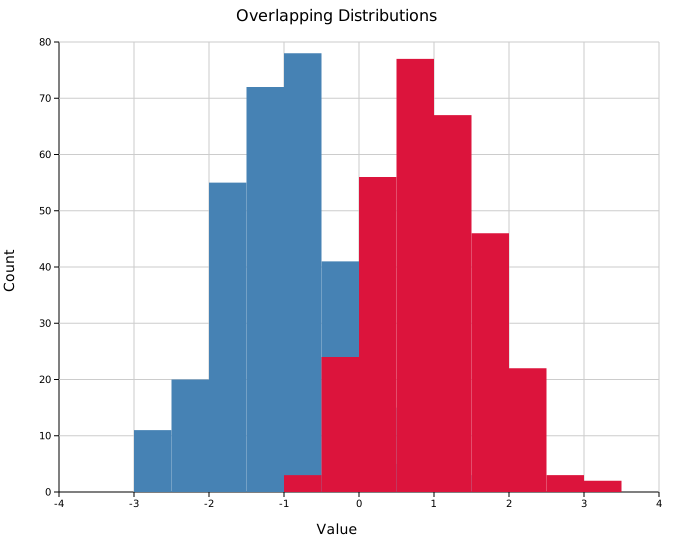
Place multiple Histogram structs in the same Vec<Plot>. Since bars have no built-in opacity setting, use 8-digit hex colors (#RRGGBBAA) to make each series semi-transparent so the overlap is visible.
When overlapping, compute a shared range from the combined data so both histograms use the same bin edges and x-axis scale:
#![allow(unused)]
fn main() {
use kuva::plot::Histogram;
use kuva::backend::svg::SvgBackend;
use kuva::render::render::render_multiple;
use kuva::render::layout::Layout;
use kuva::render::plots::Plot;

// Shared range across both groups so x-axes align.
let combined_min = group_a.iter().chain(group_b.iter())
    .cloned().fold(f64::INFINITY, f64::min);
let combined_max = group_a.iter().chain(group_b.iter())
    .cloned().fold(f64::NEG_INFINITY, f64::max);
let range = (combined_min, combined_max);

// #4682b480 = steelblue at ~50% opacity
// #dc143c80 = crimson  at ~50% opacity
let hist_a = Histogram::new()
    .with_data(group_a)
    .with_bins(20)
    .with_range(range)
    .with_color("#4682b480")
    .with_legend("Group A");

let hist_b = Histogram::new()
    .with_data(group_b)
    .with_bins(20)
    .with_range(range)
    .with_color("#dc143c80")
    .with_legend("Group B");

let plots = vec![Plot::Histogram(hist_a), Plot::Histogram(hist_b)];
let layout = Layout::auto_from_plots(&plots)
    .with_title("Overlapping Distributions")
    .with_x_label("Value")
    .with_y_label("Count");

let svg = SvgBackend.render_scene(&render_multiple(plots, layout));
}

The AA byte in the hex color controls opacity: ff = fully opaque, 80 ≈ 50%, 40 ≈ 25%.
Step (outline) mode
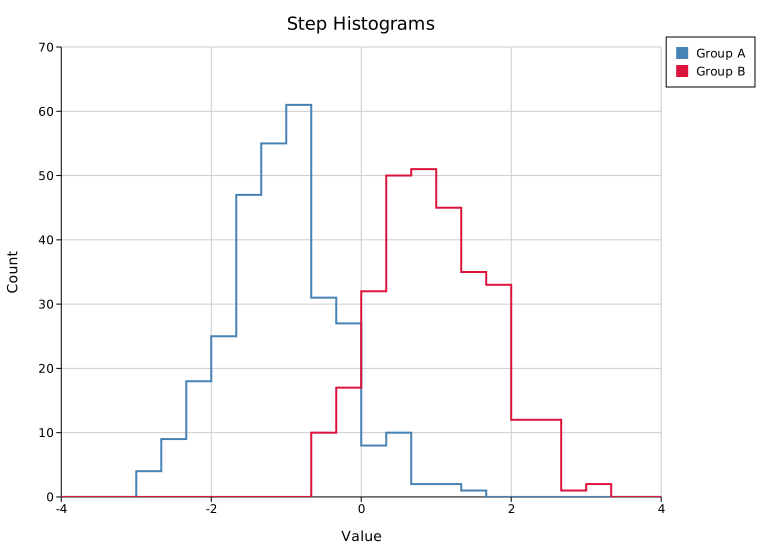
.with_step(true) draws each histogram as an outline-only staircase instead of filled bars. This is the cleanest way to overlay several distributions: the outlines never occlude each other, so you can skip the semi-transparent fills.
#![allow(unused)]
fn main() {
use kuva::plot::Histogram;
let hist_a = Histogram::new()
    .with_data(group_a).with_bins(24).with_range(range)
    .with_color("#4682b4").with_step(true).with_legend("Group A");
let hist_b = Histogram::new()
    .with_data(group_b).with_bins(24).with_range(range)
    .with_color("#dc143c").with_step(true).with_legend("Group B");
}
Cumulative mode
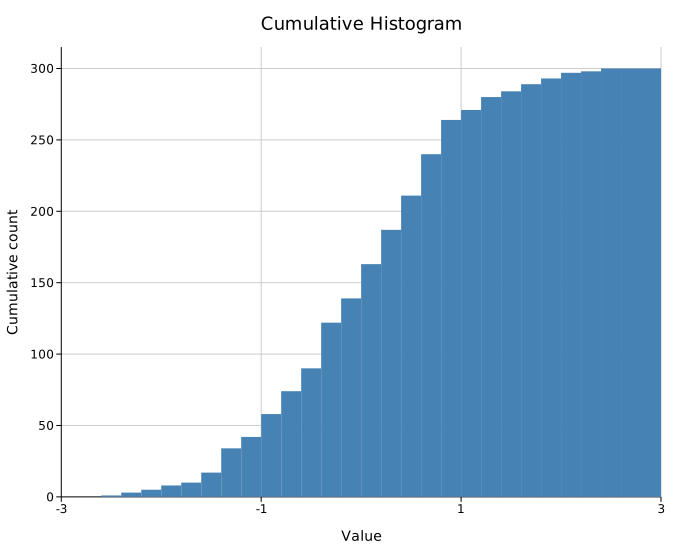
.with_cumulative(true) accumulates counts left-to-right, so each bar includes everything to its left and the final bar equals the total sample count. Combine with .with_normalize() for an empirical CDF-style view (peak scaled to 1.0).
#![allow(unused)]
fn main() {
use kuva::plot::Histogram;
let hist = Histogram::new()
    .with_data(data).with_bins(30).with_range((-3.0, 3.0))
    .with_color("steelblue").with_cumulative(true);
}
Stacked groups
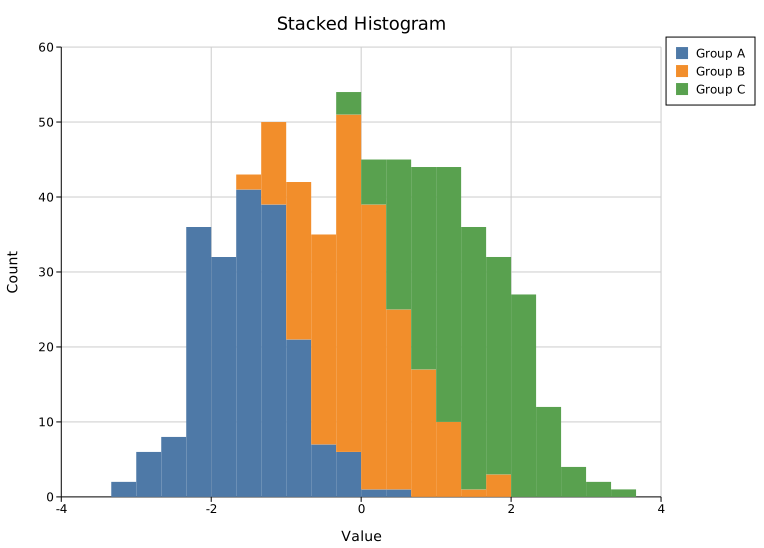
Add extra series with .with_group(data, color, label) and turn on .with_stacked(true) to sum them per bin, each group drawn on top of the one below. The primary series (from .with_data) is the bottom layer. Without .with_stacked(true), groups draw from a shared baseline (overlaid) instead.
#![allow(unused)]
fn main() {
use kuva::plot::Histogram;
let hist = Histogram::new()
    .with_data(group_a).with_bins(24).with_range(range)
    .with_color("#4e79a7").with_stacked(true).with_legend("Group A")
    .with_group(group_b, "#f28e2b", Some("Group B".to_string()))
    .with_group(group_c, "#59a14f", Some("Group C".to_string()));
}
Automatic bin count
.with_bin_method(BinMethod::…) picks the bin count from the data, overriding .with_bins. Three rules are available:
| Rule | Bin width / count | Best for |
|---|---|---|
BinMethod::Sturges | ceil(log2(n)) + 1 bins | Small, roughly Gaussian samples |
BinMethod::Scott | width 3.49·sd·n^(-1/3) | Smooth data |
BinMethod::FreedmanDiaconis | width 2·IQR·n^(-1/3) | Data with outliers (robust) |
Scott and Freedman-Diaconis fall back to Sturges on degenerate data (zero variance or IQR).
#![allow(unused)]
fn main() {
use kuva::plot::{Histogram, BinMethod};
let hist = Histogram::new()
    .with_data(data).with_range(range)
    .with_bin_method(BinMethod::FreedmanDiaconis);
}
Weighted samples
.with_weights(weights) gives each sample a weight, so it contributes its weight to its bin instead of 1. The vector length must match the data (a mismatch falls back to plain counts).
#![allow(unused)]
fn main() {
use kuva::plot::Histogram;
let hist = Histogram::new()
    .with_data(values).with_bins(20).with_range(range)
    .with_weights(weights);   // one weight per sample
}
API reference
| Method | Description |
|---|---|
Histogram::new() | Create a histogram with defaults (10 bins, color "black") |
.with_data(iter) | Set input values; accepts any Into<f64> numeric type |
.with_bins(n) | Number of equal-width bins (default 10) |
.with_range((min, max)) | Required. Sets bin edges and the layout axis extent |
.with_color(s) | Bar fill color; use 8-digit hex (#RRGGBBAA) for alpha transparency |
.with_normalize() | Scale heights so peak bar = 1.0 (relative frequency) |
.with_legend(s) | Attach a legend label to this series |
.with_step(bool) | Draw an outline-only staircase instead of filled bars |
.with_cumulative(bool) | Accumulate counts left-to-right (final bar = total) |
.with_bin_method(m) | Auto bin count (Sturges / Scott / FreedmanDiaconis); overrides .with_bins |
.with_weights(v) | Per-sample weights (length must match the data) |
.with_group(data, color, label) | Add another series, stacked or overlaid |
.with_stacked(bool) | Stack groups on the primary series instead of overlaying |
See also: Density Plot for a smoothed alternative, Ridgeline Plot for comparing many groups, Q-Q Plot for checking normality.
CLI
Frequency histogram from one or more numeric columns.
Input: one or more numeric columns per row.
| Flag | Default | Description |
|---|---|---|
--value-col <COL> | 0 | Value column (single-column mode) |
--y <COL>[,<COL>…] | — | Comma-separated columns; overlays one histogram per column over a shared x-range (overrides --value-col) |
--color <CSS> | steelblue | Bar fill color (single-column mode) |
--bins <N> | 10 | Number of bins (ignored when --bin-method is set) |
--bin-method <RULE> | — | Auto bin count: sturges, scott, or fd; overrides --bins |
--normalize | off | Normalize to probability density (area = 1) |
--step | off | Outline-only staircases instead of filled bars |
--cumulative | off | Accumulate counts left-to-right |
--stacked | off | Stack the --y columns instead of overlaying them |
--weight-col <COL> | — | Per-sample weight column (single-column mode) |
--legend | off | Show a legend entry for each series |
kuva histogram histogram.tsv --value-col value --bins 30

kuva histogram histogram.tsv --bins 20 --normalize \
    --title "Expression distribution" --y-label "Density"

# automatic bin count (Freedman-Diaconis) and a cumulative view
kuva histogram histogram.tsv --value-col value --bin-method fd --cumulative

# overlay two columns as clean step outlines
kuva histogram data.tsv --y col_a,col_b --step --legend

# stack three columns into one histogram
kuva histogram data.tsv --y col_a,col_b,col_c --stacked --legend
See also: Shared flags — output, appearance, axes, log scale.
2D Histogram
A 2D histogram (density map) bins scatter points (x, y) into a rectangular grid and colors each cell by its count. The colorbar labeled "Count" is added to the right margin automatically. Use it to visualize the joint distribution of two continuous variables.
Import path: kuva::plot::Histogram2D, kuva::plot::histogram2d::ColorMap
Basic usage
Pass (x, y) scatter points along with explicit axis ranges and bin counts to .with_data(). Points outside the specified ranges are silently discarded.
#![allow(unused)]
fn main() {
use kuva::plot::Histogram2D;
use kuva::backend::svg::SvgBackend;
use kuva::render::render::render_multiple;
use kuva::render::layout::Layout;
use kuva::render::plots::Plot;

// (x, y) scatter points — e.g. from a 2D measurement
let data: Vec<(f64, f64)> = vec![];  // ...your data here

let hist = Histogram2D::new()
    .with_data(data, (0.0, 30.0), (0.0, 30.0), 30, 30);

let plots = vec![Plot::Histogram2d(hist)];
let layout = Layout::auto_from_plots(&plots)
    .with_title("2D Histogram — Viridis")
    .with_x_label("X")
    .with_y_label("Y");

let svg = SvgBackend.render_scene(&render_multiple(plots, layout));
std::fs::write("hist2d.svg", svg).unwrap();
}
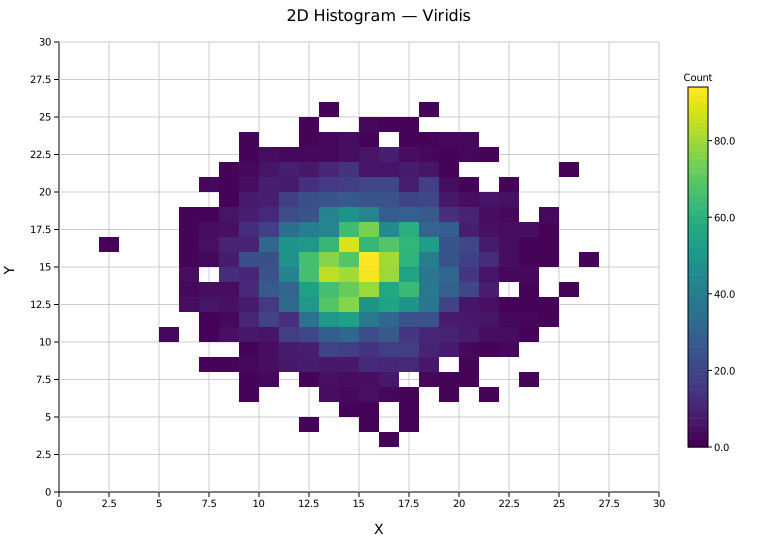
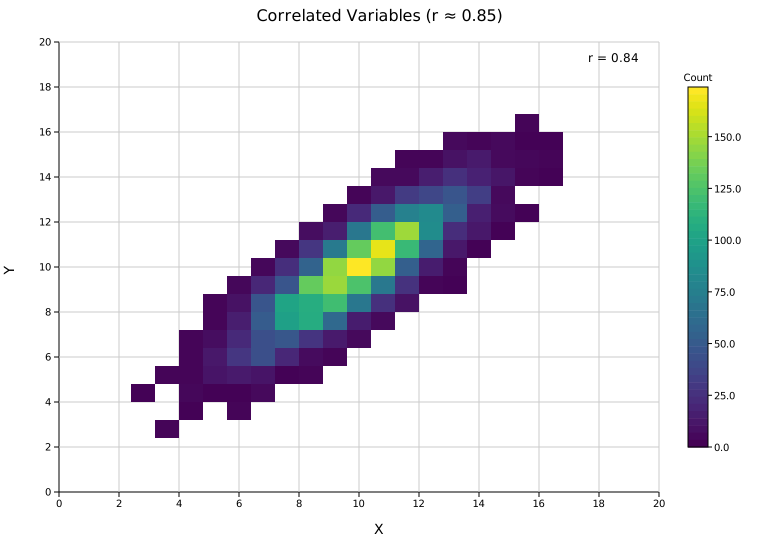
A single bivariate Gaussian cluster binned into a 30×30 grid. The Viridis colorbar on the right shows the count scale from zero (dark blue) to the maximum (yellow).
Correlation annotation
.with_correlation() computes the signed Pearson r coefficient from the raw scatter points and prints it in the top-right corner. The annotation is omitted for fewer than two points, constant x or y, or non-finite coordinates, since the coefficient is undefined.
#![allow(unused)]
fn main() {
use kuva::plot::Histogram2D;
use kuva::render::plots::Plot;
let hist = Histogram2D::new()
    .with_data(data, (0.0, 20.0), (0.0, 20.0), 25, 25)
    .with_correlation();
}

The diagonal density ridge reflects a strong positive correlation (r ≈ 0.85). The coefficient is computed from all input points, including those clipped outside the plot range.
Bimodal data — Inferno colormap
ColorMap::Inferno maps low counts to near-black and high counts to bright yellow. It is effective for high-contrast visualization of structured or multi-modal data.
#![allow(unused)]
fn main() {
use kuva::plot::Histogram2D;
use kuva::plot::histogram2d::ColorMap;
use kuva::render::plots::Plot;

let hist = Histogram2D::new()
    .with_data(data, (0.0, 30.0), (0.0, 30.0), 30, 30)
    .with_color_map(ColorMap::Inferno);
}
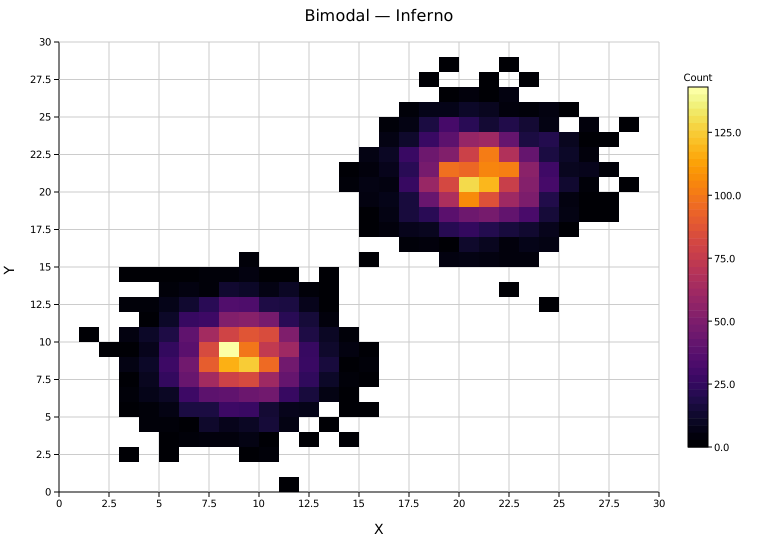
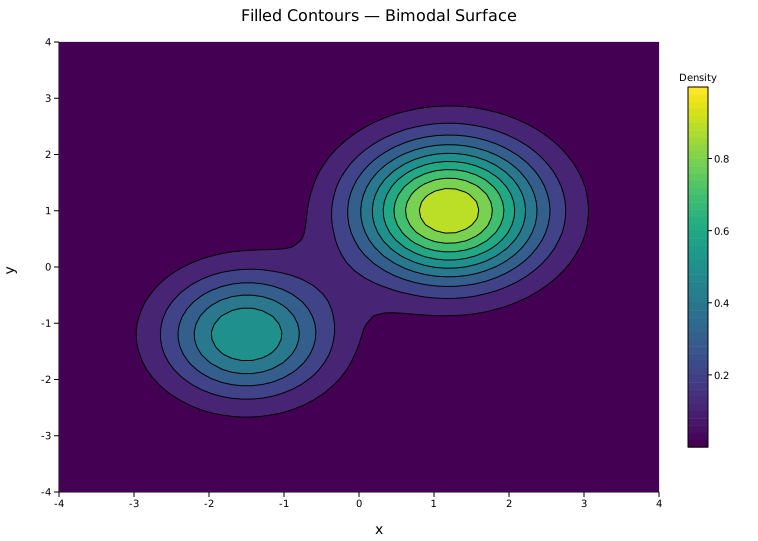
Two Gaussian clusters in opposite corners of the grid, visible as bright islands against the dark background. Empty bins are not drawn, preserving the black background of Inferno.
Bin resolution
Bin count controls the trade-off between noise and detail.
ColorMap::Grayscale maps zero to white and the maximum to black — useful for printing or publication figures.
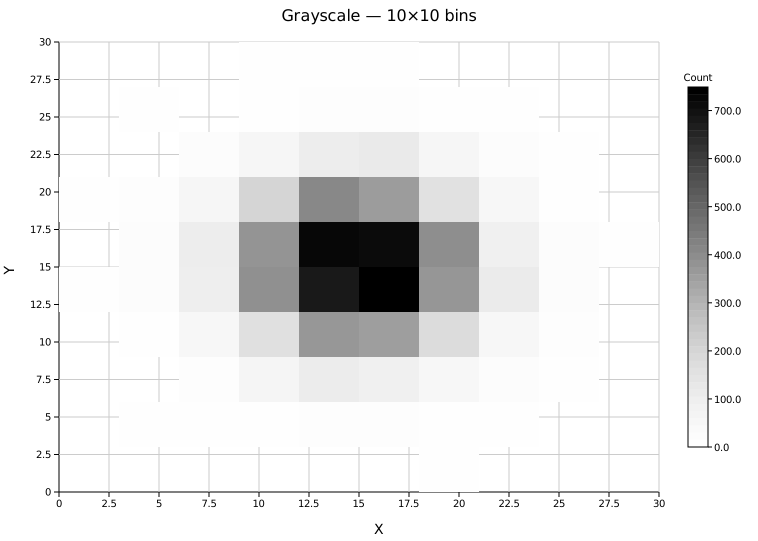
10×10 bins smooth the distribution and make the Gaussian shape immediately obvious, but lose fine-grained density structure.
ColorMap::Viridis (the default) uses a perceptually uniform blue → green → yellow scale, making density gradients easy to read at high resolution.
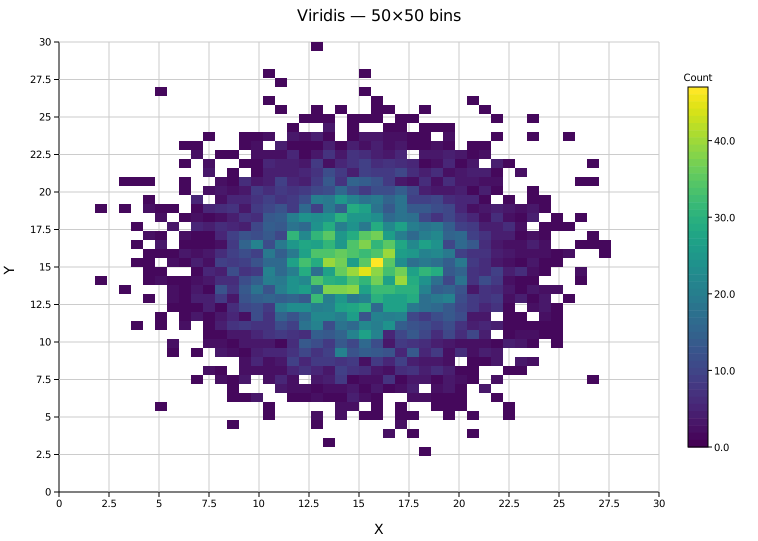
50×50 bins reveal the internal shape of the distribution, though individual cells become noisier at lower sample counts.
Range convention
The axis is calibrated directly to the physical x_range / y_range values you supply, so tick labels always show real data units regardless of bin count. Any (min, max) pair works.
| Range | bins_x | Bin width |
|---|---|---|
(0.0, 30.0) | 30 | 1.0 |
(0.0, 20.0) | 25 | 0.8 |
(5.0, 25.0) | 20 | 1.0 |
Log color scale
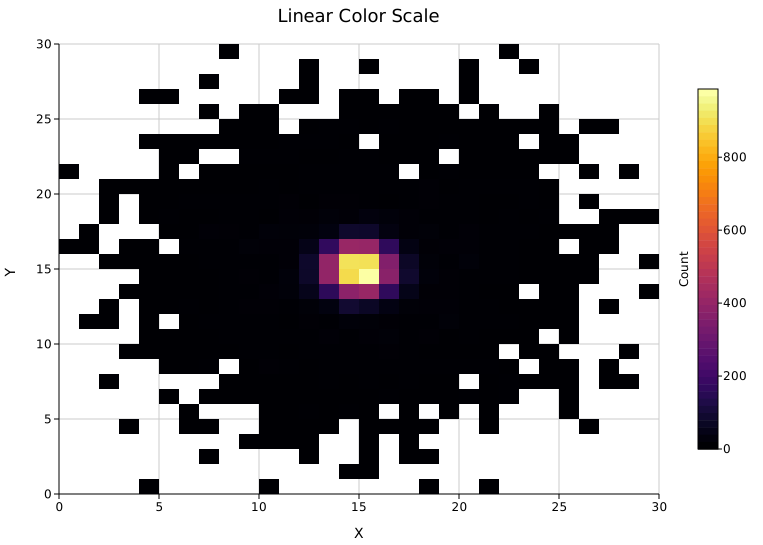
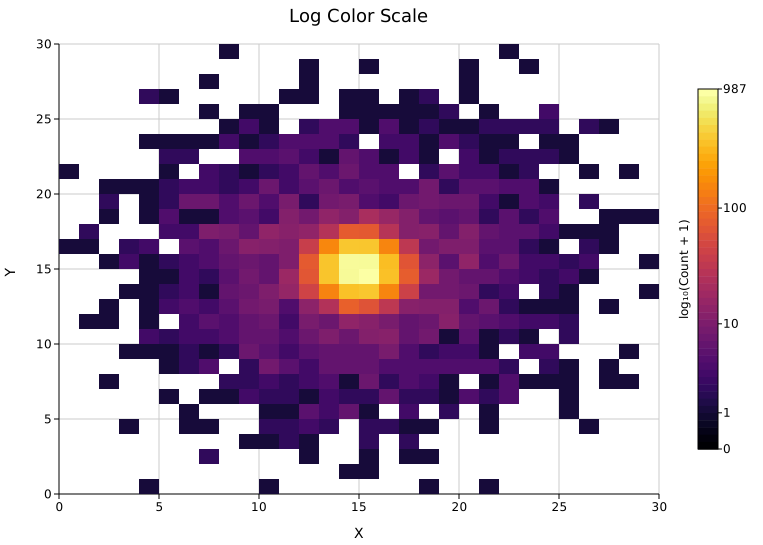
When a small number of bins dominate the count (a dense core surrounded by sparse tails), the linear color scale washes out low-density structure. .with_log_count() compresses the dynamic range via ln(count + 1), keeping both the core and the halo visible. The colorbar label updates to "log(Count)" automatically.
#![allow(unused)]
fn main() {
use kuva::plot::Histogram2D;
use kuva::plot::histogram2d::ColorMap;
use kuva::render::plots::Plot;
let hist = Histogram2D::new()
    .with_data(data, (0.0, 30.0), (0.0, 30.0), 30, 30)
    .with_color_map(ColorMap::Inferno)
    .with_log_count();
}
Linear — the dense core saturates the colormap; the surrounding halo is invisible.
Log — the same data with with_log_count(). The halo structure is now visible alongside the core.
Colorbar tick format
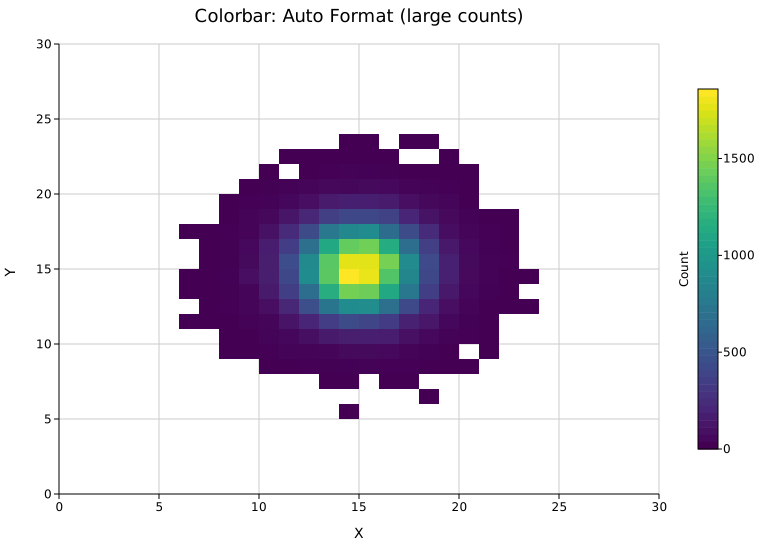
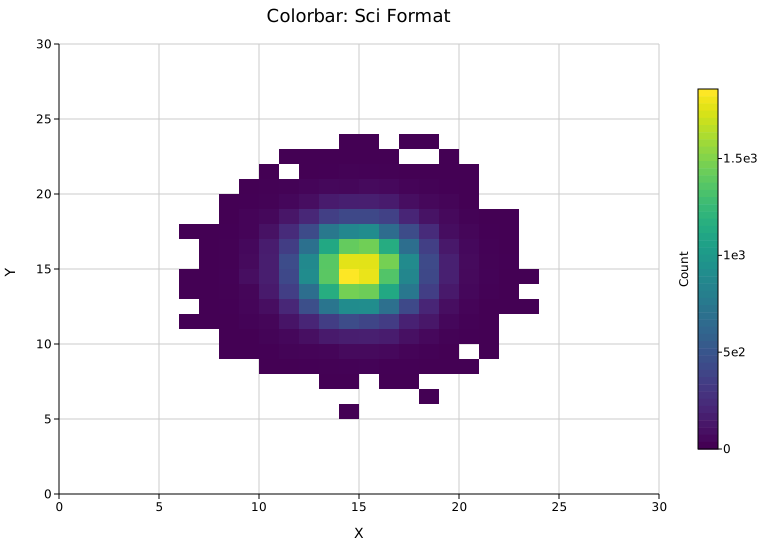
By default (TickFormat::Auto) colorbar tick labels render as plain integers and switch to scientific notation automatically when counts reach 10 000 or more. You can override this with Layout::with_colorbar_tick_format().
#![allow(unused)]
fn main() {
use kuva::plot::Histogram2D;
use kuva::render::plots::Plot;
use kuva::render::layout::{Layout, TickFormat};

let plots = vec![Plot::Histogram2d(hist)];
let layout = Layout::auto_from_plots(&plots)
    .with_colorbar_tick_format(TickFormat::Sci);   // always scientific notation
}
Auto — on a 50 000-point dataset the max bin count exceeds 10 000, so Auto switches to scientific notation automatically.
Sci — forces scientific notation at all magnitudes.
TickFormat variant | Colorbar label appearance |
|---|---|
Auto (default) | Integer counts as-is; sci notation when count ≥ 10 000 |
Sci | Always 1.23e4 style |
Integer | Rounded to nearest integer |
Fixed(n) | Exactly n decimal places |
Colormaps
ColorMap variant | Description |
|---|---|
ColorMap::Viridis | Blue → green → yellow. Perceptually uniform, colorblind-safe. (default) |
ColorMap::Inferno | Black → orange → yellow. High contrast. |
ColorMap::Grayscale | White → black. Print-friendly. |
ColorMap::Turbo | Blue → green → red. High contrast over a wide range. |
ColorMap::Custom(f) | User-supplied Arc<dyn Fn(f64) -> String>. |
API reference
| Method | Description |
|---|---|
Histogram2D::new() | Create with defaults (10×10 bins, Viridis) |
.with_data(data, x_range, y_range, bins_x, bins_y) | Load (x, y) points and bin them |
.with_color_map(cmap) | Set the colormap (default ColorMap::Viridis) |
.with_correlation() | Print Pearson r in the top-right corner |
.with_log_count() | Log-scale color mapping via ln(count+1); colorbar label → "log(Count)" |
Layout::with_colorbar_tick_format(fmt) | Control colorbar tick label format (default TickFormat::Auto) |
See also: Hexbin Plot for large-N scatter density, Scatter Plot for the un-binned points, Contour Plot for smooth density contours.
CLI
Two-dimensional histogram (density grid) from two numeric columns.
Input: two numeric columns.
| Flag | Default | Description |
|---|---|---|
--x <COL> | 0 | X-axis column |
--y <COL> | 1 | Y-axis column |
--bins-x <N> | 10 | Number of bins on the X axis |
--bins-y <N> | 10 | Number of bins on the Y axis |
--colormap <NAME> | viridis | Color map: viridis, inferno, turbo, grayscale |
--correlation | off | Overlay Pearson correlation coefficient |
--log-count | off | Log-scale the color mapping via log₁₀(count+1). Useful when a dense core dominates the color scale and hides structure in surrounding low-density regions. Colorbar label updates to "log₁₀(Count + 1)" with tick marks at actual count values (1, 10, 100, …). |
--colorbar-tick-format <FMT> | auto | Colorbar tick label format: auto, sci, integer, fixed2. auto renders integers as-is and switches to scientific notation when counts reach 10 000. |
# Basic density grid
kuva hist2d measurements.tsv --x time --y value

# Fine-grained bins with correlation annotation
kuva hist2d measurements.tsv --x time --y value \
    --bins-x 30 --bins-y 30 --colormap turbo --correlation

# Log color scale — reveals sparse structure around a dense core
kuva hist2d data.tsv --x x --y y --bins-x 30 --bins-y 30 --log-count

# Force scientific notation on the colorbar (e.g. for very large counts)
kuva hist2d data.tsv --x x --y y --colorbar-tick-format sci
See also: Shared flags — output, appearance, axes, log scale.
Density Plot
A density plot estimates the probability density of a numeric dataset via Gaussian kernel density estimation (KDE) and renders it as a smooth continuous curve. It is the continuous alternative to a histogram — it shows the same shape without the arbitrary bin boundaries, and curves from multiple groups can be overlaid naturally.
Import path: kuva::plot::DensityPlot
Basic usage
Pass raw data values with .with_data(iter). The bandwidth is chosen automatically using Silverman's rule-of-thumb.
#![allow(unused)]
fn main() {
use kuva::plot::DensityPlot;
use kuva::backend::svg::SvgBackend;
use kuva::render::render::render_multiple;
use kuva::render::layout::Layout;
use kuva::render::plots::Plot;

let data = vec![2.1, 3.4, 3.7, 2.8, 4.2, 3.9, 3.1, 2.5, 4.0, 3.3,
                2.9, 3.6, 2.7, 3.8, 3.2, 4.1, 2.6, 3.5, 3.0, 4.3];

let density = DensityPlot::new()
    .with_data(data)
    .with_color("steelblue");

let plots = vec![Plot::Density(density)];
let layout = Layout::auto_from_plots(&plots)
    .with_title("Expression Distribution")
    .with_x_label("Expression")
    .with_y_label("Density");

let scene = render_multiple(plots, layout);
let svg = SvgBackend.render_scene(&scene);
std::fs::write("density.svg", svg).unwrap();
}
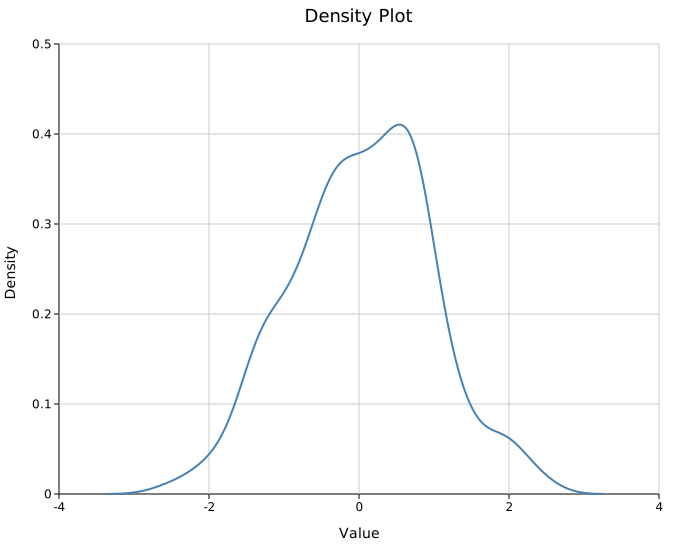
The y-axis is a proper probability density: each curve integrates to approximately 1 over the displayed range.
Tail behaviour. By default, the KDE is evaluated from
data_min − 3×bandwidthtodata_max + 3×bandwidthso the Gaussian tails taper smoothly to zero beyond the data. The x-axis auto-scales to include those tails. This matches ggplot2's defaultcut = 3behaviour and is statistically correct — the tails reflect that a distribution does not hard-stop at the outermost data point. If your data is physically bounded (see below) you should set explicit bounds to prevent the curve from extending into impossible values.
Filled area
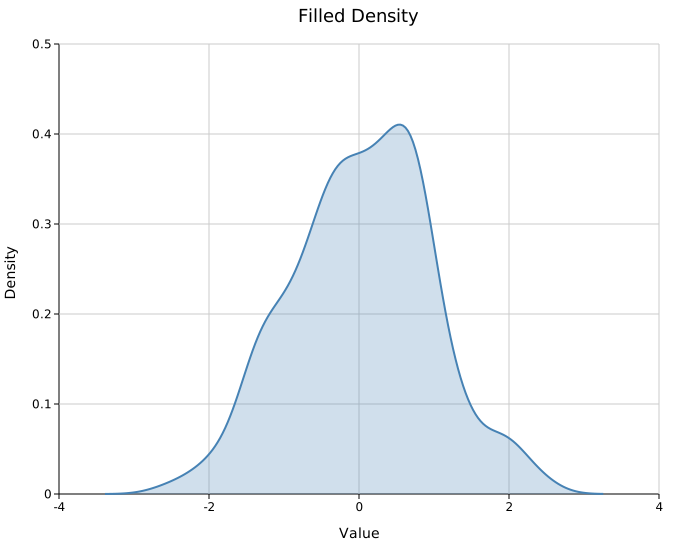
.with_filled(true) shades the area under the curve. The fill uses the same color as the stroke at a low opacity (default 0.2).
#![allow(unused)]
fn main() {
use kuva::plot::DensityPlot;
let density = DensityPlot::new()
    .with_data(data)
    .with_color("steelblue")
    .with_filled(true)
    .with_opacity(0.25);
}
Multiple groups
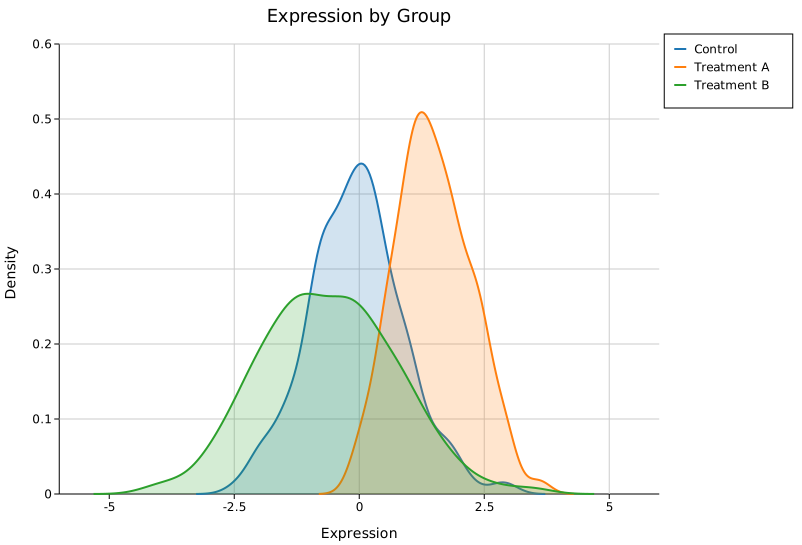
Use one DensityPlot per group and collect them into a single Vec<Plot>. Set .with_palette() on the layout to auto-assign colors, or assign colors and legend labels manually.
#![allow(unused)]
fn main() {
use kuva::plot::DensityPlot;
use kuva::backend::svg::SvgBackend;
use kuva::render::render::render_multiple;
use kuva::render::layout::Layout;
use kuva::render::plots::Plot;
use kuva::render::palette::Palette;

let pal = Palette::category10();

let plots = vec![
    Plot::Density(
        DensityPlot::new()
            .with_data(group_a)
            .with_color(pal[0])
            .with_filled(true)
            .with_legend("Control"),
    ),
    Plot::Density(
        DensityPlot::new()
            .with_data(group_b)
            .with_color(pal[1])
            .with_filled(true)
            .with_legend("Treatment A"),
    ),
    Plot::Density(
        DensityPlot::new()
            .with_data(group_c)
            .with_color(pal[2])
            .with_filled(true)
            .with_legend("Treatment B"),
    ),
];

let layout = Layout::auto_from_plots(&plots)
    .with_title("Expression by Group")
    .with_x_label("Expression")
    .with_y_label("Density");

let svg = SvgBackend.render_scene(&render_multiple(plots, layout));
std::fs::write("density_groups.svg", svg).unwrap();
}

Overlapping filled curves distinguish naturally by color. Increase .with_opacity() toward 0.4 if groups are well separated, or keep it low (0.15–0.2) when they overlap heavily.
Bounded data — identity scores, β-values, frequencies
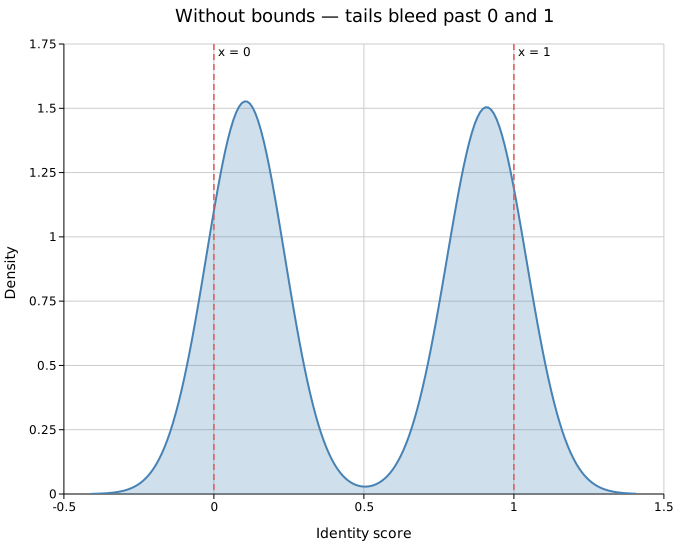
For data that is physically constrained to a fixed interval — identity scores [0, 1], methylation β-values [0, 1], allele frequencies [0, 1], percentages [0, 100] — the default KDE will extend past those limits, producing a curve that bleeds into impossible negative values or past the upper ceiling.
 |
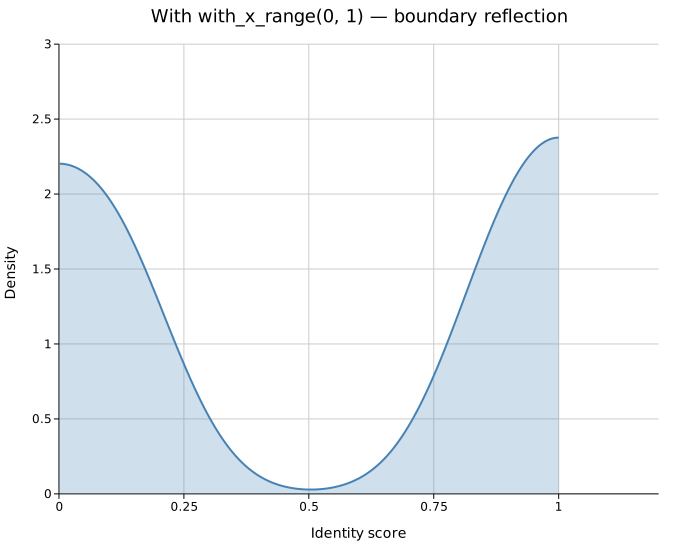 |
| Default — tails bleed past 0 and 1 | with_x_range(0, 1) — smooth taper at boundaries |
Use .with_x_range(lo, hi) to enforce both limits simultaneously:
#![allow(unused)]
fn main() {
use kuva::plot::DensityPlot;
let data = vec![0.1_f64; 10];
// Identity scores: scores cannot be negative or exceed 1.0
let density = DensityPlot::new()
    .with_data(data)
    .with_x_range(0.0, 1.0);
}
Boundary reflection. Simply truncating the evaluation range would cause the curve to cut off abruptly mid-peak wherever data is dense near a boundary. kuva instead uses the reflection method (the same approach as ggplot2 geom_density(bounds = ...) since 3.4.0): for each data point within 3×bandwidth of an active boundary a ghost point is mirrored across that boundary. The KDE is then evaluated only within [lo, hi] using the augmented dataset. The result tapers smoothly to zero at the boundary even when data is concentrated right at the edge.
One-sided bounds. If only one side is physically constrained, set just that bound:
#![allow(unused)]
fn main() {
use kuva::plot::DensityPlot;
let data = vec![0.1_f64; 10];
// Scores cannot be negative but have no known upper cap
let density = DensityPlot::new()
    .with_data(data)
    .with_x_lo(0.0); // left boundary reflected; right tail still free

// Percentages cannot exceed 100 but have no known lower cap
let density = DensityPlot::new()
    .with_data(data)
    .with_x_hi(100.0); // right boundary reflected; left tail still free
}
When only one bound is set the other tail extends 3×bandwidth past the data extreme as normal. This means a curve with only x_lo = 0 set can still extend past 1.0 on the right if the data range allows — use with_x_range(0.0, 1.0) when both sides are constrained.
In the CLI, pass --x-min and --x-max independently — either flag alone is sufficient:
# Both sides bounded — identity scores
kuva density scores.tsv --value score --x-min 0 --x-max 1

# Left side only — counts that cannot be negative
kuva density counts.tsv --value count --x-min 0
KDE bandwidth
Bandwidth controls smoothing. Silverman's rule works well for roughly normal unimodal data. Set it manually with .with_bandwidth(h) when the automatic choice is too smooth (blends modes) or too rough (noisy).
#![allow(unused)]
fn main() {
use kuva::plot::DensityPlot;
// Over-smoothed — modes blend together
let d = DensityPlot::new().with_data(data.clone()).with_bandwidth(2.0);

// Automatic — Silverman's rule (default, no call needed)
let d = DensityPlot::new().with_data(data.clone());

// Under-smoothed — noisy, jagged
let d = DensityPlot::new().with_data(data.clone()).with_bandwidth(0.1);
}
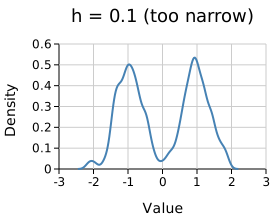 |
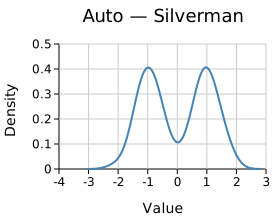 |
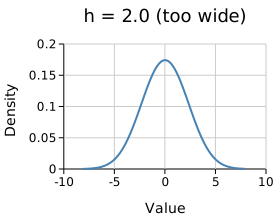 |
h = 0.1 (too narrow) |
Auto — Silverman | h = 2.0 (too wide) |
.with_kde_samples(n) controls how many points the curve is evaluated at (default 200). The default is smooth enough for most screen resolutions.
Dashed lines
.with_line_dash("4 2") applies an SVG stroke-dasharray. Useful when distinguishing groups in print or greyscale output.
#![allow(unused)]
fn main() {
use kuva::plot::DensityPlot;
let d = DensityPlot::new()
    .with_data(data)
    .with_color("steelblue")
    .with_stroke_width(2.0)
    .with_line_dash("6 3");
}
Pre-computed curves
DensityPlot::from_curve(x, y) accepts a pre-smoothed curve directly — useful when the density was already computed in Python or R:
#![allow(unused)]
fn main() {
use kuva::plot::DensityPlot;

// x and y computed externally (e.g. scipy.stats.gaussian_kde)
let x = vec![0.0, 0.5, 1.0, 1.5, 2.0, 2.5, 3.0];
let y = vec![0.05, 0.15, 0.40, 0.55, 0.40, 0.15, 0.05];

let density = DensityPlot::from_curve(x, y)
    .with_color("coral")
    .with_filled(true);
}
API reference
| Method | Description |
|---|---|
DensityPlot::new() | Create a density plot with defaults |
DensityPlot::from_curve(x, y) | Use a pre-computed curve; bypasses KDE |
.with_data(iter) | Set input values; accepts any Into<f64> numeric type |
.with_color(s) | Curve color (CSS color string) |
.with_filled(bool) | Fill the area under the curve (default false) |
.with_opacity(f) | Fill opacity when filled (default 0.2) |
.with_bandwidth(h) | KDE bandwidth; omit for Silverman's rule |
.with_kde_samples(n) | KDE evaluation points (default 200) |
.with_stroke_width(px) | Outline stroke width (default 1.5) |
.with_line_dash(s) | SVG stroke-dasharray, e.g. "4 2" for dashed |
.with_legend(s) | Attach a legend label |
.with_x_range(lo, hi) | Clamp KDE evaluation to [lo, hi] with boundary reflection at both ends |
.with_x_lo(lo) | Set lower bound only; boundary reflection at lo, right tail still free |
.with_x_hi(hi) | Set upper bound only; boundary reflection at hi, left tail still free |
See also: Histogram for the raw binned counts, Ridgeline Plot for stacking many densities, Violin Plot for density mirrored per category.
CLI
Kernel density estimate of a single numeric column. Produces a smooth probability density curve; optionally fills the area underneath. Multi-group plots use one curve per group with palette colors.
Input: a tabular file with at least one numeric column. When --color-by is used, an additional categorical column drives the grouping.
| Flag | Default | Description |
|---|---|---|
--value <COL> | 0 | Column of numeric values to estimate |
--y <COL>[,<COL>…] | — | Comma-separated columns; plots one curve per column (column name = legend label). Mutually exclusive with --color-by when 2+ columns given |
--color-by <COL> | — | Group by this column; one curve per unique value |
--filled | off | Fill the area under each density curve |
--bandwidth <F> | (Silverman) | KDE bandwidth override |
--x-min <F> | — | Lower bound for KDE evaluation; boundary reflection applied at this edge |
--x-max <F> | — | Upper bound for KDE evaluation; boundary reflection applied at this edge |
Either flag can be used independently. Use --x-min 0 --x-max 1 for data bounded to [0, 1] (e.g. identity scores, β-values, allele frequencies). Use --x-min 0 alone for data that cannot be negative but has no known upper cap.
kuva density samples.tsv --value expression \
    --x-label "Expression" --y-label "Density" --title "Expression distribution"

kuva density samples.tsv --value expression --color-by group --filled \
    --title "Expression by group"

# Identity scores bounded to [0, 1] — prevents KDE from extending into impossible values
kuva density scores.tsv --value score --x-min 0 --x-max 1

# Counts that cannot be negative but have no upper cap
kuva density counts.tsv --value count --x-min 0

# multi-column: one curve per column
kuva density data.tsv --y col_a,col_b,col_c --filled
See also: Shared flags — output, appearance, axes, log scale.
Ridgeline Plot
A ridgeline plot (also called a joyplot) stacks multiple KDE density curves vertically — one per group. Groups are labelled on the y-axis; the x-axis is the continuous data range. Curves can overlap for the classic "mountain range" look.
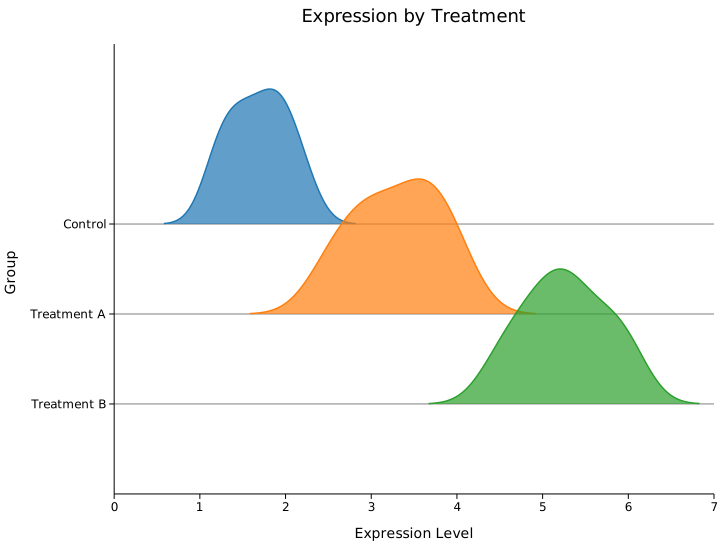
Basic usage
#![allow(unused)]
fn main() {
use kuva::plot::ridgeline::RidgelinePlot;
use kuva::render::plots::Plot;
use kuva::render::layout::Layout;
use kuva::render::render::render_multiple;
use kuva::backend::svg::SvgBackend;

let plot = RidgelinePlot::new()
    .with_group("Control",     vec![1.2, 1.5, 1.8, 2.0, 2.2, 1.9, 1.6, 1.3])
    .with_group("Treatment A", vec![2.5, 3.0, 3.5, 4.0, 3.8, 3.2, 2.8, 3.6])
    .with_group("Treatment B", vec![4.5, 5.0, 5.5, 6.0, 5.8, 5.2, 4.8, 5.3]);

let plots = vec![Plot::Ridgeline(plot)];
let layout = Layout::auto_from_plots(&plots)
    .with_title("Expression by Treatment")
    .with_x_label("Expression Level")
    .with_y_label("Group");
let svg = SvgBackend.render_scene(&render_multiple(plots, layout));
}
Per-group colors — seasonal temperature example
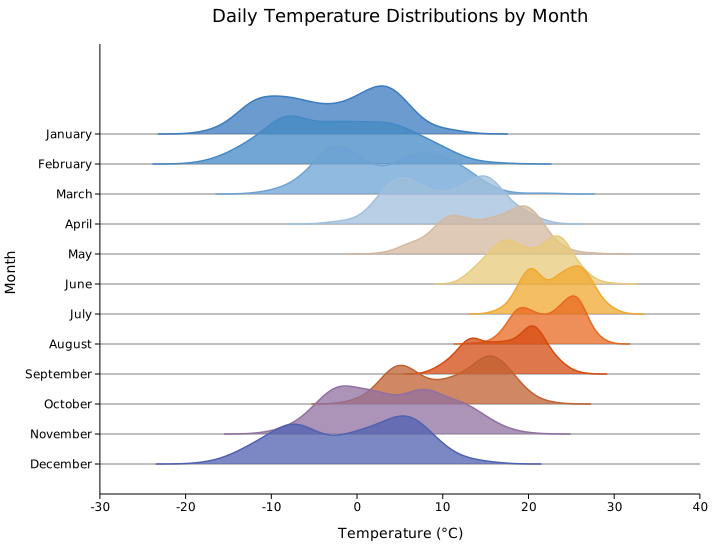
.with_group_color(label, data, color) lets you assign an explicit color to each group. A cold-to-warm gradient across months gives the plot an intuitive thermal feel.
#![allow(unused)]
fn main() {
use kuva::plot::ridgeline::RidgelinePlot;
use kuva::render::plots::Plot;
use kuva::render::layout::Layout;
use kuva::render::render::render_multiple;
use kuva::backend::svg::SvgBackend;

// (month, mean °C, std-dev) for a temperate-climate city
let months = [
    ("January",   -3.0_f64, 5.0_f64),
    ("February",  -1.5,     5.5),
    ("March",      4.0,     5.0),
    ("April",     10.0,     4.0),
    ("May",       15.5,     3.5),
    ("June",      20.0,     3.0),
    ("July",      23.0,     2.5),
    ("August",    22.5,     2.5),
    ("September", 17.0,     3.0),
    ("October",   10.5,     4.0),
    ("November",   3.5,     5.0),
    ("December",  -1.0,     5.5),
];

// Blue → red gradient (cold → hot)
let colors = [
    "#3a7abf", "#4589c4", "#6ba3d4", "#a0bfdc",
    "#d4b8a0", "#e8c97a", "#f0a830", "#e86820",
    "#d44a10", "#c06030", "#9070a0", "#5060b0",
];

let mut plot = RidgelinePlot::new()
    .with_overlap(0.6)
    .with_opacity(0.75);

for (i, &(month, mean, std)) in months.iter().enumerate() {
    let data: Vec<f64> = vec![/* 200 samples from N(mean, std) */];
    plot = plot.with_group_color(month, data, colors[i]);
}

let plots = vec![Plot::Ridgeline(plot)];
let layout = Layout::auto_from_plots(&plots)
    .with_title("Daily Temperature Distributions by Month")
    .with_x_label("Temperature (°C)")
    .with_y_label("Month");
let svg = SvgBackend.render_scene(&render_multiple(plots, layout));
}

Builder reference
| Method | Default | Description |
|---|---|---|
.with_group(label, data) | — | Append a group |
.with_group_color(label, data, color) | — | Append a group with explicit color |
.with_groups(iter) | — | Add multiple groups at once |
.with_filled(bool) | true | Fill the area under each curve |
.with_opacity(f64) | 0.7 | Fill opacity |
.with_overlap(f64) | 0.5 | Fraction of cell height ridges may overlap |
.with_bandwidth(f64) | Silverman | KDE bandwidth |
.with_kde_samples(usize) | 200 | Number of KDE evaluation points |
.with_stroke_width(f64) | 1.5 | Outline stroke width |
.with_normalize(bool) | false | Use PDF normalization instead of visual scaling |
.with_legend(bool) | false | Show a legend (y-axis labels are usually sufficient) |
.with_line_dash(str) | — | SVG stroke-dasharray for dashed outline |
See also: Density Plot for a single-group curve, Violin Plot for a categorical alternative, Box Plot for a quantile summary instead of the full curve.
CLI
Input: a tabular file with at least one numeric column and an optional group column.
| Flag | Default | Description |
|---|---|---|
--value <COL> | 0 | Column of numeric values |
--y <COL>[,<COL>…] | — | Comma-separated columns; plots one ridge per column (column name = ridge label). Mutually exclusive with --group-by when 2+ columns given |
--group-by <COL> | — | Group by this column; one ridge per unique value |
--filled | on | Fill the area under each ridge curve |
--opacity <F> | 0.7 | Fill opacity |
--overlap <F> | 0.5 | Ridge overlap factor (0 = no overlap, 1 = full cell height) |
--bandwidth <F> | (Silverman) | KDE bandwidth override |
kuva ridgeline samples.tsv --group-by group --value expression \
    --x-label "Expression" --y-label "Group" --title "Expression by group"

kuva ridgeline samples.tsv --group-by group --value expression --overlap 1.0

# multi-column: one ridge per column
kuva ridgeline data.tsv --y col_a,col_b,col_c --overlap 0.3
See also: Shared flags — output, appearance, axes.
ECDF Plot
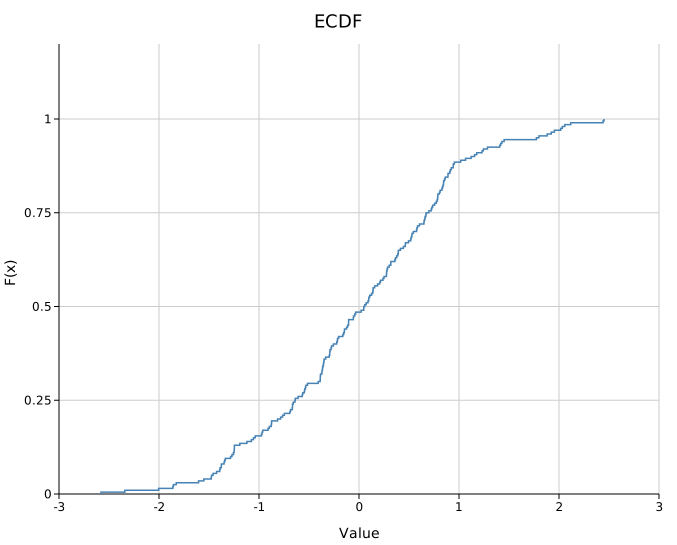
An Empirical Cumulative Distribution Function plot shows F(x) = P(X ≤ x) as a right-continuous step function. It is one of the most informative single-distribution diagnostics — no binning, no bandwidth choice, and the full distribution is visible. Multiple groups can be overlaid for direct comparison.
Import path: kuva::plot::EcdfPlot
Basic usage
#![allow(unused)]
fn main() {
use kuva::plot::EcdfPlot;
use kuva::backend::svg::SvgBackend;
use kuva::render::render::render_multiple;
use kuva::render::layout::Layout;
use kuva::render::plots::Plot;

let data: Vec<f64> = vec![1.2, 3.4, 2.1, 5.6, 4.0, 0.8, 3.3, 2.7, 4.5, 1.9];

let plot = EcdfPlot::new()
    .with_data("Sample", data)
    .with_color("steelblue");

let plots = vec![Plot::Ecdf(plot)];
let layout = Layout::auto_from_plots(&plots)
    .with_title("ECDF")
    .with_x_label("Value")
    .with_y_label("F(x)");

let svg = SvgBackend.render_scene(&render_multiple(plots, layout));
std::fs::write("ecdf.svg", svg).unwrap();
}

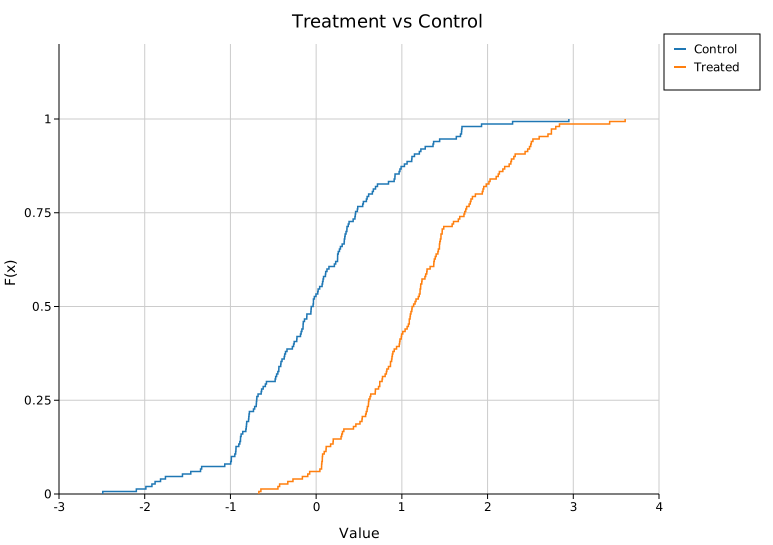
Multi-group comparison
Add multiple groups to overlay ECDFs on the same axes. Call .with_legend("") to enable the legend — an empty string shows group labels without a separate title.
#![allow(unused)]
fn main() {
use kuva::plot::EcdfPlot;
use kuva::render::plots::Plot;
use kuva::render::layout::Layout;
use kuva::render::render::render_multiple;
use kuva::backend::svg::SvgBackend;
let plot = EcdfPlot::new()
    .with_data("Control", vec![1.0, 1.5, 2.0, 2.5, 3.0, 3.5, 4.0])
    .with_data("Treated", vec![2.0, 2.5, 3.0, 3.5, 4.0, 4.5, 5.0])
    .with_legend("");

let plots = vec![Plot::Ecdf(plot)];
let layout = Layout::auto_from_plots(&plots)
    .with_title("Treatment vs Control");

let svg = SvgBackend.render_scene(&render_multiple(plots, layout));
}
Complementary CDF (CCDF)
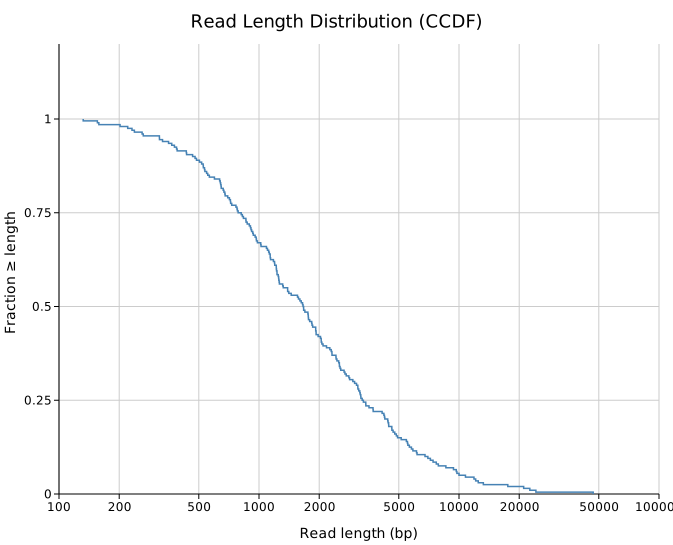
.with_complementary() flips the y-axis to 1 - F(x), which is the survival function / exceedance probability. This is the standard view for:
- Sequencing read length distributions (what fraction of reads are ≥ N bp?)
- Coverage distributions (what fraction of positions have ≥ N× depth?)
- Heavy-tailed data where you care about the tail rather than the bulk
#![allow(unused)]
fn main() {
use kuva::plot::EcdfPlot;
use kuva::render::plots::Plot;
let plot = EcdfPlot::new()
    .with_data("Nanopore run", vec![500.0, 1200.0, 3500.0, 8000.0, 15000.0])
    .with_color("steelblue")
    .with_complementary();
}
Combine with a log x-axis via Layout::with_log_x() for read-length distributions:
#![allow(unused)]
fn main() {
use kuva::plot::EcdfPlot;
use kuva::render::plots::Plot;
use kuva::render::layout::Layout;
let plot = EcdfPlot::new().with_data("", vec![1.0]);
let plots = vec![Plot::Ecdf(plot)];
let layout = Layout::auto_from_plots(&plots).with_log_x();
}
DKW confidence bands
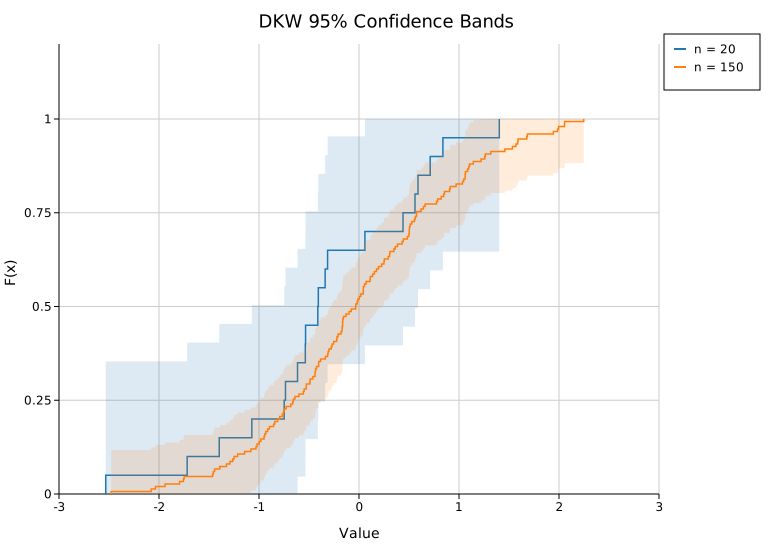
.with_confidence_band() adds a shaded DKW 95% confidence band around each curve. The band width is ε = √(ln(40) / (2n)) — wider for small n, tight for large n. This is the key diagnostic for whether two curves are statistically distinguishable:
#![allow(unused)]
fn main() {
use kuva::plot::EcdfPlot;
let plot = EcdfPlot::new()
    .with_data("n=20", (0..20).map(|i| i as f64))
    .with_data("n=100", (0..100).map(|i| i as f64))
    .with_confidence_band()
    .with_legend("");
}
Adjust the band opacity with .with_band_alpha(f) (default 0.15).
Rug plot
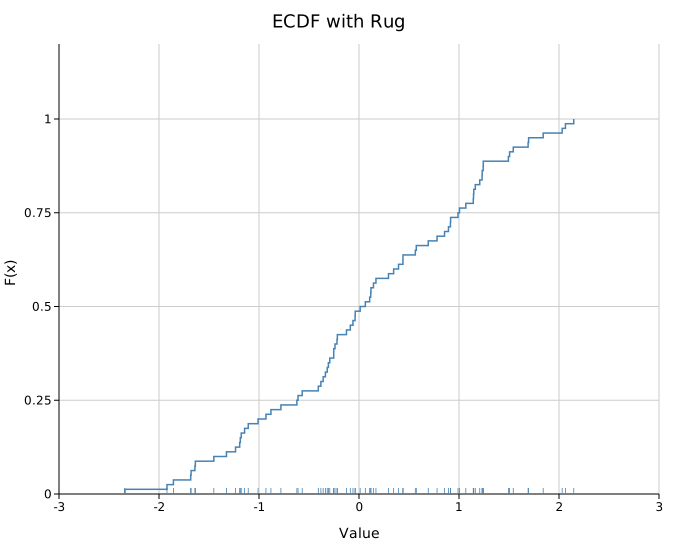
.with_rug() draws small tick marks at the bottom of the plot area at each data point's location. This shows the density and distribution of raw observations — useful for spotting clusters, gaps, and outliers that the step function alone can obscure.
#![allow(unused)]
fn main() {
use kuva::plot::EcdfPlot;
let plot = EcdfPlot::new()
    .with_data("Sample", vec![1.0, 1.1, 1.2, 3.0, 5.0, 5.1, 7.5])
    .with_color("steelblue")
    .with_rug();
}
For multi-group plots, each group's rug is offset vertically so they don't fully overlap.
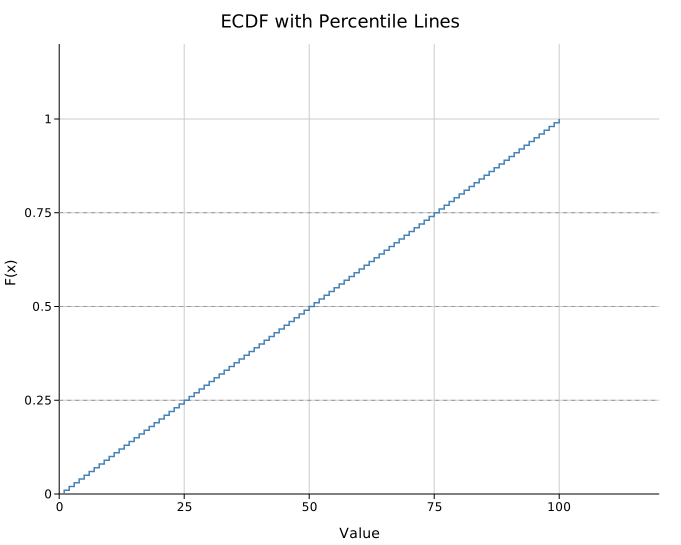
Percentile reference lines
.with_percentile_lines(vec![0.25, 0.5, 0.75]) draws horizontal dashed reference lines at Q1, median, and Q3 (or any levels you specify). Labels are placed at the right edge.
#![allow(unused)]
fn main() {
use kuva::plot::EcdfPlot;
let plot = EcdfPlot::new()
    .with_data("", (1..=100).map(|i| i as f64))
    .with_color("steelblue")
    .with_percentile_lines(vec![0.25, 0.5, 0.75]);
}
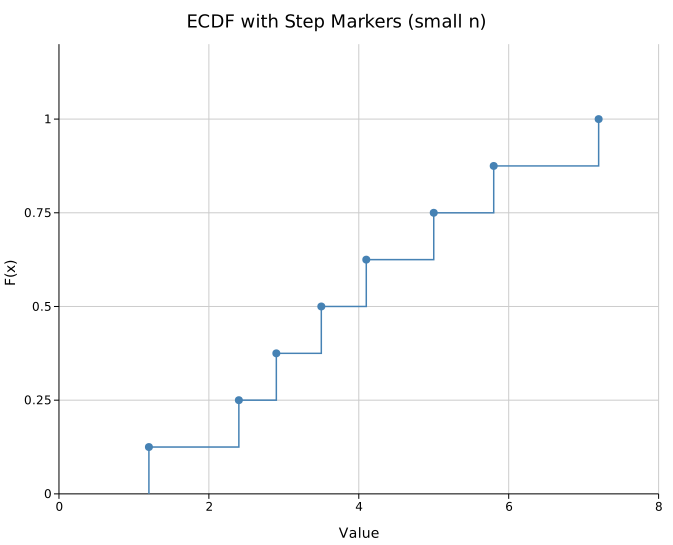
Step markers
.with_markers() places a circle at each step endpoint, making the discrete nature of the ECDF explicit. Most useful for small samples (n < ~30):
#![allow(unused)]
fn main() {
use kuva::plot::EcdfPlot;
let plot = EcdfPlot::new()
    .with_data("n=8", vec![1.2, 2.4, 2.9, 3.5, 4.1, 5.0, 5.8, 7.2])
    .with_color("steelblue")
    .with_markers()
    .with_marker_size(4.0);
}
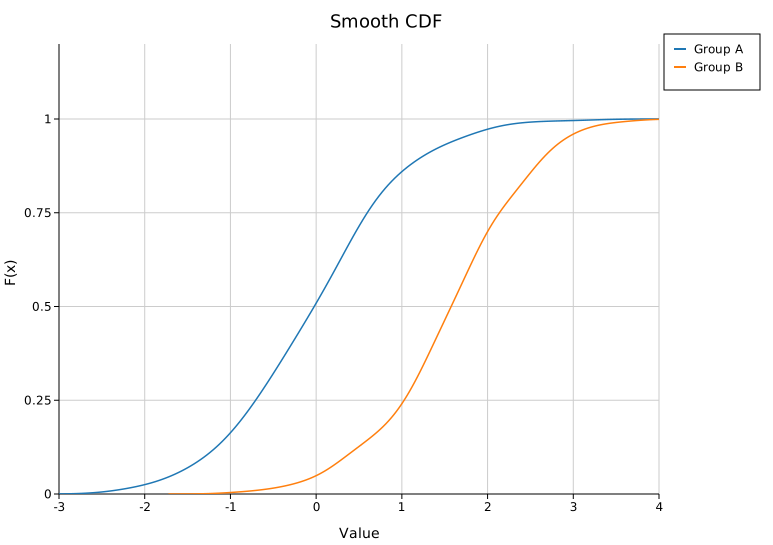
Smooth CDF
.with_smooth() replaces the step function with a KDE-integrated smooth CDF (bandwidth chosen by Silverman's rule):
#![allow(unused)]
fn main() {
use kuva::plot::EcdfPlot;
let plot = EcdfPlot::new()
    .with_data("Sample", (0..200).map(|i| (i as f64) * 0.05))
    .with_color("steelblue")
    .with_smooth();
}
Builder reference
| Method | Default | Description |
|---|---|---|
.with_data(label, iter) | — | Add a group of values |
.with_data_colored(label, iter, color) | — | Add a group with an explicit color |
.with_groups(iter of (label, iter)) | — | Add multiple groups at once |
.with_complementary() | off | Plot 1 - F(x) instead of F(x) |
.with_confidence_band() | off | DKW 95% confidence band |
.with_band_alpha(f) | 0.15 | Band fill opacity |
.with_rug() | off | Tick marks at the bottom of the plot area |
.with_rug_height(px) | 6.0 | Rug tick height in pixels |
.with_percentile_lines(vec) | — | Dashed horizontal lines at these F values (0–1) |
.with_markers() | off | Circle at each step endpoint |
.with_marker_size(px) | 3.0 | Marker radius |
.with_smooth() | off | KDE-integrated smooth CDF |
.with_smooth_samples(n) | 200 | Grid points for smooth CDF |
.with_stroke_width(f) | 1.5 | Line stroke width |
.with_color(css) | "steelblue" | Uniform color (single-group) |
.with_legend(title) | — | Enable legend; use "" for no title |
.with_line_dash(s) | — | SVG stroke-dasharray (e.g. "6,3") |
CLI
# Basic ECDF
kuva ecdf data.tsv --value score --x-label "Score" --y-label "F(x)" --title "ECDF"

# Multi-group comparison
kuva ecdf data.tsv --value expression --color-by group --confidence-band

# Complementary CDF with log x-axis (read lengths)
kuva ecdf reads.tsv --value length --complementary --rug --log-x \
    --x-label "Read length (bp)" --y-label "Fraction ≥ length"

# Percentile markers + rug
kuva ecdf data.tsv --value score --percentile-lines 0.25,0.5,0.75 --markers --rug

# Smooth CDF
kuva ecdf data.tsv --value score --color-by group --smooth
CLI flags
| Flag | Default | Description |
|---|---|---|
--value <COL> | 0 | Column of numeric values |
--color-by <COL> | — | Group by column; one curve per unique value |
--complementary | off | Plot 1 - F(x) |
--confidence-band | off | DKW 95% confidence band |
--rug | off | Rug tick marks at plot bottom |
--percentile-lines <LIST> | — | Comma-separated levels, e.g. 0.25,0.5,0.75 |
--markers | off | Dots at each step |
--smooth | off | Smooth KDE-integrated CDF |
--stroke-width <F> | 1.5 | Line stroke width |
--x-label <S> | — | X-axis label |
--y-label <S> | — | Y-axis label |
--log-x | off | Log scale on x-axis |
--log-y | off | Log scale on y-axis |
See also: Q-Q Plot for comparing against a theoretical distribution, Histogram for the binned equivalent, Density Plot for a smoothed curve.
See also: Shared flags — output, appearance, axes, log scale.
Q-Q Plot
A Q-Q (quantile-quantile) plot compares the quantile structure of a sample against a theoretical distribution — or against another sample. It is a complete distributional diagnostic: every departure from the reference line carries information about skew, heavy tails, bimodality, or systematic bias.
Import path: kuva::plot::QQPlot
Two modes are available:
| Mode | x-axis | y-axis | Use for |
|---|---|---|---|
| Normal | Theoretical standard-normal quantiles | Sample quantiles | Normality checks, tail shape, comparing distributions |
| Genomic | Expected −log₁₀(p) | Observed −log₁₀(p) | GWAS p-value calibration, λ inflation |
Normal Q-Q
Compare a sample against the standard normal. Points on the dashed reference line indicate normally distributed data. Deviations reveal:
- S-shaped curve — skew (right or left)
- Banana / fan shape — heavy or light tails
- Parallel shift — same distribution shape, different location
#![allow(unused)]
fn main() {
use kuva::plot::QQPlot;
use kuva::backend::svg::SvgBackend;
use kuva::render::render::render_multiple;
use kuva::render::layout::Layout;
use kuva::render::plots::Plot;

let data: Vec<f64> = vec![/* your values */];

let plot = QQPlot::new()
    .with_data("Sample", data)
    .with_color("steelblue");

let plots = vec![Plot::QQ(plot)];
let layout = Layout::auto_from_plots(&plots)
    .with_title("Normal Q-Q")
    .with_x_label("Theoretical Quantiles")
    .with_y_label("Sample Quantiles");

let svg = SvgBackend.render_scene(&render_multiple(plots, layout));
}
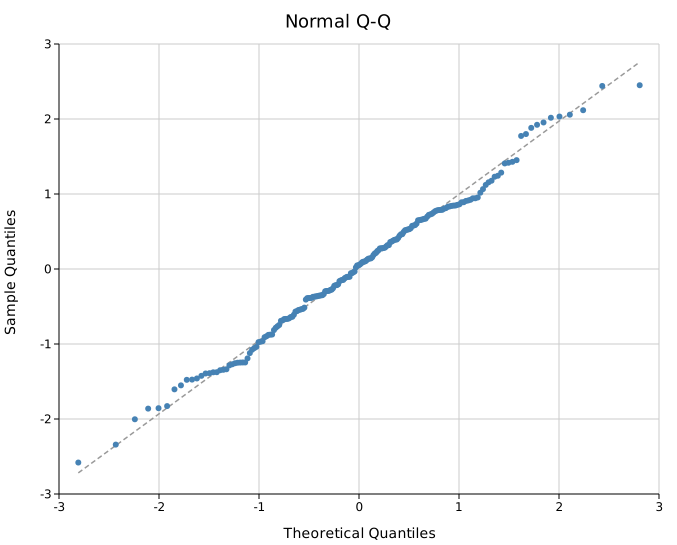
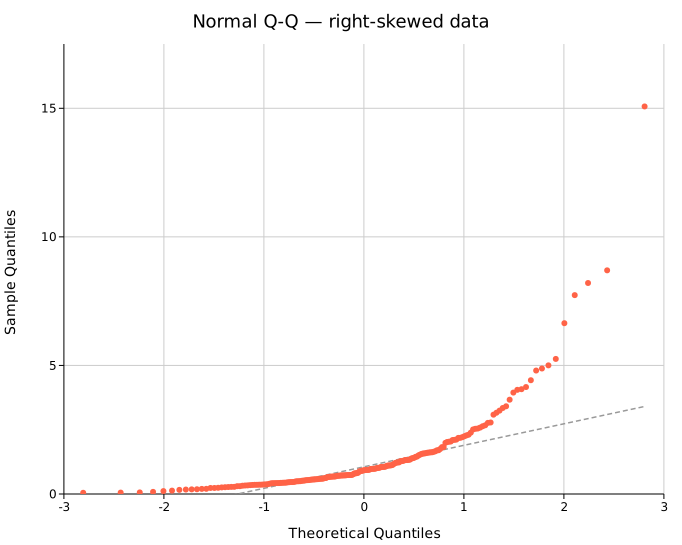
When data is right-skewed (e.g. log-normal), the upper tail curves above the reference line:
Multi-group normal Q-Q
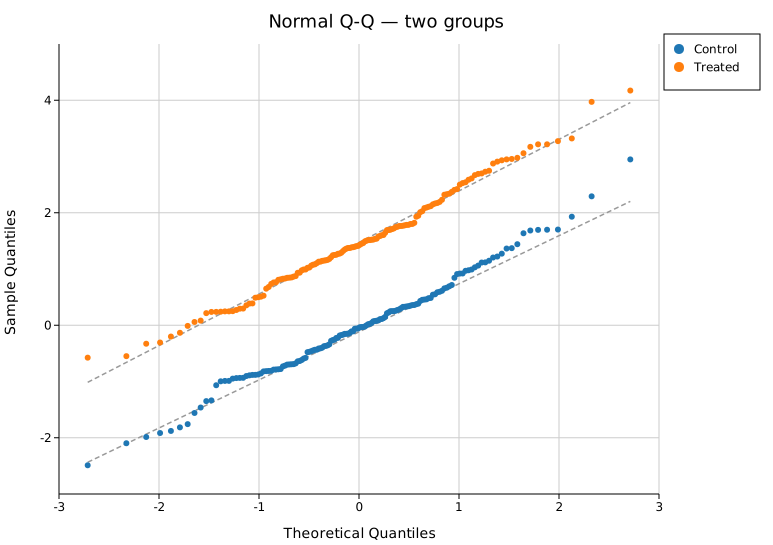
Overlay multiple groups on the same axes to compare their distributional shapes. The reference line is drawn independently for each group (each uses its own Q1–Q3 anchored robust line):
#![allow(unused)]
fn main() {
use kuva::plot::QQPlot;
use kuva::render::plots::Plot;
use kuva::render::layout::Layout;
use kuva::render::render::render_multiple;
use kuva::backend::svg::SvgBackend;
use kuva::render::palette::Palette;
let pal = Palette::category10();

let plot = QQPlot::new()
    .with_data_colored("Control", vec![/* ... */], pal[0].to_string())
    .with_data_colored("Treated",  vec![/* ... */], pal[1].to_string())
    .with_legend("");
}
Genomic Q-Q (GWAS)
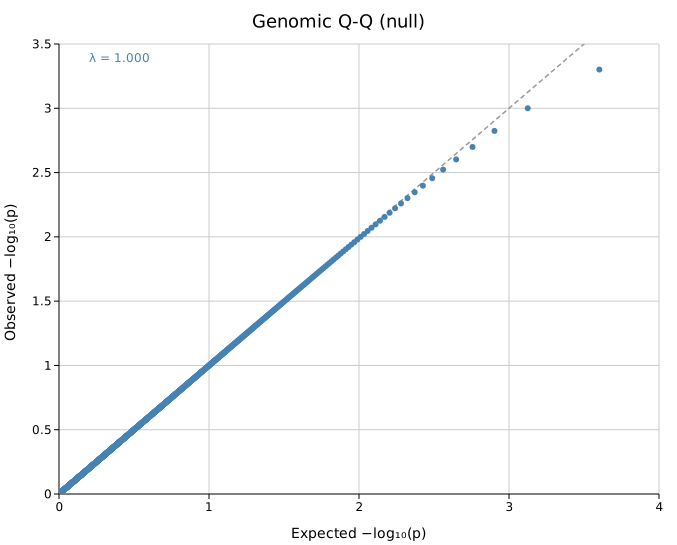
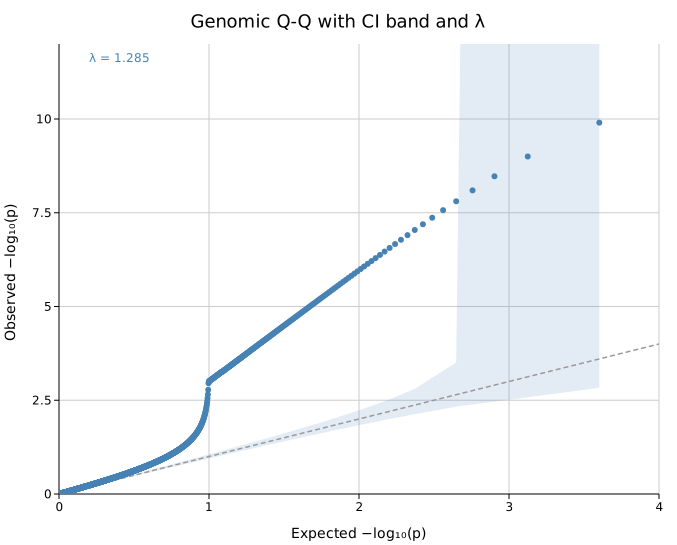
.with_pvalues() switches to genomic mode. Input values must be raw p-values in (0, 1]. The plot shows −log₁₀(observed p) vs −log₁₀(expected p) under the null hypothesis. Points on the y = x diagonal indicate well-calibrated test statistics:
#![allow(unused)]
fn main() {
use kuva::plot::QQPlot;
use kuva::render::plots::Plot;
let plot = QQPlot::new()
    .with_pvalues("GWAS study", pvalues)
    .with_lambda();   // annotate genomic inflation factor λ
}

CI band and genomic inflation factor λ
.with_ci_band() draws a shaded 95 % pointwise confidence band around the y = x diagonal. Points falling outside the band indicate more deviation from the null than expected by chance.
.with_lambda() annotates λ, the genomic inflation factor:
λ = median(χ²₁ observed) / 0.4549
A value near 1.0 means test statistics are well-calibrated. λ > 1 indicates inflation — often caused by population stratification, cryptic relatedness, or systematic batch effects:
#![allow(unused)]
fn main() {
use kuva::plot::QQPlot;
use kuva::render::plots::Plot;
let plot = QQPlot::new()
    .with_pvalues("GWAS study", pvalues)
    .with_ci_band()
    .with_lambda();
}
Multi-study genomic Q-Q
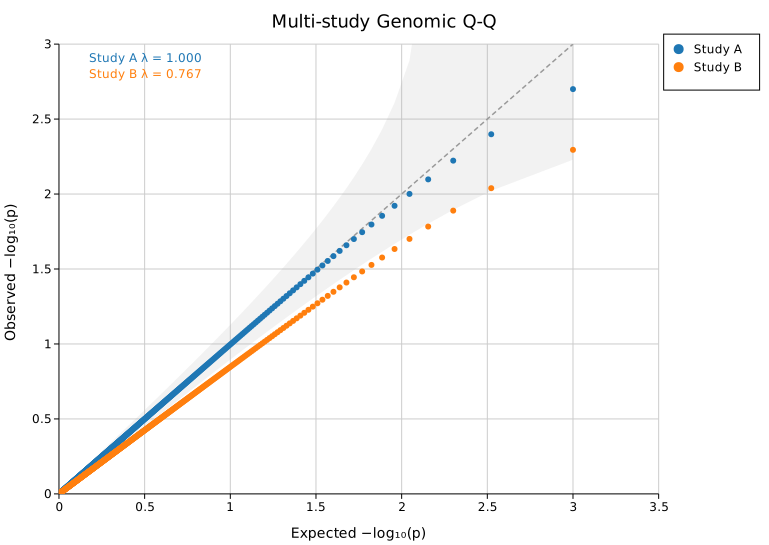
Overlay multiple GWAS datasets to compare calibration between studies or cohorts:
#![allow(unused)]
fn main() {
use kuva::plot::QQPlot;
use kuva::render::plots::Plot;
use kuva::render::palette::Palette;
let pal = Palette::category10();

let plot = QQPlot::new()
    .with_pvalues_colored("Study A", pvals_a, pal[0].to_string())
    .with_pvalues_colored("Study B", pvals_b, pal[1].to_string())
    .with_ci_band()
    .with_legend("")
    .with_lambda();
}
Builder reference
| Method | Default | Description |
|---|---|---|
.with_data(label, iter) | — | Add a group (normal mode) |
.with_data_colored(label, iter, color) | — | Add a group with explicit color |
.with_pvalues(label, iter) | — | Add p-values; switches to genomic mode |
.with_pvalues_colored(label, iter, color) | — | Same with explicit color |
.with_normal() | default | Explicitly set normal mode |
.with_genomic() | — | Explicitly set genomic mode |
.with_reference_line() | on | Show the reference line |
.without_reference_line() | — | Hide the reference line |
.with_ci_band() | off | 95 % pointwise CI band around reference diagonal |
.with_ci_alpha(f) | 0.15 | CI band fill opacity |
.with_lambda() | off | Annotate λ (genomic mode only) |
.without_lambda() | — | Hide λ annotation |
.with_marker_size(px) | 3.0 | Scatter marker radius |
.with_fill_opacity(f) | — | Marker fill opacity (useful for dense plots) |
.with_stroke_width(f) | 1.5 | Reference line stroke width |
.with_color(css) | "steelblue" | Uniform color (single-group) |
.with_legend(title) | — | Enable legend; "" for no title |
CLI
# Normal Q-Q
kuva qq data.tsv --value score --title "Normal Q-Q"

# Multi-group normal Q-Q
kuva qq data.tsv --value score --color-by group

# Genomic Q-Q from GWAS p-values
kuva qq gwas.tsv --value pvalue --genomic \
    --title "GWAS Q-Q" \
    --x-label "Expected -log10(p)" --y-label "Observed -log10(p)"

# Genomic Q-Q with CI band and lambda annotation
kuva qq gwas.tsv --value pvalue --genomic --ci-band --lambda

# Multi-study comparison
kuva qq gwas.tsv --value pvalue --color-by study --genomic --ci-band --lambda
CLI flags
| Flag | Default | Description |
|---|---|---|
--value <COL> | 0 | Column of values (raw data or p-values) |
--color-by <COL> | — | Group by column; one set of points per value |
--genomic | off | Genomic mode: input values are p-values in (0, 1] |
--ci-band | off | 95 % CI band |
--lambda | off | Annotate λ (genomic mode) |
--no-reference-line | — | Hide the reference line |
--marker-size <F> | 3.0 | Marker radius in pixels |
--fill-opacity <F> | — | Marker fill opacity |
--x-label <S> | (auto) | X-axis label |
--y-label <S> | (auto) | Y-axis label |
See also: ECDF Plot for an alternative distribution check, Manhattan Plot for genomic-inflation Q-Q use, Histogram for a simpler distribution view.
See also: Shared flags — output, appearance, axes.
Box Plot
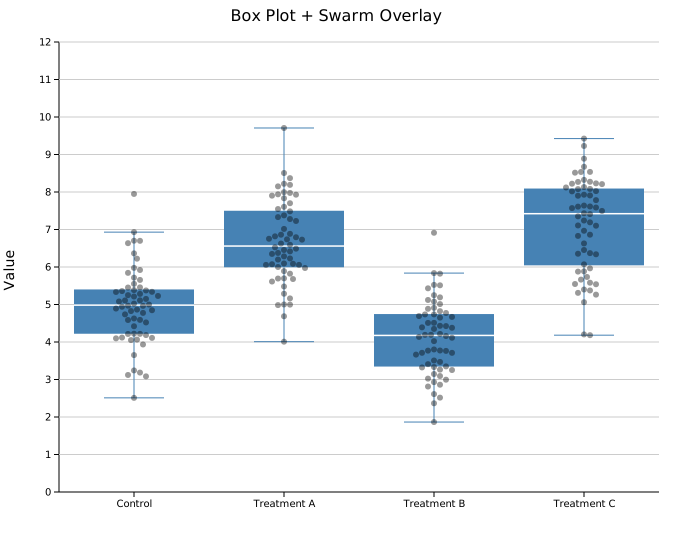
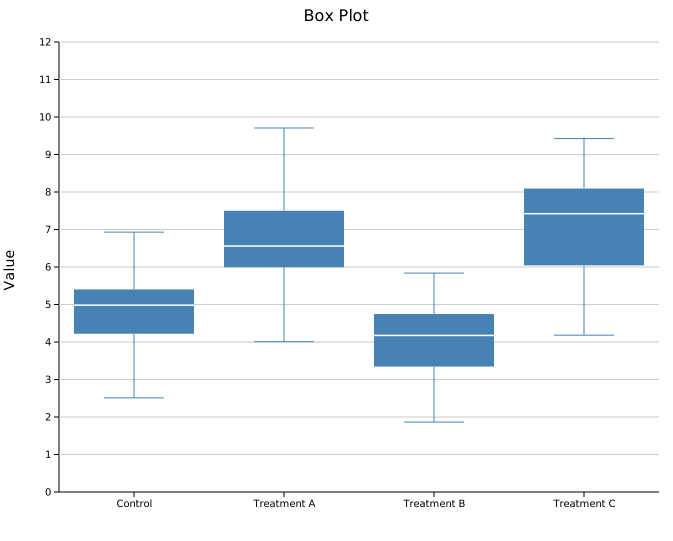
A box plot (box-and-whisker plot) displays the five-number summary of one or more groups of values. Boxes show the interquartile range (Q1–Q3) with a median line; whiskers extend to the most extreme values within 1.5×IQR of the box edges (Tukey style). Individual data points can optionally be overlaid as a jittered strip or beeswarm.
Import path: kuva::plot::BoxPlot
Basic usage
Add one group per category with .with_group(label, values). Groups are rendered left-to-right in the order they are added.
#![allow(unused)]
fn main() {
use kuva::plot::BoxPlot;
use kuva::backend::svg::SvgBackend;
use kuva::render::render::render_multiple;
use kuva::render::layout::Layout;
use kuva::render::plots::Plot;

let plot = BoxPlot::new()
    .with_group("Control",     vec![4.1, 5.0, 5.3, 5.8, 6.2, 7.0, 5.5, 4.8])
    .with_group("Treatment A", vec![5.5, 6.1, 6.4, 7.2, 7.8, 8.5, 6.9, 7.0])
    .with_group("Treatment B", vec![3.2, 4.0, 4.5, 4.8, 5.1, 5.9, 4.3, 4.7])
    .with_group("Treatment C", vec![6.0, 7.2, 7.5, 8.1, 8.8, 9.5, 7.9, 8.2])
    .with_color("steelblue");

let plots = vec![Plot::Box(plot)];
let layout = Layout::auto_from_plots(&plots)
    .with_title("Box Plot")
    .with_y_label("Value");

let scene = render_multiple(plots, layout);
let svg = SvgBackend.render_scene(&scene);
std::fs::write("boxplot.svg", svg).unwrap();
}
What the box shows
| Element | Meaning |
|---|---|
| Bottom of box | Q1 — 25th percentile |
| Line in box | Q2 — median (50th percentile) |
| Top of box | Q3 — 75th percentile |
| Lower whisker | Smallest value ≥ Q1 − 1.5×IQR |
| Upper whisker | Largest value ≤ Q3 + 1.5×IQR |
Values outside the whisker range are not drawn automatically — use an overlay to show them.
Point overlays
Overlaying the raw data on top of each box makes the sample size and distribution shape immediately visible. Both modes accept an optional color and point size.
Jittered strip
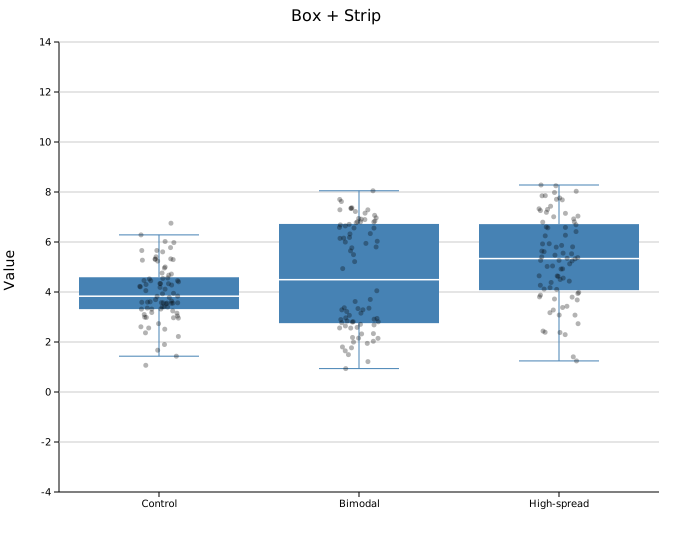
.with_strip(jitter) scatters points randomly within a horizontal band. The jitter argument controls the spread width (in data-axis units; 0.2 is a reasonable starting value).
#![allow(unused)]
fn main() {
use kuva::plot::BoxPlot;
use kuva::render::plots::Plot;

let plot = BoxPlot::new()
    .with_group("Control",     vec![/* values */])
    .with_group("Treatment A", vec![/* values */])
    .with_color("steelblue")
    .with_strip(0.2)
    .with_overlay_color("rgba(0,0,0,0.4)")
    .with_overlay_size(3.0);
}
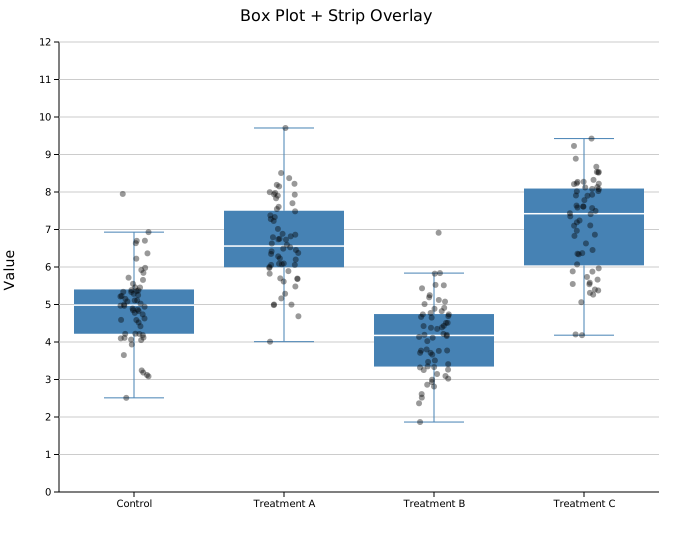
Beeswarm
.with_swarm_overlay() uses a beeswarm algorithm to spread points horizontally to avoid overlap. This gives a clearer picture of data density and is particularly useful for smaller datasets (roughly N < 200 per group).
#![allow(unused)]
fn main() {
use kuva::plot::BoxPlot;
use kuva::render::plots::Plot;

let plot = BoxPlot::new()
    .with_group("Control",     vec![/* values */])
    .with_group("Treatment A", vec![/* values */])
    .with_color("steelblue")
    .with_swarm_overlay()
    .with_overlay_color("rgba(0,0,0,0.4)")
    .with_overlay_size(3.0);
}

A semi-transparent overlay_color is recommended so the box remains visible beneath the points.
Per-group colors
Color each group independently within a single BoxPlot using .with_group_colors(). Colors are matched to groups by position — the first color applies to the first group added, and so on. The uniform .with_color() value is used as a fallback for any group without an entry. All elements of a group (box, whiskers, caps) share the same color.
#![allow(unused)]
fn main() {
use kuva::plot::BoxPlot;
use kuva::backend::svg::SvgBackend;
use kuva::render::render::render_multiple;
use kuva::render::layout::Layout;
use kuva::render::plots::Plot;

let plot = BoxPlot::new()
    .with_group("Control",     samples(5.0, 1.0, 60, 1))
    .with_group("Treatment A", samples(6.5, 1.2, 60, 2))
    .with_group("Treatment B", samples(4.2, 0.9, 60, 3))
    .with_group("Treatment C", samples(7.1, 1.5, 60, 4))
    .with_group_colors(["steelblue", "tomato", "seagreen", "goldenrod"]);

let plots = vec![Plot::Box(plot)];
let layout = Layout::auto_from_plots(&plots)
    .with_title("Box Plot — Per-group Colors")
    .with_y_label("Value");

let svg = SvgBackend.render_scene(&render_multiple(plots, layout));
}
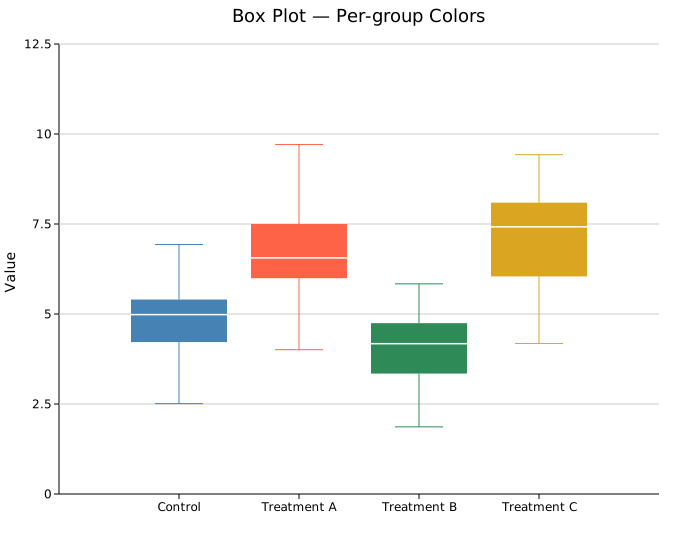
A partial list is also valid — groups beyond the list length fall back to the uniform .with_color() value:
#![allow(unused)]
fn main() {
use kuva::plot::BoxPlot;
let plot = BoxPlot::new()
    .with_group("Control",     vec![/* values */])
    .with_group("Treatment A", vec![/* values */])
    .with_group("Treatment B", vec![/* values */])
    .with_color("steelblue")          // fallback for groups 1 and 2
    .with_group_colors(["tomato"]);   // only group 0 gets this color
}
Legend note: the legend entry uses the uniform
.with_color()value. For a fully labeled per-group legend, create oneBoxPlotper group and attach.with_legend()to each, then use aLayout::with_palette()to auto-assign colors.
Horizontal mode
.with_horizontal(true) rotates the chart so categories appear on the Y-axis and values on the X-axis.
#![allow(unused)]
fn main() {
use kuva::plot::BoxPlot;
use kuva::render::layout::Layout;
use kuva::render::plots::Plot;
use kuva::render::render::render_multiple;
use kuva::backend::svg::SvgBackend;

let plot = BoxPlot::new()
    .with_group("Control",     vec![4.1, 5.0, 5.3, 5.8, 6.2, 7.0])
    .with_group("Treatment A", vec![5.5, 6.1, 6.4, 7.2, 7.8, 8.5])
    .with_group("Treatment B", vec![3.2, 4.0, 4.5, 4.8, 5.1, 5.9])
    .with_group("Treatment C", vec![6.0, 7.2, 7.5, 8.1, 8.8, 9.5])
    .with_group_colors(["steelblue", "tomato", "seagreen", "goldenrod"])
    .with_horizontal(true);

let plots = vec![Plot::Box(plot)];
let layout = Layout::auto_from_plots(&plots)
    .with_title("Horizontal Box Plot")
    .with_x_label("Value");

let svg = SvgBackend.render_scene(&render_multiple(plots, layout));
}
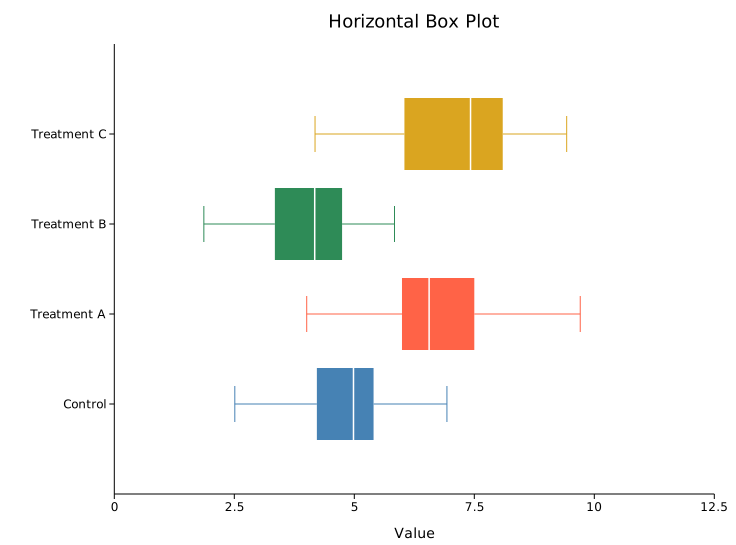
API reference
| Method | Description |
|---|---|
BoxPlot::new() | Create a box plot with defaults |
.with_group(label, values) | Add a group; accepts any Into<f64> iterable |
.with_color(s) | Box fill color (CSS color string) |
.with_group_colors(iter) | Per-group fill colors; falls back to .with_color for out-of-range indices |
.with_width(f) | Box width as a fraction of the category slot (default 0.8) |
.with_legend(s) | Attach a legend label |
.with_strip(jitter) | Overlay jittered strip points; jitter is horizontal spread width |
.with_swarm_overlay() | Overlay beeswarm points (spread to avoid overlap) |
.with_overlay_color(s) | Color for overlay points (default "rgba(0,0,0,0.45)") |
.with_overlay_size(r) | Radius of overlay points in pixels (default 3.0) |
.with_horizontal(bool) | Rotate chart: categories on Y-axis, values on X-axis (default false) |
See also: Violin Plot for the full density shape, Raincloud Plot for box + density + points combined, Strip Plot for the raw points alone.
CLI
Box-and-whisker plot. Groups are taken from one column; values from another.
Input: two columns — group label and numeric value, one observation per row.
| Flag | Default | Description |
|---|---|---|
--group-col <COL> | 0 | Group label column |
--value-col <COL> | 1 | Numeric value column |
--y <COL>[,<COL>…] | — | Comma-separated columns; each column becomes a separate group (column name = group label). Overrides --group-col + --value-col when 2+ columns given |
--color <CSS> | steelblue | Box fill color (uniform, all groups) |
--group-colors <CSS,...> | — | Per-group colors, comma-separated; falls back to --color for unlisted groups |
--overlay-points | off | Overlay individual points as a jittered strip |
--overlay-swarm | off | Overlay individual points as a non-overlapping beeswarm |
--horizontal | off | Render groups on the Y-axis, values on the X-axis |
kuva box samples.tsv --group-col group --value-col expression

kuva box samples.tsv --group-col group --value-col expression \
    --overlay-swarm --color "rgba(70,130,180,0.6)"

kuva box samples.tsv --group-col group --value-col expression \
    --group-colors "steelblue,tomato,seagreen,goldenrod,mediumpurple"

# multi-column: each numeric column is a group
kuva box data.tsv --y col_a,col_b,col_c

# horizontal layout
kuva box samples.tsv --group-col group --value-col expression --horizontal
See also: Shared flags — output, appearance, axes, log scale.
Violin Plot
A violin plot estimates the probability density of each group using kernel density estimation (KDE) and renders it as a symmetric shape — widest where data is most dense. Unlike box plots, violins reveal multi-modal and skewed distributions that a five-number summary would obscure.
Import path: kuva::plot::ViolinPlot
Basic usage
Add one group per category with .with_group(label, values). Groups are rendered left-to-right in the order they are added.
#![allow(unused)]
fn main() {
use kuva::plot::ViolinPlot;
use kuva::backend::svg::SvgBackend;
use kuva::render::render::render_multiple;
use kuva::render::layout::Layout;
use kuva::render::plots::Plot;

let plot = ViolinPlot::new()
    .with_group("Normal",  normal_data)   // unimodal
    .with_group("Bimodal", bimodal_data)  // two peaks — invisible in a box plot
    .with_group("Skewed",  skewed_data)   // long tail
    .with_color("steelblue")
    .with_width(30.0);

let plots = vec![Plot::Violin(plot)];
let layout = Layout::auto_from_plots(&plots)
    .with_title("Violin Plot")
    .with_y_label("Value");

let scene = render_multiple(plots, layout);
let svg = SvgBackend.render_scene(&scene);
std::fs::write("violin.svg", svg).unwrap();
}
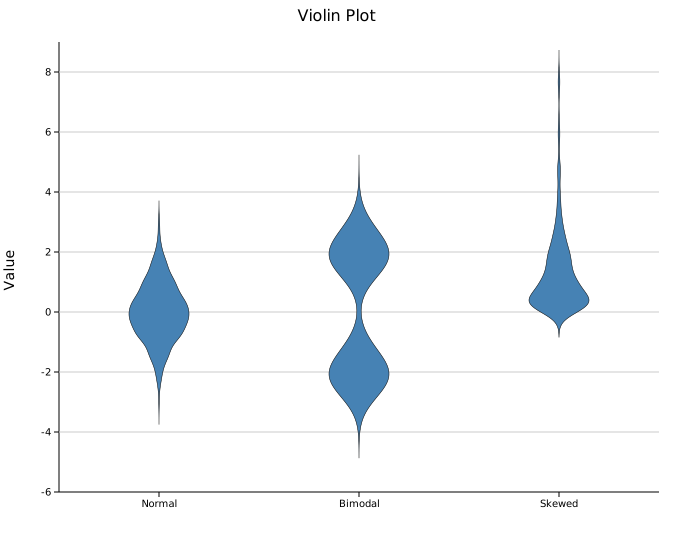
The bimodal group shows two distinct bulges — structure that a box plot would represent as a single median and IQR, losing all information about the separation.
Violin width
.with_width(px) sets the maximum half-width of each violin in pixels. The default is 30.0. Unlike bar width, this is an absolute pixel value, not a fraction of the category slot.
#![allow(unused)]
fn main() {
use kuva::plot::ViolinPlot;
let plot = ViolinPlot::new()
    .with_group("A", data)
    .with_width(20.0);   // narrower violins
}
KDE bandwidth
Bandwidth controls how smooth the density estimate is. The default uses Silverman's rule-of-thumb, which works well for unimodal, roughly normal data. Set it manually with .with_bandwidth(h) when the automatic choice is too smooth (hides modes) or too rough (noisy).
#![allow(unused)]
fn main() {
use kuva::plot::ViolinPlot;
use kuva::render::plots::Plot;

// Too narrow — jagged, noisy
let plot = ViolinPlot::new().with_group("", data.clone()).with_bandwidth(0.15);

// Automatic — Silverman's rule (default, no call needed)
let plot = ViolinPlot::new().with_group("", data.clone());

// Too wide — over-smoothed, modes blend together
let plot = ViolinPlot::new().with_group("", data.clone()).with_bandwidth(2.0);
}
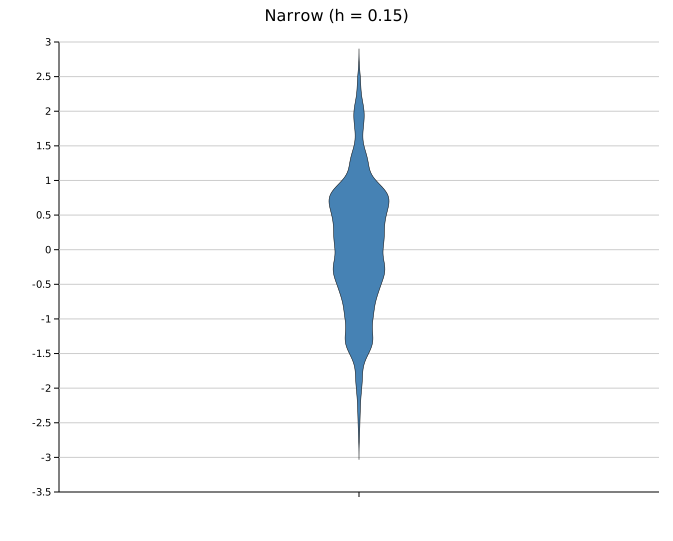 |
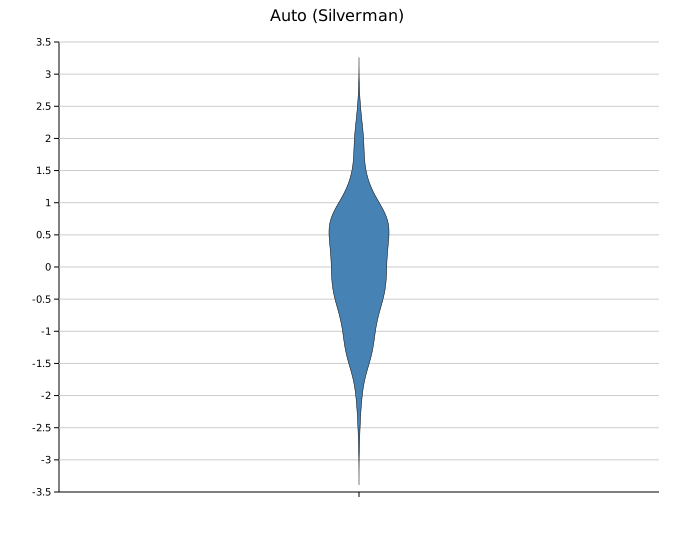 |
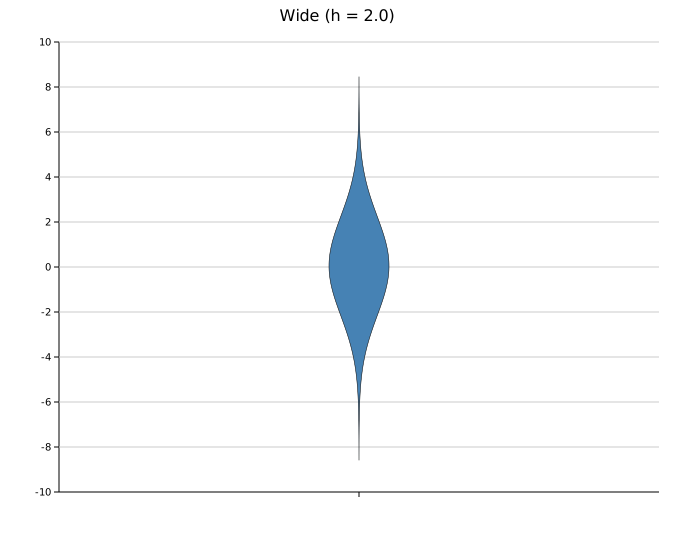 |
h = 0.15 (too narrow) |
Auto — Silverman | h = 2.0 (too wide) |
.with_kde_samples(n) sets the number of points at which the density is evaluated (default 200). Increase it for a smoother rendered curve; the default is adequate for most datasets.
Point overlays
Adding individual points on top of the violin makes the sample size visible and helps readers judge the reliability of the density estimate.
Beeswarm overlay
.with_swarm_overlay() spreads points horizontally to avoid overlap. Recommended for smaller datasets (roughly N < 200 per group).
#![allow(unused)]
fn main() {
use kuva::plot::ViolinPlot;
use kuva::backend::svg::SvgBackend;
use kuva::render::render::render_multiple;
use kuva::render::layout::Layout;
use kuva::render::plots::Plot;

let plot = ViolinPlot::new()
    .with_group("Normal",  normal_data)
    .with_group("Bimodal", bimodal_data)
    .with_group("Skewed",  skewed_data)
    .with_color("steelblue")
    .with_width(30.0)
    .with_swarm_overlay()
    .with_overlay_color("rgba(0,0,0,0.35)")
    .with_overlay_size(2.5);

let plots = vec![Plot::Violin(plot)];
let layout = Layout::auto_from_plots(&plots)
    .with_title("Violin + Swarm Overlay")
    .with_y_label("Value");

let svg = SvgBackend.render_scene(&render_multiple(plots, layout));
}

Jittered strip
.with_strip(jitter) places points with random horizontal offsets. More appropriate for large datasets where beeswarm layout becomes slow.
#![allow(unused)]
fn main() {
use kuva::plot::ViolinPlot;
let plot = ViolinPlot::new()
    .with_group("A", data)
    .with_color("steelblue")
    .with_strip(0.15)                       // jitter spread in data units
    .with_overlay_color("rgba(0,0,0,0.4)") // semi-transparent recommended
    .with_overlay_size(3.0);
}
Per-group colors
Color each group independently within a single ViolinPlot using .with_group_colors(). Colors are matched to groups by position — the first color applies to the first group added, and so on. The uniform .with_color() value is used as a fallback for any group without an entry.
#![allow(unused)]
fn main() {
use kuva::plot::ViolinPlot;
use kuva::backend::svg::SvgBackend;
use kuva::render::render::render_multiple;
use kuva::render::layout::Layout;
use kuva::render::plots::Plot;

let plot = ViolinPlot::new()
    .with_group("Normal",  normal_samples(0.0, 1.0, 300, 1))
    .with_group("Bimodal", bimodal_samples(-2.0, 2.0, 0.6, 300, 2))
    .with_group("Skewed",  skewed_samples(300, 3))
    .with_group_colors(["steelblue", "tomato", "seagreen"])
    .with_width(30.0);

let plots = vec![Plot::Violin(plot)];
let layout = Layout::auto_from_plots(&plots)
    .with_title("Violin Plot — Per-group Colors")
    .with_y_label("Value");

let svg = SvgBackend.render_scene(&render_multiple(plots, layout));
}
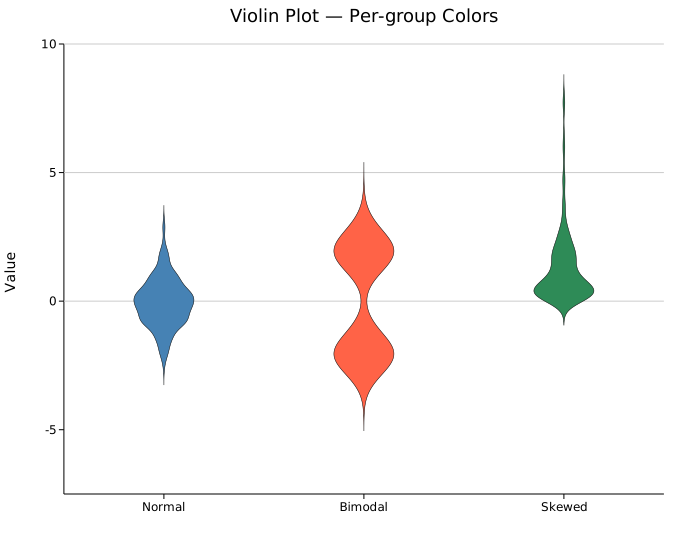
A partial list is also valid — groups beyond the list length fall back to the uniform .with_color() value:
#![allow(unused)]
fn main() {
use kuva::plot::ViolinPlot;
let plot = ViolinPlot::new()
    .with_group("Normal",  vec![/* values */])
    .with_group("Bimodal", vec![/* values */])
    .with_group("Skewed",  vec![/* values */])
    .with_color("steelblue")        // fallback for groups 1 and 2
    .with_group_colors(["tomato"]); // only group 0 gets this color
}
Legend note: the legend entry uses the uniform
.with_color()value. For a fully labeled per-group legend, create oneViolinPlotper group and attach.with_legend()to each, then use aLayout::with_palette()to auto-assign colors.
Horizontal mode
.with_horizontal(true) rotates the chart so categories appear on the Y-axis and values on the X-axis.
#![allow(unused)]
fn main() {
use kuva::plot::ViolinPlot;
use kuva::render::layout::Layout;
use kuva::render::plots::Plot;
use kuva::render::render::render_multiple;
use kuva::backend::svg::SvgBackend;

let plot = ViolinPlot::new()
    .with_group("Normal",  normal_data)
    .with_group("Bimodal", bimodal_data)
    .with_group("Skewed",  skewed_data)
    .with_group_colors(["steelblue", "tomato", "seagreen"])
    .with_width(0.8)
    .with_horizontal(true);

let plots = vec![Plot::Violin(plot)];
let layout = Layout::auto_from_plots(&plots)
    .with_title("Horizontal Violin Plot")
    .with_x_label("Value");

let svg = SvgBackend.render_scene(&render_multiple(plots, layout));
}
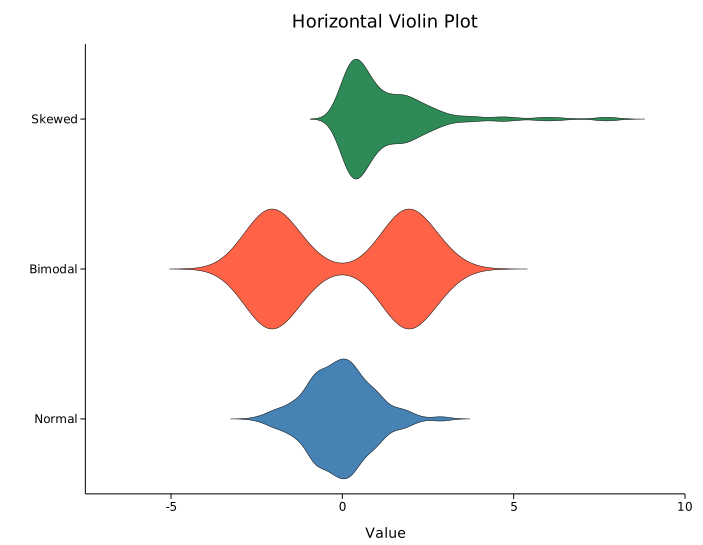
API reference
| Method | Description |
|---|---|
ViolinPlot::new() | Create a violin plot with defaults |
.with_group(label, values) | Add a group; accepts any Into<f64> iterable |
.with_color(s) | Violin fill color (CSS color string) |
.with_group_colors(iter) | Per-group fill colors; falls back to .with_color for out-of-range indices |
.with_width(px) | Maximum half-width of each violin in pixels (default 30.0) |
.with_legend(s) | Attach a legend label |
.with_bandwidth(h) | KDE bandwidth; omit for Silverman's rule (recommended default) |
.with_kde_samples(n) | KDE evaluation points (default 200) |
.with_strip(jitter) | Overlay jittered strip; jitter is spread width in data units |
.with_swarm_overlay() | Overlay beeswarm points (spread to avoid overlap) |
.with_overlay_color(s) | Overlay point color (default "rgba(0,0,0,0.45)") |
.with_overlay_size(r) | Overlay point radius in pixels (default 3.0) |
.with_horizontal(bool) | Rotate chart: categories on Y-axis, values on X-axis (default false) |
See also: Box Plot for a simpler quantile summary, Raincloud Plot for violin + box + points combined, Ridgeline Plot for stacking many groups' densities.
CLI
Kernel-density violin plot. Same input format as box.
Input: two columns — group label and numeric value, one observation per row.
| Flag | Default | Description |
|---|---|---|
--group-col <COL> | 0 | Group label column |
--value-col <COL> | 1 | Numeric value column |
--y <COL>[,<COL>…] | — | Comma-separated columns; each column becomes a separate group (column name = group label). Overrides --group-col + --value-col when 2+ columns given |
--color <CSS> | steelblue | Violin fill color (uniform, all groups) |
--group-colors <CSS,...> | — | Per-group colors, comma-separated; falls back to --color for unlisted groups |
--bandwidth <F> | (Silverman) | KDE bandwidth |
--overlay-points | off | Overlay individual points as a jittered strip |
--overlay-swarm | off | Overlay individual points as a non-overlapping beeswarm |
--horizontal | off | Render groups on the Y-axis, values on the X-axis |
kuva violin samples.tsv --group-col group --value-col expression

kuva violin samples.tsv --group-col group --value-col expression \
    --overlay-swarm --bandwidth 0.3

kuva violin samples.tsv --group-col group --value-col expression \
    --group-colors "steelblue,tomato,seagreen,goldenrod,mediumpurple"

# multi-column: each numeric column is a group
kuva violin data.tsv --y col_a,col_b,col_c

# horizontal layout
kuva violin samples.tsv --group-col group --value-col expression --horizontal
See also: Shared flags — output, appearance, axes, log scale.
Strip Plot
A strip plot (dot plot / univariate scatter) shows every individual data point along a categorical axis. Unlike a box or violin, nothing is summarised — the raw values are shown directly, making sample size and exact distribution shape immediately visible.
Import path: kuva::plot::StripPlot
Basic usage
Add one group per category with .with_group(label, values). Groups are rendered left-to-right in the order they are added.
#![allow(unused)]
fn main() {
use kuva::plot::StripPlot;
use kuva::backend::svg::SvgBackend;
use kuva::render::render::render_multiple;
use kuva::render::layout::Layout;
use kuva::render::plots::Plot;

let strip = StripPlot::new()
    .with_group("Control",   control_data)
    .with_group("Low dose",  low_data)
    .with_group("High dose", high_data)
    .with_group("Washout",   washout_data)
    .with_color("steelblue")
    .with_point_size(2.5)
    .with_jitter(0.35);

let plots = vec![Plot::Strip(strip)];
let layout = Layout::auto_from_plots(&plots)
    .with_title("Jittered Strip Plot")
    .with_y_label("Measurement");

let scene = render_multiple(plots, layout);
let svg = SvgBackend.render_scene(&scene);
std::fs::write("strip.svg", svg).unwrap();
}
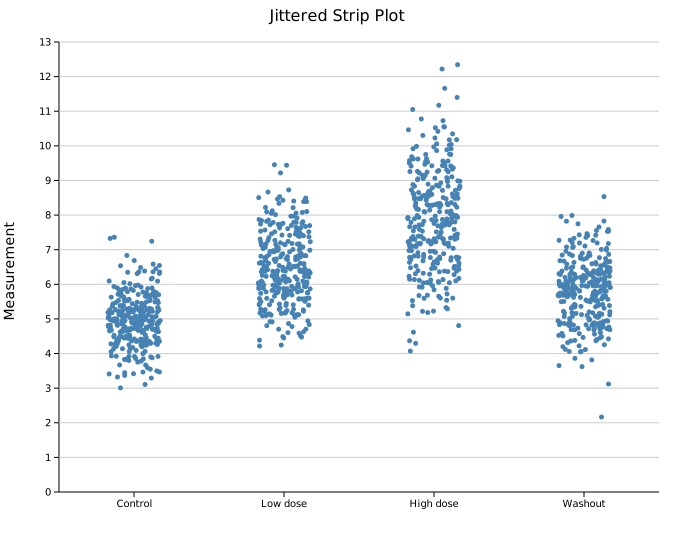
300 points per group. The jitter cloud fills out the slot width, making the spread and central tendency of each distribution easy to compare.
Layout modes
Three modes control how points are spread horizontally within each group slot.
Jittered strip
.with_jitter(j) assigns each point a random horizontal offset. j is the half-width as a fraction of the slot — 0.3 spreads points ±30 % of the slot width. This is the default (j = 0.3).
Use a smaller j to tighten the column or a larger j to spread it out. The jitter positions are randomised with a fixed seed (changeable via .with_seed()), so output is reproducible.
#![allow(unused)]
fn main() {
use kuva::plot::StripPlot;
let strip = StripPlot::new()
    .with_group("A", data)
    .with_jitter(0.35)      // ±35 % of slot width
    .with_point_size(2.5);
}
Beeswarm
.with_swarm() uses a deterministic algorithm to place each point as close to the group center as possible without overlapping any already-placed point. The outline of the resulting shape traces the density of the distribution.
Swarm works best for N < ~200 per group. With very large N, points are pushed far from center and the spread becomes impractical.
#![allow(unused)]
fn main() {
use kuva::plot::StripPlot;
use kuva::backend::svg::SvgBackend;
use kuva::render::render::render_multiple;
use kuva::render::layout::Layout;
use kuva::render::plots::Plot;

let strip = StripPlot::new()
    .with_group("Control",      normal_data)
    .with_group("Bimodal",      bimodal_data)
    .with_group("Right-skewed", skewed_data)
    .with_color("steelblue")
    .with_point_size(3.0)
    .with_swarm();

let plots = vec![Plot::Strip(strip)];
let layout = Layout::auto_from_plots(&plots)
    .with_title("Beeswarm")
    .with_y_label("Value");

let svg = SvgBackend.render_scene(&render_multiple(plots, layout));
}
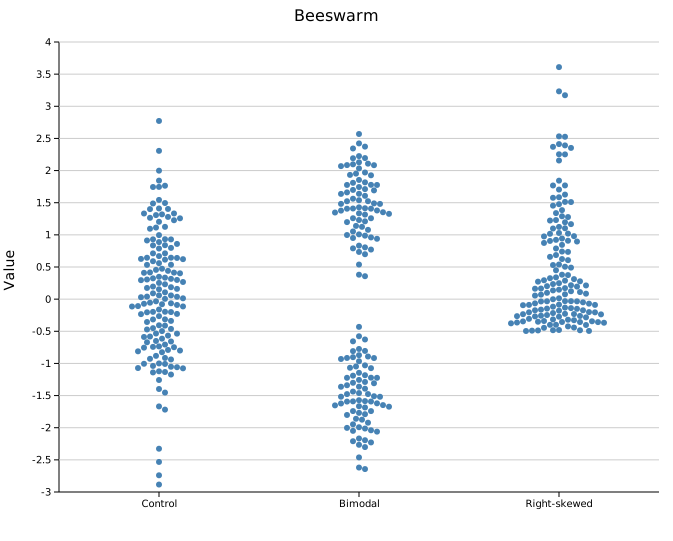
150 points per group. The bimodal group shows two distinct lobes; the right-skewed group shows the long tail — structure that jitter reveals less cleanly at this sample size.
Center stack
.with_center() places all points at x = group center with no horizontal spread, creating a vertical column. The density of the distribution is readable directly from where points are most tightly packed.
#![allow(unused)]
fn main() {
use kuva::plot::StripPlot;
let strip = StripPlot::new()
    .with_group("Normal",  normal_data)
    .with_group("Bimodal", bimodal_data)
    .with_group("Skewed",  skewed_data)
    .with_color("steelblue")
    .with_point_size(2.0)
    .with_center();
}
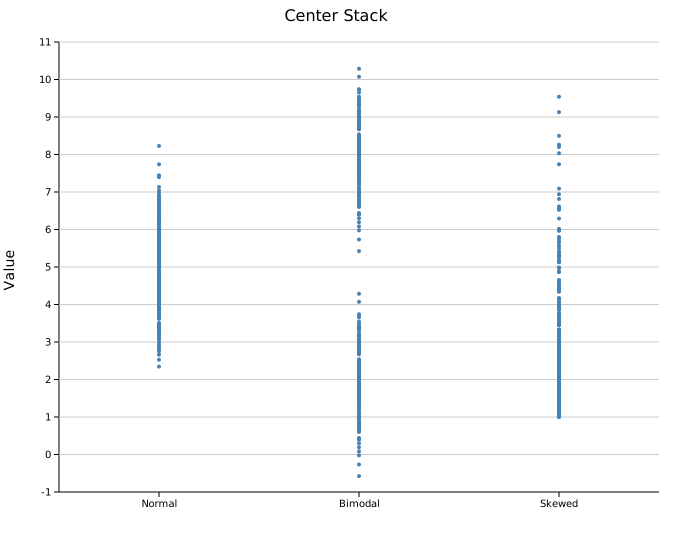
400 points per group. The bimodal group shows a clear gap in the column; the skewed group has a dense cluster at the low end thinning toward the tail.
Horizontal orientation
.with_horizontal(true) flips the axes: categories run down the Y axis and values along the X axis (seaborn orient='h', ggplot2 coord_flip). Jitter and swarm spread run vertically within each row. This reads better when group labels are long, or to line the plot up with a horizontal box or violin.
#![allow(unused)]
fn main() {
use kuva::plot::StripPlot;
let strip = StripPlot::new()
    .with_group("Control",   control_data)
    .with_group("Treatment", treatment_data)
    .with_swarm()
    .with_horizontal(true);
}
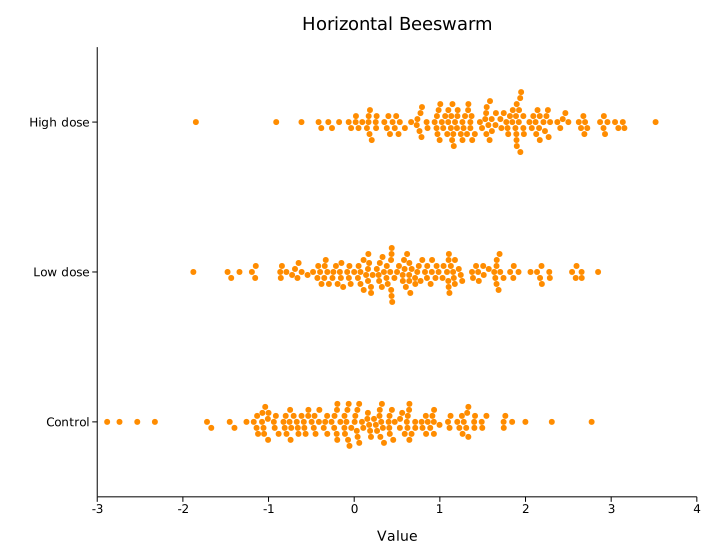
Composing with a box plot
A StripPlot can be layered on top of a BoxPlot by passing both to render_multiple. Use a semi-transparent rgba color for the strip so the box summary remains legible underneath.
#![allow(unused)]
fn main() {
use kuva::plot::{StripPlot, BoxPlot};
use kuva::backend::svg::SvgBackend;
use kuva::render::render::render_multiple;
use kuva::render::layout::Layout;
use kuva::render::plots::Plot;

let boxplot = BoxPlot::new()
    .with_group("Control",     control_data.clone())
    .with_group("Bimodal",     bimodal_data.clone())
    .with_group("High-spread", spread_data.clone())
    .with_color("steelblue");

let strip = StripPlot::new()
    .with_group("Control",     control_data)
    .with_group("Bimodal",     bimodal_data)
    .with_group("High-spread", spread_data)
    .with_color("rgba(0,0,0,0.3)")   // semi-transparent so box shows through
    .with_point_size(2.5)
    .with_jitter(0.2);

let plots = vec![Plot::Box(boxplot), Plot::Strip(strip)];
let layout = Layout::auto_from_plots(&plots)
    .with_title("Box + Strip")
    .with_y_label("Value");

let svg = SvgBackend.render_scene(&render_multiple(plots, layout));
}

The box summarises Q1/median/Q3; the individual points reveal that the bimodal group has two sub-populations the box conceals entirely.
Multiple strip plots with a palette
Passing multiple StripPlots to render_multiple with a Layout::with_palette() auto-assigns distinct colors. Attach .with_legend() to each plot to identify them.
#![allow(unused)]
fn main() {
use kuva::plot::StripPlot;
use kuva::backend::svg::SvgBackend;
use kuva::render::render::render_multiple;
use kuva::render::layout::Layout;
use kuva::render::plots::Plot;
use kuva::Palette;

let line_a = StripPlot::new()
    .with_group("WT",  wt_a).with_group("HET", het_a).with_group("KO", ko_a)
    .with_jitter(0.3).with_point_size(2.5)
    .with_legend("Line A");

let line_b = StripPlot::new()
    .with_group("WT",  wt_b).with_group("HET", het_b).with_group("KO", ko_b)
    .with_jitter(0.3).with_point_size(2.5)
    .with_legend("Line B");

let plots = vec![Plot::Strip(line_a), Plot::Strip(line_b)];
let layout = Layout::auto_from_plots(&plots)
    .with_title("Two Lines – Palette")
    .with_y_label("Expression")
    .with_palette(Palette::wong());

let svg = SvgBackend.render_scene(&render_multiple(plots, layout));
}
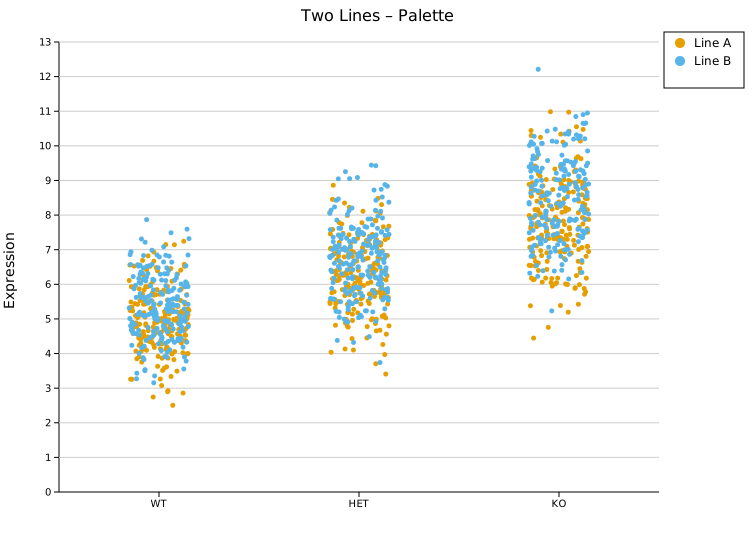
Per-group colors
Color each group independently within a single StripPlot using .with_group_colors(). Colors are matched to groups by position — the first color applies to the first group added, and so on. The uniform .with_color() value is used as a fallback for any group without an entry.
This is an alternative to creating one StripPlot per group when the data is already grouped. The legend is not updated automatically; use separate StripPlot instances with .with_legend() when you need labeled legend entries.
#![allow(unused)]
fn main() {
use kuva::plot::StripPlot;
use kuva::backend::svg::SvgBackend;
use kuva::render::render::render_multiple;
use kuva::render::layout::Layout;
use kuva::render::plots::Plot;

let strip = StripPlot::new()
    .with_group("Control",   vec![4.1, 5.0, 5.3, 5.8, 6.2, 4.7])
    .with_group("Treatment", vec![5.5, 6.1, 6.4, 7.2, 7.8, 6.9])
    .with_group("Placebo",   vec![3.9, 4.5, 4.8, 5.1, 5.6, 4.3])
    .with_group_colors(vec!["steelblue", "crimson", "seagreen"])
    .with_point_size(4.0)
    .with_jitter(0.3);

let plots = vec![Plot::Strip(strip)];
let layout = Layout::auto_from_plots(&plots)
    .with_title("Per-Group Colors")
    .with_y_label("Measurement");

let svg = SvgBackend.render_scene(&render_multiple(plots, layout));
}
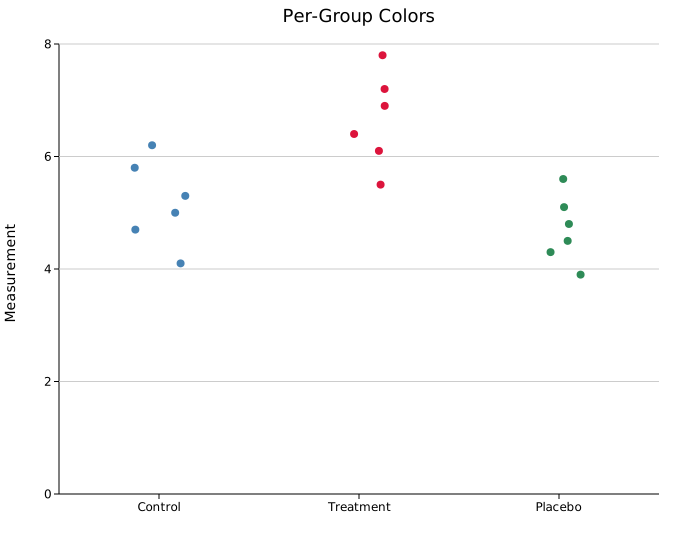
Per-point colors
.with_colored_group(label, points) adds a group where each point carries its own color. points is any iterator of (value, color) pairs — the value and color travel together. Points beyond the end of the color list fall back to the group/uniform color.
This is useful when each observation belongs to a distinct category within a single sample column — for example, coloring reads by their primary repeat motif in a STR genotyping view.
#![allow(unused)]
fn main() {
use kuva::plot::{StripPlot, LegendEntry, LegendShape, LegendPosition};
use kuva::backend::svg::SvgBackend;
use kuva::render::render::render_multiple;
use kuva::render::layout::Layout;
use kuva::render::plots::Plot;

let strip = StripPlot::new()
    .with_colored_group("Sample", vec![
        (6.1, "tomato"),       // ATTC repeat
        (9.3, "seagreen"),     // GCGC repeat
        (4.8, "goldenrod"),    // ATAT repeat
        (11.2, "mediumpurple"), // CGCG repeat
        (7.0, "steelblue"),   // TTAGG repeat
        // … more reads
    ])
    .with_swarm()
    .with_point_size(4.5);

// Per-point colors are not reflected in the auto-legend — supply entries manually.
let legend_entries = vec![
    LegendEntry { label: "ATTC".into(),  color: "tomato".into(),       shape: LegendShape::Circle, dasharray: None },
    LegendEntry { label: "GCGC".into(),  color: "seagreen".into(),     shape: LegendShape::Circle, dasharray: None },
    LegendEntry { label: "ATAT".into(),  color: "goldenrod".into(),    shape: LegendShape::Circle, dasharray: None },
    LegendEntry { label: "CGCG".into(),  color: "mediumpurple".into(), shape: LegendShape::Circle, dasharray: None },
    LegendEntry { label: "TTAGG".into(), color: "steelblue".into(),    shape: LegendShape::Circle, dasharray: None },
];

let plots = vec![Plot::Strip(strip)];
let layout = Layout::auto_from_plots(&plots)
    .with_title("STR Repeat Counts — Per-point Motif Colors")
    .with_x_label("Sample")
    .with_y_label("Repeat count")
    .with_legend_title("Motif")
    .with_legend_entries(legend_entries)
    .with_legend_position(LegendPosition::OutsideRightTop);

let svg = SvgBackend.render_scene(&render_multiple(plots, layout));
std::fs::write("point_colors.svg", svg).unwrap();
}
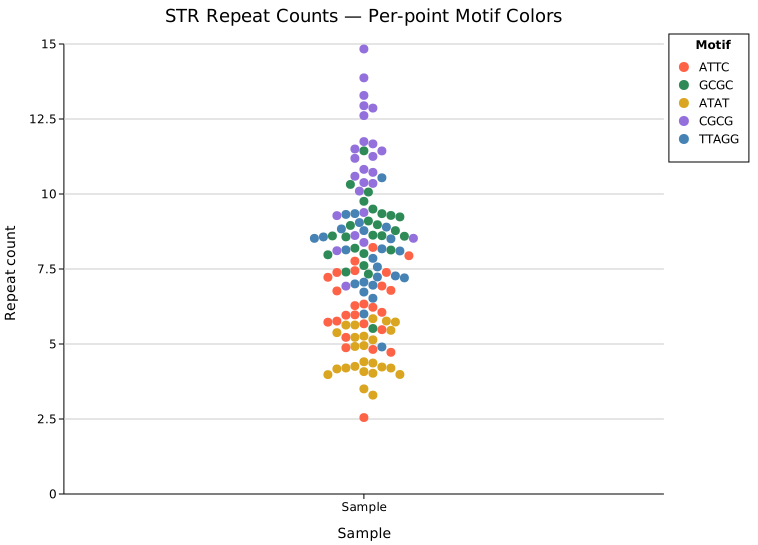
Legend note:
.with_colored_groupdoes not auto-populate the legend. Supply entries manually viaLayout::with_legend_entries(withLegendShape::Circle) as shown above. For per-group coloring (one color per column, not per point) see Per-group colors above.
Marker opacity and stroke
For dense datasets, the default solid fill causes points to merge into an opaque block. Two builders control fill transparency and an optional outline stroke to keep individual points distinguishable.
Dense strip — 500 points per group
With 500 points per group, solid markers pile into uniform bars and the shape of each distribution is hidden. Setting opacity = 0.25 makes denser bands visibly darker — here the bimodal "High dose" group clearly shows two sub-populations, and the skewed "Washout" distribution tapers naturally toward its tail. The thin 0.7 px stroke keeps points individually readable even where they overlap most.
#![allow(unused)]
fn main() {
use kuva::plot::StripPlot;
use kuva::backend::svg::SvgBackend;
use kuva::render::render::render_multiple;
use kuva::render::layout::Layout;
use kuva::render::plots::Plot;

// (populate each group with 500 values from your data source)
let (control, low, high, washout) = (vec![0f64], vec![0f64], vec![0f64], vec![0f64]);
let strip = StripPlot::new()
    .with_group("Control",   control)
    .with_group("Low dose",  low)
    .with_group("High dose", high)   // bimodal — two sub-populations
    .with_group("Washout",   washout) // right-skewed
    .with_color("steelblue")
    .with_point_size(4.0)
    .with_jitter(0.3)
    .with_marker_opacity(0.25)
    .with_marker_stroke_width(0.7);

let plots = vec![Plot::Strip(strip)];
let layout = Layout::auto_from_plots(&plots)
    .with_title("Dense strip — semi-transparent markers (500 pts/group)")
    .with_y_label("Measurement");

let svg = SvgBackend.render_scene(&render_multiple(plots, layout));
}
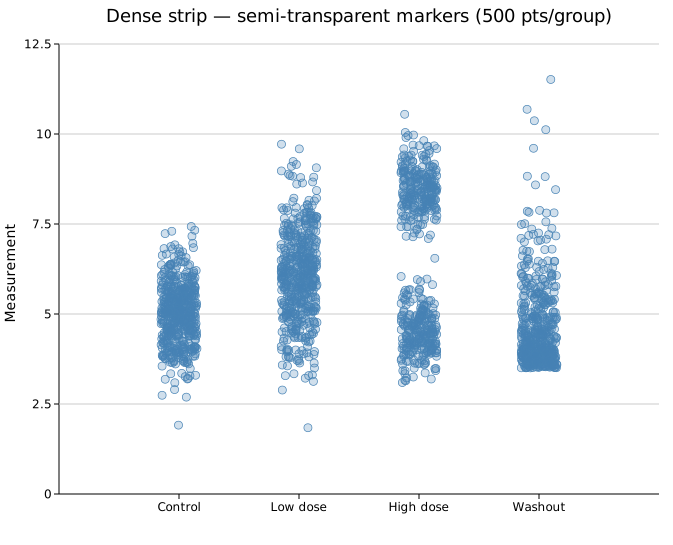
The stroke color always matches the fill color set by .with_color() or .with_group_colors().
API reference
| Method | Description |
|---|---|
StripPlot::new() | Create a strip plot with defaults |
.with_group(label, values) | Add a group; accepts any Into<f64> iterable |
.with_colored_group(label, points) | Add a group from (value, color) pairs — each point carries its own color |
.with_color(s) | Uniform point fill color (CSS color string, default "steelblue") |
.with_group_colors(iter) | Per-group colors; falls back to .with_color for out-of-range indices |
.with_point_size(r) | Point radius in pixels (default 4.0) |
.with_jitter(j) | Jittered strip layout; j is half-width as fraction of slot (default 0.3) |
.with_swarm() | Beeswarm layout — non-overlapping, best for N < 200 |
.with_center() | All points at group center — vertical density column |
.with_horizontal(bool) | Flip axes: categories on Y, values on X (coord_flip) |
.with_seed(n) | RNG seed for jitter positions (default 42) |
.with_legend(s) | Attach a legend label |
.with_marker_opacity(f) | Fill alpha: 0.0 = hollow, 1.0 = solid (default: solid) |
.with_marker_stroke_width(w) | Outline stroke at the fill color; None = no stroke (default) |
See also: Box Plot for a summary overlay, Violin Plot for the full density shape, Raincloud Plot for all three combined.
CLI
Strip / jitter plot — individual points along a categorical axis.
Input: group label column + numeric value column, one observation per row.
| Flag | Default | Description |
|---|---|---|
--group-col <COL> | 0 | Group label column |
--value-col <COL> | 1 | Numeric value column |
--y <COL>[,<COL>…] | — | Comma-separated columns; each column becomes a separate group (column name = group label). Overrides --group-col + --value-col when 2+ columns given |
--color <CSS> | steelblue | Point color |
--point-size <PX> | 4.0 | Point radius in pixels |
--swarm | off | Beeswarm (non-overlapping) layout |
--center | off | All points at group center (no spread) |
--horizontal | off | Flip axes: categories on Y, values on X |
--opacity <0..1> | opaque | Marker fill opacity; below 1 reveals density where points overlap (use for large N) |
--legend | off | Color groups by palette and show a legend |
Default layout when neither --swarm nor --center is given: random jitter (±30 % of slot width).
--legend assigns a distinct palette color to each group and adds a legend. Combine with --interactive to enable legend toggle (click a legend entry to show/hide that group).
kuva strip samples.tsv --group-col group --value-col expression

kuva strip samples.tsv --group-col group --value-col expression --swarm

# large N: semi-transparent markers reveal density through overlap
kuva strip samples.tsv --group-col group --value-col expression \
    --swarm --point-size 2.5 --opacity 0.35

# multi-column: each numeric column is a group
kuva strip data.tsv --y col_a,col_b,col_c

# colored groups with legend
kuva strip samples.tsv --group-col group --value-col expression \
    --legend -o strip_legend.svg

# interactive: hover, search, legend toggle
kuva strip samples.tsv --group-col group --value-col expression \
    --legend --interactive -o strip_interactive.svg
See also: Shared flags — output, appearance, axes, log scale.
Raincloud Plot
A raincloud plot (Allen et al. 2019) overlays three complementary views of each group's distribution on a shared axis:
- Cloud — a half-violin (KDE) showing the distribution shape
- Box — a narrow box-and-whisker showing the five-number summary
- Rain — jittered raw points showing every individual observation
This combination avoids the information loss of a box plot (shape is hidden), the visual clutter of a pure strip plot (structure is obscured), and the opacity of a violin (sample size is invisible). All three layers share the same y-axis so they can be compared directly.
Import path: kuva::plot::RaincloudPlot
Basic usage
Add one group per category with .with_group(label, values). Groups are rendered left-to-right in the order added.
#![allow(unused)]
fn main() {
use kuva::plot::RaincloudPlot;
use kuva::backend::svg::SvgBackend;
use kuva::render::render::render_multiple;
use kuva::render::layout::Layout;
use kuva::render::plots::Plot;

let plot = RaincloudPlot::new()
    .with_group("Control", control_values)
    .with_group("Low dose", low_dose_values)
    .with_group("High dose", high_dose_values);

let plots = vec![Plot::Raincloud(plot)];
let layout = Layout::auto_from_plots(&plots)
    .with_title("Drug response")
    .with_x_label("Treatment")
    .with_y_label("Response (AU)");

let scene = render_multiple(plots, layout);
let svg = SvgBackend.render_scene(&scene);
std::fs::write("raincloud.svg", svg).unwrap();
}
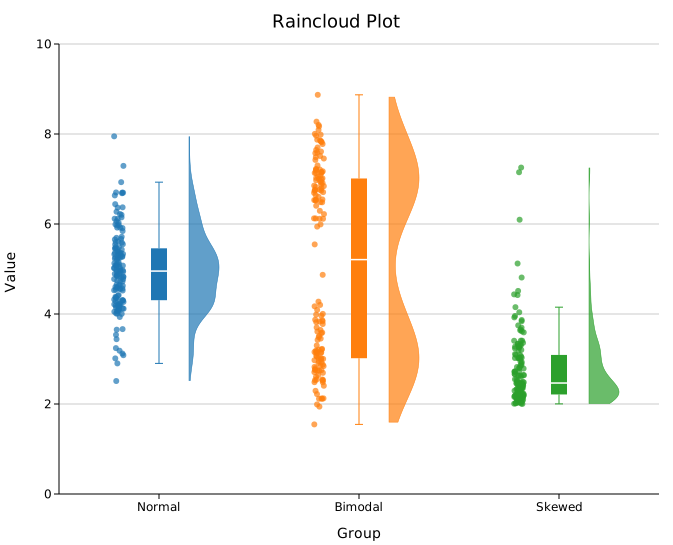
By default, multi-group plots use the category10 palette automatically. For a single group the uniform .with_color() value is used.
Toggling elements
Each of the three layers can be turned off independently. This lets you build simpler variants when not all three are needed.
#![allow(unused)]
fn main() {
use kuva::plot::RaincloudPlot;

// Cloud + box only (no raw points)
let plot = RaincloudPlot::new()
    .with_group("A", data)
    .with_rain(false);

// Cloud + rain only (no summary box)
let plot = RaincloudPlot::new()
    .with_group("A", data)
    .with_box(false);

// Box + rain only (no KDE cloud)
let plot = RaincloudPlot::new()
    .with_group("A", data)
    .with_cloud(false);
}
KDE bandwidth
The cloud shape is a kernel density estimate. By default, bandwidth is chosen automatically using Silverman's rule-of-thumb, which works well for roughly unimodal, normal-ish data but can over-smooth multimodal distributions.
Bandwidth scale
.with_bandwidth_scale(s) multiplies the auto-computed bandwidth by a factor (equivalent to ggplot2's adjust). Values below 1.0 produce a sharper, more data-sensitive curve; values above 1.0 produce a smoother curve.
#![allow(unused)]
fn main() {
use kuva::plot::RaincloudPlot;

// Tighter — reveals bimodality or shoulders
let plot = RaincloudPlot::new()
    .with_group("A", data)
    .with_bandwidth_scale(0.5);

// Wider — emphasises overall shape, less noise
let plot = RaincloudPlot::new()
    .with_group("A", data)
    .with_bandwidth_scale(2.0);
}
Explicit bandwidth
.with_bandwidth(h) sets an exact bandwidth value, overriding both Silverman's rule and .with_bandwidth_scale().
#![allow(unused)]
fn main() {
use kuva::plot::RaincloudPlot;
let plot = RaincloudPlot::new()
    .with_group("A", data)
    .with_bandwidth(0.4);
}
.with_kde_samples(n) controls how many points the KDE is evaluated at (default 200). The default is adequate for most datasets.
Flip direction
By default the cloud appears to the right of centre and rain to the left. .with_flip(true) reverses this.
#![allow(unused)]
fn main() {
use kuva::plot::RaincloudPlot;
let plot = RaincloudPlot::new()
    .with_group("A", data)
    .with_flip(true);   // cloud left, rain right
}
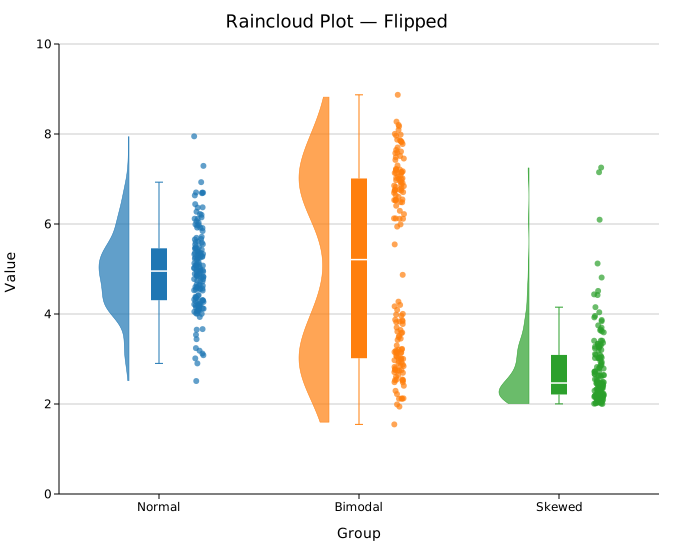
Per-group colors
.with_group_colors() assigns colors to groups by position.
#![allow(unused)]
fn main() {
use kuva::plot::RaincloudPlot;
use kuva::backend::svg::SvgBackend;
use kuva::render::render::render_multiple;
use kuva::render::layout::Layout;
use kuva::render::plots::Plot;

let plot = RaincloudPlot::new()
    .with_group("Control",   control_values)
    .with_group("Low dose",  low_values)
    .with_group("High dose", high_values)
    .with_group_colors(["#4878d0", "#ee854a", "#6acc65"]);

let plots = vec![Plot::Raincloud(plot)];
let layout = Layout::auto_from_plots(&plots)
    .with_title("Raincloud — per-group colors")
    .with_y_label("Response");

let svg = SvgBackend.render_scene(&render_multiple(plots, layout));
}
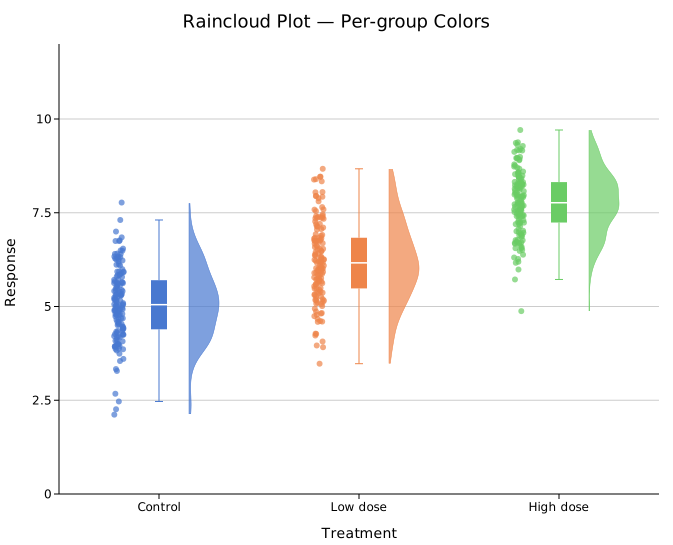
Legend
.with_legend(label) triggers per-group legend entries. Each group's label and color appear as a separate row in the legend — the string passed to .with_legend() is not used as an entry label but serves as a signal to show the legend.
#![allow(unused)]
fn main() {
use kuva::plot::RaincloudPlot;
use kuva::render::plots::Plot;
use kuva::render::layout::Layout;
use kuva::render::render::render_multiple;
use kuva::backend::svg::SvgBackend;
let plot = RaincloudPlot::new()
    .with_group("Control", control_values)
    .with_group("Treated", treated_values)
    .with_legend("show");   // triggers per-group entries

let plots = vec![Plot::Raincloud(plot)];
let layout = Layout::auto_from_plots(&plots)
    .with_title("Treatment comparison");
let svg = SvgBackend.render_scene(&render_multiple(plots, layout));
}
Fine-tuning layout
The offsets and widths of all three elements can be adjusted if groups overlap or look too sparse.
#![allow(unused)]
fn main() {
use kuva::plot::RaincloudPlot;
let plot = RaincloudPlot::new()
    .with_group("A", data_a)
    .with_group("B", data_b)
    .with_cloud_width(40.0)    // wider cloud (default 30.0 px)
    .with_cloud_offset(0.20)   // cloud centre further from group centre (default 0.15)
    .with_rain_offset(0.25)    // rain centre further from group centre (default 0.20)
    .with_box_width(0.12)      // wider box (default 0.08, fraction of slot)
    .with_rain_size(2.5)       // smaller rain points (default 3.0 px radius)
    .with_rain_jitter(0.04)    // tighter horizontal spread (default 0.05)
    .with_cloud_alpha(0.6)     // slightly more transparent cloud (default 0.7)
    .with_rain_alpha(0.5)      // more transparent rain (default 0.7)
    .with_seed(123);           // different jitter seed (default 42)
}
Horizontal mode
.with_horizontal(true) rotates the chart so categories appear on the Y-axis and values on the X-axis.
#![allow(unused)]
fn main() {
use kuva::plot::RaincloudPlot;
use kuva::render::layout::Layout;
use kuva::render::plots::Plot;
use kuva::render::render::render_multiple;
use kuva::backend::svg::SvgBackend;

let plot = RaincloudPlot::new()
    .with_group("Control",   control_data)
    .with_group("Low dose",  low_data)
    .with_group("High dose", high_data)
    .with_group_colors(["#4878d0", "#ee854a", "#6acc65"])
    .with_horizontal(true);

let plots = vec![Plot::Raincloud(plot)];
let layout = Layout::auto_from_plots(&plots)
    .with_title("Horizontal Raincloud Plot")
    .with_x_label("Value")
    .with_y_label("Treatment");

let svg = SvgBackend.render_scene(&render_multiple(plots, layout));
}
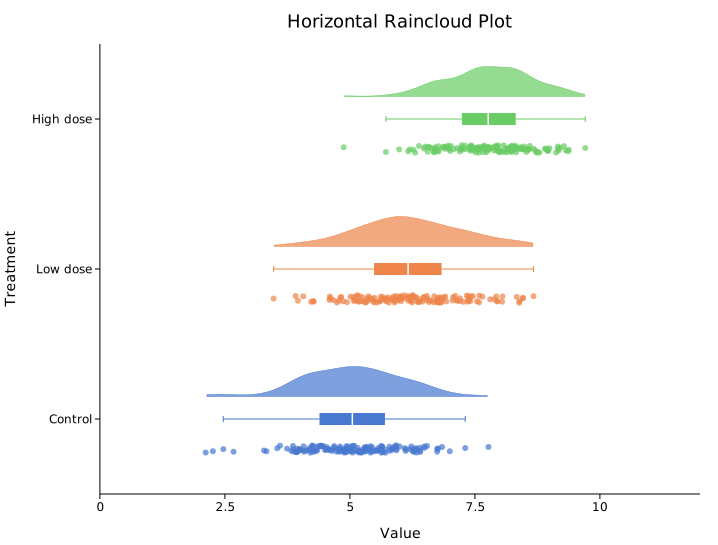
API reference
| Method | Description |
|---|---|
RaincloudPlot::new() | Create a raincloud plot with defaults |
.with_group(label, values) | Add a group; accepts any Vec<f64> |
.with_groups(iter) | Add multiple (label, values) pairs at once |
.with_color(s) | Uniform fill color, used for single-group plots (default "steelblue") |
.with_group_colors(iter) | Per-group fill colors matched by position |
.with_cloud(bool) | Show/hide the cloud half-violin (default true) |
.with_cloud_width(px) | Maximum pixel half-width of the cloud (default 30.0) |
.with_cloud_offset(f) | Data-axis offset of cloud centre from group centre (default 0.15) |
.with_cloud_alpha(a) | Cloud fill opacity 0–1 (default 0.7) |
.with_bandwidth(h) | Explicit KDE bandwidth; overrides Silverman + scale |
.with_bandwidth_scale(s) | Multiplier on Silverman bandwidth (default 1.0; < 1 sharper, > 1 smoother) |
.with_kde_samples(n) | KDE evaluation points (default 200) |
.with_box(bool) | Show/hide the box-and-whisker (default true) |
.with_box_width(f) | Box half-width as fraction of slot width (default 0.08) |
.with_rain(bool) | Show/hide the jitter points (default true) |
.with_rain_size(px) | Rain point radius in pixels (default 3.0) |
.with_rain_jitter(f) | Horizontal jitter spread in data units (default 0.05) |
.with_rain_alpha(a) | Rain point opacity 0–1 (default 0.7) |
.with_rain_offset(f) | Data-axis offset of rain centre from group centre (default 0.20) |
.with_flip(bool) | Swap cloud and rain sides (default false — cloud right, rain left) |
.with_seed(u64) | RNG seed for reproducible jitter (default 42) |
.with_legend(s) | Show per-group legend entries |
.with_horizontal(bool) | Rotate chart: categories on Y-axis, values on X-axis (default false) |
See also: Violin Plot, Box Plot, and Strip Plot for the three components it combines.
CLI
Raincloud plot — combines a half-violin KDE cloud, box-and-whisker, and jittered raw points in one panel per group.
Input: one row per observation with group and value columns.
| Flag | Default | Description |
|---|---|---|
--group-col <COL> | 0 | Group label column |
--value-col <COL> | 1 | Numeric value column |
--color <CSS> | — | Color for single-group plots |
--bandwidth <F> | auto | KDE bandwidth (Silverman's rule by default) |
--no-cloud | off | Hide the half-violin KDE |
--no-box | off | Hide the box-and-whisker |
--no-rain | off | Hide the jittered raw points |
--flip | off | Mirror cloud to the opposite side |
--horizontal | off | Render groups on the Y-axis, values on the X-axis |
--legend <LABEL> | — | Add legend entries (one per group) |
kuva raincloud data.tsv --group-col group --value-col score

kuva raincloud data.tsv --group-col condition --value-col response \
    --no-rain --legend "Condition" --title "Treatment Response"

# horizontal layout
kuva raincloud data.tsv --group-col group --value-col score --horizontal
See also: Shared flags — output, appearance, axes.
Hexbin Plot
A hexbin plot bins scatter points (x, y) into a regular hexagonal grid and colors each cell by its point count — or by an aggregated third variable z. Hexagonal bins tile the plane without gaps and are equidistant from all six neighbors, giving a more visually uniform density estimate than rectangular bins. A colorbar labeled "Count" (or the chosen aggregation) is added to the right margin automatically.
Import path: kuva::plot::hexbin::HexbinPlot, kuva::plot::hexbin::ZReduce, kuva::plot::ColorMap
Basic usage
Pass (x, y) scatter points to .with_data(). The plot divides the pixel canvas into hexagonal bins, counts the points in each, and applies the Viridis colormap.
#![allow(unused)]
fn main() {
use kuva::plot::hexbin::HexbinPlot;
use kuva::backend::svg::SvgBackend;
use kuva::render::render::render_multiple;
use kuva::render::layout::Layout;
use kuva::render::plots::Plot;

let x: Vec<f64> = /* your data */ vec![];
let y: Vec<f64> = /* your data */ vec![];

let plot = HexbinPlot::new().with_data(x, y);

let plots = vec![Plot::Hexbin(plot)];
let layout = Layout::auto_from_plots(&plots)
    .with_title("Hexbin Density")
    .with_x_label("X")
    .with_y_label("Y");

let svg = SvgBackend.render_scene(&render_multiple(plots, layout));
std::fs::write("hexbin.svg", svg).unwrap();
}

Three Gaussian clusters binned at the default resolution (20 bins across). The Viridis colorbar on the right maps bin counts from dark purple (sparse) to yellow (dense).
Bin resolution
.with_n_bins(n) sets the number of hex columns across the x-axis. More bins reveal finer density structure at the cost of noisier estimates in sparse regions.
#![allow(unused)]
fn main() {
use kuva::plot::hexbin::HexbinPlot;
use kuva::render::plots::Plot;
// Coarse — large hexes, smooth shape
let plot = HexbinPlot::new().with_data(x.clone(), y.clone()).with_n_bins(10);

// Fine — small hexes, more detail
let plot = HexbinPlot::new().with_data(x, y).with_n_bins(40);
}
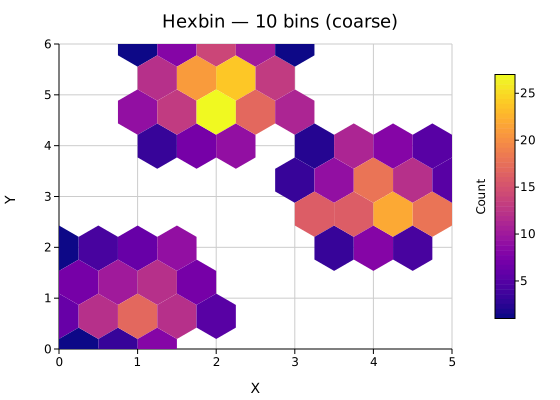
10 bins — the cluster shapes are obvious but internal density structure is lost.
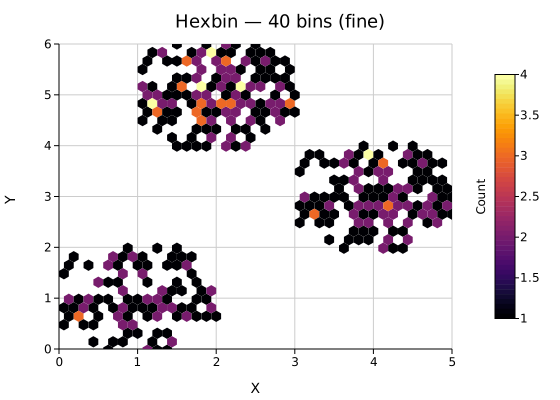
40 bins — peaks within each cluster become visible; individual bins in the periphery are noisier.
Log color scale
When a few bins dominate the count (dense core, sparse halo), the linear color scale saturates the colormap at the peak and hides structure elsewhere. .with_log_color(true) applies log₁₀(count + 1) before color mapping so both dense and sparse regions remain readable.
#![allow(unused)]
fn main() {
use kuva::plot::hexbin::HexbinPlot;
use kuva::render::plots::Plot;
let plot = HexbinPlot::new()
    .with_data(x, y)
    .with_log_color(true);
}

The colorbar tick marks show actual count values (1, 10, 100, …) while the color scale compresses high counts to reveal the low-density fringe.
Third variable — Z aggregation
.with_z(z, reduce) replaces count-based coloring with an aggregated third variable. Each bin collects the z values of the points it contains and applies the chosen ZReduce function. The colorbar label updates automatically.
#![allow(unused)]
fn main() {
use kuva::plot::hexbin::{HexbinPlot, ZReduce};
use kuva::render::plots::Plot;

// Color bins by the mean of a per-point measurement
let z: Vec<f64> = x.iter().zip(y.iter()).map(|(xi, yi)| xi + yi).collect();

let plot = HexbinPlot::new()
    .with_data(x, y)
    .with_z(z, ZReduce::Mean);
}

Bins colored by the mean of z = x + y. The gradient follows the diagonal, reflecting the additive structure of the z variable.
ZReduce variant | Colorbar label | Description |
|---|---|---|
Count (default) | Count | Number of points in the bin |
Mean | Mean | Arithmetic mean of z |
Sum | Sum | Sum of z values |
Median | Median | Median of z values |
Min | Min | Minimum z value |
Max | Max | Maximum z value |
When z values are absent, all ZReduce variants fall back to point count.
Normalized density
.with_normalize(true) divides each bin's count by the total number of input points, expressing density as a fraction in [0, 1]. The colorbar label changes to "Density".
#![allow(unused)]
fn main() {
use kuva::plot::hexbin::HexbinPlot;
use kuva::render::plots::Plot;
let plot = HexbinPlot::new()
    .with_data(x, y)
    .with_normalize(true)
    .with_colorbar_label("Density");  // optional: keep the default or override
}

Normalized density makes plots with different sample sizes comparable on the same scale.
Min count filter
.with_min_count(n) suppresses bins that contain fewer than n points. This trims noise from the periphery of a distribution, leaving only regions with meaningful density.
#![allow(unused)]
fn main() {
use kuva::plot::hexbin::HexbinPlot;
use kuva::render::plots::Plot;
// Only render bins with at least 8 points
let plot = HexbinPlot::new()
    .with_data(x, y)
    .with_n_bins(10)
    .with_min_count(8);
}

min_count = 1 — all bins are shown; peripheral singletons are visible.

min_count = 8 — only the dense cluster cores remain.
Flat-top orientation
By default hexes are pointy-top (a vertex at the top). .with_flat_top(true) rotates to flat-top orientation (a flat edge at the top), which can align better with certain data layouts or visual preferences.
#![allow(unused)]
fn main() {
use kuva::plot::hexbin::HexbinPlot;
use kuva::render::plots::Plot;
let plot = HexbinPlot::new()
    .with_data(x, y)
    .with_flat_top(true);
}

Hex outline (stroke)
.with_stroke(color) draws a CSS-colored border around each hexagon. This distinguishes individual bins in dense regions and is useful for publication figures.
#![allow(unused)]
fn main() {
use kuva::plot::hexbin::HexbinPlot;
use kuva::render::plots::Plot;
let plot = HexbinPlot::new()
    .with_data(x, y)
    .with_stroke("#333333")
    .with_stroke_width(0.8);
}

A dark outline clearly separates adjacent bins at the cost of slightly more visual noise.
Color range clamping
.with_color_range(lo, hi) pins the colormap to a fixed value interval, ignoring bins outside the range. Values below lo receive the lowest colormap color; values above hi receive the highest. Use this to compare multiple plots on the same scale or to highlight a specific density range.
#![allow(unused)]
fn main() {
use kuva::plot::hexbin::HexbinPlot;
use kuva::render::plots::Plot;
let plot = HexbinPlot::new()
    .with_data(x, y)
    .with_color_range(2.0, 8.0);
}

Axis range clipping
.with_x_range(lo, hi) and .with_y_range(lo, hi) restrict binning to a sub-region of the data and fix the corresponding axis limits. Points outside the specified window are silently discarded.
#![allow(unused)]
fn main() {
use kuva::plot::hexbin::HexbinPlot;
use kuva::render::plots::Plot;
let plot = HexbinPlot::new()
    .with_data(x, y)
    .with_x_range(-0.5, 3.0)
    .with_y_range(-2.0, 4.0);
}

Colormaps
.with_color_map(map) selects the colormap. The same ColorMap variants used by Heatmap and Histogram2D apply.
#![allow(unused)]
fn main() {
use kuva::plot::{hexbin::HexbinPlot, ColorMap};
use kuva::render::plots::Plot;
let plot = HexbinPlot::new()
    .with_data(x, y)
    .with_color_map(ColorMap::Inferno);
}

ColorMap variant | Description |
|---|---|
ColorMap::Viridis | Blue → green → yellow. Perceptually uniform, colorblind-safe. (default) |
ColorMap::Inferno | Black → orange → yellow. High contrast. |
ColorMap::Grayscale | White → black. Print-friendly. |
ColorMap::Turbo | Blue → green → red. High contrast over a wide range. |
ColorMap::Custom(f) | User-supplied Arc<dyn Fn(f64) -> String>. |
Hiding the colorbar
.with_colorbar(false) suppresses the colorbar and reclaims the right margin.
#![allow(unused)]
fn main() {
use kuva::plot::hexbin::HexbinPlot;
use kuva::render::plots::Plot;
let plot = HexbinPlot::new()
    .with_data(x, y)
    .with_colorbar(false);
}
API reference
| Method | Description |
|---|---|
HexbinPlot::new() | Create with defaults (20 bins, Viridis, Count, pointy-top, colorbar on) |
.with_data(x, y) | Load scatter data; accepts any Into<f64> iterable |
.with_z(z, reduce) | Attach a third variable and choose the ZReduce aggregation |
.with_n_bins(n) | Number of hex columns across the x-axis (default 20) |
.with_bin_size(s) | Explicit hex circumradius in pixels — overrides n_bins |
.with_color_map(m) | Colormap (default Viridis) |
.with_log_color(b) | Log₁₀ color scale — compresses high-count peaks |
.with_min_count(n) | Suppress bins with fewer than n points (default 1) |
.with_normalize(b) | Divide counts by total points; colorbar label → "Density" |
.with_colorbar(b) | Show / hide the colorbar (default true) |
.with_colorbar_label(s) | Override the auto-derived colorbar label |
.with_stroke(color) | Hex outline color (CSS string) |
.with_stroke_width(w) | Hex outline width in pixels (default 0.5) |
.with_flat_top(b) | Flat-top orientation (default false = pointy-top) |
.with_x_range(lo, hi) | Clip data and fix x-axis extent |
.with_y_range(lo, hi) | Clip data and fix y-axis extent |
.with_color_range(lo, hi) | Clamp the colorbar scale to a fixed interval |
See also: 2D Histogram for square-binned density, Scatter Plot for the un-binned points, Heatmap for an arbitrary-matrix alternative.
CLI
Hexagonal-bin density plot from two numeric columns.
Input: two numeric columns (x and y); optionally a third column for z aggregation.
| Flag | Default | Description |
|---|---|---|
--x <COL> | 0 | X-axis column (name or index) |
--y <COL> | 1 | Y-axis column (name or index) |
--z <COL> | — | Third variable column for aggregation-based coloring |
--reduce <FUNC> | count | Aggregation for z: count, mean, sum, median, min, max |
--n-bins <N> | 20 | Number of hex columns across the x-axis |
--log-color | off | Log₁₀ color scale — compresses high-count peaks |
--min-count <N> | 1 | Suppress bins with fewer than N points |
--normalize | off | Divide counts by total points (fractional density) |
--flat-top | off | Flat-top hex orientation instead of pointy-top |
--stroke <COLOR> | — | Hex outline color (CSS string, e.g. "#333333") |
--colormap <NAME> | viridis | Color map: viridis, inferno, turbo, grayscale |
--no-colorbar | off | Hide the colorbar |
# Basic density plot from two columns
kuva hexbin data.tsv --x x --y y

# More bins for finer structure
kuva hexbin data.tsv --x x --y y --n-bins 40

# Log scale — reveals sparse structure around a dense core
kuva hexbin data.tsv --x x --y y --log-color

# Suppress peripheral noise — only render bins with ≥5 points
kuva hexbin data.tsv --x x --y y --min-count 5

# Fractional density (0–1 scale)
kuva hexbin data.tsv --x x --y y --normalize

# Color by mean of a third variable
kuva hexbin data.tsv --x x --y y --z value --reduce mean

# Flat-top orientation with Inferno colormap
kuva hexbin data.tsv --x x --y y --flat-top --colormap inferno

# Add hex outlines
kuva hexbin data.tsv --x x --y y --stroke "#444444"
See also: Shared flags — output, appearance, axes, log scale.
Heatmap
A heatmap renders a two-dimensional grid where each cell's color encodes a numeric value. Values are normalized to the data range and passed through a color map. A colorbar is always shown in the right margin.
Import path: kuva::plot::Heatmap
Basic usage
Pass a 2-D array to .with_data(). The outer dimension is rows (top to bottom) and the inner dimension is columns (left to right).
#![allow(unused)]
fn main() {
use kuva::plot::Heatmap;
use kuva::backend::svg::SvgBackend;
use kuva::render::render::render_multiple;
use kuva::render::layout::Layout;
use kuva::render::plots::Plot;

let data = vec![
    vec![0.8, 0.3, 0.9, 0.2, 0.6],
    vec![0.4, 0.7, 0.1, 0.8, 0.3],
    vec![0.5, 0.9, 0.4, 0.6, 0.1],
    vec![0.2, 0.5, 0.8, 0.3, 0.7],
];

let heatmap = Heatmap::new().with_data(data);

let plots = vec![Plot::Heatmap(heatmap)];
let layout = Layout::auto_from_plots(&plots).with_title("Heatmap");

let scene = render_multiple(plots, layout);
let svg = SvgBackend.render_scene(&scene);
std::fs::write("heatmap.svg", svg).unwrap();
}
.with_data() accepts any iterable of iterables of numeric values — Vec<Vec<f64>>, slices, or any type implementing Into<f64>.
Axis labels
Axis labels are set on the Layout, not on the Heatmap struct. Pass column labels to .with_x_categories() and row labels to .with_y_categories().
#![allow(unused)]
fn main() {
use kuva::plot::Heatmap;
use kuva::backend::svg::SvgBackend;
use kuva::render::render::render_multiple;
use kuva::render::layout::Layout;
use kuva::render::plots::Plot;

let data = vec![
    vec![2.1, 0.4, 3.2, 1.1, 2.8],
    vec![0.9, 3.5, 0.3, 2.7, 1.2],
    vec![1.8, 2.9, 1.5, 0.6, 3.1],
    vec![3.3, 1.1, 2.0, 3.8, 0.5],
];

let col_labels = vec!["Ctrl", "T1", "T2", "T3", "T4"]
    .into_iter().map(String::from).collect::<Vec<_>>();
let row_labels = vec!["GeneA", "GeneB", "GeneC", "GeneD"]
    .into_iter().map(String::from).collect::<Vec<_>>();

let heatmap = Heatmap::new().with_data(data);
let plots = vec![Plot::Heatmap(heatmap)];
let layout = Layout::auto_from_plots(&plots)
    .with_title("Gene Expression Heatmap")
    .with_x_categories(col_labels)   // column labels on x-axis
    .with_y_categories(row_labels);  // row labels on y-axis

let svg = SvgBackend.render_scene(&render_multiple(plots, layout));
}
Value overlay
.with_values() prints each cell's raw numeric value (formatted to two decimal places) centered inside the cell. Most useful for small grids where the text remains legible.
#![allow(unused)]
fn main() {
use kuva::plot::Heatmap;
let heatmap = Heatmap::new()
    .with_data(vec![
        vec![10.0, 20.0, 30.0, 15.0],
        vec![45.0, 55.0, 25.0, 60.0],
        vec![70.0, 35.0, 80.0, 40.0],
        vec![50.0, 90.0, 65.0, 20.0],
    ])
    .with_values();
}

Color maps
.with_color_map(ColorMap) selects the color encoding. The default is Viridis.
| Variant | Scale | Notes |
|---|---|---|
Viridis | Blue → green → yellow | Perceptually uniform; colorblind-safe. Default. |
Inferno | Black → purple → yellow | High-contrast; works in greyscale print |
Grayscale | Black → white | Clean publication style |
Custom(Arc<Fn>) | User-defined | Full control |
#![allow(unused)]
fn main() {
use kuva::plot::{Heatmap, ColorMap};
use kuva::render::plots::Plot;

let heatmap = Heatmap::new()
    .with_data(vec![vec![1.0, 2.0], vec![3.0, 4.0]])
    .with_color_map(ColorMap::Inferno);
}
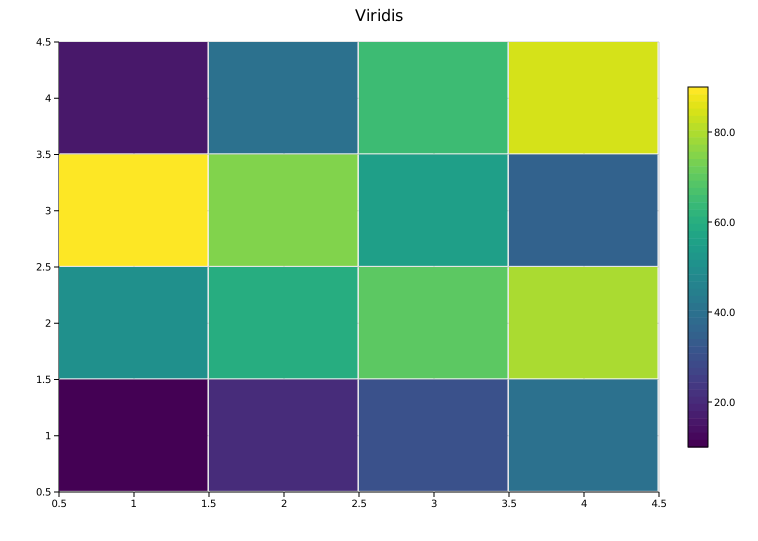 |
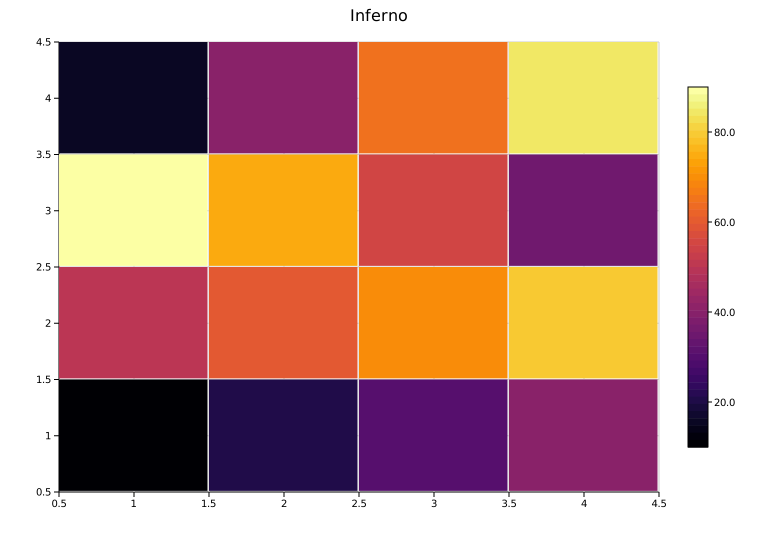 |
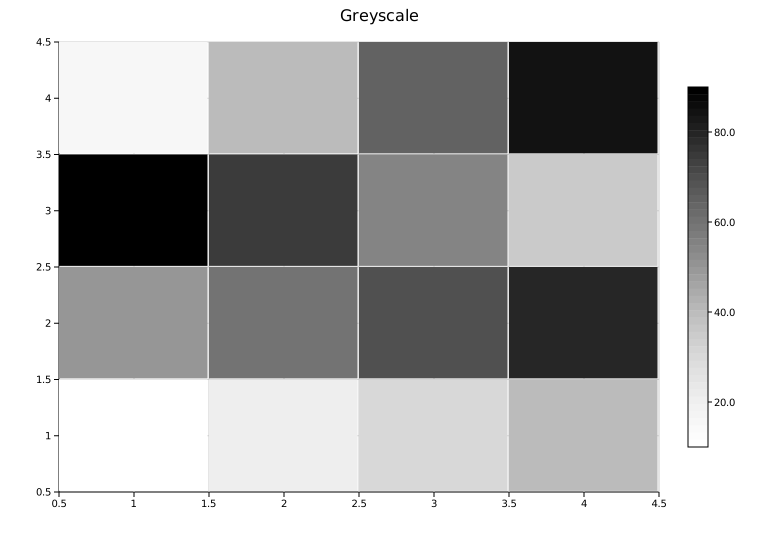 |
Viridis |
Inferno |
Grayscale |
Custom color map
For diverging scales or other custom encodings, use ColorMap::Custom with a closure that maps a normalized [0.0, 1.0] value to a CSS color string.
#![allow(unused)]
fn main() {
use std::sync::Arc;
use kuva::plot::{Heatmap, ColorMap};

// Blue-to-red diverging scale
let cmap = ColorMap::Custom(Arc::new(|t: f64| {
    let r = (t * 255.0) as u8;
    let b = ((1.0 - t) * 255.0) as u8;
    format!("rgb({r},0,{b})")
}));

let heatmap = Heatmap::new()
    .with_data(vec![vec![1.0, 2.0, 3.0], vec![4.0, 5.0, 6.0]])
    .with_color_map(cmap);
}
Custom axis bounds — scalar fields
By default the heatmap maps columns to [0.5, cols + 0.5] and rows to [0.5, rows + 0.5] so that integer tick values land on cell centres. Use .with_x_range() and .with_y_range() when the grid represents a physical domain and you want real-world coordinates on the axes.
#![allow(unused)]
fn main() {
use kuva::plot::{Heatmap, ColorMap};
use kuva::render::layout::Layout;
use kuva::render::plots::Plot;

// 2D Gaussian temperature field over x ∈ [-10, 10], y ∈ [-4, 4]
let data: Vec<Vec<f64>> = (0..16)
    .map(|i| {
        let y = 4.0 - (i as f64 + 0.5) * 8.0 / 16.0;
        (0..40).map(|j| {
            let x = -10.0 + (j as f64 + 0.5) * 20.0 / 40.0;
            let r2 = x * x / 16.0 + y * y / 4.0;
            (-r2 / 2.0).exp()
        }).collect()
    })
    .collect();

let hm = Heatmap::new()
    .with_data(data)
    .with_color_map(ColorMap::Inferno)
    .with_x_range(-10.0, 10.0)
    .with_y_range(-4.0, 4.0);

let plots = vec![Plot::Heatmap(hm)];
let layout = Layout::auto_from_plots(&plots)
    .with_title("Temperature Field")
    .with_x_label("x (m)")
    .with_y_label("y (m)");
}
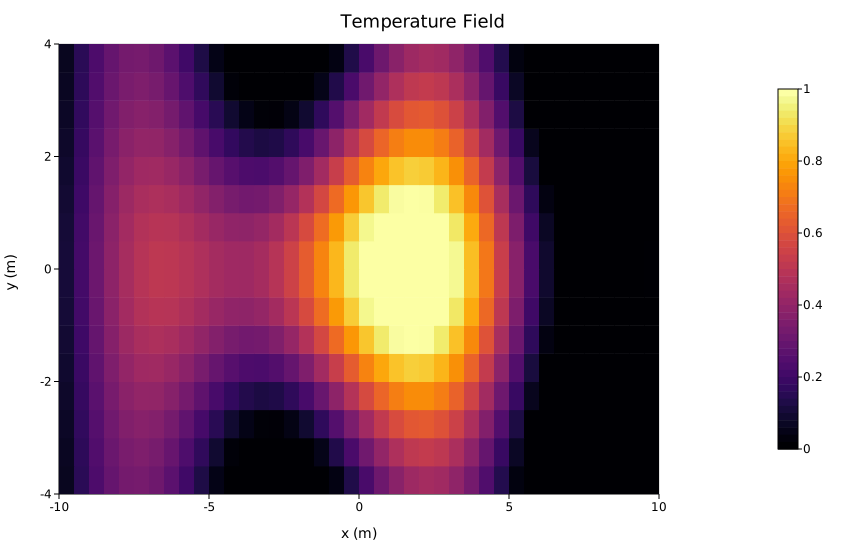
Both methods accept any numeric type via impl Into<f64>. Either range can be set independently — you can fix only the x-axis and leave the y-axis on its default integer scale, or vice versa.
Row reordering — phylogenetic alignment
When composing a heatmap alongside a PhyloTree, use with_labels + with_y_categories to reorder the heatmap rows so they match the tree's leaf order top-to-bottom.
Key points:
with_y_categories(order)treatsorderas top-to-bottom — the first label ends up at the top of the rendered heatmap.- After the call,
heatmap.row_labelsis stored in bottom-to-top order (matching the y-axis convention). Pass it directly toLayout::with_y_categories. - Use
Figure::new(1, 2)to place the tree and heatmap side by side.
#![allow(unused)]
fn main() {
use kuva::plot::{Heatmap, PhyloTree};
use kuva::render::figure::Figure;
use kuva::render::layout::Layout;
use kuva::render::plots::Plot;
use kuva::backend::svg::SvgBackend;

let labels_str = ["Wolf", "Cat", "Whale", "Human"];
let labels: Vec<String> = labels_str.iter().map(|s| s.to_string()).collect();

// Distance matrix — rows correspond to labels_str in order
let dist = vec![
    vec![0.0, 0.5, 0.9, 0.8],  // Wolf
    vec![0.5, 0.0, 0.9, 0.8],  // Cat
    vec![0.9, 0.9, 0.0, 0.7],  // Whale
    vec![0.8, 0.8, 0.7, 0.0],  // Human
];

let tree = PhyloTree::from_distance_matrix(&labels_str, &dist).with_phylogram();

// leaf_labels_top_to_bottom() returns the leaf render order, top-to-bottom
let leaf_order = tree.leaf_labels_top_to_bottom();

let heatmap = Heatmap::new()
    .with_data(dist)
    .with_labels(labels, vec![])     // associate rows with names
    .with_y_categories(leaf_order);  // first leaf → top of heatmap

// row_labels is now stored bottom-to-top — pass directly to Layout
let layout_cats = heatmap.row_labels.clone().unwrap();

let tree_plots = vec![Plot::PhyloTree(tree)];
let heatmap_plots = vec![Plot::Heatmap(heatmap)];

let tree_layout = Layout::auto_from_plots(&tree_plots).with_title("UPGMA Tree");
let heatmap_layout = Layout::auto_from_plots(&heatmap_plots)
    .with_title("Distance Matrix")
    .with_y_categories(layout_cats);

// 1 row × 2 columns: tree on left, heatmap on right
let figure = Figure::new(1, 2)
    .with_plots(vec![tree_plots, heatmap_plots])
    .with_layouts(vec![tree_layout, heatmap_layout]);

let svg = SvgBackend.render_scene(&figure.render());
std::fs::write("phylo_heatmap.svg", svg).unwrap();
}
Note:
Layout::with_y_categories()alone only changes the axis tick labels — it does not reorder the data matrix. Always callHeatmap::with_y_categories()first to permute the rows, then passrow_labelsto the layout.
Column reordering works the same way via with_x_categories. Unlike with_y_categories, column order is not reversed internally — pass the desired left-to-right order directly to both Heatmap::with_x_categories and Layout::with_x_categories.
API reference
| Method | Description |
|---|---|
Heatmap::new() | Create a heatmap with defaults |
.with_data(rows) | Set grid data; accepts any numeric iterable of iterables |
.with_color_map(map) | Color encoding: Viridis, Inferno, Grayscale, or Custom (default Viridis) |
.with_values() | Print each cell's value as text inside the cell |
.with_labels(rows, cols) | Associate rows and columns with label strings; required before calling with_y_categories / with_x_categories |
.with_y_categories(order) | Reorder rows so order[0] is at the top; stores row_labels bottom-to-top for Layout::with_y_categories |
.with_x_categories(order) | Reorder columns to match order (left-to-right); stores col_labels in the same order |
.with_x_range(lo, hi) | Set custom x-axis extent (default [0.5, cols + 0.5]) |
.with_y_range(lo, hi) | Set custom y-axis extent (default [0.5, rows + 0.5]) |
.with_cell_size(factor) | Cell fill fraction [0.5, 1.0]. Default 0.99 leaves a thin gap between cells. Pass 1.0 for flush cells with no visible boundary — useful for large grids. |
.with_legend(s) | Attach a legend label |
Layout methods used with heatmaps:
| Method | Description |
|---|---|
Layout::with_x_categories(labels) | Column labels on the x-axis (left-to-right) |
Layout::with_y_categories(labels) | Row labels on the y-axis (bottom-to-top; pass heatmap.row_labels directly after with_y_categories) |
See also: Clustermap for a hierarchically-clustered version, 2D Histogram for binned x/y density, Hexbin Plot for large scatter datasets.
CLI
Color-encoded matrix heatmap.
Input (wide format): first column is the row label, remaining columns are numeric values. The header row (if present) supplies column labels.
gene    Sample_01  Sample_02  Sample_03 …
 TP53    0.25       -1.78       1.58     …
BRCA1   0.23        0.48       1.06     …
Input (long format): use --long-format to pass (row, col, value) triples instead. Missing combinations are filled with 0. Column order defaults to 0/1/2; override with --row-col, --col-col, --value-col.
species     week  abundance
Firmicutes  1     352
Firmicutes  2     381
Bacteroidetes  1  262
| Flag | Default | Description |
|---|---|---|
--colormap <NAME> | viridis | Color map: viridis, inferno, grayscale |
--values | off | Print numeric values in each cell |
--legend <LABEL> | — | Show color bar with this label |
--long-format | off | Accept (row, col, value) triples instead of a wide matrix |
--row-col <COL> | 0 | Row-label column (with --long-format) |
--col-col <COL> | 1 | Column-label column (with --long-format) |
--value-col <COL> | 2 | Value column (with --long-format) |
# wide matrix
kuva heatmap heatmap.tsv

kuva heatmap heatmap.tsv --colormap inferno --values --legend "z-score"

# long-format: species × week abundance table
kuva heatmap data.tsv --long-format \
    --row-col species --col-col week --value-col abundance \
    --title "Abundance by Species and Week"

# long-format from a counts table with named columns
kuva heatmap counts.tsv --long-format \
    --row-col gene --col-col sample --value-col tpm \
    --legend "TPM" --colormap inferno
Custom axis bounds
Heatmap::with_x_range(lo, hi) and with_y_range(lo, hi) are available in the Rust API for representing scalar fields over a physical domain (e.g. temperature over a spatial grid with real-world coordinates). These are not yet exposed as CLI flags; use the library directly when you need them.
Cell size
Heatmap::with_cell_size(factor) controls the fraction of each cell's natural size used when drawing the cell rectangle. The default 0.99 leaves a thin gap that makes cell boundaries visible. Pass 1.0 for flush cells with no visible boundary — recommended for large grids where the gap becomes a distracting grid pattern. Not yet exposed as a CLI flag; use the library directly.
See also: Shared flags — output, appearance, axes, log scale.
Scatter Plot
A scatter plot renders individual (x, y) data points as markers. It supports trend lines (linear and LOESS), error bars, variable point sizes, per-point colors, and ten marker shapes.
Import path: kuva::plot::scatter::ScatterPlot
Basic usage
#![allow(unused)]
fn main() {
use kuva::plot::scatter::ScatterPlot;
use kuva::backend::svg::SvgBackend;
use kuva::render::render::render_multiple;
use kuva::render::layout::Layout;
use kuva::render::plots::Plot;

let data = vec![
    (0.5_f64, 1.2_f64),
    (1.4, 3.1),
    (2.1, 2.4),
    (3.3, 5.0),
    (4.0, 4.3),
    (5.2, 6.8),
    (6.1, 6.0),
    (7.0, 8.5),
    (8.4, 7.9),
    (9.1, 9.8),
];

let plot = ScatterPlot::new()
    .with_data(data)
    .with_color("steelblue")
    .with_size(5.0);

let plots = vec![Plot::Scatter(plot)];
let layout = Layout::auto_from_plots(&plots)
    .with_title("Scatter Plot")
    .with_x_label("X")
    .with_y_label("Y");

let scene = render_multiple(plots, layout);
let svg = SvgBackend.render_scene(&scene);
std::fs::write("scatter.svg", svg).unwrap();
}
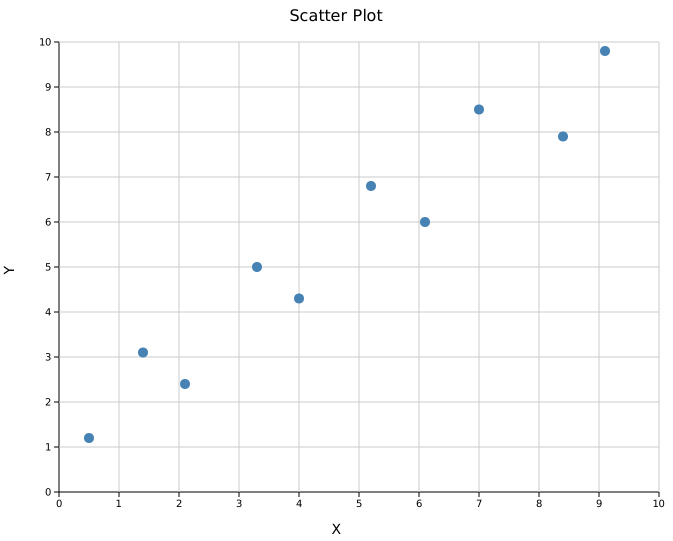
Layout options
Layout::auto_from_plots() automatically computes axis ranges from the data. You can also set ranges manually with Layout::new((x_min, x_max), (y_min, y_max)).
Trend line
Add a linear trend line with .with_trend(TrendLine::Linear). Optionally overlay the regression equation and the signed Pearson correlation coefficient r. The fit uses ordinary least squares with an intercept and all supplied points. For this fit, the coefficient of determination is R^2 = r^2; for example, r = -1 describes a perfect descending line with R^2 = 1. The line and its annotations are omitted for fewer than two points, constant x, non-finite coordinates, or coefficients that cannot be represented as finite f64 values. Constant y keeps its flat trend line, but drops the r annotation, since the coefficient is undefined there rather than zero. An extrapolated line is omitted if either endpoint cannot be represented.
#![allow(unused)]
fn main() {
use kuva::plot::scatter::{ScatterPlot, TrendLine};
use kuva::backend::svg::SvgBackend;
use kuva::render::render::render_multiple;
use kuva::render::layout::Layout;
use kuva::render::plots::Plot;

let data = vec![
    (1.0_f64, 2.1_f64), (2.0, 3.9), (3.0, 6.2),
    (4.0, 7.8), (5.0, 10.1), (6.0, 12.3),
    (7.0, 13.9), (8.0, 16.2), (9.0, 17.8), (10.0, 19.7),
];

let plot = ScatterPlot::new()
    .with_data(data)
    .with_color("steelblue")
    .with_size(5.0)
    .with_trend(TrendLine::Linear)
    .with_trend_color("crimson")   // defaults to "black"
    .with_equation()               // show y = mx + b
    .with_correlation();           // show signed r

let plots = vec![Plot::Scatter(plot)];
let layout = Layout::auto_from_plots(&plots)
    .with_title("Linear Trend Line")
    .with_x_label("X")
    .with_y_label("Y");

let svg = SvgBackend.render_scene(&render_multiple(plots, layout));
}

Tip:
.with_equation()and.with_correlation()render the fit statistics as floating text in the data area. For a cleaner presentation — particularly with dense point clouds — consider usingLayout::with_stats_box()to display fit statistics in a bordered inset box instead. See Stats Box.
LOESS smoother
For data with a non-linear relationship, overlay a LOESS (locally-weighted regression) smoother instead of a straight line. .with_loess() uses a default span of 0.5; .with_loess_span(f) sets the span (the fraction of points in each local fit, 0.05–1.0): smaller spans follow local detail, larger spans give a smoother curve.
Each prediction fits a local straight line using distance weights. These weights do not downweight a point because its y value is an outlier. A fitted line can extend beyond the observed y range; the plot clips the curve at its axis limits. Log axes transform the drawn curve, rather than fitting logarithms of the observations.
#![allow(unused)]
fn main() {
use kuva::plot::scatter::ScatterPlot;
let plot = ScatterPlot::new()
    .with_data(data)
    .with_loess()                  // or .with_loess_span(0.2)
    .with_trend_color("crimson");
}
Equation and correlation annotations apply to the linear fit only, not to LOESS.
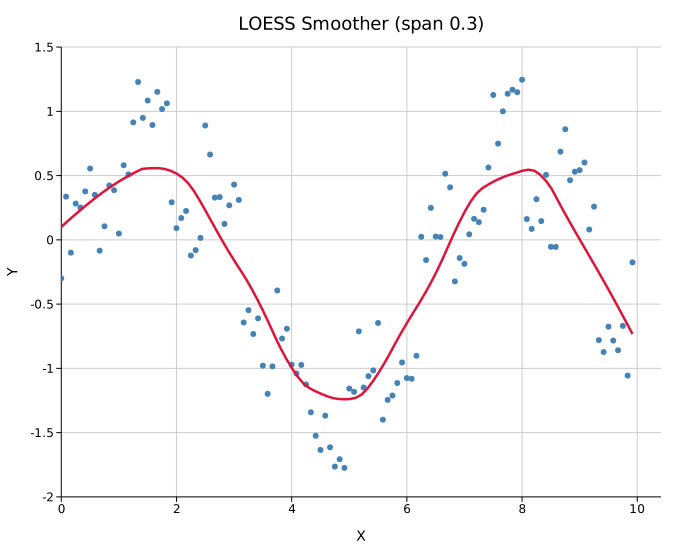
Confidence band
Attach a shaded uncertainty region with .with_band(y_lower, y_upper). Both slices must align with the x positions of the scatter data. The band color matches the point color.
#![allow(unused)]
fn main() {
use kuva::plot::scatter::ScatterPlot;
use kuva::backend::svg::SvgBackend;
use kuva::render::render::render_multiple;
use kuva::render::layout::Layout;
use kuva::render::plots::Plot;

let xs: Vec<f64> = (1..=10).map(|i| i as f64).collect();
let ys: Vec<f64> = xs.iter().map(|&x| x * 1.8 + 0.5).collect();
let lower: Vec<f64> = ys.iter().map(|&y| y - 1.2).collect();
let upper: Vec<f64> = ys.iter().map(|&y| y + 1.2).collect();

let data: Vec<(f64, f64)> = xs.into_iter().zip(ys).collect();

let plot = ScatterPlot::new()
    .with_data(data)
    .with_color("steelblue")
    .with_size(5.0)
    .with_band(lower, upper);

let plots = vec![Plot::Scatter(plot)];
let layout = Layout::auto_from_plots(&plots)
    .with_title("Confidence Band")
    .with_x_label("X")
    .with_y_label("Y");

let svg = SvgBackend.render_scene(&render_multiple(plots, layout));
}
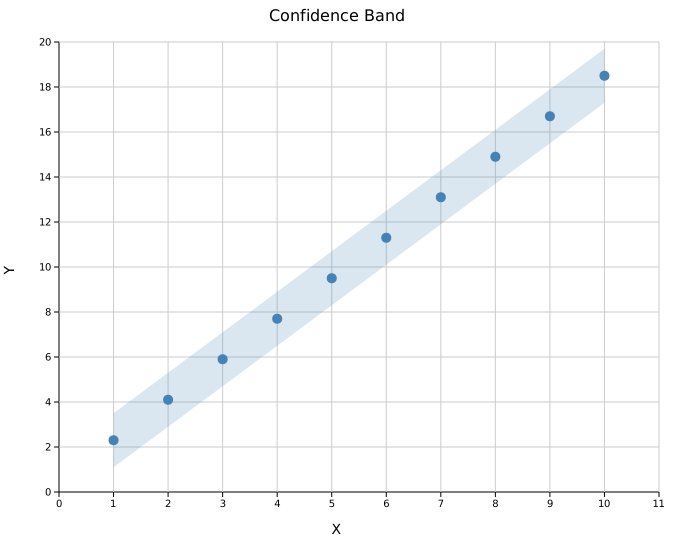
Error bars
Use .with_x_err() and .with_y_err() for symmetric error bars. Asymmetric variants accept (negative, positive) tuples.
#![allow(unused)]
fn main() {
use kuva::plot::scatter::ScatterPlot;
use kuva::backend::svg::SvgBackend;
use kuva::render::render::render_multiple;
use kuva::render::layout::Layout;
use kuva::render::plots::Plot;

let data = vec![
    (1.0_f64, 2.0_f64), (2.0, 4.5), (3.0, 5.8),
    (4.0, 8.2), (5.0, 10.1),
];
let x_err = vec![0.2_f64, 0.15, 0.3, 0.1, 0.25];  // symmetric
let y_err = vec![0.6_f64, 0.8, 0.4, 0.9, 0.5];     // symmetric

let plot = ScatterPlot::new()
    .with_data(data)
    .with_x_err(x_err)
    .with_y_err(y_err)
    .with_color("steelblue")
    .with_size(5.0);

let plots = vec![Plot::Scatter(plot)];
let layout = Layout::auto_from_plots(&plots)
    .with_title("Error Bars")
    .with_x_label("X")
    .with_y_label("Y");

let svg = SvgBackend.render_scene(&render_multiple(plots, layout));
}
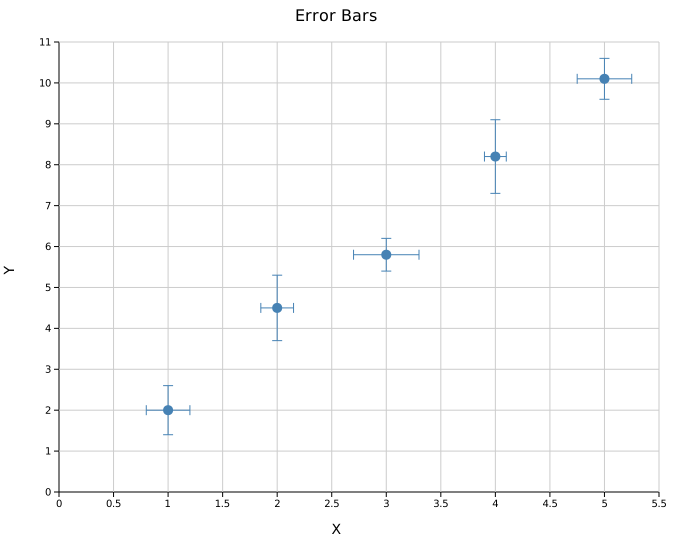
Asymmetric errors
Pass (neg, pos) tuples instead of scalar values:
#![allow(unused)]
fn main() {
use kuva::plot::scatter::ScatterPlot;
let data = vec![(1.0_f64, 5.0_f64), (2.0, 6.0)];
let y_err = vec![(0.3_f64, 0.8_f64), (0.5, 1.2)];  // (neg, pos)

let plot = ScatterPlot::new()
    .with_data(data)
    .with_y_err_asymmetric(y_err);
}
Marker shapes
Ten marker shapes are available via MarkerShape. They are particularly useful when overlaying multiple series on the same axes.
#![allow(unused)]
fn main() {
use kuva::plot::scatter::{ScatterPlot, MarkerShape};
use kuva::backend::svg::SvgBackend;
use kuva::render::render::render_multiple;
use kuva::render::layout::Layout;
use kuva::render::plots::Plot;

let plots = vec![
    Plot::Scatter(ScatterPlot::new()
        .with_data(vec![(1.0_f64, 1.0_f64), (2.0, 1.0), (3.0, 1.0)])
        .with_color("steelblue").with_size(7.0)
        .with_marker(MarkerShape::Circle).with_legend("Circle")),

    Plot::Scatter(ScatterPlot::new()
        .with_data(vec![(1.0_f64, 2.0_f64), (2.0, 2.0), (3.0, 2.0)])
        .with_color("crimson").with_size(7.0)
        .with_marker(MarkerShape::Square).with_legend("Square")),

    Plot::Scatter(ScatterPlot::new()
        .with_data(vec![(1.0_f64, 3.0_f64), (2.0, 3.0), (3.0, 3.0)])
        .with_color("seagreen").with_size(7.0)
        .with_marker(MarkerShape::Triangle).with_legend("Triangle")),
];

let layout = Layout::auto_from_plots(&plots)
    .with_title("Marker Shapes")
    .with_x_label("X")
    .with_y_label("");

let svg = SvgBackend.render_scene(&render_multiple(plots, layout));
}
Available variants: Circle (default), Square, Triangle (up), TriangleDown, Diamond, Cross, Plus, Star, Pentagon, Hexagon.
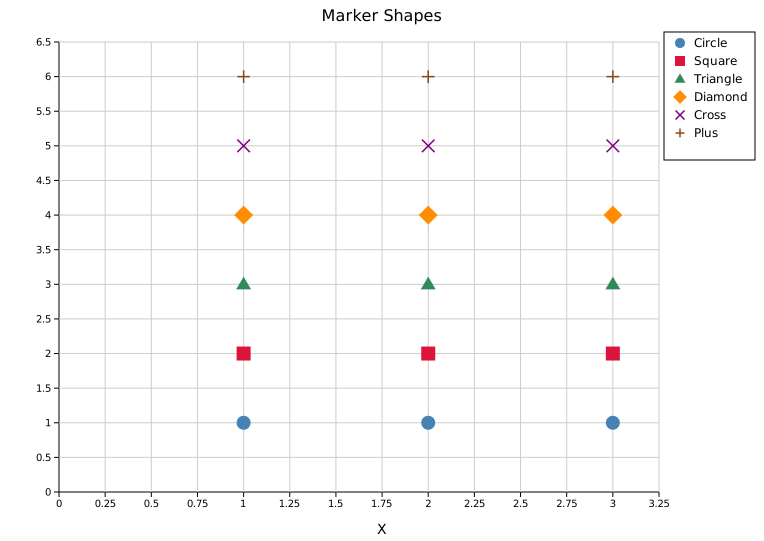
Bubble plot
Encode a third dimension through point area using .with_sizes(). Values are point radii in pixels.
#![allow(unused)]
fn main() {
use kuva::plot::scatter::ScatterPlot;
use kuva::backend::svg::SvgBackend;
use kuva::render::render::render_multiple;
use kuva::render::layout::Layout;
use kuva::render::plots::Plot;

let data = vec![
    (1.0_f64, 3.0_f64), (2.5, 6.5), (4.0, 4.0),
    (5.5, 8.0), (7.0, 5.5), (8.5, 9.0),
];
let sizes = vec![5.0_f64, 14.0, 9.0, 18.0, 11.0, 7.0];

let plot = ScatterPlot::new()
    .with_data(data)
    .with_sizes(sizes)
    .with_color("steelblue");

let plots = vec![Plot::Scatter(plot)];
let layout = Layout::auto_from_plots(&plots)
    .with_title("Bubble Plot")
    .with_x_label("X")
    .with_y_label("Y");

let svg = SvgBackend.render_scene(&render_multiple(plots, layout));
}
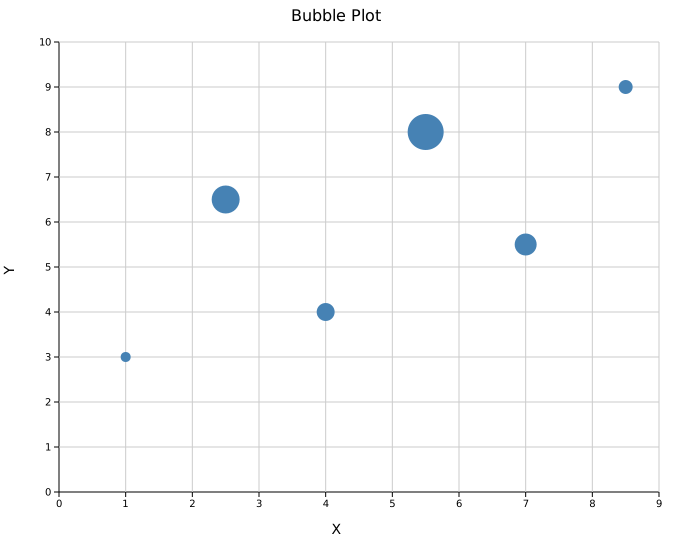
Per-point colors
Encode a categorical grouping through color using .with_colors(). Colors are matched to points by index and fall back to the uniform .with_color() value for any point without an entry.
This is useful when your data already carries a group label and you want to avoid splitting into multiple ScatterPlot instances. The legend is not updated automatically — add .with_legend() on separate ScatterPlot instances when you need a labeled legend.
#![allow(unused)]
fn main() {
use kuva::plot::scatter::ScatterPlot;
use kuva::backend::svg::SvgBackend;
use kuva::render::render::render_multiple;
use kuva::render::layout::Layout;
use kuva::render::plots::Plot;

// Three clusters, colors assigned per point
let data = vec![
    (1.0_f64, 1.5_f64), (1.5, 2.0), (2.0, 1.8),  // cluster A
    (4.0, 4.5),         (4.5, 5.0), (5.0, 4.8),  // cluster B
    (7.0, 2.0),         (7.5, 2.5), (8.0, 2.2),  // cluster C
];
let colors = vec![
    "steelblue", "steelblue", "steelblue",
    "crimson",   "crimson",   "crimson",
    "seagreen",  "seagreen",  "seagreen",
];

let plot = ScatterPlot::new()
    .with_data(data)
    .with_colors(colors)
    .with_size(6.0);

let plots = vec![Plot::Scatter(plot)];
let layout = Layout::auto_from_plots(&plots)
    .with_title("Per-Point Colors")
    .with_x_label("X")
    .with_y_label("Y");

let svg = SvgBackend.render_scene(&render_multiple(plots, layout));
}
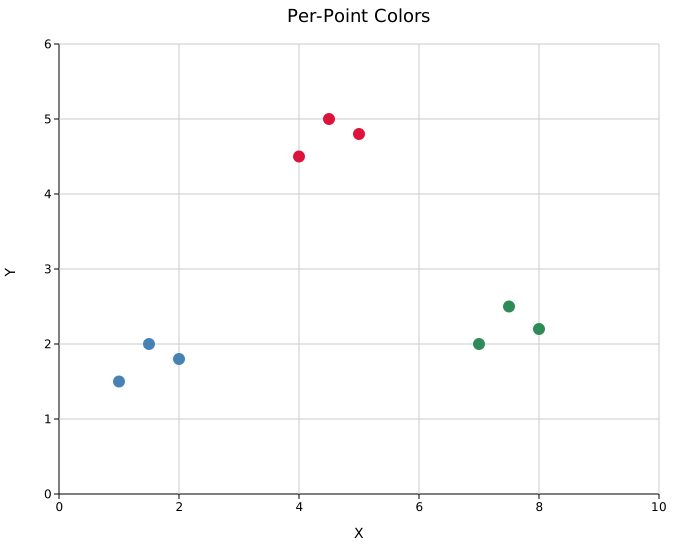
Marker opacity and stroke
Two builders control the visual style of markers, enabling three distinct modes useful for dense datasets:
| Mode | Setting | Use case |
|---|---|---|
| Solid (default) | no calls needed | Small N or well-separated clusters |
| Semi-transparent | opacity < 1 + stroke | Dense regions pool colour; individual points stay visible |
| Hollow | opacity = 0.0 + stroke | Very large N; overlapping rings reveal density without blobs |
Semi-transparent markers — overlapping clusters
Three Gaussian clusters of 200 points each share a region in the centre. Solid markers at this density merge into a single opaque mass. Reducing opacity to 0.25 lets the darker overlap region show where clusters share space, while the 0.7 px stroke keeps each marker individually legible.
#![allow(unused)]
fn main() {
use kuva::plot::scatter::ScatterPlot;
use kuva::backend::svg::SvgBackend;
use kuva::render::render::render_multiple;
use kuva::render::layout::Layout;
use kuva::render::plots::Plot;

// Three clusters, 200 points each — defined as (center_x, center_y, color, label)
let series = [
    (3.0_f64, 4.0_f64, "steelblue", "Cluster A"),
    (5.0,     5.5,     "tomato",    "Cluster B"),
    (4.0,     3.0,     "seagreen",  "Cluster C"),
];

// (populate `data` from your source — each entry is 200 (x, y) points)

let data: Vec<(f64,f64)> = vec![];
let plot = ScatterPlot::new()
    .with_data(data)
    .with_color("steelblue")
    .with_size(5.0)
    .with_marker_opacity(0.25)
    .with_marker_stroke_width(0.7)
    .with_legend("Cluster A");

let plots = vec![Plot::Scatter(plot) /* , ... */];
let layout = Layout::auto_from_plots(&plots)
    .with_title("Overlapping Clusters — semi-transparent markers")
    .with_x_label("X")
    .with_y_label("Y");

let svg = SvgBackend.render_scene(&render_multiple(plots, layout));
}
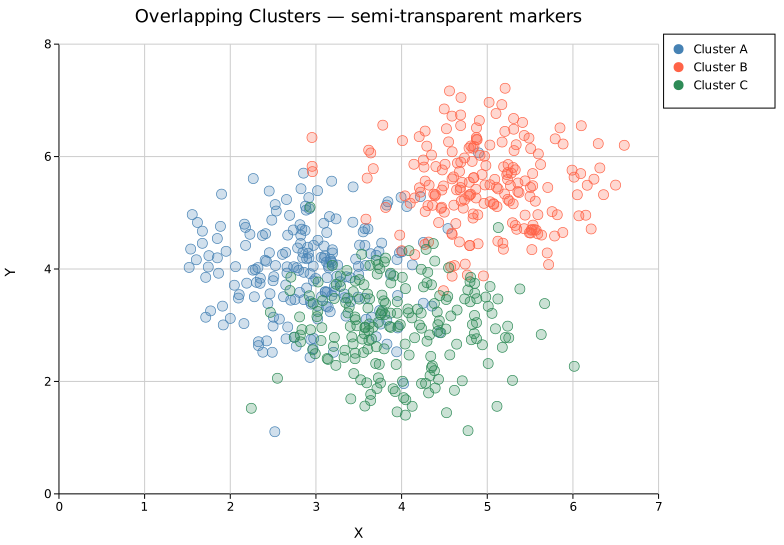
Hollow open circles — dense annular data
800 points sampled uniformly along a noisy ring. With solid fill the ring becomes a uniform band; hollow circles (opacity = 0.0) make the denser arc sections visible through the accumulation of overlapping outlines.
#![allow(unused)]
fn main() {
use kuva::plot::scatter::ScatterPlot;
use kuva::backend::svg::SvgBackend;
use kuva::render::render::render_multiple;
use kuva::render::layout::Layout;
use kuva::render::plots::Plot;

// 800 points sampled along a noisy annulus of radius ≈ 3
let data: Vec<(f64,f64)> = vec![];
let plot = ScatterPlot::new()
    .with_data(data)
    .with_color("steelblue")
    .with_size(4.0)
    .with_marker_opacity(0.0)       // fully hollow
    .with_marker_stroke_width(1.0); // only the outline is drawn

let plots = vec![Plot::Scatter(plot)];
let layout = Layout::auto_from_plots(&plots)
    .with_title("Hollow open circles — 800 pts in a noisy annulus")
    .with_x_label("X")
    .with_y_label("Y");

let svg = SvgBackend.render_scene(&render_multiple(plots, layout));
}
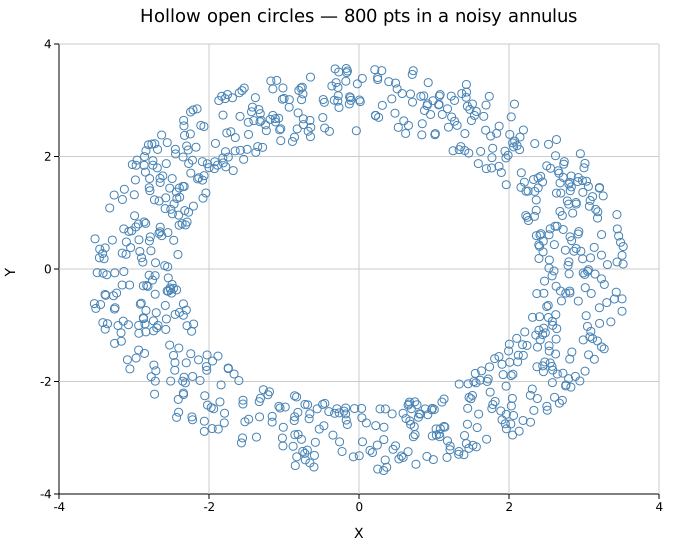
Point labels
Attach a text label to each point with .with_labels(iter) (aligned to the data by index; an empty string leaves a point unlabelled). The placement is controlled by .with_label_style(LabelStyle::…), shared with the volcano and Manhattan plots:
| Style | Placement |
|---|---|
LabelStyle::Exact | At the point, no adjustment (may overlap) |
LabelStyle::Nudge (default) | Sorted left-to-right and nudged vertically |
LabelStyle::Arrow { offset_x, offset_y } | Fixed pixel offset with a leader line |
LabelStyle::Repel | Force-directed (ggrepel / adjustText style): labels pushed off each other and off the points in 2-D, with thin leader lines |
.with_repel_labels() is shorthand for .with_label_style(LabelStyle::Repel), the best choice for dense, clustered labels.
#![allow(unused)]
fn main() {
use kuva::plot::ScatterPlot;
let plot = ScatterPlot::new()
    .with_data(data)
    .with_labels(vec!["Alpha", "Beta", "Gamma", "Delta"])
    .with_repel_labels();
}
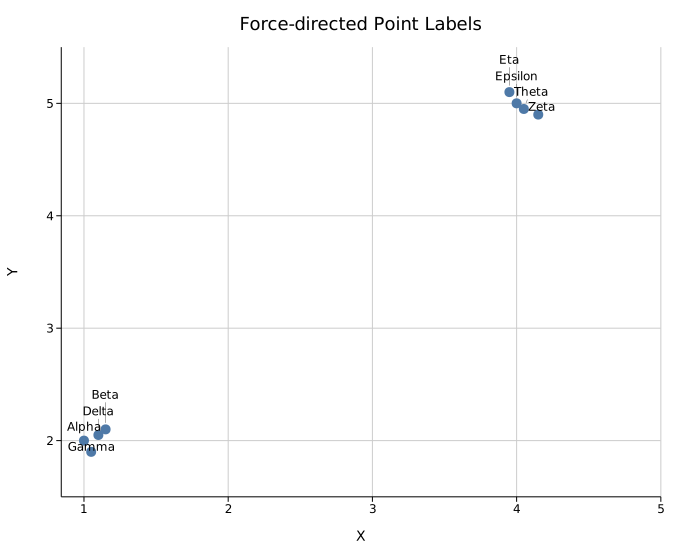
Multiple series
Wrap multiple ScatterPlot structs in a Vec<Plot> and pass them to render_multiple(). Legends are shown when any series has a label attached via .with_legend().
#![allow(unused)]
fn main() {
use kuva::plot::scatter::ScatterPlot;
use kuva::backend::svg::SvgBackend;
use kuva::render::render::render_multiple;
use kuva::render::layout::Layout;
use kuva::render::plots::Plot;

let series_a = ScatterPlot::new()
    .with_data(vec![(1.0_f64, 2.0_f64), (3.0, 4.0), (5.0, 3.5)])
    .with_color("steelblue")
    .with_legend("Series A");

let series_b = ScatterPlot::new()
    .with_data(vec![(1.0_f64, 5.0_f64), (3.0, 6.5), (5.0, 7.0)])
    .with_color("crimson")
    .with_legend("Series B");

let plots = vec![Plot::Scatter(series_a), Plot::Scatter(series_b)];
let layout = Layout::auto_from_plots(&plots)
    .with_title("Two Series")
    .with_x_label("X")
    .with_y_label("Y");

let svg = SvgBackend.render_scene(&render_multiple(plots, layout));
}
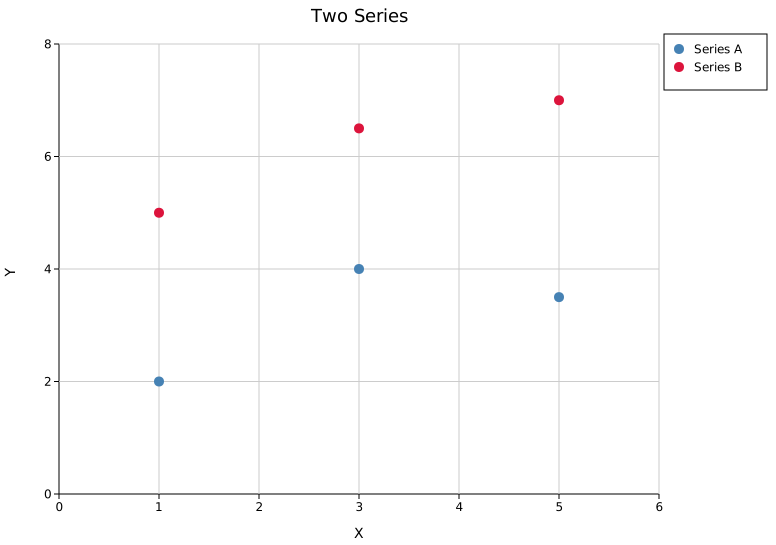
API reference
| Method | Description |
|---|---|
ScatterPlot::new() | Create a new scatter plot with defaults |
.with_data(iter) | Set (x, y) data; accepts any Into<f64> numeric type |
.with_color(s) | Set uniform point color (CSS color string, default "black") |
.with_colors(iter) | Set per-point colors; falls back to .with_color for out-of-range indices |
.with_size(r) | Set uniform point radius in pixels (default 3.0) |
.with_sizes(iter) | Set per-point radii (bubble plot); falls back to .with_size for out-of-range indices |
.with_marker(MarkerShape) | Set marker shape (default Circle) |
.with_legend(s) | Attach a legend label to this series |
.with_trend(TrendLine) | Overlay a trend line |
.with_loess() | Overlay a LOESS smoother (default span 0.5) |
.with_loess_span(f) | LOESS smoother with an explicit span (0.05–1.0) |
.with_trend_color(s) | Set trend/smoother line color |
.with_trend_width(w) | Set trend/smoother line stroke width |
.with_equation() | Annotate the plot with the regression equation |
.with_correlation() | Annotate the plot with signed Pearson r |
.with_x_err(iter) | Symmetric X error bars |
.with_x_err_asymmetric(iter) | Asymmetric X error bars: (neg, pos) tuples |
.with_y_err(iter) | Symmetric Y error bars |
.with_y_err_asymmetric(iter) | Asymmetric Y error bars: (neg, pos) tuples |
.with_band(lower, upper) | Confidence band aligned to scatter x positions |
.with_marker_opacity(f) | Fill alpha: 0.0 = hollow, 1.0 = solid (default: solid) |
.with_marker_stroke_width(w) | Outline stroke at the fill color; None = no stroke (default) |
.with_labels(iter) | Per-point text labels (aligned by index; "" skips a point) |
.with_label_style(LabelStyle) | Label placement: Exact / Nudge / Arrow / Repel |
.with_repel_labels() | Shorthand for .with_label_style(LabelStyle::Repel) |
MarkerShape variants
Circle · Square · Triangle (up) · TriangleDown · Diamond · Cross · Plus · Star · Pentagon · Hexagon
TrendLine variants
Linear: fits y = mx + b by ordinary least squares. Loess { span }: locally-weighted regression smoother for non-linear trends.
See also: Line Plot for connected/ordered data, Hexbin Plot for large-N density, Joint Plot for scatter with marginal distributions.
CLI
Scatter plot of (x, y) point pairs. Supports multi-series coloring, trend lines, log scale, and .parquet input (like every other subcommand, not just this one).
Input: any tabular file with two numeric columns.
| Flag | Default | Description |
|---|---|---|
--x <COL> | 0 | X-axis column |
--y <COL> | 1 | Y-axis column |
--color-by <COL> | — | Group by this column; each group gets a distinct color |
--color <CSS> | steelblue | Point color (single-series only) |
--size <PX> | 3.0 | Point radius in pixels |
--marker <SHAPE> | circle | Marker shape: circle, square, triangle, triangle-down, diamond, cross, plus, star, pentagon, hexagon |
--trend | off | Overlay a linear trend line |
--loess | off | Overlay a LOESS smoother (local regression) instead of a linear trend |
--loess-span <F> | 0.5 | LOESS span, 0.05–1.0 (implies --loess); smaller = wigglier |
--equation | off | Annotate with regression equation (requires --trend) |
--correlation | off | Annotate with signed Pearson r (requires --trend) |
--label-col <COL> | — | Label each point with this column (single-series mode only) |
--label-style <STYLE> | nudge | Point-label placement: nudge, exact, or repel |
--legend | off | Show legend |
--x-date-format <FMT> | — | Parse the X column as a date/time (see Date/time X axis) |
kuva scatter measurements.tsv --x time --y value --color steelblue

kuva scatter measurements.tsv --x time --y value \
    --color-by group --legend --title "Expression over time"

kuva scatter measurements.tsv --x time --y value \
    --trend --equation --correlation --log-y

# star markers with a LOESS smoother
kuva scatter measurements.tsv --x time --y value \
    --marker star --loess-span 0.3

kuva scatter prices.tsv --x date --y close --x-date-format "%Y-%m-%d"
See also: Shared flags — output, appearance, axes, log scale.
Line Plot
A line plot connects (x, y) data points with a continuous path. It supports four built-in stroke styles, area fills, step interpolation, confidence bands, and error bars.
Import path: kuva::plot::LinePlot
Basic usage
#![allow(unused)]
fn main() {
use kuva::plot::LinePlot;
use kuva::backend::svg::SvgBackend;
use kuva::render::render::render_multiple;
use kuva::render::layout::Layout;
use kuva::render::plots::Plot;

let data: Vec<(f64, f64)> = (0..=100)
    .map(|i| { let x = i as f64 * 0.1; (x, x.sin()) })
    .collect();

let plot = LinePlot::new()
    .with_data(data)
    .with_color("steelblue")
    .with_stroke_width(2.0);

let plots = vec![Plot::Line(plot)];
let layout = Layout::auto_from_plots(&plots)
    .with_title("Line Plot")
    .with_x_label("X")
    .with_y_label("Y");

let scene = render_multiple(plots, layout);
let svg = SvgBackend.render_scene(&scene);
std::fs::write("line.svg", svg).unwrap();
}
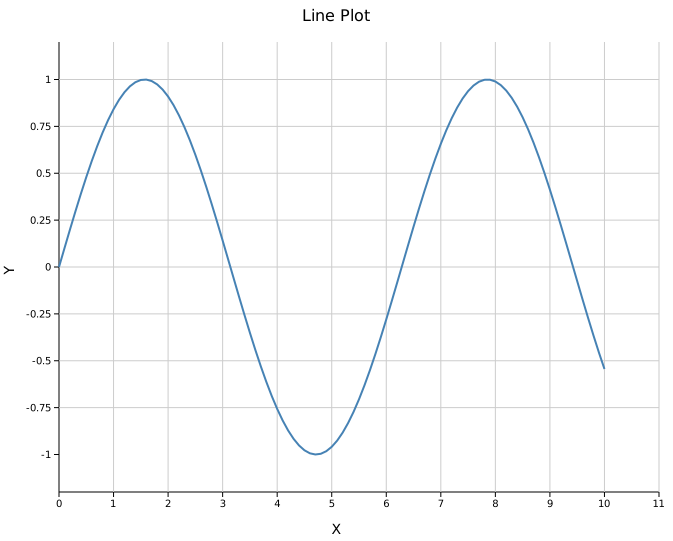
Line styles
Four built-in stroke styles are available. Use the shorthand methods or pass a LineStyle variant directly.
#![allow(unused)]
fn main() {
use kuva::plot::{LinePlot, LineStyle};
use kuva::backend::svg::SvgBackend;
use kuva::render::render::render_multiple;
use kuva::render::layout::Layout;
use kuva::render::plots::Plot;

let xs: Vec<f64> = (0..=80).map(|i| i as f64 * 0.125).collect();

let plots = vec![
    Plot::Line(LinePlot::new()
        .with_data(xs.iter().map(|&x| (x, x.sin())))
        .with_color("steelblue").with_stroke_width(2.0)
        .with_line_style(LineStyle::Solid).with_legend("Solid")),

    Plot::Line(LinePlot::new()
        .with_data(xs.iter().map(|&x| (x, x.cos())))
        .with_color("crimson").with_stroke_width(2.0)
        .with_dashed().with_legend("Dashed")),

    Plot::Line(LinePlot::new()
        .with_data(xs.iter().map(|&x| (x, (x * 0.7).sin())))
        .with_color("seagreen").with_stroke_width(2.0)
        .with_dotted().with_legend("Dotted")),

    Plot::Line(LinePlot::new()
        .with_data(xs.iter().map(|&x| (x, (x * 0.7).cos())))
        .with_color("darkorange").with_stroke_width(2.0)
        .with_dashdot().with_legend("Dash-dot")),
];

let layout = Layout::auto_from_plots(&plots)
    .with_title("Line Styles")
    .with_x_label("X")
    .with_y_label("Y");

let svg = SvgBackend.render_scene(&render_multiple(plots, layout));
}

Custom dasharray
For patterns not covered by the built-in variants, use LineStyle::Custom with an SVG stroke-dasharray string:
#![allow(unused)]
fn main() {
use kuva::plot::{LinePlot, LineStyle};
let plot = LinePlot::new()
    .with_data(vec![(0.0_f64, 0.0_f64), (1.0, 1.0), (2.0, 0.5)])
    .with_line_style(LineStyle::Custom("12 3 3 3".into()));
}
Area plot
Call .with_fill() to shade the region between the line and the x-axis. The fill uses the line color at 0.3 opacity by default.
#![allow(unused)]
fn main() {
use kuva::plot::LinePlot;
use kuva::backend::svg::SvgBackend;
use kuva::render::render::render_multiple;
use kuva::render::layout::Layout;
use kuva::render::plots::Plot;

let data: Vec<(f64, f64)> = (0..=100)
    .map(|i| { let x = i as f64 * 0.1; (x, x.sin()) })
    .collect();

let plot = LinePlot::new()
    .with_data(data)
    .with_color("steelblue")
    .with_stroke_width(2.0)
    .with_fill()
    .with_fill_opacity(0.3);   // optional, 0.3 is the default

let plots = vec![Plot::Line(plot)];
let layout = Layout::auto_from_plots(&plots)
    .with_title("Area Plot")
    .with_x_label("X")
    .with_y_label("Y");

let svg = SvgBackend.render_scene(&render_multiple(plots, layout));
}
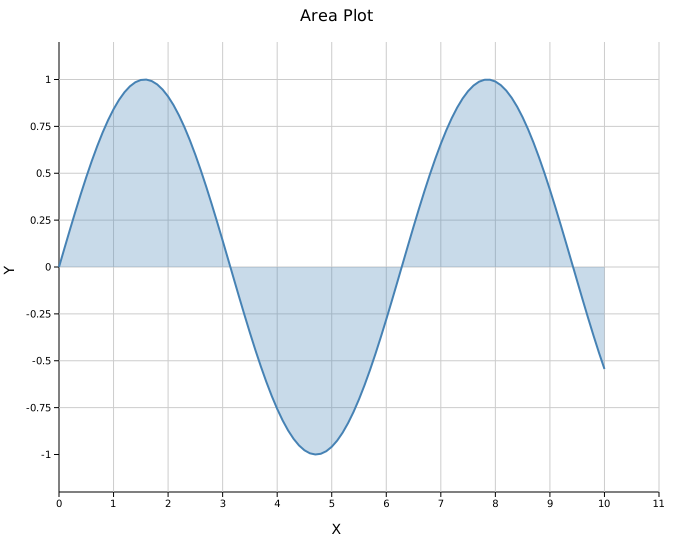
Step plot
.with_step() draws horizontal-then-vertical transitions between consecutive points rather than diagonal segments. This is the standard rendering for histograms and discrete time-series data.
#![allow(unused)]
fn main() {
use kuva::plot::LinePlot;
use kuva::backend::svg::SvgBackend;
use kuva::render::render::render_multiple;
use kuva::render::layout::Layout;
use kuva::render::plots::Plot;

let data = vec![
    (0.0_f64, 2.0_f64), (1.0, 5.0), (2.0, 3.0), (3.0, 7.0),
    (4.0, 4.0), (5.0, 8.0), (6.0, 5.0), (7.0, 9.0),
];

let plot = LinePlot::new()
    .with_data(data)
    .with_color("steelblue")
    .with_stroke_width(2.0)
    .with_step();

let plots = vec![Plot::Line(plot)];
let layout = Layout::auto_from_plots(&plots)
    .with_title("Step Plot")
    .with_x_label("X")
    .with_y_label("Y");

let svg = SvgBackend.render_scene(&render_multiple(plots, layout));
}
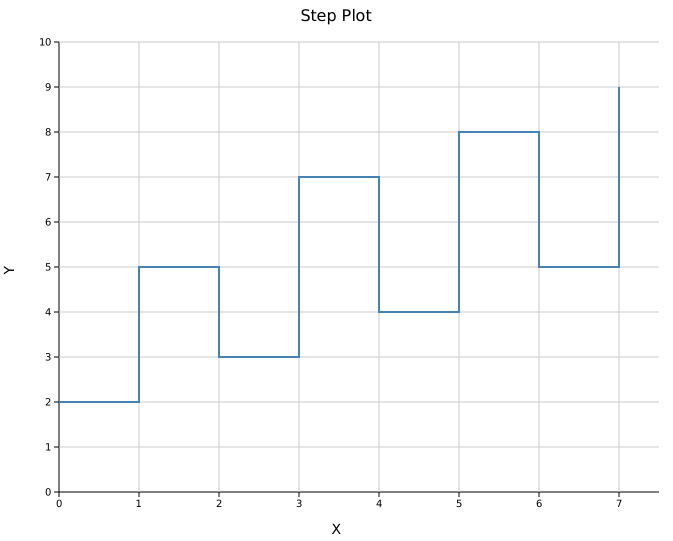
Step and fill can be combined: .with_step().with_fill() produces a filled step area.
Confidence band
.with_band(y_lower, y_upper) draws a shaded region between two boundary series aligned to the line's x positions. The band color inherits from the line color.
#![allow(unused)]
fn main() {
use kuva::plot::LinePlot;
use kuva::backend::svg::SvgBackend;
use kuva::render::render::render_multiple;
use kuva::render::layout::Layout;
use kuva::render::plots::Plot;

let xs: Vec<f64> = (0..=80).map(|i| i as f64 * 0.125).collect();
let ys: Vec<f64> = xs.iter().map(|&x| x.sin()).collect();
let lower: Vec<f64> = ys.iter().map(|&y| y - 0.3).collect();
let upper: Vec<f64> = ys.iter().map(|&y| y + 0.3).collect();

let data: Vec<(f64, f64)> = xs.into_iter().zip(ys).collect();

let plot = LinePlot::new()
    .with_data(data)
    .with_color("steelblue")
    .with_stroke_width(2.0)
    .with_band(lower, upper);

let plots = vec![Plot::Line(plot)];
let layout = Layout::auto_from_plots(&plots)
    .with_title("Confidence Band")
    .with_x_label("X")
    .with_y_label("Y");

let svg = SvgBackend.render_scene(&render_multiple(plots, layout));
}
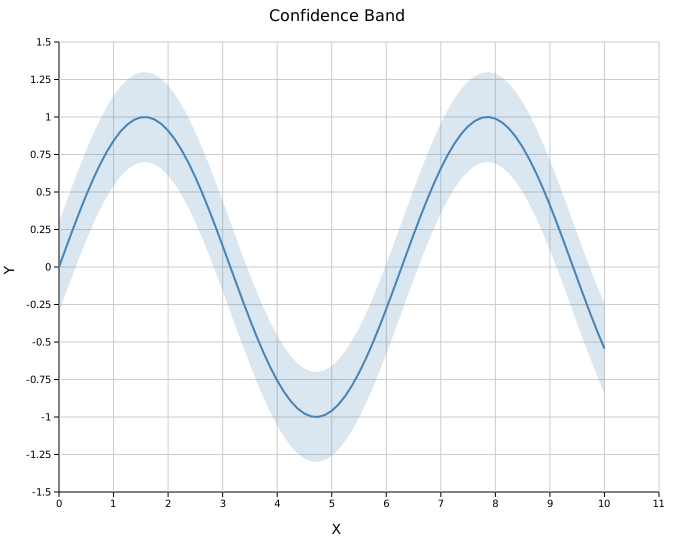
Error bars
.with_y_err() and .with_x_err() attach symmetric error bars. Asymmetric variants take (negative, positive) tuples.
#![allow(unused)]
fn main() {
use kuva::plot::LinePlot;
use kuva::backend::svg::SvgBackend;
use kuva::render::render::render_multiple;
use kuva::render::layout::Layout;
use kuva::render::plots::Plot;

let data: Vec<(f64, f64)> = (0..=8)
    .map(|i| (i as f64, (i as f64 * 0.8).sin()))
    .collect();
let y_err = vec![0.15, 0.20, 0.12, 0.18, 0.22, 0.14, 0.19, 0.16, 0.21_f64];

let plot = LinePlot::new()
    .with_data(data)
    .with_y_err(y_err)
    .with_color("steelblue")
    .with_stroke_width(2.0);

let plots = vec![Plot::Line(plot)];
let layout = Layout::auto_from_plots(&plots)
    .with_title("Error Bars")
    .with_x_label("X")
    .with_y_label("Y");

let svg = SvgBackend.render_scene(&render_multiple(plots, layout));
}
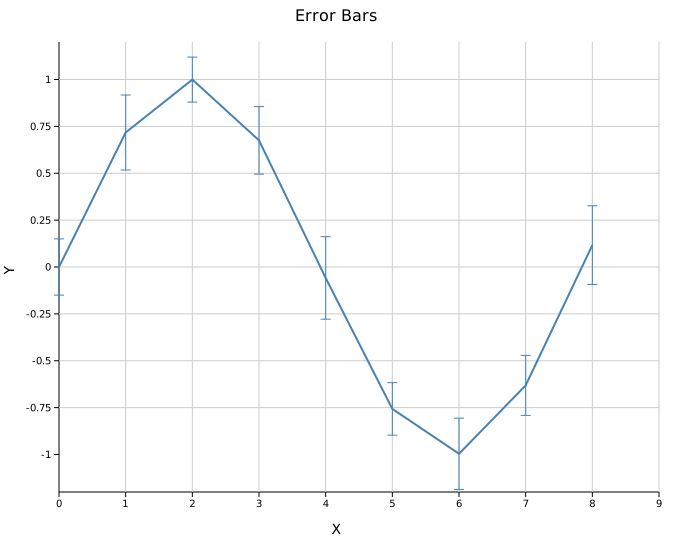
Asymmetric errors
Pass (neg, pos) tuples instead of scalar values:
#![allow(unused)]
fn main() {
use kuva::plot::LinePlot;
let data: Vec<(f64, f64)> = (0..=4).map(|i| (i as f64, i as f64)).collect();
let y_err = vec![(0.1_f64, 0.3_f64), (0.2, 0.5), (0.1, 0.4), (0.3, 0.2), (0.2, 0.6)];

let plot = LinePlot::new()
    .with_data(data)
    .with_y_err_asymmetric(y_err);
}
Multiple series
Pass multiple LinePlot structs in a Vec<Plot>. Legends appear automatically when any series has a label.
#![allow(unused)]
fn main() {
use kuva::plot::LinePlot;
use kuva::backend::svg::SvgBackend;
use kuva::render::render::render_multiple;
use kuva::render::layout::Layout;
use kuva::render::plots::Plot;

let xs: Vec<f64> = (0..=60).map(|i| i as f64 * 0.1).collect();

let plots = vec![
    Plot::Line(LinePlot::new()
        .with_data(xs.iter().map(|&x| (x, x.sin())))
        .with_color("steelblue").with_legend("sin(x)")),
    Plot::Line(LinePlot::new()
        .with_data(xs.iter().map(|&x| (x, x.cos())))
        .with_color("crimson").with_legend("cos(x)")),
];

let layout = Layout::auto_from_plots(&plots)
    .with_title("Multiple Series")
    .with_x_label("X")
    .with_y_label("Y");

let svg = SvgBackend.render_scene(&render_multiple(plots, layout));
}
API reference
| Method | Description |
|---|---|
LinePlot::new() | Create a new line plot with defaults |
.with_data(iter) | Set (x, y) data; accepts any Into<f64> numeric type |
.with_color(s) | Set line color (CSS color string) |
.with_stroke_width(w) | Set stroke width in pixels (default 2.0) |
.with_legend(s) | Attach a legend label to this series |
.with_line_style(LineStyle) | Set stroke style explicitly |
.with_dashed() | Shorthand for LineStyle::Dashed |
.with_dotted() | Shorthand for LineStyle::Dotted |
.with_dashdot() | Shorthand for LineStyle::DashDot |
.with_step() | Use step interpolation |
.with_fill() | Fill area under the line |
.with_fill_opacity(f) | Set fill opacity (default 0.3) |
.with_band(lower, upper) | Confidence band aligned to line x positions |
.with_x_err(iter) | Symmetric X error bars |
.with_x_err_asymmetric(iter) | Asymmetric X error bars: (neg, pos) tuples |
.with_y_err(iter) | Symmetric Y error bars |
.with_y_err_asymmetric(iter) | Asymmetric Y error bars: (neg, pos) tuples |
LineStyle variants
Solid (default) · Dashed (8 4) · Dotted (2 4) · DashDot (8 4 2 4) · Custom(String)
See also: Scatter Plot for unconnected points, Series Plot for multiple named series on one canvas, Band Plot for an attached confidence interval.
CLI
Line plot. Identical column flags to scatter; adds line-style options.
Input: any tabular file with two numeric columns, sorted by x.
| Flag | Default | Description |
|---|---|---|
--x <COL> | 0 | X-axis column |
--y <COL> | 1 | Y-axis column |
--color-by <COL> | — | Multi-series grouping |
--color <CSS> | steelblue | Line color (single-series) |
--stroke-width <PX> | 2.0 | Line stroke width |
--dashed | off | Dashed line style |
--dotted | off | Dotted line style |
--fill | off | Fill area under the line |
--legend | off | Show legend |
--x-date-format <FMT> | — | Parse the X column as a date/time (see Date/time X axis) |
kuva line measurements.tsv --x time --y value --color-by group --legend

kuva line measurements.tsv --x time --y value --fill --color "rgba(70,130,180,0.4)"

kuva line prices.tsv --x date --y close --x-date-format "%Y-%m-%d"
See also: Shared flags — output, appearance, axes, log scale.
Series Plot
A series plot displays an ordered sequence of y-values against their sequential index on the x-axis. It is the simplest way to visualise a time series, signal trace, or any 1D ordered measurement. Three rendering styles are available: line, point, or both.
Import path: kuva::plot::SeriesPlot
Basic usage
Pass an iterable of numeric values to .with_data(). The x-axis is assigned automatically as 0, 1, 2, ….
#![allow(unused)]
fn main() {
use kuva::plot::SeriesPlot;
use kuva::backend::svg::SvgBackend;
use kuva::render::render::render_multiple;
use kuva::render::layout::Layout;
use kuva::render::plots::Plot;

let data: Vec<f64> = (0..80)
    .map(|i| (i as f64 * std::f64::consts::TAU / 80.0).sin())
    .collect();

let series = SeriesPlot::new()
    .with_data(data)
    .with_color("steelblue")
    .with_line_style();

let plots = vec![Plot::Series(series)];
let layout = Layout::auto_from_plots(&plots)
    .with_title("Series Plot — Line Style")
    .with_x_label("Sample")
    .with_y_label("Amplitude");

let svg = SvgBackend.render_scene(&render_multiple(plots, layout));
std::fs::write("series.svg", svg).unwrap();
}
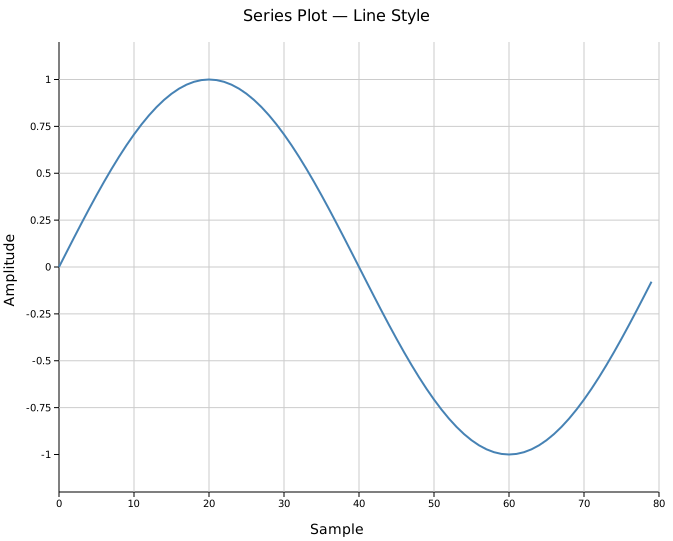
Display styles
Three styles control how values are rendered. Call the corresponding method instead of setting a field directly.
| Method | Style | Renders |
|---|---|---|
.with_line_style() | Line | Polyline connecting consecutive points |
.with_point_style() | Point | Circle at each value (default) |
.with_line_point_style() | Both | Polyline and circles |
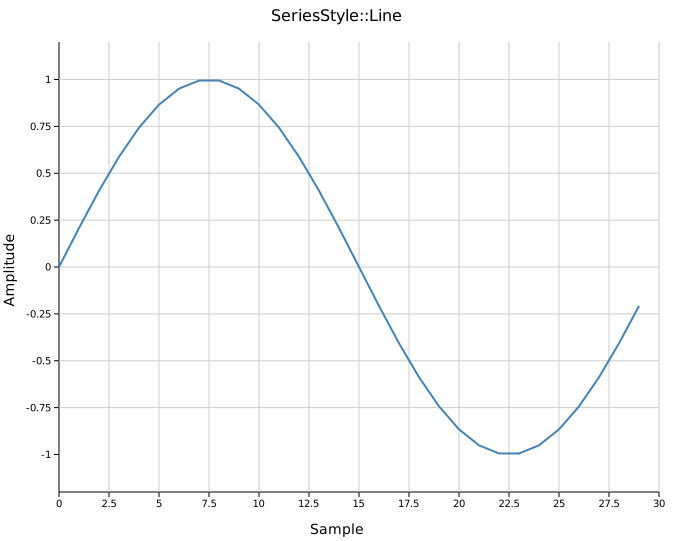
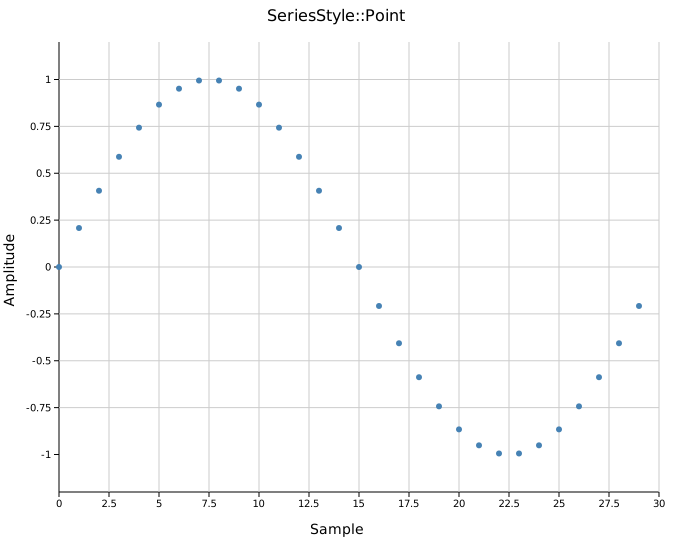
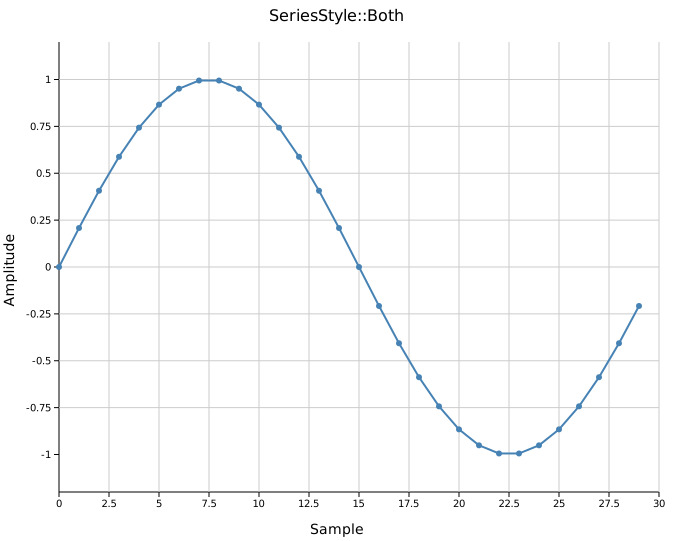
Multiple series
Place multiple SeriesPlot instances in the same plots vector to overlay them on one canvas. All series share the same axes; they align automatically when they have the same number of values.
#![allow(unused)]
fn main() {
use kuva::plot::SeriesPlot;
use kuva::render::plots::Plot;
let s1 = SeriesPlot::new()
    .with_data(sin_data)
    .with_color("steelblue")
    .with_line_style()
    .with_legend("sin(t)");

let s2 = SeriesPlot::new()
    .with_data(cos_data)
    .with_color("firebrick")
    .with_line_style()
    .with_legend("cos(t)");

let s3 = SeriesPlot::new()
    .with_data(damped)
    .with_color("seagreen")
    .with_line_style()
    .with_stroke_width(1.5)
    .with_legend("e^(−t/2)·sin(t)");

let plots = vec![Plot::Series(s1), Plot::Series(s2), Plot::Series(s3)];
}

Each series has its own color and legend entry. The legend is drawn automatically when any series has a legend_label.
Custom stroke and point size
.with_stroke_width(f) sets the line thickness; .with_point_radius(f) sets the circle size. These only affect the relevant style — stroke_width applies to Line and Both; point_radius applies to Point and Both.
#![allow(unused)]
fn main() {
use kuva::plot::SeriesPlot;
use kuva::render::plots::Plot;
let series = SeriesPlot::new()
    .with_data(data)
    .with_color("darkorchid")
    .with_line_point_style()
    .with_stroke_width(1.5)
    .with_point_radius(4.0)
    .with_legend("signal");
}
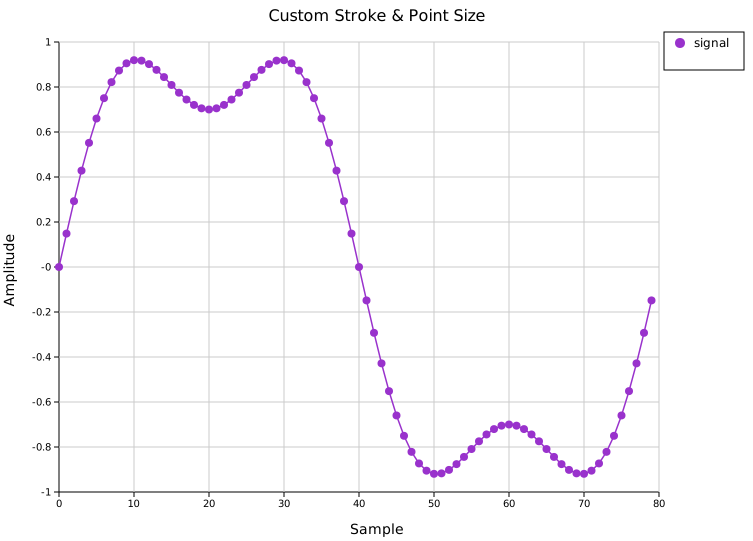
API reference
| Method | Description |
|---|---|
SeriesPlot::new() | Create with defaults (Point style, "black", radius 3.0, width 2.0) |
.with_data(iter) | Load y-values; x positions are sequential indices |
.with_color(s) | CSS color for lines and points (default "black") |
.with_line_style() | Polyline only |
.with_point_style() | Circles only (default) |
.with_line_point_style() | Polyline and circles |
.with_stroke_width(f) | Line thickness in pixels (default 2.0) |
.with_point_radius(f) | Circle radius in pixels (default 3.0) |
.with_legend(s) | Add a legend entry with this label |
See also: Line Plot for a single series, Band Plot for confidence bands per series, Twin-Y Plot for series on independent scales.
Band Plot
A band plot fills the region between two y-curves over a shared x-axis. It is used to display confidence intervals, prediction bands, IQR envelopes, or any shaded range around a central estimate.
Import path: kuva::plot::BandPlot
Standalone band
BandPlot::new(x, y_lower, y_upper) creates a filled area independently. Pair it with a LinePlot or ScatterPlot by placing both in the same plots vector — the band is drawn behind the line.
#![allow(unused)]
fn main() {
use kuva::plot::{BandPlot, LinePlot};
use kuva::backend::svg::SvgBackend;
use kuva::render::render::render_multiple;
use kuva::render::layout::Layout;
use kuva::render::plots::Plot;

let x: Vec<f64> = (0..60).map(|i| i as f64 * 0.2).collect();
let y: Vec<f64> = x.iter().map(|&v| v.sin()).collect();
let lower: Vec<f64> = y.iter().map(|&v| v - 0.35).collect();
let upper: Vec<f64> = y.iter().map(|&v| v + 0.35).collect();

let band = BandPlot::new(x.clone(), lower, upper)
    .with_color("steelblue")
    .with_opacity(0.25);

let line = LinePlot::new()
    .with_data(x.iter().copied().zip(y.iter().copied()))
    .with_color("steelblue");

// Band must come before the line so it renders behind it
let plots = vec![Plot::Band(band), Plot::Line(line)];
let layout = Layout::auto_from_plots(&plots)
    .with_title("Band Plot — Standalone")
    .with_x_label("x")
    .with_y_label("y");

let svg = SvgBackend.render_scene(&render_multiple(plots, layout));
std::fs::write("band.svg", svg).unwrap();
}
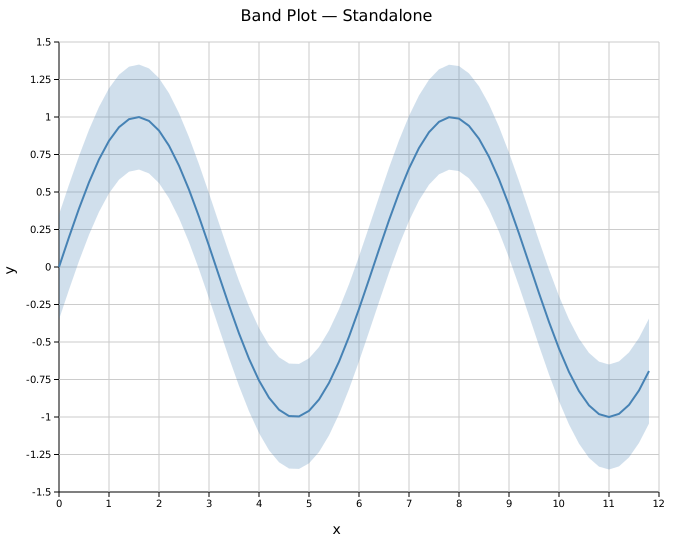
The band fills between y_lower and y_upper. Placing Plot::Band before Plot::Line in the vector ensures it is drawn first and appears behind the line.
Band attached to a line
LinePlot::with_band(y_lower, y_upper) is a one-call shorthand. It creates the BandPlot internally, using the line's x positions and inheriting its color automatically.
#![allow(unused)]
fn main() {
use kuva::plot::LinePlot;
use kuva::render::plots::Plot;

let line = LinePlot::new()
    .with_data(x.iter().copied().zip(y.iter().copied()))
    .with_color("firebrick")
    .with_band(lower, upper);  // band color = "firebrick", opacity = 0.2

let plots = vec![Plot::Line(line)];
}
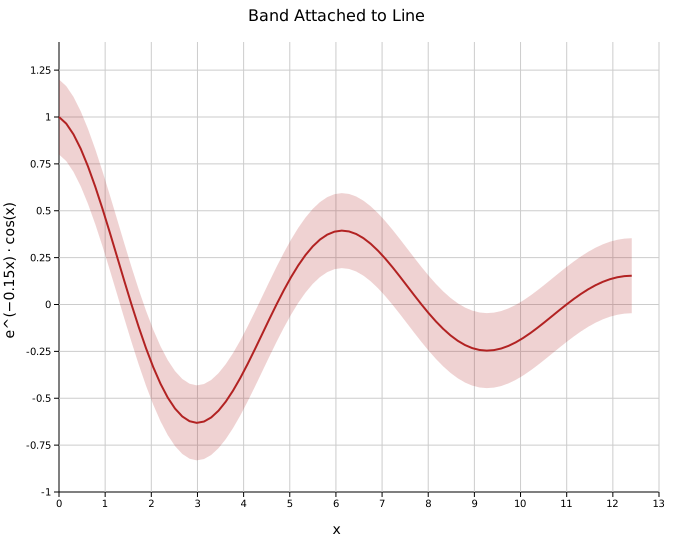
The band is always rendered behind the line. No ordering in the plots vector is needed.
Band attached to a scatter plot
ScatterPlot::with_band(y_lower, y_upper) works identically: the band inherits the scatter color and renders behind the points.
#![allow(unused)]
fn main() {
use kuva::plot::ScatterPlot;
use kuva::render::plots::Plot;

let scatter = ScatterPlot::new()
    .with_data(x.iter().copied().zip(y.iter().copied()))
    .with_color("seagreen")
    .with_band(lower, upper);

let plots = vec![Plot::Scatter(scatter)];
}
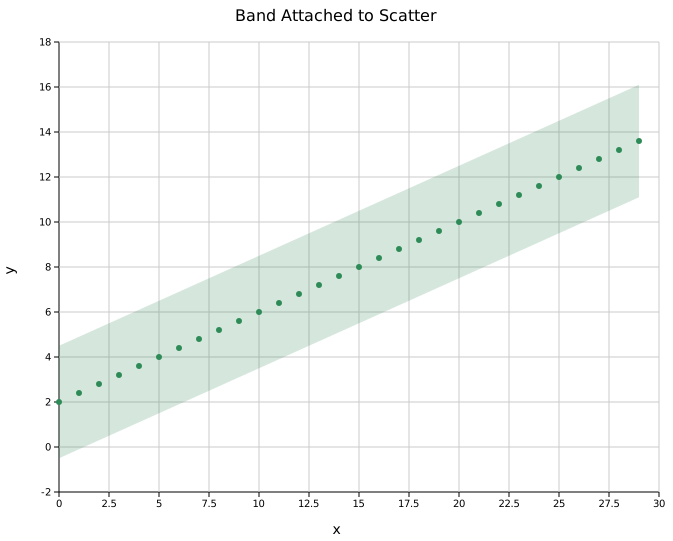
Multiple series with bands
Each LinePlot carries its own independent band. Combine all series in one plots vector — they share the same axes automatically.
#![allow(unused)]
fn main() {
use kuva::plot::LinePlot;
use kuva::render::plots::Plot;

let line1 = LinePlot::new()
    .with_data(x.iter().copied().zip(y1.iter().copied()))
    .with_color("steelblue")
    .with_band(y1.iter().map(|&v| v - 0.25), y1.iter().map(|&v| v + 0.25))
    .with_legend("sin(x)");

let line2 = LinePlot::new()
    .with_data(x.iter().copied().zip(y2.iter().copied()))
    .with_color("darkorange")
    .with_band(y2.iter().map(|&v| v - 0.25), y2.iter().map(|&v| v + 0.25))
    .with_legend("0.8 · cos(0.5x)");

let plots = vec![Plot::Line(line1), Plot::Line(line2)];
}

Opacity
.with_opacity(f) sets the fill transparency. The default 0.2 is deliberately light so that overlapping bands and the underlying line remain readable.
| Opacity | Effect |
|---|---|
0.1–0.2 | Light; line and overlapping bands visible (default 0.2) |
0.3–0.5 | Moderate; band is prominent |
1.0 | Fully opaque; hides anything behind it |
API reference
| Method | Description |
|---|---|
BandPlot::new(x, y_lower, y_upper) | Create a standalone band from three parallel iterables |
.with_color(s) | Fill color (default "steelblue") |
.with_opacity(f) | Fill opacity in [0.0, 1.0] (default 0.2) |
.with_legend(s) | Add a legend entry |
LinePlot::with_band(lower, upper) | Attach a band to a line (inherits color) |
ScatterPlot::with_band(lower, upper) | Attach a band to a scatter plot (inherits color) |
See also: Line Plot and Scatter Plot for the data a band typically attaches to, Series Plot for multiple bands at once.
Joint Plot
A joint plot combines a central scatter plot with marginal distribution panels on the top and right edges. Each marginal panel shows the univariate distribution of the corresponding axis — either as a histogram or a kernel density estimate (KDE). This makes it easy to see both the bivariate relationship and each variable's marginal distribution in a single figure.
JointPlot is a standalone composite renderer, not a Plot enum variant. Render it with render_jointplot(jp, layout) instead of render_multiple.
Import path: kuva::prelude::* (re-exports JointPlot, JointGroup, MarginalType, and render_jointplot)
Basic usage
#![allow(unused)]
fn main() {
use kuva::prelude::*;

let x = vec![1.2, 2.4, 3.1, 4.8, 5.0, 2.1, 3.7, 4.2];
let y = vec![2.1, 3.8, 3.2, 5.1, 5.4, 2.8, 4.0, 4.6];

let jp = JointPlot::new()
    .with_xy(x, y)
    .with_x_label("Feature A")
    .with_y_label("Feature B");

let layout = Layout::new((0.0, 6.0), (1.5, 6.5))
    .with_title("Joint Plot");

let svg = SvgBackend.render_scene(&render_jointplot(jp, layout));
std::fs::write("jointplot.svg", svg).unwrap();
}
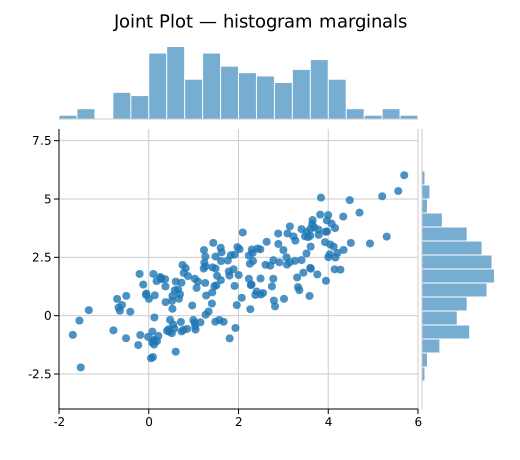
By default both the top (x-distribution) and right (y-distribution) marginal panels are shown as histograms with 20 bins.
Marginal type
.with_marginal_type(MarginalType) switches between histogram bars and a filled KDE curve.
| Variant | Description |
|---|---|
MarginalType::Histogram | Histogram bars. Default. |
MarginalType::Density | Filled kernel density estimate. |
#![allow(unused)]
fn main() {
use kuva::prelude::*;
let jp = JointPlot::new()
    .with_xy(x, y)
    .with_marginal_type(MarginalType::Density)
    .with_x_label("log2 TPM")
    .with_y_label("log2 FC");
}
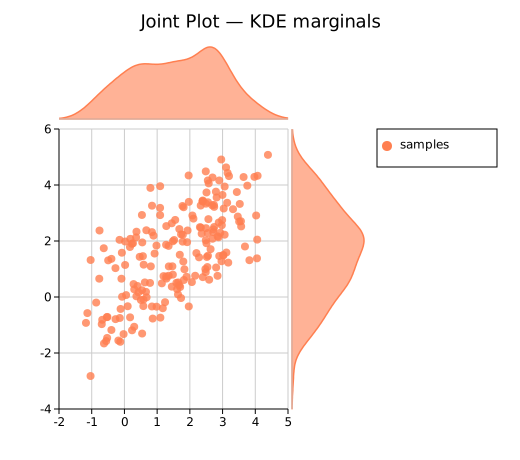
KDE bandwidth defaults to Silverman's rule of thumb. Override with .with_bandwidth(f64).
Showing / hiding marginal panels
Each panel can be toggled independently.
#![allow(unused)]
fn main() {
use kuva::prelude::*;
// Top marginal only
let jp_top = JointPlot::new()
    .with_xy(x.clone(), y.clone())
    .with_right_marginal(false);

// Right marginal only
let jp_right = JointPlot::new()
    .with_xy(x.clone(), y.clone())
    .with_top_marginal(false);

// Scatter only — useful as a feature-parity path through the JointPlot API
let jp_scatter = JointPlot::new()
    .with_xy(x, y)
    .with_top_marginal(false)
    .with_right_marginal(false)
    .with_x_label("X")
    .with_y_label("Y");
}
Multiple groups
Use .with_group() to add named, colored data groups. When two or more groups have labels the legend is rendered automatically to the right of the marginal panel.
#![allow(unused)]
fn main() {
use kuva::prelude::*;
let jp = JointPlot::new()
    .with_group("Control", x_ctrl, y_ctrl, "#4e79a7")
    .with_group("Treated", x_trt,  y_trt,  "#f28e2b")
    .with_x_label("X")
    .with_y_label("Y");

let layout = Layout::new((-6.0, 9.0), (-6.0, 9.0))
    .with_title("Two Groups");
}

Each group's marginal bars or density fill use the group's marker color at 60 % opacity (controlled by .with_marginal_alpha(f64)).
Layout note: When a legend is present alongside a right marginal panel, the total SVG width is automatically expanded so the legend appears to the right of the panel, with no white space between the data area and the panel.
Trend lines
Build a JointGroup directly for access to all scatter-plot features, including trend lines and correlation annotations.
#![allow(unused)]
fn main() {
use kuva::prelude::*;
use kuva::plot::scatter::TrendLine;
let group = JointGroup::new(x, y)
    .with_color("#e15759")
    .with_trend(TrendLine::Linear)
    .with_trend_color("#333333")
    .with_correlation();          // adds "r = X.XX" annotation

let jp = JointPlot::new()
    .with_joint_group(group)
    .with_x_label("X")
    .with_y_label("Y");
}

Error bars
#![allow(unused)]
fn main() {
use kuva::prelude::*;
let x_err = vec![0.2; 30];
let y_err = vec![0.3; 30];

let group = JointGroup::new(x, y)
    .with_color("#76b7b2")
    .with_x_err(x_err)
    .with_y_err(y_err);

let jp = JointPlot::new()
    .with_joint_group(group)
    .with_x_label("Measurement")
    .with_y_label("Response");
}
Asymmetric error bars are also supported via .with_x_err_asymmetric() and .with_y_err_asymmetric().
Marker shape and size
#![allow(unused)]
fn main() {
use kuva::prelude::*;
use kuva::plot::scatter::MarkerShape;
let group = JointGroup::new(x, y)
    .with_color("#59a14f")
    .with_marker(MarkerShape::Square)
    .with_marker_size(5.0)
    .with_marker_stroke_width(1.0);

let jp = JointPlot::new()
    .with_joint_group(group)
    .with_marginal_type(MarginalType::Density);
}
Available marker shapes: Circle (default), Square, Triangle, Diamond, Cross, Plus.
Per-point colors
#![allow(unused)]
fn main() {
use kuva::prelude::*;
// Color each point by sign of x
let colors: Vec<String> = x.iter()
    .map(|&v| if v > 0.0 { "#4e79a7".into() } else { "#e15759".into() })
    .collect();

let group = JointGroup::new(x, y)
    .with_colors(colors);

let jp = JointPlot::new().with_joint_group(group);
}
The per-point colors apply only to the scatter markers; marginal bars use the group's uniform color.
Tooltips
#![allow(unused)]
fn main() {
use kuva::prelude::*;
let labels: Vec<String> = (0..40).map(|i| format!("Sample {i}")).collect();

let group = JointGroup::new(x, y)
    .with_color("#b07aa1")
    .with_tooltips()
    .with_tooltip_labels(labels);

let jp = JointPlot::new().with_joint_group(group);
}
Tooltip <title> elements are injected into the SVG and shown on hover in browsers. They are silently ignored by PNG/PDF/terminal backends.
Panel sizing
#![allow(unused)]
fn main() {
use kuva::prelude::*;
let jp = JointPlot::new()
    .with_xy(x, y)
    .with_marginal_size(120.0)   // panel height (top) / width (right), default 80.0
    .with_marginal_gap(8.0)      // gap between panel and scatter, default 4.0
    .with_bins(30)               // histogram bins, default 20
    .with_marginal_alpha(0.5);   // bar/fill opacity, default 0.6
}
Canvas size
JointPlot uses Layout::with_width() and Layout::with_height() for total canvas dimensions (including marginal panels). A square canvas (e.g. 500 × 500) is natural for scatter data. Increase width or height if labels or legend need more room.
#![allow(unused)]
fn main() {
use kuva::prelude::*;
let layout = Layout::new((-8.0, 8.0), (-5.0, 5.0))
    .with_title("Expression vs Fold Change")
    .with_width(520.0)
    .with_height(520.0);
}
API reference
JointPlot builder methods
| Method | Description |
|---|---|
JointPlot::new() | Create a joint plot with defaults |
.with_xy(x, y) | Add a single unlabeled group |
.with_group(label, x, y, color) | Add a named and colored group |
.with_joint_group(JointGroup) | Add a fully configured JointGroup |
.with_marginal_type(MarginalType) | Histogram or density (default Histogram) |
.with_top_marginal(bool) | Show/hide top panel (default true) |
.with_right_marginal(bool) | Show/hide right panel (default true) |
.with_marginal_size(f64) | Panel height/width in px (default 80.0) |
.with_marginal_gap(f64) | Gap between panel and scatter in px (default 4.0) |
.with_bins(usize) | Number of histogram bins (default 20) |
.with_bandwidth(f64) | KDE bandwidth (default: Silverman's rule) |
.with_marginal_alpha(f64) | Marginal bar/fill opacity (default 0.6) |
.with_x_label(s) | X-axis label |
.with_y_label(s) | Y-axis label |
.with_marker_size(f64) | Default scatter marker radius in px (default 4.0) |
.with_marker_opacity(f64) | Default scatter marker opacity (default 0.8) |
JointGroup builder methods
JointGroup wraps a ScatterPlot and forwards all scatter features.
| Method | Description |
|---|---|
JointGroup::new(x, y) | Create a group from x and y data |
JointGroup::from_scatter(ScatterPlot) | Wrap a pre-built ScatterPlot |
.with_label(s) | Group label (shown in legend) |
.with_color(s) | Uniform marker color |
.with_colors(iter) | Per-point colors |
.with_marker(MarkerShape) | Marker shape |
.with_marker_size(f64) | Marker radius in px |
.with_marker_opacity(f64) | Marker fill opacity |
.with_marker_stroke_width(f64) | Marker outline width |
.with_sizes(iter) | Per-point radii (bubble plot) |
.with_x_err(iter) | Symmetric X error bars |
.with_x_err_asymmetric(iter) | Asymmetric X error bars (neg, pos) |
.with_y_err(iter) | Symmetric Y error bars |
.with_y_err_asymmetric(iter) | Asymmetric Y error bars (neg, pos) |
.with_trend(TrendLine) | Overlay a trend line |
.with_trend_color(s) | Trend line color |
.with_trend_width(f64) | Trend line stroke width |
.with_equation() | Show regression equation annotation |
.with_correlation() | Show Pearson r annotation |
.with_band(y_lower, y_upper) | Shaded confidence band |
.with_tooltips() | Enable SVG hover tooltips |
.with_tooltip_labels(iter) | Custom per-point tooltip labels |
See also: Scatter Plot for the core x/y relationship, 2D Histogram for a pure 2D density view, Density Plot for the marginal curves alone.
Contour Plot
A contour plot draws iso-lines (or filled iso-bands) on a 2D scalar field, connecting all points that share the same z value. It is well suited for visualising any continuous surface: density functions, spatial expression gradients, topographic elevation, or any field that varies over an x–y plane.
Import path: kuva::plot::ContourPlot
Basic usage — iso-lines from a grid
Supply a pre-computed grid with .with_grid(z, x_coords, y_coords). z[row][col] is the scalar value at position (x_coords[col], y_coords[row]). By default, n_levels evenly spaced iso-lines are drawn (default 8).
#![allow(unused)]
fn main() {
use kuva::plot::ContourPlot;
use kuva::backend::svg::SvgBackend;
use kuva::render::render::render_multiple;
use kuva::render::layout::Layout;
use kuva::render::plots::Plot;

// Build a 60×60 Gaussian grid over [-3, 3]²
let n = 60_usize;
let coords: Vec<f64> = (0..n)
    .map(|i| -3.0 + i as f64 / (n - 1) as f64 * 6.0)
    .collect();
let z: Vec<Vec<f64>> = coords.iter()
    .map(|&y| coords.iter()
        .map(|&x| (-(x * x + y * y) / 2.0).exp())
        .collect())
    .collect();

let cp = ContourPlot::new()
    .with_grid(z, coords.clone(), coords)
    .with_n_levels(10)
    .with_line_color("steelblue")
    .with_line_width(1.2);

let plots = vec![Plot::Contour(cp)];
let layout = Layout::auto_from_plots(&plots)
    .with_title("Iso-line Contours — Gaussian Peak")
    .with_x_label("x")
    .with_y_label("y");

let svg = SvgBackend.render_scene(&render_multiple(plots, layout));
std::fs::write("contour.svg", svg).unwrap();
}
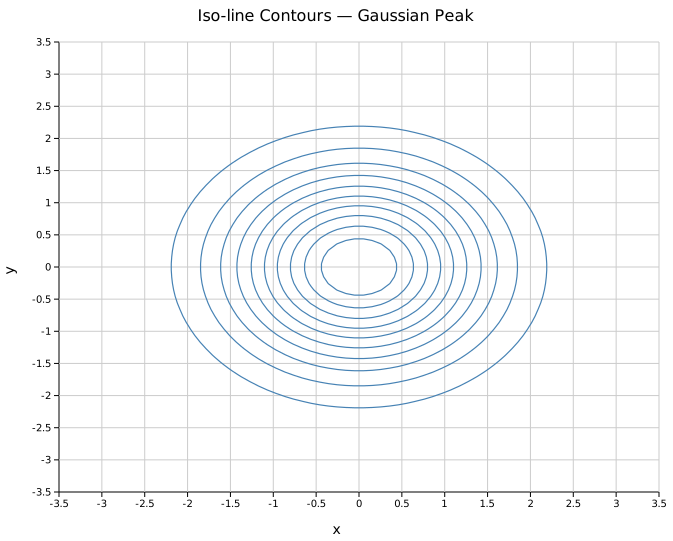
Ten evenly spaced iso-lines trace the nested ellipses of the Gaussian peak. A fixed line color is used here; without .with_line_color() each iso-line would be colored by the active colormap.
Filled contours
.with_filled() fills each band between adjacent iso-levels using the colormap. .with_legend(label) enables a colorbar in the right margin.
#![allow(unused)]
fn main() {
use kuva::plot::ContourPlot;
use kuva::render::plots::Plot;
let cp = ContourPlot::new()
    .with_grid(z, xs, ys)
    .with_n_levels(9)
    .with_filled()
    .with_legend("Density");
}

A bimodal surface with two overlapping peaks. The Viridis colormap maps low z values to purple/blue and high values to yellow. The colorbar on the right shows the full z range.
Scattered input — IDW interpolation
.with_points(iter) accepts an iterator of (x, y, z) triples at arbitrary positions — no regular grid required. The values are interpolated onto an internal 50×50 grid using inverse-distance weighting (IDW) before iso-lines are computed. This is the natural input mode for spatial data such as tissue sample coordinates or irregular sensor readings.
#![allow(unused)]
fn main() {
use kuva::plot::{ContourPlot, ColorMap};
use kuva::render::plots::Plot;
// 121 sample points from a bimodal function
let pts: Vec<(f64, f64, f64)> = (-5..=5)
    .flat_map(|i| (-5..=5).map(move |j| {
        let (x, y) = (i as f64, j as f64);
        let z = (- ((x - 1.5) * (x - 1.5) + (y - 1.5) * (y - 1.5)) / 4.0).exp()
              + 0.7 * (- ((x + 2.0) * (x + 2.0) + (y + 1.5) * (y + 1.5)) / 3.0).exp();
        (x, y, z)
    }))
    .collect();

let cp = ContourPlot::new()
    .with_points(pts)
    .with_n_levels(8)
    .with_filled()
    .with_colormap(ColorMap::Inferno)
    .with_legend("Value");
}
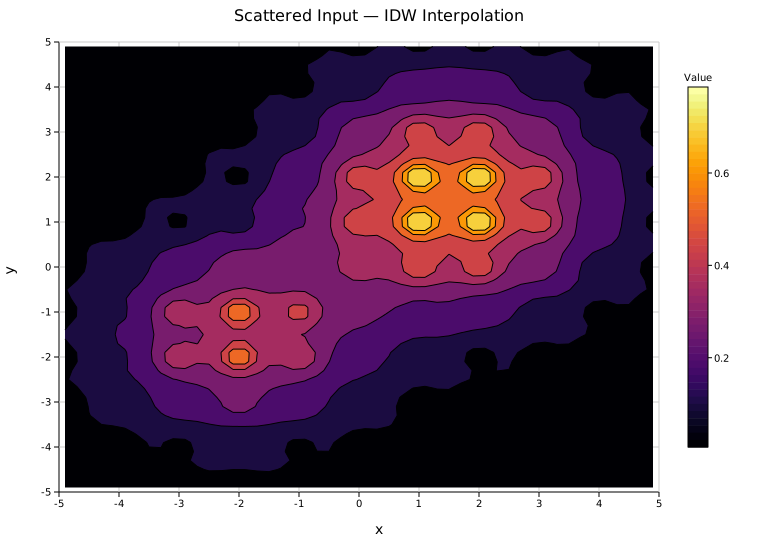
The Inferno colormap with filled bands on IDW-interpolated data. Denser point clouds produce sharper interpolations; the 50×50 internal grid is fixed regardless of input count.
Explicit iso-levels
.with_levels(&[…]) pins the iso-lines to specific z values. This overrides n_levels. Use it when lines should correspond to meaningful thresholds — specific expression cutoffs, probability contours, or fixed elevation intervals.
#![allow(unused)]
fn main() {
use kuva::plot::ContourPlot;
use kuva::render::plots::Plot;
let (z, xs, ys) = (vec![vec![0.0f64]], vec![0.0f64], vec![0.0f64]);
let cp = ContourPlot::new()
    .with_grid(z, xs, ys)
    .with_levels(&[0.1, 0.25, 0.5, 0.75, 0.9])
    .with_line_color("darkgreen")
    .with_line_width(1.5);
}
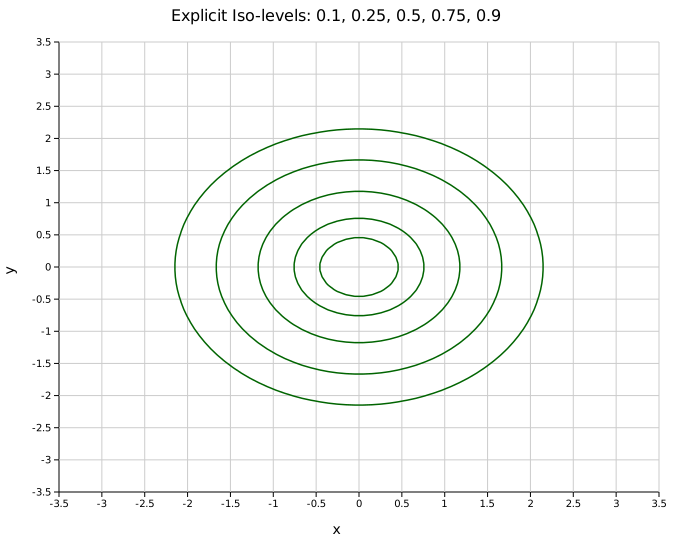
Five explicit iso-lines at z = 0.1, 0.25, 0.5, 0.75, 0.9 on the same Gaussian. The innermost ring at 0.9 is very tight around the peak; the outermost at 0.1 reaches almost to the grid boundary.
Line color
By default each iso-line is colored using the active colormap. .with_line_color(s) overrides this with a single fixed color for all lines — useful for clean black-and-white figures or when the colormap is reserved for a filled background.
#![allow(unused)]
fn main() {
use kuva::plot::ContourPlot;
let (z, xs, ys) = (vec![vec![0.0f64]], vec![0.0f64], vec![0.0f64]);
let cp = ContourPlot::new()
    .with_grid(z, xs, ys)
    .with_line_color("navy")    // all iso-lines in navy
    .with_line_width(1.2);
}
Color maps
.with_colormap(map) selects the colormap (default Viridis). The same ColorMap variants available for heatmaps apply: Viridis, Inferno, Grayscale, and Custom.
#![allow(unused)]
fn main() {
use kuva::plot::{ContourPlot, ColorMap};
let (z, xs, ys) = (vec![vec![0.0f64]], vec![0.0f64], vec![0.0f64]);
let cp = ContourPlot::new()
    .with_grid(z, xs, ys)
    .with_filled()
    .with_colormap(ColorMap::Inferno)
    .with_legend("Density");
}
API reference
| Method | Description |
|---|---|
ContourPlot::new() | Create a plot with defaults |
.with_grid(z, xs, ys) | Regular grid input: z[row][col] with coordinate vectors |
.with_points(iter) | Scattered (x, y, z) input — IDW interpolated to 50×50 grid |
.with_n_levels(n) | Number of auto-spaced iso-levels (default 8) |
.with_levels(&[…]) | Explicit iso-level values — overrides n_levels |
.with_filled() | Enable filled color bands between iso-levels |
.with_colormap(map) | Color map: Viridis, Inferno, Grayscale, Custom (default Viridis) |
.with_line_color(s) | Fixed color for all iso-lines (default: derive from colormap) |
.with_line_width(px) | Iso-line stroke width in pixels (default 1.0) |
.with_legend(s) | Colorbar label (filled mode) or line legend entry (line mode) |
See also: Heatmap for the raw gridded values, 2D Histogram for binned point density, Scatter Plot for the underlying x/y/z points.
CLI
Contour plot from scattered (x, y, z) triplets.
Input: three columns — x coordinate, y coordinate, scalar value.
| Flag | Default | Description |
|---|---|---|
--x <COL> | 0 | X column |
--y <COL> | 1 | Y column |
--z <COL> | 2 | Scalar value column |
--levels <N> | 8 | Number of contour levels |
--filled | off | Fill between contour levels |
--colormap <NAME> | viridis | Color map (filled mode) |
--line-color <CSS> | — | Line color (unfilled mode) |
--legend <LABEL> | — | Show legend entry |
kuva contour contour.tsv --x x --y y --z density

kuva contour contour.tsv --x x --y y --z density \
    --filled --levels 12 --colormap inferno
See also: Shared flags — output, appearance, axes, log scale.
Parallel Coordinates Plot
A parallel coordinates plot displays multivariate data by drawing one vertical axis per dimension and connecting each observation as a polyline that passes through its value on each axis. Groups of observations that share a similar pattern appear as bundles of lines with similar trajectories; divergent groups cross each other clearly.
Parallel coordinates are useful for exploring high-dimensional datasets, comparing groups across many measured attributes, and identifying which dimensions best separate groups.
Import path: kuva::plot::parallel::{ParallelPlot, ParallelRow}
Basic usage
Set axis names with .with_axis_names(), then add rows with .with_row_group(group, values). Each row is one observation; values must be in the same order as the axis names.
#![allow(unused)]
fn main() {
use kuva::plot::parallel::ParallelPlot;
use kuva::backend::svg::SvgBackend;
use kuva::render::render::render_multiple;
use kuva::render::layout::Layout;
use kuva::render::plots::Plot;

let plot = ParallelPlot::new()
    .with_axis_names(["Sepal L", "Sepal W", "Petal L", "Petal W"])
    .with_row_group("setosa",     vec![5.1, 3.5, 1.4, 0.2])
    .with_row_group("setosa",     vec![4.9, 3.0, 1.4, 0.2])
    .with_row_group("setosa",     vec![4.7, 3.2, 1.3, 0.2])
    .with_row_group("versicolor", vec![7.0, 3.2, 4.7, 1.4])
    .with_row_group("versicolor", vec![6.4, 3.2, 4.5, 1.5])
    .with_row_group("versicolor", vec![6.9, 3.1, 4.9, 1.5])
    .with_row_group("virginica",  vec![6.3, 3.3, 6.0, 2.5])
    .with_row_group("virginica",  vec![5.8, 2.7, 5.1, 1.9])
    .with_row_group("virginica",  vec![7.1, 3.0, 5.9, 2.1])
    .with_legend("Species");

let plots = vec![Plot::Parallel(plot)];
let layout = Layout::auto_from_plots(&plots)
    .with_title("Iris Dataset");

let svg = SvgBackend.render_scene(&render_multiple(plots, layout));
std::fs::write("parallel.svg", svg).unwrap();
}

Each axis is normalised to [0, 1] by default so that differently-scaled dimensions are comparable. Disable with .with_normalize(false) when all axes share a common unit.
Smooth curves
.with_curved(true) draws S-shaped cubic Bézier curves instead of straight polylines, which reduces visual clutter in dense plots.
#![allow(unused)]
fn main() {
use kuva::plot::parallel::ParallelPlot;
use kuva::render::plots::Plot;
use kuva::render::layout::Layout;
use kuva::render::render::render_multiple;

let plot = ParallelPlot::new()
    .with_axis_names(["Sepal L", "Sepal W", "Petal L", "Petal W"])
    .with_row_group("setosa",     vec![5.1, 3.5, 1.4, 0.2])
    .with_row_group("setosa",     vec![4.9, 3.0, 1.4, 0.2])
    .with_row_group("versicolor", vec![7.0, 3.2, 4.7, 1.4])
    .with_row_group("versicolor", vec![6.4, 3.2, 4.5, 1.5])
    .with_row_group("virginica",  vec![6.3, 3.3, 6.0, 2.5])
    .with_row_group("virginica",  vec![7.1, 3.0, 5.9, 2.1])
    .with_curved(true)
    .with_opacity(0.7)
    .with_legend("Species");

let plots = vec![Plot::Parallel(plot)];
}

Group mean overlay
.with_mean(true) draws a bold polyline at the per-group mean for each axis. This makes the group-level pattern visible even when individual lines are dense.
#![allow(unused)]
fn main() {
use kuva::plot::parallel::ParallelPlot;
use kuva::render::plots::Plot;
use kuva::render::layout::Layout;
use kuva::render::render::render_multiple;
use kuva::backend::svg::SvgBackend;

let plot = ParallelPlot::new()
    .with_axis_names(["Recall", "Precision", "F1", "AUC", "Inference ms"])
    // Multiple runs per model
    .with_group_rows("BERT",  [
        vec![0.82, 0.85, 0.83, 0.91, 120.0],
        vec![0.80, 0.87, 0.83, 0.90, 115.0],
        vec![0.83, 0.84, 0.83, 0.92, 125.0],
    ])
    .with_group_rows("DistilBERT", [
        vec![0.78, 0.80, 0.79, 0.87,  55.0],
        vec![0.77, 0.82, 0.79, 0.86,  52.0],
        vec![0.79, 0.81, 0.80, 0.88,  58.0],
    ])
    .with_group_rows("LSTM", [
        vec![0.72, 0.75, 0.73, 0.82,  30.0],
        vec![0.71, 0.76, 0.73, 0.81,  28.0],
        vec![0.73, 0.74, 0.73, 0.83,  32.0],
    ])
    .with_mean(true)
    .with_opacity(0.35)
    .with_curved(true)
    .with_legend("Model");

let plots = vec![Plot::Parallel(plot)];
let layout = Layout::auto_from_plots(&plots).with_title("NLP Model Comparison");
let svg = SvgBackend.render_scene(&render_multiple(plots, layout));
}

Axis inversion
Some axes are naturally "better when low" (e.g., error rate, latency). .with_inverted_axis(i) inverts axis i so that high values plot near the bottom — a visual triangle at the bottom of the axis label indicates inversion.
#![allow(unused)]
fn main() {
use kuva::plot::parallel::ParallelPlot;
use kuva::render::plots::Plot;
use kuva::render::layout::Layout;
use kuva::render::render::render_multiple;

// Axes: Accuracy (higher = better), Error rate (lower = better), Speed ms (lower = better), F1 (higher = better)
let plot = ParallelPlot::new()
    .with_axis_names(["Accuracy", "Error rate", "Speed (ms)", "F1"])
    .with_row_group("Model A", vec![0.92, 0.08, 120.0, 0.90])
    .with_row_group("Model A", vec![0.91, 0.09, 115.0, 0.89])
    .with_row_group("Model B", vec![0.87, 0.13,  45.0, 0.86])
    .with_row_group("Model B", vec![0.88, 0.12,  48.0, 0.87])
    .with_inverted_axes([1, 2])  // invert Error rate and Speed: down = better
    .with_mean(true)
    .with_legend("Model");

let plots = vec![Plot::Parallel(plot)];
}
ParallelPlot API reference
ParallelPlot builders
| Method | Default | Description |
|---|---|---|
ParallelPlot::new() | — | Create a parallel coordinates plot |
.with_axis_names(iter) | — | Set axis (column) names |
.with_row(values) | — | Add an ungrouped row |
.with_row_group(group, values) | — | Add a row assigned to a named group |
.with_rows(iter) | — | Add multiple ungrouped rows |
.with_group_rows(group, iter) | — | Add multiple rows to the same group |
.with_normalize(bool) | true | Normalise each axis independently to [0, 1] |
.with_curved(bool) | false | Draw smooth S-shaped Bézier curves |
.with_stroke_width(px) | 1.2 | Polyline stroke width |
.with_opacity(f) | 0.6 | Polyline opacity |
.with_color(css) | "steelblue" | Fallback color for ungrouped rows |
.with_group_colors(iter) | palette | Explicit per-group CSS colors |
.with_mean(bool) | false | Draw a bold mean line for each group |
.with_inverted_axis(i) | — | Invert axis i (high values at bottom) |
.with_inverted_axes(iter) | — | Invert multiple axes |
.with_legend(label) | — | Legend title (one entry per group) |
See also: Radar / Spider Chart for a polygon-based multivariate view, Slope Chart for a simpler two-point comparison.
CLI
Parallel coordinates — multivariate visualisation where each axis represents one variable and each observation is a polyline.
Input: one row per observation; --value-cols selects the numeric axes; an optional group column colors the lines.
| Flag | Default | Description |
|---|---|---|
--value-cols <COL>… | required | Two or more numeric columns (names or indices) |
--group-col <COL> | — | Group/color column |
--axis-names <NAME>… | header or "Axis N" | Override axis labels |
--no-normalize | off | Disable per-axis normalization to [0, 1] |
--curved | off | Render smooth Bézier curves instead of polylines |
--opacity <F> | 0.5 | Line opacity |
--show-mean | off | Overlay a bold group-mean line |
--legend <LABEL> | — | Add a legend |
kuva parallel data.tsv \
    --value-cols sepal_length sepal_width petal_length petal_width \
    --group-col species

kuva parallel data.tsv \
    --value-cols 0 1 2 3 --group-col 4 \
    --curved --show-mean --legend "Species" \
    --title "Iris Parallel Coordinates"
See also: Shared flags — output, appearance, axes.
Polar Plot
A polar coordinate plot renders data in (r, θ) space — radial distance and angle — projected onto a circular canvas with a configurable grid.
By default kuva uses compass convention: θ=0 at north (top), increasing clockwise. To use math convention (θ=0 at east, increasing CCW), combine .with_theta_start(90.0) and .with_clockwise(false).

Rust API
#![allow(unused)]
fn main() {
use kuva::plot::polar::{PolarMode, PolarPlot};
use kuva::render::layout::Layout;
use kuva::render::plots::Plot;
use kuva::render::render::render_multiple;
use kuva::backend::svg::SvgBackend;

// Cardioid: r = 1 + cos(θ)
let n = 72;
let theta: Vec<f64> = (0..n).map(|i| i as f64 * 360.0 / n as f64).collect();
let r: Vec<f64> = theta.iter().map(|&t| 1.0 + t.to_radians().cos()).collect();

let plot = PolarPlot::new()
    .with_series_labeled(r, theta, "Cardioid", PolarMode::Line)
    .with_r_max(2.1)
    .with_r_grid_lines(4)
    .with_theta_divisions(12)
    .with_legend(true);

let plots = vec![Plot::Polar(plot)];
let layout = Layout::auto_from_plots(&plots).with_title("Cardioid");
let svg = SvgBackend.render_scene(&render_multiple(plots, layout));
}
Scatter vs Line mode
#![allow(unused)]
fn main() {
// Scatter (default): each (r, θ) point is a circle
let plot = PolarPlot::new().with_series(r, theta);

// Line: points connected by a path
let plot = PolarPlot::new().with_series_line(r, theta);

// Labeled series (used for legends)
let plot = PolarPlot::new()
    .with_series_labeled(r, theta, "Wind speed", PolarMode::Scatter);
}
Conventions
#![allow(unused)]
fn main() {
// Compass convention (default): 0° = north, clockwise
let compass = PolarPlot::new()
    .with_theta_start(0.0)
    .with_clockwise(true);

// Math convention: 0° = east, CCW
let math = PolarPlot::new()
    .with_theta_start(90.0)
    .with_clockwise(false);
}
Theta tick labels
#![allow(unused)]
fn main() {
let mut theta: Vec<f64> = (0..8).map(|i| i as f64 * 45.0).collect();
theta.push(360.0);
let r_location1 = vec![4.8, 3.2, 2.8, 1.2, 0.5, 1.4, 2.8, 4.1, 4.8];
let r_location2 = vec![1.8, 2.2, 3.8, 4.2, 4.5, 3.4, 2.2, 1.1, 1.8];
let plot1 = PolarPlot::new()
    .with_series_labeled(r_location1, theta.clone(), "Location 1", PolarMode::Line)
    .with_theta_divisions(8)
    .with_r_max(5.0)
    .with_r_grid_lines(5)
    .with_color("steelblue")
    .with_legend(true);
let plot2 = PolarPlot::new()
    .with_series_labeled(r_location2, theta, "Location 2", PolarMode::Line)
    .with_theta_divisions(8)
    .with_r_max(5.0)
    .with_r_grid_lines(5)
    .with_color("orange")
    .with_legend(true);

let plots = vec![Plot::Polar(plot1), Plot::Polar(plot2)];
let layout = Layout::auto_from_plots(&plots)
    .with_title("Polar Plot with custom theta ticks")
    .with_x_tick_format(TickFormat::Custom(std::sync::Arc::new(
        |v| {
            let div = 360.0 / 8.0;
            if v < div {
                "eventful".to_string()
            } else if v < 2.0 * div {
                "exciting".to_string()
            } else if v < 3.0 * div {
                "pleasant".to_string()
            } else if v < 4.0 * div {
                "calm".to_string()
            } else if v < 5.0 * div {
                "uneventful".to_string()
            } else if v < 6.0 * div {
                "monotonous".to_string()
            } else if v < 7.0 * div {
                "unpleasant".to_string()
            } else {
                "chaotic".to_string()
            }
        }
    )));
}
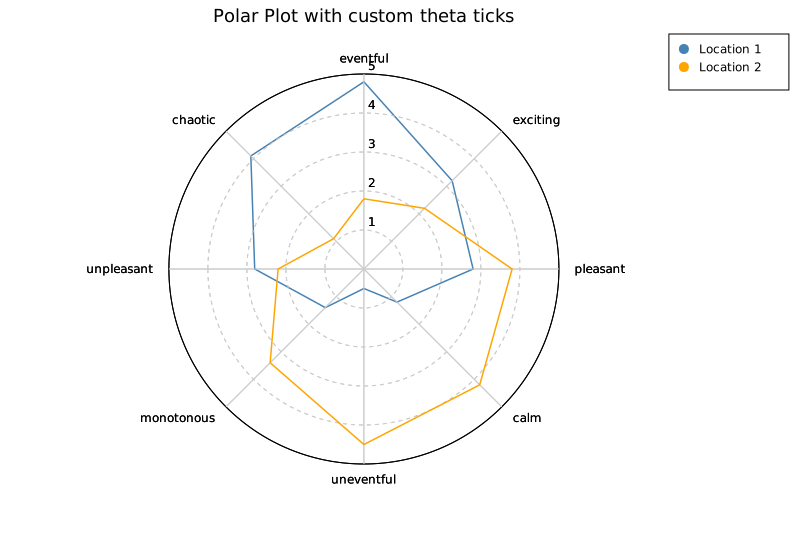
Marker opacity and stroke (scatter mode)
Control fill transparency and an optional outline on scatter-mode points. Settings are per-series and must be called immediately after the series they apply to.
500 observations with two dominant directions (NE at 45° and SW at 225°). With solid markers each directional cluster collapses into an opaque wedge, hiding the internal spread. At opacity = 0.2 the denser core of each cluster is visibly darker than its fringe, and the thin 0.7 px stroke keeps individual observations readable.
#![allow(unused)]
fn main() {
use kuva::plot::polar::PolarPlot;
use kuva::backend::svg::SvgBackend;
use kuva::render::render::render_multiple;
use kuva::render::layout::Layout;
use kuva::render::plots::Plot;

// (populate r_vals and t_vals with 500 (r, theta_degrees) observations)
let (r_vals, t_vals): (Vec<f64>, Vec<f64>) = (vec![], vec![]);
let plot = PolarPlot::new()
    .with_series(r_vals, t_vals)
    .with_color("steelblue")
    .with_marker_opacity(0.2)
    .with_marker_stroke_width(0.7)
    .with_r_max(1.2)
    .with_theta_divisions(24);

let plots = vec![Plot::Polar(plot)];
let layout = Layout::auto_from_plots(&plots)
    .with_title("Directional scatter — semi-transparent markers (500 pts)");

let svg = SvgBackend.render_scene(&render_multiple(plots, layout));
}
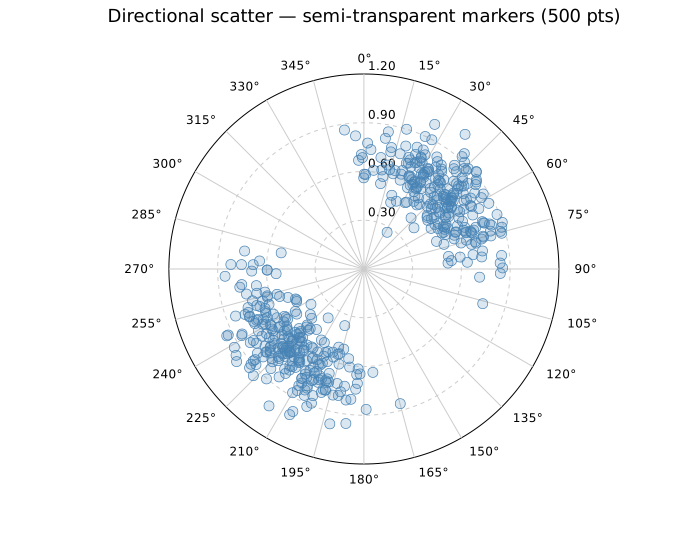
These builders have no effect on PolarMode::Line series.
Negative radius / shifted baseline
Use .with_r_min(f64) to set the value that maps to the plot centre. By default r_min = 0, so a data point at r = 0 lands at the centre. When you set a non-zero r_min, a data point (r, θ) is plotted at radial distance max(r − r_min, 0) / (r_max − r_min) from the centre. Points below r_min are clamped to the centre.
This is most useful for dB-scale quantities such as antenna radiation patterns, where gain naturally runs from a large negative value (e.g. −20 dBi) up to 0 dBi.
#![allow(unused)]
fn main() {
// Antenna pattern: gain ranges from -20 dBi (null) to 0 dBi (main lobe)
let theta: Vec<f64> = (0..=360).map(|i| i as f64).collect();
let gain_dbi: Vec<f64> = theta.iter().map(|&t| {
    let rad = t.to_radians();
    let main = (rad / 2.0).cos().powi(4);
    ((main * 20.0) - 20.0).clamp(-20.0, 0.0)
}).collect();

let plot = PolarPlot::new()
    .with_series_line(gain_dbi, theta)
    .with_r_min(-20.0)
    .with_r_max(0.0)
    .with_r_grid_lines(4);
}
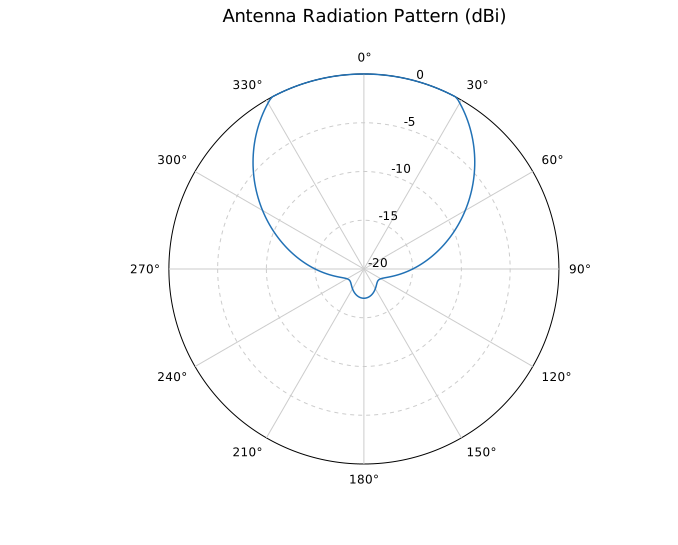
The centre label automatically shows the r_min value (here −20) so the scale is unambiguous. Ring labels always display actual data values regardless of the shift.
Grid control
#![allow(unused)]
fn main() {
let plot = PolarPlot::new()
    .with_r_grid_lines(5)        // 5 concentric rings
    .with_theta_divisions(8)     // 8 spokes (every 45°)
    .with_r_labels(true)         // show r value on each ring
    .with_grid(true);            // show grid (default)
}
Builder reference
| Method | Default | Description |
|---|---|---|
.with_series(r, theta) | — | Add scatter series |
.with_series_line(r, theta) | — | Add line series |
.with_series_labeled(r, theta, label, mode) | — | Add labeled series |
.with_r_max(f64) | auto | Set maximum radial extent |
.with_r_min(f64) | 0.0 | Value mapped to the plot centre; enables negative-radius data |
.with_theta_start(deg) | 0.0 | Where θ=0 appears (CW from north) |
.with_clockwise(bool) | true | Direction of increasing θ |
.with_r_grid_lines(n) | 4 | Number of concentric grid circles |
.with_theta_divisions(n) | 12 | Number of angular spokes |
.with_grid(bool) | true | Show/hide grid |
.with_r_labels(bool) | true | Show/hide r-value labels |
.with_legend(bool) | false | Show legend for labeled series |
.with_color(s) | — | Set fill color of the last added series |
.with_marker_opacity(f) | solid | Fill alpha for scatter markers of the last series (0.0–1.0) |
.with_marker_stroke_width(w) | none | Outline stroke for scatter markers of the last series |
CLI
# Basic scatter
kuva polar data.tsv --r r --theta theta --title "Polar Plot"

# Line mode, multiple series via color-by
kuva polar data.tsv --r r --theta theta --color-by group --mode line

# Custom r-max and angular divisions
kuva polar data.tsv --r r --theta theta --r-max 5.0 --theta-divisions 8

# dB-scale antenna pattern: r values range from -20 to 0 dBi
kuva polar pattern.tsv --r gain_dbi --theta angle --mode line \
    --r-min -20 --r-max 0 --title "Antenna Pattern (dBi)"
CLI flags
| Flag | Default | Description |
|---|---|---|
--r <COL> | 0 | Radial value column |
--theta <COL> | 1 | Angle column (degrees) |
--color-by <COL> | — | One series per unique group value |
--mode <MODE> | scatter | scatter or line |
--r-max <F> | auto | Maximum radial extent |
--r-min <F> | 0 | Value mapped to the plot centre; use a negative value for dB-scale data |
--theta-divisions <N> | 12 | Angular grid spokes |
--theta-start <DEG> | 0.0 | Where θ=0 appears (CW from north) |
--legend | off | Show legend |
See also: Ternary Plot for a different non-Cartesian coordinate system, Nightingale Rose for a polar bar-chart variant, Radar / Spider Chart for categorical polar comparison.
See also: Shared flags — output, appearance, axes.
Ternary Plot
A ternary plot (also called a simplex plot or de Finetti diagram) visualizes compositional data where each point has three components that sum to a constant (typically 1 or 100%).
The plot is rendered as an equilateral triangle. Each vertex represents 100% of one component; the opposite edge represents 0%. An interior point's distance from each edge corresponds to its component fraction.

Rust API
#![allow(unused)]
fn main() {
use kuva::plot::ternary::TernaryPlot;
use kuva::render::layout::Layout;
use kuva::render::plots::Plot;
use kuva::render::render::render_multiple;
use kuva::backend::svg::SvgBackend;

let plot = TernaryPlot::new()
    .with_corner_labels("Clay", "Silt", "Sand")
    .with_point_group(0.70, 0.20, 0.10, "Clay loam")
    .with_point_group(0.10, 0.70, 0.20, "Silt loam")
    .with_point_group(0.20, 0.10, 0.70, "Sandy loam")
    .with_grid_lines(5)
    .with_legend(true);

let plots = vec![Plot::Ternary(plot)];
let layout = Layout::auto_from_plots(&plots).with_title("Soil Texture");
let svg = SvgBackend.render_scene(&render_multiple(plots, layout));
}
Adding points
#![allow(unused)]
fn main() {
// Single ungrouped point
let plot = TernaryPlot::new().with_point(0.5, 0.3, 0.2);

// Point with group label (for color coding and legend)
let plot = TernaryPlot::new().with_point_group(0.7, 0.2, 0.1, "A-rich");

// Multiple points from an iterator
let data = vec![(0.5, 0.3, 0.2), (0.3, 0.5, 0.2), (0.2, 0.3, 0.5)];
let plot = TernaryPlot::new().with_points(data);
}
Normalization
If your data components don't sum to 1 (e.g. percentages that sum to 100, or raw counts), use with_normalize:
#![allow(unused)]
fn main() {
let plot = TernaryPlot::new()
    .with_point(60.0, 25.0, 15.0)  // sums to 100
    .with_normalize(true);          // auto-divides by sum
}
Marker opacity and stroke
For ternary plots with many overlapping points, semi-transparent or hollow markers reveal local density without merging into an opaque mass.
Four soil-texture classes with 100 points each. The class boundaries overlap, so solid markers hide whether a boundary sample belongs to one class or straddles two. At opacity = 0.3 the boundary region between Sandy loam and Loam becomes visibly darker, and individual points remain countable through the thin 0.8 px stroke.
#![allow(unused)]
fn main() {
use kuva::plot::ternary::TernaryPlot;
use kuva::backend::svg::SvgBackend;
use kuva::render::render::render_multiple;
use kuva::render::layout::Layout;
use kuva::render::plots::Plot;

// (populate each group with 100 (a, b, c) compositional samples)
let mut plot = TernaryPlot::new();
let plot = TernaryPlot::new()
    .with_corner_labels("Sand", "Silt", "Clay")
    .with_normalize(true)
    .with_legend(true)
    .with_marker_size(5.0)
    .with_marker_opacity(0.3)
    .with_marker_stroke_width(0.8);
// .with_point_group(a, b, c, "Sandy loam")  ← repeated for each sample

let plots = vec![Plot::Ternary(plot)];
let layout = Layout::auto_from_plots(&plots)
    .with_title("Soil texture — semi-transparent markers (400 pts)");

let svg = SvgBackend.render_scene(&render_multiple(plots, layout));
}
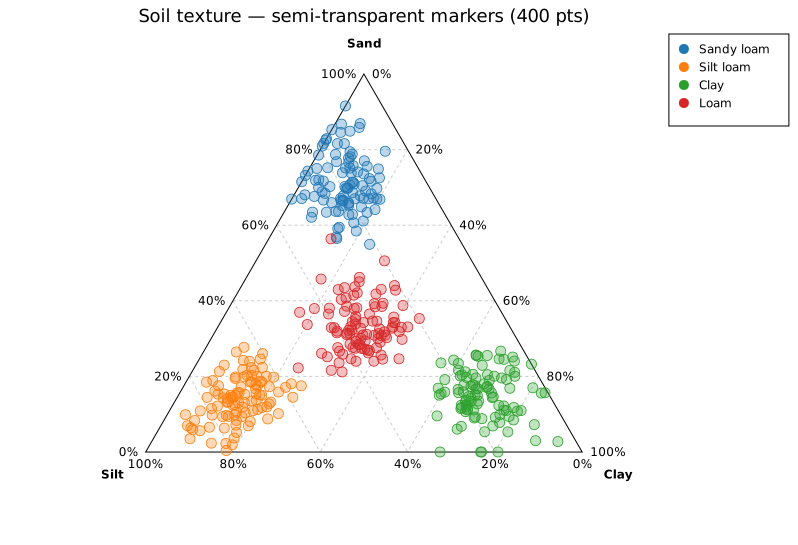
The stroke color matches the group color (or the category10 palette color for ungrouped points).
Builder reference
| Method | Default | Description |
|---|---|---|
.with_point(a, b, c) | — | Add ungrouped point |
.with_point_group(a, b, c, group) | — | Add point with group label |
.with_points(iter) | — | Add multiple ungrouped points |
.with_corner_labels(top, left, right) | "A","B","C" | Vertex labels |
.with_normalize(bool) | false | Auto-normalize each row |
.with_marker_size(f64) | 5.0 | Point radius in pixels |
.with_grid_lines(n) | 5 | Grid divisions per axis |
.with_grid(bool) | true | Show dashed grid lines |
.with_percentages(bool) | true | Show % tick labels on each edge |
.with_legend(bool) | false | Show group legend |
.with_marker_opacity(f) | solid | Fill alpha: 0.0 = hollow, 1.0 = solid |
.with_marker_stroke_width(w) | none | Outline stroke at the fill color |
CLI
# Basic ternary with named columns
kuva ternary data.tsv --a a --b b --c c --title "Ternary Plot"

# With group colors and custom vertex labels
kuva ternary data.tsv --a a --b b --c c --color-by group \
    --a-label "Clay" --b-label "Silt" --c-label "Sand" \
    --title "Soil Texture Triangle"

# Normalize raw counts
kuva ternary data.tsv --a counts_a --b counts_b --c counts_c \
    --normalize --title "Normalized Composition"
CLI flags
| Flag | Default | Description |
|---|---|---|
--a <COL> | 0 | Top-vertex (A) component column |
--b <COL> | 1 | Bottom-left (B) component column |
--c <COL> | 2 | Bottom-right (C) component column |
--color-by <COL> | — | One color per unique group value |
--a-label <S> | A | Top vertex label |
--b-label <S> | B | Bottom-left vertex label |
--c-label <S> | C | Bottom-right vertex label |
--normalize | off | Auto-normalize each row (a+b+c=1) |
--grid-lines <N> | 5 | Grid lines per axis |
--legend | off | Show legend |
See also: Polar Plot for another non-Cartesian coordinate system.
See also: Shared flags — output, appearance, axes.
Quiver Plot
A quiver plot visualises a 2-D vector field as a grid of arrows. Each arrow has a tail at data coordinates (x, y) and a vector (u, v) that controls its direction and length. Quiver plots are the canonical way to show fluid flow, force fields, gradients, wind / current patterns, and any other data where each location has an associated direction and magnitude.
Import path: kuva::plot::quiver::QuiverPlot
Basic usage
The most common case is sampling a vector-field closure f: (x, y) → (u, v) on a regular grid. Use QuiverPlot::from_function:
#![allow(unused)]
fn main() {
use kuva::plot::QuiverPlot;
use kuva::backend::svg::SvgBackend;
use kuva::render::render::render_multiple;
use kuva::render::layout::Layout;
use kuva::render::plots::Plot;

// Rotational field: (u, v) = (-y, x) on a 10×10 grid.
let plot = QuiverPlot::from_function(
    (-5.0, 5.0, 10),
    (-5.0, 5.0, 10),
    |x, y| (-y * 0.3, x * 0.3),
)
    .with_color("steelblue");

let plots = vec![Plot::Quiver(plot)];
let layout = Layout::auto_from_plots(&plots)
    .with_title("Rotational Field")
    .with_x_label("x")
    .with_y_label("y");

let svg = SvgBackend.render_scene(&render_multiple(plots, layout));
std::fs::write("quiver.svg", svg).unwrap();
}

For irregular data (not on a grid), add arrows one at a time with .with_arrow(x, y, u, v), or pass an iterator of (x, y, u, v) tuples to .with_arrows().
Scaling
By default the scale multiplier is auto-computed so the longest arrow is roughly one grid cell long — approximated as span / √n for n arrows on a span of R. This prevents arrows from overlapping each other in dense fields, so zero-config quiver plots look sensible no matter what units (u, v) are in.
Two overrides are available when you need explicit control:
.with_scale(s)— pin the multiplier. Arrow length in data coords is(u, v) * s..with_auto_scale(fraction)— keep auto-scaling on, but change the target fraction of the nearest-neighbor distance (default0.9). Values near1.0pack arrows tip-to-tail; smaller values leave more breathing room.
Pivot
By default, (x, y) is the arrow's tail — the arrow points away from that point. For data where (x, y) is the location at which a field is being sampled, QuiverPivot::Middle centers each arrow on its data point, which reads more naturally as "what the field is doing at this location":
#![allow(unused)]
fn main() {
use kuva::plot::{QuiverPlot, QuiverPivot};
use kuva::render::plots::Plot;

let plot = QuiverPlot::new()
    .with_arrow(0.0, 0.0, 1.0, 0.0)
    .with_pivot(QuiverPivot::Middle);
}
QuiverPivot::Tip makes (x, y) the arrow's tip (the arrow comes into the point).
Coloring by magnitude
Passing a ColorMap colors each arrow by its magnitude sqrt(u² + v²) and automatically renders a colorbar.
#![allow(unused)]
fn main() {
use kuva::plot::quiver::QuiverPlot;
use kuva::plot::ColorMap;
use kuva::render::plots::Plot;

let plot = QuiverPlot::new()
    .with_arrow(0.0, 0.0, 1.0, 0.0)
    .with_arrow(1.0, 0.0, 0.5, 0.5)
    .with_color_map(ColorMap::Viridis)
    .with_color_legend_label("Speed");
}
Priority: per-arrow color (via .with_colored_arrow()) > colormap > single color.
Arrow styling
.with_shaft_width(px)— stroke width of the shaft (default1.2)..with_head_ratio(r)— head length as a fraction of the shaft (default0.28). Heads are always proportional by default, so every arrow looks like an arrow regardless of magnitude..with_head(length_px, half_width_px)— pin the head to fixed pixel dimensions. Useful when you want identical glyphs across a mixed-magnitude field.
Proportional heads are clamped to [4, 14] pixels so tiny arrows still show a visible head and long arrows don't grow gigantic ones. The shaft is automatically shortened so it terminates at the base of the head, not overlapping it.
CLI
Input: one row per arrow with four numeric columns: tail x, tail y, u-component, v-component.
| Flag | Default | Description |
|---|---|---|
--x-col <COL> | 0 | Tail X column |
--y-col <COL> | 1 | Tail Y column |
--u-col <COL> | 2 | Vector x-component column |
--v-col <COL> | 3 | Vector y-component column |
--color <CSS> | steelblue | Arrow color (overridden by --colormap) |
--arrow-scale <F> | — | Pin (u, v) multiplier (disables auto-scaling) |
--auto-scale <F> | 0.9 | Fraction of the nearest-neighbor distance for the longest arrow |
--shaft-width <PX> | 1.2 | Shaft stroke width |
--head-length <PX> | proportional | Pin head length to fixed pixels (default is 28% of shaft, clamped to 4–14 px) |
--head-width <PX> | proportional | Pin head half-width to fixed pixels |
--colormap <NAME> | — | Color arrows by magnitude (see CLI reference for names) |
--colorbar-label <TXT> | — | Colorbar title |
--pivot <MODE> | tail | Where (x, y) sits on each arrow: tail, middle, or tip |
--tight-bounds | off | Derive axis bounds from arrow tails only |
--legend <TXT> | — | Legend entry label |
# Zero config — auto-scaling picks a sensible arrow length.
kuva quiver field.tsv \
    --title "Velocity Field" --x-label "x" --y-label "y"

# Color by magnitude with a viridis colorbar
kuva quiver field.tsv --colormap viridis --colorbar-label "Speed"

# Tighter field (longer arrows fill the plot) + tails-only axis bounds.
kuva quiver field.tsv --auto-scale 0.95 --tight-bounds

# Pick columns by name
kuva quiver field.tsv \
    --x-col lon --y-col lat --u-col wind_u --v-col wind_v
See also: Contour Plot for a scalar-field alternative to a vector field, Polar Plot for angle/magnitude data in Cartesian form.
See also: Shared flags — output, appearance, axes.
Bar Chart
A bar chart renders categorical data as vertical bars. It has three modes — simple, grouped, and stacked — all built from the same BarPlot struct.
Import path: kuva::plot::BarPlot
Simple bar chart
Use .with_bar() or .with_bars() to add one bar per category, then .with_color() to set a uniform fill.
#![allow(unused)]
fn main() {
use kuva::plot::BarPlot;
use kuva::backend::svg::SvgBackend;
use kuva::render::render::render_multiple;
use kuva::render::layout::Layout;
use kuva::render::plots::Plot;

let plot = BarPlot::new()
    .with_bars(vec![
        ("Apples",     42.0),
        ("Bananas",    58.0),
        ("Cherries",   31.0),
        ("Dates",      47.0),
        ("Elderberry", 25.0),
    ])
    .with_color("steelblue");

let plots = vec![Plot::Bar(plot)];
let layout = Layout::auto_from_plots(&plots)
    .with_title("Bar Chart")
    .with_y_label("Count");

let scene = render_multiple(plots, layout);
let svg = SvgBackend.render_scene(&scene);
std::fs::write("bar.svg", svg).unwrap();
}
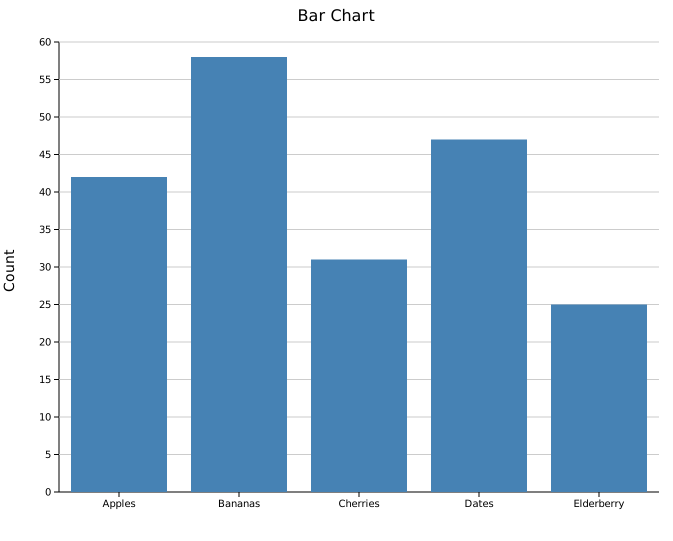
Adding bars individually
.with_bar(label, value) adds one bar at a time, which is useful when constructing data programmatically:
#![allow(unused)]
fn main() {
use kuva::plot::BarPlot;
let plot = BarPlot::new()
    .with_bar("A", 3.2)
    .with_bar("B", 4.7)
    .with_bar("C", 2.8)
    .with_color("steelblue");
}
Per-bar colors
Use .with_colored_bar() or .with_colored_bars() to give each bar its own color — useful when bars represent distinct categories such as nucleotide variants or mutation types.
#![allow(unused)]
fn main() {
use kuva::plot::BarPlot;
use kuva::backend::svg::SvgBackend;
use kuva::render::render::render_multiple;
use kuva::render::layout::Layout;
use kuva::render::plots::Plot;

let plot = BarPlot::new()
    .with_colored_bar("A2C", 42.0, "steelblue")
    .with_colored_bar("A2G", 58.0, "seagreen")
    .with_colored_bar("A2T", 31.0, "tomato")
    .with_colored_bar("C2A", 25.0, "gold");

let plots = vec![Plot::Bar(plot)];
let layout = Layout::auto_from_plots(&plots)
    .with_title("Mutation Counts")
    .with_y_label("Count");

let svg = SvgBackend.render_scene(&render_multiple(plots, layout));
}
To add many colored bars at once, pass an iterator of (label, value, color) triples to .with_colored_bars():
#![allow(unused)]
fn main() {
use kuva::plot::BarPlot;
let variants = vec![
    ("A2C", 42.0, "steelblue"),
    ("A2G", 58.0, "seagreen"),
    ("A2T", 31.0, "tomato"),
    ("C2A", 25.0, "gold"),
    ("C2G", 18.0, "orchid"),
    ("C2T", 63.0, "darkorange"),
];
let plot = BarPlot::new().with_colored_bars(variants);
}
Grouped bar chart
Use .with_group(label, values) to add a category with multiple side-by-side bars. Each item in values is a (value, color) pair — one per series. Call .with_legend() to label each series.
#![allow(unused)]
fn main() {
use kuva::plot::BarPlot;
use kuva::backend::svg::SvgBackend;
use kuva::render::render::render_multiple;
use kuva::render::layout::Layout;
use kuva::render::plots::Plot;

let plot = BarPlot::new()
    .with_group("Q1", vec![(18.0, "steelblue"), (12.0, "crimson"), (9.0,  "seagreen")])
    .with_group("Q2", vec![(22.0, "steelblue"), (17.0, "crimson"), (14.0, "seagreen")])
    .with_group("Q3", vec![(19.0, "steelblue"), (21.0, "crimson"), (11.0, "seagreen")])
    .with_group("Q4", vec![(25.0, "steelblue"), (15.0, "crimson"), (18.0, "seagreen")])
    .with_legend(vec!["Product A", "Product B", "Product C"]);

let plots = vec![Plot::Bar(plot)];
let layout = Layout::auto_from_plots(&plots)
    .with_title("Grouped Bar Chart")
    .with_y_label("Sales (units)");

let svg = SvgBackend.render_scene(&render_multiple(plots, layout));
}
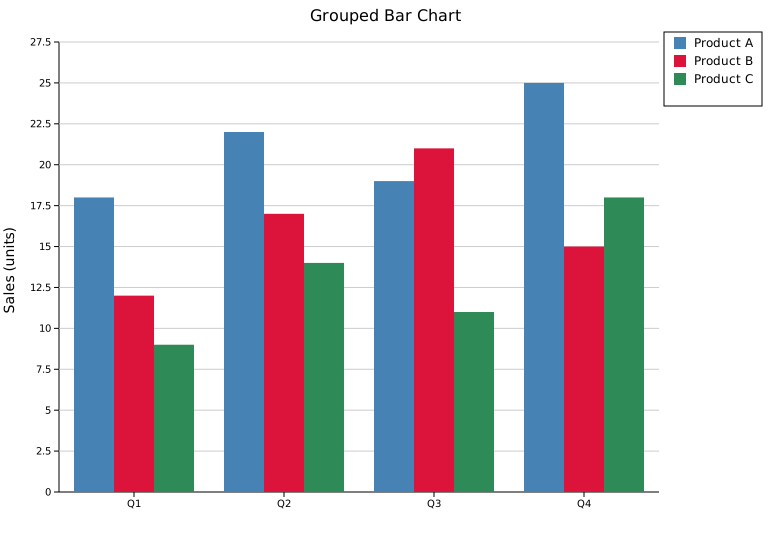
Stacked bar chart
Add .with_stacked() to the same grouped structure to stack segments vertically instead of placing them side-by-side.
#![allow(unused)]
fn main() {
use kuva::plot::BarPlot;
use kuva::backend::svg::SvgBackend;
use kuva::render::render::render_multiple;
use kuva::render::layout::Layout;
use kuva::render::plots::Plot;

let plot = BarPlot::new()
    .with_group("Q1", vec![(18.0, "steelblue"), (12.0, "crimson"), (9.0,  "seagreen")])
    .with_group("Q2", vec![(22.0, "steelblue"), (17.0, "crimson"), (14.0, "seagreen")])
    .with_group("Q3", vec![(19.0, "steelblue"), (21.0, "crimson"), (11.0, "seagreen")])
    .with_group("Q4", vec![(25.0, "steelblue"), (15.0, "crimson"), (18.0, "seagreen")])
    .with_legend(vec!["Product A", "Product B", "Product C"])
    .with_stacked();

let plots = vec![Plot::Bar(plot)];
let layout = Layout::auto_from_plots(&plots)
    .with_title("Stacked Bar Chart")
    .with_y_label("Sales (units)");

let svg = SvgBackend.render_scene(&render_multiple(plots, layout));
}

Horizontal mode
.with_horizontal(true) rotates the chart so categories appear on the Y-axis and values on the X-axis. Works with all three modes (simple, grouped, stacked).
#![allow(unused)]
fn main() {
use kuva::plot::BarPlot;
use kuva::render::layout::Layout;
use kuva::render::plots::Plot;
use kuva::render::render::render_multiple;
use kuva::backend::svg::SvgBackend;

let plot = BarPlot::new()
    .with_bars(vec![
        ("Apples",     42.0),
        ("Bananas",    58.0),
        ("Cherries",   31.0),
        ("Dates",      47.0),
        ("Elderberry", 25.0),
    ])
    .with_color("steelblue")
    .with_horizontal(true);

let plots = vec![Plot::Bar(plot)];
let layout = Layout::auto_from_plots(&plots)
    .with_title("Horizontal Bar Chart")
    .with_x_label("Count");

let svg = SvgBackend.render_scene(&render_multiple(plots, layout));
}
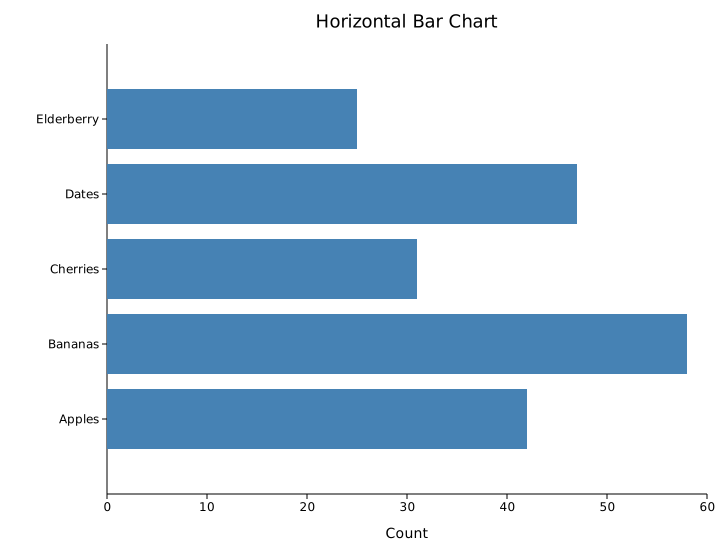
Horizontal bars are especially useful when category labels are long — they read left-to-right on the Y-axis without rotation or truncation.
Bar width
.with_width() controls how much of each category slot the bar fills. The default is 0.8; 1.0 means bars touch.
#![allow(unused)]
fn main() {
use kuva::plot::BarPlot;
let plot = BarPlot::new()
    .with_bars(vec![("A", 3.0), ("B", 5.0), ("C", 4.0)])
    .with_color("steelblue")
    .with_width(0.5);   // narrower bars with more whitespace
}
API reference
| Method | Description |
|---|---|
BarPlot::new() | Create a bar plot with defaults |
.with_bar(label, value) | Add a single bar (simple mode) |
.with_bars(vec) | Add multiple bars at once (simple mode) |
.with_colored_bar(label, value, color) | Add a single bar with an explicit color (simple mode) |
.with_colored_bars(iter) | Add multiple bars with per-bar colors; each item is (label, value, color) |
.with_color(s) | Set a uniform color across all existing bars |
.with_group(label, values) | Add a category with one bar per series (grouped / stacked mode) |
.with_legend(vec) | Set series labels; one label per bar within a group |
.with_stacked() | Stack bars vertically instead of side-by-side |
.with_width(f) | Bar width as a fraction of slot width (default 0.8) |
Choosing a mode
| Goal | Methods to use |
|---|---|
| One color, one bar per category | .with_bars() + .with_color() |
| Different color per bar | .with_colored_bar() × N or .with_colored_bars() |
| Multiple series, side-by-side | .with_group() × N + .with_legend() |
| Multiple series, stacked | .with_group() × N + .with_legend() + .with_stacked() |
See also: Lollipop Chart for a lighter-weight alternative, Pareto Chart for bars plus a cumulative-percentage line, Waterfall Chart for running-total bars.
CLI
Bar chart from label/value pairs.
Input: first column labels, second column numeric values.
| Flag | Default | Description |
|---|---|---|
--label-col <COL> | 0 | Label column |
--value-col <COL> | 1 | Value column (single-series mode) |
--y <COL>[,<COL>…] | — | Comma-separated value columns; rows are aggregated by --label-col (mean by default) and each column becomes a palette-colored series with an automatic legend |
--count-by <COL> | — | Count occurrences per unique value in this column (ignores --value-col) |
--agg <FUNC> | — | Aggregate by --label-col: mean, median, sum, min, max. Applies to both --value-col and --y multi-column mode |
--color <CSS> | steelblue | Bar fill color |
--bar-width <F> | 0.8 | Bar width as a fraction of the slot |
--color-by <COL> | — | Group rows by this column and color each series by palette, producing a grouped bar chart with an automatic legend |
--horizontal | off | Render categories on the Y-axis, values on the X-axis |
Grouped bar chart (--color-by)
--color-by pivots the data into a grouped bar chart — one colored sub-bar per unique value in the specified column, using the active palette. When every x-label maps to exactly one series value (e.g. --color-by on the same column as --label-col), kuva falls back to simple per-bar coloring so bars stay centered under their tick labels.
kuva bar bar.tsv --label-col category --value-col count --color "#4682b4"

kuva bar bar.tsv --x-label "Pathway" --y-label "Gene count" \
    -o pathways.svg

# count occurrences of each group
kuva bar scatter.tsv --count-by group --y-label "Count"

# aggregate: total abundance per species from long-format data
kuva bar data.tsv --label-col species --value-col abundance --agg sum

# mean expression per gene across samples
kuva bar expr.tsv --label-col gene --value-col tpm --agg mean \
    --y-label "Mean TPM"

# grouped bar chart: one bar per species per condition
kuva bar data.tsv --label-col species --value-col abundance \
    --color-by condition -o grouped.svg

# multi-column --y: two series from wide-format data, aggregated by group
kuva bar data.tsv --label-col group --y metric_a,metric_b --agg mean

# horizontal bar chart
kuva bar bar.tsv --label-col category --value-col count --horizontal
See also: Shared flags — output, appearance, axes, log scale.
Pie Chart
A pie chart divides a circle into slices proportional to each category's value. Each slice has its own explicit color. Slice labels can be placed automatically (inside large slices, outside small ones), forced to one side, or replaced with a legend.
Import path: kuva::plot::PiePlot
Basic usage
Add slices with .with_slice(label, value, color). Slices are drawn clockwise from 12 o'clock in the order they are added.
#![allow(unused)]
fn main() {
use kuva::plot::PiePlot;
use kuva::backend::svg::SvgBackend;
use kuva::render::render::render_pie;
use kuva::render::layout::Layout;
use kuva::render::plots::Plot;

let pie = PiePlot::new()
    .with_slice("Rust",   40.0, "steelblue")
    .with_slice("Python", 30.0, "tomato")
    .with_slice("R",      20.0, "seagreen")
    .with_slice("Other",  10.0, "gold");

let plots = vec![Plot::Pie(pie.clone())];
let layout = Layout::auto_from_plots(&plots).with_title("Pie Chart");

let scene = render_pie(&pie, &layout);
let svg = SvgBackend.render_scene(&scene);
std::fs::write("pie.svg", svg).unwrap();
}
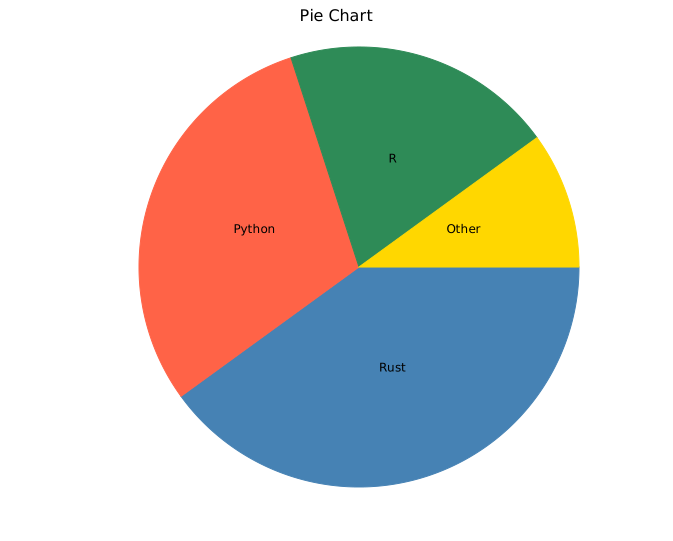
Only the ratio between slice values matters — absolute magnitudes are irrelevant.
.with_slice("A", 1.0, ...)and.with_slice("A", 100.0, ...)produce the same slice if all others scale identically.
Slice values must be zero or positive and sum to more than zero; otherwise no slices are drawn, the legend omits percentages, and the CLI reports the problem.
Donut chart
.with_inner_radius(r) cuts a hollow centre, converting the pie into a donut. r is the inner radius in pixels; the outer radius is computed from the canvas size. Values in the range 40.0–80.0 work well at the default canvas size.
#![allow(unused)]
fn main() {
use kuva::plot::PiePlot;
let pie = PiePlot::new()
    .with_slice("Rust",   40.0, "steelblue")
    .with_slice("Python", 30.0, "tomato")
    .with_slice("R",      20.0, "seagreen")
    .with_slice("Other",  10.0, "gold")
    .with_inner_radius(60.0);   // donut hole radius in pixels
}
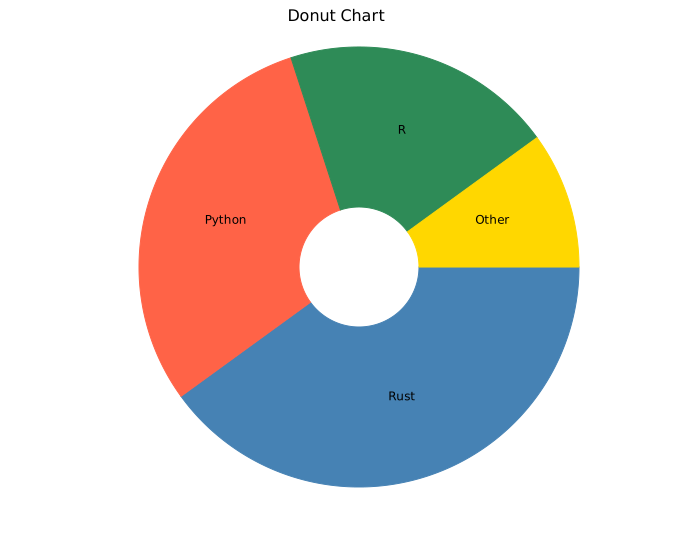
Percentage labels
.with_percent() appends each slice's percentage of the total to its label, formatted to one decimal place (e.g. "Rust 40.0%").
#![allow(unused)] fn main() { use kuva::plot::PiePlot; let pie = PiePlot::new() .with_slice("Rust", 40.0, "steelblue") .with_slice("Python", 30.0, "tomato") .with_slice("R", 20.0, "seagreen") .with_slice("Other", 10.0, "gold") .with_percent(); }
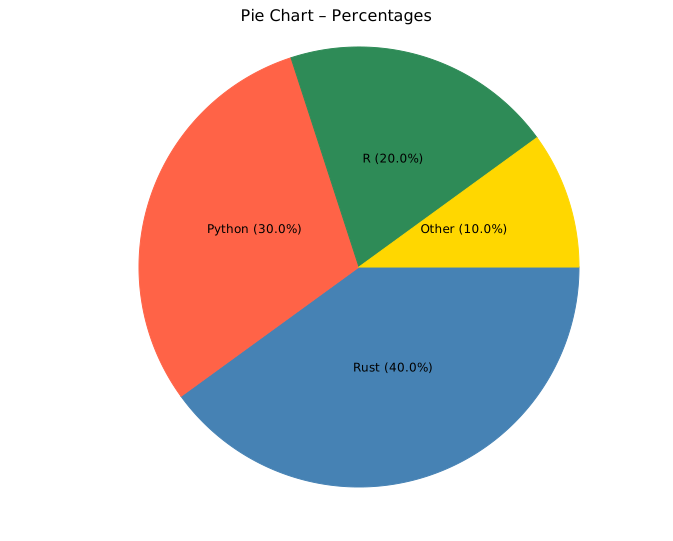
Label positioning
.with_label_position(PieLabelPosition) controls where labels appear.
| Variant | Behaviour |
|---|---|
Auto | Inside large slices; outside (with leader line) for small ones. Default. |
Inside | All labels placed at mid-radius, regardless of slice size. |
Outside | All labels outside with leader lines. Labels are spaced to avoid overlap. |
None | No slice labels. Combine with a legend (see below). |
Outside labels
Outside is recommended when slices vary widely in size or when many slices are present, since leader lines prevent labels from overlapping.
#![allow(unused)] fn main() { use kuva::plot::{PiePlot, PieLabelPosition}; use kuva::render::plots::Plot; let pie = PiePlot::new() .with_slice("Apples", 30.0, "seagreen") .with_slice("Oranges", 25.0, "darkorange") .with_slice("Bananas", 20.0, "gold") .with_slice("Grapes", 12.0, "mediumpurple") .with_slice("Mango", 8.0, "coral") .with_slice("Kiwi", 5.0, "olivedrab") .with_label_position(PieLabelPosition::Outside); }

Minimum label fraction
By default, slices smaller than 5 % of the total are not labelled (to avoid cramped text). Adjust this with .with_min_label_fraction(f).
#![allow(unused)] fn main() { use kuva::plot::PiePlot; // Label every slice, even slices below 5 % let pie = PiePlot::new() .with_slice("Big", 90.0, "steelblue") .with_slice("Tiny", 1.0, "tomato") .with_min_label_fraction(0.0); // default is 0.05 }
Legend
.with_legend("") enables a per-slice legend in the right margin. Each slice gets an entry (colored square + slice label); the slice labels come from .with_slice(), not from the string passed to .with_legend(). Use render_multiple instead of render_pie so the legend is rendered.
Combine with PieLabelPosition::None to use the legend as the sole means of identification.
#![allow(unused)] fn main() { use kuva::plot::{PiePlot, PieLabelPosition}; use kuva::backend::svg::SvgBackend; use kuva::render::render::render_multiple; use kuva::render::layout::Layout; use kuva::render::plots::Plot; let pie = PiePlot::new() .with_slice("Apples", 40.0, "seagreen") .with_slice("Oranges", 35.0, "darkorange") .with_slice("Grapes", 25.0, "mediumpurple") .with_legend("Fruit") .with_percent() .with_label_position(PieLabelPosition::None); // legend replaces labels let plots = vec![Plot::Pie(pie)]; let layout = Layout::auto_from_plots(&plots).with_title("Pie with Legend"); // render_multiple (not render_pie) so the legend is drawn let svg = SvgBackend.render_scene(&render_multiple(plots, layout)); std::fs::write("pie_legend.svg", svg).unwrap(); }
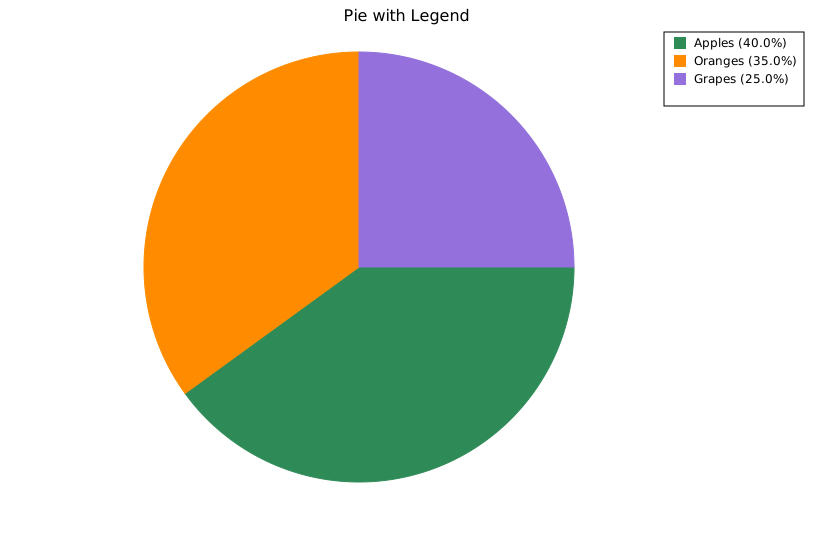
API reference
| Method | Description |
|---|---|
PiePlot::new() | Create a pie chart with defaults |
.with_slice(label, value, color) | Add a slice; value is proportional |
.with_inner_radius(r) | Inner radius in pixels; > 0 makes a donut (default 0.0) |
.with_percent() | Append percentage to each slice label |
.with_label_position(pos) | Label placement: Auto, Inside, Outside, None (default Auto) |
.with_min_label_fraction(f) | Minimum slice fraction to receive a label (default 0.05) |
.with_legend("") | Enable the per-slice legend; entry labels are the slice names from .with_slice(). Use render_multiple to render it |
See also: Waffle Chart for a square-grid part-to-whole alternative, Sunburst Chart for a hierarchical version, Funnel Chart for sequential drop-off instead of a static share.
CLI
Pie or donut chart.
Input: label column + numeric value column.
| Flag | Default | Description |
|---|---|---|
--label-col <COL> | 0 | Label column |
--value-col <COL> | 1 | Value column |
--count-by <COL> | — | Count occurrences per unique value in this column (ignores --value-col) |
--color-col <COL> | — | Optional CSS color column |
--donut | off | Render as a donut (hollow center) |
--inner-radius <PX> | 80 | Donut hole radius in pixels |
--percent | off | Append percentage to slice labels |
--label-position <MODE> | (auto) | inside, outside, or none |
--legend | off | Show legend |
kuva pie pie.tsv --label-col feature --value-col percentage --percent
kuva pie pie.tsv --label-col feature --value-col percentage \
--donut --legend --label-position outside
# count occurrences of each group
kuva pie scatter.tsv --count-by group --percent --legend
See also: Shared flags — output, appearance, axes, log scale.
Waffle Chart
A waffle chart encodes proportions as colored cells in a rectangular grid. Where a pie chart encodes data as angles, a waffle chart encodes it as area — making it easier to estimate percentages at a glance, especially at multiples of 5% on a 10×10 grid.
Waffle charts are popular in infographic and policy contexts where the audience may find pie slices hard to compare, and they pair naturally with a unit label like "■ = 100 people" to communicate absolute counts.
Import path: kuva::plot::waffle::{WafflePlot, FillOrder, CellShape}
Basic usage
Add categories with .with_category(label, value, color). Values are proportional — only their relative sizes matter. The grid is filled using Largest Remainder (Hamilton) rounding so the total filled cells always equals exactly rows × cols.
#![allow(unused)] fn main() { use kuva::plot::waffle::{WafflePlot, FillOrder, CellShape}; use kuva::backend::svg::SvgBackend; use kuva::render::render::render_multiple; use kuva::render::layout::Layout; use kuva::render::plots::Plot; let waffle = WafflePlot::new() .with_category("Treated", 45.0, "#2196F3") .with_category("Partial", 30.0, "#FF9800") .with_category("Untreated", 25.0, "#F44336") .with_legend("Status") .with_show_percents(); let plots = vec![Plot::Waffle(waffle)]; let layout = Layout::auto_from_plots(&plots).with_title("Treatment Coverage"); let svg = SvgBackend.render_scene(&render_multiple(plots, layout)); std::fs::write("waffle.svg", svg).unwrap(); }

Grid size and aspect ratio
The default is a 10×10 grid (100 cells), which cleanly maps 1 cell per percent. Adjust with .with_grid(rows, cols) for different aspect ratios.
#![allow(unused)] fn main() { use kuva::plot::waffle::WafflePlot; use kuva::render::plots::Plot; use kuva::render::layout::Layout; use kuva::render::render::render_multiple; // 5 rows × 20 cols = 100 cells, wide aspect ratio let waffle = WafflePlot::new() .with_grid(5, 20) .with_category("Agree", 52.0, "#4CAF50") .with_category("Neutral", 21.0, "#9E9E9E") .with_category("Disagree", 27.0, "#F44336") .with_legend("Response") .with_show_percents(); let plots = vec![Plot::Waffle(waffle)]; }
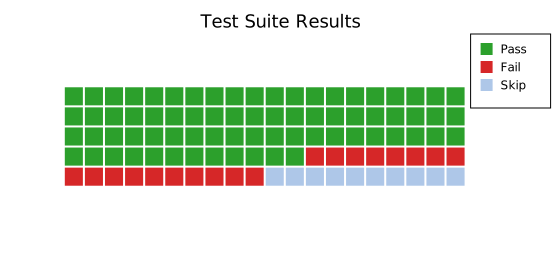
Circle cells
Use .with_shape(CellShape::Circle) for a bubbly, more modern infographic style.
#![allow(unused)] fn main() { use kuva::plot::waffle::{WafflePlot, CellShape}; use kuva::render::plots::Plot; use kuva::render::layout::Layout; use kuva::render::render::render_multiple; use kuva::backend::svg::SvgBackend; let waffle = WafflePlot::new() .with_shape(CellShape::Circle) .with_gap(0.15) .with_category("Yes", 63.0, "#2ca02c") .with_category("No", 37.0, "#d62728") .with_legend("Vote") .with_show_percents(); let plots = vec![Plot::Waffle(waffle)]; let layout = Layout::auto_from_plots(&plots).with_title("Survey Result"); let svg = SvgBackend.render_scene(&render_multiple(plots, layout)); }
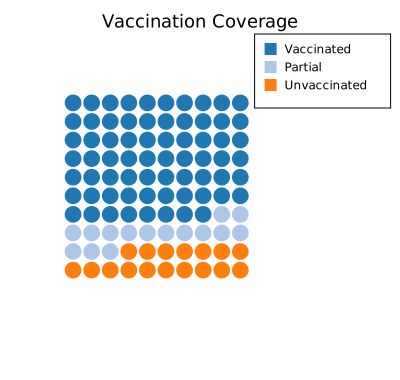
Fill direction
FillOrder controls where the first cell is placed and in which direction the grid fills. Use RowMajorBottomLeft to fill upward like a progress bar, or ColMajorTopLeft for column-first layout.
#![allow(unused)] fn main() { use kuva::plot::waffle::{WafflePlot, FillOrder}; use kuva::render::plots::Plot; use kuva::render::layout::Layout; use kuva::render::render::render_multiple; // Bottom-up fill — reads like a "filled" progress bar let waffle = WafflePlot::new() .with_fill_order(FillOrder::RowMajorBottomLeft) .with_category("Complete", 68.0, "#1f77b4") .with_category("Remaining", 32.0, "#aec7e8") .with_legend("Progress") .with_show_percents(); let plots = vec![Plot::Waffle(waffle)]; }
Unit label and absolute counts
When each cell represents a fixed number, add a .with_unit_label() annotation below the grid and .with_show_counts() to append cell counts to legend entries.
#![allow(unused)] fn main() { use kuva::plot::waffle::WafflePlot; use kuva::render::plots::Plot; use kuva::render::layout::Layout; use kuva::render::render::render_multiple; use kuva::backend::svg::SvgBackend; // A population of 10,000: each cell = 100 people let waffle = WafflePlot::new() .with_category("Vaccinated", 7800.0, "#2ca02c") .with_category("Unvaccinated", 2200.0, "#d62728") .with_legend("Status") .with_show_percents() .with_show_counts() .with_unit_label("■ = 100 people"); let plots = vec![Plot::Waffle(waffle)]; let layout = Layout::auto_from_plots(&plots).with_title("Vaccination Coverage (n = 10,000)"); let svg = SvgBackend.render_scene(&render_multiple(plots, layout)); }
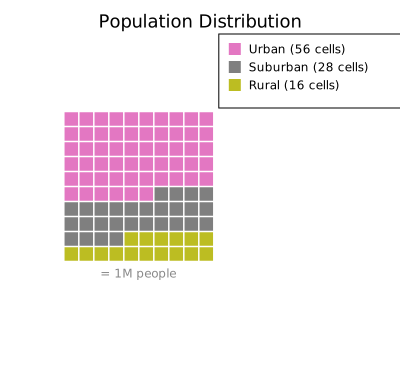
WafflePlot API reference
WafflePlot builders
| Method | Default | Description |
|---|---|---|
WafflePlot::new() | — | 10×10 grid, square cells, row-major top-left, 10% gap |
.with_category(label, value, color) | — | Add a proportional category |
.with_categories(iter) | — | Add multiple (label, value, color) at once |
.with_grid(rows, cols) | 10, 10 | Set grid dimensions |
.with_rows(n) | 10 | Set number of rows |
.with_cols(n) | 10 | Set number of columns |
.with_gap(f) | 0.1 | Gap between cells as fraction of cell size |
.with_fill_order(FillOrder) | RowMajorTopLeft | Fill direction and starting corner |
.with_shape(CellShape) | Square | Cell shape: Square or Circle |
.with_empty_color(css) | "#e8e8e8" | Color for unfilled background cells |
.with_legend(label) | — | Attach a legend (one entry per category) |
.with_show_percents() | — | Append (xx.x%) to legend entries |
.with_show_counts() | — | Append (N cells) to legend entries |
.with_unit_label(s) | — | Annotation below the grid (e.g. "■ = 100 people") |
FillOrder variants
| Variant | Description |
|---|---|
RowMajorTopLeft | Left-to-right, top-to-bottom (reading order, default) |
RowMajorBottomLeft | Left-to-right, bottom-to-top (progress bar style) |
ColMajorTopLeft | Top-to-bottom, left-to-right (column first) |
ColMajorBottomLeft | Bottom-to-top, left-to-right |
CellShape variants
| Variant | Description |
|---|---|
Square | Filled rectangle (default) |
Circle | Filled circle inscribed in the cell |
See also: Pie Chart for the classic part-to-whole chart, Population Pyramid for another proportion-focused layout.
CLI
Waffle chart — proportional grid of filled squares (or circles), one cell per unit.
Input: one row per category with label, value, and optionally color columns.
| Flag | Default | Description |
|---|---|---|
--label-col <COL> | 0 | Category label column |
--value-col <COL> | 1 | Proportional value column |
--color-col <COL> | — | Per-category color column (CSS strings); defaults to category10 palette |
--rows <N> | 10 | Number of grid rows |
--cols <N> | 10 | Number of grid columns |
--gap <F> | 0.1 | Gap between cells as a fraction of cell size |
--shape <SHAPE> | square | Cell shape: square or circle |
--show-percents | off | Append percentage to legend labels |
--show-counts | off | Append cell count to legend labels |
--legend <LABEL> | — | Add a legend |
kuva waffle data.tsv --label-col category --value-col value --color-col color
kuva waffle data.tsv --label-col category --value-col value \
--shape circle --show-percents --legend "Energy Mix" \
--title "Energy Sources"
See also: Shared flags — output, appearance.
Funnel Chart
A funnel chart shows how values attrit through ordered stages — each bar represents one stage, and widths are proportional to stage values. Trapezoidal connectors between bars make the drop-off visually explicit. A diverging (back-to-back) mode supports side-by-side comparisons such as treatment vs. control arms.
Basic usage
#![allow(unused)] fn main() { use kuva::plot::funnel::FunnelPlot; use kuva::render::{plots::Plot, layout::Layout, render::render_multiple}; use kuva::backend::svg::SvgBackend; let plot = FunnelPlot::new() .with_stage("Screened", 1200) .with_stage("Eligible", 800) .with_stage("Enrolled", 600) .with_stage("Completed", 540); let plots = vec![Plot::Funnel(plot)]; let layout = Layout::auto_from_plots(&plots).with_title("CONSORT Flow"); let svg = SvgBackend.render_scene(&render_multiple(plots, layout)); std::fs::write("funnel.svg", svg).unwrap(); }
Bulk stages
#![allow(unused)] fn main() { use kuva::plot::funnel::FunnelPlot; let plot = FunnelPlot::new().with_stages([ ("Awareness", 5000.0), ("Interest", 3000.0), ("Desire", 2000.0), ("Action", 1200.0), ]); }
Color modes
#![allow(unused)] fn main() { use kuva::plot::funnel::{FunnelPlot, FunnelColorMode}; // Each stage gets a distinct category10 color let plot = FunnelPlot::new() .with_stages([("A", 1000.0), ("B", 700.0), ("C", 400.0)]) .with_color_mode(FunnelColorMode::ByStage); // Bars progressively darken from top to bottom let plot = FunnelPlot::new() .with_stages([("A", 1000.0), ("B", 700.0), ("C", 400.0)]) .with_color_mode(FunnelColorMode::Gradient); // Per-stage explicit colors let plot = FunnelPlot::new() .with_stage_color("Screened", 1200.0, "#2980b9") .with_stage_color("Eligible", 800.0, "#27ae60") .with_stage_color("Enrolled", 600.0, "#e67e22"); }
Horizontal orientation
#![allow(unused)] fn main() { use kuva::plot::funnel::{FunnelPlot, FunnelOrientation}; let plot = FunnelPlot::new() .with_stages([("Q1", 1200.0), ("Q2", 950.0), ("Q3", 720.0), ("Q4", 580.0)]) .with_orientation(FunnelOrientation::Horizontal); }
Diverging (mirror) mode
Show two parallel funnels side-by-side — useful for treatment vs. control arms in clinical trials.
#![allow(unused)] fn main() { use kuva::plot::funnel::FunnelPlot; let plot = FunnelPlot::new() .with_stage("Screened", 1200) .with_stage("Eligible", 840) .with_stage("Enrolled", 720) .with_stage("Completed", 648) .with_mirror_stages([ ("Screened", 1150.0), ("Eligible", 810.0), ("Enrolled", 690.0), ("Completed", 620.0), ]) .with_mirror_labels("Treatment", "Control"); }
Label options
#![allow(unused)] fn main() { let plot = FunnelPlot::new() .with_stages([("A", 1000.0), ("B", 700.0), ("C", 400.0)]) .with_show_percents(true) // show "700 (70.0%)" alongside value .with_show_conversion(true) // show "70.0%" step-to-step rate in connectors .with_show_values(true); // show absolute values (default: true) }
Builder reference
| Method | Default | Description |
|---|---|---|
.with_stage(label, value) | — | Append one stage. |
.with_stage_color(label, value, css) | — | Stage with explicit CSS fill color. |
.with_stages(iter) | — | Append multiple (label, value) stages at once. |
.with_mirror(stages) | None | Enable diverging mode with Vec<FunnelStage>. |
.with_mirror_stages(iter) | None | Enable diverging mode from (label, value) iterator. |
.with_mirror_labels(left, right) | — | Side labels for diverging mode. |
.with_orientation(o) | Vertical | Vertical or Horizontal. |
.with_connectors(bool) | true | Draw trapezoidal connectors between bars. |
.with_connector_opacity(f64) | 0.4 | Connector fill opacity 0–1. Mirrors SankeyPlot::with_link_opacity. |
.with_show_values(bool) | true | Absolute value label on each bar. |
.with_show_percents(bool) | false | Show percentage-of-first-stage alongside value. |
.with_show_conversion(bool) | true | Step-to-step conversion rate in connector areas. |
.with_color_mode(mode) | Uniform | Uniform, ByStage, or Gradient. |
.with_stage_gap(f64) | 4.0 | Pixel gap between adjacent bars. Mirrors SankeyPlot::with_node_gap. |
.with_legend(label) | None | Enable legend with given label. Mirrors SankeyPlot::with_legend. |
See also: Bar Chart for a simpler categorical comparison, Pie Chart for a static (non-sequential) share view.
CLI
Render a funnel chart from a tabular file.
Input format
Two columns: stage label and value (in funnel order, widest stage first).
stage count
Screened 1200
Eligible 840
Enrolled 720
Completed 648
For diverging mode, add a second value column for the right side:
stage treatment control
Screened 1200 1150
Eligible 840 810
Enrolled 720 690
Completed 648 620
Usage
kuva funnel [OPTIONS] [INPUT]
Data columns
| Flag | Default | Description |
|---|---|---|
--label <COL> | 0 | Stage label column (name or 0-based index). |
--value <COL> | 1 | Stage value column. |
--mirror-col <COL> | — | Right-side values — enables diverging back-to-back mode. |
--left-label <S> | — | Label above the left (main) side in diverging mode. |
--right-label <S> | — | Label above the right (mirror) side in diverging mode. |
Appearance
| Flag | Default | Description |
|---|---|---|
--orientation <MODE> | vertical | vertical or horizontal. |
--color-mode <MODE> | uniform | uniform, stage, gradient. (Alias: --color-by, kept for backward compatibility.) |
--no-connectors | off | Hide trapezoidal connectors between bars. |
--connector-opacity <F> | 0.4 | Connector fill opacity 0–1. |
--no-values | off | Hide absolute value labels on bars. |
--show-percents | off | Show percentage-of-first-stage alongside value labels. |
--no-conversion | off | Hide step-to-step conversion rates in connectors. |
--stage-gap <F> | 4.0 | Gap in pixels between adjacent bars. |
--legend <LABEL> | — | Show a legend with this label. |
Examples
# Basic vertical funnel
kuva funnel funnel.tsv --label stage --value count -o funnel.svg
# Horizontal orientation with percentage labels
kuva funnel funnel.tsv --orientation horizontal --show-percents -o funnel_h.svg
# Stage colors + gradient
kuva funnel funnel.tsv --color-mode gradient -o funnel_grad.svg
# Diverging back-to-back (treatment vs control)
kuva funnel funnel.tsv --label stage --value n_screened --mirror-col n_placebo \
--left-label Treatment --right-label Control -o funnel_mirror.svg
# No connectors, conversion only
kuva funnel funnel.tsv --no-connectors --no-values -o funnel_minimal.svg
See also: Shared flags — output, appearance.
Pareto Chart
A Pareto chart is a bar chart of category values, sorted descending by default, with a cumulative-percentage line superimposed on a secondary axis (fixed 0-100%). The classic "80/20 rule" chart — a dashed reference line at 80% by default, labeled with its percentage, highlights how many categories account for the bulk of the total. Common in QC, variant analysis, and error-categorisation work.
Import path: kuva::plot::ParetoPlot
Basic usage
Add categories with .with_categories(). Categories are automatically sorted descending by value before rendering (disable with .with_sorted(false) to preserve insertion order). A legend showing "Value" / "Cumulative %" appears by default, since the bars and the line are two encodings that always coexist — pass custom labels via .with_legend(), or hide it with .with_show_legend(false).
#![allow(unused)] fn main() { use kuva::plot::ParetoPlot; use kuva::backend::svg::SvgBackend; use kuva::render::render::render_multiple; use kuva::render::layout::Layout; use kuva::render::plots::Plot; let pareto = ParetoPlot::new().with_categories(vec![ ("Missing field", 42.0), ("Typo", 31.0), ("Timeout", 18.0), ("Bad format", 12.0), ("Duplicate entry", 9.0), ("Other", 6.0), ]); let plots = vec![Plot::Pareto(pareto)]; let layout = Layout::auto_from_plots(&plots) .with_title("Support Ticket Error Categories") .with_y_label("Count"); let svg = SvgBackend.render_scene(&render_multiple(plots, layout)); std::fs::write("pareto.svg", svg).unwrap(); }

The secondary axis (cumulative %) is always fixed at 0-100% — it's a percentage by construction, not data-driven, so there's nothing to configure — and its ticks are formatted as 0%, 20%, …, 100% rather than bare numbers. The categorical axis defaults to rotated (-45°), collision-thinned labels, since Pareto data often has more categories than a typical hand-built bar chart.
Styling
#![allow(unused)] fn main() { use kuva::plot::ParetoPlot; let pareto = ParetoPlot::new() .with_categories(vec![("Missing field", 42.0), ("Typo", 31.0), ("Other", 6.0)]) .with_color("seagreen") .with_line_color("darkorange") .with_threshold(90.0) .with_cumulative_labels(true) .with_legend("Count", "Cumulative %"); }
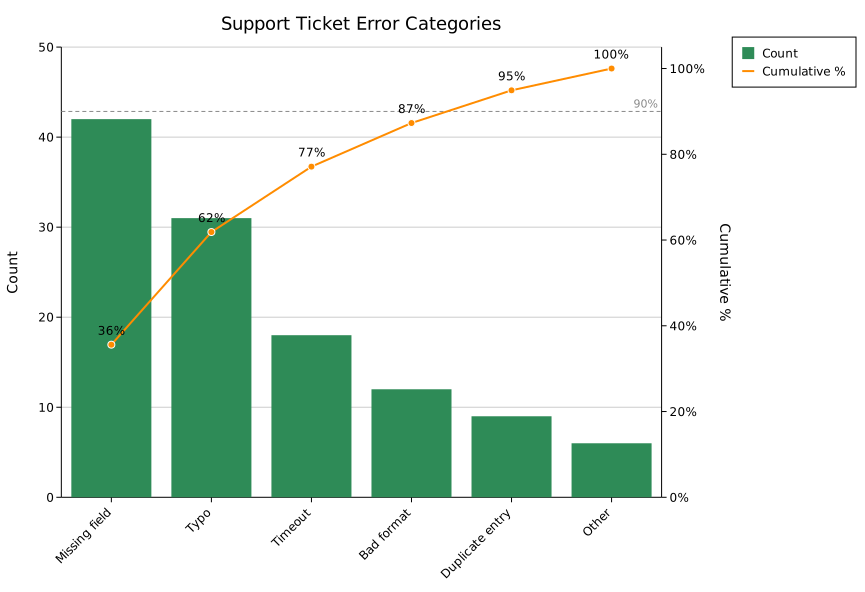
Collapsing a long tail into "Other"
Real-world Pareto data (defect logs, error taxonomies) often has a long tail of small categories after the top few, cluttering the axis. .with_max_categories(n) collapses everything beyond the top n - 1 into one bar — but instead of silently summing the tail into an opaque total, that bar renders as a stack of its constituent categories, each decoded via its own legend entry, so nothing is hidden.
#![allow(unused)] fn main() { use kuva::plot::ParetoPlot; let pareto = ParetoPlot::new() .with_categories(vec![ ("Missing field", 42.0), ("Typo", 31.0), ("Timeout", 18.0), ("Bad format", 12.0), ("Duplicate entry", 9.0), ("Wrong encoding", 7.0), ("Network blip", 5.0), ("Other misc", 3.0), ]) .with_max_categories(5); // keeps the top 4 + one "Other" bar for the rest }
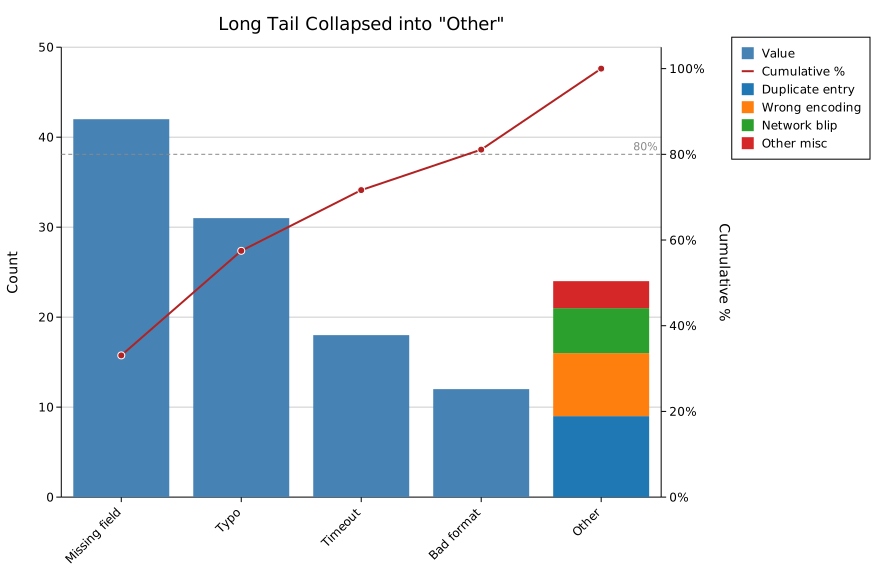
The bucket contributes exactly one point to the cumulative line, matching its one slot on the axis. Use .with_other_label(str) to rename the bucket (default "Other").
Horizontal mode
.with_horizontal(true) puts categories on the Y-axis and values on the X-axis — useful when category names are long. The cumulative-% line moves to a secondary X-axis drawn on top of the plot (rather than the secondary Y-axis on the right), since the secondary axis always pairs with whichever axis carries values.
#![allow(unused)] fn main() { use kuva::plot::ParetoPlot; let pareto = ParetoPlot::new() .with_categories(vec![("Missing field", 42.0), ("Typo", 31.0), ("Other", 6.0)]) .with_horizontal(true) .with_cumulative_labels(true); }
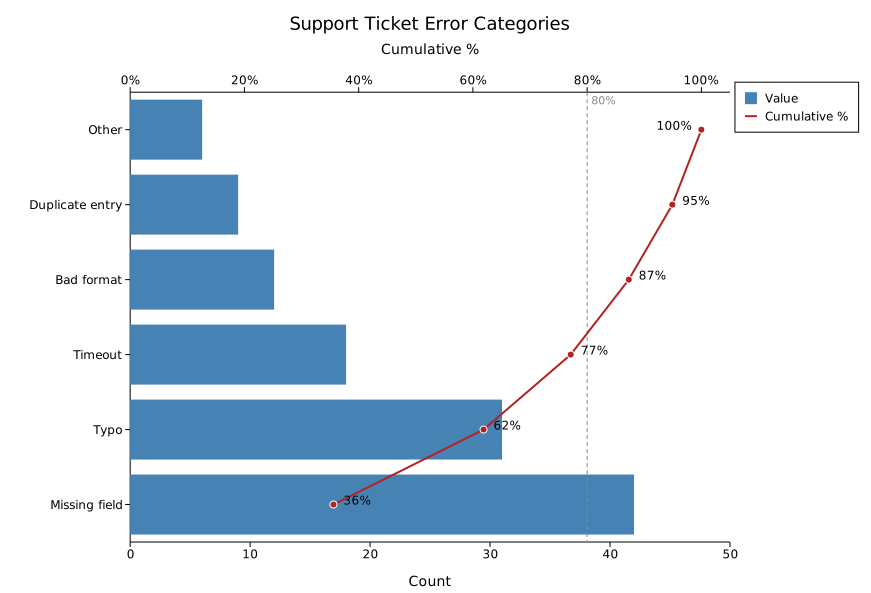
Builder reference
| Method | Default | Description |
|---|---|---|
.with_category(label, value) | — | Add a single category |
.with_categories(iter) | — | Add multiple (label, value) pairs |
.with_color(css) | "steelblue" | Bar fill color |
.with_line_color(css) | "firebrick" | Cumulative-line color |
.with_width(frac) | 0.8 | Bar width as a fraction of the category slot |
.with_sorted(bool) | true | Sort descending by value; false preserves insertion order |
.with_cumulative_labels(bool) | false | Show a % label above (or beside, in horizontal mode) each cumulative-line point |
.with_threshold(pct) | 80.0 | Reference-line value; implies .with_show_threshold(true) |
.with_show_threshold(bool) | true | Toggle the dashed reference line |
.with_legend(bar_label, line_label) | "Value", "Cumulative %" | Legend labels for the bars and the cumulative line |
.with_show_legend(bool) | true | Toggle the legend |
.with_max_categories(n) | — (no bucketing) | Collapse categories beyond the top n - 1 into one stacked "Other" bar |
.with_other_label(str) | "Other" | Label for the bucketed bar |
.with_horizontal(bool) | false | Categories on Y, values on X; cumulative line on a secondary X-axis |
See also: Bar Chart for plain (non-cumulative) categorical bars, Funnel Chart for a different stage-drop-off visualization.
CLI
Input: one row per category with a label column and a value column.
| Flag | Default | Description |
|---|---|---|
--label-col <COL> | 0 | Category label column |
--value-col <COL> | 1 | Category value column |
--color <CSS> | steelblue | Bar fill color |
--line-color <CSS> | firebrick | Cumulative-line color |
--bar-width <FRAC> | 0.8 | Bar width as a fraction of the category slot |
--no-sort | off | Preserve input row order instead of sorting descending by value |
--threshold <PCT> | 80.0 | Reference-line value (cumulative %) |
--no-threshold | off | Hide the dashed reference line |
--cumulative-labels | off | Show a % label above (or beside, in --horizontal mode) each cumulative-line point |
--legend <BAR,LINE> | Value,Cumulative % | Legend labels for the bars and the cumulative line, comma-separated |
--no-legend | off | Hide the legend (shown by default) |
--max-categories <N> | — (no bucketing) | Collapse categories beyond the top N - 1 into one stacked "Other" bar |
--other-label <STR> | Other | Label for the bucketed bar; no effect without --max-categories |
--horizontal | off | Categories on Y-axis, values on X-axis; cumulative line on a secondary X-axis drawn on top |
kuva pareto data.tsv --label-col category --value-col count
kuva pareto data.tsv --label-col category --value-col count \
--color seagreen --line-color darkorange --threshold 90 \
--cumulative-labels --legend "Count,Cumulative %"
kuva pareto data.tsv --label-col category --value-col count \
--horizontal --max-categories 5 --other-label "Misc"
See also: Shared flags — output, appearance, axes.
Population Pyramid
A population pyramid is a back-to-back horizontal bar chart where each row represents an age group. The left side shows one demographic (typically male) and the right side shows another (typically female). The symmetric layout makes it easy to compare age-group distributions across the two sides at a glance.
Population pyramids are used in demography, public health, and epidemiology to visualize age-sex distributions, compare census years, or overlay two populations for planning analysis.
Import path: kuva::plot::pyramid::{PopulationPyramid, PyramidMode}
Basic usage (single series)
Use .with_group() to add rows one at a time. Set side labels with .with_left_label() and .with_right_label().
#![allow(unused)] fn main() { use kuva::plot::pyramid::PopulationPyramid; use kuva::backend::svg::SvgBackend; use kuva::render::render::render_multiple; use kuva::render::layout::Layout; use kuva::render::plots::Plot; let plot = PopulationPyramid::new() .with_left_label("Male") .with_right_label("Female") .with_group("0–4", 6.5, 6.2) .with_group("5–9", 6.8, 6.5) .with_group("10–14", 7.1, 6.8) .with_group("15–19", 7.3, 6.9) .with_group("20–24", 7.0, 6.8) .with_group("25–34", 13.2, 12.9) .with_group("35–44", 12.5, 12.6) .with_group("45–54", 11.8, 12.0) .with_group("55–64", 9.4, 9.9) .with_group("65–74", 6.8, 7.8) .with_group("75+", 4.1, 6.2); let plots = vec![Plot::Pyramid(plot)]; let layout = Layout::auto_from_plots(&plots) .with_title("Population Pyramid 2020") .with_x_label("Population (millions)"); let svg = SvgBackend.render_scene(&render_multiple(plots, layout)); std::fs::write("pyramid.svg", svg).unwrap(); }
Normalized (percentage) mode
.with_normalize(true) expresses each bar as a percentage of the total population, making the left-right comparison scale-invariant and useful when comparing populations of different sizes.
#![allow(unused)] fn main() { use kuva::plot::pyramid::PopulationPyramid; use kuva::render::plots::Plot; use kuva::render::layout::Layout; use kuva::render::render::render_multiple; let plot = PopulationPyramid::new() .with_left_label("Male") .with_right_label("Female") .with_group("0–14", 28.3, 27.1) .with_group("15–29", 26.5, 25.3) .with_group("30–44", 22.8, 22.6) .with_group("45–59", 14.0, 14.9) .with_group("60–74", 6.3, 7.5) .with_group("75+", 2.1, 2.6) .with_normalize(true) .with_show_values(true); let plots = vec![Plot::Pyramid(plot)]; }
Multi-series census comparison
Use .with_series() to add named series (e.g., two census years). In the default Grouped mode each series gets its own sub-band within each age group. Use .with_legend(true) to label them.
#![allow(unused)] fn main() { use kuva::plot::pyramid::PopulationPyramid; use kuva::render::plots::Plot; use kuva::render::layout::Layout; use kuva::render::render::render_multiple; use kuva::backend::svg::SvgBackend; let age_groups = [ ("0–14", 28.3, 27.1), ("15–29", 26.5, 25.3), ("30–44", 22.8, 22.6), ("45–59", 14.0, 14.9), ("60–74", 6.3, 7.5), ("75+", 2.1, 2.6), ]; let future = [ ("0–14", 18.0, 17.4), ("15–29", 20.5, 20.1), ("30–44", 21.0, 21.3), ("45–59", 20.2, 20.8), ("60–74", 13.5, 14.6), ("75+", 6.8, 5.8), ]; let plot = PopulationPyramid::new() .with_left_label("Male") .with_right_label("Female") .with_series("2020", age_groups.iter().map(|&(a, l, r)| (a, l, r))) .with_series("2060 (projected)", future.iter().map(|&(a, l, r)| (a, l, r))) .with_legend(true); let plots = vec![Plot::Pyramid(plot)]; let layout = Layout::auto_from_plots(&plots) .with_title("Demographic Shift: 2020 vs 2060") .with_x_label("Population (%)"); let svg = SvgBackend.render_scene(&render_multiple(plots, layout)); }

Overlap mode
PyramidMode::Overlap renders each series as transparent bars on top of each other — useful when you only have two series and want to emphasize how one population profile sits within another.
#![allow(unused)] fn main() { use kuva::plot::pyramid::{PopulationPyramid, PyramidMode}; use kuva::render::plots::Plot; use kuva::render::layout::Layout; use kuva::render::render::render_multiple; let plot = PopulationPyramid::new() .with_left_label("Male") .with_right_label("Female") .with_series("2000", [("20–34", 18.0, 17.5), ("35–49", 20.0, 20.5), ("50–64", 15.0, 16.0)].iter().map(|&(a, l, r)| (a, l, r))) .with_series("2020", [("20–34", 14.0, 14.0), ("35–49", 18.0, 18.5), ("50–64", 20.0, 21.0)].iter().map(|&(a, l, r)| (a, l, r))) .with_mode(PyramidMode::Overlap) .with_legend(true); let plots = vec![Plot::Pyramid(plot)]; }
PopulationPyramid API reference
PopulationPyramid builders
| Method | Default | Description |
|---|---|---|
PopulationPyramid::new() | — | Create a pyramid with default settings |
.with_group(age, left, right) | — | Add a row (single-series mode); creates an anonymous first series |
.with_series(name, groups) | — | Add a named series; groups yields (age_label, left, right) |
.with_left_label(s) | "Left" | Label above the left side (e.g., "Male") |
.with_right_label(s) | "Right" | Label above the right side (e.g., "Female") |
.with_left_color(css) | "#4C72B0" | Bar color for the left side (single-series) |
.with_right_color(css) | "#DD8452" | Bar color for the right side (single-series) |
.with_series_color(name, css) | — | Explicit color for a named series (multi-series) |
.with_normalize(bool) | false | Express values as % of total population |
.with_show_values(bool) | false | Show value labels on each bar |
.with_bar_width(f) | 0.85 | Bar fill fraction per row (complement of group_gap) |
.with_group_gap(f) | 0.15 | Blank space between rows as fraction of row height |
.with_bar_gap(f) | 0.04 | Gap between sub-bands in Grouped mode |
.with_mode(PyramidMode) | Grouped | Grouped (sub-bands) or Overlap (transparent overlay) |
.with_legend(bool) | false | Show a legend (one entry per series) |
See also: Bar Chart for a single-direction categorical comparison, Waffle Chart for another proportion-based layout.
CLI
Population pyramid — back-to-back horizontal bar chart for comparing two distributions across age groups or categories.
Input: one row per age group with label, left value, and right value columns.
| Flag | Default | Description |
|---|---|---|
--label-col <COL> | 0 | Age/category label column |
--left-col <COL> | 1 | Left-side value column |
--right-col <COL> | 2 | Right-side value column |
--left-label <TEXT> | Left | Label for the left side (e.g. Male) |
--right-label <TEXT> | Right | Label for the right side (e.g. Female) |
--left-color <CSS> | #4C72B0 | Bar color for the left side |
--right-color <CSS> | #DD8452 | Bar color for the right side |
--normalize | off | Display values as percentage of total |
--show-values | off | Show value labels at bar tips |
--legend | off | Add a legend |
kuva pyramid data.tsv --label-col age --left-col male --right-col female \
--left-label Male --right-label Female
kuva pyramid data.tsv --label-col age --left-col male --right-col female \
--left-label Male --right-label Female \
--normalize --legend --title "Population by Age"
See also: Shared flags — output, appearance, axes.
Lollipop Chart
A lollipop chart displays discrete data points as vertical stems (lines) topped with filled circles. It conveys the same information as a bar chart while being less visually heavy — the empty space between stems makes it easier to compare the heights of nearby points.
A distinctive feature of lollipop charts is the optional domain annotation: colored rectangles drawn behind the stems along the x-axis. This makes them the standard format for mutation landscape plots in molecular biology, where each lollipop shows a mutation count and colored bands below the axis indicate protein functional domains.
Import path: kuva::plot::lollipop::LollipopPlot
Basic usage
Add points with .with_point(x, y). All stems originate from the baseline (y = 0 by default).
#![allow(unused)] fn main() { use kuva::plot::lollipop::LollipopPlot; use kuva::backend::svg::SvgBackend; use kuva::render::render::render_multiple; use kuva::render::layout::Layout; use kuva::render::plots::Plot; let plot = LollipopPlot::new() .with_point(1.0, 4.0) .with_point(3.0, 7.0) .with_point(5.0, 3.0) .with_point(7.0, 9.0) .with_point(9.0, 5.0) .with_point(11.0, 2.0) .with_point(13.0, 8.0) .with_color("steelblue"); let plots = vec![Plot::Lollipop(plot)]; let layout = Layout::auto_from_plots(&plots) .with_title("Gene Expression Rank") .with_x_label("Gene index") .with_y_label("Expression (log₂ TPM)"); let svg = SvgBackend.render_scene(&render_multiple(plots, layout)); std::fs::write("lollipop.svg", svg).unwrap(); }
Labels and per-point colors
.with_labeled_point() places a text label above (or below, for negative values) the dot. .with_colored_point() and .with_labeled_colored_point() allow per-point color overrides for highlighting specific items.
#![allow(unused)] fn main() { use kuva::plot::lollipop::LollipopPlot; use kuva::render::plots::Plot; use kuva::render::layout::Layout; use kuva::render::render::render_multiple; let plot = LollipopPlot::new() .with_point(5.0, 2.0) .with_point(15.0, 3.0) .with_labeled_colored_point(28.0, 12.0, "TP53", "#d62728") .with_point(35.0, 4.0) .with_labeled_colored_point(47.0, 9.0, "KRAS", "#ff7f0e") .with_point(62.0, 2.0) .with_labeled_colored_point(75.0, 14.0, "BRCA1", "#9467bd") .with_point(88.0, 3.0) .with_dot_radius(5.5); let plots = vec![Plot::Lollipop(plot)]; }

Mutation landscape with domain annotations
.with_domain() draws a colored rectangle behind the stems, anchored below the baseline. This is the standard presentation for protein mutation landscapes, where domains (functional regions) are annotated along the sequence.
#![allow(unused)] fn main() { use kuva::plot::lollipop::LollipopPlot; use kuva::backend::svg::SvgBackend; use kuva::render::render::render_multiple; use kuva::render::layout::Layout; use kuva::render::plots::Plot; let plot = LollipopPlot::new() // Missense mutations .with_labeled_colored_point( 12.0, 3.0, "R12H", "#1f77b4") .with_labeled_colored_point( 35.0, 8.0, "G35V", "#d62728") .with_labeled_colored_point( 67.0, 2.0, "K67R", "#1f77b4") .with_labeled_colored_point( 94.0, 5.0, "P94L", "#d62728") .with_labeled_colored_point(118.0, 11.0, "R118*", "#d62728") .with_labeled_colored_point(145.0, 4.0, "T145A", "#1f77b4") .with_labeled_colored_point(173.0, 7.0, "D173N", "#d62728") .with_labeled_colored_point(201.0, 3.0, "E201K", "#1f77b4") // Domain annotations .with_domain( 1.0, 55.0, Some("N-term"), "#4e79a7") .with_domain( 56.0, 130.0, Some("Kinase"), "#f28e2b") .with_domain(131.0, 195.0, Some("SH2"), "#59a14f") .with_domain(196.0, 240.0, Some("C-term"), "#b07aa1") .with_domain_height(0.8) .with_stem_width(1.5) .with_dot_radius(5.0); let plots = vec![Plot::Lollipop(plot)]; let layout = Layout::auto_from_plots(&plots) .with_title("TP53 Mutation Landscape") .with_x_label("Amino acid position") .with_y_label("Count"); let svg = SvgBackend.render_scene(&render_multiple(plots, layout)); }

Negative values and custom baseline
The baseline defaults to y = 0. Set a different baseline with .with_baseline(). Points below the baseline have their stems drawn downward and labels placed below the dot.
#![allow(unused)] fn main() { use kuva::plot::lollipop::LollipopPlot; use kuva::render::plots::Plot; use kuva::render::layout::Layout; use kuva::render::render::render_multiple; // Log2 fold-change: positive = upregulated, negative = downregulated let plot = LollipopPlot::new() .with_point( 1.0, 2.3) .with_point( 2.0, -1.8) .with_point( 3.0, 0.5) .with_point( 4.0, -3.1) .with_point( 5.0, 1.9) .with_point( 6.0, -0.7) .with_point( 7.0, 4.2) .with_baseline(0.0) .with_baseline_dash("4 3"); let plots = vec![Plot::Lollipop(plot)]; }
LollipopPlot API reference
LollipopPlot builders
| Method | Default | Description |
|---|---|---|
LollipopPlot::new() | — | Create a lollipop chart with default settings |
.with_point(x, y) | — | Add a point with no label |
.with_labeled_point(x, y, label) | — | Add a point with a text label |
.with_colored_point(x, y, color) | — | Add a point with a per-point color override |
.with_labeled_colored_point(x, y, label, color) | — | Add a labeled point with a per-point color |
.with_points(iter) | — | Add multiple (x, y) pairs at once |
.with_color(css) | "steelblue" | Default stem and dot color |
.with_baseline(v) | 0.0 | Y value where stems originate |
.with_stem_width(px) | 1.5 | Stem stroke width |
.with_dot_radius(px) | 5.0 | Dot radius |
.with_dot_stroke(css) | fill color | Dot outline color |
.with_dot_stroke_width(px) | 1.0 | Dot outline width |
.with_show_baseline(bool) | true | Draw a horizontal baseline line |
.with_baseline_color(css) | "#888888" | Baseline line color |
.with_baseline_width(px) | 1.0 | Baseline line stroke width |
.with_baseline_dash(s) | — | Baseline dasharray (e.g. "4 3") |
.with_domain(x0, x1, label, color) | — | Add a domain annotation rect |
.with_domain_opacity(x0, x1, label, color, opacity) | — | Domain rect with explicit opacity |
.with_domain_height(h) | 0.5 | Domain rect height in data units below the baseline |
.with_legend(label) | — | Attach a legend (colored circle entry) |
See also: Bar Chart for the classic filled version, Slope Chart for before/after comparisons, Pareto Chart for ranked bars with a cumulative line.
CLI
Lollipop chart — dot-and-stem alternative to bar charts, useful for emphasising individual values.
Input: one row per data point with x (numeric or categorical) and y value columns.
| Flag | Default | Description |
|---|---|---|
--x-col <COL> | 0 | X-value column (numeric or string; strings become categorical) |
--y-col <COL> | 1 | Y-value column |
--label-col <COL> | — | Optional label column (shown at each dot) |
--color <CSS> | steelblue | Stem and dot color |
--baseline <F> | 0.0 | Value at which stems originate |
--stem-width <PX> | 1.5 | Stem stroke width |
--dot-radius <PX> | 5.0 | Dot radius |
--no-baseline-line | off | Hide the horizontal baseline rule |
--legend <LABEL> | — | Add a legend entry |
kuva lollipop data.tsv --x-col gene --y-col expression
kuva lollipop data.tsv --x-col gene --y-col log2fc \
--baseline 0 --color "#e15759" \
--label-col gene --title "Differentially Expressed Genes"
See also: Shared flags — output, appearance, axes.
Slope Chart
A slope chart (also called a dumbbell plot or connected dot plot) displays how a numeric value changes between two timepoints or conditions for a set of labelled entities. Each row shows:
- A dot at the before (left) value
- A dot at the after (right) value
- A connecting horizontal segment
By default, the segment and dots are coloured green when the value increases and red when it decreases, making trends immediately apparent at a glance.
Slope charts are a compact alternative to grouped bar charts when you want to emphasise change rather than absolute magnitude.
Import path: kuva::plot::slope::{SlopePlot, SlopePoint, SlopeValueFormat}
Basic usage
#![allow(unused)] fn main() { use kuva::plot::slope::SlopePlot; use kuva::backend::svg::SvgBackend; use kuva::render::render::render_multiple; use kuva::render::layout::Layout; use kuva::render::plots::Plot; let sp = SlopePlot::new() .with_before_label("2015") .with_after_label("2023") .with_point("Germany", 68.2, 71.5) .with_point("France", 70.1, 68.9) .with_point("Italy", 65.3, 69.1) .with_point("Spain", 72.4, 74.8) .with_point("Poland", 58.6, 63.2) .with_point("Netherlands", 74.3, 76.1) .with_legend("Direction"); let plots = vec![Plot::Slope(sp)]; let layout = Layout::auto_from_plots(&plots) .with_title("Employment Rate 2015–2023") .with_x_label("Employment rate (%)"); let scene = render_multiple(plots, layout); let svg = SvgBackend.render_scene(&scene); std::fs::write("slope.svg", svg).unwrap(); }
The legend shows "Increase" and "Decrease" entries when color_by_direction is enabled (the default).
Showing numeric labels
Use .with_values(true) to render a label beside each dot showing the raw value.
#![allow(unused)] fn main() { use kuva::plot::slope::SlopePlot; use kuva::render::plots::Plot; let sp = SlopePlot::new() .with_before_label("2015") .with_after_label("2023") .with_point("Germany", 68.2, 71.5) // ... more rows ... .with_values(true); }
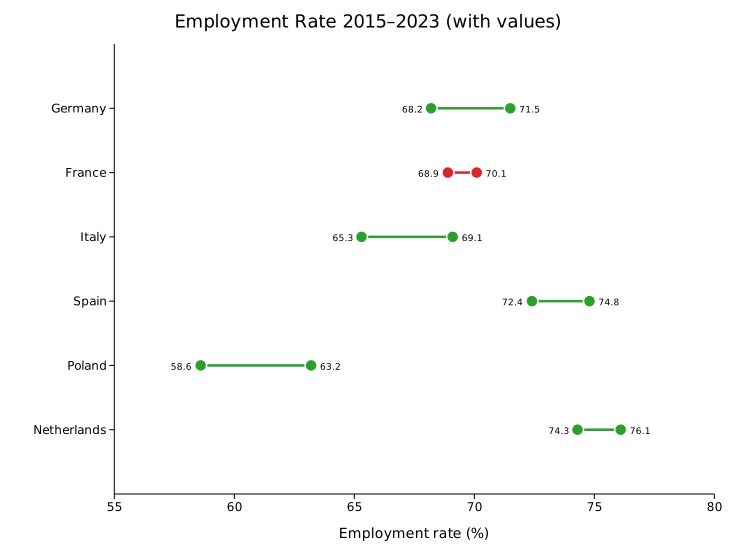
The default format (SlopeValueFormat::Auto) shows integers without a decimal point and drops trailing zeros for fractional values. Use SlopeValueFormat::Fixed(n) for a fixed number of decimal places or SlopeValueFormat::Integer to always round to the nearest integer.
Bioinformatics example: gene expression
Slope charts are well-suited to before/after comparisons in differential expression data.
#![allow(unused)] fn main() { use kuva::plot::slope::SlopePlot; use kuva::render::plots::Plot; let sp = SlopePlot::new() .with_before_label("Control") .with_after_label("Treatment") .with_point("BRCA1", 4.2, 7.8) .with_point("TP53", 6.1, 5.4) .with_point("MYC", 3.3, 8.9) .with_point("EGFR", 7.5, 6.2) .with_point("VEGFA", 2.8, 5.1) .with_point("CDKN2A", 5.9, 4.3) .with_legend("Direction"); }

Uniform color
Turn off direction-based coloring with .with_direction_colors(false) and supply a single CSS color via .with_color().
#![allow(unused)] fn main() { use kuva::plot::slope::SlopePlot; use kuva::render::plots::Plot; let sp = SlopePlot::new() .with_direction_colors(false) .with_color("steelblue") .with_point("Germany", 68.2, 71.5) .with_point("France", 70.1, 68.9); }
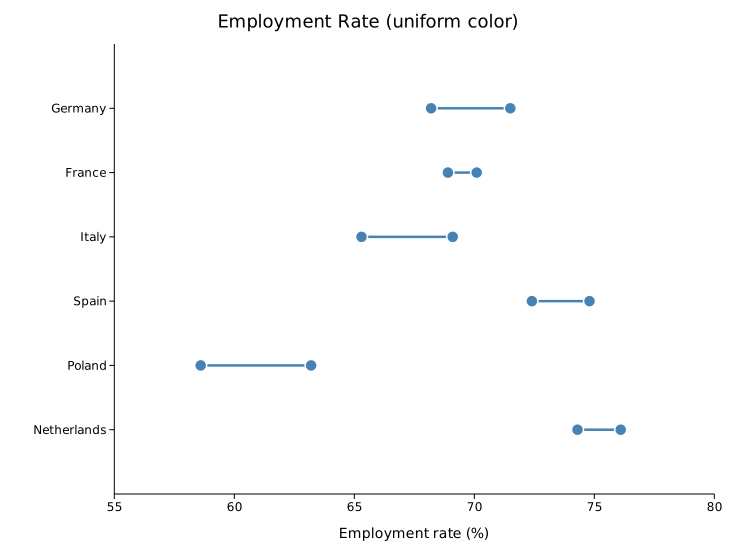
Per-group color override
Supply one color per row via .with_group_colors(). When set, these take precedence over both direction coloring and the uniform color field.
#![allow(unused)] fn main() { use kuva::plot::slope::SlopePlot; use kuva::render::plots::Plot; let sp = SlopePlot::new() .with_group_colors(["#e41a1c", "#377eb8", "#4daf4a"]) .with_point("A", 10.0, 15.0) .with_point("B", 20.0, 18.0) .with_point("C", 30.0, 35.0); }
API reference
SlopePlot builder methods
| Method | Default | Description |
|---|---|---|
with_point(label, before, after) | — | Add a single row. |
with_points(iter) | — | Add rows from an iterator of (label, before, after). |
with_before_label(s) | None | Column header for the left endpoint, drawn above the plot. |
with_after_label(s) | None | Column header for the right endpoint, drawn above the plot. |
with_color_up(s) | "#2ca02c" | Color when after > before (direction mode). |
with_color_down(s) | "#d62728" | Color when after < before (direction mode). |
with_color_flat(s) | "#aaaaaa" | Color when after == before (direction mode). |
with_direction_colors(bool) | true | Toggle direction-based coloring. |
with_color(s) | "steelblue" | Uniform color used when color_by_direction = false. |
with_group_colors(iter) | None | Per-row color overrides. Indexed by row order. |
with_dot_radius(f64) | 6.0 | Dot radius in pixels. |
with_line_width(f64) | 2.5 | Connecting segment stroke width in pixels. |
with_dot_opacity(f64) | 1.0 | Dot fill opacity. |
with_line_opacity(f64) | 0.7 | Connecting segment stroke opacity. |
with_values(bool) | false | Show numeric labels beside each dot. |
with_value_format(fmt) | Auto | Format for value labels. |
with_legend(s) | None | Enable legend; title string is passed as the trigger. |
SlopeValueFormat variants
| Variant | Behaviour |
|---|---|
Auto | Integers displayed without decimal point; trailing zeros stripped for floats. |
Fixed(n) | Exactly n decimal places. |
Integer | Round to the nearest integer ({:.0} format). |
See also: Lollipop Chart for ranked single-value comparisons, Bump Chart for rank change across more than two time points, Parallel Coordinates for more than two dimensions.
CLI
Slope chart — compare paired before/after values for multiple items on two axes.
Input: one row per item with columns for label, before value, and after value.
| Flag | Default | Description |
|---|---|---|
--label-col <COL> | 0 | Item label column |
--before-col <COL> | 1 | Before (left axis) value column |
--after-col <COL> | 2 | After (right axis) value column |
--before-label <TEXT> | Before | Left axis label |
--after-label <TEXT> | After | Right axis label |
--color-up <CSS> | steelblue | Color for items that increased |
--color-down <CSS> | firebrick | Color for items that decreased |
--no-direction-colors | off | Use a single uniform color for all lines |
--show-values | off | Show value labels at each endpoint |
--line-width <PX> | 1.5 | Stroke width of slope lines |
--dot-radius <PX> | 4.0 | Radius of endpoint dots |
kuva slope data.tsv --label-col label --before-col before --after-col after
kuva slope data.tsv --label-col label --before-col q1 --after-col q2 \
--before-label "Q1 2024" --after-label "Q2 2024" \
--show-values --title "Quarterly Change"
See also: Shared flags — output, appearance, axes.
Dot Plot
A dot plot (bubble matrix) places circles at the intersections of two categorical axes. Each circle encodes two independent continuous variables: size (radius) and color. This makes it well suited for compact display of multi-variable summaries across a grid — the canonical use case in bioinformatics is a gene expression dot plot where size shows the fraction of cells expressing a gene and color shows the mean expression level.
Import path: kuva::plot::DotPlot
Basic usage
Pass an iterator of (x_cat, y_cat, size, color) tuples to .with_data(). Category order on each axis follows first-seen insertion order. Enable legends independently with .with_size_legend() and .with_colorbar().
#![allow(unused)] fn main() { use kuva::plot::DotPlot; use kuva::backend::svg::SvgBackend; use kuva::render::render::render_multiple; use kuva::render::layout::Layout; use kuva::render::plots::Plot; let data = vec![ // (x_cat, y_cat, size, color) ("CD4 T", "CD3E", 88.0_f64, 3.8_f64), ("CD8 T", "CD3E", 91.0, 4.0 ), ("NK", "CD3E", 12.0, 0.5 ), ("CD4 T", "CD4", 85.0, 3.5 ), ("CD8 T", "CD4", 8.0, 0.3 ), ("NK", "CD4", 4.0, 0.2 ), ]; let dot = DotPlot::new() .with_data(data) .with_size_legend("% Expressing") .with_colorbar("Mean expression"); let plots = vec![Plot::DotPlot(dot)]; let layout = Layout::auto_from_plots(&plots) .with_title("Gene Expression") .with_x_label("Cell type") .with_y_label("Gene"); let scene = render_multiple(plots, layout); let svg = SvgBackend.render_scene(&scene); std::fs::write("dotplot.svg", svg).unwrap(); }
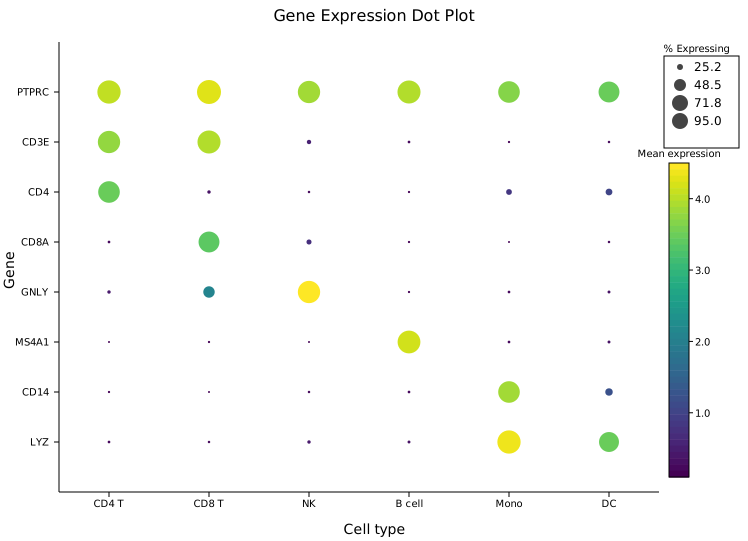
Eight immune marker genes across six cell types. Large circles show genes expressed in many cells; bright colors (Viridis: yellow) show high mean expression. The cell-type specificity of each marker is immediately legible — CD3E is large in T cells, MS4A1 only in B cells, LYZ highest in monocytes.
Matrix input
.with_matrix(x_cats, y_cats, sizes, colors) accepts dense 2-D data where every grid cell is filled. sizes[row_i][col_j] maps to y_cats[row_i] and x_cats[col_j]. Use this when your data comes from a matrix or 2-D array.
#![allow(unused)] fn main() { use kuva::plot::DotPlot; use kuva::render::plots::Plot; let x_cats = vec!["TypeA", "TypeB", "TypeC", "TypeD", "TypeE"]; let y_cats = vec!["Gene1", "Gene2", "Gene3", "Gene4", "Gene5", "Gene6"]; // sizes[row_i][col_j] → y_cats[row_i], x_cats[col_j] let sizes = vec![ vec![80.0, 25.0, 60.0, 45.0, 70.0], vec![15.0, 90.0, 35.0, 70.0, 20.0], // ... ]; let colors = vec![ vec![3.5, 1.2, 2.8, 2.0, 3.1], vec![0.8, 4.1, 1.5, 3.2, 0.9], // ... ]; let dot = DotPlot::new() .with_matrix(x_cats, y_cats, sizes, colors) .with_size_legend("% Expressing") .with_colorbar("Mean expression"); }
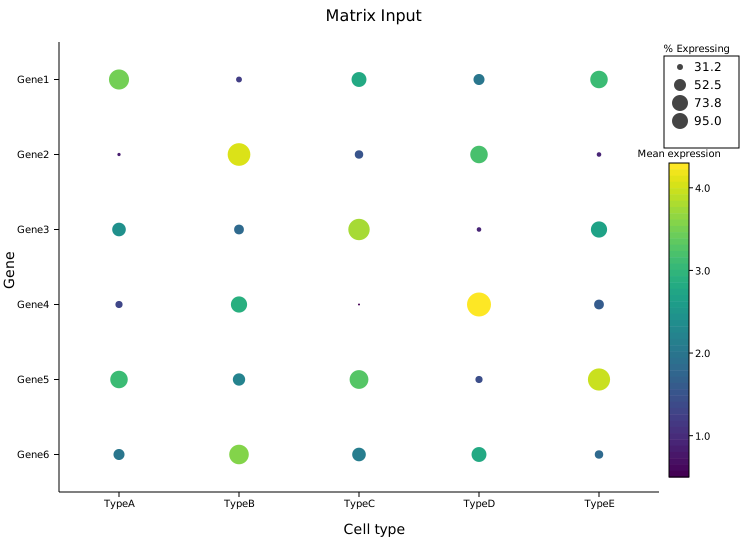
Sparse data
With .with_data(), grid positions with no corresponding tuple are simply left empty — no circle is drawn at that cell. There is no need to fill missing values with zero or NaN.
#![allow(unused)] fn main() { use kuva::plot::DotPlot; let dot = DotPlot::new().with_data(vec![ ("TypeA", "GeneX", 80.0_f64, 2.5_f64), // ("TypeA", "GeneY") absent — no circle drawn ("TypeA", "GeneZ", 40.0, 1.2 ), ("TypeB", "GeneY", 90.0, 2.9 ), ]); }
Legends
The size legend and colorbar are independent. Enable either, both, or neither.
Size legend only
.with_size_legend(label) adds a key in the right margin showing representative radii with their corresponding values. Use this when color carries no additional information (or when all dots share the same constant color value).
#![allow(unused)] fn main() { use kuva::plot::DotPlot; let dot = DotPlot::new() .with_data(data) .with_size_legend("% Expressing"); // only size legend; no colorbar }

Colorbar only
.with_colorbar(label) adds a colorbar for the color encoding. Useful when all dots should be the same size (pass a constant for the size field) so the color variable is the sole focus.
#![allow(unused)] fn main() { use kuva::plot::DotPlot; let dot = DotPlot::new() .with_data(data) .with_colorbar("Mean expression"); // only colorbar; no size legend }
Both legends
When both are set, the size legend and colorbar are stacked in a single right-margin column automatically.
#![allow(unused)] fn main() { use kuva::plot::DotPlot; let dot = DotPlot::new() .with_data(data) .with_size_legend("% Expressing") .with_colorbar("Mean expression"); }
Clamping ranges
By default the size and color encodings are normalised to the data extent automatically. Use .with_size_range() and .with_color_range() to fix an explicit [min, max] — useful for excluding outliers or keeping a consistent scale across multiple plots.
#![allow(unused)] fn main() { use kuva::plot::DotPlot; let dot = DotPlot::new() .with_data(data) // Clamp size to 0–100 % regardless of data range; // values above 100 map to max_radius. .with_size_range(0.0, 100.0) // Fix color scale to 0–5 log-normalised expression. .with_color_range(0.0, 5.0); }
Radius range
.with_max_radius(px) and .with_min_radius(px) set the pixel size limits (defaults: 12.0 and 1.0). Increase max_radius for a larger grid or reduce it for dense plots with many categories.
#![allow(unused)] fn main() { use kuva::plot::DotPlot; let dot = DotPlot::new() .with_data(data) .with_max_radius(18.0) // default 12.0 .with_min_radius(2.0); // default 1.0 }
Color maps
.with_color_map(ColorMap) selects the color encoding (default Viridis). The same ColorMap variants available for heatmaps apply here: Viridis, Inferno, Grayscale, and Custom.
#![allow(unused)] fn main() { use kuva::plot::{DotPlot, ColorMap}; use kuva::render::plots::Plot; let dot = DotPlot::new() .with_data(data) .with_color_map(ColorMap::Inferno); }
API reference
| Method | Description |
|---|---|
DotPlot::new() | Create a dot plot with defaults |
.with_data(iter) | Sparse input: iterator of (x_cat, y_cat, size, color) tuples |
.with_matrix(x, y, sizes, colors) | Dense input: category lists + 2-D matrices |
.with_color_map(map) | Color encoding: Viridis, Inferno, Grayscale, Custom (default Viridis) |
.with_max_radius(px) | Largest circle radius in pixels (default 12.0) |
.with_min_radius(px) | Smallest circle radius in pixels (default 1.0) |
.with_size_range(min, max) | Clamp size values before normalising (default: data extent) |
.with_color_range(min, max) | Clamp color values before normalising (default: data extent) |
.with_size_legend(label) | Add a size key in the right margin |
.with_colorbar(label) | Add a colorbar in the right margin |
See also: Heatmap for a filled-cell alternative, Bar Chart for a simpler categorical comparison, Clustermap for a clustered gene-expression view.
CLI
Dot plot encoding two variables (size and color) at categorical (x, y) positions.
Input: four columns — x category, y category, size value, color value.
| Flag | Default | Description |
|---|---|---|
--x-col <COL> | 0 | X-category column |
--y-col <COL> | 1 | Y-category column |
--size-col <COL> | 2 | Size-encoding column |
--color-col <COL> | 3 | Color-encoding column |
--colormap <NAME> | viridis | Color map |
--max-radius <PX> | 12.0 | Maximum dot radius |
--size-legend <LABEL> | — | Show size legend with this label |
--colorbar <LABEL> | — | Show color bar with this label |
kuva dot dot.tsv \
--x-col pathway --y-col cell_type \
--size-col pct_expressed --color-col mean_expr
kuva dot dot.tsv \
--x-col pathway --y-col cell_type \
--size-col pct_expressed --color-col mean_expr \
--size-legend "% expressed" --colorbar "mean expr"
See also: Shared flags — output, appearance, axes, log scale.
Dice Plot
A dice plot places up to 6 dots in a die-face layout at each intersection of two categorical axes. Each dot position represents a third categorical variable, while dot colour and size can independently encode continuous values. This makes it ideal for compact visualisation of multivariate data across a grid — the canonical use case is displaying differential expression across multiple contrasts, tissues, or conditions in a single figure.
Ported from the ggdiceplot R package (v1.2.0).
Import path: kuva::plot::DicePlot
Categorical mode
Each input record is one observation: (x_cat, y_cat, dot_category, css_color). Dot positions are assigned by matching dot_category against the category labels. Absent positions are not drawn; tile backgrounds are white with a black border.
#![allow(unused)] fn main() { use kuva::plot::diceplot::DicePlot; use kuva::backend::svg::SvgBackend; use kuva::render::render::render_multiple; use kuva::render::layout::Layout; use kuva::render::plots::Plot; let organs = vec!["Lung".into(), "Liver".into(), "Brain".into(), "Kidney".into()]; let data = vec![ ("miR-1", "Control", "Lung", "#2166ac"), ("miR-1", "Control", "Liver", "#2166ac"), ("miR-1", "Control", "Brain", "#cccccc"), ("miR-1", "Control", "Kidney", "#2166ac"), ("miR-1", "Compound_1", "Lung", "#2166ac"), ("miR-1", "Compound_1", "Liver", "#cccccc"), // ... ]; let dice = DicePlot::new(4) .with_category_labels(organs) .with_records(data) .with_dot_legend(vec![ ("Down", "#2166ac"), ("Unchanged", "#cccccc"), ("Up", "#b2182b"), ]) .with_position_legend("Organ"); let plots = vec![Plot::DicePlot(dice)]; let layout = Layout::auto_from_plots(&plots) .with_title("miRNA Compound Screening") .with_x_label("miRNA") .with_y_label("Compound"); let scene = render_multiple(plots, layout); let svg = SvgBackend.render_scene(&scene); std::fs::write("mirna_compound.svg", svg).unwrap(); }

Five miRNAs across five compound treatments. Each cell shows four organ dot positions; colour encodes expression direction (down/unchanged/up). The position legend shows which dot position maps to which organ.
Per-dot continuous mode
Each record is one dot: (x_cat, y_cat, dot_index, fill, size). Each dot gets its own colourmap fill and proportional radius. This is the mode used for ZEBRA-style domino plots where fill encodes log fold change and size encodes significance.
#![allow(unused)] fn main() { use std::sync::Arc; use kuva::plot::diceplot::DicePlot; use kuva::plot::heatmap::ColorMap; use kuva::render::plots::Plot; let diseases = vec![ "Caries".into(), "Periodontitis".into(), "Healthy".into(), "Gingivitis".into(), ]; let data = vec![ ("C. showae", "Saliva", 0_usize, Some(2.55), Some(4.82)), ("C. showae", "Saliva", 1, Some(-0.67), Some(1.30)), // ... ]; // ggdiceplot's purple-white-green diverging scale let cmap = ColorMap::Custom(Arc::new(|t: f64| { let (r, g, b) = if t < 0.5 { let s = t * 2.0; (0x40 as f64 + s * (255.0 - 0x40 as f64), s * 255.0, 0x4B as f64 + s * (255.0 - 0x4B as f64)) } else { let s = (t - 0.5) * 2.0; (255.0 * (1.0 - s), 255.0 + s * (0x44 as f64 - 255.0), 255.0 + s * (0x1B as f64 - 255.0)) }; format!("rgb({},{},{})", r as u8, g as u8, b as u8) })); let dice = DicePlot::new(4) .with_category_labels(diseases) .with_dot_data(data) .with_color_map(cmap) .with_fill_legend("Log2FC") .with_size_legend("q-value") .with_position_legend("Disease"); }
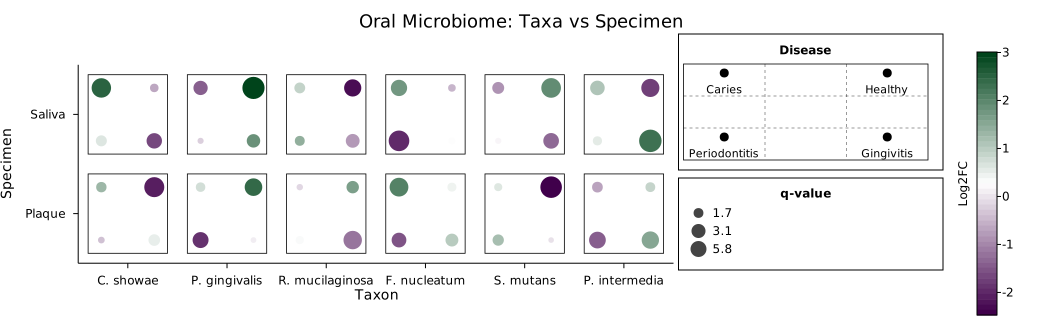
Six oral bacteria across two specimen types. Each dot represents a disease condition; purple-to-green fill encodes log fold change, dot size encodes statistical significance.
ZEBRA domino plot
The per-dot continuous mode scales to larger grids. This example reproduces the ZEBRA sex DEGs domino plot: 9 genes across 5 cell types with 5 disease contrasts per cell.
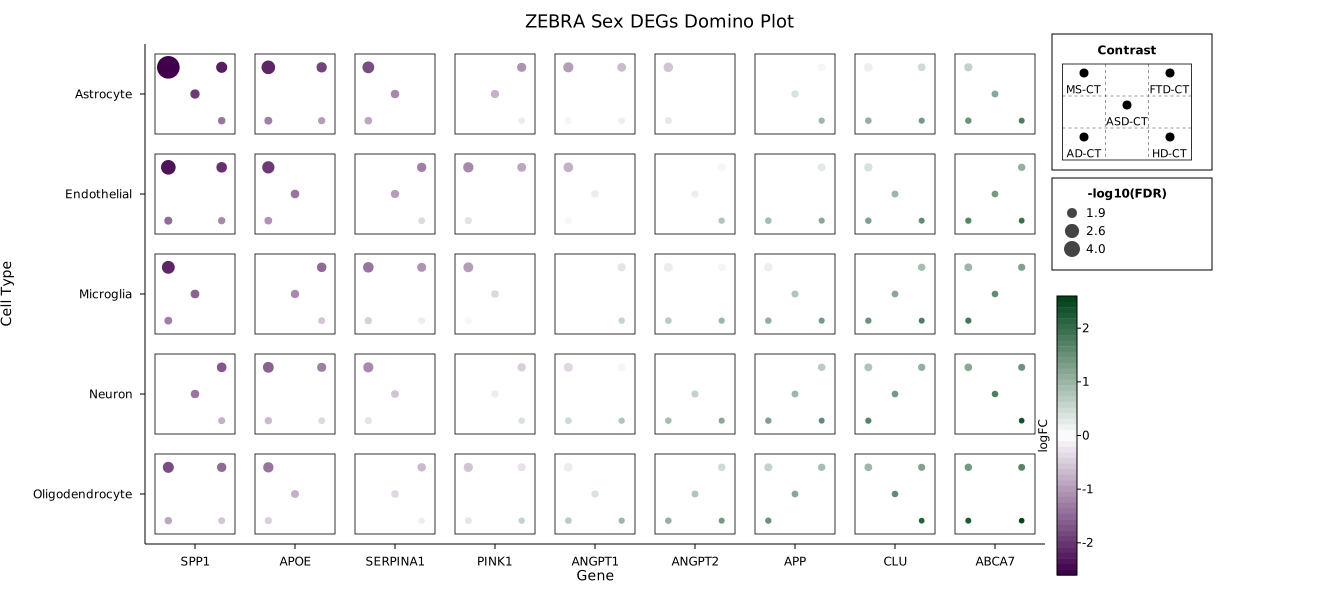
Each die face shows five contrasts (MS-CT, AD-CT, ASD-CT, FTD-CT, HD-CT). Fill encodes logFC (purple = down, green = up), size encodes -log10(FDR). Missing dots indicate non-significant results for that contrast.
Continuous tile mode
One record per grid cell via with_points(iter of (x, y, present_vec, fill, size)). The tile background is coloured via the colour map; dot radius encodes a second continuous variable. Present dots are filled black; absent positions show as small hollow outlines.
#![allow(unused)] fn main() { use kuva::plot::diceplot::DicePlot; let data = vec![ ("Gene_A", "Sample_1", vec![0, 1, 2, 3], Some(0.8), Some(5.0)), ("Gene_A", "Sample_2", vec![0, 2], Some(0.3), Some(2.0)), // ... ]; let dice = DicePlot::new(4) .with_points(data) .with_fill_legend("Expression") .with_size_legend("Significance"); }
Legends
DicePlot supports three independent legend sections, stacked vertically in the right margin:
- Position legend (
.with_position_legend("Title")) — mini die faces showing which dot position maps to which category - Colour legend (
.with_dot_legend(entries)) — colour swatches for categorical mode - Size legend (
.with_size_legend("Title")) — representative circles at 25%, 50%, 100% of max radius
A colorbar is added via .with_fill_legend("Label") for continuous fill modes.
Pip sizing
Pip (dot) radius is computed using the ggdiceplot 1.2.0 tight-packing algorithm:
- Compute minimum inter-pip distance and maximum offset from tile center
- Find the scale factor (
s_tight) where pips simultaneously touch each other and tile borders - Maximum pip radius =
min(border_clearance, inter_pip_gap / 2) - Default
pip_scale = 0.75— pips fill 75% of available space - When pips would overflow, their positions are shifted toward the tile center
Override with .with_dot_radius(px) for a fixed radius.
API reference
| Method | Description |
|---|---|
DicePlot::new(ndots) | Create with 1–6 dot positions per cell |
.with_records(iter) | Categorical input: (x, y, dot_category, css_color) |
.with_points(iter) | Continuous tile input: (x, y, present_vec, fill, size) |
.with_dot_data(iter) | Per-dot continuous input: (x, y, dot_idx, fill, size) |
.with_category_labels(vec) | Set legend labels for each dot position |
.with_x_categories(vec) | Override x-axis category order |
.with_y_categories(vec) | Override y-axis category order |
.with_color_map(map) | Colour encoding: Viridis, Inferno, Grayscale, Custom |
.with_fill_range(min, max) | Clamp fill values before normalising |
.with_size_range(min, max) | Clamp size values before normalising |
.with_fill_legend(label) | Add a colorbar in the right margin |
.with_size_legend(label) | Add a size legend in the right margin |
.with_dot_legend(entries) | Categorical colour legend: [(label, css_color)] |
.with_position_legend(title) | Spatial-position legend with mini die faces |
.with_dot_radius(px) | Fixed dot radius (0.0 = auto) |
.with_cell_size(w, h) | Tile size as fraction of cell (default 0.8, 0.8) |
.with_pad(pad) | Intra-tile padding fraction (default 0.1) |
See also: Dot Plot for the simpler size/color grid it extends, Mosaic Plot for another multivariate categorical grid.
Mosaic Plot
A mosaic (Marimekko) chart encodes two categorical variables simultaneously. Column widths are proportional to column totals, and the height of each segment within a column represents that row category's share. Each cell's area is therefore proportional to its joint frequency — making it an area-encoded contingency table.
Mosaic plots are used in clinical research, survey analysis, and A/B testing to visualize the relationship between two categorical variables across different group sizes.
Import path: kuva::plot::mosaic::MosaicPlot
Basic usage
Use .with_cell(col, row, value) to add one cell per combination. Column order follows first-seen order; use .with_col_order() to set it explicitly.
#![allow(unused)] fn main() { use kuva::plot::mosaic::MosaicPlot; use kuva::backend::svg::SvgBackend; use kuva::render::render::render_multiple; use kuva::render::layout::Layout; use kuva::render::plots::Plot; let plot = MosaicPlot::new() .with_cell("Control", "Positive", 28.0) .with_cell("Control", "Negative", 72.0) .with_cell("Low dose", "Positive", 45.0) .with_cell("Low dose", "Negative", 55.0) .with_cell("High dose", "Positive", 68.0) .with_cell("High dose", "Negative", 32.0) .with_legend("Response"); let plots = vec![Plot::Mosaic(plot)]; let layout = Layout::auto_from_plots(&plots) .with_title("Treatment vs Response") .with_x_label("Dose") .with_y_label("Proportion"); let svg = SvgBackend.render_scene(&render_multiple(plots, layout)); std::fs::write("mosaic.svg", svg).unwrap(); }

Column widths reflect the total sample size in each dose group (wider = more subjects). Segment heights show the response breakdown within each column.
Custom color and ordering
Assign explicit segment colors with .with_group_colors(), and control the display order of columns and rows with .with_col_order() and .with_row_order().
#![allow(unused)] fn main() { use kuva::plot::mosaic::MosaicPlot; use kuva::render::plots::Plot; use kuva::render::layout::Layout; use kuva::render::render::render_multiple; use kuva::backend::svg::SvgBackend; let plot = MosaicPlot::new() .with_cells([ ("Q1", "Product A", 120.0), ("Q1", "Product B", 85.0), ("Q1", "Product C", 45.0), ("Q2", "Product A", 140.0), ("Q2", "Product B", 70.0), ("Q2", "Product C", 60.0), ("Q3", "Product A", 110.0), ("Q3", "Product B", 95.0), ("Q3", "Product C", 80.0), ("Q4", "Product A", 160.0), ("Q4", "Product B", 80.0), ("Q4", "Product C", 90.0), ]) .with_col_order(["Q1", "Q2", "Q3", "Q4"]) .with_row_order(["Product A", "Product B", "Product C"]) .with_group_colors(["#1f77b4", "#ff7f0e", "#2ca02c"]) .with_legend("Product"); let plots = vec![Plot::Mosaic(plot)]; let layout = Layout::auto_from_plots(&plots) .with_title("Sales Mix by Quarter") .with_x_label("Quarter") .with_y_label("Share"); let svg = SvgBackend.render_scene(&render_multiple(plots, layout)); }

Showing raw values
By default, cells show percentage labels. Toggle to raw values with .with_values(true) and suppress percentages with .with_percents(false).
#![allow(unused)] fn main() { use kuva::plot::mosaic::MosaicPlot; use kuva::render::plots::Plot; use kuva::render::layout::Layout; use kuva::render::render::render_multiple; let plot = MosaicPlot::new() .with_cell("Smoker", "Disease", 48.0) .with_cell("Smoker", "No disease", 152.0) .with_cell("Non-smoker", "Disease", 22.0) .with_cell("Non-smoker", "No disease", 278.0) .with_percents(false) .with_values(true) .with_legend("Outcome"); let plots = vec![Plot::Mosaic(plot)]; }
Non-normalized columns
.with_normalize(false) makes column heights proportional to their share of the grand total rather than filling the full plot height. This reveals differences in total group sizes while preserving the area proportionality.
#![allow(unused)] fn main() { use kuva::plot::mosaic::MosaicPlot; use kuva::render::plots::Plot; use kuva::render::layout::Layout; use kuva::render::render::render_multiple; // Very unequal group sizes: column heights will differ let plot = MosaicPlot::new() .with_cell("Large group", "Yes", 480.0) .with_cell("Large group", "No", 320.0) .with_cell("Small group", "Yes", 35.0) .with_cell("Small group", "No", 65.0) .with_normalize(false) .with_legend("Response"); let plots = vec![Plot::Mosaic(plot)]; }
MosaicPlot API reference
MosaicPlot builders
| Method | Default | Description |
|---|---|---|
MosaicPlot::new() | — | Create a mosaic plot with default settings |
.with_cell(col, row, value) | — | Add a single cell |
.with_cells(iter) | — | Add multiple (col, row, value) cells at once |
.with_col_order(iter) | first-seen | Explicit column display order |
.with_row_order(iter) | first-seen | Explicit row/segment display order |
.with_group_colors(iter) | palette | Per-row CSS colors (indexed by row order) |
.with_gap(px) | 2.0 | Pixel gap between columns and between segments |
.with_percents(bool) | true | Show percentage labels inside cells |
.with_values(bool) | false | Show raw value labels inside cells |
.with_normalize(bool) | true | Normalize each column to fill full plot height |
.with_legend(label) | — | Legend title (one entry per row category) |
See also: Venn Diagram and UpSet Plot for other set/category-overlap views, Dice Plot for a per-cell multivariate grid.
CLI
Mosaic / Marimekko chart — two-way contingency table where column widths encode one marginal and stacked segments encode the other.
Input: one row per cell with column-category, row-category, and count/value columns.
| Flag | Default | Description |
|---|---|---|
--col-col <COL> | 0 | Column-category column (determines bar widths) |
--row-col <COL> | 1 | Row-category column (determines stacked segments) |
--value-col <COL> | 2 | Count or value column |
--gap <PX> | 2.0 | Pixel gap between tiles |
--no-percents | off | Hide percentage labels inside tiles |
--show-values | off | Show raw values inside tiles |
--legend <LABEL> | — | Add a legend |
kuva mosaic data.tsv --col-col region --row-col outcome --value-col count
kuva mosaic data.tsv --col-col region --row-col outcome --value-col count \
--show-values --title "Outcomes by Region"
See also: Shared flags — output, appearance, axes.
Venn Diagram
A Venn diagram displays set membership and overlap between 2, 3, or 4 groups. Each group is represented by a translucent circle (or ellipse for 4 sets), and overlapping regions show elements that belong to multiple groups simultaneously.
Venn diagrams are widely used in bioinformatics to compare gene lists from different tools, samples, or conditions — for example, the shared and unique genes identified by DESeq2, edgeR, and limma.
Import path: kuva::plot::venn::{VennPlot, VennSet, VennOverlap}
Input modes
VennPlot supports two input modes:
Raw elements — provide the actual element lists; intersections are computed automatically using set operations:
#![allow(unused)] fn main() { use kuva::plot::venn::VennPlot; let venn = VennPlot::new() .with_set("DESeq2", vec!["BRCA1", "TP53", "MYC", "EGFR"]) .with_set("edgeR", vec!["TP53", "MYC", "KRAS", "PIK3CA"]); }
Pre-computed sizes — supply the total size of each set and each intersection directly:
#![allow(unused)] fn main() { use kuva::plot::venn::VennPlot; let venn = VennPlot::new() .with_set_size("Set A", 500) .with_set_size("Set B", 400) .with_overlap(["Set A", "Set B"], 120); }
2-set diagram
#![allow(unused)] fn main() { use kuva::plot::venn::VennPlot; use kuva::render::plots::Plot; use kuva::render::layout::Layout; use kuva::render::render::render_multiple; use kuva::backend::svg::SvgBackend; let deseq2 = vec!["BRCA1","TP53","MYC","EGFR","VEGFA","CDKN2A","KRAS","PTEN","MDM2","RB1"]; let edger = vec!["TP53","MYC","KRAS","PIK3CA","PTEN","RB1","AKT1","MTOR","CDK4"]; let venn = VennPlot::new() .with_set("DESeq2", deseq2.iter().map(|s| s.to_string()).collect()) .with_set("edgeR", edger.iter().map(|s| s.to_string()).collect()) .with_percentages(true); let plots = vec![Plot::Venn(venn)]; let layout = Layout::auto_from_plots(&plots).with_title("DE Gene Overlap"); let scene = render_multiple(plots, layout); let svg = SvgBackend.render_scene(&scene); std::fs::write("venn_2set.svg", svg).unwrap(); }
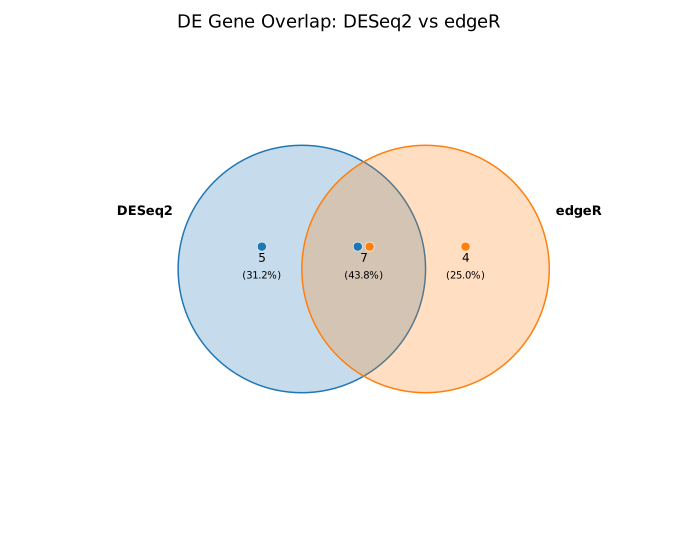
3-set diagram
Three circles are arranged in an equilateral triangle. All 7 regions (unique to each set, pairwise overlaps, and the triple overlap) are labeled.
#![allow(unused)] fn main() { use kuva::plot::venn::VennPlot; use kuva::render::plots::Plot; let deseq2 = vec!["BRCA1","TP53","MYC","EGFR","VEGFA","CDKN2A","KRAS"]; let edger = vec!["TP53","MYC","KRAS","PIK3CA","PTEN","RB1"]; let limma = vec!["BRCA1","MYC","EGFR","PIK3CA","CDKN2A","MDM2"]; let venn = VennPlot::new() .with_set("DESeq2", deseq2.iter().map(|s| s.to_string()).collect()) .with_set("edgeR", edger.iter().map(|s| s.to_string()).collect()) .with_set("limma", limma.iter().map(|s| s.to_string()).collect()) .with_counts(true) .with_percentages(true); }

4-set diagram
Four-set Venns use rotated ellipses in a symmetric arrangement, producing all 15 non-empty regions. Proportional mode is not supported for 4-set diagrams.
#![allow(unused)] fn main() { use kuva::plot::venn::VennPlot; let venn = VennPlot::new() .with_set_size("Condition A", 400) .with_set_size("Condition B", 350) .with_set_size("Condition C", 300) .with_set_size("Condition D", 250) .with_overlap(["Condition A", "Condition B"], 120) .with_overlap(["Condition A", "Condition C"], 90) // ... all pairwise, triple, and quadruple overlaps ... .with_overlap(["Condition A", "Condition B", "Condition C", "Condition D"], 10) .with_counts(true); }
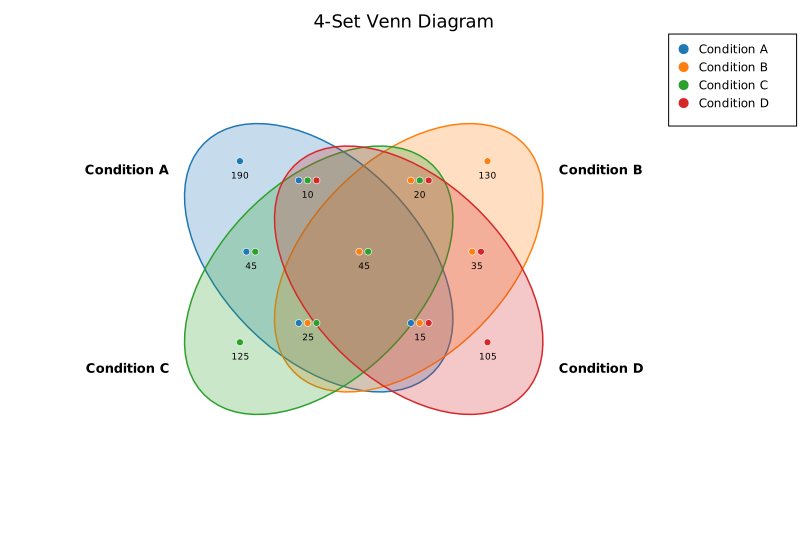
Proportional mode
Enable .with_proportional(true) to scale circle areas proportional to set sizes. The renderer uses binary search to find center-to-center distances that approximate the target intersection areas using the lens-area formula.
#![allow(unused)] fn main() { use kuva::plot::venn::VennPlot; let venn = VennPlot::new() .with_set_size("Proteomics", 850) .with_set_size("Transcriptomics", 1200) .with_set_size("Metabolomics", 600) .with_overlap(["Proteomics", "Transcriptomics"], 320) .with_overlap(["Proteomics", "Metabolomics"], 180) .with_overlap(["Transcriptomics", "Metabolomics"], 250) .with_overlap(["Proteomics", "Transcriptomics", "Metabolomics"], 90) .with_proportional(true) .with_loss(true); }
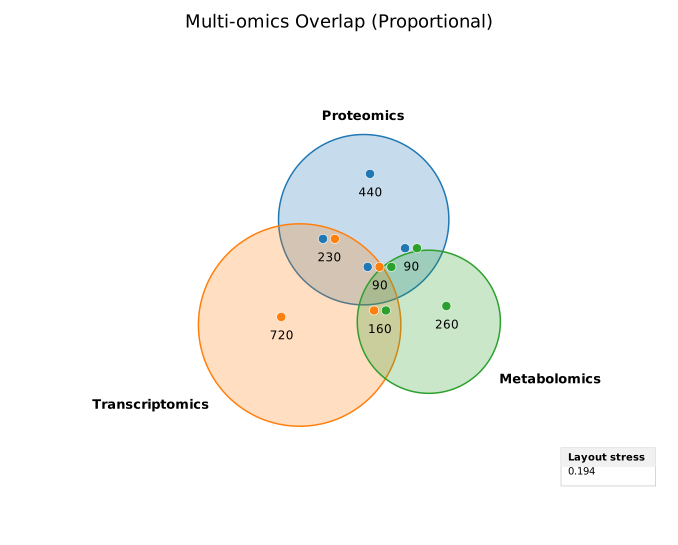
Note: proportional mode is supported for 2 and 3 sets only.
API reference
| Method | Description |
|---|---|
with_set(label, elements) | Add a set from a raw element list. |
with_set_size(label, size) | Add a set with a pre-computed total size. |
with_overlap(labels, size) | Pre-computed intersection size for 2+ sets. |
with_counts(bool) | Show element counts in each region (default: true). |
with_percentages(bool) | Show percentage of total in each region (default: false). |
with_set_labels(bool) | Show set name labels (default: true). |
with_fill_opacity(f64) | Fill opacity for circles/ellipses (default: 0.25). |
with_stroke_width(f64) | Outline stroke width (default: 1.5). |
with_proportional(bool) | Scale circles proportionally to set sizes (default: false). |
with_loss(bool) | Display layout stress score in proportional mode (default: false). |
with_colors(iter) | Override colors per set (CSS color strings). |
with_legend(label) | Attach a legend with one entry per set. |
See also: UpSet Plot for set intersections beyond 4 sets, Mosaic Plot for proportional two-way categorical tables.
CLI
Venn diagram — 2–4 overlapping sets with intersection counts labeled in each region.
Input: one row per element–set membership pair (element column + set column). Intersections are computed automatically.
| Flag | Default | Description |
|---|---|---|
--element-col <COL> | 0 | Element/item column |
--set-col <COL> | 1 | Set name column |
--proportional | off | Scale circle areas proportional to set sizes |
--no-set-labels | off | Hide set name labels |
--fill-opacity <F> | 0.25 | Circle fill opacity |
--legend <LABEL> | — | Add a legend |
kuva venn data.tsv --element-col gene --set-col set
kuva venn data.tsv --element-col gene --set-col pathway \
--proportional --legend "Gene Sets" \
--title "Pathway Overlap"
Note: supports 2, 3, or 4 sets. More than 4 sets are not supported.
See also: Shared flags — output, appearance.
UpSet Plot
An UpSet plot is the scalable successor to Venn diagrams for showing set intersections when there are more than three or four sets. It uses three visual components:
- Intersection size bars (top): vertical bars showing how many elements belong to each exact intersection.
- Dot matrix (middle): a grid of circles. Filled dots indicate which sets participate in each intersection; a vertical line connects them.
- Set size bars (left, optional): horizontal bars showing the total size of each set.
Import path: kuva::plot::UpSetPlot
Basic usage
Pass (name, elements) pairs to .with_sets(). Intersection counts are computed automatically — each element is assigned to the unique combination of sets it belongs to.
#![allow(unused)] fn main() { use kuva::plot::UpSetPlot; use kuva::backend::svg::SvgBackend; use kuva::render::render::render_multiple; use kuva::render::layout::Layout; use kuva::render::plots::Plot; // Overlapping differentially expressed genes across four treatment conditions let up = UpSetPlot::new() .with_sets(vec![ ("Condition A", (1u32..=40).collect::<Vec<_>>()), ("Condition B", (21u32..=55).collect::<Vec<_>>()), ("Condition C", (31u32..=58).collect::<Vec<_>>()), ("Condition D", (1u32..=10).chain(45..=60).collect::<Vec<_>>()), ]); let plots = vec![Plot::UpSet(up)]; let layout = Layout::auto_from_plots(&plots) .with_title("DEG Overlap Across Treatment Conditions"); let svg = SvgBackend.render_scene(&render_multiple(plots, layout)); std::fs::write("upset.svg", svg).unwrap(); }
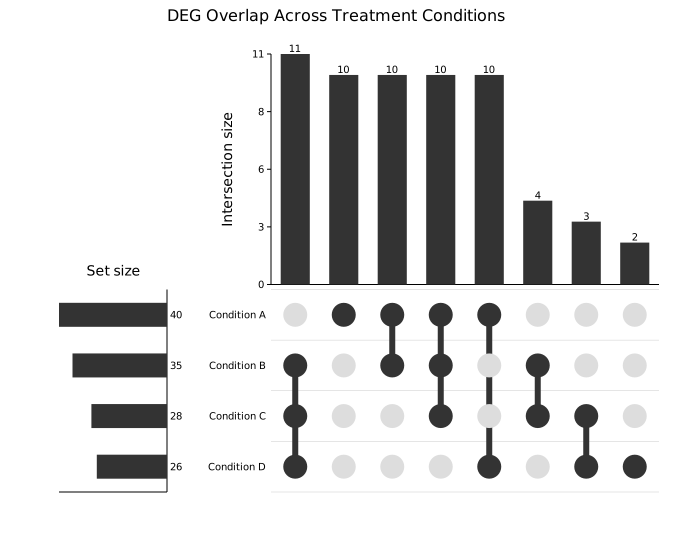
Intersections are sorted by frequency (default) so the largest bars are leftmost. The tallest bar (A∩B∩C: 10) is at the far left; the dot matrix below it shows three filled circles connected by a vertical line. The set-size bars on the left confirm Condition A has the most DEGs (40).
Precomputed data
.with_data(names, sizes, intersections) accepts precomputed counts directly when you do not have the individual elements — for example summary output from an external tool.
The third argument is an iterator of (mask, count) pairs. The mask is a bitmask: bit i is set when set_names[i] participates in that intersection.
A mask is a u64, so an UpSet plot holds at most 64 sets (UpSetPlot::MAX_SETS). Sets past the 64th have no bit of their own, so .with_sets() and .with_data() drop them rather than folding them onto an existing set; kuva upset rejects input with more than 64 columns instead, since it can report the problem.
#![allow(unused)] fn main() { use kuva::plot::UpSetPlot; use kuva::render::plots::Plot; // Three variant-calling pipelines // bit 0 = GATK, bit 1 = FreeBayes, bit 2 = Strelka let up = UpSetPlot::new() .with_data( ["GATK", "FreeBayes", "Strelka"], [280usize, 263, 249], // total variants per pipeline vec![ (0b001, 45), // GATK only (0b010, 35), // FreeBayes only (0b100, 28), // Strelka only (0b011, 62), // GATK ∩ FreeBayes (0b101, 55), // GATK ∩ Strelka (0b110, 48), // FreeBayes ∩ Strelka (0b111, 118), // all three (high-confidence) ], ) .with_max_visible(5) // show only the top 5 intersections .without_set_sizes(); // hide the left set-size panel }
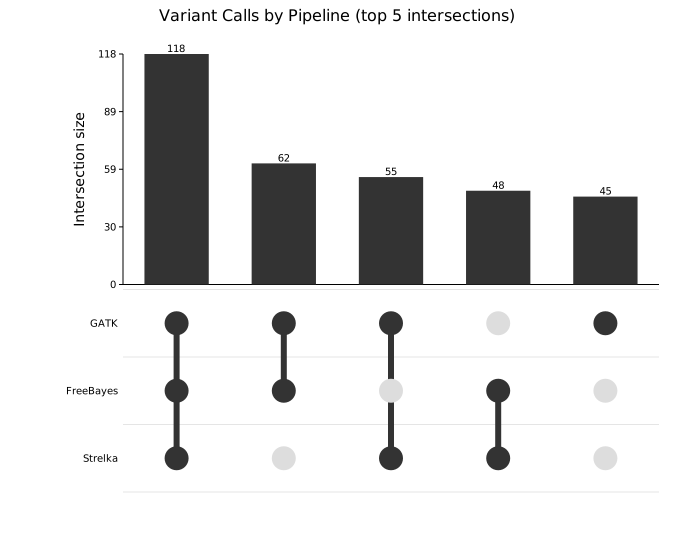
118 variants are called by all three pipelines (the high-confidence set). with_max_visible(5) caps the display to the five largest intersections after sorting; without_set_sizes() removes the left panel for a more compact layout.
Sort order
.with_sort(order) controls the left-to-right ordering of intersection columns.
| Variant | Behaviour |
|---|---|
ByFrequency | Largest bar leftmost (default) |
ByDegree | Most sets involved first, ties broken by count |
Natural | Input order preserved (useful with with_data) |
ByDegree is useful when you specifically want to highlight complex multi-set intersections rather than the most common ones:
#![allow(unused)] fn main() { use kuva::plot::{UpSetPlot, UpSetSort}; use kuva::render::plots::Plot; let up = UpSetPlot::new() .with_sets(vec![ ("Condition A", (1u32..=40).collect::<Vec<_>>()), ("Condition B", (21u32..=55).collect::<Vec<_>>()), ("Condition C", (31u32..=58).collect::<Vec<_>>()), ("Condition D", (1u32..=10).chain(45u32..=60).collect::<Vec<_>>()), ]) .with_sort(UpSetSort::ByDegree) .with_bar_color("#1d4ed8") .with_dot_color("#1e3a8a"); }

The leftmost columns now show intersections involving the most sets. Custom blue bar and dot colors make the plot match a specific color scheme.
Limiting visible intersections
.with_max_visible(n) keeps only the first n intersections after sorting. This is essential for plots with many sets — five sets have up to 31 non-empty intersections, which can be too many to read. The limit is applied after sorting, so the hidden intersections are always the smallest (or lowest-degree) ones.
#![allow(unused)] fn main() { use kuva::plot::UpSetPlot; use kuva::render::plots::Plot; let up = UpSetPlot::new() .with_sets(/* five sets */) .with_max_visible(15); }
Hiding set-size bars
.without_set_sizes() removes the left panel showing each set's total size. Use this for a more compact layout when set sizes are already known from context or when the focus is entirely on the intersections.
Colors
| Method | Default | Description |
|---|---|---|
.with_bar_color(s) | "#333333" | Intersection and set-size bar fill |
.with_dot_color(s) | "#333333" | Filled dot color (participating set) |
Non-participating dots are always shown in light gray (#dddddd) for contrast.
API reference
| Method | Description |
|---|---|
UpSetPlot::new() | Create a plot with defaults |
.with_sets(iter) | Raw (name, elements) pairs — intersections auto-computed |
.with_data(names, sizes, masks) | Precomputed (mask, count) intersection data |
.with_sort(order) | ByFrequency (default), ByDegree, or Natural |
.with_max_visible(n) | Show only the top n intersections after sorting |
.without_set_sizes() | Hide the left set-size bar panel |
.with_bar_color(s) | Intersection and set-size bar color (default "#333333") |
.with_dot_color(s) | Filled dot color (default "#333333") |
Terminal output
UpSet plots are not yet supported in terminal mode. Running kuva upset --terminal prints a message to stderr and exits cleanly; use -o file.svg to generate an SVG instead.
See also: Venn Diagram for a small number of sets, Mosaic Plot for two-way categorical proportions.
CLI
UpSet plot for set-intersection analysis.
Input: binary (0/1) matrix — one column per set, one row per element. Column headers become set names. At most 64 columns: more than that is rejected, because an intersection is a 64-bit mask.
GWAS_hit eQTL Splicing_QTL Methylation_QTL Conservation ClinVar
1 0 0 1 1 1
0 0 1 1 1 0
| Flag | Default | Description |
|---|---|---|
--sort <MODE> | frequency | Sort intersections: frequency, degree, natural. Ties and natural are ordered by set membership, the same order as UpSetPlot::with_sets. |
--max-visible <N> | — | Show only the top N intersections |
kuva upset upset.tsv
kuva upset upset.tsv --sort degree --max-visible 15
Terminal output: not yet supported.
kuva upset --terminalprints a message and exits cleanly; use-o file.svginstead.
See also: Shared flags — output, appearance, axes, log scale.
Radar / Spider Chart
A radar (spider) chart displays multivariate data on radial axes emanating from a common centre. Each axis represents one variable; the distance from the centre encodes the value. Multiple series are drawn as filled or stroked polygons, making it easy to compare profiles across observations or groups.
Radar charts are popular for displaying skill profiles, product comparisons, and quality metrics — any context where you want to compare several dimensions at once.
Import path: kuva::plot::radar::RadarPlot
Basic usage
Pass axis names to RadarPlot::new(), then add series with .with_series_labeled(). Colors are assigned from the category10 palette.
#![allow(unused)] fn main() { use kuva::plot::radar::RadarPlot; use kuva::backend::svg::SvgBackend; use kuva::render::render::render_multiple; use kuva::render::layout::Layout; use kuva::render::plots::Plot; let plot = RadarPlot::new(["Speed", "Power", "Agility", "Stamina", "Technique"]) .with_series_labeled([0.80, 0.60, 0.90, 0.70, 0.75], "Group A") .with_series_labeled([0.60, 0.90, 0.50, 0.80, 0.70], "Group B") .with_legend(true); let plots = vec![Plot::Radar(plot)]; let layout = Layout::auto_from_plots(&plots).with_title("Team Performance"); let svg = SvgBackend.render_scene(&render_multiple(plots, layout)); std::fs::write("radar.svg", svg).unwrap(); }
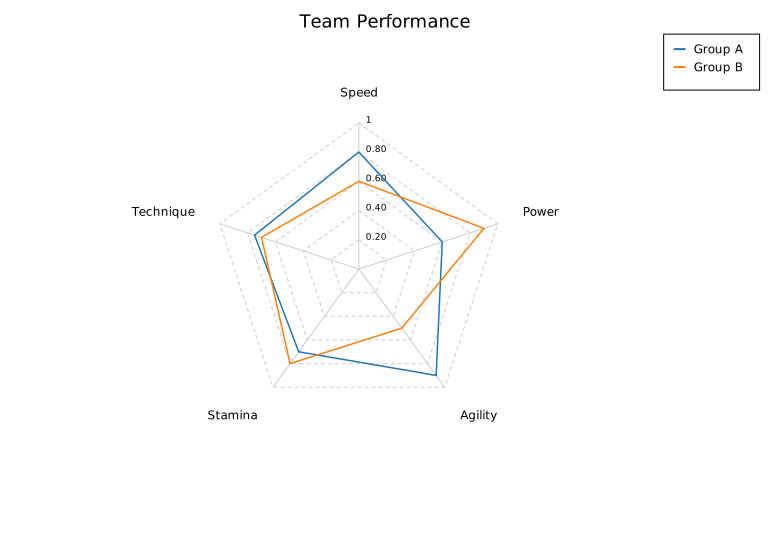
Filled polygons
.with_filled(true) shades each series polygon with a semi-transparent fill. Adjust transparency with .with_opacity().
#![allow(unused)] fn main() { use kuva::plot::radar::RadarPlot; use kuva::render::plots::Plot; use kuva::render::layout::Layout; use kuva::render::render::render_multiple; use kuva::backend::svg::SvgBackend; let plot = RadarPlot::new(["Attack", "Defense", "Speed", "Magic", "Stamina"]) .with_series_labeled([9.0, 5.0, 7.0, 3.0, 8.0], "Warrior") .with_series_labeled([4.0, 7.0, 6.0, 9.0, 5.0], "Mage") .with_series_labeled([6.0, 4.0, 10.0, 5.0, 6.0], "Rogue") .with_filled(true) .with_opacity(0.25) .with_range(0.0, 10.0) .with_legend(true); let plots = vec![Plot::Radar(plot)]; let layout = Layout::auto_from_plots(&plots).with_title("Character Stats"); let svg = SvgBackend.render_scene(&render_multiple(plots, layout)); }

Normalised axes
When axes have different units or scales, use .with_normalize(true) to map each axis independently to [0, 1]. Grid ring labels become percentages.
#![allow(unused)] fn main() { use kuva::plot::radar::RadarPlot; use kuva::render::plots::Plot; use kuva::render::layout::Layout; use kuva::render::render::render_multiple; // Axes in different units: km/h, kg, %, %, m let plot = RadarPlot::new(["Top Speed", "Weight", "Win Rate", "Accuracy", "Jump Height"]) .with_series_labeled([230.0, 85.0, 0.62, 0.78, 1.20], "Athlete A") .with_series_labeled([195.0, 72.0, 0.55, 0.91, 1.45], "Athlete B") .with_normalize(true) .with_filled(true) .with_legend(true); let plots = vec![Plot::Radar(plot)]; }
Per-axis error bands
Attach ±error values to a series with .with_series_errors(), called immediately after adding the series. A shaded band is drawn between value − error and value + error on each axis.
#![allow(unused)] fn main() { use kuva::plot::radar::RadarPlot; use kuva::render::plots::Plot; use kuva::render::layout::Layout; use kuva::render::render::render_multiple; let plot = RadarPlot::new(["Recall", "Precision", "F1", "AUC", "Speed"]) .with_series_labeled([0.82, 0.75, 0.78, 0.89, 0.70], "Model A") .with_series_errors([0.04, 0.06, 0.05, 0.03, 0.08]) .with_series_labeled([0.70, 0.88, 0.78, 0.84, 0.90], "Model B") .with_series_errors([0.05, 0.04, 0.04, 0.04, 0.06]) .with_range(0.0, 1.0) .with_legend(true); let plots = vec![Plot::Radar(plot)]; }
Reference overlay
.with_reference() adds a dashed grey polygon — useful for showing a target, average, or population norm that series should be compared against.
#![allow(unused)] fn main() { use kuva::plot::radar::RadarPlot; use kuva::render::plots::Plot; use kuva::render::layout::Layout; use kuva::render::render::render_multiple; let plot = RadarPlot::new(["Endurance", "Strength", "Flexibility", "Balance", "Power"]) .with_series_labeled([7.0, 8.0, 5.0, 6.0, 9.0], "Athlete") .with_reference([6.0, 6.0, 6.0, 6.0, 6.0], "Population avg") .with_range(0.0, 10.0) .with_filled(true) .with_dot_size(4.0) .with_legend(true); let plots = vec![Plot::Radar(plot)]; }
Circular grid
By default grid rings are polygons. Use .with_circular_grid(true) for a more traditional spider-chart appearance.
#![allow(unused)] fn main() { use kuva::plot::radar::RadarPlot; use kuva::render::plots::Plot; use kuva::render::layout::Layout; use kuva::render::render::render_multiple; let plot = RadarPlot::new(["N", "NE", "E", "SE", "S", "SW", "W", "NW"]) .with_series_labeled([8.0, 3.0, 6.0, 9.0, 5.0, 2.0, 7.0, 4.0], "Signal strength") .with_circular_grid(true) .with_range(0.0, 10.0) .with_filled(true); let plots = vec![Plot::Radar(plot)]; }
RadarPlot API reference
RadarPlot builders
| Method | Default | Description |
|---|---|---|
RadarPlot::new(axes) | — | Create a plot; axes are names rendered clockwise from top |
.with_series(values) | — | Add an unlabelled series |
.with_series_labeled(values, label) | — | Add a labelled series |
.with_series_color(values, label, color) | — | Add a labelled series with an explicit color |
.with_series_errors(errors) | — | Attach per-axis ±errors to the most recently added series |
.with_series_dasharray(s) | — | Set SVG stroke-dasharray on the most recently added series |
.with_reference(values, label) | — | Add a dashed reference polygon |
.with_reference_color(values, label, color) | — | Add a dashed reference polygon with explicit color |
.with_filled(bool) | false | Fill polygons with a semi-transparent color |
.with_opacity(f) | 0.25 | Fill opacity (used when filled is true) |
.with_range(min, max) | auto | Shared value range for all axes |
.with_axis_range(i, min, max) | — | Override value range for axis i |
.with_normalize(bool) | false | Normalise each axis to [0, 1] independently |
.with_inverted_axis(i) | — | Invert axis i (high values plot near the centre) |
.with_inverted_axes(iter) | — | Invert multiple axes |
.with_grid_lines(n) | 5 | Number of concentric grid rings |
.with_grid(bool) | true | Show grid rings and radial axis lines |
.with_circular_grid(bool) | false | Draw grid rings as circles instead of polygons |
.with_dot_size(px) | — | Draw filled dots at polygon vertices |
.with_stroke_width(px) | 1.5 | Series polygon stroke width |
.with_vertex_labels(bool) | false | Show data value at each polygon vertex |
.with_start_angle(deg) | -90 | Angle of axis 0 in degrees (clockwise from north) |
.with_start_axis(k) | — | Place axis k at the top (north) position |
.with_axis_ticks(bool) | false | Tick marks on each axis at grid ring intersections |
.with_legend(bool) | false | Show a legend box |
See also: Parallel Coordinates for more than a handful of dimensions, Polar Plot for continuous (non-spoke) polar data.
CLI
Render a radar / spider chart from a tabular file. Each row becomes one series polygon; multiple rows can be grouped by a column to compute per-group means.
Input format
Tab- or comma-separated file with one numeric column per axis. Use --axes to select which columns to use.
label speed power agility stamina technique
Warrior 8 9 5 8 6
Mage 4 6 6 5 10
Rogue 7 5 10 6 7
Basic examples
# Each row is one polygon; label column for legend entries
kuva radar data.tsv --axes speed power agility stamina technique \
--label-col label --legend -o radar.svg
# Group rows by a column; polygon = mean per group
kuva radar data.tsv --axes x1 x2 x3 x4 \
--color-by species --legend -o groups.svg
# Filled polygons with shared scale
kuva radar data.tsv --axes a b c d e \
--filled --min 0 --max 10 \
--title "Performance Profile" -o radar_filled.svg
# Normalized axes (each axis scaled to [0,1] independently)
kuva radar data.tsv --axes var1 var2 var3 var4 \
--normalize --dot-size 4 -o radar_norm.svg
All flags
Data selection
| Flag | Description |
|---|---|
--axes <COLS...> | Axis columns (names or 0-based indices); at least 3 required |
--label-col <COL> | Column of series labels (one label per row) |
--color-by <COL> | Group rows by this column; one polygon per group (mean values) |
Chart style
| Flag | Default | Description |
|---|---|---|
--filled | — | Fill each polygon with a semi-transparent color |
--opacity <F> | 0.25 | Fill opacity (used with --filled) |
--min <F> | 0 | Shared axis minimum value |
--max <F> | data max | Shared axis maximum value |
--grid-lines <N> | 5 | Number of concentric grid rings |
--normalize | — | Normalise each axis independently to [0, 1] |
--dot-size <PX> | — | Draw dots at polygon vertices |
--legend | — | Show a legend |
See also: Shared flags — output, appearance, axes.
Nightingale Rose Chart
A Nightingale rose (coxcomb chart) is a polar bar chart where each sector's area or radius is proportional to its data value. It was famously used by Florence Nightingale to visualise causes of soldier mortality.
Basic usage
#![allow(unused)] fn main() { use kuva::plot::rose::RosePlot; use kuva::render::{plots::Plot, layout::Layout, render::render_rose}; use kuva::backend::svg::SvgBackend; let plot = RosePlot::new() .with_slice("Jan", 30.0) .with_slice("Feb", 20.0) .with_slice("Mar", 45.0) .with_slice("Apr", 38.0); let svg = SvgBackend.render_scene(&render_rose(plot, Layout::default())); std::fs::write("rose.svg", svg).unwrap(); }
Or bulk-add slices:
#![allow(unused)] fn main() { use kuva::plot::rose::RosePlot; let plot = RosePlot::new().with_slices([ ("Jan", 30.0), ("Feb", 20.0), ("Mar", 45.0), ("Apr", 38.0), ]); }
Auto-binning bearing data
Pass raw compass bearings (0–360°) and a bin count:
#![allow(unused)] fn main() { use kuva::plot::rose::RosePlot; let bearings = vec![10.0, 45.0, 90.0, 135.0, 180.0, 225.0, 270.0, 315.0, 355.0]; let plot = RosePlot::new() .with_bearing_data(bearings, 8) // 8 compass octants .with_compass_labels(); // N, NE, E, SE, ... }
Stacked mode
Multiple series stacked within each sector:
#![allow(unused)] fn main() { use kuva::plot::rose::RosePlot; let plot = RosePlot::new() .with_x_labels(["Jan","Feb","Mar","Apr","May","Jun","Jul","Aug","Sep","Oct","Nov","Dec"]) .with_stack("Preventable", vec![12.0, 11.0, 14.0, 10.0, 9.0, 7.0, 6.0, 5.0, 8.0, 10.0, 13.0, 15.0]) .with_stack("Wounds", vec![ 3.0, 4.0, 2.0, 3.0, 2.0, 2.0, 1.0, 1.0, 2.0, 3.0, 3.0, 4.0]) .with_legend("Cause of death"); }
Grouped mode
Each series occupies its own sub-wedge within each sector:
#![allow(unused)] fn main() { use kuva::plot::rose::{RosePlot, RoseMode}; let plot = RosePlot::new() .with_mode(RoseMode::Grouped) .with_x_labels(["Q1", "Q2", "Q3", "Q4"]) .with_group("Product A", vec![20.0, 35.0, 25.0, 40.0]) .with_group("Product B", vec![15.0, 22.0, 30.0, 28.0]) .with_legend("Sales"); }
Encoding modes
| Mode | Formula | Use case |
|---|---|---|
Area (default) | r = sqrt(base² + frac*(max²-base²)) | Perceptually accurate — areas proportional to values |
Radius | r = base + frac*(max_r-base) | Radius proportional to values (overestimates large sectors) |
#![allow(unused)] fn main() { use kuva::plot::rose::{RosePlot, RoseEncoding}; let plot = RosePlot::new() .with_encoding(RoseEncoding::Radius) .with_slices([("A", 10.0), ("B", 30.0), ("C", 60.0)]); }
Compass labels
Replace numeric labels with cardinal/intercardinal directions:
#![allow(unused)] fn main() { use kuva::plot::rose::{RosePlot, compass_labels_for_n}; // Automatic from sector count (works for 4, 8, 16 sectors) let plot = RosePlot::new() .with_bearing_data(some_bearings, 8) .with_compass_labels(); // Or set manually let labels = compass_labels_for_n(4); // ["N", "E", "S", "W"] }
Inner radius / donut
#![allow(unused)] fn main() { use kuva::plot::rose::RosePlot; let plot = RosePlot::new() .with_inner_radius(0.3) // 30% of max_r is hollow .with_slices([("A", 40.0), ("B", 60.0), ("C", 30.0)]); }
Builder reference
| Method | Default | Description |
|---|---|---|
with_slice(label, value) | — | Add one sector to the default series |
with_slices(iter) | — | Add multiple (label, value) sectors |
with_x_labels(iter) | — | Set all sector labels at once |
with_stack(name, values) | — | Add a stacked series; sets mode=Stacked |
with_group(name, values) | — | Add a grouped series; sets mode=Grouped |
with_bearing_data(iter, n) | — | Bin raw bearings into n sectors |
with_compass_labels() | — | Replace labels with compass directions |
with_encoding(enc) | Area | RoseEncoding::Area or Radius |
with_mode(mode) | Stacked | RoseMode::Stacked or Grouped |
with_start_angle(deg) | 0.0 | Degrees clockwise from north for sector 0 |
with_clockwise(bool) | true | Direction sectors are laid out |
with_inner_radius(f) | 0.0 | Donut hole fraction (0–0.95) |
with_gap(deg) | 1.0 | Angular gap between sectors in degrees |
with_grid(bool) | true | Concentric grid rings |
with_grid_lines(n) | 4 | Number of grid rings |
with_spokes(bool) | true | Radial spoke lines |
with_show_labels(bool) | true | Sector labels around the perimeter |
with_show_values(bool) | false | Value labels at sector tips |
with_legend(label) | None | Enable legend |
See also: Polar Plot for continuous polar scatter/line data, Bar Chart for the Cartesian equivalent.
CLI
Render a Nightingale rose (coxcomb) chart from a tabular file.
Input format
Tab- or comma-separated file with at least two columns: a label column and a value column.
direction count
N 25
NE 18
E 12
SE 8
S 10
SW 14
W 20
NW 22
For multi-series mode, add a group column and use --group-by:
direction speed_class count
N low 15
N high 8
NE low 22
NE high 12
Basic examples
# Single-series rose chart
kuva rose data.tsv --label direction --value count -o rose.svg
# Wind rose from provided example data (stacked low/high speed)
kuva rose examples/data/rose.tsv --label direction \
--group-by direction --mode stacked -o wind_rose.svg
# With compass direction labels
kuva rose bearings.tsv --value bearing --compass -o compass_rose.svg
# Donut (inner hole)
kuva rose data.tsv --inner-radius 0.3 -o donut_rose.svg
All flags
Data selection
| Flag | Description |
|---|---|
--label <COL> | Label column (name or 0-based index; default: 0) |
--value <COL> | Value column (name or 0-based index; default: 1) |
--group-by <COL> | Group/series column for multi-series mode |
Chart style
| Flag | Default | Description |
|---|---|---|
--mode <MODE> | stacked | Multi-series layout: stacked or grouped |
--encoding <ENC> | area | Radius encoding: area (accurate) or radius |
--inner-radius <F> | 0 | Fraction 0–1; creates a donut hole |
--gap <DEG> | 1 | Angular gap between sectors (degrees) |
--start-angle <DEG> | 0 | Start angle clockwise from north |
--no-clockwise | — | Lay out sectors counterclockwise |
--no-grid | — | Hide concentric grid rings |
--grid-lines <N> | 4 | Number of concentric grid rings |
--no-labels | — | Hide sector labels around the perimeter |
--show-values | — | Show value labels at the tip of each sector |
--compass | — | Replace labels with compass directions (N, NE, E, …) |
--legend <LABEL> | — | Show legend (for multi-series plots) |
Multi-series example
kuva rose examples/data/rose.tsv \
--label direction \
--value low_speed \
--group-by direction \
--legend "Wind speed" \
--mode stacked \
--title "Wind Rose" \
-o wind_rose.svg
See also: Shared flags — output, appearance, axes.
Stacked Area Plot
A stacked area chart places multiple series on top of each other so the reader can see both the individual contribution of each series and the combined total at any x position. It is well suited for showing how a whole is composed of parts over a continuous axis — typically time.
Import path: kuva::plot::StackedAreaPlot
Basic usage
Set the x values with .with_x(), then add series one at a time with .with_series(). Call .with_color() and .with_legend() immediately after each series to configure it — these methods always operate on the most recently added series.
#![allow(unused)] fn main() { use kuva::plot::StackedAreaPlot; use kuva::backend::svg::SvgBackend; use kuva::render::render::render_multiple; use kuva::render::layout::Layout; use kuva::render::plots::Plot; let months: Vec<f64> = (1..=12).map(|m| m as f64).collect(); let sa = StackedAreaPlot::new() .with_x(months) .with_series([420.0, 445.0, 398.0, 510.0, 488.0, 501.0, 467.0, 523.0, 495.0, 540.0, 518.0, 555.0]) .with_color("steelblue").with_legend("SNVs") .with_series([ 95.0, 102.0, 88.0, 115.0, 108.0, 112.0, 98.0, 125.0, 118.0, 130.0, 122.0, 140.0]) .with_color("orange").with_legend("Indels") .with_series([ 22.0, 25.0, 20.0, 28.0, 26.0, 27.0, 24.0, 31.0, 28.0, 33.0, 30.0, 35.0]) .with_color("mediumseagreen").with_legend("SVs") .with_series([ 15.0, 17.0, 14.0, 19.0, 18.0, 18.0, 16.0, 21.0, 19.0, 23.0, 21.0, 24.0]) .with_color("tomato").with_legend("CNVs"); let plots = vec![Plot::StackedArea(sa)]; let layout = Layout::auto_from_plots(&plots) .with_title("Monthly Variant Counts by Type") .with_x_label("Month") .with_y_label("Variant count"); let svg = SvgBackend.render_scene(&render_multiple(plots, layout)); std::fs::write("stacked_area.svg", svg).unwrap(); }
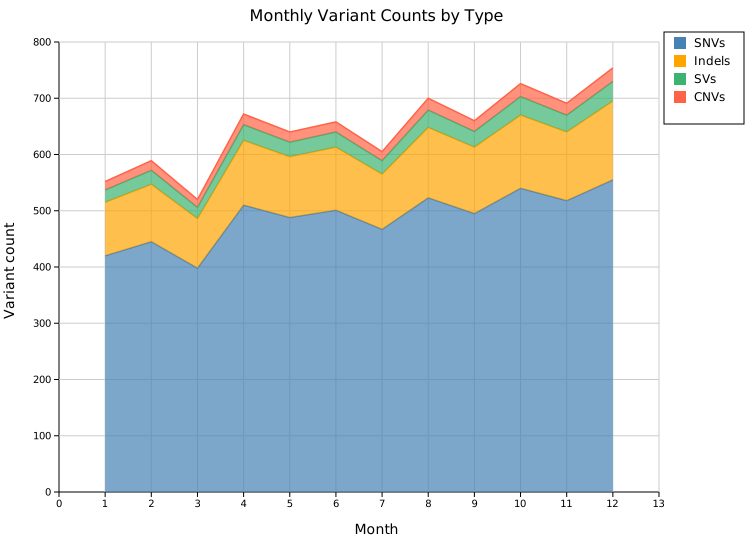
Four variant types are stacked so the total height of each column shows the aggregate monthly count while the coloured bands show how much each type contributes. The growing trend in SNVs lifts all upper bands over time.
Normalized (100 % stacking)
.with_normalized() rescales each column so all series sum to 100 %, shifting the y-axis to span 0–100 %. Use this when you want to emphasise proportional composition rather than absolute magnitude.
#![allow(unused)] fn main() { use kuva::plot::StackedAreaPlot; let sa = StackedAreaPlot::new() .with_x(months) // ... add series ... .with_normalized(); }

The relative dominance of SNVs (~77 %) is immediately clear and the slight month-to-month shifts in variant-type mix become visible — information that was hidden in the absolute chart by the large SNV counts.
Stroke lines
By default a stroke is drawn along the top edge of each band. .with_strokes(false) removes all outlines for a softer, flat appearance — useful when the colors provide enough contrast.
#![allow(unused)] fn main() { use kuva::plot::StackedAreaPlot; let sa = StackedAreaPlot::new() .with_x(months) // ... add series ... .with_strokes(false); }
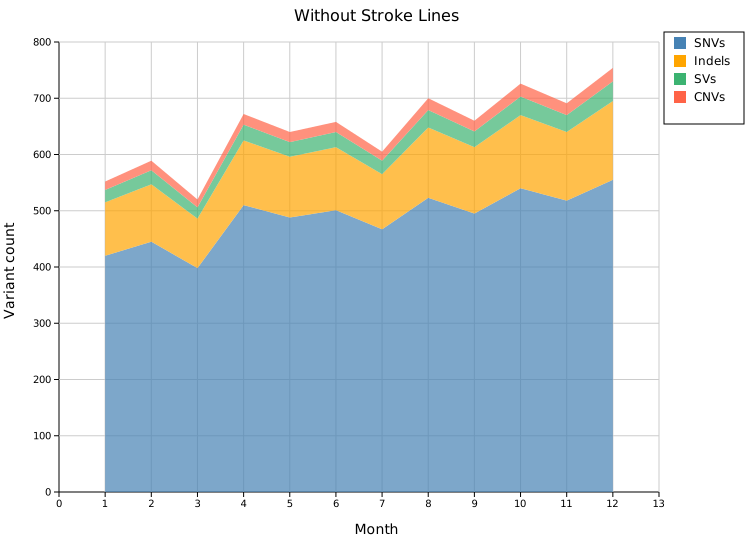
Legend position
.with_legend_position(pos) accepts any LegendPosition variant. The most useful choices for stacked-area plots:
| Variant | Description |
|---|---|
OutsideRightTop | Right margin, top-aligned (default) |
InsideTopRight | Overlay — upper-right of the data area |
InsideTopLeft | Overlay — upper-left of the data area |
InsideBottomRight | Overlay — lower-right of the data area |
InsideBottomLeft | Overlay — lower-left of the data area |
#![allow(unused)] fn main() { use kuva::plot::{StackedAreaPlot, LegendPosition}; let sa = StackedAreaPlot::new() .with_x(months) // ... add series ... .with_legend_position(LegendPosition::InsideBottomLeft); }
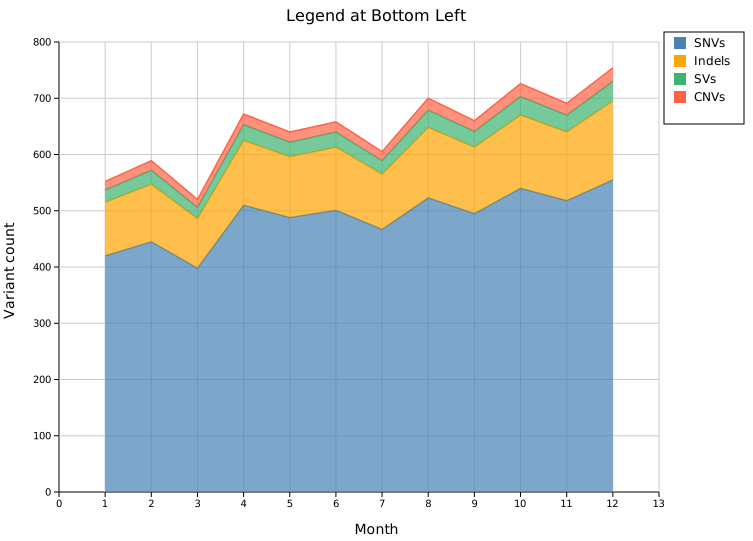
Styling
Fill opacity
.with_fill_opacity(f) sets the transparency of every band (default 0.7, range 0.0–1.0). Lower values let background grid lines show through; 1.0 gives fully opaque fills.
Stroke width
.with_stroke_width(px) sets the thickness of the top-edge strokes (default 1.5). Has no effect when .with_strokes(false) is set.
#![allow(unused)] fn main() { use kuva::plot::StackedAreaPlot; let sa = StackedAreaPlot::new() .with_x(months) // ... add series ... .with_fill_opacity(0.9) // nearly opaque bands .with_stroke_width(2.5); // thicker border lines }
Colors
If no color is set for a series the built-in fallback palette is used (cycling when there are more than eight series):
steelblue, orange, green, red, purple, brown, pink, gray
Set an explicit color by calling .with_color() immediately after .with_series():
#![allow(unused)] fn main() { use kuva::plot::StackedAreaPlot; let sa = StackedAreaPlot::new() .with_x([1.0, 2.0, 3.0]) .with_series([10.0, 20.0, 15.0]).with_color("#2c7bb6").with_legend("Group A") .with_series([ 5.0, 8.0, 6.0]).with_color("#d7191c").with_legend("Group B"); }
API reference
| Method | Description |
|---|---|
StackedAreaPlot::new() | Create a plot with defaults |
.with_x(iter) | Set shared x-axis values |
.with_series(iter) | Append a new y series |
.with_color(s) | Fill color of the most recently added series |
.with_legend(s) | Legend label of the most recently added series |
.with_fill_opacity(f) | Band transparency — 0.0 to 1.0 (default 0.7) |
.with_stroke_width(px) | Top-edge stroke thickness (default 1.5) |
.with_strokes(bool) | Show/hide top-edge strokes (default true) |
.with_normalized() | Enable 100 % percent-stacking |
.with_legend_position(pos) | Any LegendPosition variant (default OutsideRightTop) |
See also: Streamgraph for a zero-centered alternative, Waterfall Chart for running-total (non-stacked) data.
CLI
Stacked area chart in long format.
Input: three columns — x value, group label, y value — one observation per row. Rows are grouped by the group column; within each group the x/y pairs are collected in order.
| Flag | Default | Description |
|---|---|---|
--x-col <COL> | 0 | X-axis column |
--group-col <COL> | 1 | Series group column |
--y-col <COL> | 2 | Y-axis column |
--normalize | off | Normalize each x-position to 100 % |
--fill-opacity <F> | 0.7 | Fill opacity for each band |
kuva stacked-area stacked_area.tsv \
--x-col week --group-col species --y-col abundance
kuva stacked-area stacked_area.tsv \
--x-col week --group-col species --y-col abundance \
--normalize --y-label "Relative abundance (%)"
See also: Shared flags — output, appearance, axes, log scale.
Streamgraph
A streamgraph is a flowing stacked area chart with a displaced baseline. Instead of stacking series from y = 0, the baseline is shifted so the total shape undulates organically around a central axis. This makes it significantly easier to read when there are many overlapping series — the eye can track individual bands as they widen and narrow over time.
Import path: kuva::plot::StreamgraphPlot
Wiggle baseline (default)
The Byron & Wattenberg (2008) wiggle algorithm positions the baseline to minimise the sum of squared slopes across all layer boundaries, keeping the silhouette as flat as possible. This is the canonical "streamgraph" look.
#![allow(unused)] fn main() { use kuva::plot::StreamgraphPlot; use kuva::backend::svg::SvgBackend; use kuva::render::render::render_multiple; use kuva::render::layout::Layout; use kuva::render::plots::Plot; use kuva::render::palette::Palette; let pal = Palette::category10(); let weeks: Vec<f64> = (1..=52).map(|w| w as f64).collect(); let sg = StreamgraphPlot::new() .with_x(weeks) .with_series(firmicutes).with_color(pal[0].to_string()).with_label("Firmicutes") .with_series(bacteroidetes).with_color(pal[1].to_string()).with_label("Bacteroidetes") // … more series … ; let plots = vec![Plot::Streamgraph(sg)]; let layout = Layout::auto_from_plots(&plots) .with_title("Gut microbiome — wiggle baseline") .with_x_label("Week"); let svg = SvgBackend.render_scene(&render_multiple(plots, layout)); }
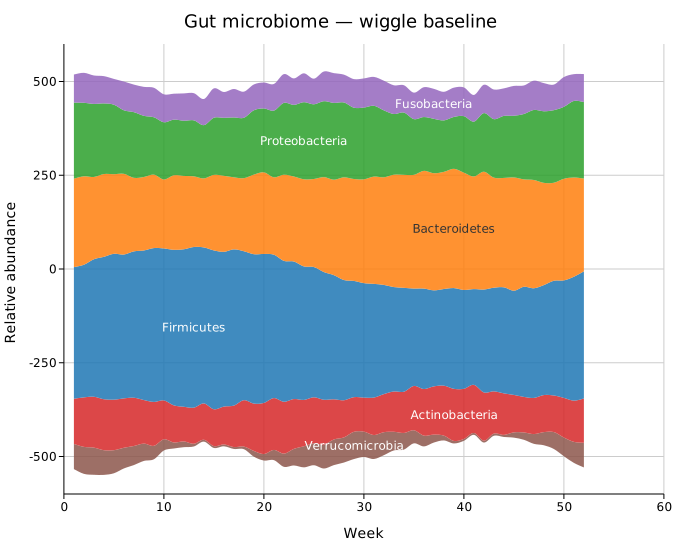
Symmetric baseline (ThemeRiver)
.with_baseline(StreamBaseline::Symmetric) centres the total stack symmetrically around y = 0 at every x. The silhouette mirrors above and below the axis, giving a clear "river" aesthetic.
#![allow(unused)] fn main() { use kuva::plot::StreamgraphPlot; use kuva::render::plots::Plot; use kuva::plot::streamgraph::StreamBaseline; let sg = StreamgraphPlot::new() /* … data … */ .with_baseline(StreamBaseline::Symmetric); }
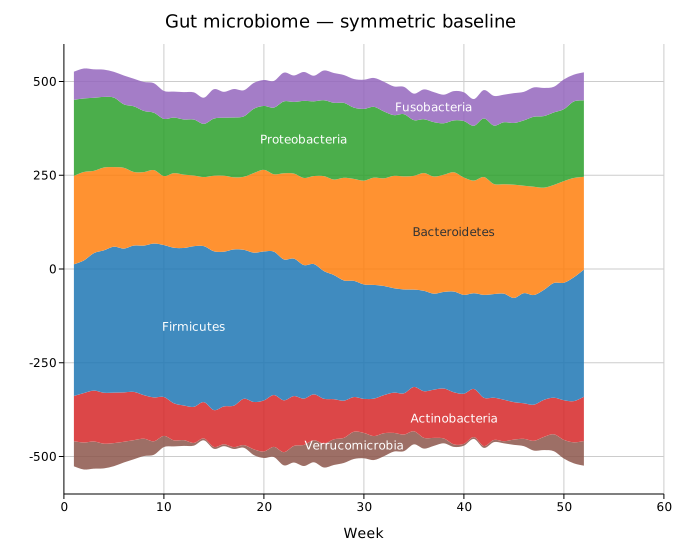
Zero baseline
.with_baseline(StreamBaseline::Zero) stacks from y = 0 — this is equivalent to a regular stacked area chart but with Catmull-Rom smooth curves.
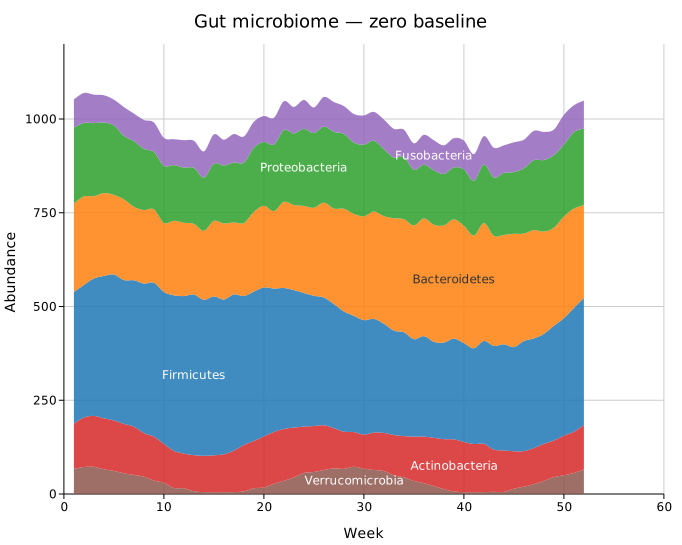
100 % normalised
.with_normalized() rescales each column to sum to 100 %, revealing proportional composition rather than absolute magnitude. Combines well with .with_legend("") since the y-axis no longer has meaningful units.
#![allow(unused)] fn main() { use kuva::plot::StreamgraphPlot; use kuva::render::plots::Plot; let sg = StreamgraphPlot::new() /* … data … */ .with_normalized() .with_legend(""); }
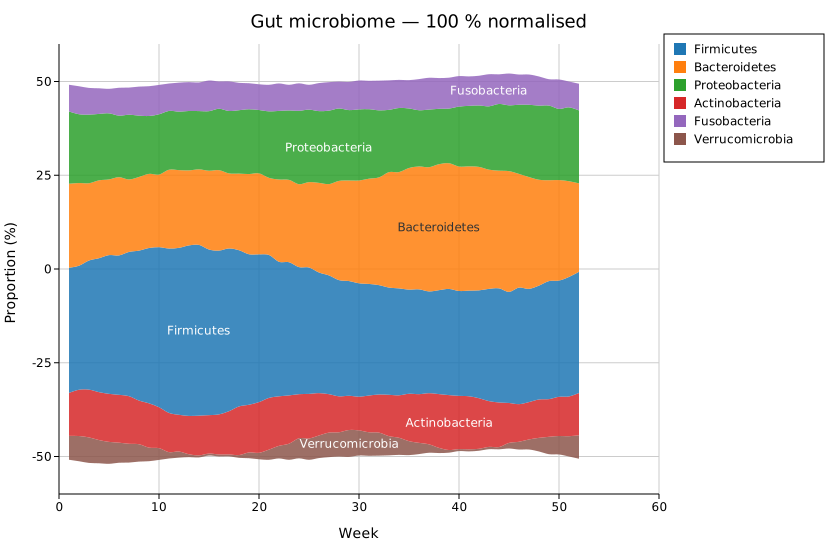
Layer ordering
Three orderings control which series ends up in the centre vs at the edges:
| Method | Effect |
|---|---|
.with_order(StreamOrder::InsideOut) | Default. Widest streams near the centre, alternating outward. Best visual balance. |
.with_order(StreamOrder::ByTotal) | Sort by total area descending; largest at the bottom. |
.with_order(StreamOrder::Original) | Preserve the order series were added. |
#![allow(unused)] fn main() { use kuva::plot::StreamgraphPlot; use kuva::render::plots::Plot; use kuva::plot::streamgraph::StreamOrder; let sg = StreamgraphPlot::new() /* … data … */ .with_order(StreamOrder::ByTotal) .with_legend("Phylum"); }

Inter-stream strokes
.with_stroke() draws a thin white line along the upper edge of each band, improving legibility when adjacent streams have similar hues.
#![allow(unused)] fn main() { use kuva::plot::StreamgraphPlot; use kuva::render::plots::Plot; let sg = StreamgraphPlot::new() /* … data … */ .with_stroke() .with_stream_labels(false) // strokes + legend instead of inline labels .with_legend(""); }
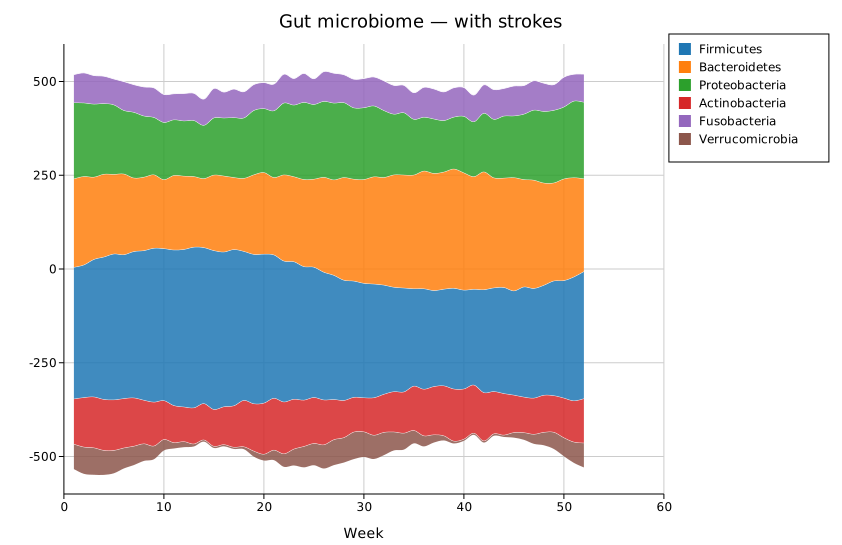
Linear interpolation
.with_linear() disables Catmull-Rom smoothing and uses straight line segments. This gives the familiar angular stacked-area look, useful when the x values are very closely spaced or when sharp transitions should be preserved.
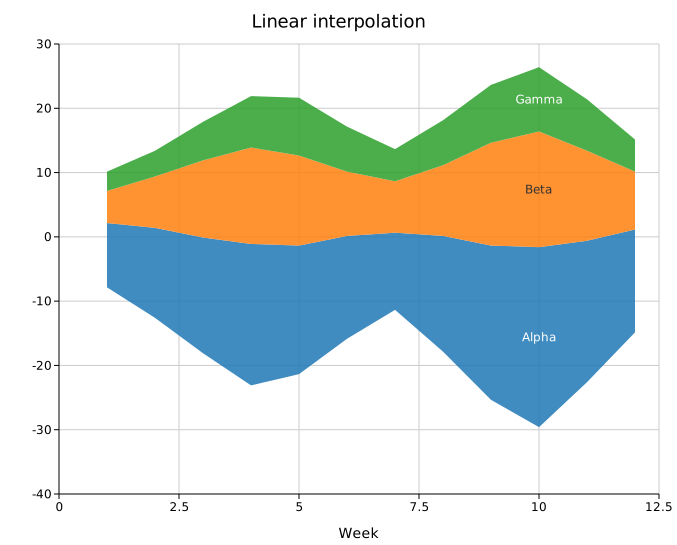
Builder reference
| Method | Default | Description |
|---|---|---|
.with_x(iter) | — | Shared x values for all series |
.with_series(iter) | — | Append a series; chain .with_color() and .with_label() |
.with_color(css) | palette | Fill color of the most recently added series |
.with_label(str) | — | Inline label of the most recently added series |
.with_baseline(b) | Wiggle | Wiggle, Symmetric, Zero |
.with_order(o) | InsideOut | InsideOut, ByTotal, Original |
.with_linear() | — | Disable Catmull-Rom splines (use straight segments) |
.with_fill_opacity(f) | 0.85 | Fill opacity (0–1) |
.with_stroke() | off | Draw white separator strokes between streams |
.with_stroke_width(f) | 0.8 | Width of separator strokes |
.with_stream_labels(bool) | true | Show/hide inline stream labels |
.with_min_label_height(f) | 14.0 | Minimum band height (px) before label is drawn |
.with_normalized() | off | 100 % column normalisation |
.with_legend(title) | — | Enable legend box; "" for no title |
.with_legend_position(pos) | OutsideRightTop | Legend placement |
See also: Stacked Area Plot for the zero-baselined version, Horizon Chart for many series in less vertical space.
CLI
# Default wiggle streamgraph
kuva streamgraph data.tsv --title "My streamgraph"
# Symmetric baseline, normalised
kuva streamgraph data.tsv --baseline symmetric --normalize
# Linear segments with strokes
kuva streamgraph data.tsv --linear --stroke --no-labels
# Custom columns
kuva streamgraph data.tsv --x-col week --group-col phylum --y-col abundance
CLI flags
| Flag | Default | Description |
|---|---|---|
--x-col <COL> | 0 | X-axis column |
--group-col <COL> | 1 | Group/category column |
--y-col <COL> | 2 | Value column |
--baseline <S> | wiggle | wiggle, symmetric, zero |
--order <S> | inside-out | inside-out, by-total, original |
--linear | off | Use straight line segments |
--normalize | off | 100 % normalisation |
--stroke | off | White inter-stream strokes |
--no-labels | — | Hide inline labels |
--min-label-height <F> | 14.0 | Minimum band height for labels |
--fill-opacity <F> | 0.85 | Fill opacity |
See also: Shared flags — output, appearance, axes.
Candlestick Plot
A candlestick chart visualises OHLC (open, high, low, close) data. Each candle encodes four values for a single period:
- The body spans from open to close. Green = close above open (bullish); red = close below open (bearish); gray = close equals open (doji).
- The wicks extend from the body to the period high (upper wick) and low (lower wick).
An optional volume panel shows trading volume as bars below the price chart.
Import path: kuva::plot::CandlestickPlot
Basic usage
Add candles one at a time with .with_candle(label, open, high, low, close). Labels are placed on the x-axis as category ticks and candles are spaced evenly.
#![allow(unused)] fn main() { use kuva::plot::CandlestickPlot; use kuva::backend::svg::SvgBackend; use kuva::render::render::render_multiple; use kuva::render::layout::Layout; use kuva::render::plots::Plot; let plot = CandlestickPlot::new() .with_candle("Nov 01", 142.50, 146.20, 141.80, 145.30) // bullish .with_candle("Nov 02", 145.40, 147.80, 143.50, 144.10) // bearish .with_candle("Nov 03", 144.10, 144.90, 142.20, 144.10) // doji .with_candle("Nov 04", 143.80, 148.50, 143.20, 147.90) // bullish .with_candle("Nov 05", 147.90, 150.20, 146.30, 149.80); // bullish let plots = vec![Plot::Candlestick(plot)]; let layout = Layout::auto_from_plots(&plots) .with_title("Daily OHLC — November") .with_x_label("Date") .with_y_label("Price (USD)"); let svg = SvgBackend.render_scene(&render_multiple(plots, layout)); std::fs::write("candlestick.svg", svg).unwrap(); }
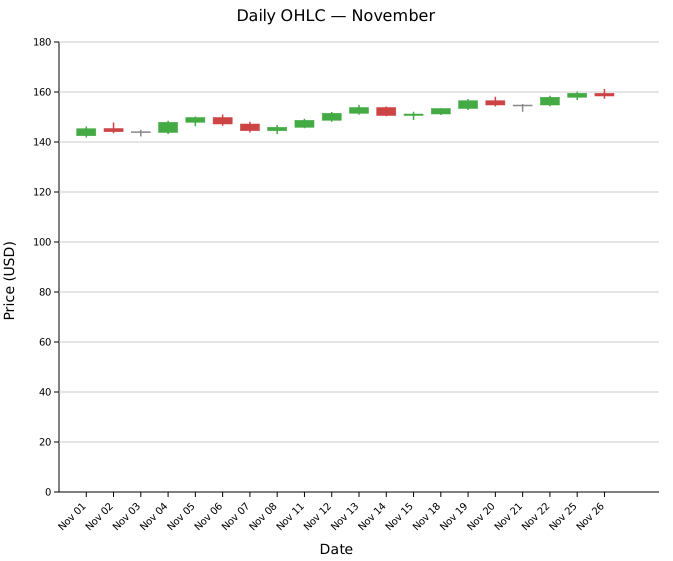
Twenty trading days showing the full mix of bullish, bearish, and doji candles. The overall upward trend is visible from the rising body positions — two doji sessions (Nov 03 and Nov 21) mark brief pauses in the move.
Volume panel
Attach volume data with .with_volume(iter) then call .with_volume_panel() to render a bar sub-panel below the price chart. Volume bars are colored to match their candle (green for up days, red for down days).
#![allow(unused)] fn main() { use kuva::plot::CandlestickPlot; let plot = CandlestickPlot::new() .with_candle("Nov 01", 142.50, 146.20, 141.80, 145.30) .with_candle("Nov 02", 145.40, 147.80, 143.50, 144.10) // ... more candles ... .with_volume([1_250_000.0, 980_000.0 /*, ... */]) .with_volume_panel(); }

The volume panel occupies the bottom 22 % of the chart area by default. Adjust with .with_volume_ratio(f) — for example .with_volume_ratio(0.30) gives the panel 30 % of the height.
Custom colors
Replace the default green/red/gray with any CSS color string using .with_color_up(), .with_color_down(), and .with_color_doji().
#![allow(unused)] fn main() { use kuva::plot::CandlestickPlot; let plot = CandlestickPlot::new() .with_color_up("#00c896") // teal green .with_color_down("#ff4560") // bright red .with_color_doji("#aaaaaa") // light gray .with_candle("Mon", 100.0, 105.8, 99.2, 104.5) .with_candle("Tue", 104.5, 106.2, 103.1, 103.4) // ... ; }
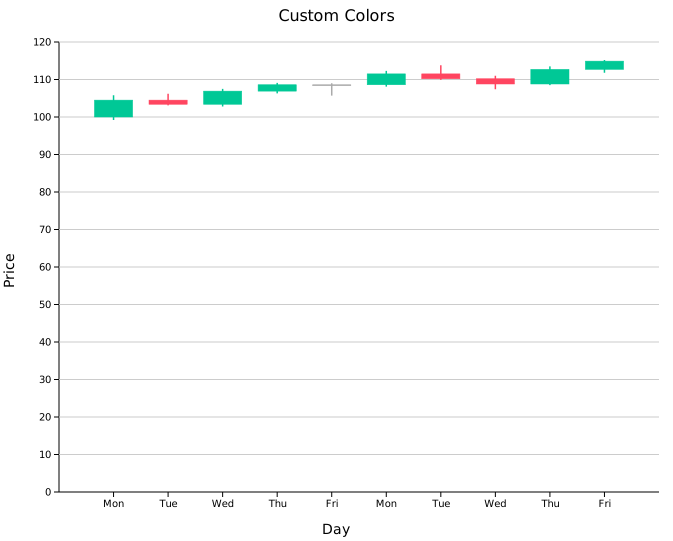
Numeric x-axis
.with_candle_at(x, label, open, high, low, close) places a candle at an explicit numeric x position, enabling uneven spacing and a true numeric axis. This is useful for quarterly, monthly, or any irregularly spaced data.
When using this mode, set .with_candle_width(w) to a value in data units smaller than the spacing between candles (e.g. 0.15 for quarterly data spaced 0.25 apart).
#![allow(unused)] fn main() { use kuva::plot::CandlestickPlot; let plot = CandlestickPlot::new() // x = fractional year; candles spaced 0.25 apart .with_candle_at(2023.00, "Q1'23", 110.5, 118.0, 110.0, 116.8) .with_candle_at(2023.25, "Q2'23", 116.8, 122.0, 115.5, 121.0) .with_candle_at(2023.50, "Q3'23", 121.0, 125.5, 119.0, 120.2) .with_candle_at(2023.75, "Q4'23", 120.2, 128.0, 119.8, 127.0) .with_candle_width(0.15); }
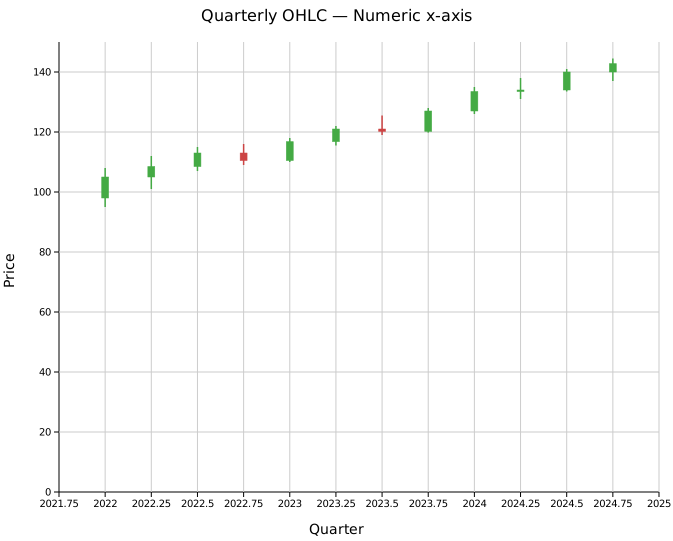
Twelve quarters (2022 Q1 – 2024 Q4) on a continuous fractional-year axis. The x-axis tick marks are placed at round numeric values rather than category slots.
Legend
.with_legend(label) adds a legend box inside the plot area identifying the series.
#![allow(unused)] fn main() { use kuva::plot::CandlestickPlot; let plot = CandlestickPlot::new() .with_candle("Jan", 100.0, 108.0, 98.0, 106.0) .with_candle("Feb", 106.0, 112.0, 104.0, 110.5) .with_legend("ACME Corp"); }
Sizing
| Method | Default | Description |
|---|---|---|
.with_candle_width(f) | 0.7 | Body width as fraction of slot (categorical) or in data units (numeric) |
.with_wick_width(px) | 1.5 | Wick stroke width in pixels |
.with_volume_ratio(f) | 0.22 | Fraction of chart height used by the volume panel |
API reference
| Method | Description |
|---|---|
CandlestickPlot::new() | Create a plot with defaults |
.with_candle(label, o, h, l, c) | Append a candle at the next categorical position |
.with_candle_at(x, label, o, h, l, c) | Append a candle at an explicit numeric x position |
.with_volume(iter) | Attach volume values to existing candles (in order) |
.with_volume_panel() | Enable the volume bar sub-panel |
.with_volume_ratio(f) | Panel height as fraction of total chart (default 0.22) |
.with_candle_width(f) | Body width — fraction of slot or data units (default 0.7) |
.with_wick_width(px) | Wick stroke width in pixels (default 1.5) |
.with_color_up(s) | Bullish candle color (default green) |
.with_color_down(s) | Bearish candle color (default red) |
.with_color_doji(s) | Doji candle color (default #888888) |
.with_legend(s) | Add a legend box with the given label |
See also: Gantt Chart for another time-boxed bar layout, Waterfall Chart for running-total bars.
CLI
OHLC candlestick chart.
Input: label, open, high, low, close columns (and optionally volume).
| Flag | Default | Description |
|---|---|---|
--label-col <COL> | 0 | Period label column |
--open-col <COL> | 1 | Open price column |
--high-col <COL> | 2 | High price column |
--low-col <COL> | 3 | Low price column |
--close-col <COL> | 4 | Close price column |
--volume-col <COL> | — | Optional volume column |
--volume-panel | off | Show volume bar panel below price chart |
--candle-width <F> | 0.7 | Body width as a fraction of slot |
--color-up <CSS> | green | Bullish candle color |
--color-down <CSS> | red | Bearish candle color |
--color-doji <CSS> | #888888 | Doji candle color |
kuva candlestick candlestick.tsv \
--label-col date --open-col open --high-col high \
--low-col low --close-col close
kuva candlestick candlestick.tsv \
--label-col date --open-col open --high-col high \
--low-col low --close-col close \
--volume-col volume --volume-panel
See also: Shared flags — output, appearance, axes, log scale.
Waterfall Chart
A waterfall chart shows a running total as a sequence of floating bars. Each bar starts where the previous one ended — rising for positive increments (green) and falling for negative ones (red). Summary bars can be placed at any point to show accumulated subtotals.
Import path: kuva::plot::WaterfallPlot
Basic usage
Add bars with .with_delta(label, value). The chart tracks a running total from left to right — each bar floats between the previous total and the new one.
#![allow(unused)] fn main() { use kuva::plot::WaterfallPlot; use kuva::backend::svg::SvgBackend; use kuva::render::render::render_multiple; use kuva::render::layout::Layout; use kuva::render::plots::Plot; let wf = WaterfallPlot::new() .with_delta("Revenue", 850.0) .with_delta("Cost of goods", -340.0) .with_delta("Personnel", -180.0) .with_delta("Operations", -90.0) .with_delta("Marketing", -70.0) .with_delta("Other income", 55.0) .with_delta("Tax", -85.0); let plots = vec![Plot::Waterfall(wf)]; let layout = Layout::auto_from_plots(&plots) .with_title("Revenue Breakdown") .with_y_label("USD (thousands)"); let scene = render_multiple(plots, layout); let svg = SvgBackend.render_scene(&scene); std::fs::write("waterfall.svg", svg).unwrap(); }
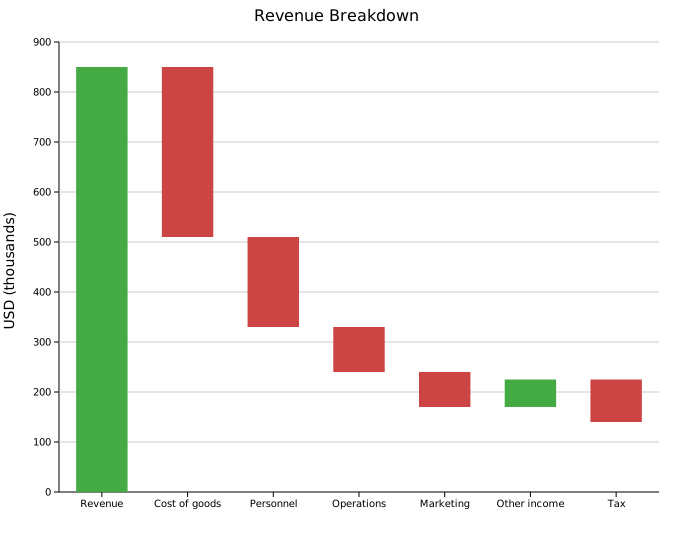
Green bars add to the running total; red bars subtract from it.
Total bars
.with_total(label) places a bar that spans from zero to the current running total, rendered in a distinct color (default "steelblue"). The value field is irrelevant — the bar height is the accumulated total at that position. Place totals after sections of delta bars to show intermediate subtotals.
#![allow(unused)] fn main() { use kuva::plot::WaterfallPlot; use kuva::render::plots::Plot; let wf = WaterfallPlot::new() .with_delta("Revenue", 850.0) .with_delta("Cost of goods", -340.0) .with_total("Gross profit") // subtotal after first section .with_delta("Personnel", -180.0) .with_delta("Operations", -90.0) .with_delta("Marketing", -70.0) .with_total("EBITDA") // second subtotal .with_delta("Depreciation", -40.0) .with_delta("Interest", -20.0) .with_delta("Tax", -65.0) .with_total("Net income"); // final total }
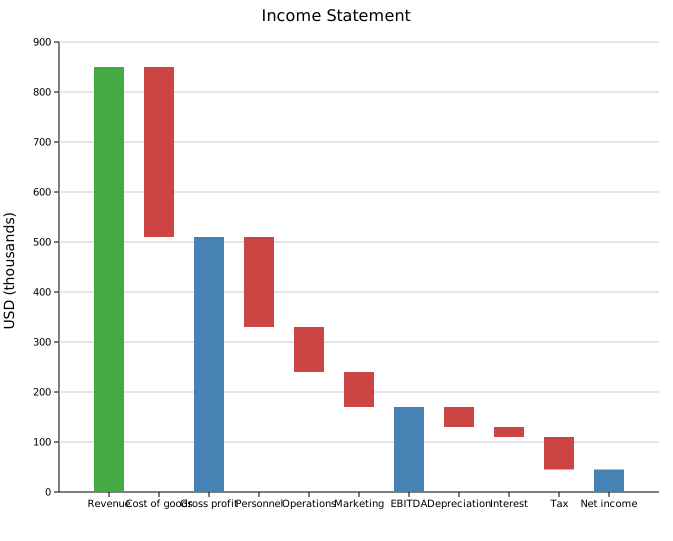
The three blue bars show gross profit, EBITDA, and net income alongside the individual line items that make them up.
Connectors and value labels
.with_connectors() draws a dashed horizontal line from the top (or bottom) of each bar to the start of the next, making the running total easier to trace across wide charts. .with_values() prints the numeric value of each bar.
#![allow(unused)] fn main() { use kuva::plot::WaterfallPlot; use kuva::render::plots::Plot; let wf = WaterfallPlot::new() .with_delta("Q1 sales", 420.0) .with_delta("Q2 sales", 380.0) .with_delta("Returns", -95.0) .with_delta("Discounts", -60.0) .with_total("H1 net") .with_delta("Q3 sales", 410.0) .with_delta("Q4 sales", 455.0) .with_delta("Returns", -105.0) .with_delta("Discounts", -70.0) .with_total("H2 net") .with_connectors() .with_values(); }

Difference bars
.with_difference(label, from, to) adds a standalone comparison bar anchored at explicit y-values rather than the running total. The bar spans [from, to] — green when to > from, red when to < from — and does not change the running total.
The clearest use is when from and to match the heights of existing Total bars, so the reader can trace the connection directly. In the example below both period totals are in the chart; the difference bar sits between those two reference levels and shows the gain between them.
#![allow(unused)] fn main() { use kuva::plot::WaterfallPlot; use kuva::render::plots::Plot; let wf = WaterfallPlot::new() .with_delta("Revenue", 500.0) // running total → 500 .with_delta("Costs", -180.0) // running total → 320 .with_total("Period A") // total bar: 0 → 320 .with_delta("Revenue", 600.0) // running total → 920 .with_delta("Costs", -190.0) // running total → 730 .with_total("Period B") // total bar: 0 → 730 // from = Period A total (320), to = Period B total (730) .with_difference("Period A→B", 320.0, 730.0) .with_values(); }
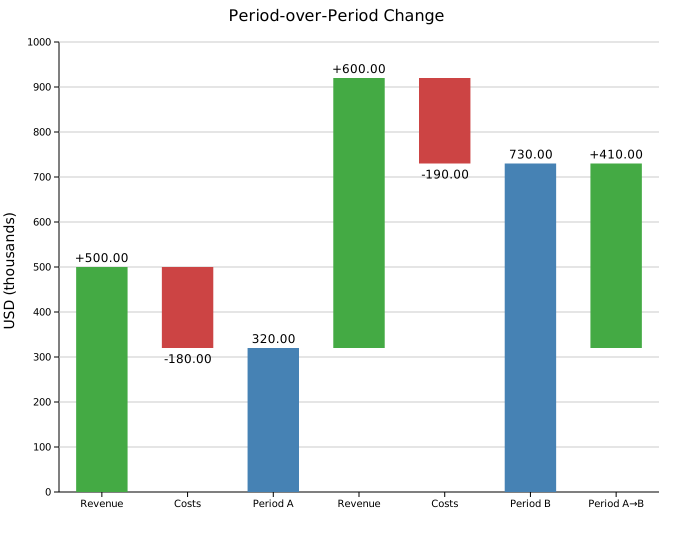
The "Period A→B" bar is anchored at 320–730 regardless of where the running total is. It does not alter the "Period B" total — it is purely a visual annotation showing the improvement between the two periods.
Custom colors
Override any of the three bar colors with CSS color strings.
#![allow(unused)] fn main() { use kuva::plot::WaterfallPlot; let wf = WaterfallPlot::new() .with_delta("Gain", 100.0) .with_delta("Loss", -40.0) .with_total("Net") .with_color_positive("darkgreen") // default: "rgb(68,170,68)" .with_color_negative("crimson") // default: "rgb(204,68,68)" .with_color_total("navy"); // default: "steelblue" }
API reference
| Method | Description |
|---|---|
WaterfallPlot::new() | Create a waterfall chart with defaults |
.with_delta(label, value) | Floating increment/decrement bar; updates running total |
.with_total(label) | Summary bar from zero to current running total |
.with_difference(label, from, to) | Anchored comparison bar; does not affect running total |
.with_bar_width(f) | Bar width as a fraction of the slot (default 0.6) |
.with_color_positive(s) | Color for positive delta bars (default "rgb(68,170,68)") |
.with_color_negative(s) | Color for negative delta bars (default "rgb(204,68,68)") |
.with_color_total(s) | Color for total/subtotal bars (default "steelblue") |
.with_connectors() | Draw dashed connector lines between consecutive bars |
.with_values() | Print numeric values on each bar |
.with_legend(s) | Attach a legend label |
See also: Bar Chart for a plain (non-cumulative) comparison, Stacked Area Plot for a continuous running-total alternative.
CLI
Waterfall / bridge chart showing a running total built from incremental bars.
Input: label column + numeric value column. Mark subtotal/total bars with --total.
| Flag | Default | Description |
|---|---|---|
--label-col <COL> | 0 | Label column |
--value-col <COL> | 1 | Value column |
--total <LABEL> | — | Mark this label as a summary bar (repeatable) |
--connectors | off | Draw dashed connector lines between bars |
--values | off | Print numeric values on each bar |
--color-pos <CSS> | green | Positive delta bar color |
--color-neg <CSS> | red | Negative delta bar color |
--color-total <CSS> | steelblue | Total/subtotal bar color |
kuva waterfall waterfall.tsv --label-col process --value-col log2fc \
--connectors --values
# mark two rows as summary bars
kuva waterfall income.tsv \
--total "Gross profit" --total "Net income" \
--connectors --values
See also: Shared flags — output, appearance, axes, log scale.
Horizon Chart
A horizon chart is a compact multi-series time series visualization. Each series occupies a single row; the value range is divided into N equal-width bands that are folded onto that row with progressively darker shading. Positive deviations use one color; negative deviations use another. The result packs many series into a small vertical space while preserving the ability to compare relative magnitudes.
Horizon charts are ideal for monitoring dense time series panels — server metrics, temperature anomalies, financial returns, or physiological signals — where a conventional line chart would require excessive vertical space.
Import path: kuva::plot::horizon::{HorizonPlot, HorizonSeries}
Basic usage
Add series with .with_series(), passing x and y vectors. Each series gets a distinct positive color from the category10 palette; negative values always render in red.
#![allow(unused)] fn main() { use kuva::plot::horizon::HorizonPlot; use kuva::backend::svg::SvgBackend; use kuva::render::render::render_multiple; use kuva::render::layout::Layout; use kuva::render::plots::Plot; // Three daily temperature anomaly series let hours: Vec<f64> = (0..48).map(|i| i as f64).collect(); let anomaly_a: Vec<f64> = hours.iter().map(|&t| (t * 0.3).sin() * 4.0 + (t * 0.1).cos() * 2.0).collect(); let anomaly_b: Vec<f64> = hours.iter().map(|&t| -(t * 0.25).cos() * 3.5 + (t * 0.15).sin() * 1.5).collect(); let anomaly_c: Vec<f64> = hours.iter().map(|&t| (t * 0.2).sin() * 5.0 - (t * 0.05).cos() * 2.5).collect(); let plot = HorizonPlot::new() .with_series("Station A", hours.clone(), anomaly_a) .with_series("Station B", hours.clone(), anomaly_b) .with_series("Station C", hours.clone(), anomaly_c) .with_n_bands(3) .with_row_height(40.0); let plots = vec![Plot::Horizon(plot)]; let layout = Layout::auto_from_plots(&plots) .with_title("Temperature Anomaly (°C)") .with_x_label("Hour"); let svg = SvgBackend.render_scene(&render_multiple(plots, layout)); std::fs::write("horizon.svg", svg).unwrap(); }

Number of bands
.with_n_bands(n) controls how many color layers are stacked per row. More bands reveal finer structure at the cost of darker overall appearance.
#![allow(unused)] fn main() { use kuva::plot::horizon::HorizonPlot; use kuva::render::plots::Plot; use kuva::render::layout::Layout; use kuva::render::render::render_multiple; let x: Vec<f64> = (0..60).map(|i| i as f64).collect(); let y: Vec<f64> = x.iter().map(|&t| (t * 0.18).sin() * 8.0 + (t * 0.05).cos() * 3.0).collect(); // 2 bands: coarser, more contrast let plot_2 = HorizonPlot::new().with_series("2 bands", x.clone(), y.clone()).with_n_bands(2); // 4 bands: finer resolution let plot_4 = HorizonPlot::new().with_series("4 bands", x.clone(), y.clone()).with_n_bands(4); }
The default of 3 bands is a good balance between contrast and resolution.
Value labels
.with_value_labels(true) prints the full-scale value (what the darkest band represents) at the right end of each row — an essential guide for quantitative reading.
.with_sign_colors(true) additionally colorizes the + and − sign characters in the row annotation using the series' positive and negative colors.
#![allow(unused)] fn main() { use kuva::plot::horizon::HorizonPlot; use kuva::render::plots::Plot; use kuva::render::layout::Layout; use kuva::render::render::render_multiple; use kuva::backend::svg::SvgBackend; let x: Vec<f64> = (0..72).map(|i| i as f64).collect(); let make_series = |amp: f64, phase: f64| -> Vec<f64> { x.iter().map(|&t| (t * 0.15 + phase).sin() * amp).collect() }; let plot = HorizonPlot::new() .with_series("CPU 0", x.clone(), make_series(6.0, 0.0)) .with_series("CPU 1", x.clone(), make_series(4.5, 1.1)) .with_series("CPU 2", x.clone(), make_series(7.5, 2.2)) .with_series("CPU 3", x.clone(), make_series(5.0, 3.3)) .with_n_bands(3) .with_row_height(36.0) .with_value_labels(true) .with_sign_colors(true); let plots = vec![Plot::Horizon(plot)]; let layout = Layout::auto_from_plots(&plots).with_title("CPU Usage Delta (%)"); let svg = SvgBackend.render_scene(&render_multiple(plots, layout)); }
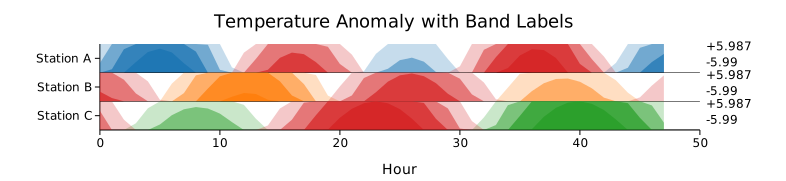
Custom colors
Use .with_series_colored() to set explicit positive and negative colors per series.
#![allow(unused)] fn main() { use kuva::plot::horizon::HorizonPlot; use kuva::render::plots::Plot; use kuva::render::layout::Layout; use kuva::render::render::render_multiple; let x: Vec<f64> = (0..48).map(|i| i as f64).collect(); let ret: Vec<f64> = x.iter().map(|&t| (t * 0.22).sin() * 5.0 - (t * 0.07).cos() * 2.0).collect(); let plot = HorizonPlot::new() .with_series_colored( "Returns", x.clone(), ret, "#2ca02c", // green for gains "#d62728", // red for losses ) .with_n_bands(4) .with_row_height(50.0) .with_value_labels(true); let plots = vec![Plot::Horizon(plot)]; }
Shared scale (with_value_max)
By default each series is scaled independently. Use .with_value_max() to apply a shared scale so that shading depths are comparable across rows.
#![allow(unused)] fn main() { use kuva::plot::horizon::HorizonPlot; use kuva::render::plots::Plot; use kuva::render::layout::Layout; use kuva::render::render::render_multiple; let x: Vec<f64> = (0..48).map(|i| i as f64).collect(); // All three series share a ±10 scale — one band = 3.33 units let plot = HorizonPlot::new() .with_series("Server A", x.clone(), x.iter().map(|&t| (t * 0.2).sin() * 9.0).collect()) .with_series("Server B", x.clone(), x.iter().map(|&t| -(t * 0.15).cos() * 4.0).collect()) .with_series("Server C", x.clone(), x.iter().map(|&t| (t * 0.25).sin() * 7.0).collect()) .with_value_max(10.0) .with_n_bands(3) .with_row_height(38.0) .with_value_labels(true); let plots = vec![Plot::Horizon(plot)]; }
HorizonPlot API reference
HorizonPlot builders
| Method | Default | Description |
|---|---|---|
HorizonPlot::new() | — | Create a horizon chart with default settings |
.with_series(label, x, y) | — | Add a series; auto-assigns positive color from palette |
.with_series_colored(label, x, y, pos, neg) | — | Add a series with explicit positive and negative colors |
.with_n_bands(n) | 3 | Number of stacked color bands per row |
.with_row_height(px) | auto | Per-row pixel height; enables auto canvas sizing |
.with_baseline(v) | 0.0 | Baseline value separating positive from negative |
.with_value_max(v) | auto | Shared maximum absolute value for band scaling |
.with_value_labels(bool) | false | Show the full-scale value at the right end of each row |
.with_sign_colors(bool) | false | Colorize +/− signs in row annotations (requires value_labels) |
.with_legend(bool) | false | Show a legend entry per series |
See also: Streamgraph and Stacked Area Plot for other dense multi-series time layouts, Ridgeline Plot for a similar folded/stacked idea applied to distributions.
CLI
Horizon chart — compact stacked time-series that folds values into colored bands, ideal for many series in limited vertical space.
Input: one row per observation with x (time), value, and optional group/series columns.
| Flag | Default | Description |
|---|---|---|
--x-col <COL> | 0 | X-axis (time or sequence) column |
--value-col <COL> | 1 | Numeric value column |
--group-col <COL> | — | Series/group column; one row per unique value |
--n-bands <N> | 3 | Number of color bands to fold into |
--row-height <PX> | auto | Height in pixels of each series row |
--baseline <F> | 0.0 | Zero-line value; values below are negative (cool colors) |
--value-labels | off | Show scale annotations at the right end of each row |
--legend | off | Add a legend |
kuva horizon data.tsv --x-col week --value-col value --group-col series
kuva horizon data.tsv --x-col time --value-col count --group-col region \
--n-bands 4 --value-labels --title "Weekly Activity by Region"
See also: Shared flags — output, appearance, axes.
Calendar Heatmap
A calendar heatmap (GitHub contribution graph style) displays daily data values in a grid of week columns × 7 day rows. Multiple years or arbitrary date ranges can be stacked vertically. Cell color encodes the aggregated value for that day.
Basic usage — contribution graph
#![allow(unused)] fn main() { use kuva::plot::calendar::{CalendarPlot, CalendarAgg, WeekStart}; use kuva::render::{plots::Plot, layout::Layout, render::render_calendar}; use kuva::backend::svg::SvgBackend; let data: &[(&str, f64)] = &[ ("2025-04-16", 1.0), ("2025-04-17", 1.0), ("2025-04-30", 1.0), ("2025-05-05", 6.0), ("2025-05-06", 2.0), ("2025-05-07", 2.0), ("2025-05-08", 4.0), ("2025-05-09", 3.0), ("2025-05-10", 2.0), ("2025-06-10", 1.0), ("2025-07-08", 1.0), ("2025-07-09", 7.0), ("2025-07-10", 7.0), ("2025-07-17", 2.0), ("2025-07-23", 1.0), ("2025-07-24", 1.0), ("2025-07-25", 2.0), ("2025-07-29", 1.0), ("2025-08-01", 1.0), ("2025-08-05", 2.0), ("2025-08-06", 3.0), ("2025-08-07", 1.0), ("2025-09-02", 1.0), ("2025-09-08", 2.0), ("2025-09-12", 5.0), ("2025-10-02", 1.0), ("2025-10-20", 4.0), ("2025-10-21", 1.0), ("2025-10-22", 1.0), ("2025-10-23", 10.0), ("2025-10-24", 2.0), ("2025-10-28", 2.0), ("2025-10-29", 2.0), ("2025-11-20", 1.0), ("2025-11-27", 4.0), ("2025-12-03", 4.0), ("2025-12-08", 30.0), ("2025-12-09", 5.0), ("2026-01-23", 13.0), ("2026-01-27", 6.0), ("2026-01-28", 10.0), ("2026-02-06", 21.0), ("2026-02-07", 23.0), ("2026-02-09", 7.0), ("2026-02-10", 18.0), ("2026-02-12", 4.0), ("2026-02-13", 18.0), ("2026-02-16", 3.0), ("2026-02-17", 3.0), ("2026-02-18", 4.0), ("2026-02-19", 1.0), ("2026-02-20", 22.0), ("2026-02-21", 9.0), ("2026-02-22", 18.0), ("2026-02-23", 13.0), ("2026-02-24", 7.0), ("2026-02-25", 7.0), ("2026-02-26", 13.0), ("2026-02-27", 10.0), ("2026-02-28", 24.0), ("2026-03-01", 13.0), ("2026-03-02", 14.0), ("2026-03-03", 22.0), ("2026-03-04", 13.0), ("2026-03-06", 1.0), ("2026-03-09", 6.0), ("2026-03-10", 21.0), ("2026-03-11", 15.0), ("2026-03-12", 15.0), ("2026-03-16", 23.0), ("2026-03-20", 9.0), ("2026-03-26", 13.0), ("2026-03-30", 5.0), ("2026-03-31", 13.0), ("2026-04-01", 22.0), ("2026-04-02", 3.0), ("2026-04-03", 1.0), ("2026-04-08", 1.0), ("2026-04-09", 6.0), ("2026-04-13", 3.0), ]; let plot = CalendarPlot::new() .with_data(data.iter().map(|&(d, v)| (d, v))) .with_aggregation(CalendarAgg::Sum) .with_period("Apr 2025 \u{2013} Apr 2026", "2025-04-13", "2026-04-13") .with_week_start(WeekStart::Sunday) .with_legend_label("contributions"); let layout = Layout::auto_from_plots(&[Plot::Calendar(plot.clone())]); let svg = SvgBackend.render_scene(&render_calendar(plot, layout)); std::fs::write("calendar.svg", svg).unwrap(); }

Numeric data — full year with varied values
#![allow(unused)] fn main() { use kuva::plot::calendar::{CalendarPlot, CalendarAgg}; use kuva::render::{plots::Plot, layout::Layout, render::render_calendar}; use kuva::backend::svg::SvgBackend; // Generate a full year of data, skipping ~20% of days let mut data = Vec::new(); let days_per_month = [31u32, 29, 31, 30, 31, 30, 31, 31, 30, 31, 30, 31]; for (mi, &days) in days_per_month.iter().enumerate() { let m = mi as u32 + 1; for d in 1..=days { if (m + d) % 5 == 0 { continue; } let val = ((m * 7 + d * 3) % 15 + 1) as f64; data.push((format!("2024-{m:02}-{d:02}"), val)); } } let plot = CalendarPlot::new() .with_data(data) .with_aggregation(CalendarAgg::Sum) .with_year(2024) .with_legend_label("activity"); let layout = Layout::auto_from_plots(&[Plot::Calendar(plot.clone())]); let svg = SvgBackend.render_scene(&render_calendar(plot, layout)); std::fs::write("calendar.svg", svg).unwrap(); }
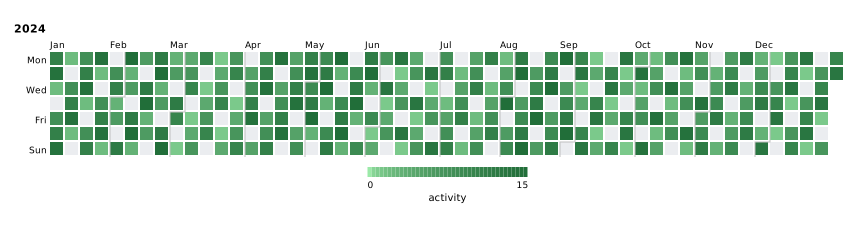
Multiple years
#![allow(unused)] fn main() { use kuva::plot::calendar::CalendarPlot; let plot = CalendarPlot::new() .with_data(data) // data spans 2023–2024 .with_years([2023, 2024]) // one row per year; auto-detected if omitted .with_legend_label("downloads"); }
If neither with_year nor with_years is called, years are auto-detected from the data dates.
Custom date ranges (financial year, rolling window, …)
Single named period
#![allow(unused)] fn main() { use kuva::plot::calendar::{CalendarPlot, CalendarAgg}; use kuva::render::{plots::Plot, layout::Layout, render::render_calendar}; use kuva::backend::svg::SvgBackend; let mut data = Vec::new(); // Q1 Jul–Sep 2023 for m in 7u32..=9 { for d in [5, 12, 19, 26] { data.push((format!("2023-{m:02}-{d:02}"), (m * d) as f64 % 8.0 + 1.0)); } } // Q2 Oct–Dec 2023 for m in 10u32..=12 { for d in [3, 10, 17, 24] { data.push((format!("2023-{m:02}-{d:02}"), (m + d) as f64 % 6.0 + 2.0)); } } // Q3 Jan–Mar 2024 for m in 1u32..=3 { for d in [8, 15, 22, 29] { data.push((format!("2024-{m:02}-{d:02}"), (m * d) as f64 % 9.0 + 1.0)); } } // Q4 Apr–Jun 2024 for m in 4u32..=6 { for d in [1u32, 8, 15, 22, 29] { if d <= 30 { data.push((format!("2024-{m:02}-{d:02}"), (m + d) as f64 % 7.0 + 1.0)); } } } let plot = CalendarPlot::new() .with_data(data) .with_aggregation(CalendarAgg::Sum) .with_period("FY2023/24", "2023-07-01", "2024-06-30") .with_legend_label("contributions"); let layout = Layout::auto_from_plots(&[Plot::Calendar(plot.clone())]); let svg = SvgBackend.render_scene(&render_calendar(plot, layout)); std::fs::write("calendar.svg", svg).unwrap(); }
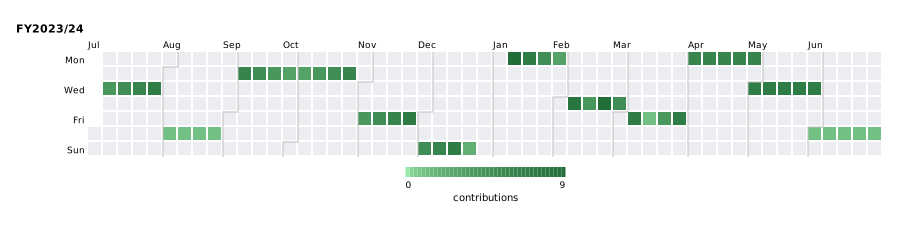
Multiple named periods
#![allow(unused)] fn main() { use kuva::plot::calendar::{CalendarPlot, CalendarAgg}; use kuva::render::{plots::Plot, layout::Layout, render::render_calendar}; use kuva::backend::svg::SvgBackend; fn fy_data(cal_year: i32, next_cal_year: i32) -> Vec<(String, f64)> { let mut v = Vec::new(); for m in 7u32..=12 { for d in (1u32..=28).step_by(4) { v.push((format!("{cal_year}-{m:02}-{d:02}"), (m + d) as f64 % 7.0 + 1.0)); } } for m in 1u32..=6 { for d in (1u32..=28).step_by(4) { v.push((format!("{next_cal_year}-{m:02}-{d:02}"), (m * d) as f64 % 8.0 + 1.0)); } } v } let mut data = fy_data(2022, 2023); data.extend(fy_data(2023, 2024)); let plot = CalendarPlot::new() .with_data(data) .with_aggregation(CalendarAgg::Sum) .with_periods([ ("FY2022/23", "2022-07-01", "2023-06-30"), ("FY2023/24", "2023-07-01", "2024-06-30"), ]) .with_legend_label("commits"); let layout = Layout::auto_from_plots(&[Plot::Calendar(plot.clone())]); let svg = SvgBackend.render_scene(&render_calendar(plot, layout)); std::fs::write("calendar.svg", svg).unwrap(); }
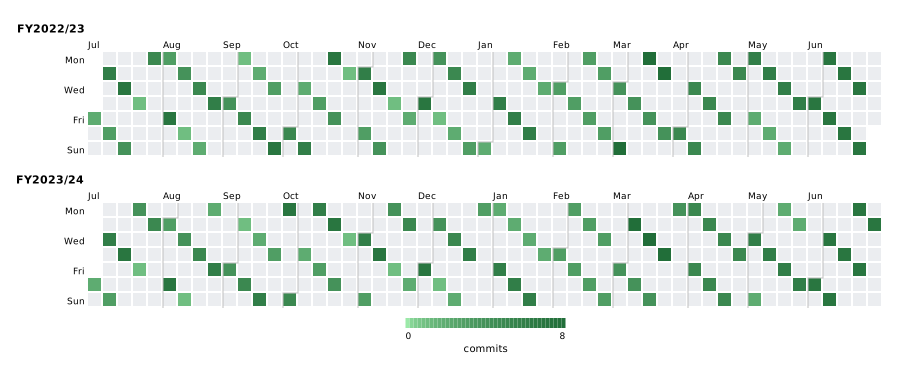
A period can also span more than a year — each period becomes one calendar row.
Aggregation modes
| Variant | Behaviour |
|---|---|
Count (default) | Number of data points on each day |
Sum | Sum of all values for each day |
Mean | Average of all values for each day |
Max | Maximum value for each day |
#![allow(unused)] fn main() { use kuva::plot::calendar::{CalendarPlot, CalendarAgg}; let plot = CalendarPlot::new() .with_aggregation(CalendarAgg::Mean); }
Week start
#![allow(unused)] fn main() { use kuva::plot::calendar::{CalendarPlot, WeekStart}; // GitHub-style: Sunday at the top let plot = CalendarPlot::new() .with_week_start(WeekStart::Sunday); // ISO default: Monday at the top let plot = CalendarPlot::new() .with_week_start(WeekStart::Monday); }
Color customization
Changing the color map
The default colormap is a light-green → dark-green gradient with sqrt-gamma that mimics GitHub's contribution graph. Any ColorMap variant can be used instead:
#![allow(unused)] fn main() { use kuva::plot::calendar::CalendarPlot; use kuva::plot::ColorMap; // Viridis let plot = CalendarPlot::new() .with_color_map(ColorMap::Viridis); // YellowOrangeRed (ColorBrewer) let plot = CalendarPlot::new() .with_color_map(ColorMap::YellowOrangeRed); }
Custom color function
#![allow(unused)] fn main() { use std::sync::Arc; use kuva::plot::calendar::CalendarPlot; use kuva::plot::ColorMap; let plot = CalendarPlot::new() .with_color_map(ColorMap::Custom(Arc::new(|t: f64| { // Ice-blue to red heat map let r = (t * 220.0) as u8; let b = ((1.0 - t) * 220.0) as u8; format!("rgb({r},30,{b})") }))); }
Missing-day and zero-value colors
#![allow(unused)] fn main() { use kuva::plot::calendar::CalendarPlot; let plot = CalendarPlot::new() .with_missing_color("#f0f0f0") // days absent from the dataset .with_zero_color("#e8e8e8"); // days present with value == 0 // (falls back to missing_color if unset) }
Explicit color scale range
#![allow(unused)] fn main() { use kuva::plot::calendar::CalendarPlot; let plot = CalendarPlot::new() .with_value_range(0.0, 100.0); // clamp scale regardless of data max }
Builder reference
| Method | Default | Description |
|---|---|---|
with_data(iter) | — | Add (date, value) pairs; date format "YYYY-MM-DD" |
with_events(iter) | — | Add bare date strings; each occurrence counts as 1.0 |
with_aggregation(agg) | Count | CalendarAgg::Count/Sum/Mean/Max |
with_year(y) | auto | Display a single full calendar year |
with_years(iter) | auto | Display multiple full calendar years, one row each |
with_period(label, start, end) | — | Display a single named date range |
with_periods(iter) | — | Display multiple named date ranges |
with_date_range(start, end) | — | Unnamed single date range (label from start year) |
with_week_start(ws) | Monday | WeekStart::Monday (ISO) or Sunday (GitHub) |
with_color_map(cmap) | GitHub green | [ColorMap] variant for the value → color mapping |
with_missing_color(color) | "#ebedf0" | CSS color for days absent from the dataset |
with_zero_color(color) | None | CSS color for days with value exactly 0; falls back to missing_color |
with_value_range(min, max) | auto | Explicit color scale endpoints |
with_month_labels(bool) | true | Show abbreviated month names above the grid |
with_day_labels(bool) | true | Show Mon/Wed/Fri labels on the left |
with_cell_size(px) | 13.0 | Size of each day cell in pixels |
with_cell_gap(px) | 2.0 | Gap between cells in pixels |
with_legend(bool) | true | Show the colorbar legend |
with_legend_label(label) | None | Label beneath the colorbar |
See also: Gantt Chart for scheduled/dated tasks rather than daily counts, Heatmap for the underlying matrix-of-values idea.
CLI
Calendar heatmap — GitHub-style contribution grid showing daily values across weeks.
Input: one row per data point with a date column (YYYY-MM-DD) and a numeric value column.
| Flag | Default | Description |
|---|---|---|
--date-col <COL> | 0 | Date column (YYYY-MM-DD format) |
--value-col <COL> | 1 | Numeric value column |
--agg <AGG> | count | Aggregation for multiple entries per day: count, sum, mean, max |
--year <YEAR> | auto | Display a single full calendar year (Jan–Dec) |
--start <DATE> | — | Start date of a custom range (use with --end) |
--end <DATE> | — | End date of a custom range (use with --start) |
--no-legend | off | Hide the color-scale legend |
kuva calendar data.tsv --date-col date --value-col count
kuva calendar data.tsv --date-col date --value-col commits \
--agg sum --year 2024 --title "Commits in 2024"
kuva calendar data.tsv --date-col date --value-col value \
--start 2024-01-01 --end 2024-06-30 \
--title "H1 2024 Activity"
See also: Shared flags — output, appearance.
Gantt Chart
A Gantt chart displays tasks as horizontal bars spanning a time range, making it easy to see schedule, duration, sequence, and overlap at a glance. Tasks can be organized into named phases or groups, which receive colored header rows and distinct bar colors drawn from the category10 palette.
kuva's GanttPlot adds three features beyond basic scheduling:
- Progress fill — a darker inner region shows completion fraction; tasks not yet started are shown at full opacity without a progress fill.
- Milestone diamonds — single-point events (deadlines, sign-offs, launches) render as ◆ markers rather than bars.
- Now line — a dashed vertical reference line marks the current date or time.
Import path: kuva::plot::GanttPlot
Basic usage
Add tasks with .with_task(label, start, end). Without groups, all bars share the default color and appear in insertion order.
#![allow(unused)] fn main() { use kuva::plot::GanttPlot; use kuva::backend::svg::SvgBackend; use kuva::render::render::render_multiple; use kuva::render::layout::Layout; use kuva::render::plots::Plot; let gantt = GanttPlot::new() .with_task("Literature review", 0.0, 4.0) .with_task("Data collection", 2.0, 8.0) .with_task("Analysis", 7.0, 12.0) .with_task("Write-up", 11.0, 16.0); let plots = vec![Plot::Gantt(gantt)]; let layout = Layout::auto_from_plots(&plots) .with_title("Research Project") .with_x_label("Week"); let svg = SvgBackend.render_scene(&render_multiple(plots, layout)); std::fs::write("gantt.svg", svg).unwrap(); }
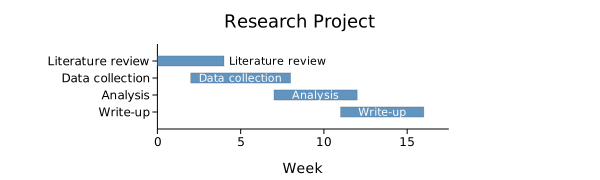
Labels are drawn inside the bar when there is enough room; otherwise they appear to the right of the bar. The right margin is automatically expanded so outside labels are never clipped.
Groups and phases
Use .with_task_group(group, label, start, end) to assign tasks to named groups. Each group gets a shaded header row and a distinct bar color from the category10 palette. Tasks within a group appear in insertion order immediately below their header.
#![allow(unused)] fn main() { use kuva::plot::GanttPlot; use kuva::render::plots::Plot; use kuva::backend::svg::SvgBackend; use kuva::render::render::render_multiple; use kuva::render::layout::Layout; let gantt = GanttPlot::new() .with_task_group("Discovery", "User research", 0.0, 3.0) .with_task_group("Discovery", "Competitive audit",1.0, 4.0) .with_task_group("Design", "Wireframes", 3.5, 6.0) .with_task_group("Design", "Prototyping", 5.0, 8.0) .with_task_group("Build", "Frontend", 7.0, 12.0) .with_task_group("Build", "Backend", 6.0, 11.0); let plots = vec![Plot::Gantt(gantt)]; let layout = Layout::auto_from_plots(&plots) .with_title("Product Development") .with_x_label("Week"); }
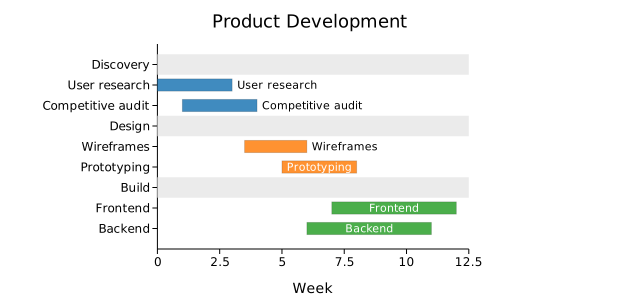
Use .with_group_order(groups) to control phase order explicitly. Groups not listed follow in insertion order.
#![allow(unused)] fn main() { use kuva::plot::GanttPlot; use kuva::render::plots::Plot; let gantt = GanttPlot::new() .with_group_order(["Build", "Discovery", "Design"]) // Build appears first .with_task_group("Discovery", "Research", 0.0, 3.0) .with_task_group("Design", "Wireframes", 2.0, 5.0) .with_task_group("Build", "Dev", 4.0, 9.0); }
Progress fills and the now line
.with_task_group_progress(group, label, start, end, fraction) draws a darker inner fill showing how much of the task is complete. The fraction is clamped to [0.0, 1.0].
.with_now_line(value) draws a dashed red vertical reference line at the given x position — useful for marking today's date.
#![allow(unused)] fn main() { use kuva::plot::GanttPlot; use kuva::render::plots::Plot; use kuva::backend::svg::SvgBackend; use kuva::render::render::render_multiple; use kuva::render::layout::Layout; let gantt = GanttPlot::new() .with_task_group_progress("Q1", "API design", 0.0, 3.0, 1.0) // done .with_task_group_progress("Q1", "Auth service", 1.0, 4.0, 1.0) // done .with_task_group_progress("Q2", "Dashboard", 3.0, 7.0, 0.65) // in progress .with_task_group_progress("Q2", "Reporting", 4.0, 8.0, 0.25) // early .with_task_group("Q3", "Mobile app", 7.0, 11.0) // not started .with_task_group("Q3", "Performance", 8.0, 12.0) .with_now_line(5.5); let plots = vec![Plot::Gantt(gantt)]; let layout = Layout::auto_from_plots(&plots) .with_title("Engineering Roadmap — progress at week 5.5") .with_x_label("Week"); }
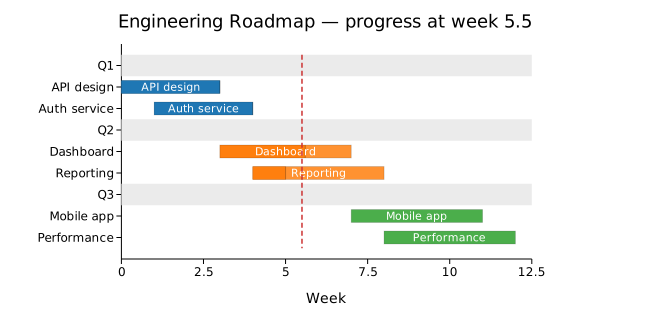
Milestones
.with_milestone(label, at) and .with_milestone_group(group, label, at) add diamond markers at a single point in time. Milestone labels are always drawn to the right of the diamond in bold, and the right margin is automatically widened to fit them.
#![allow(unused)] fn main() { use kuva::plot::GanttPlot; use kuva::render::plots::Plot; use kuva::backend::svg::SvgBackend; use kuva::render::render::render_multiple; use kuva::render::layout::Layout; let gantt = GanttPlot::new() .with_task_group("Planning", "Requirements", 0.0, 2.0) .with_task_group("Planning", "Architecture", 1.0, 3.0) .with_milestone_group("Planning", "Sign-off", 3.0) .with_task_group("Execution", "Core build", 3.0, 9.0) .with_task_group("Execution", "Integration", 7.0, 11.0) .with_milestone_group("Execution", "Code freeze", 11.0) .with_task_group("Launch", "Testing", 10.0, 13.0) .with_milestone("Public launch", 14.0) .with_now_line(7.0); let plots = vec![Plot::Gantt(gantt)]; let layout = Layout::auto_from_plots(&plots) .with_title("Software Release Plan") .with_x_label("Week"); }
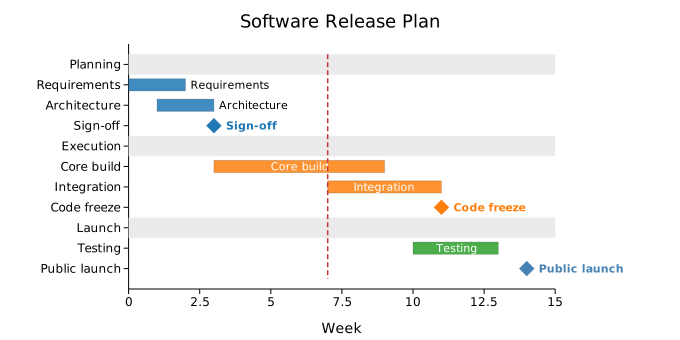
Showcase — clinical trial timeline
The example below uses every major feature: explicit group_order, progress fills on pre-trial tasks, in-progress recruitment bars, ungrouped treatment arms, per-group and free-floating milestones, and a now line marking the current month.
#![allow(unused)] fn main() { use kuva::plot::GanttPlot; use kuva::render::plots::Plot; use kuva::backend::svg::SvgBackend; use kuva::render::render::render_multiple; use kuva::render::layout::Layout; let gantt = GanttPlot::new() .with_group_order(["Pre-trial", "Recruitment", "Treatment", "Analysis"]) .with_task_group_progress("Pre-trial", "Protocol writing", 0.0, 3.0, 1.0) .with_task_group_progress("Pre-trial", "IRB approval", 2.0, 5.0, 1.0) .with_task_group_progress("Pre-trial", "Site selection", 3.0, 6.0, 1.0) .with_milestone_group("Pre-trial", "Trial start", 6.0) .with_task_group_progress("Recruitment", "Screening", 6.0, 12.0, 0.75) .with_task_group_progress("Recruitment", "Enrollment", 7.0, 14.0, 0.45) .with_task_group("Treatment", "Arm A (n=150)", 12.0, 24.0) .with_task_group("Treatment", "Arm B (n=150)", 12.0, 24.0) .with_milestone_group("Treatment", "Interim analysis", 18.0) .with_task_group("Analysis", "Data lock", 23.0, 26.0) .with_task_group("Analysis", "Statistical analysis",25.0, 30.0) .with_task_group("Analysis", "Report writing", 28.0, 34.0) .with_milestone("Primary endpoint", 24.0) .with_milestone("Submission", 35.0) .with_now_line(16.0) .with_bar_height(0.55); let plots = vec![Plot::Gantt(gantt)]; let layout = Layout::auto_from_plots(&plots) .with_title("Phase III Clinical Trial Timeline") .with_x_label("Month") .with_width(800.0) .with_height(520.0); let svg = SvgBackend.render_scene(&render_multiple(plots, layout)); std::fs::write("trial.svg", svg).unwrap(); }

GanttPlot API reference
Task builders
| Method | Description |
|---|---|
.with_task(label, start, end) | Ungrouped task bar |
.with_task_group(group, label, start, end) | Task assigned to a named group/phase |
.with_task_progress(label, start, end, frac) | Ungrouped task with progress fill (0.0–1.0) |
.with_task_group_progress(group, label, start, end, frac) | Grouped task with progress fill |
.with_colored_task(label, start, end, color) | Task with a per-task CSS color override |
.with_milestone(label, at) | Ungrouped milestone diamond at position at |
.with_milestone_group(group, label, at) | Grouped milestone diamond |
Display builders
| Method | Default | Description |
|---|---|---|
GanttPlot::new() | — | Create a Gantt chart with defaults |
.with_group_order(groups) | insertion order | Explicit display order for groups; unlisted groups follow in insertion order |
.with_now_line(value) | none | Dashed red vertical line at value (the current time) |
.with_bar_height(frac) | 0.6 | Bar height as fraction of row height |
.with_milestone_size(px) | 7.0 | Diamond half-size in pixels |
.with_show_labels(bool) | true | Draw task and milestone labels |
.with_color(css) | "steelblue" | Default bar color when no groups are present |
.with_group_bg(css) | "#ebebeb" | Background color for group header rows |
.with_legend(label) | none | Add a legend entry |
See also: Calendar Heatmap for daily activity instead of scheduled tasks, Candlestick Plot for another datetime-axis chart, Waterfall Chart for progress expressed as running totals.
CLI
Gantt chart — horizontal task bars with optional group/phase headers, progress fills, milestone diamonds, and a "now" reference line.
Input: one row per task with label, start, and end columns. Optional columns for group, progress, and milestone flag.
| Flag | Default | Description |
|---|---|---|
--label-col <COL> | 0 | Task name column |
--start-col <COL> | 1 | Task start value column |
--end-col <COL> | 2 | Task end value column |
--group-col <COL> | — | Group/phase column; tasks with the same value are grouped together |
--progress-col <COL> | — | Completion fraction column (values 0–1; values > 1 are divided by 100) |
--milestone-col <COL> | — | Milestone flag column; 1, true, or yes marks a task as a milestone diamond |
--now <F> | — | Draw a dashed vertical "now" line at this x value |
--bar-height <F> | 0.6 | Bar height as a fraction of row height |
--color <CSS> | steelblue | Default bar color when no group column is supplied |
--no-labels | off | Hide task and milestone labels |
# Minimal: label, start, end
kuva gantt schedule.tsv --label-col task --start-col week_start --end-col week_end
# With groups and progress
kuva gantt plan.tsv \
--label-col task --start-col start --end-col end \
--group-col phase --progress-col pct_done \
--now 8 --title "Q3 Roadmap"
# With milestone flag and output to file
kuva gantt milestones.tsv \
--label-col name --start-col start --end-col end \
--group-col phase --milestone-col is_milestone \
--now 12 --title "Release Plan" -o release.svg
Example TSV format (with all optional columns):
phase task start end progress milestone
Planning Requirements 0 2 1.0 0
Planning Architecture 1 3 0.8 0
Planning Sign-off 3 3 0 1
Execution Core build 3 9 0.5 0
Execution Code freeze 11 11 0 1
Launch Testing 10 13 0 0
Launch Public launch 14 14 0 1
See also: Shared flags — output, appearance, axes.
Bump Chart
A bump chart shows how the rank of each series changes across discrete time points or conditions. Lines connect consecutive ranks; the best rank (1) appears at the top.
Basic usage (pre-ranked)
#![allow(unused)] fn main() { use kuva::plot::bump::BumpPlot; use kuva::render::{plots::Plot, layout::Layout, render::render_multiple}; use kuva::backend::svg::SvgBackend; let plot = BumpPlot::new() .with_series("Alpha", vec![1, 3, 2, 1]) .with_series("Beta", vec![2, 1, 1, 3]) .with_series("Gamma", vec![3, 2, 3, 2]) .with_x_labels(["2021", "2022", "2023", "2024"]); let plots = vec![Plot::Bump(plot)]; let layout = Layout::auto_from_plots(&plots).with_title("Rank over time"); let svg = SvgBackend.render_scene(&render_multiple(plots, layout)); std::fs::write("bump.svg", svg).unwrap(); }
Auto-ranking from raw values
Instead of supplying pre-computed ranks you can provide raw values; kuva ranks them per time point automatically.
#![allow(unused)] fn main() { use kuva::plot::bump::BumpPlot; let plot = BumpPlot::new() .with_raw_series("A", vec![95.0, 80.0, 88.0]) .with_raw_series("B", vec![80.0, 95.0, 72.0]) .with_raw_series("C", vec![70.0, 85.0, 95.0]) .with_x_labels(["Q1", "Q2", "Q3"]); }
By default, higher value = rank 1 (better). Pass .with_rank_ascending(true) to flip this so lower value = rank 1.
Builder reference
| Method | Default | Description |
|---|---|---|
.with_series(name, ranks) | — | Add a pre-ranked series (integer or float ranks). |
.with_ranked_series(name, ranks) | — | Pre-ranked series that allows None gaps. |
.with_raw_series(name, values) | — | Raw values; ranks computed automatically. |
.with_raw_series_opt(name, values) | — | Raw values with optional gaps (None breaks the line). |
.with_x_labels(labels) | — | Labels for each time point / condition on the x-axis. |
.with_curve_style(style) | Sigmoid | Line style between rank points: Sigmoid or Straight. |
.with_show_rank_labels(bool) | false | Draw the rank number inside each dot. |
.with_show_series_labels(bool) | true | Draw series name labels at the left and right edges. |
.with_dot_radius(f64) | 6.0 | Dot radius in pixels. |
.with_stroke_width(f64) | 2.5 | Line stroke width in pixels. |
.with_highlight(name) | None | Highlight one series; all others are muted to 20 % opacity. |
.with_legend(bool) | true | Show / hide the legend. |
.with_rank_ascending(bool) | false | If true, lower raw value → better (lower) rank number. |
.with_tie_break(mode) | Average | Tie-breaking for auto-ranking: Average, Min, Max, Stable. |
Highlight mode
Highlighting one series draws it with a thicker stroke and bolder endpoint labels; all others are rendered at reduced opacity and with muted grey labels.
#![allow(unused)] fn main() { let plot = BumpPlot::new() .with_series("Alpha", vec![1, 3, 2, 1]) .with_series("Beta", vec![2, 1, 1, 3]) .with_series("Gamma", vec![3, 2, 3, 2]) .with_highlight("Alpha"); }
Missing time points
Supply None entries via .with_ranked_series or .with_raw_series_opt to produce line breaks at absent time points:
#![allow(unused)] fn main() { let plot = BumpPlot::new() .with_ranked_series("Alpha", vec![Some(1.0), None, Some(2.0), Some(1.0)]) .with_x_labels(["A", "B", "C", "D"]); }
Tie-breaking modes
| Mode | Behavior |
|---|---|
Average (default) | Tied series share the average of the occupied rank positions (e.g. 2.5, 2.5). |
Min | All tied series receive the best (minimum) rank number. |
Max | All tied series receive the worst (maximum) rank number. |
Stable | Tied series retain their insertion order. |
See also: Slope Chart for a two-point-in-time version, Parallel Coordinates for ranks across more than a time axis.
CLI
Render a bump chart from a tabular file.
Input format
Three columns: series name, time/condition label, rank (or raw value with --raw-value).
series time rank
Alpha 2021 1
Alpha 2022 3
Beta 2021 2
Beta 2022 1
Gamma 2021 3
Gamma 2022 2
Usage
kuva bump [OPTIONS] [INPUT]
Data columns
| Flag | Default | Description |
|---|---|---|
--series <COL> | 0 | Series name column (name or 0-based index). |
--time <COL> | 1 | Time / condition label column. |
--rank <COL> | 2 | Rank column (pre-ranked data). |
--raw-value | off | Treat the rank column as a raw value and auto-compute ranks per time point. |
--rank-ascending | off | With --raw-value: lower value → better (lower) rank number. |
--tie-break <MODE> | average | Tie-breaking for auto-ranking: average, min, max, stable. |
Appearance
| Flag | Default | Description |
|---|---|---|
--curve <STYLE> | sigmoid | Line style: sigmoid or straight. |
--rank-labels | off | Draw the rank number inside each dot. |
--no-series-labels | off | Hide the series name labels at the left/right edges. |
--dot-radius <F> | 6.0 | Dot radius in pixels. |
--stroke-width <F> | 2.5 | Line stroke width in pixels. |
--highlight <NAME> | — | Highlight one series by name; all others are muted. |
--no-legend | off | Hide the legend. |
Examples
# Basic pre-ranked data
kuva bump data.tsv --series series --time year --rank rank -o bump.svg
# Auto-rank from scores (higher = better)
kuva bump scores.tsv --series team --time season --rank score --raw-value -o bump.svg
# Lower score is better (e.g. race times)
kuva bump times.tsv --series athlete --time race --rank time \
--raw-value --rank-ascending -o bump.svg
# Highlight one series
kuva bump data.tsv --highlight "Alpha" -o bump.svg
# Sigmoid curves with rank labels inside dots
kuva bump data.tsv --curve sigmoid --rank-labels -o bump.svg
See also: Shared flags — output, appearance, axes.
ROC Curve
A Receiver Operating Characteristic (ROC) curve plots the true positive rate (sensitivity) against the false positive rate (1 − specificity) as the classification threshold is swept from high to low. The area under the curve (AUC) summarises discrimination ability in a single number; AUC = 1.0 is perfect, AUC = 0.5 is no better than chance.
RocPlot supports multiple classifiers on one canvas, DeLong 95% confidence intervals, Youden's J optimal threshold marker, and partial AUC restricted to a FPR sub-range.
Import path: kuva::plot::{RocPlot, RocGroup}
Basic usage
Build one RocGroup per classifier using .with_raw(), which accepts (score, bool) pairs. Pass raw scores — RocGroup computes the curve and AUC internally.
Each distinct score value gets its own ROC threshold, even if two values are very close. AUC is the fraction of positive-negative pairs in which the positive sample has the higher score, with equal-score pairs counting as half a win. A group with a NaN score has no curve or AUC, because NaN cannot be ordered.
#![allow(unused)] fn main() { use kuva::plot::{RocPlot, RocGroup}; use kuva::backend::svg::SvgBackend; use kuva::render::render::render_multiple; use kuva::render::layout::Layout; use kuva::render::plots::Plot; /// Deterministic (score, label) dataset from logistic quantiles. /// n positive samples drawn from Logistic(+mu, scale), /// n negative from Logistic(-mu, scale), mapped to [0,1] via sigmoid. fn logistic_dataset(n: usize, mu: f64, scale: f64) -> Vec<(f64, bool)> { let mut data = Vec::with_capacity(2 * n); for i in 1..=n { let p = i as f64 / (n + 1) as f64; let logit = (p / (1.0 - p)).ln(); let pos = 1.0 / (1.0 + (-(mu + scale * logit)).exp()); let neg = 1.0 / (1.0 + (-(-mu + scale * logit)).exp()); data.push((pos, true)); data.push((neg, false)); } data } let group = RocGroup::new("Classifier") .with_raw(logistic_dataset(150, 1.0, 0.5)); let roc = RocPlot::new().with_group(group); let plots = vec![Plot::Roc(roc)]; let layout = Layout::auto_from_plots(&plots) .with_title("ROC Curve") .with_x_label("False Positive Rate") .with_y_label("True Positive Rate"); let scene = render_multiple(plots, layout); let svg = SvgBackend.render_scene(&scene); std::fs::write("roc.svg", svg).unwrap(); }
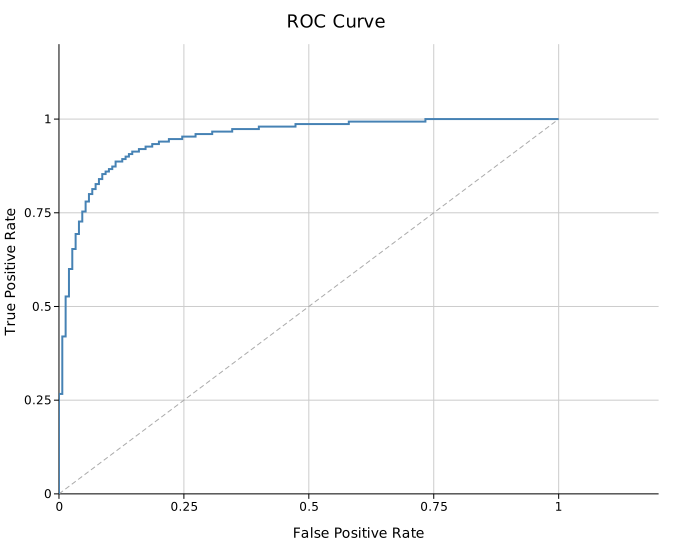
The AUC is shown in the legend by default. The dashed diagonal represents a random classifier (AUC = 0.5). Both can be suppressed — see the API reference below.
DeLong 95% confidence interval
.with_ci(true) on a RocGroup shades the DeLong 95% CI band around the curve. The DeLong estimator is computed from the raw (score, label) pairs and requires no bootstrap.
#![allow(unused)] fn main() { use kuva::plot::{RocPlot, RocGroup}; use kuva::render::plots::Plot; fn logistic_dataset(n: usize, mu: f64, scale: f64) -> Vec<(f64, bool)> { vec![] } let group = RocGroup::new("Classifier") .with_raw(logistic_dataset(150, 1.0, 0.5)) .with_ci(true) .with_optimal_point(); // also mark the Youden J point let roc = RocPlot::new().with_group(group); let plots = vec![Plot::Roc(roc)]; }
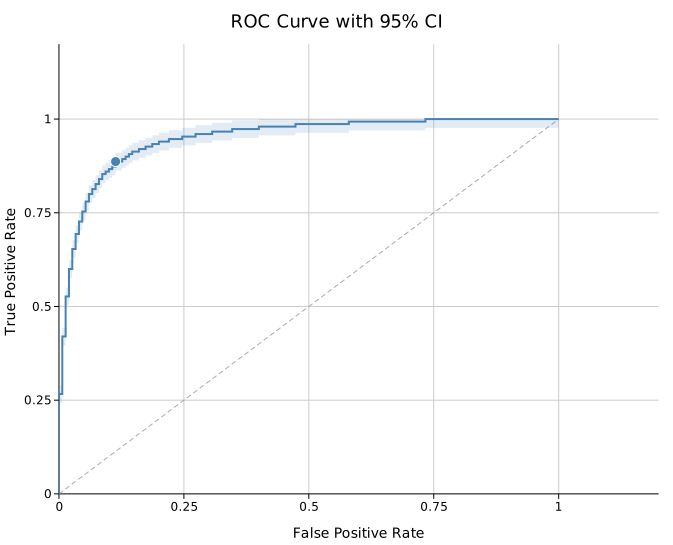
.with_ci_alpha(f) controls the band opacity (default 0.15). The CI is only available with .with_raw() input — pre-computed point data uses only the trapezoidal AUC, and the CI is not shown.
Optimal threshold (Youden's J)
.with_optimal_point() marks the threshold that maximises Youden's J statistic, defined as J = TPR − FPR. The marked point gives the operating point with the best trade-off between sensitivity and specificity.
#![allow(unused)] fn main() { use kuva::plot::{RocPlot, RocGroup}; use kuva::render::plots::Plot; fn logistic_dataset(n: usize, mu: f64, scale: f64) -> Vec<(f64, bool)> { vec![] } let group = RocGroup::new("Biomarker A") .with_raw(logistic_dataset(120, 1.1, 0.45)) .with_optimal_point(); }
The marker is rendered as a filled circle. Its (FPR, TPR) coordinates correspond to the sensitivity and specificity at that threshold: sensitivity = TPR, specificity = 1 − FPR.
To display the exact numeric values, combine with a stats box (see Stats Box):
#![allow(unused)] fn main() { use kuva::render::layout::Layout; use kuva::plot::legend::LegendPosition; use kuva::render::plots::Plot; let plots: Vec<Plot> = vec![]; // After computing sensitivity/specificity at your chosen threshold: let layout = Layout::auto_from_plots(&plots) .with_title("Biomarker") .with_x_label("1 − Specificity") .with_y_label("Sensitivity") .with_stats_box_at( LegendPosition::InsideBottomRight, vec!["Sensitivity = 0.843", "Specificity = 0.779"], ); }
Multi-model comparison
Add one RocGroup per model. Colors are drawn automatically from the palette; attach .with_legend() on the RocPlot to show a legend title.
#![allow(unused)] fn main() { use kuva::plot::{RocPlot, RocGroup}; use kuva::backend::svg::SvgBackend; use kuva::render::render::render_multiple; use kuva::render::layout::Layout; use kuva::render::plots::Plot; fn logistic_dataset(n: usize, mu: f64, scale: f64) -> Vec<(f64, bool)> { vec![] } let g1 = RocGroup::new("Model A").with_raw(logistic_dataset(150, 1.2, 0.5)); let g2 = RocGroup::new("Model B").with_raw(logistic_dataset(150, 0.6, 0.5)); let g3 = RocGroup::new("Model C").with_raw(logistic_dataset(150, 0.2, 0.5)); let roc = RocPlot::new() .with_group(g1) .with_group(g2) .with_group(g3) .with_legend("Classifier"); let plots = vec![Plot::Roc(roc)]; let layout = Layout::auto_from_plots(&plots) .with_title("Multi-model ROC Comparison") .with_x_label("False Positive Rate") .with_y_label("True Positive Rate"); let svg = SvgBackend.render_scene(&render_multiple(plots, layout)); }

Each entry in the legend automatically appends the AUC value (e.g. Model A (AUC = 0.88)). Suppress this with .with_auc_label(false) on any group.
Diagnostic biomarker comparison with CI
A common bioinformatics use case: comparing two biomarkers on the same cohort with confidence bands to assess whether the difference in AUC is meaningful.
#![allow(unused)] fn main() { use kuva::plot::{RocPlot, RocGroup}; use kuva::backend::svg::SvgBackend; use kuva::render::render::render_multiple; use kuva::render::layout::Layout; use kuva::render::plots::Plot; fn logistic_dataset(n: usize, mu: f64, scale: f64) -> Vec<(f64, bool)> { vec![] } let g1 = RocGroup::new("Biomarker A") .with_raw(logistic_dataset(120, 1.1, 0.45)) .with_ci(true) .with_optimal_point(); let g2 = RocGroup::new("Biomarker B") .with_raw(logistic_dataset(120, 0.7, 0.5)) .with_ci(true); let roc = RocPlot::new() .with_group(g1) .with_group(g2) .with_legend("Biomarker"); let plots = vec![Plot::Roc(roc)]; let layout = Layout::auto_from_plots(&plots) .with_title("Diagnostic Biomarker Comparison") .with_x_label("1 − Specificity") .with_y_label("Sensitivity"); let svg = SvgBackend.render_scene(&render_multiple(plots, layout)); }
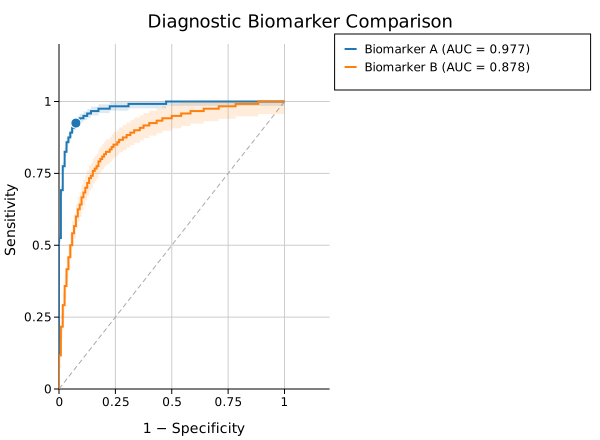
Partial AUC
.with_pauc(fpr_lo, fpr_hi) restricts the AUC calculation to a FPR sub-range. This is useful in clinical settings where only low false-positive-rate operating points are clinically relevant. The partial AUC is normalised to the width of the range so that a perfect classifier still gives 1.0.
#![allow(unused)] fn main() { use kuva::plot::{RocPlot, RocGroup}; use kuva::render::plots::Plot; fn logistic_dataset(n: usize, mu: f64, scale: f64) -> Vec<(f64, bool)> { vec![] } // Restrict AUC to the clinically relevant FPR ∈ [0, 0.2] region let group = RocGroup::new("Classifier") .with_raw(logistic_dataset(150, 1.0, 0.5)) .with_pauc(0.0, 0.2); let roc = RocPlot::new().with_group(group); let plots = vec![Plot::Roc(roc)]; }
The legend shows pAUC (0.0–0.2) = … when a pAUC range is set.
Pre-computed (FPR, TPR) points
If you have already computed the ROC curve externally (e.g. from Python's sklearn.metrics.roc_curve), pass the points directly. AUC is estimated via the trapezoidal rule; DeLong CI is not available for pre-computed input.
#![allow(unused)] fn main() { use kuva::plot::{RocPlot, RocGroup}; use kuva::render::plots::Plot; // (fpr, tpr) points already sorted by increasing FPR let points = vec![ (0.00, 0.00), (0.05, 0.42), (0.10, 0.61), (0.20, 0.78), (0.35, 0.88), (0.50, 0.93), (0.75, 0.97), (1.00, 1.00), ]; let group = RocGroup::new("External classifier") .with_points(points); let roc = RocPlot::new().with_group(group); let plots = vec![Plot::Roc(roc)]; }
Line style
Differentiate classifiers in greyscale publications using custom stroke styles on individual groups:
#![allow(unused)] fn main() { use kuva::plot::{RocPlot, RocGroup}; use kuva::render::plots::Plot; fn logistic_dataset(n: usize, mu: f64, scale: f64) -> Vec<(f64, bool)> { vec![] } let g1 = RocGroup::new("Model A") .with_raw(logistic_dataset(150, 1.2, 0.5)) .with_color("black") .with_line_width(2.5); let g2 = RocGroup::new("Model B") .with_raw(logistic_dataset(150, 0.6, 0.5)) .with_color("black") .with_line_width(1.5) .with_dasharray("8 4"); let roc = RocPlot::new().with_group(g1).with_group(g2); let plots = vec![Plot::Roc(roc)]; }
RocPlot API reference
RocPlot builders
| Method | Default | Description |
|---|---|---|
RocPlot::new() | — | Create a new ROC plot |
.with_group(RocGroup) | — | Add one classifier group |
.with_groups(iter) | — | Add multiple groups at once |
.with_color(css) | "steelblue" | Fallback color when groups have no explicit color |
.with_diagonal(bool) | true | Show the random-classifier reference diagonal |
.with_legend(label) | — | Legend title (shown when groups have labels) |
RocGroup builders
| Method | Default | Description |
|---|---|---|
RocGroup::new(label) | — | Create a group with a display label |
.with_raw(iter) | — | Raw (score: f64, label: bool) predictions; computes curve and AUC internally |
.with_points(iter) | — | Pre-computed (fpr, tpr) points; trapezoidal AUC only |
.with_color(css) | palette | Curve and band color |
.with_ci(bool) | false | Overlay DeLong 95% CI band (requires .with_raw()) |
.with_ci_alpha(f) | 0.15 | CI band opacity |
.with_pauc(lo, hi) | — | Restrict AUC to FPR ∈ [lo, hi], normalised to range width |
.with_optimal_point() | — | Mark the Youden's J optimal threshold point |
.with_auc_label(bool) | true | Append AUC = … to the legend entry |
.with_line_width(px) | 2.0 | Curve stroke width |
.with_dasharray(s) | — | SVG stroke-dasharray string (e.g. "8 4") |
See also: Precision-Recall Curve for imbalanced-class model evaluation, Kaplan-Meier Survival Curve for another step-function statistical curve.
CLI
ROC curve — receiver operating characteristic for binary classifiers, with optional AUC and confidence intervals.
Input: one row per sample with a numeric score column and a binary label column (1 = positive, 0 = negative).
| Flag | Default | Description |
|---|---|---|
--score-col <COL> | 0 | Classifier score column (higher = more positive) |
--label-col <COL> | 1 | True label column (1/0 or true/false) |
--color-by <COL> | — | Group column; one curve per unique value |
--no-diagonal | off | Hide the random-classifier diagonal reference line |
--ci | off | Show DeLong 95% confidence interval band |
--auc-label | off | Append AUC value to each curve's legend entry |
--legend <LABEL> | — | Add a legend |
kuva roc data.tsv --score-col score --label-col label --auc-label
kuva roc data.tsv --score-col score --label-col label \
--color-by model --ci --auc-label --legend "Model" \
--title "ROC Curves"
See also: Shared flags — output, appearance, axes.
Precision-Recall Curve
A Precision-Recall (PR) curve plots precision (positive predictive value) against recall (sensitivity) as the classification threshold is varied. Unlike a ROC curve, the PR curve is insensitive to the class imbalance ratio and focuses exclusively on the performance over the positive class — making it the correct choice for imbalanced datasets such as rare disease detection, fraud detection, or information retrieval.
The area under the PR curve (AUC-PR) summarises classifier performance; a perfect classifier achieves AUC-PR = 1.0, while the no-skill baseline is a horizontal line at the prevalence (positive rate).
Each distinct score value gets its own threshold, even if two values are very close. A group with a NaN score has no curve or AUC-PR, because NaN cannot be ordered.
Import path: kuva::plot::pr::{PrPlot, PrGroup}
Basic usage
Build one PrGroup per classifier using .with_raw(), which accepts (score, bool) pairs. The curve and AUC-PR are computed internally.
#![allow(unused)] fn main() { use kuva::plot::pr::{PrPlot, PrGroup}; use kuva::backend::svg::SvgBackend; use kuva::render::render::render_multiple; use kuva::render::layout::Layout; use kuva::render::plots::Plot; /// Generate deterministic imbalanced predictions. /// 1 positive per `ratio` negatives; positive scores drawn higher. fn imbalanced_data(n: usize, ratio: usize, signal: f64) -> Vec<(f64, bool)> { let mut data = Vec::with_capacity(n); for i in 0..n { let is_pos = i % ratio == 0; let frac = i as f64 / n as f64; let score = if is_pos { signal + (1.0 - signal) * frac } else { (1.0 - signal) * frac }; data.push((score.clamp(0.0, 1.0), is_pos)); } data } let group = PrGroup::new("Classifier A") .with_raw(imbalanced_data(300, 10, 0.7)); let pr = PrPlot::new().with_group(group); let plots = vec![Plot::Pr(pr)]; let layout = Layout::auto_from_plots(&plots) .with_title("Precision-Recall Curve") .with_x_label("Recall") .with_y_label("Precision"); let svg = SvgBackend.render_scene(&render_multiple(plots, layout)); std::fs::write("pr.svg", svg).unwrap(); }
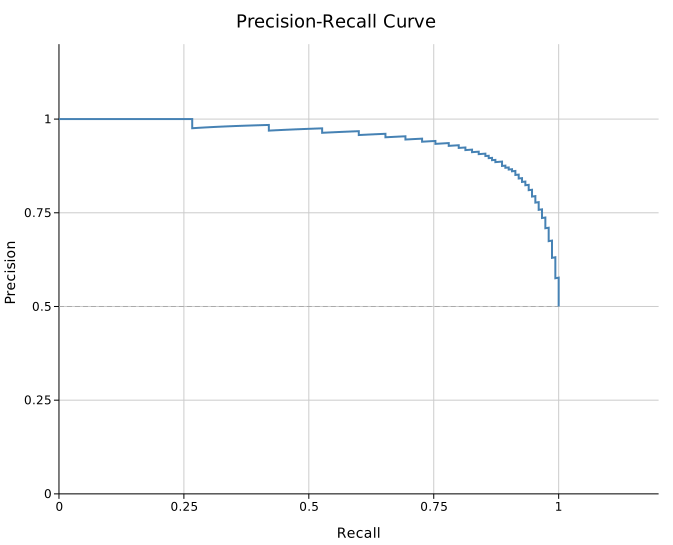
The dashed grey horizontal line is the no-skill baseline at the dataset prevalence. The AUC-PR appears in the legend. Both can be suppressed — see the API reference.
Optimal F1 threshold marker
.with_optimal_point() marks the threshold that maximises the F1 score (harmonic mean of precision and recall). This is the natural operating point when precision and recall have equal importance.
#![allow(unused)] fn main() { use kuva::plot::pr::{PrPlot, PrGroup}; use kuva::render::plots::Plot; use kuva::render::layout::Layout; use kuva::render::render::render_multiple; fn imbalanced_data(n: usize, ratio: usize, signal: f64) -> Vec<(f64, bool)> { vec![] } let group = PrGroup::new("Classifier A") .with_raw(imbalanced_data(300, 10, 0.7)) .with_optimal_point(); let pr = PrPlot::new().with_group(group); let plots = vec![Plot::Pr(pr)]; }
Multi-model comparison
Add one PrGroup per model. Use .with_legend() on PrPlot to show a legend.
#![allow(unused)] fn main() { use kuva::plot::pr::{PrPlot, PrGroup}; use kuva::backend::svg::SvgBackend; use kuva::render::render::render_multiple; use kuva::render::layout::Layout; use kuva::render::plots::Plot; fn imbalanced_data(n: usize, ratio: usize, signal: f64) -> Vec<(f64, bool)> { vec![] } let g1 = PrGroup::new("Logistic Regression") .with_raw(imbalanced_data(300, 10, 0.65)); let g2 = PrGroup::new("Random Forest") .with_raw(imbalanced_data(300, 10, 0.80)) .with_optimal_point(); let g3 = PrGroup::new("Neural Network") .with_raw(imbalanced_data(300, 10, 0.88)) .with_optimal_point(); let pr = PrPlot::new() .with_group(g1) .with_group(g2) .with_group(g3) .with_legend("Model"); let plots = vec![Plot::Pr(pr)]; let layout = Layout::auto_from_plots(&plots) .with_title("Model Comparison — Rare Event Detection") .with_x_label("Recall") .with_y_label("Precision"); let svg = SvgBackend.render_scene(&render_multiple(plots, layout)); }

Pre-computed (recall, precision) points
If you have already computed the PR curve externally (e.g. from Python's sklearn.metrics.precision_recall_curve), pass the points directly. Supply .with_prevalence() to draw the correct no-skill baseline.
#![allow(unused)] fn main() { use kuva::plot::pr::{PrPlot, PrGroup}; use kuva::render::plots::Plot; // (recall, precision) already computed externally; sorted by increasing recall let points = vec![ (0.00, 1.00), (0.10, 0.91), (0.25, 0.84), (0.40, 0.76), (0.55, 0.67), (0.70, 0.55), (0.85, 0.42), (1.00, 0.10), ]; let group = PrGroup::new("External model") .with_points(points) .with_prevalence(0.10); // 10% positive rate let pr = PrPlot::new().with_group(group); let plots = vec![Plot::Pr(pr)]; }
Line style
Differentiate models in greyscale or colorblind-safe output using custom stroke styles.
#![allow(unused)] fn main() { use kuva::plot::pr::{PrPlot, PrGroup}; use kuva::render::plots::Plot; fn imbalanced_data(n: usize, ratio: usize, signal: f64) -> Vec<(f64, bool)> { vec![] } let g1 = PrGroup::new("Model A") .with_raw(imbalanced_data(300, 8, 0.75)) .with_color("black") .with_line_width(2.0); let g2 = PrGroup::new("Model B") .with_raw(imbalanced_data(300, 8, 0.60)) .with_color("black") .with_line_width(1.5) .with_dasharray("6 3"); let pr = PrPlot::new().with_group(g1).with_group(g2).with_legend("Model"); let plots = vec![Plot::Pr(pr)]; }
PrPlot API reference
PrPlot builders
| Method | Default | Description |
|---|---|---|
PrPlot::new() | — | Create a new PR curve plot |
.with_group(PrGroup) | — | Add one classifier group |
.with_groups(iter) | — | Add multiple groups at once |
.with_color(css) | "steelblue" | Fallback color when groups have no explicit color |
.with_baseline(bool) | true | Show the no-skill prevalence baseline |
.with_legend(label) | — | Legend title (shown when groups have labels) |
PrGroup builders
| Method | Default | Description |
|---|---|---|
PrGroup::new(label) | — | Create a group with a display label |
.with_raw(iter) | — | Raw (score: f64, label: bool) predictions; computes curve and AUC internally |
.with_points(iter) | — | Pre-computed (recall, precision) points; trapezoidal AUC only |
.with_prevalence(f) | — | Override prevalence for the no-skill baseline (pre-computed input) |
.with_color(css) | palette | Curve color |
.with_optimal_point() | — | Mark the F1-optimal threshold |
.with_auc_label(bool) | true | Append AUC = … to the legend entry |
.with_line_width(px) | 2.0 | Curve stroke width |
.with_dasharray(s) | — | SVG stroke-dasharray string (e.g. "6 3") |
See also: ROC Curve for the balanced-class counterpart.
CLI
Precision-recall curve — evaluates binary classifiers when class imbalance makes ROC curves optimistic.
Input: one row per sample with a numeric score column and a binary label column (1 = positive, 0 = negative).
| Flag | Default | Description |
|---|---|---|
--score-col <COL> | 0 | Classifier score column (higher = more positive) |
--label-col <COL> | 1 | True label column (1/0 or true/false) |
--color-by <COL> | — | Group column; one curve per unique value |
--no-baseline | off | Hide the no-skill (prevalence) baseline |
--auc-label | off | Append AUC-PR value to each curve's legend entry |
--legend <LABEL> | — | Add a legend |
kuva pr data.tsv --score-col score --label-col label --auc-label
kuva pr data.tsv --score-col score --label-col label \
--color-by model --auc-label --legend "Model" \
--title "Precision-Recall Curves"
See also: Shared flags — output, appearance, axes.
Kaplan-Meier Survival Curve
A Kaplan-Meier (KM) survival plot displays the probability that subjects remain event-free over time. Each subject contributes one observation: the time to event (e.g., death, relapse) or the time at last follow-up for censored subjects who did not experience the event.
KM curves are the standard tool in clinical trials, epidemiology, and any study that measures time-to-event outcomes. Multiple groups are compared side-by-side, and a log-rank p-value is typically annotated.
Import path: kuva::plot::survival::{SurvivalPlot, KMGroup}
Basic usage
Pass times (float) and events (bool) vectors to .with_group(). true means the event occurred; false means the observation was censored. Censoring tick marks appear on the curve by default.
#![allow(unused)] fn main() { use kuva::plot::survival::SurvivalPlot; use kuva::backend::svg::SvgBackend; use kuva::render::render::render_multiple; use kuva::render::layout::Layout; use kuva::render::plots::Plot; let times = vec![2.0, 4.0, 6.0, 8.0, 10.0, 12.0, 14.0, 16.0, 18.0, 20.0]; let events = vec![true, true, false, true, false, true, false, true, false, true]; let plot = SurvivalPlot::new() .with_group("Treatment", times, events); let plots = vec![Plot::Survival(plot)]; let layout = Layout::auto_from_plots(&plots) .with_title("Overall Survival") .with_x_label("Time (months)") .with_y_label("Survival probability"); let svg = SvgBackend.render_scene(&render_multiple(plots, layout)); std::fs::write("survival.svg", svg).unwrap(); }
Tick marks on the curve indicate censored observations — subjects who were still event-free at their last follow-up. Suppress them with .with_censoring(false).
Multi-group comparison
Add one .with_group() per arm. Attach .with_legend() to label the curves. Annotate a p-value with .with_pvalue_text() for a pre-computed value, or .with_logrank_pvalue(true) to compute the log-rank test from the raw data (see Clinical annotations).
#![allow(unused)] fn main() { use kuva::plot::survival::SurvivalPlot; use kuva::backend::svg::SvgBackend; use kuva::render::render::render_multiple; use kuva::render::layout::Layout; use kuva::render::plots::Plot; let plot = SurvivalPlot::new() .with_group( "Arm A", vec![3.0, 6.0, 9.0, 12.0, 15.0, 18.0, 21.0, 24.0], vec![true, true, false, true, true, false, true, false], ) .with_group( "Arm B", vec![2.0, 4.0, 5.0, 8.0, 11.0, 14.0, 17.0, 22.0], vec![true, true, true, false, true, true, false, true], ) .with_pvalue_text("log-rank p = 0.031") .with_legend("Treatment"); let plots = vec![Plot::Survival(plot)]; let layout = Layout::auto_from_plots(&plots) .with_title("Progression-Free Survival") .with_x_label("Time (months)") .with_y_label("Survival probability"); let svg = SvgBackend.render_scene(&render_multiple(plots, layout)); }

Clinical annotations
Three options turn a survival plot into a publication-style clinical figure:
.with_risk_table(true)draws a number-at-risk table below the plot, one row per group, with counts at each x-axis tick (survminerrisk.table = TRUE). Space for the table is reserved automatically..with_median_lines(true)draws median-survival reference lines: a dashed horizontal at S = 0.5 out to each curve's median time, then a dashed vertical down to the axis (survminersurv.median.line). Groups whose survival never reaches 0.5 get no line..with_logrank_pvalue(true)computes the log-rank test p-value from the raw data and annotates it (e.g.log-rank p = 0.023), overriding any.with_pvalue_text(). Two groups use the exact Mantel-Haenszel statistic; three or more use theΣ (O−E)²/Eapproximation.
#![allow(unused)] fn main() { use kuva::plot::survival::SurvivalPlot; let plot = SurvivalPlot::new() .with_group("Arm A", arm_a_times, arm_a_events) .with_group("Arm B", arm_b_times, arm_b_events) .with_legend("Treatment") .with_risk_table(true) .with_median_lines(true) .with_logrank_pvalue(true); }
Reading the number-at-risk table
Each cell is the number of subjects still under follow-up at that time: everyone whose observed time (event or censoring) is greater than or equal to the tick. It is a plain integer count, and it only ever decreases from left to right as subjects have the event or are censored. The columns line up with the time ticks on the x-axis.
In the figure above (12 subjects per arm):
- At time 0 both arms start at the full cohort (12 and 12).
- Arm A drops to 4 by time 10: only the 4 subjects whose follow-up reached month 10 are still being observed; the other 8 have already had the event or been censored.
- Arm B falls more slowly (12 at time 5, still 10 at time 10) because its events happen later.
The table count is not the survival probability times N. The curve shows the estimated survival probability S(t) (a value between 0 and 1); the table shows the denominator behind that estimate (how many people the curve is actually based on at each time). The two match only when there is no censoring. With censoring they diverge: in the figure, Arm A's curve sits near S(10) ≈ 0.43, which would suggest about 0.43 × 12 ≈ 5 survivors, yet only 4 are still at risk, and the difference is exactly the subjects censored before month 10.
Read the two together: when the risk-table count gets small (single digits, or 0), the curve at that time is based on very few subjects and its later steps should be treated as uncertain, which is why clinical figures print the table directly under the curve.
Confidence intervals
.with_ci(true) overlays Greenwood 95% CI bands around each curve. Control opacity with .with_ci_alpha().
#![allow(unused)] fn main() { use kuva::plot::survival::SurvivalPlot; use kuva::render::plots::Plot; use kuva::render::layout::Layout; use kuva::render::render::render_multiple; let plot = SurvivalPlot::new() .with_group( "Biomarker high", vec![4.0, 8.0, 12.0, 16.0, 20.0, 24.0, 28.0, 32.0, 36.0], vec![true, true, false, true, false, true, false, false, true], ) .with_group( "Biomarker low", vec![2.0, 3.0, 6.0, 9.0, 11.0, 14.0, 17.0, 20.0, 23.0], vec![true, true, true, true, false, true, true, false, true], ) .with_ci(true) .with_ci_alpha(0.15) .with_pvalue_text("p < 0.001") .with_legend("Biomarker status"); let plots = vec![Plot::Survival(plot)]; }

Custom colors
Use .with_colored_group() to set a per-group color, or .with_group_colors() to set all colors at once.
#![allow(unused)] fn main() { use kuva::plot::survival::SurvivalPlot; use kuva::render::plots::Plot; use kuva::render::layout::Layout; use kuva::render::render::render_multiple; let plot = SurvivalPlot::new() .with_colored_group( "Responders", vec![8.0, 12.0, 18.0, 24.0, 30.0, 36.0], vec![true, false, true, false, false, true], "#2ca02c", ) .with_colored_group( "Non-responders", vec![3.0, 5.0, 7.0, 10.0, 13.0, 16.0], vec![true, true, true, false, true, true], "#d62728", ) .with_ci(true) .with_legend("Response"); let plots = vec![Plot::Survival(plot)]; }
SurvivalPlot API reference
SurvivalPlot builders
| Method | Default | Description |
|---|---|---|
SurvivalPlot::new() | — | Create a survival plot with default settings |
.with_group(label, times, events) | — | Add a group; events: true = event occurred, false = censored |
.with_colored_group(label, times, events, color) | — | Add a group with a per-group color |
.with_color(css) | "steelblue" | Fallback color for a single unlabeled group |
.with_group_colors(iter) | — | Per-group colors (by group order) |
.with_line_width(px) | 2.0 | Curve stroke width |
.with_ci(bool) | false | Overlay Greenwood 95% CI bands |
.with_ci_alpha(f) | 0.2 | CI band opacity |
.with_censoring(bool) | true | Show censoring tick marks on curves |
.with_censoring_size(px) | 4.0 | Half-height of censoring ticks |
.with_pvalue_text(s) | — | P-value or annotation rendered in the upper-right corner |
.with_risk_table(bool) | false | Number-at-risk table below the plot |
.with_median_lines(bool) | false | Median-survival reference lines |
.with_logrank_pvalue(bool) | false | Compute and annotate the log-rank p-value |
.with_legend(label) | — | Legend title (one entry per group) |
See also: Forest Plot for point-estimate meta-analysis, ROC Curve for another step-function statistical curve.
CLI
Kaplan-Meier survival curve — estimates the survival function from time-to-event data with right-censoring.
Input: one row per subject with time, event indicator (1 = event occurred, 0 = censored), and optional group columns.
| Flag | Default | Description |
|---|---|---|
--time-col <COL> | 0 | Follow-up time column |
--event-col <COL> | 1 | Event indicator column (1 = event, 0 = censored) |
--group-col <COL> | — | Group column; one curve per unique value |
--no-ci | off | Hide Greenwood 95% confidence interval bands |
--no-censoring | off | Hide censoring tick marks |
--line-width <PX> | 2.0 | Stroke width of survival curves |
--legend <LABEL> | — | Add a legend |
--risk-table | off | Draw a number-at-risk table below the plot |
--median-lines | off | Draw median-survival reference lines |
--logrank | off | Compute and annotate the log-rank p-value |
kuva survival data.tsv --time-col time --event-col event
kuva survival data.tsv --time-col time --event-col event \
--group-col treatment --legend "Group" \
--title "Kaplan-Meier Survival by Treatment"
See also: Shared flags — output, appearance, axes.
Forest Plot
A forest plot displays effect sizes and confidence intervals from multiple studies in a meta-analysis. Each row shows a study label on the Y-axis, a horizontal CI whisker, and a filled square at the point estimate on the X-axis. A vertical dashed reference line marks the null effect.
Import path: kuva::plot::ForestPlot
Basic usage
Add one row per study with .with_row(label, estimate, ci_lower, ci_upper). Rows are rendered top-to-bottom in the order they are added.
#![allow(unused)] fn main() { use kuva::plot::ForestPlot; use kuva::backend::svg::SvgBackend; use kuva::render::render::render_multiple; use kuva::render::layout::Layout; use kuva::render::plots::Plot; let forest = ForestPlot::new() .with_row("Smith 2019", 0.50, 0.10, 0.90) .with_row("Johnson 2020", -0.30, -0.80, 0.20) .with_row("Williams 2020", 0.20, -0.10, 0.50) .with_row("Overall", 0.28, 0.10, 0.46) .with_null_value(0.0); let plots = vec![Plot::Forest(forest)]; let layout = Layout::auto_from_plots(&plots) .with_title("Meta-Analysis: Treatment Effect") .with_x_label("Effect Size (95% CI)"); let scene = render_multiple(plots, layout); let svg = SvgBackend.render_scene(&scene); std::fs::write("forest.svg", svg).unwrap(); }

Weighted markers
Use .with_weighted_row(label, estimate, ci_lower, ci_upper, weight) to scale marker radius by study weight. Radius scales as base_size * sqrt(weight / max_weight).
#![allow(unused)] fn main() { use kuva::plot::ForestPlot; let forest = ForestPlot::new() .with_weighted_row("Smith 2019", 0.50, 0.10, 0.90, 5.2) .with_weighted_row("Johnson 2020", -0.30, -0.80, 0.20, 3.8) .with_marker_size(6.0); }
Builder reference
| Method | Default | Description |
|---|---|---|
.with_row(label, est, lo, hi) | — | Add a study row |
.with_weighted_row(label, est, lo, hi, w) | — | Add a weighted study row |
.with_color(css) | "steelblue" | Point and whisker color |
.with_marker_size(px) | 6.0 | Base marker half-width |
.with_whisker_width(px) | 1.5 | CI line stroke width |
.with_null_value(f64) | 0.0 | Null-effect reference value |
.with_show_null_line(bool) | true | Toggle the dashed null line |
.with_cap_size(px) | 0.0 | Whisker end-cap half-height (0 = no caps) |
.with_legend(label) | — | Legend label |
CLI
Input: one row per study with columns for label, estimate, CI lower, CI upper, and optionally weight.
| Flag | Default | Description |
|---|---|---|
--label-col <COL> | 0 | Study label column |
--estimate-col <COL> | 1 | Point estimate column |
--ci-lower-col <COL> | 2 | CI lower-bound column |
--ci-upper-col <COL> | 3 | CI upper-bound column |
--weight-col <COL> | — | Optional weight column (scales marker radius) |
--color <CSS> | steelblue | Point and whisker color |
--marker-size <PX> | 6.0 | Base marker half-width |
--whisker-width <PX> | 1.5 | Whisker stroke width |
--null-value <F> | 0.0 | Null-effect reference value |
--no-null-line | off | Disable the dashed null reference line |
--cap-size <PX> | 0 | Whisker end-cap half-height (0 = no caps) |
kuva forest data.tsv \
--label-col study --estimate-col estimate \
--ci-lower-col lower --ci-upper-col upper
kuva forest data.tsv \
--label-col study --estimate-col estimate \
--ci-lower-col lower --ci-upper-col upper \
--weight-col weight --marker-size 6
See also: Kaplan-Meier Survival Curve for another clinical/statistical curve, Slope Chart for a simpler before/after comparison.
See also: Shared flags — output, appearance, axes.
Treemap Plot
A treemap tiles a rectangle with nested rectangles proportional to node values. Squarified layout (default) minimises worst-case aspect ratios. Supports arbitrary depth hierarchies, second-dimension coloring, and SVG hover tooltips.
Import path: kuva::plot::treemap::TreemapPlot, kuva::plot::treemap::TreemapNode, kuva::plot::treemap::TreemapColorMode, kuva::plot::treemap::TreemapLayout, kuva::plot::ColorMap
Basic usage
Pass leaf nodes to .with_node(). The plot tiles the canvas area proportionally to each node's value.
#![allow(unused)] fn main() { use kuva::plot::treemap::{TreemapPlot, TreemapNode}; use kuva::backend::svg::SvgBackend; use kuva::render::render::render_multiple; use kuva::render::layout::Layout; use kuva::render::plots::Plot; let plot = TreemapPlot::new() .with_node(TreemapNode::leaf("Rust", 40.0)) .with_node(TreemapNode::leaf("Python", 35.0)) .with_node(TreemapNode::leaf("Go", 25.0)); let plots = vec![Plot::Treemap(plot)]; let layout = Layout::auto_from_plots(&plots).with_title("Language usage"); let svg = SvgBackend.render_scene(&render_multiple(plots, layout)); std::fs::write("treemap.svg", svg).unwrap(); }
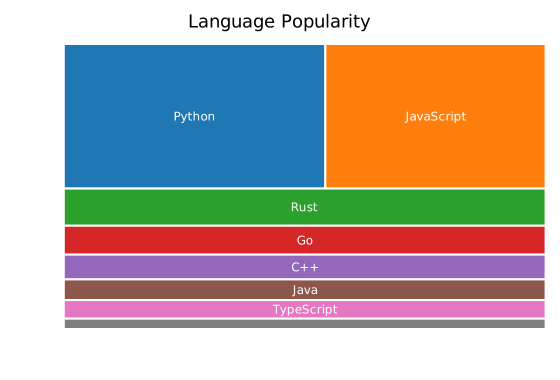
Hierarchical data
Use TreemapNode::new(label, children) for inner nodes. Values auto-sum from children when value = 0.0.
#![allow(unused)] fn main() { use kuva::plot::treemap::{TreemapPlot, TreemapNode}; use kuva::render::plots::Plot; let plot = TreemapPlot::new() .with_node(TreemapNode::new("Languages", vec![ TreemapNode::leaf("Rust", 40.0), TreemapNode::leaf("Python", 35.0), TreemapNode::leaf("Go", 25.0), ])) .with_node(TreemapNode::new("Databases", vec![ TreemapNode::leaf("Postgres", 60.0), TreemapNode::leaf("SQLite", 30.0), ])); }

Parent cells show a group label at top-left. Children are tiled inside with padding and a label-reserve row.
Forest (multiple roots)
Pass multiple .with_node() calls — each root gets a distinct category10 color and its descendants inherit it.
#![allow(unused)] fn main() { use kuva::plot::treemap::{TreemapPlot, TreemapNode}; use kuva::render::plots::Plot; let plot = TreemapPlot::new() .with_node(TreemapNode::new("Alpha", vec![ TreemapNode::leaf("a1", 10.0), TreemapNode::leaf("a2", 20.0), ])) .with_node(TreemapNode::new("Beta", vec![ TreemapNode::leaf("b1", 30.0), TreemapNode::leaf("b2", 15.0), ])) .with_node(TreemapNode::leaf("Gamma", 25.0)); }
Color modes
ByParent (default)
Each root group inherits a distinct category10 color. All descendants use the same hue.
ByValue
Color leaves by their value (or a parallel color_values vector) using a colormap.
#![allow(unused)] fn main() { use kuva::plot::treemap::{TreemapPlot, TreemapNode, TreemapColorMode, ColorMap}; use kuva::render::plots::Plot; let plot = TreemapPlot::new() .with_node(TreemapNode::leaf("A", 10.0)) .with_node(TreemapNode::leaf("B", 50.0)) .with_node(TreemapNode::leaf("C", 25.0)) .with_color_mode(TreemapColorMode::ByValue(ColorMap::Viridis)); // show_colorbar is automatically enabled when ByValue is set }
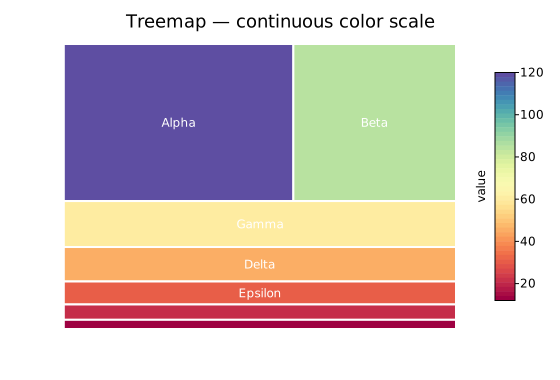
Explicit
Use the color field on each node (CSS string). Call .with_color_mode(TreemapColorMode::Explicit).
#![allow(unused)] fn main() { use kuva::plot::treemap::{TreemapPlot, TreemapNode, TreemapColorMode}; use kuva::render::plots::Plot; let plot = TreemapPlot::new() .with_node(TreemapNode::leaf_colored("Red", 30.0, "#e74c3c")) .with_node(TreemapNode::leaf_colored("Blue", 20.0, "#3498db")) .with_color_mode(TreemapColorMode::Explicit); }
Second-dimension coloring (GO enrichment pattern)
Use color_values to color leaves by a variable independent of size. A common bioinformatics pattern: size = gene count, color = p-value.
#![allow(unused)] fn main() { use kuva::plot::treemap::{TreemapPlot, TreemapNode, TreemapColorMode, ColorMap}; use kuva::render::plots::Plot; let gene_counts = vec![120_f64, 80.0, 55.0, 40.0]; let p_values = vec![0.001, 0.023, 0.045, 0.0001]; let plot = TreemapPlot::new() .with_node(TreemapNode::leaf("GO:0008150 — biological process", gene_counts[0])) .with_node(TreemapNode::leaf("GO:0005575 — cellular component", gene_counts[1])) .with_node(TreemapNode::leaf("GO:0003674 — molecular function", gene_counts[2])) .with_node(TreemapNode::leaf("GO:0006950 — response to stress", gene_counts[3])) .with_color_values(p_values) .with_color_mode(TreemapColorMode::ByValue(ColorMap::Viridis)) .with_colorbar_label("p-value"); }
Or use the convenience builder:
#![allow(unused)] fn main() { use kuva::plot::treemap::TreemapPlot; use kuva::render::plots::Plot; let plot = TreemapPlot::new() .with_go_terms(vec![ ("GO:0008150", "biological process", 120, 0.001), ("GO:0005575", "cellular component", 80, 0.023), ("GO:0003674", "molecular function", 55, 0.045), ]) .with_colorbar_label("p-value"); }

Layout algorithms
.with_layout(algo) selects the tiling strategy.
#![allow(unused)] fn main() { use kuva::plot::treemap::{TreemapPlot, TreemapNode, TreemapLayout}; use kuva::render::plots::Plot; // Squarify (default): minimises worst aspect ratio let plot = TreemapPlot::new() .with_layout(TreemapLayout::Squarify); // SliceDice: alternating H/V cuts per level — fast, may produce slivers let plot = TreemapPlot::new() .with_layout(TreemapLayout::SliceDice); // Binary: balanced binary splits — good for uniform distributions let plot = TreemapPlot::new() .with_layout(TreemapLayout::Binary); }
TreemapLayout variant | Description |
|---|---|
Squarify (default) | Bruls 2000 — minimises worst aspect ratio per strip |
SliceDice | Alternating H/V slices by depth — simple and predictable |
Binary | Balanced binary splits; alternating H/V |
Padding and borders
.with_padding(px) sets the gap between a parent's border and its children. Padding halves at each depth level.
#![allow(unused)] fn main() { use kuva::plot::treemap::{TreemapPlot, TreemapNode}; use kuva::render::plots::Plot; let plot = TreemapPlot::new() .with_padding(6.0) .with_border_width(0.5) .with_root_border_width(2.5); }
Depth limiting
.with_max_depth(n) renders at most n levels deep (root = depth 0). Nodes at the limit are treated as leaves even if they have children.
#![allow(unused)] fn main() { use kuva::plot::treemap::{TreemapPlot, TreemapNode}; use kuva::render::plots::Plot; let plot = TreemapPlot::new() .with_max_depth(2); // root + 2 child levels }
Tooltips
By default each cell emits an SVG <title> tooltip showing the breadcrumb path and value on hover. Disable with .with_tooltips(false).
#![allow(unused)] fn main() { use kuva::plot::treemap::{TreemapPlot, TreemapNode}; use kuva::render::plots::Plot; // Tooltips off — smaller SVG let plot = TreemapPlot::new() .with_tooltips(false); }
API reference
| Method | Description |
|---|---|
TreemapPlot::new() | Default: 20-bin Squarify, ByParent, tooltips on |
.with_node(node) | Add a root node |
.with_children(label, children) | Add a parent node with given children |
.with_color_mode(mode) | ByParent / ByValue(cmap) / Explicit |
.with_color_values(vals) | Parallel leaf color values (depth-first order) |
.with_layout(algo) | Squarify / SliceDice / Binary |
.with_padding(px) | Padding between parent and children (default 4.0) |
.with_border_width(px) | Leaf / inner border width (default 0.5) |
.with_root_border_width(px) | Root border width (default 2.0) |
.with_min_label_area(px²) | Hide label when cell area < threshold (default 1200.0) |
.with_show_labels(bool) | Show leaf labels (default true) |
.with_show_parent_labels(bool) | Show parent labels (default true) |
.with_colorbar(bool) | Show colorbar (auto-on in ByValue mode) |
.with_colorbar_label(str) | Override colorbar label |
.with_color_range(lo, hi) | Clamp colorbar scale |
.with_max_depth(n) | Limit render depth |
.with_tooltips(bool) | SVG hover tooltips (default true) |
.with_go_terms(iter) | Convenience builder for GO enrichment |
TreemapNode constructors
| Constructor | Description |
|---|---|
TreemapNode::leaf(label, value) | Leaf node — no children |
TreemapNode::new(label, children) | Inner node — value auto-summed from children |
TreemapNode::with_value(label, value, children) | Inner node with explicit value |
TreemapNode::leaf_colored(label, value, css_color) | Leaf with explicit CSS color |
See also: Sunburst Chart for a radial version of the same hierarchy, Heatmap for a flat (non-hierarchical) matrix of values.
CLI
Input: at minimum a label column and a value column; optionally a parent column for two-level hierarchy.
| Flag | Default | Description |
|---|---|---|
--label <COL> | 0 | Label column (name or index) |
--value <COL> | 1 | Value column (name or index) |
--parent <COL> | — | Parent column → 2-level hierarchy |
--color-by <MODE> | parent | Color mode: parent, value, explicit |
--color-col <COL> | — | Color values (value mode) or CSS color strings (explicit mode) |
--colormap <NAME> | viridis | Colormap: viridis, inferno, turbo, grayscale |
--layout <NAME> | squarify | Layout: squarify, slicedice, binary |
--padding <F> | 4.0 | Padding px between parent border and children |
--colorbar | off | Show colorbar in value mode |
--colorbar-label <S> | — | Colorbar label |
--no-tooltips | off | Suppress SVG hover tooltips |
--max-depth <N> | — | Maximum depth to render |
# Flat treemap from two columns
kuva treemap data.tsv --label name --value size
# Two-level: group rows by parent column
kuva treemap data.tsv --label gene --value count --parent pathway
# Color leaves by a third column (e.g. p-value)
kuva treemap data.tsv --label term --value count --color-by value --color-col pvalue --colorbar --colorbar-label "p-value"
# Slice-and-dice layout
kuva treemap data.tsv --label name --value size --layout slicedice
# Suppress tooltips for a clean static SVG
kuva treemap data.tsv --label name --value size --no-tooltips
# Limit to two depth levels
kuva treemap data.tsv --label name --value size --parent group --max-depth 2
# Custom colormap and explicit title
kuva treemap data.tsv --label name --value size --colormap inferno -t "Category breakdown"
See also: Shared flags — output, appearance, axes.
Sunburst Chart
A sunburst chart displays hierarchical data as concentric rings. Each ring represents one depth level; arc widths within a ring are proportional to node values. Uses the same TreemapNode data model as the TreemapPlot.
Import path: kuva::plot::sunburst::SunburstPlot, kuva::plot::sunburst::SunburstColorMode, kuva::plot::treemap::TreemapNode, kuva::plot::ColorMap
Basic usage
#![allow(unused)] fn main() { use kuva::plot::sunburst::SunburstPlot; use kuva::plot::treemap::TreemapNode; use kuva::backend::svg::SvgBackend; use kuva::render::render::render_multiple; use kuva::render::layout::Layout; use kuva::render::plots::Plot; let plot = SunburstPlot::new() .with_node(TreemapNode::new("Root", vec![ TreemapNode::leaf("A", 30.0), TreemapNode::leaf("B", 45.0), TreemapNode::leaf("C", 25.0), ])); let plots = vec![Plot::Sunburst(plot)]; let layout = Layout::auto_from_plots(&plots).with_title("Sunburst"); let svg = SvgBackend.render_scene(&render_multiple(plots, layout)); std::fs::write("sunburst.svg", svg).unwrap(); }

Hierarchical data (multiple levels)
Use TreemapNode::new(label, children) for inner nodes. Values auto-sum from children when value = 0.0.
#![allow(unused)] fn main() { use kuva::plot::sunburst::SunburstPlot; use kuva::plot::treemap::TreemapNode; use kuva::render::{plots::Plot, layout::Layout, render::render_multiple}; use kuva::backend::svg::SvgBackend; let plot = SunburstPlot::new() .with_node(TreemapNode::new("Animals", vec![ TreemapNode::new("Mammals", vec![ TreemapNode::leaf("Dog", 40.0), TreemapNode::leaf("Cat", 35.0), TreemapNode::leaf("Bear", 25.0), ]), TreemapNode::new("Birds", vec![ TreemapNode::leaf("Eagle", 60.0), TreemapNode::leaf("Parrot", 40.0), ]), ])); }
Multiple roots (forest)
Multiple root nodes share the innermost ring, each receiving a distinct category color.
#![allow(unused)] fn main() { use kuva::plot::sunburst::SunburstPlot; use kuva::plot::treemap::TreemapNode; let plot = SunburstPlot::new() .with_children("Frontend", vec![ TreemapNode::leaf("React", 50.0), TreemapNode::leaf("Vue", 30.0), TreemapNode::leaf("Svelte", 20.0), ]) .with_children("Backend", vec![ TreemapNode::leaf("Rust", 40.0), TreemapNode::leaf("Go", 35.0), TreemapNode::leaf("Python", 25.0), ]); }
Donut style
Set .with_inner_radius(frac) where frac is the fractional inner hole size (0.0 = solid disc, 0.3 = 30% hole).
#![allow(unused)] fn main() { use kuva::plot::sunburst::SunburstPlot; use kuva::plot::treemap::TreemapNode; let plot = SunburstPlot::new() .with_node(TreemapNode::new("Root", vec![ TreemapNode::leaf("A", 40.0), TreemapNode::leaf("B", 35.0), TreemapNode::leaf("C", 25.0), ])) .with_inner_radius(0.35); // 35% inner hole }
Color modes
By parent (default)
Each root node gets a distinct category10 color; descendants inherit it.
#![allow(unused)] fn main() { use kuva::plot::sunburst::{SunburstPlot, SunburstColorMode}; use kuva::plot::treemap::TreemapNode; let plot = SunburstPlot::new() .with_children("Group A", vec![ TreemapNode::leaf("X", 40.0), TreemapNode::leaf("Y", 60.0), ]) .with_color_mode(SunburstColorMode::ByParent); }
By value
Color arcs by a continuous colormap. Parent arcs appear as neutral #e0e0e0.
#![allow(unused)] fn main() { use kuva::plot::sunburst::{SunburstPlot, SunburstColorMode}; use kuva::plot::treemap::TreemapNode; use kuva::plot::ColorMap; let plot = SunburstPlot::new() .with_node(TreemapNode::new("Root", vec![ TreemapNode::leaf("A", 30.0), TreemapNode::leaf("B", 45.0), TreemapNode::leaf("C", 25.0), ])) .with_color_mode(SunburstColorMode::ByValue(ColorMap::Viridis)) .with_colorbar(true) .with_colorbar_label("Score"); }
Explicit
Use TreemapNode::leaf_colored(label, value, css_color) for per-node CSS colors.
#![allow(unused)] fn main() { use kuva::plot::sunburst::{SunburstPlot, SunburstColorMode}; use kuva::plot::treemap::TreemapNode; let plot = SunburstPlot::new() .with_node(TreemapNode::new("Root", vec![ TreemapNode::leaf_colored("Red slice", 40.0, "#e74c3c"), TreemapNode::leaf_colored("Blue slice", 35.0, "#3498db"), TreemapNode::leaf_colored("Green slice",25.0, "#2ecc71"), ])) .with_color_mode(SunburstColorMode::Explicit); }
Second-dimension coloring (color_values)
For GO enrichment-style charts: size = gene count, color = p-value (independent of arc size).
#![allow(unused)] fn main() { use kuva::plot::sunburst::{SunburstPlot, SunburstColorMode}; use kuva::plot::treemap::TreemapNode; use kuva::plot::ColorMap; let terms = vec![ ("GO:0006955 immune response", 120_usize, 1e-10_f64), ("GO:0007049 cell cycle", 85, 2e-7), ("GO:0016310 phosphorylation", 60, 5e-5), ]; let mut plot = SunburstPlot::new(); let mut pvalues = Vec::new(); for (label, count, pval) in &terms { plot = plot.with_node(TreemapNode::leaf(label.to_string(), *count as f64)); pvalues.push(-pval.log10()); // –log₁₀(p) so high = significant } let plot = plot .with_color_values(pvalues) .with_color_mode(SunburstColorMode::ByValue(ColorMap::Viridis)) .with_colorbar(true) .with_colorbar_label("−log₁₀(p)"); }
Start angle and depth limit
#![allow(unused)] fn main() { use kuva::plot::sunburst::SunburstPlot; use kuva::plot::treemap::TreemapNode; let plot = SunburstPlot::new() .with_node(TreemapNode::new("Root", vec![ TreemapNode::leaf("A", 30.0), TreemapNode::leaf("B", 70.0), ])) .with_start_angle(90.0) // start from east instead of north .with_max_depth(2) // limit to 2 rings .with_ring_gap(2.0); // wider gap between rings }
Builder reference
| Method | Default | Description |
|---|---|---|
.with_node(node) | — | Add a root node |
.with_children(label, children) | — | Add a named parent with children |
.with_color_mode(mode) | ByParent | Color mode (ByParent, ByValue(cmap), Explicit) |
.with_color_values(vals) | — | Parallel leaf-order values for ByValue coloring |
.with_inner_radius(frac) | 0.0 | Fractional inner hole size [0.0, 0.95) |
.with_start_angle(deg) | 0.0 | Starting angle in degrees (0 = north, clockwise) |
.with_ring_gap(px) | 1.0 | Gap in pixels between rings |
.with_show_labels(bool) | true | Show arc labels |
.with_min_label_angle(deg) | 15.0 | Minimum arc sweep for label to render |
.with_max_depth(n) | — | Limit rendered depth |
.with_tooltips(bool) | true | Enable SVG hover tooltips |
.with_colorbar(bool) | false | Show colorbar (auto-enabled by ByValue) |
.with_colorbar_label(str) | — | Colorbar label |
.with_color_range(lo, hi) | — | Clamp colorbar scale |
See also: Treemap for a rectangular version of the same hierarchy, Pie Chart for a single-ring (non-hierarchical) equivalent.
CLI
Render a sunburst chart from a TSV/CSV file.
kuva sunburst [OPTIONS] [INPUT]
Input format
By default the file should have two columns: label and value.
Add a --parent column for a two-level hierarchy.
label value
Rust 40
Python 35
Go 25
Two-level with parent column:
category item value
Mammals Dog 40
Mammals Cat 35
Mammals Bear 25
Birds Eagle 60
Birds Parrot 40
Options
Data mapping
| Flag | Default | Description |
|---|---|---|
--label <COL> | 0 | Label column (name or 0-based index) |
--value <COL> | 1 | Value column |
--parent <COL> | — | Group rows by parent column (two-level hierarchy) |
--color-col <COL> | — | Color values (--color-by value) or CSS colors (--color-by explicit) |
--color-by <MODE> | parent | Color mode: parent, value, explicit |
--colormap <NAME> | viridis | viridis, inferno, turbo, grayscale |
Appearance
| Flag | Default | Description |
|---|---|---|
--inner-radius <F> | — | Fractional inner hole (e.g. 0.3 for donut style) |
--start-angle <DEG> | — | Starting angle in degrees (0 = north) |
--ring-gap <F> | — | Gap in pixels between rings |
--min-label-angle <DEG> | — | Minimum arc sweep for label to render |
--max-depth <N> | — | Limit rendered depth |
--colorbar | off | Show colorbar (value mode) |
--colorbar-label <STR> | — | Colorbar label |
--no-tooltips | off | Suppress hover tooltips |
Examples
# Flat sunburst from two-column TSV
kuva sunburst data.tsv -o sunburst.svg
# Two-level hierarchy grouped by parent column
kuva sunburst data.tsv --parent category --label item --value value -o sunburst.svg
# Donut style
kuva sunburst data.tsv --inner-radius 0.35 -o donut.svg
# Color by value with viridis colormap and colorbar
kuva sunburst data.tsv --color-by value --colorbar --colorbar-label "Score" -o colored.svg
# Terminal output
kuva sunburst data.tsv --terminal
See also: Shared flags — output, appearance, axes.
Network Plot
A network (graph) plot visualises nodes connected by edges, laid out with a force-directed (Fruchterman-Reingold), Kamada-Kawai, or circular algorithm. It is well suited for showing gene regulatory networks, protein-protein interactions, social graphs, or any pairwise relationship data. Edge weight can control stroke width, edges can be directed (arrowheads) or undirected, and nodes can be coloured by group.
Import path: kuva::plot::NetworkPlot
Basic usage
Supply edges with .with_edge(source, target, weight). Nodes are auto-created from edge endpoints. The force-directed layout places connected nodes closer together.
#![allow(unused)] fn main() { use kuva::plot::NetworkPlot; use kuva::backend::svg::SvgBackend; use kuva::render::render::render_multiple; use kuva::render::layout::Layout; use kuva::render::plots::Plot; let net = NetworkPlot::new() .with_edge("TP53", "MDM2", 0.95) .with_edge("TP53", "BAX", 0.82) .with_edge("TP53", "CDKN1A", 0.78) .with_edge("MDM2", "TP53", 0.88) .with_edge("BRCA1", "TP53", 0.65) .with_edge("BRCA1", "RAD51", 0.72) .with_edge("RAD51", "BRCA2", 0.68) .with_edge("BRCA2", "BRCA1", 0.55) .with_edge("MYC", "CCND1", 0.91) .with_edge("MYC", "CDK4", 0.74) .with_edge("CCND1", "CDK4", 0.83) .with_labels(); let plots = vec![Plot::Network(net)]; let layout = Layout::auto_from_plots(&plots) .with_title("Gene Interaction Network"); let svg = SvgBackend.render_scene(&render_multiple(plots, layout)); std::fs::write("network.svg", svg).unwrap(); }
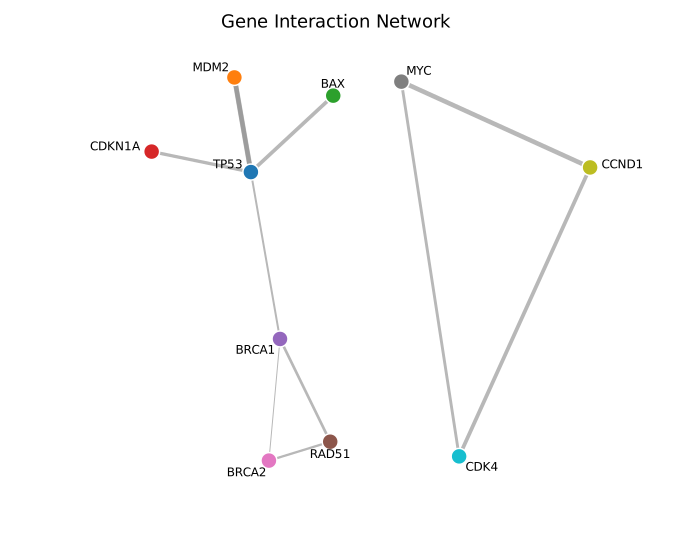
Edge thickness is proportional to weight. The Fruchterman-Reingold layout clusters tightly connected nodes (the TP53-MDM2 hub) while spacing out loosely connected components.
Directed edges
Use .with_directed() to draw arrowheads indicating edge direction — useful for regulatory networks, citation graphs, or state machines.
#![allow(unused)] fn main() { use kuva::plot::NetworkPlot; use kuva::render::plots::Plot; let net = NetworkPlot::new() .with_edge("TP53", "MDM2", 0.95) .with_edge("MDM2", "TP53", 0.88) .with_edge("CDK4", "RB1", 0.79) .with_edge("RB1", "E2F1", 0.86) .with_edge("E2F1", "MYC", 0.62) .with_directed() .with_labels(); }
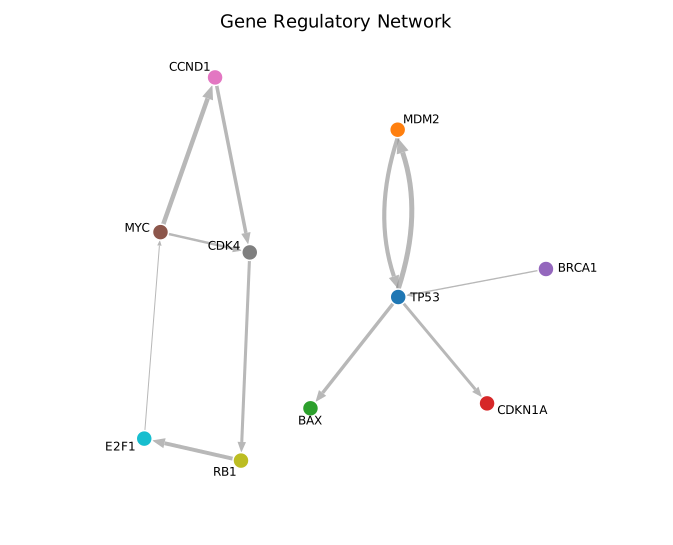
Arrowheads point from source to target. Reciprocal edges (TP53 <-> MDM2) are drawn as two separate arrows. Edge lines stop at the node boundary so arrowheads are clearly visible.
Grouped nodes with legend
Assign nodes to groups with .with_node_group() for automatic colour-coding. Use .with_legend() to display a colour key. Combine with .with_layout(NetworkLayout::Circle) for a circular arrangement.
#![allow(unused)] fn main() { use kuva::plot::network::{NetworkPlot, NetworkLayout}; use kuva::render::plots::Plot; let net = NetworkPlot::new() .with_edge("TP53", "MDM2", 0.95) .with_edge("BRCA1", "RAD51", 0.72) .with_edge("MYC", "CCND1", 0.91) .with_edge("TP53", "RB1", 0.45) .with_node_group("TP53", "DNA damage") .with_node_group("MDM2", "DNA damage") .with_node_group("BRCA1", "DNA repair") .with_node_group("RAD51", "DNA repair") .with_node_group("MYC", "Cell cycle") .with_node_group("CCND1", "Cell cycle") .with_node_group("RB1", "Cell cycle") .with_layout(NetworkLayout::Circle) .with_labels() .with_legend("Pathway"); }

Nodes are coloured by group using the category10 palette. The legend maps each colour to its group label. The circle layout spaces nodes evenly around the perimeter.
Input formats
Edge list (builder API)
The primary input: call .with_edge(source, target, weight) or .with_edges(iter). Nodes are auto-created from edge endpoints.
Adjacency matrix
Use .with_matrix(matrix, labels) to build from an N×N matrix. Non-zero entries become edges; the value is the weight. For undirected graphs (default), only the upper triangle is read.
#![allow(unused)] fn main() { use kuva::plot::NetworkPlot; let matrix = vec![ vec![0.0, 1.0, 1.0], vec![1.0, 0.0, 1.0], vec![1.0, 1.0, 0.0], ]; let net = NetworkPlot::new() .with_matrix(matrix, ["A", "B", "C"]); }
Layout algorithms
| Layout | Method | Description |
|---|---|---|
| Force-directed | NetworkLayout::ForceDirected (default) | Fruchterman-Reingold: connected nodes attract, all nodes repel. Best for most graphs. Uses Barnes-Hut approximation for n > 256. |
| Kamada-Kawai | NetworkLayout::KamadaKawai | Stress-based: Euclidean distances reflect graph-theoretic distances. Better for small-medium graphs. |
| Circle | NetworkLayout::Circle | Nodes evenly spaced on a circle. Deterministic and clean for small/medium graphs. |
User-supplied positions can pin individual nodes with .with_node_position(label, x, y) in normalised [0, 1] space; unpinned nodes are placed by the layout algorithm.
Self-loops
Self-loops (source == target) are rendered as a small arc pointing outward from the graph centre. They work with both directed (arrowhead) and undirected modes.
API reference
| Method | Description |
|---|---|
NetworkPlot::new() | Create a network plot with defaults |
.with_edge(src, tgt, w) | Add an edge (auto-creates nodes) |
.with_edge_color(src, tgt, w, color) | Add an edge with explicit colour |
.with_edge_label(src, tgt, w, label) | Add an edge with a midpoint label |
.with_edge_styled(src, tgt, w, color, label) | Add an edge with both colour and label |
.with_edges(iter) | Bulk-add (src, tgt, weight) edges |
.with_matrix(m, labels) | Build from N×N adjacency matrix |
.with_node(label) | Declare a node explicitly |
.with_node_color(label, c) | Set a node's colour |
.with_node_size(label, s) | Set a node's radius |
.with_node_group(label, g) | Assign a node to a group |
.with_node_shape(label, shape) | Set marker shape (Circle, Square, Triangle, Diamond) |
.with_node_position(label, x, y) | Pin a node at (x, y) in [0, 1] space |
.with_directed() | Draw arrowheads on edges |
.with_layout(alg) | Set layout algorithm (ForceDirected, KamadaKawai, or Circle) |
.with_node_radius(px) | Base node radius in pixels (default 8.0) |
.with_edge_opacity(f) | Edge opacity 0.0-1.0 (default 0.6) |
.with_labels() | Show node labels |
.with_repel_labels() | Push overlapping labels apart |
.with_legend(s) | Show a per-group colour legend |
.with_label_size(px) | Override label font size |
See also: Sankey Diagram for directed flow between stages, Chord Diagram for symmetric pairwise flows.
CLI
Network / graph diagram from an edge list or adjacency matrix.
Edge-list input (default): two columns for source and target nodes, with an optional weight column.
source target weight
TP53 MDM2 0.95
TP53 BAX 0.82
MDM2 TP53 0.88
Matrix input (--matrix): square N×N matrix — first column is the row label, header row supplies node names.
node TP53 MDM2 BAX
TP53 0 0.95 0.82
MDM2 0.88 0 0
BAX 0 0 0
| Flag | Default | Description |
|---|---|---|
--matrix | off | Read input as N×N adjacency matrix |
--source-col <COL> | 0 | Source node column (index or name) |
--target-col <COL> | 1 | Target node column (index or name) |
--weight-col <COL> | — | Edge weight column |
--group-col <COL> | — | Node group column for colouring |
--directed | off | Draw arrowheads on edges |
--layout <ALG> | force | Layout algorithm: force, kk (Kamada-Kawai), or circle |
--node-radius <PX> | 8.0 | Node circle radius in pixels |
--opacity <F> | 0.6 | Edge opacity |
--labels | off | Show node labels |
--repel-labels | off | Push overlapping labels apart |
--legend <LABEL> | — | Show legend |
kuva network edges.tsv --source-col source --target-col target
kuva network edges.tsv --source-col source --target-col target \
--weight-col weight --directed --labels --legend "interaction"
kuva network --matrix matrix.tsv --layout circle --labels
See also: Shared flags — output, appearance, axes, log scale.
Sankey Diagram
A Sankey diagram arranges nodes in columns and connects them with tapered ribbons whose widths are proportional to flow magnitude. It is well suited for showing multi-stage flows — energy transfer, budget allocation, data processing pipelines, or any directed network where quantities must be conserved through each stage.
Import path: kuva::plot::SankeyPlot
Basic usage
Add directed links with .with_link(source, target, value). Nodes are created automatically from the label strings; column positions are inferred by tracing the flow graph from left to right.
#![allow(unused)] fn main() { use kuva::plot::SankeyPlot; use kuva::backend::svg::SvgBackend; use kuva::render::render::render_multiple; use kuva::render::layout::Layout; use kuva::render::plots::Plot; let sankey = SankeyPlot::new() .with_link("Input", "Process A", 50.0) .with_link("Input", "Process B", 30.0) .with_link("Process A", "Output X", 40.0) .with_link("Process A", "Output Y", 10.0) .with_link("Process B", "Output X", 10.0) .with_link("Process B", "Output Y", 20.0); let plots = vec![Plot::Sankey(sankey)]; let layout = Layout::auto_from_plots(&plots) .with_title("Energy Flow"); let svg = SvgBackend.render_scene(&render_multiple(plots, layout)); std::fs::write("sankey.svg", svg).unwrap(); }
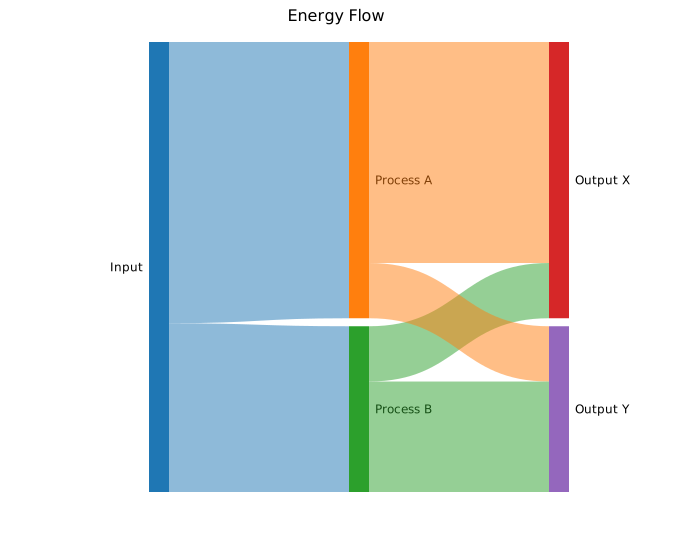
Node heights are proportional to the larger of incoming and outgoing flow at each node. Colors come from the default category10 palette. Each label is printed to the left or right of its column.
Node colors & legend
Set per-node fill colors with .with_node_color(label, color). Call .with_legend("") to enable the legend; each node's name becomes an entry label automatically.
#![allow(unused)] fn main() { use kuva::plot::SankeyPlot; use kuva::backend::svg::SvgBackend; use kuva::render::render::render_multiple; use kuva::render::layout::Layout; use kuva::render::plots::Plot; let sankey = SankeyPlot::new() .with_node_color("Input", "#888888") .with_node_color("Process A", "#377eb8") .with_node_color("Process B", "#4daf4a") .with_node_color("Output", "#984ea3") .with_link("Input", "Process A", 40.0) .with_link("Input", "Process B", 30.0) .with_link("Process A", "Output", 35.0) .with_link("Process B", "Output", 25.0) .with_node_width(24.0) .with_legend("Stage"); let plots = vec![Plot::Sankey(sankey)]; let layout = Layout::auto_from_plots(&plots) .with_title("Node Colors & Legend"); let svg = SvgBackend.render_scene(&render_multiple(plots, layout)); }
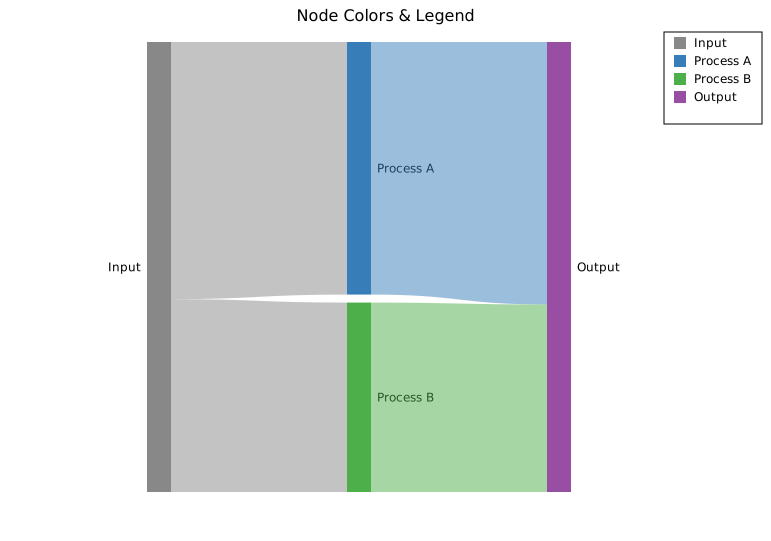
Ribbons inherit the source node color by default. To color nodes without linking them first (e.g. to control palette order), use .with_node(label) to declare a node explicitly before adding links.
Link coloring
Gradient ribbons
.with_gradient_links() renders each ribbon as a linear gradient from the source node color to the target node color.
#![allow(unused)] fn main() { use kuva::plot::SankeyPlot; use kuva::backend::svg::SvgBackend; use kuva::render::render::render_multiple; use kuva::render::layout::Layout; use kuva::render::plots::Plot; let sankey = SankeyPlot::new() .with_node_color("Budget", "#e41a1c") .with_node_color("R&D", "#377eb8") .with_node_color("Marketing", "#4daf4a") .with_node_color("Ops", "#ff7f00") .with_node_color("Product A", "#984ea3") .with_node_color("Product B", "#a65628") .with_link("Budget", "R&D", 40.0) .with_link("Budget", "Marketing", 25.0) .with_link("Budget", "Ops", 35.0) .with_link("R&D", "Product A", 25.0) .with_link("R&D", "Product B", 15.0) .with_link("Marketing", "Product A", 15.0) .with_link("Marketing", "Product B", 10.0) .with_link("Ops", "Product A", 20.0) .with_link("Ops", "Product B", 15.0) .with_gradient_links() .with_link_opacity(0.6); let plots = vec![Plot::Sankey(sankey)]; let layout = Layout::auto_from_plots(&plots) .with_title("Budget Allocation — Gradient Ribbons"); let svg = SvgBackend.render_scene(&render_multiple(plots, layout)); }
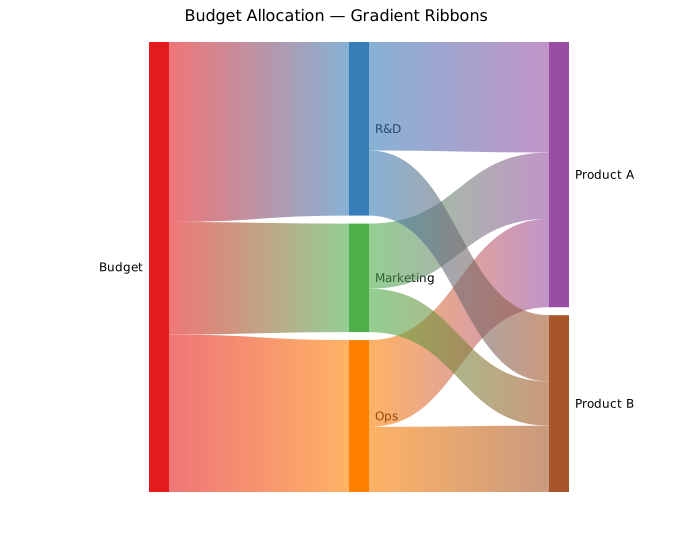
Per-link colors
For full control, supply a color on each link individually with .with_link_colored(), then call .with_per_link_colors() to activate that mode:
#![allow(unused)] fn main() { use kuva::plot::SankeyPlot; let sankey = SankeyPlot::new() .with_link_colored("Budget", "R&D", 40.0, "#377eb8") .with_link_colored("Budget", "Marketing", 25.0, "#e41a1c") .with_link_colored("Budget", "Ops", 35.0, "#4daf4a") // …remaining links… .with_per_link_colors() .with_link_opacity(0.55); }
Bulk link loading
.with_links() accepts any iterator of (source, target, value) triples, which is convenient when links come from a data file or computed table:
#![allow(unused)] fn main() { use kuva::plot::SankeyPlot; let edges: Vec<(&str, &str, f64)> = vec![ ("A", "B", 10.0), ("A", "C", 20.0), ("B", "D", 10.0), ("C", "D", 20.0), ]; let sankey = SankeyPlot::new().with_links(edges); }
Column layout
By default, columns are assigned by propagating each node one step further right than its leftmost source (BFS order). Use .with_node_column(label, col) to pin specific nodes to explicit columns when the automatic layout is incorrect — for example, when a node should appear in a later column despite having an early source:
#![allow(unused)] fn main() { use kuva::plot::SankeyPlot; let sankey = SankeyPlot::new() .with_node_column("Input", 0) .with_node_column("Middle", 1) .with_node_column("Output", 2) .with_link("Input", "Middle", 80.0) .with_link("Input", "Output", 20.0) // skip link — goes directly to col 2 .with_link("Middle", "Output", 80.0); }
Alluvium mode and ordering
For multi-stage categorical data, build a Sankey from full alluvia instead of pairwise edges. .with_alluvium() records one path across ordered axes, automatically creates axis-specific node IDs, and accumulates adjacent edge weights:
#![allow(unused)] fn main() { use kuva::plot::SankeyPlot; let sankey = SankeyPlot::new() .with_axis_names(["tissue", "cluster", "sex"]) .with_alluvium(vec!["B CELL", "4", "male"], 9.0) .with_alluvium(vec!["BRAIN", "1", "female"], 1.0) .with_alluvium(vec!["HEART", "3", "male"], 3.0) .with_crossing_reduction() .with_left_coloring() .with_node_order_seed(42); }
Use .with_alluvia(iter) to bulk-load alluvia from an iterator of (strata, value) rows.
How crossing-reduction ordering works
The crossing-reduction algorithm minimises ribbon crossings by finding the best vertical stacking order of nodes within each column. The column sequence itself is always preserved exactly as you specified (left to right: tissue → cluster → sex in the example above).
Internally, the algorithm:
- Builds a pairwise distance matrix over all nodes where two nodes with high co-occurrence in alluvia are assigned a short distance.
- Runs a TSP heuristic (nearest-neighbour insertion + 2-opt) over that matrix to find a node cycle that clusters co-occurring nodes together.
- Tries every rotation of the cycle, extracts the resulting within-column node ordering for each rotation, computes the weighted crossing objective (counting ribbon crossings weighted by flow), and keeps the rotation with the lowest score.
Lode stacking within nodes: when multiple ribbons enter or leave a single node (e.g. T CELL and B CELL both flowing into cluster "4"), the ribbon segments are stacked inside that node in the same top-to-bottom order as their sources in the adjacent column. This prevents unnecessary criss-crossing at the node boundary.
Ordering modes
| Method | Behaviour |
|---|---|
.with_node_order(SankeyNodeOrder::Input) | Preserve insertion order within each column (default) |
.with_crossing_reduction() | TSP-based weighted crossing reduction |
.with_neighbornet() | Use the neighbornet cycle backend instead of the TSP heuristic |
.with_node_order_seed(seed) | Fix the RNG seed for reproducible results (default 42) |
CrossingReduction is a good general-purpose choice. Neighbornet can produce different orderings on data with tree-like co-occurrence structure; try both when the default layout is cluttered.
Coloring modes
| Method | Behaviour |
|---|---|
.with_node_coloring(SankeyNodeColoring::Label) | One palette color per unique label, shared across all columns (default) |
.with_left_coloring() | Each node inherits the color of its dominant left-side parent; new palette colors are allocated when no parent exceeds the cutoff |
.with_palette(colors) | Override the fallback color list used by either mode |
.with_left_color_cutoff(f) | Minimum parent-share (0.0–1.0) required for color inheritance in left mode (default 0.5) |
Bioinformatics example
A 4-stage variant filtering pipeline: raw variants pass QC, get classified by confidence level, and are split into variant types or discarded.
#![allow(unused)] fn main() { use kuva::plot::SankeyPlot; use kuva::backend::svg::SvgBackend; use kuva::render::render::render_multiple; use kuva::render::layout::Layout; use kuva::render::plots::Plot; let sankey = SankeyPlot::new() .with_node_color("Raw Variants", "#888888") .with_node_color("QC Pass", "#4daf4a") .with_node_color("QC Fail", "#e41a1c") .with_node_color("High Conf", "#377eb8") .with_node_color("Low Conf", "#ff7f00") .with_node_color("SNP", "#984ea3") .with_node_color("Indel", "#a65628") .with_node_color("Filtered Out", "#cccccc") .with_link("Raw Variants", "QC Pass", 8000.0) .with_link("Raw Variants", "QC Fail", 2000.0) .with_link("QC Pass", "High Conf", 6000.0) .with_link("QC Pass", "Low Conf", 2000.0) .with_link("High Conf", "SNP", 4500.0) .with_link("High Conf", "Indel", 1200.0) .with_link("High Conf", "Filtered Out", 300.0) .with_link("Low Conf", "SNP", 800.0) .with_link("Low Conf", "Filtered Out", 1200.0) .with_link_opacity(0.45) .with_legend("Stage"); let plots = vec![Plot::Sankey(sankey)]; let layout = Layout::auto_from_plots(&plots) .with_title("Variant Filtering Pipeline"); let svg = SvgBackend.render_scene(&render_multiple(plots, layout)); }

API reference
| Method | Description |
|---|---|
SankeyPlot::new() | Create a Sankey plot with defaults |
.with_link(src, tgt, val) | Add a directed link; auto-creates nodes from labels |
.with_link_colored(src, tgt, val, color) | Add a link with an explicit ribbon color |
.with_links(iter) | Bulk-add links from (source, target, value) triples |
.with_axis_names(iter) | Set display names for ordered alluvium axes |
.with_alluvium(strata, value) | Add one weighted alluvium spanning ordered axes |
.with_alluvia(iter) | Bulk-add weighted alluvia |
.with_node(label) | Declare a node without adding a link |
.with_node_color(label, color) | Set a node's fill color (CSS color string) |
.with_node_column(label, col) | Pin a node to a specific column (0-indexed) |
.with_node_width(px) | Node rectangle width in pixels (default 20.0) |
.with_node_gap(px) | Minimum vertical gap between nodes in a column (default 8.0) |
.with_gradient_links() | Ribbons fade from source to target color |
.with_per_link_colors() | Use per-link color set by .with_link_colored() |
.with_node_order(order) | Choose Input, CrossingReduction, or Neighbornet node ordering |
.with_crossing_reduction() | Use the default weighted crossing-reduction ordering |
.with_neighbornet() | Use neighbornet ordering |
.with_node_order_seed(seed) | Set the ordering RNG seed |
.with_node_coloring(mode) | Choose Label or Left coloring |
.with_left_coloring() | Propagate colors left-to-right from dominant parents |
.with_palette(palette) | Override the fallback Sankey palette |
.with_left_color_cutoff(f) | Set the left-color dominant-parent threshold |
.with_link_opacity(f) | Ribbon fill opacity 0.0–1.0 (default 0.5) |
.with_legend("") | Enable the legend; one entry per node, labeled with the node name |
SankeyLinkColor variants
| Variant | Behavior |
|---|---|
Source | Ribbon inherits the source node color (default) |
Gradient | SVG linearGradient from source to target color |
PerLink | Color from .with_link_colored() per ribbon |
SankeyNodeOrder variants
| Variant | Behavior |
|---|---|
Input | Preserve insertion order within each column (default) |
CrossingReduction | Reduce weighted crossings using the default alluvial ordering backend |
Neighbornet | Use the neighbornet backend for cycle generation |
SankeyNodeColoring variants
| Variant | Behavior |
|---|---|
Label | Reuse one palette color per visible label (default) |
Left | Propagate colors left-to-right from dominant parents |
See also: Network Plot for a general node/edge graph, Chord Diagram for circular pairwise flows.
CLI
Sankey / alluvial flow diagram.
kuva sankey supports two input modes:
- Edge-list Sankey input: source node, target node, flow value.
- Wide alluvium input: one ordered
--axis-colper stage, plus an optional--value-col.
| Flag | Default | Description |
|---|---|---|
--axis-col <COL> | repeatable | Ordered alluvium axis columns; switches the parser into wide alluvium mode |
--source-col <COL> | 0 | Source node column |
--target-col <COL> | 1 | Target node column |
--value-col <COL> | 2 | Flow value column |
--link-gradient | off | Fill each link with a gradient from source node colour to target node colour |
--opacity <F> | 0.5 | Link opacity |
--legend <LABEL> | — | Show legend |
--node-order <MODE> | input | Node ordering within columns: input, crossings, or neighbornet |
--node-order-seed <N> | 42 | RNG seed for crossing-reduction ordering |
--coloring <MODE> | label | Node coloring mode: label or left |
--flow-labels | off | Show absolute flow values on ribbons |
--flow-percent | off | Show each ribbon as a percent of source outflow |
--flow-label-format <FMT> | auto | Flow label number format: auto, sci, integer, fixed2 |
--flow-label-unit <UNIT> | — | Unit suffix appended to absolute flow labels |
--flow-label-min-height <F> | 8.0 | Minimum ribbon height required to render a label |
Edge-list mode
Use classic source-target-value input when your flow table is already stored as edges:
kuva sankey sankey.tsv \
--source-col source --target-col target --value-col value
kuva sankey sankey.tsv \
--source-col source --target-col target --value-col value \
--link-gradient --legend "read flow"
Alluvium mode
Use repeated --axis-col flags for ordered categorical stages. kuva will build full alluvia, aggregate adjacent links, and optionally apply wompwomp-style ordering and left-to-right color propagation:
kuva sankey alluvium.tsv \
--axis-col tissue --axis-col cluster --axis-col sex \
--value-col count \
--node-order crossings \
--node-order-seed 42 \
--coloring left \
--title "Ordered Alluvium"
kuva sankey alluvium.tsv \
--axis-col tissue --axis-col cluster --axis-col sex \
--value-col count \
--node-order neighbornet \
--coloring label \
--title "NeighborNet Alluvium"
--node-order crossings uses a TSP-based weighted crossing-reduction algorithm: it builds a co-occurrence distance matrix, finds a node cycle via nearest-neighbour + 2-opt, then tries every rotation to minimise the weighted ribbon-crossing count. The axis column order you specify with --axis-col is always preserved exactly — only the vertical stacking of nodes within each column is changed.
--node-order neighbornet switches to the neighbornet backend for cycle generation; try it when the default layout is still cluttered, especially on data with tree-like co-occurrence structure.
--coloring left propagates colors from dominant parents left-to-right; --coloring label assigns one palette color per visible label.
See also: Shared flags — output, appearance, axes, log scale.
Chord Diagram
A chord diagram arranges N nodes around a circle and connects them with ribbons whose widths are proportional to flow magnitudes from an N×N matrix. Each node occupies an arc on the outer ring; arc length is proportional to the node's total flow. It is well suited for showing pairwise relationships in network data — co-occurrence, migration, regulatory influence, or any square flow matrix.
Import path: kuva::plot::ChordPlot
Basic usage
Supply an N×N matrix with .with_matrix() and node labels with .with_labels(). The diagram renders in pixel space — no x/y axis system is used. A title set on the Layout is still shown.
#![allow(unused)] fn main() { use kuva::plot::ChordPlot; use kuva::backend::svg::SvgBackend; use kuva::render::render::render_multiple; use kuva::render::layout::Layout; use kuva::render::plots::Plot; // Co-clustering proximity scores between PBMC cell types let matrix = vec![ // CD4T CD8T NK Bcell Mono vec![ 0.0, 120.0, 70.0, 40.0, 25.0], // CD4 T vec![ 120.0, 0.0, 88.0, 32.0, 18.0], // CD8 T vec![ 70.0, 88.0, 0.0, 15.0, 35.0], // NK vec![ 40.0, 32.0, 15.0, 0.0, 10.0], // B cell vec![ 25.0, 18.0, 35.0, 10.0, 0.0], // Monocyte ]; let chord = ChordPlot::new() .with_matrix(matrix) .with_labels(["CD4 T", "CD8 T", "NK", "B cell", "Monocyte"]); let plots = vec![Plot::Chord(chord)]; let layout = Layout::auto_from_plots(&plots) .with_title("PBMC Cell Type Co-clustering"); let svg = SvgBackend.render_scene(&render_multiple(plots, layout)); std::fs::write("chord.svg", svg).unwrap(); }
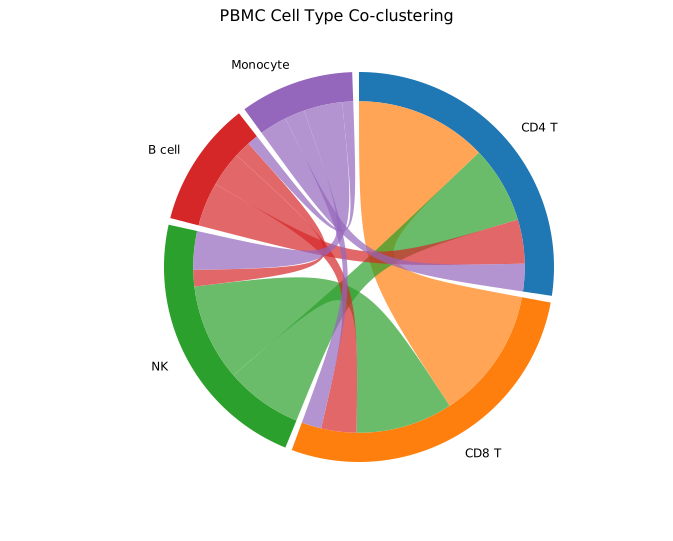
The symmetric matrix means each ribbon has equal width at both ends. The CD4 T–CD8 T ribbon is the widest because those two cell types have the highest co-clustering score (120); B cell–Monocyte is the thinnest (10). Colors come from the default category10 palette.
Asymmetric (directed) flows
When matrix[i][j] ≠ matrix[j][i], flows are directed — for example regulatory influence, migration counts, or transition probabilities. The ribbon is thicker at the source end (high outgoing flow) and thinner at the target end.
Use .with_colors() to assign explicit per-node colors, and .with_legend() to show a color-coded node legend.
#![allow(unused)] fn main() { use kuva::plot::ChordPlot; use kuva::render::plots::Plot; // Directed regulatory influence between five transcription factors let matrix = vec![ vec![ 0.0, 85.0, 20.0, 45.0, 10.0], // TF1 → others vec![15.0, 0.0, 65.0, 30.0, 8.0], // TF2 → others vec![30.0, 12.0, 0.0, 75.0, 25.0], // TF3 → others vec![ 5.0, 40.0, 18.0, 0.0, 90.0], // TF4 → others vec![50.0, 8.0, 35.0, 12.0, 0.0], // TF5 → others ]; let chord = ChordPlot::new() .with_matrix(matrix) .with_labels(["TF1", "TF2", "TF3", "TF4", "TF5"]) .with_colors(["#e6194b", "#3cb44b", "#4363d8", "#f58231", "#911eb4"]) .with_gap(3.0) .with_legend("Transcription factors"); }
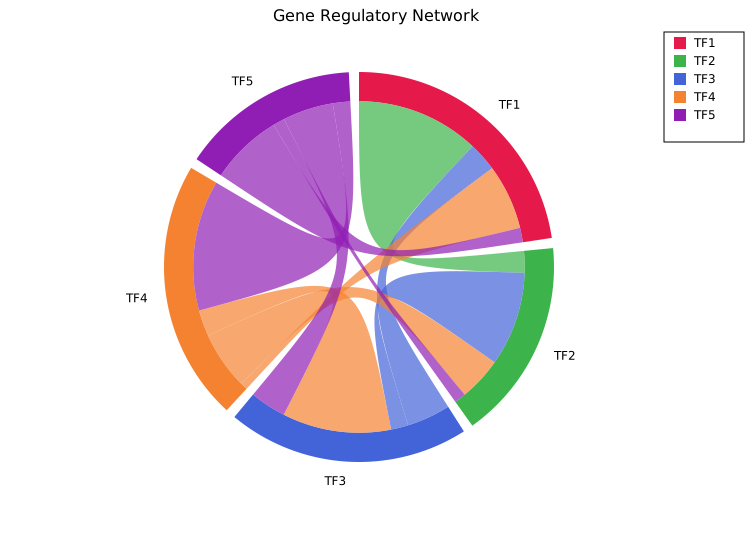
TF4→TF5 (90) and TF1→TF2 (85) are the strongest regulatory edges. Asymmetry is visible — the TF4→TF5 ribbon is much thicker at the TF4 end than the TF5→TF4 end (5). The legend in the top-right corner maps each color to its node label.
Gap and opacity
.with_gap(degrees) controls the white space between adjacent arc segments (default 2.0°). Larger gaps make individual nodes easier to distinguish at the cost of compressing arc lengths.
.with_opacity(f) sets ribbon transparency (default 0.7). Reducing opacity helps readability when many ribbons overlap in the centre.
#![allow(unused)] fn main() { use kuva::plot::ChordPlot; let matrix = vec![vec![0.0_f64; 5]; 5]; let chord = ChordPlot::new() .with_matrix(matrix) .with_labels(["CD4 T", "CD8 T", "NK", "B cell", "Monocyte"]) .with_gap(6.0) // default 2.0 — wider arc separation .with_opacity(0.45); // default 0.7 — more transparent ribbons }

The same co-clustering data as the basic example. Wider gaps make each cell type's arc clearly separate; the lower opacity lets the arc ring show through the ribbon bundle in the centre.
Matrix layout
The N×N matrix convention:
| Entry | Meaning |
|---|---|
matrix[i][j] | Flow from node i to node j |
matrix[i][i] | Self-loop (typically 0.0 — not rendered) |
| Symmetric matrix | Undirected relationships (co-occurrence, correlation) |
| Asymmetric matrix | Directed flows (migration, regulation, transitions) |
Arc length for node i is proportional to the row sum of matrix[i]. In a symmetric matrix this equals the column sum, so arcs represent total pairwise interaction strength.
Colors
Without .with_colors(), node colors are assigned automatically from the category10 palette (cycling for more than ten nodes). Supply explicit per-node colors to match publication figures or color-blind-safe palettes:
#![allow(unused)] fn main() { use kuva::plot::ChordPlot; let chord = ChordPlot::new() .with_matrix(vec![vec![0.0, 1.0], vec![1.0, 0.0]]) .with_labels(["Group A", "Group B"]) .with_colors(["#377eb8", "#e41a1c"]); // ColorBrewer blue / red }
API reference
| Method | Description |
|---|---|
ChordPlot::new() | Create a chord plot with defaults |
.with_matrix(m) | N×N flow matrix: m[i][j] = flow from node i to node j |
.with_labels(iter) | Node labels — one per row/column |
.with_colors(iter) | Per-node fill colors (default: category10 palette) |
.with_gap(deg) | Gap between arc segments in degrees (default 2.0) |
.with_opacity(f) | Ribbon fill opacity 0.0–1.0 (default 0.7) |
.with_legend(s) | Enable a per-node color legend |
See also: Sankey Diagram for staged, directional flow instead of pairwise, Network Plot for a general graph layout.
CLI
Chord diagram for pairwise flow data.
Input: square N×N matrix — first column is the row label (ignored for layout), header row supplies node names.
region Cortex Hippocampus Amygdala …
Cortex 0 320 13 …
Hippocampus 320 0 210 …
| Flag | Default | Description |
|---|---|---|
--gap <DEG> | 2.0 | Gap between arcs in degrees |
--opacity <F> | 0.7 | Ribbon opacity |
--legend <LABEL> | — | Show legend |
kuva chord chord.tsv
kuva chord chord.tsv --gap 3.0 --opacity 0.5 --legend "connectivity"
See also: Shared flags — output, appearance, axes, log scale.
Phylogenetic Tree
A phylogenetic tree (dendrogram) visualises evolutionary or hierarchical relationships between taxa. kuva supports three branch styles (rectangular, slanted, circular), four orientations, phylogram mode for branch-length-accurate layouts, clade coloring, and support value display. Trees can be constructed from Newick strings, edge lists, pairwise distance matrices, or scipy/R linkage output.
Import path: kuva::plot::PhyloTree
Basic usage
Parse a Newick string with PhyloTree::from_newick(). Branch lengths are optional; support values on internal nodes are read automatically. Call .with_support_threshold(t) to display any support value ≥ t on the plot.
#![allow(unused)] fn main() { use kuva::plot::PhyloTree; use kuva::backend::svg::SvgBackend; use kuva::render::render::render_multiple; use kuva::render::layout::Layout; use kuva::render::plots::Plot; let tree = PhyloTree::from_newick( "((TaxonA:1.0,TaxonB:2.0)95:1.0,(TaxonC:0.5,TaxonD:0.5)88:1.5,TaxonE:3.0);" ) .with_support_threshold(80.0); // show internal node values ≥ 80 let plots = vec![Plot::PhyloTree(tree)]; let layout = Layout::auto_from_plots(&plots) .with_title("Rectangular Tree"); let svg = SvgBackend.render_scene(&render_multiple(plots, layout)); std::fs::write("phylo.svg", svg).unwrap(); }
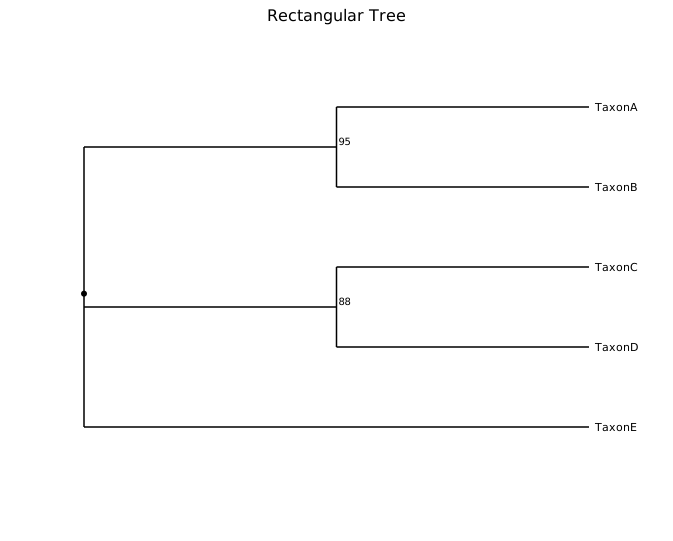
The default layout is rectangular branches, root on the left, leaves on the right (cladogram mode — all leaves aligned). Support values are drawn beside their internal node.
Phylogram mode
In cladogram mode (the default) all leaves are aligned regardless of branch length. Enable phylogram mode with .with_phylogram() to position each node according to the accumulated branch lengths from the root, so edge lengths directly represent evolutionary distance.
#![allow(unused)] fn main() { use kuva::plot::{PhyloTree, TreeOrientation}; use kuva::backend::svg::SvgBackend; use kuva::render::render::render_multiple; use kuva::render::layout::Layout; use kuva::render::plots::Plot; let tree = PhyloTree::from_newick( "((A:1.0,B:3.0)90:1.0,(C:2.0,(D:0.5,E:1.5)85:1.0):2.0);" ) .with_orientation(TreeOrientation::Top) .with_phylogram() .with_support_threshold(80.0); let plots = vec![Plot::PhyloTree(tree)]; let layout = Layout::auto_from_plots(&plots) .with_title("Phylogram (Top orientation)"); let svg = SvgBackend.render_scene(&render_multiple(plots, layout)); }
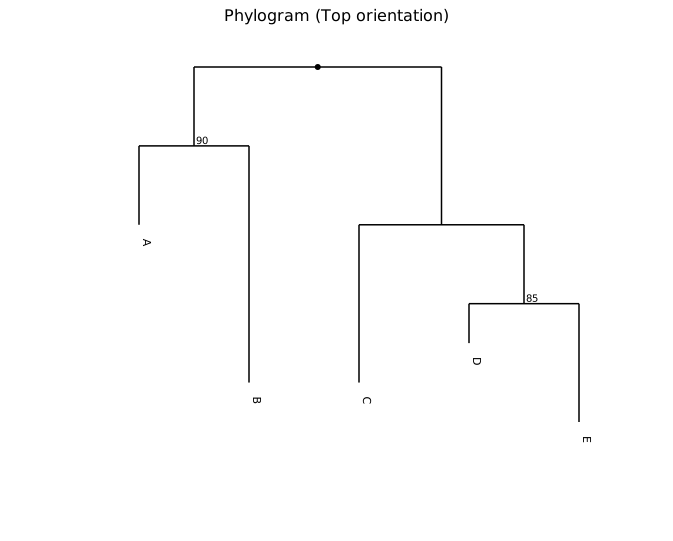
Circular layout
.with_branch_style(TreeBranchStyle::Circular) projects the tree radially — the root is at the centre and leaves fan outward. This style is especially useful for large trees where a linear layout becomes tall.
#![allow(unused)] fn main() { use kuva::plot::{PhyloTree, TreeBranchStyle}; use kuva::backend::svg::SvgBackend; use kuva::render::render::render_multiple; use kuva::render::layout::Layout; use kuva::render::plots::Plot; let newick = concat!( "(((((Sp_A:0.05,Sp_B:0.08):0.12,(Sp_C:0.07,Sp_D:0.06):0.10):0.15,", "((Sp_E:0.09,Sp_F:0.11):0.08,(Sp_G:0.06,Sp_H:0.10):0.13):0.12):0.20,", "(((Sp_I:0.08,Sp_J:0.12):0.10,(Sp_K:0.05,Sp_L:0.09):0.11):0.15,", "((Sp_M:0.07,Sp_N:0.08):0.09,(Sp_O:0.10,Sp_P:0.06):0.12):0.14):0.18):0.10,", "((Sp_Q:0.15,Sp_R:0.12):0.20,(Sp_S:0.08,Sp_T:0.10):0.18):0.25);" ); let tree = PhyloTree::from_newick(newick) .with_branch_style(TreeBranchStyle::Circular) .with_phylogram(); let plots = vec![Plot::PhyloTree(tree)]; let layout = Layout::auto_from_plots(&plots) .with_title("Circular Tree — 20 Taxa"); let svg = SvgBackend.render_scene(&render_multiple(plots, layout)); }
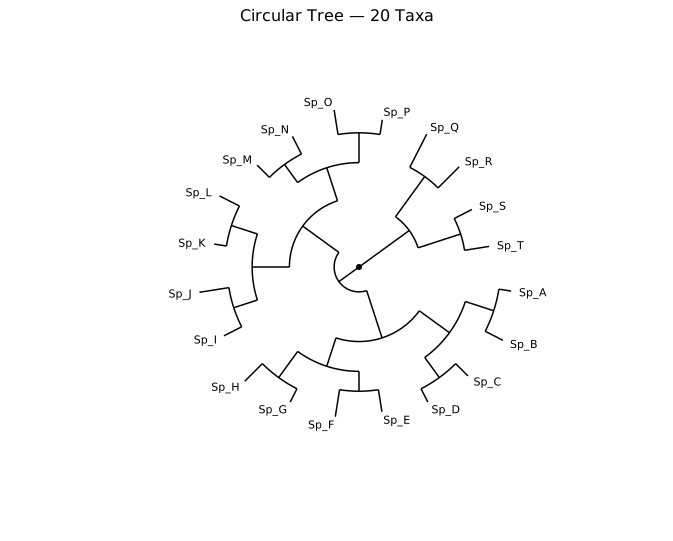
Clade coloring
.with_clade_color(node_id, color) colors the entire subtree rooted at node_id. Call .with_legend("") to enable the legend; each colored clade gets an entry labeled with its node's name (or "Node N" for unnamed internal nodes).
When building a tree with from_edges(), node IDs are assigned in order of first appearance across all (parent, child, length) tuples — the first unique label encountered becomes node 0, the second node 1, and so on.
#![allow(unused)] fn main() { use kuva::plot::PhyloTree; use kuva::backend::svg::SvgBackend; use kuva::render::render::render_multiple; use kuva::render::layout::Layout; use kuva::render::plots::Plot; let edges: Vec<(&str, &str, f64)> = vec![ ("root", "Bacteria", 1.5), // root=0, Bacteria=1 ("root", "Eukarya", 2.0), // Eukarya=2 ("Bacteria", "E. coli", 0.5), ("Bacteria", "B. subtilis", 0.7), ("Eukarya", "Yeast", 1.0), ("Eukarya", "Human", 0.8), ]; let tree = PhyloTree::from_edges(&edges) .with_clade_color(1, "#e41a1c") // Bacteria subtree .with_clade_color(2, "#377eb8") // Eukarya subtree .with_legend("Domains"); let plots = vec![Plot::PhyloTree(tree)]; let layout = Layout::auto_from_plots(&plots) .with_title("Clade Coloring by Domain"); let svg = SvgBackend.render_scene(&render_multiple(plots, layout)); }

UPGMA from a distance matrix
PhyloTree::from_distance_matrix(labels, dist) clusters taxa by UPGMA and returns a rooted ultrametric tree. The distance matrix must be square and symmetric; diagonal values are ignored.
#![allow(unused)] fn main() { use kuva::plot::PhyloTree; use kuva::backend::svg::SvgBackend; use kuva::render::render::render_multiple; use kuva::render::layout::Layout; use kuva::render::plots::Plot; let labels = ["Wolf", "Cat", "Whale", "Human"]; let dist = vec![ // Wolf Cat Whale Human vec![0.0, 0.5, 0.9, 0.8], // Wolf vec![0.5, 0.0, 0.9, 0.8], // Cat vec![0.9, 0.9, 0.0, 0.7], // Whale vec![0.8, 0.8, 0.7, 0.0], // Human ]; let tree = PhyloTree::from_distance_matrix(&labels, &dist) .with_phylogram(); let plots = vec![Plot::PhyloTree(tree)]; let layout = Layout::auto_from_plots(&plots) .with_title("UPGMA Tree from Distance Matrix"); let svg = SvgBackend.render_scene(&render_multiple(plots, layout)); }
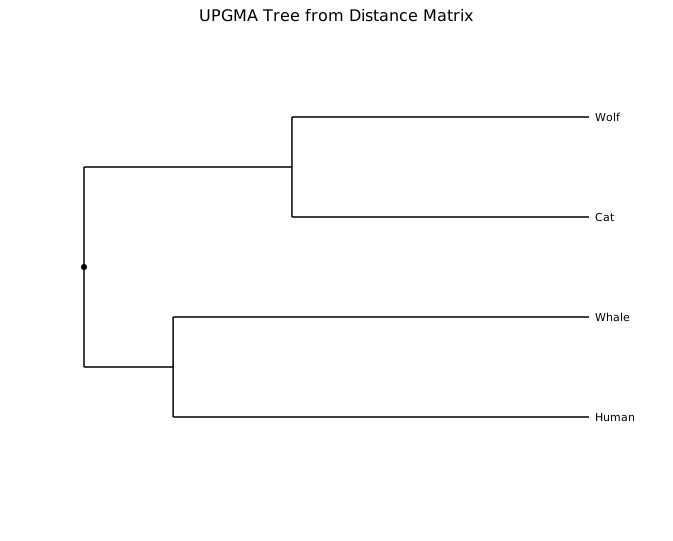
Wolf and Cat cluster first (distance 0.5), reflecting their close relationship; Whale and Human share the next merge (0.7) before joining the carnivore clade.
Scipy / R linkage input
PhyloTree::from_linkage(labels, linkage) accepts the output format of scipy.cluster.hierarchy.linkage or R's hclust. Each row is [left_idx, right_idx, distance, n_leaves]. Leaf indices 0..n-1 correspond to labels; merge nodes use indices n...
#![allow(unused)] fn main() { use kuva::plot::PhyloTree; let labels = ["A", "B", "C", "D"]; // linkage matrix produced by scipy or R let linkage: &[[f64; 4]] = &[ [0.0, 1.0, 0.5, 2.0], // merge leaf 0 (A) + leaf 1 (B) at d=0.5 [2.0, 3.0, 0.7, 2.0], // merge leaf 2 (C) + leaf 3 (D) at d=0.7 [4.0, 5.0, 1.2, 4.0], // merge node 4 + node 5 at d=1.2 ]; let tree = PhyloTree::from_linkage(labels, linkage).with_phylogram(); }
Orientations
Four root positions are available via TreeOrientation:
| Variant | Root position |
|---|---|
Left | Left edge — leaves fan rightward (default) |
Right | Right edge — leaves fan leftward |
Top | Top edge — leaves hang downward |
Bottom | Bottom edge — leaves grow upward |
#![allow(unused)] fn main() { use kuva::plot::{PhyloTree, TreeOrientation}; let tree = PhyloTree::from_newick("((A:1,B:2):1,C:3);") .with_orientation(TreeOrientation::Top); }
Branch styles
| Variant | Shape |
|---|---|
Rectangular | Right-angle elbow at the parent depth (default) |
Slanted | Single diagonal segment from parent to child |
Circular | Polar / radial projection |
#![allow(unused)] fn main() { use kuva::plot::{PhyloTree, TreeBranchStyle}; let slanted = PhyloTree::from_newick("((A:1,B:2):1,C:3);") .with_branch_style(TreeBranchStyle::Slanted); }
Heatmap alignment
leaf_labels_top_to_bottom() returns leaf labels in the exact top-to-bottom render order. Use this to align a paired heatmap's rows with the tree leaves.
The key steps are:
- Call
Heatmap::with_labels(row_labels, col_labels)to record which label belongs to each row of the data matrix. - Call
Heatmap::with_y_categories(leaf_order)with the top-to-bottom leaf order. This reorders the data rows so that the first leaf appears at the top of the heatmap. Internally,row_labelsis stored in bottom-to-top order to match the y-axis convention. - Pass
heatmap.row_labels.clone().unwrap()toLayout::with_y_categories()to display the axis tick labels in the matching order.
#![allow(unused)] fn main() { use kuva::plot::{Heatmap, PhyloTree}; use kuva::prelude::*; let labels_str = ["Wolf", "Cat", "Whale", "Human"]; let labels: Vec<String> = labels_str.iter().map(|s| s.to_string()).collect(); let dist = vec![ vec![0.0, 0.5, 0.9, 0.8], // Wolf vec![0.5, 0.0, 0.9, 0.8], // Cat vec![0.9, 0.9, 0.0, 0.7], // Whale vec![0.8, 0.8, 0.7, 0.0], // Human ]; let tree = PhyloTree::from_distance_matrix(&labels_str, &dist).with_phylogram(); let leaf_order = tree.leaf_labels_top_to_bottom(); // top-to-bottom tree order let heatmap = Heatmap::new() .with_data(dist) .with_labels(labels, vec![]) // record original row order .with_y_categories(leaf_order); // first leaf → top of heatmap // row_labels is stored bottom-to-top — pass directly to Layout let layout_cats = heatmap.row_labels.clone().unwrap(); let tree_plots = vec![Plot::PhyloTree(tree)]; let heatmap_plots = vec![Plot::Heatmap(heatmap)]; let tree_layout = Layout::auto_from_plots(&tree_plots).with_title("UPGMA Tree"); let heatmap_layout = Layout::auto_from_plots(&heatmap_plots) .with_title("Distance Matrix") .with_y_categories(layout_cats); // Use Figure for side-by-side layout (1 row × 2 columns) let figure = Figure::new(1, 2) .with_plots(vec![tree_plots, heatmap_plots]) .with_layouts(vec![tree_layout, heatmap_layout]); let svg = SvgBackend.render_scene(&figure.render()); std::fs::write("phylo_heatmap.svg", svg).unwrap(); }
Note:
Layout::with_y_categories()on its own only changes the axis tick labels — it does not reorder the heatmap data rows. Always useHeatmap::with_y_categories()to permute the data matrix itself, and useFigurefor side-by-side layout.
API reference
Constructors
| Method | Description |
|---|---|
PhyloTree::from_newick(s) | Parse a Newick-format string |
PhyloTree::from_edges(edges) | Build from (parent, child, branch_length) triples |
PhyloTree::from_distance_matrix(labels, dist) | UPGMA clustering of a pairwise distance matrix |
PhyloTree::from_linkage(labels, linkage) | Import scipy / R hclust linkage output |
Builder methods
| Method | Description |
|---|---|
.with_orientation(TreeOrientation) | Root position (default Left) |
.with_branch_style(TreeBranchStyle) | Branch drawing style (default Rectangular) |
.with_phylogram() | Use branch lengths for the depth axis |
.with_branch_color(s) | Line color for branches (default "black") |
.with_leaf_color(s) | Text color for leaf labels (default "black") |
.with_support_threshold(t) | Show support values ≥ t at internal nodes |
.with_clade_color(node_id, color) | Color the entire subtree rooted at node_id |
.with_legend("") | Enable the clade legend; one entry per colored clade, labeled with the node name |
Helper
| Method | Description |
|---|---|
.leaf_labels_top_to_bottom() | Leaf labels in render order — pass to Heatmap::with_y_categories() and Layout::with_y_categories() to align a paired heatmap |
TreeOrientation variants
Left (default) · Right · Top · Bottom
TreeBranchStyle variants
Rectangular (default) · Slanted · Circular
See also: Clustermap for clustering by similarity rather than an explicit tree, Synteny Plot for comparing genome structure across the same taxa.
CLI
Phylogenetic tree from a Newick string or edge-list TSV.
Input (default): edge-list TSV with parent, child, and branch-length columns.
Input (alternative): pass --newick with a Newick string; the file argument is not used.
| Flag | Default | Description |
|---|---|---|
--newick <STR> | — | Newick string (overrides file input) |
--parent-col <COL> | 0 | Parent node column |
--child-col <COL> | 1 | Child node column |
--length-col <COL> | 2 | Branch length column |
--orientation <DIR> | left | left, right, top, bottom |
--branch-style <STYLE> | rectangular | rectangular, slanted, circular |
--phylogram | off | Scale branches by length |
--legend <LABEL> | — | Show legend |
# from edge-list TSV
kuva phylo phylo.tsv \
--parent-col parent --child-col child --length-col length
# from Newick string
kuva phylo --newick "((A:0.1,B:0.2):0.3,C:0.4);" --branch-style circular
# phylogram, top orientation
kuva phylo phylo.tsv \
--parent-col parent --child-col child --length-col length \
--phylogram --orientation top
See also: Shared flags — output, appearance, axes, log scale.
Clustermap
A clustermap combines a heatmap with hierarchical clustering dendrograms for both rows and columns. Unlike composing a Heatmap and PhyloTree manually in a Figure, Clustermap computes both in the same renderer and guarantees pixel-perfect alignment between dendrogram leaves and heatmap cell centres.
Rows and columns are clustered automatically via UPGMA (Euclidean distance) unless clustering is disabled or a pre-built PhyloTree is supplied.
Import path: kuva::plot::{Clustermap, ClustermapNorm, AnnotationTrack}
Basic usage
Pass a 2-D grid to .with_data(). The outer dimension is rows (top to bottom) and the inner dimension is columns (left to right). Row and column labels are set directly on the Clustermap, not via Layout.
#![allow(unused)] fn main() { use kuva::prelude::*; let data = vec![ vec![0.9, 0.1, 0.2, 0.8, 0.1], vec![0.8, 0.2, 0.1, 0.9, 0.2], vec![0.1, 0.9, 0.8, 0.2, 0.9], vec![0.2, 0.8, 0.9, 0.1, 0.8], vec![0.1, 0.7, 0.8, 0.3, 0.9], ]; let cm = Clustermap::new() .with_data(data) .with_row_labels(["A", "B", "C", "D", "E"]) .with_col_labels(["X1", "X2", "X3", "X4", "X5"]) .with_legend("Value"); let plots = vec![Plot::Clustermap(cm)]; let layout = Layout::auto_from_plots(&plots).with_title("Clustermap"); let svg = SvgBackend.render_scene(&render_multiple(plots, layout)); std::fs::write("clustermap.svg", svg).unwrap(); }
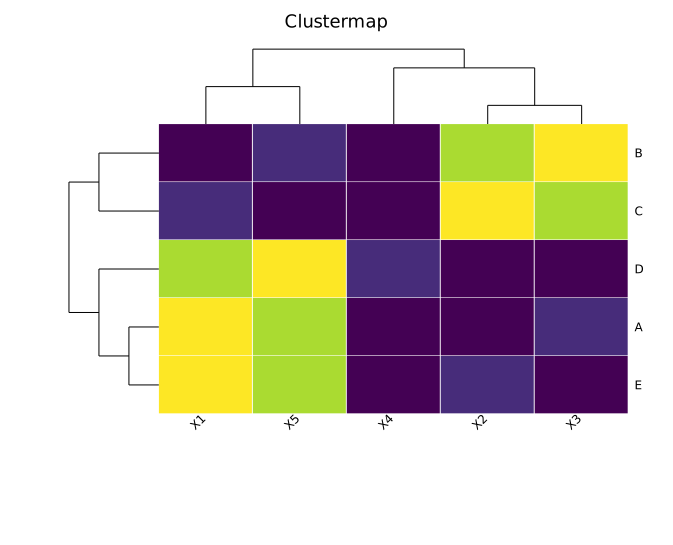
Both dendrograms are drawn automatically. Rows and columns are reordered so that similar profiles cluster together.
Disabling clustering
Pass false to .with_cluster_rows() or .with_cluster_cols() to suppress a dendrogram and keep the original data order on that axis.
#![allow(unused)] fn main() { use kuva::prelude::*; // Cluster rows only — keep original column order let cm = Clustermap::new() .with_data(data) .with_row_labels(["A", "B", "C", "D", "E"]) .with_col_labels(["X1", "X2", "X3", "X4", "X5"]) .with_cluster_cols(false); // Or disable both for a plain labeled heatmap via the Clustermap API let cm_plain = Clustermap::new() .with_data(data) .with_row_labels(["A", "B", "C", "D", "E"]) .with_col_labels(["X1", "X2", "X3", "X4", "X5"]) .with_cluster_rows(false) .with_cluster_cols(false); }
When clustering is disabled on an axis, no dendrogram panel is drawn for that axis and the data is displayed in its original order.
Normalization
.with_normalization(ClustermapNorm) applies a transform to the data before color mapping. This is useful for comparing expression profiles where absolute magnitudes differ across rows or columns.
| Variant | Description |
|---|---|
ClustermapNorm::None | No transform — raw values mapped to colors. Default. |
ClustermapNorm::RowZScore | Each row is z-score normalized (mean 0, std 1). |
ClustermapNorm::ColZScore | Each column is z-score normalized (mean 0, std 1). |
#![allow(unused)] fn main() { use kuva::prelude::*; let cm = Clustermap::new() .with_data(data) .with_row_labels(["GeneA", "GeneB", "GeneC", "GeneD", "GeneE"]) .with_col_labels(["Ctrl", "T1", "T2", "T3", "T4"]) .with_normalization(ClustermapNorm::RowZScore) .with_legend("Z-score"); }

The colorbar always reflects the post-normalization range. Use RowZScore when you want to compare relative expression patterns across samples; use ColZScore when comparing relative feature activity across samples.
Color maps
The same ColorMap enum used by Heatmap applies here.
#![allow(unused)] fn main() { use kuva::prelude::*; use kuva::plot::ColorMap; let cm = Clustermap::new() .with_data(data) .with_color_map(ColorMap::Inferno); }
| Variant | Notes |
|---|---|
Viridis | Perceptually uniform; colorblind-safe. Default. |
Inferno | High-contrast; works in greyscale print. |
Grayscale | Clean publication style. |
Custom(Arc<Fn>) | Full control — closure maps [0.0, 1.0] to a CSS color string. |
Annotation tracks
AnnotationTrack adds a strip of colored cells alongside the heatmap body. Row annotation tracks appear between the row dendrogram and the heatmap. Column annotation tracks appear between the column dendrogram and the heatmap.
Provide one CSS color string per row (or column), in the original data order — the renderer reorders them to match the clustering automatically.
#![allow(unused)] fn main() { use kuva::prelude::*; // Sample-group colors in original column order let sample_colors = vec!["#ff7f00", "#ff7f00", "#984ea3", "#984ea3", "#984ea3"]; let col_annot = AnnotationTrack::new(sample_colors) .with_label("Group"); // Treatment status in original row order let row_annot = AnnotationTrack::new(vec![ "#e41a1c", "#e41a1c", "#4daf4a", "#377eb8", "#377eb8", ]) .with_label("Sample"); let cm = Clustermap::new() .with_data(data) .with_row_labels(["A", "B", "C", "D", "E"]) .with_col_labels(["X1", "X2", "X3", "X4", "X5"]) .with_row_annotation(row_annot) .with_col_annotation(col_annot); }

Multiple tracks can be stacked by calling .with_row_annotation() or .with_col_annotation() multiple times. Each track is independent and can have a different width.
Track width
#![allow(unused)] fn main() { use kuva::prelude::*; let track = AnnotationTrack::new(colors) .with_label("Treatment") .with_width(20.0); // pixels; default 15.0 }
Pre-supplied trees
Supply a PhyloTree directly with .with_row_tree() or .with_col_tree() to use a custom topology instead of auto-clustering. The tree's leaf labels must match the row (or column) labels set via .with_row_labels() / .with_col_labels().
#![allow(unused)] fn main() { use kuva::prelude::*; let labels = ["A", "B", "C", "D", "E"]; let dist = vec![ vec![0.0, 0.1, 0.9, 0.9, 0.9], vec![0.1, 0.0, 0.9, 0.9, 0.9], vec![0.9, 0.9, 0.0, 0.1, 0.2], vec![0.9, 0.9, 0.1, 0.0, 0.2], vec![0.9, 0.9, 0.2, 0.2, 0.0], ]; // Build a tree externally (UPGMA, Newick parse, etc.) let row_tree = PhyloTree::from_distance_matrix(&labels, &dist); let cm = Clustermap::new() .with_data(data) .with_row_labels(labels) .with_row_tree(row_tree) // use this topology; skip auto-clustering .with_cluster_cols(true); // auto-cluster columns as normal }
This is useful when you want to impose a known phylogeny on the rows while still auto-clustering the columns.
Value overlay
.with_values() prints each cell's raw (post-normalization) value inside the cell, formatted to two decimal places. Most useful for small grids.
#![allow(unused)] fn main() { use kuva::prelude::*; let cm = Clustermap::new() .with_data(vec![ vec![1.0, 4.0, 7.0], vec![2.0, 5.0, 8.0], vec![3.0, 6.0, 9.0], ]) .with_row_labels(["R1", "R2", "R3"]) .with_col_labels(["C1", "C2", "C3"]) .with_values(); }
Dendrogram panel sizing
The row dendrogram panel is 100 px wide by default. The column dendrogram panel is 80 px tall. Adjust these if your labels or canvas size require more or less space.
#![allow(unused)] fn main() { use kuva::prelude::*; let cm = Clustermap::new() .with_data(data) .with_row_dendrogram_width(60.0) // narrower row dendrogram .with_col_dendrogram_height(50.0); // shorter col dendrogram }
Comparison with Figure-based PhyloTree + Heatmap
The older approach for pairing a dendrogram with a heatmap uses Figure::new(1, 2) to place a PhyloTree and a Heatmap side by side, then manually aligns them via leaf_labels_top_to_bottom() and with_y_categories(). This works but has a limitation:
The tree leaves and heatmap rows are each spaced independently within their own figure cells. At most canvas sizes the alignment looks correct, but is not guaranteed to be pixel-exact.
Clustermap solves this by computing both the dendrogram and the heatmap body in the same renderer, sharing an identical cell_h = hm_h / n_rows formula. Every leaf centre and every heatmap row centre are placed at hm_y + (k + 0.5) * cell_h — the same expression — so alignment is guaranteed regardless of canvas size or the number of rows.
Use Clustermap when:
- You need reliable dendrogram-to-heatmap alignment.
- You want UPGMA auto-clustering and just need a result.
- You need annotation tracks alongside the heatmap.
- You want row / column z-score normalization in the same call.
Use the Figure + PhyloTree + Heatmap approach when:
- You need full control over the tree (e.g. circular layout, clade coloring, branch lengths, support values).
- You want to show a phylogram (branch-length-accurate tree) alongside the heatmap.
- The tree and heatmap use different data sources and need to be laid out independently.
API reference
Clustermap builder methods
| Method | Description |
|---|---|
Clustermap::new() | Create a clustermap with defaults |
.with_data(rows) | Set grid data; accepts any numeric iterable of iterables |
.with_row_labels(iter) | Row labels in original data order |
.with_col_labels(iter) | Column labels in original data order |
.with_cluster_rows(bool) | Enable/disable row clustering (default true) |
.with_cluster_cols(bool) | Enable/disable column clustering (default true) |
.with_row_tree(PhyloTree) | Pre-built row tree; overrides auto-clustering |
.with_col_tree(PhyloTree) | Pre-built column tree; overrides auto-clustering |
.with_color_map(ColorMap) | Color encoding (default Viridis) |
.with_values() | Overlay raw cell values as text |
.with_normalization(ClustermapNorm) | Normalization before color mapping (default None) |
.with_branch_color(s) | Branch line color for both dendrograms (default "black") |
.with_row_dendrogram_width(f64) | Pixel width of the row dendrogram panel (default 100.0) |
.with_col_dendrogram_height(f64) | Pixel height of the column dendrogram panel (default 80.0) |
.with_row_annotation(AnnotationTrack) | Add a row annotation strip |
.with_col_annotation(AnnotationTrack) | Add a column annotation strip |
.with_legend(s) | Set the colorbar legend label |
.with_tooltips() | Enable SVG tooltip overlays on hover |
AnnotationTrack builder methods
| Method | Description |
|---|---|
AnnotationTrack::new(colors) | Create a track from an iterable of CSS color strings, in original data order |
.with_label(s) | Set a label displayed at the bottom of the strip |
.with_width(f64) | Strip width (row tracks) or height (col tracks) in pixels (default 15.0) |
ClustermapNorm variants
| Variant | Effect |
|---|---|
None | No normalization (default) |
RowZScore | Each row normalized to mean 0, std 1 |
ColZScore | Each column normalized to mean 0, std 1 |
See also: Heatmap for the un-clustered matrix, Phylogenetic Tree for an explicit evolutionary tree instead of similarity clustering, Dot Plot for a size/color-encoded alternative.
Coverage Plot
A coverage plot is a genome-browser style figure: several tracks stacked vertically that all share one genomic x-axis. It is built for sequencing data, where you want to show read depth alongside variant calls and annotation lanes (amplicons, primers, genes) over the same coordinate.
CoveragePlot is a preset that assembles these tracks for you. It is not a bottom level plot type
(like a scatter or a bar); it is a composite figure, in the same family as
Figure. Under the hood it is built from the general TrackStack
primitive (see The TrackStack primitive below), so anything the preset
does you can also assemble by hand.
Type: kuva::render::coverage::CoveragePlot
Basic usage
Add one or more depth samples (each a list of (position, depth) pairs), optional typed variants,
and optional feature bands. Set the locus (x range) and render. Each sample becomes a filled area
depth track; variants become a tick lane with a legend; features become a labelled band lane.
#![allow(unused)] fn main() { use kuva::render::coverage::CoveragePlot; use kuva::backend::svg::SvgBackend; // (position, depth) pairs per sample let tumour: Vec<(f64, f64)> = vec![/* ... */]; let normal: Vec<(f64, f64)> = vec![/* ... */]; let scene = CoveragePlot::new() .with_title("Tumour / normal coverage") .with_locus(1_000_000.0, 1_060_000.0) .with_sample("tumour", tumour) .with_sample("normal", normal) .with_variants("SNV", "#d1495b", vec![1_012_000.0, 1_028_500.0, 1_041_000.0]) .with_variants("InDel", "#e9c46a", vec![1_033_000.0]) .with_feature(1_005_000.0, 1_022_000.0, "amp1") .with_feature(1_020_000.0, 1_038_000.0, "amp2") .with_feature(1_036_000.0, 1_055_000.0, "amp3") .with_x_label("chr7 position") .render_sized(820.0, 380.0); let svg = SvgBackend::new().render_scene(&scene); std::fs::write("coverage.svg", svg).unwrap(); }
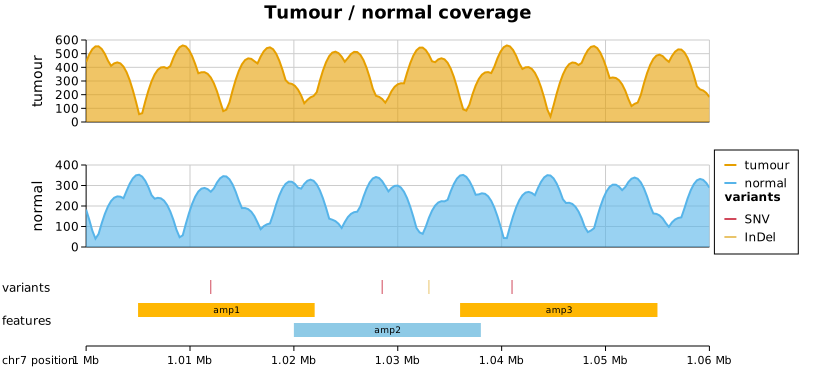
The x-axis label sits in the left gutter with the track names, and the genomic axis picks a single unit (bp, kb, Mb, or Gb) for the whole range so tick labels stay consistent.
Real data (ARTIC SARS-CoV-2)
The figure below is built from the real ARTIC nCoV-2019 example dataset (two per-pool depth files, a variant call file, and the primer scheme). It shows the pieces working together on genuine data:
- two per-pool depth tracks,
- a variant lane (SNV and InDel), coloured and listed in the legend,
- the 14 real amplicons. Because the ARTIC scheme alternates two primer pools, adjacent amplicons overlap and so tile onto two pool-coloured rows (see Feature tiling),
- a gene / ORF annotation lane, with each gene in its own colour,
- per-track legend sections on the right (samples, variants, genes).

Overlapping features are handled automatically: for example ORF7a and ORF7b overlap by a few bases in the SARS-CoV-2 genome, so ORF7b is placed on its own row.
Overlaid samples
By default each sample is its own stacked track. Call .with_overlaid_samples() to draw every
sample depth in one shared track on a common y-axis instead, for a direct sample-versus-sample
comparison. The samples are distinguished by colour and by the legend.
#![allow(unused)] fn main() { use kuva::render::coverage::CoveragePlot; let scene = CoveragePlot::new() .with_overlaid_samples() .with_sample("pool 1", vec![/* ... */]) .with_sample("pool 2", vec![/* ... */]) .render(1100.0); }
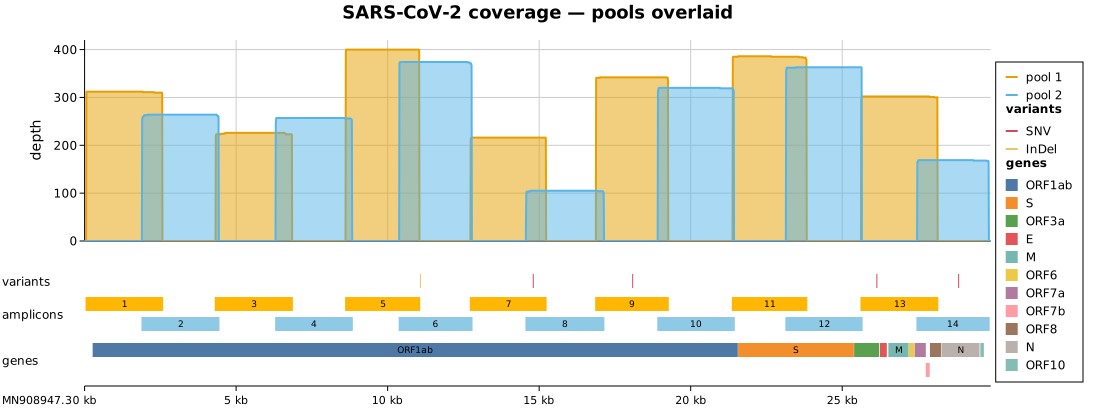
Tracks and options
| Method | Effect |
|---|---|
.with_sample(name, depth) | Add a depth track (filled area). One per sample, or overlaid (below). |
.with_overlaid_samples() | Overlay all samples in one shared track instead of stacking. |
.with_coverage_threshold(depth) | Dashed horizontal line at depth on every coverage track (e.g. a minimum-depth cutoff). Repeatable. |
.with_coverage_threshold_labeled(depth, label) | Same, with a label at the line. |
.with_variants(label, color, positions) | Add a typed variant group to the variant lane (call once per type). |
.with_feature(start, end, label) | Add one feature band (amplicon / primer). |
.with_features(intervals) | Add several feature bands at once. |
.with_region(start, end, label) | Add a genome region (gene / ORF), coloured per region with a legend. |
.with_regions(intervals) | Add several regions at once. |
.with_locus(start, end) | Pin the x range. Without it, the union of all data is used. |
.with_title(text) | Figure title in a band at the top. |
.with_x_label(text) | X-axis label (drawn in the left gutter). |
.with_theme(theme) | Visual theme. |
.with_tick_font_family(family) | Font family for every tick label (genomic coordinates and each track's depth values), leaving track names, the axis label, and the title in the main family. Monospace keeps genomic coordinates in a column. See Layout and Axes. |
.with_feature_track_name(name) / .with_region_track_name(name) | Rename the feature / region lanes. |
Feature tiling
Feature and region lanes use greedy minimum-row packing: each band takes the lowest row where it does not overlap one already placed. So N mutually overlapping bands need N rows, and no more. This gives the classic tiled-amplicon layout, where a two-pool primer scheme lands on two rows. Feature lanes colour rows by pool; region lanes colour each item individually and expose every item in the legend, so a tiny region whose label does not fit inside its band is still identifiable by colour.
Legends
Each track contributes its own titled section to a single legend on the right (samples, variants, genes, and so on), rather than merging everything into one flat list. The legend box is sized to fit the widest entry across all sections.
The TrackStack primitive
CoveragePlot is a thin preset over kuva::render::track_stack::TrackStack, a general primitive for
stacking any tracks on a shared x-axis. It is not genomics specific: the same machinery drives, for
example, a financial price / volume figure over a date axis. If you need a layout the preset does
not offer, build a TrackStack directly:
TrackStack::new().track(t).x_axis().render(width)assembles a stack. The x-axis is an explicit element you place with.x_axis(); tracks before it render above, tracks after render below.PlotTrackwraps any continuous-xVec<Plot>(line, area, scatter, and so on) as a track.IntervalTrackandVariantTrackare the annotation lanes.AxisSpec::genomic(label)/AxisSpec::datetime(label)choose the axis formatting..underlay(...)/.overlay(...)add layers that span every track (region highlights, cursors)..with_tick_font_family(family)sets the face for every tick label in the stack (the genomic axis and each track's y-axis), the stack-level counterpart ofLayout::with_tick_font_family. A track type implementsTrack::set_tick_font_familyto adopt it; the default ignores it, which is right for annotation lanes that draw data labels rather than ticks.
CLI
The kuva coverage subcommand builds the same figure from files. The main input is a depth table
with a position column and one or more sample-depth columns; variants and features come from their
own files.
kuva coverage depth.tsv --x pos --samples pool1,pool2 \
--variants variants.tsv \
--features amplicons.tsv --feature-name amplicons \
--regions genes.tsv --region-name genes \
--locus-start 1000000 --locus-end 1040000 \
--x-label "chr7 position" --title "Amplicon coverage" \
-o coverage.svg
| Flag | Meaning |
|---|---|
--x <col> | Position column in the depth table (default: 0). |
--samples <cols> | Comma-separated sample depth columns (default: column 1). |
--overlay-samples | Overlay all samples in one shared track. |
--min-coverage <depth> | Dashed threshold line at depth on every coverage track (repeatable). |
--variants <file> | Variants file with columns position,type. |
--features <file> / --feature-name <name> | Feature bands file (start,end,label) and lane name. |
--regions <file> / --region-name <name> | Region / gene file (start,end,label) and lane name. |
--locus-start <n> / --locus-end <n> | Pin the genomic window. |
--x-label <text> | X-axis label. |
Standard flags apply too (--title, --width, --height, --theme, -o, and the PNG / PDF
backends via the output file extension).
The real ARTIC example files live in examples/data/covar_*.tsv:
kuva coverage examples/data/covar_depth.tsv --x pos --samples pool1,pool2 \
--variants examples/data/covar_variants.tsv \
--features examples/data/covar_amplicons.tsv --feature-name amplicons \
--regions examples/data/covar_genes.tsv --region-name genes \
--x-label "MN908947.3" --title "SARS-CoV-2 amplicon coverage" -o coverage.svg
Note:
--emit-codeis not supported forcoverage(as withtwin-y), because it is a composite figure rather than a singlerender_multiplecall. Use the library API above to reproduce a figure in code.
See also: Manhattan Plot for GWAS results on a genomic axis, and Figure (Multi-Plot) for general multi-panel composition.
Manhattan Plot
A Manhattan plot displays GWAS p-values across the genome. Each point represents a SNP; the x-axis spans chromosomes and the y-axis shows −log₁₀(p-value). Chromosomes are colored with an alternating scheme. Dashed threshold lines are drawn automatically at the genome-wide (p = 5×10⁻⁸) and suggestive (p = 1×10⁻⁵) significance levels.
Import path: kuva::plot::ManhattanPlot
Basic usage — sequential mode
When base-pair positions are unavailable, pass (chrom, pvalue) pairs to .with_data(). Chromosomes are sorted in standard genomic order (1–22, X, Y, MT); points within each chromosome receive consecutive integer x positions.
Points with a p-value outside [0, 1] (including NaN) or a non-finite x position are not drawn or labeled, and the CLI rejects such p-values with the row number.
#![allow(unused)] fn main() { use kuva::plot::ManhattanPlot; use kuva::backend::svg::SvgBackend; use kuva::render::render::render_multiple; use kuva::render::layout::Layout; use kuva::render::plots::Plot; let data: Vec<(String, f64)> = vec![ ("1".into(), 0.42), ("1".into(), 3e-8), ("3".into(), 2e-9), ("6".into(), 5e-6), // ... ]; let mp = ManhattanPlot::new() .with_data(data) .with_legend("GWAS thresholds"); let plots = vec![Plot::Manhattan(mp)]; let layout = Layout::auto_from_plots(&plots) .with_title("GWAS — Sequential x-coordinates") .with_y_label("−log₁₀(p-value)"); let svg = SvgBackend.render_scene(&render_multiple(plots, layout)); std::fs::write("manhattan.svg", svg).unwrap(); }
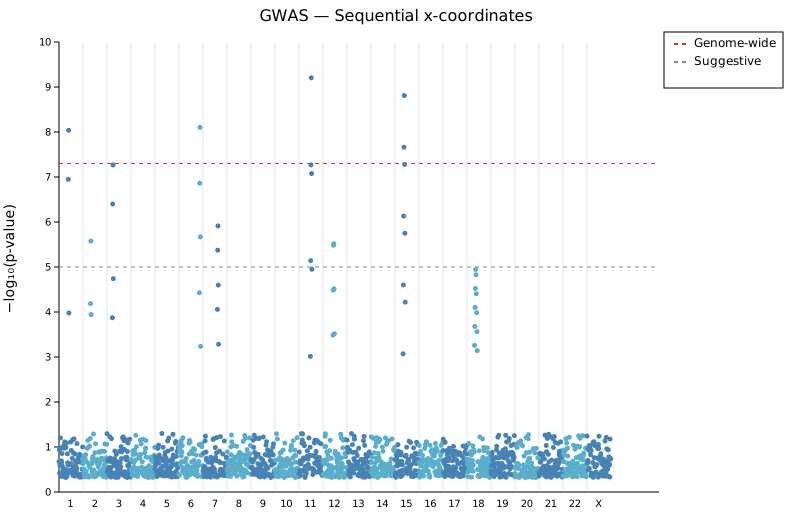
All 23 chromosomes appear. Points in the significant and suggestive regions are visible above the dashed threshold lines. The legend shows both threshold entries.
Base-pair mode — GRCh38
.with_data_bp(data, GenomeBuild::Hg38) maps each (chrom, bp, pvalue) triplet onto a true genomic x-axis. All chromosomes in the build appear as labeled bands even if they contain no data points.
#![allow(unused)] fn main() { use kuva::plot::{ManhattanPlot, GenomeBuild}; use kuva::render::plots::Plot; // (chrom, base-pair position, pvalue) from PLINK/GCTA output let data: Vec<(String, f64, f64)> = vec![]; // ... let mp = ManhattanPlot::new() .with_data_bp(data, GenomeBuild::Hg38) .with_label_top(10) .with_legend("GWAS thresholds"); }
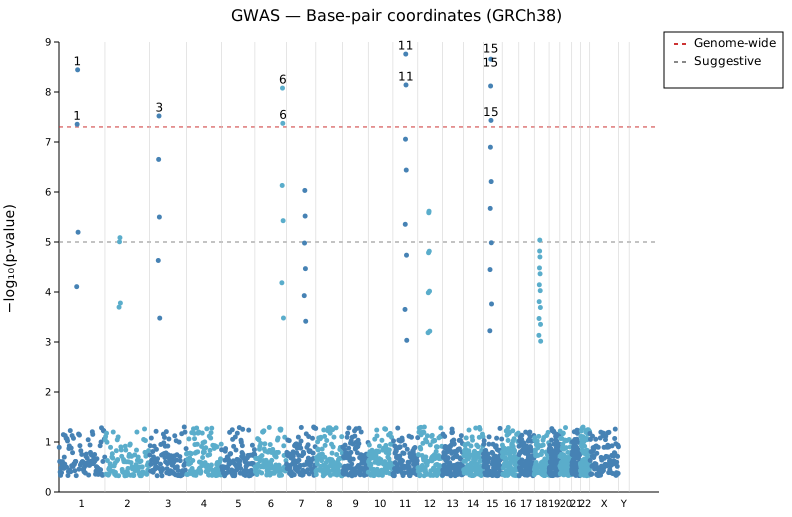
The x-axis now reflects true chromosomal proportions. The 10 most significant hits above the genome-wide threshold are labeled. Chromosome names are accepted with or without the "chr" prefix.
Available builds:
| Variant | Assembly | Chromosomes |
|---|---|---|
GenomeBuild::Hg19 | GRCh37 / hg19 | 1–22, X, Y, MT |
GenomeBuild::Hg38 | GRCh38 / hg38 | 1–22, X, Y, MT |
GenomeBuild::T2T | T2T-CHM13 v2.0 | 1–22, X, Y, MT |
GenomeBuild::Custom(…) | User-defined | Any |
Gene-name labels with with_point_labels
.with_point_labels(iter) attaches specific gene or SNP names to individual points by (chrom, x, label) triplets. Combine this with .with_data_x() (pre-computed x positions) for exact matching.
#![allow(unused)] fn main() { use kuva::plot::{ManhattanPlot, LabelStyle}; use kuva::render::plots::Plot; let data: Vec<(&str, f64, f64)> = vec![ // chr1 — BRCA2 locus ("1", 10.0, 0.42), ("1", 40.0, 2e-10), ("1", 60.0, 0.09), // chr2 — TP53 locus ("2", 120.0, 0.71), ("2", 140.0, 5e-9), ("2", 160.0, 0.13), // chr3 — EGFR locus ("3", 220.0, 0.62), ("3", 250.0, 1e-9), ("3", 270.0, 0.51), ]; let mp = ManhattanPlot::new() .with_data_x(data) .with_label_top(5) .with_label_style(LabelStyle::Arrow { offset_x: 10.0, offset_y: 14.0 }) .with_point_labels(vec![ ("1", 40.0, "BRCA2"), ("2", 140.0, "TP53"), ("3", 250.0, "EGFR"), ]); }

Each significant peak is labeled with its gene name. The Arrow style draws a short leader line from the label to the point, keeping the label legible even when the peak is narrow.
The x value passed to with_point_labels must match the x coordinate assigned at data-load time. A tolerance of ±0.5 is used, so integer positions are always matched exactly.
Custom genome build
GenomeBuild::Custom accepts a Vec<(chrom_name, size_in_bp)> list in the order you want chromosomes displayed. Use this for non-human organisms or subsets of the human genome.
#![allow(unused)] fn main() { use kuva::plot::{ManhattanPlot, GenomeBuild}; use kuva::Palette; use kuva::render::plots::Plot; let build = GenomeBuild::Custom(vec![ ("chr1".to_string(), 120_000_000), ("chr2".to_string(), 95_000_000), ("chr3".to_string(), 80_000_000), ("chrX".to_string(), 55_000_000), ]); let mp = ManhattanPlot::new() .with_data_bp(data, build) .with_palette(Palette::tol_bright()) .with_label_top(6) .with_legend("GWAS thresholds"); }
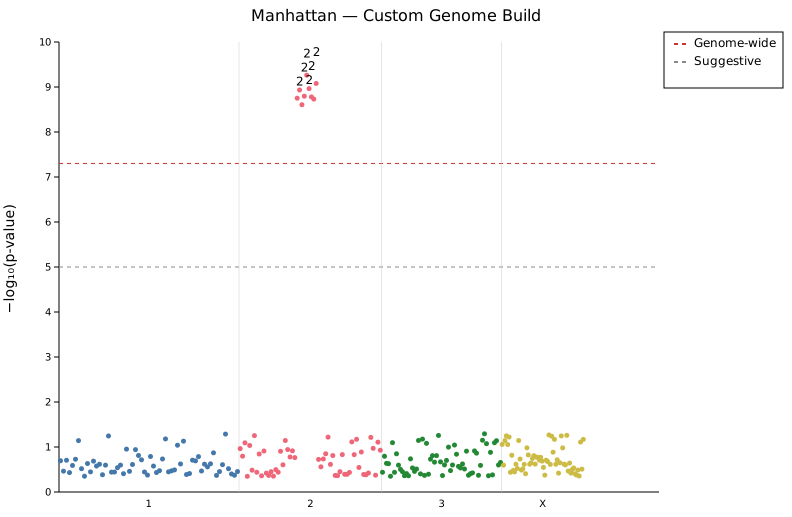
Palette::tol_bright() cycles six colorblind-safe colors across the four chromosomes. Chromosome names are accepted with or without the "chr" prefix in both the build definition and the data.
Thresholds
| Method | Default | Description |
|---|---|---|
.with_genome_wide(f) | 7.301 | −log₁₀ threshold for the red dashed line (p = 5×10⁻⁸) |
.with_suggestive(f) | 5.0 | −log₁₀ threshold for the gray dashed line (p = 1×10⁻⁵) |
Pass −log₁₀(p) directly: for p = 1×10⁻⁶, use 6.0.
Colors
By default chromosomes alternate between two shades of blue:
| Method | Default | Description |
|---|---|---|
.with_color_a(s) | "steelblue" | Even-indexed chromosomes (0, 2, 4, …) |
.with_color_b(s) | "#5aadcb" | Odd-indexed chromosomes (1, 3, 5, …) |
.with_palette(p) | — | Full palette; overrides the two-color scheme |
All color methods accept any CSS color string. .with_palette() assigns colors in chromosome order, cycling with modulo wrapping.
Chromosome label overlap
At the default canvas width the small autosomes (17–22, X, Y) are narrow enough
that their chromosome labels can overlap. The with_x_label_overlap Layout
builder (and the --x-label-overlap CLI flag) controls how collisions are
handled:
#![allow(unused)] fn main() { use kuva::AxisLabelOverlap; use kuva::render::layout::Layout; use kuva::render::plots::Plot; use kuva::plot::manhattan::{GenomeBuild, ManhattanPlot}; let data: Vec<(String, f64, f64)> = vec![]; let mp = ManhattanPlot::new().with_data_bp(data, GenomeBuild::Hg38); let plots = vec![Plot::Manhattan(mp)]; // Thin — drop labels that would overprint their neighbour let layout = Layout::auto_from_plots(&plots) .with_x_label_overlap(AxisLabelOverlap::Thin); // Stagger — keep every label, alternate between two rows let layout = Layout::auto_from_plots(&plots) .with_x_label_overlap(AxisLabelOverlap::Stagger); }
| Strategy | Behaviour |
|---|---|
Allow (default) | Every chromosome label drawn; small chroms may overlap |
Thin | Overlapping labels skipped; spacing is always clean |
Stagger | All chromosomes labeled; colliding names alternate rows |
Stagger is generally preferable when you need all chromosome names visible —
it expands the bottom margin automatically to accommodate the second row.
CLI: kuva manhattan data.tsv --genome-build hg38 --x-label-overlap stagger
API reference
| Method | Description |
|---|---|
ManhattanPlot::new() | Create a plot with defaults |
.with_data(iter) | Load (chrom, pvalue) pairs; sequential integer x |
.with_data_bp(iter, build) | Load (chrom, bp, pvalue) triplets; true genomic x |
.with_data_x(iter) | Load (chrom, x, pvalue) triplets; pre-computed x |
.with_genome_wide(f) | Genome-wide threshold in −log₁₀ (default 7.301) |
.with_suggestive(f) | Suggestive threshold in −log₁₀ (default 5.0) |
.with_color_a(s) | Even-chromosome color (default "steelblue") |
.with_color_b(s) | Odd-chromosome color (default "#5aadcb") |
.with_palette(p) | Full palette, overrides alternating colors |
.with_point_size(f) | Circle radius in pixels (default 2.5) |
.with_label_top(n) | Label the n top hits above genome-wide threshold |
.with_label_style(s) | Nudge (default), Exact, Arrow { offset_x, offset_y }, or Repel (force-directed) |
.with_point_labels(iter) | Attach gene/SNP names to specific (chrom, x) positions |
.with_pvalue_floor(f) | Explicit p-value floor for −log₁₀ transform |
.with_legend(s) | Show genome-wide and suggestive legend entries |
See also: Volcano Plot for effect-size vs. significance instead of genomic position, Q-Q Plot for checking genomic inflation directly.
CLI
Manhattan plot for GWAS results.
Input: chromosome, (optional) base-pair position, and p-value columns.
Two layout modes:
- Sequential (default): chromosomes are sorted and SNPs receive consecutive integer x-positions. Position column is not used.
- Base-pair (
--genome-build): SNP x-coordinates are resolved from chromosome sizes in a reference build.
| Flag | Default | Description |
|---|---|---|
--chr-col <COL> | 0 | Chromosome column |
--pos-col <COL> | 1 | Base-pair position column (bp mode only) |
--pvalue-col <COL> | 2 | p-value column |
--pvalue-col-is-log | off | p-value column already contains −log₁₀(p); un-transform before plotting |
--genome-build <BUILD> | — | Enable bp mode: hg19, hg38, or t2t |
--genome-wide <F> | 7.301 | Genome-wide threshold (−log₁₀ scale) |
--suggestive <F> | 5.0 | Suggestive threshold (−log₁₀ scale) |
--top-n <N> | 0 | Label N most-significant points above genome-wide threshold |
--label-style <STYLE> | nudge | Label placement: nudge, exact, or repel |
--point-size <PX> | 2.5 | Point radius |
--color-a <CSS> | steelblue | Even-chromosome color |
--color-b <CSS> | #5aadcb | Odd-chromosome color |
--legend | off | Show threshold legend |
# sequential mode (no position column needed)
kuva manhattan gene_stats.tsv --chr-col chr --pvalue-col pvalue --top-n 5
# base-pair mode
kuva manhattan gwas.tsv \
--chr-col chr --pos-col pos --pvalue-col pvalue \
--genome-build hg38 --top-n 10 --legend
# when p-value column already holds -log10(p)
kuva manhattan gwas.tsv --chr-col chr --pvalue-col neg_log10_p --pvalue-col-is-log
See also: Shared flags — output, appearance, axes, log scale.
Volcano Plot
A volcano plot visualises differential expression results by plotting log₂ fold change (x-axis) against −log₁₀(p-value) (y-axis). Points that pass both the fold-change and p-value thresholds are colored as up-regulated (right) or down-regulated (left); all others are shown as not-significant (gray). Dashed threshold lines are drawn automatically.
Import path: kuva::plot::VolcanoPlot
Basic usage
Pass (gene_name, log2fc, pvalue) tuples to .with_points(). Default thresholds are |log2FC| > 1.0 and p < 0.05.
#![allow(unused)] fn main() { use kuva::plot::VolcanoPlot; use kuva::backend::svg::SvgBackend; use kuva::render::render::render_multiple; use kuva::render::layout::Layout; use kuva::render::plots::Plot; let results: Vec<(&str, f64, f64)> = vec![ ("AKT1", 3.5, 5e-5), ("EGFR", 3.2, 1e-4), ("VHL", -3.0, 5e-4), ("P21", -3.2, 2e-4), ("GAPDH", 0.3, 0.50), // ... ]; let vp = VolcanoPlot::new() .with_points(results) .with_legend("DEG status"); let plots = vec![Plot::Volcano(vp)]; let layout = Layout::auto_from_plots(&plots) .with_title("Tumour vs. Normal — Volcano Plot") .with_x_label("log₂ fold change") .with_y_label("−log₁₀(p-value)"); let svg = SvgBackend.render_scene(&render_multiple(plots, layout)); std::fs::write("volcano.svg", svg).unwrap(); }
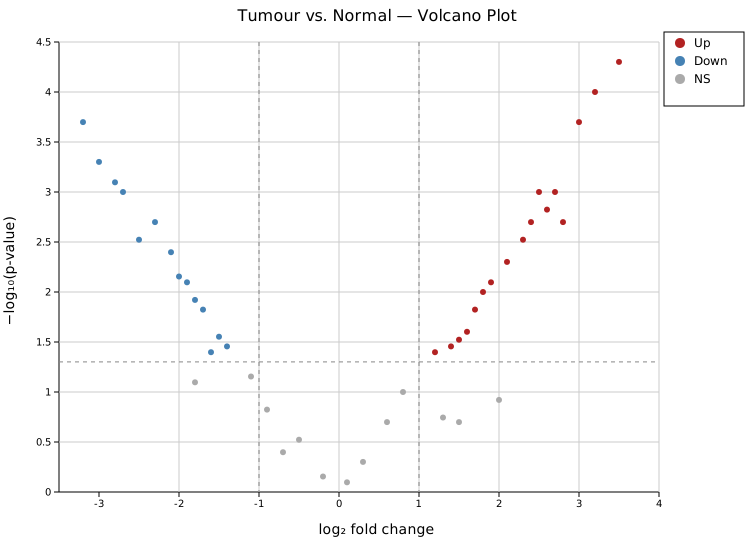
Up-regulated genes (red, right) include AKT1, EGFR, and FGFR1 at the top right. Down-regulated genes (blue, left) include P21, MLH1, and VHL. House-keeping genes (GAPDH, ACTB) and genes with large fold change but non-significant p-values (GeneC, GeneD) appear in gray. The legend shows the Up / Down / NS classification.
Gene labels
.with_label_top(n) labels the n most significant points (lowest p-values). Four placement styles are available via .with_label_style(): Nudge (default), Exact, Arrow, and Repel (force-directed, ggrepel-style, best for dense clusters).
Nudge (default)
Labels are sorted by x position and nudged vertically to reduce stacking — the best default for most datasets.
#![allow(unused)] fn main() { use kuva::plot::VolcanoPlot; use kuva::render::plots::Plot; let vp = VolcanoPlot::new() .with_points(results) .with_label_top(12); // LabelStyle::Nudge is the default }

The twelve most significant genes are labeled. Labels are spread vertically to avoid overlap while staying close to their points.
Arrow
LabelStyle::Arrow { offset_x, offset_y } moves labels by the given pixel offset and draws a short gray leader line back to the point. Useful when labels would crowd the high-significance region.
#![allow(unused)] fn main() { use kuva::plot::{VolcanoPlot, LabelStyle}; use kuva::render::plots::Plot; let vp = VolcanoPlot::new() .with_points(results) .with_label_top(10) .with_label_style(LabelStyle::Arrow { offset_x: 14.0, offset_y: 16.0 }); }
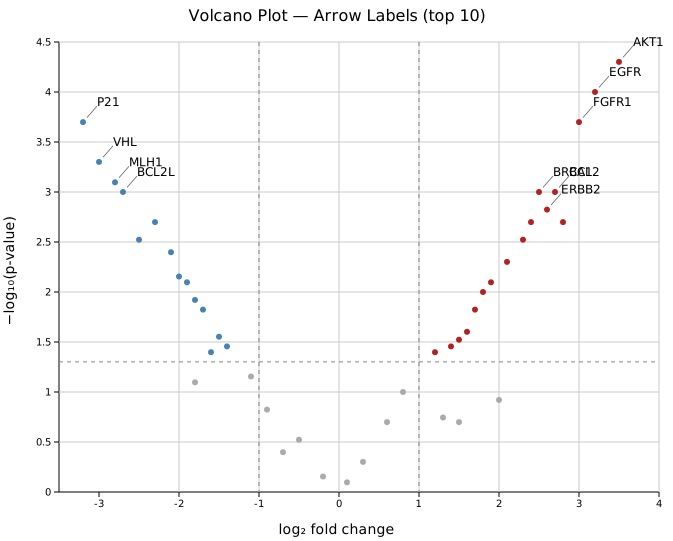
Each label is offset from its point by 14 px horizontally and 16 px vertically with a connecting line. This style works well for the top points in the upper corners where nudging alone may not provide enough separation.
Exact
LabelStyle::Exact places labels at the precise point position without adjustment. Labels may overlap on dense data; use this for sparse plots or when you will post-process the SVG.
Thresholds
.with_fc_cutoff(f) and .with_p_cutoff(f) set the classification thresholds. Dashed vertical lines appear at ±fc_cutoff; a dashed horizontal line appears at −log10(p_cutoff).
#![allow(unused)] fn main() { use kuva::plot::VolcanoPlot; use kuva::render::plots::Plot; let vp = VolcanoPlot::new() .with_points(results) .with_fc_cutoff(2.0) // default 1.0 — require ≥ 4× fold change .with_p_cutoff(0.01) // default 0.05 — stricter significance .with_label_top(8); }
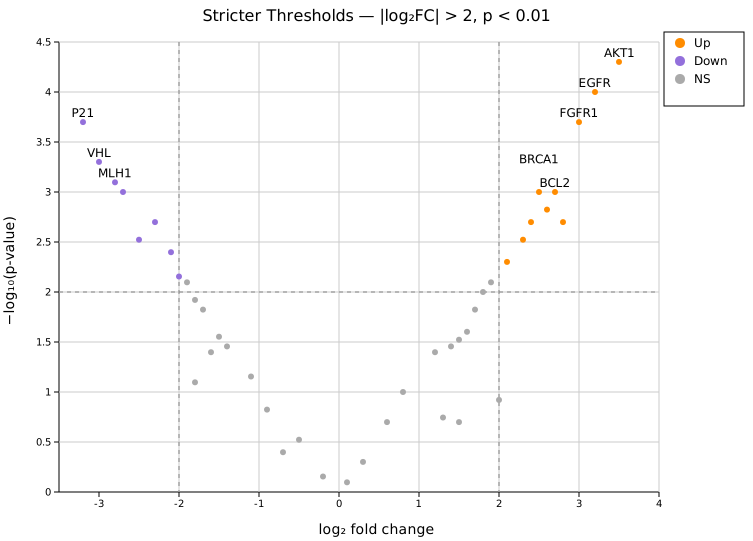
With |log2FC| > 2 and p < 0.01, fewer genes pass both filters. The threshold lines move inward on the x-axis and upward on the y-axis compared to the defaults. Orange/purple colors distinguish this comparison from the default red/blue palette.
Colors
| Method | Default | Description |
|---|---|---|
.with_color_up(s) | "firebrick" | Points with log2FC ≥ fc_cutoff and p ≤ p_cutoff |
.with_color_down(s) | "steelblue" | Points with log2FC ≤ −fc_cutoff and p ≤ p_cutoff |
.with_color_ns(s) | "#aaaaaa" | All other points |
All color methods accept any CSS color string.
Zero and extreme p-values
p-values of exactly 0.0 cannot be log-transformed. They are automatically clamped to the smallest non-zero p-value in the data. Points with a p-value outside [0, 1] (including NaN) or a non-finite fold change are not drawn or labeled, and the CLI rejects such p-values with the row number. To set an explicit ceiling (useful when comparing multiple plots on the same y-axis scale):
#![allow(unused)] fn main() { use kuva::plot::VolcanoPlot; let vp = VolcanoPlot::new() .with_points(results) .with_pvalue_floor(1e-10); // y-axis ceiling fixed at 10 }
API reference
| Method | Description |
|---|---|
VolcanoPlot::new() | Create a plot with defaults |
.with_point(name, fc, p) | Add a single point |
.with_points(iter) | Add points from a (name, log2fc, pvalue) iterator |
.with_fc_cutoff(f) | |log₂FC| threshold (default 1.0) |
.with_p_cutoff(f) | p-value significance threshold (default 0.05) |
.with_color_up(s) | Up-regulated point color (default "firebrick") |
.with_color_down(s) | Down-regulated point color (default "steelblue") |
.with_color_ns(s) | Not-significant point color (default "#aaaaaa") |
.with_point_size(f) | Circle radius in pixels (default 3.0) |
.with_label_top(n) | Label the n most significant points (default 0) |
.with_label_style(s) | Nudge (default), Exact, Arrow { offset_x, offset_y }, or Repel (force-directed) |
.with_pvalue_floor(f) | Explicit p-value floor for −log₁₀ transform |
.with_legend(s) | Show an Up / Down / NS legend box |
See also: Manhattan Plot for genome-position-based significance, Scatter Plot for the general x/y relationship it specializes.
CLI
Volcano plot for differential expression results.
Input: three columns — gene name, log₂ fold change, raw p-value.
| Flag | Default | Description |
|---|---|---|
--name-col <COL> | 0 | Gene/feature name column |
--x-col <COL> | 1 | log₂FC column |
--y-col <COL> | 2 | p-value column (raw, not −log₁₀) |
--pvalue-col-is-log | off | p-value column already contains −log₁₀(p); un-transform before plotting |
--fc-cutoff <F> | 1.0 | |log₂FC| threshold |
--p-cutoff <F> | 0.05 | p-value significance threshold |
--top-n <N> | 0 | Label the N most-significant points |
--label-style <STYLE> | nudge | Label placement: nudge, exact, or repel |
--color-up <CSS> | firebrick | Up-regulated point color |
--color-down <CSS> | steelblue | Down-regulated point color |
--color-ns <CSS> | #aaaaaa | Not-significant point color |
--point-size <PX> | 3.0 | Point radius |
--legend | off | Show Up / Down / NS legend |
kuva volcano gene_stats.tsv \
--name-col gene --x-col log2fc --y-col pvalue \
--top-n 20 --legend
kuva volcano gene_stats.tsv \
--name-col gene --x-col log2fc --y-col pvalue \
--fc-cutoff 2.0 --p-cutoff 0.01 --top-n 10
# when p-value column already holds -log10(p)
kuva volcano results.tsv --name-col gene --x-col log2fc --y-col neg_log10_p \
--pvalue-col-is-log
See also: Shared flags — output, appearance, axes, log scale.
Synteny Plot
A synteny plot visualises conserved genomic regions between two or more sequences. Each sequence is drawn as a horizontal bar; collinear blocks are drawn as ribbons connecting the matching regions. Forward blocks use parallel-sided ribbons; inverted (reverse-complement) blocks draw crossed (bowtie) ribbons. The plot is well suited for comparing chromosomes, assembled genomes, or any ordered sequence data.
Import path: kuva::plot::synteny::SyntenyPlot
Basic usage
Add sequences with .with_sequences() as (label, length) pairs, then connect collinear regions with .with_block(seq1, start1, end1, seq2, start2, end2). Sequences are referred to by their 0-based index in the order they were added.
#![allow(unused)] fn main() { use kuva::plot::synteny::SyntenyPlot; use kuva::backend::svg::SvgBackend; use kuva::render::render::render_multiple; use kuva::render::layout::Layout; use kuva::render::plots::Plot; let plot = SyntenyPlot::new() .with_sequences([ ("Human chr1", 248_956_422.0), ("Mouse chr1", 195_471_971.0), ]) .with_block(0, 0.0, 50_000_000.0, 1, 0.0, 45_000_000.0) .with_block(0, 60_000_000.0, 120_000_000.0, 1, 55_000_000.0, 100_000_000.0) .with_block(0, 130_000_000.0, 200_000_000.0, 1, 110_000_000.0, 170_000_000.0); let plots = vec![Plot::Synteny(plot)]; let layout = Layout::auto_from_plots(&plots) .with_title("Human chr1 vs Mouse chr1"); let svg = SvgBackend.render_scene(&render_multiple(plots, layout)); std::fs::write("synteny.svg", svg).unwrap(); }
By default each bar fills the full plot width regardless of sequence length (per-sequence scale). Ribbons are drawn before bars so the bars overlay them cleanly. Labels are right-padded to the left of each bar.
Inversions
.with_inv_block() marks a region as reverse-complement: the ribbon connects the right edge of the source interval to the left edge of the target (and vice versa), producing a characteristic crossed or bowtie shape.
#![allow(unused)] fn main() { use kuva::plot::synteny::SyntenyPlot; use kuva::backend::svg::SvgBackend; use kuva::render::render::render_multiple; use kuva::render::layout::Layout; use kuva::render::plots::Plot; let plot = SyntenyPlot::new() .with_sequences([("Seq A", 1_000_000.0), ("Seq B", 1_000_000.0)]) .with_block( 0, 0.0, 200_000.0, 1, 0.0, 200_000.0) .with_inv_block(0, 250_000.0, 500_000.0, 1, 250_000.0, 500_000.0) // inverted .with_block( 0, 600_000.0, 900_000.0, 1, 600_000.0, 900_000.0); let plots = vec![Plot::Synteny(plot)]; let layout = Layout::auto_from_plots(&plots) .with_title("Forward and Inverted Blocks"); let svg = SvgBackend.render_scene(&render_multiple(plots, layout)); }
Multiple sequences
Add more than two sequences to show a stack of pairwise comparisons. A block can connect any two sequence indices — typically adjacent pairs for a multi-genome alignment view.
#![allow(unused)] fn main() { use kuva::plot::synteny::SyntenyPlot; use kuva::backend::svg::SvgBackend; use kuva::render::render::render_multiple; use kuva::render::layout::Layout; use kuva::render::plots::Plot; let plot = SyntenyPlot::new() .with_sequences([ ("Genome A", 500_000.0), ("Genome B", 480_000.0), ("Genome C", 450_000.0), ]) // blocks between sequences 0 and 1 .with_block( 0, 0.0, 100_000.0, 1, 0.0, 95_000.0) .with_block( 0, 150_000.0, 300_000.0, 1, 140_000.0, 280_000.0) // blocks between sequences 1 and 2 .with_block( 1, 0.0, 100_000.0, 2, 5_000.0, 105_000.0) .with_inv_block(1, 200_000.0, 350_000.0, 2, 190_000.0, 340_000.0); let plots = vec![Plot::Synteny(plot)]; let layout = Layout::auto_from_plots(&plots) .with_title("Three-way Synteny"); let svg = SvgBackend.render_scene(&render_multiple(plots, layout)); }

Blocks do not need to connect adjacent sequences — a block between sequences 0 and 2 will span the full height of the diagram.
Custom colors & legend
Set bar colors with .with_sequence_colors(). Override the ribbon color of individual blocks with .with_colored_block() or .with_colored_inv_block(). Call .with_legend("") to enable the legend; each sequence gets an entry labeled with its name.
#![allow(unused)] fn main() { use kuva::plot::synteny::SyntenyPlot; use kuva::backend::svg::SvgBackend; use kuva::render::render::render_multiple; use kuva::render::layout::Layout; use kuva::render::plots::Plot; let plot = SyntenyPlot::new() .with_sequences([("Seq 1", 500_000.0), ("Seq 2", 500_000.0)]) .with_sequence_colors(["#4393c3", "#d6604d"]) // bar fill colors .with_colored_block( 0, 0.0, 150_000.0, 1, 0.0, 150_000.0, "#2ca02c") .with_colored_block( 0, 200_000.0, 350_000.0, 1, 200_000.0, 340_000.0, "#9467bd") .with_colored_inv_block(0, 380_000.0, 480_000.0, 1, 370_000.0, 470_000.0, "#ff7f0e") .with_legend("Blocks"); let plots = vec![Plot::Synteny(plot)]; let layout = Layout::auto_from_plots(&plots) .with_title("Custom Colors & Legend"); let svg = SvgBackend.render_scene(&render_multiple(plots, layout)); }
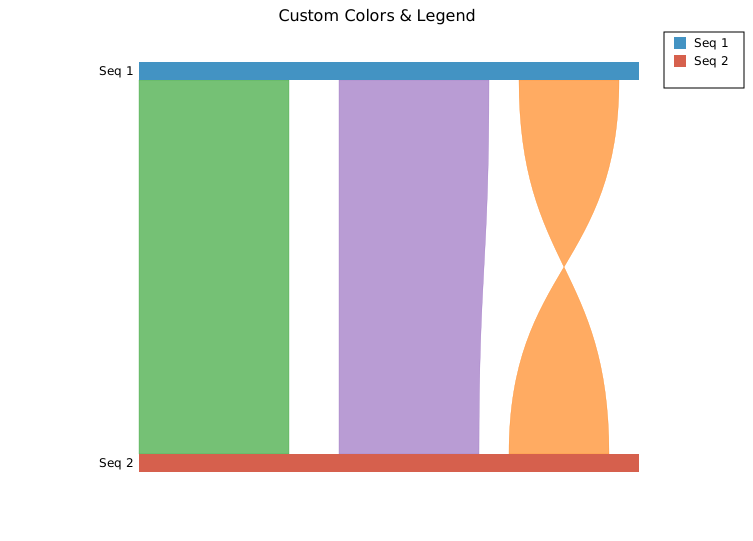
Without explicit block colors, ribbons inherit the source sequence bar color.
Shared scale
By default each bar fills the full plot width independently (per-sequence scale), which maximises detail for each sequence but hides length differences between them. Call .with_shared_scale() to use a common ruler: each bar's width is proportional to sequence_length / max_length, so relative sizes are accurately represented.
#![allow(unused)] fn main() { use kuva::plot::synteny::SyntenyPlot; let plot = SyntenyPlot::new() .with_sequences([("Long", 1_000_000.0), ("Short", 400_000.0)]) .with_shared_scale() // shorter bar is 40% width .with_block(0, 0.0, 300_000.0, 1, 0.0, 300_000.0) .with_block(0, 350_000.0, 700_000.0, 1, 50_000.0, 380_000.0); }
Bulk block loading
.with_blocks() accepts an iterator of pre-built SyntenyBlock structs, which is convenient when blocks come from a parsed alignment file:
#![allow(unused)] fn main() { use kuva::plot::synteny::{SyntenyPlot, SyntenyBlock, Strand}; let blocks: Vec<SyntenyBlock> = vec![ SyntenyBlock { seq1: 0, start1: 0.0, end1: 100_000.0, seq2: 1, start2: 0.0, end2: 95_000.0, strand: Strand::Forward, color: None }, SyntenyBlock { seq1: 0, start1: 150_000.0, end1: 300_000.0, seq2: 1, start2: 140_000.0, end2: 280_000.0, strand: Strand::Reverse, color: Some("#e41a1c".into()) }, ]; let plot = SyntenyPlot::new() .with_sequences([("Ref", 500_000.0), ("Query", 480_000.0)]) .with_blocks(blocks); }
API reference
| Method | Description |
|---|---|
SyntenyPlot::new() | Create a synteny plot with defaults |
.with_sequences(iter) | Add sequences from (label, length) pairs |
.with_sequence_colors(iter) | Override bar fill colors (parallel to sequences) |
.with_block(s1, start1, end1, s2, start2, end2) | Add a forward collinear block |
.with_inv_block(s1, start1, end1, s2, start2, end2) | Add an inverted (crossed ribbon) block |
.with_colored_block(s1, start1, end1, s2, start2, end2, color) | Forward block with explicit ribbon color |
.with_colored_inv_block(s1, start1, end1, s2, start2, end2, color) | Inverted block with explicit ribbon color |
.with_blocks(iter) | Batch-add pre-built SyntenyBlock structs |
.with_bar_height(px) | Sequence bar height in pixels (default 18.0) |
.with_opacity(f) | Ribbon fill opacity 0.0–1.0 (default 0.65) |
.with_shared_scale() | Use a common ruler — bar width proportional to sequence length |
.with_legend("") | Enable the legend; one entry per sequence, labeled with the sequence name |
Strand variants
| Variant | Ribbon shape |
|---|---|
Forward | Parallel-sided trapezoid |
Reverse | Crossed / bowtie |
See also: Phylogenetic Tree for the evolutionary relationships between the same sequences, Brick Plot for per-base alignment detail.
CLI
Synteny / genomic alignment ribbon plot.
Input: two files:
- Sequences file (positional): TSV with sequence name and length columns.
- Blocks file (
--blocks-file): TSV with columnsseq1, start1, end1, seq2, start2, end2, strand.
# sequences.tsv
name length
Chr1A 2800000
Chr1B 2650000
# blocks.tsv
seq1 start1 end1 seq2 start2 end2 strand
Chr1A 56000 137237 Chr1B 63958 143705 +
Chr1A 150674 271188 Chr1B 165366 303075 -
| Flag | Default | Description |
|---|---|---|
--blocks-file <FILE> | (required) | Blocks TSV file |
--bar-height <PX> | 18.0 | Sequence bar height in pixels |
--opacity <F> | 0.65 | Block ribbon opacity |
--proportional | off | Scale bar widths proportionally to sequence length |
--legend <LABEL> | — | Show legend |
kuva synteny synteny_seqs.tsv --blocks-file synteny_blocks.tsv
kuva synteny synteny_seqs.tsv --blocks-file synteny_blocks.tsv \
--proportional --legend "synteny blocks"
See also: Shared flags — output, appearance, axes, log scale.
Brick Plot
A brick plot displays sequences as rows of colored rectangles — one brick per character. It is designed for bioinformatics workflows involving DNA/RNA sequence visualization and tandem-repeat structure analysis. Each character maps to a color defined by a template; rows are labeled on the y-axis.
Import paths: kuva::plot::BrickPlot, kuva::plot::brick::BrickTemplate
DNA sequences
BrickTemplate::dna() provides a standard A / C / G / T color scheme. Pass the .template field to BrickPlot::with_template(). Use with_x_offset(n) to skip a common flanking region so the region of interest starts at x = 0.
#![allow(unused)] fn main() { use std::collections::HashMap; use kuva::plot::BrickPlot; use kuva::plot::brick::BrickTemplate; use kuva::backend::svg::SvgBackend; use kuva::render::render::render_multiple; use kuva::render::layout::Layout; use kuva::render::plots::Plot; let tmpl = BrickTemplate::new().dna(); let plot = BrickPlot::new() .with_sequences(vec![ "CGGCGATCAGGCCGCACTCATCATCATCATCATCATCAT", "CGGCGATCAGGCCGCACTCATCATCATCATCATCATCATCAT", ]) .with_names(vec!["read_1", "read_2"]) .with_template(tmpl.template) .with_x_offset(18.0); // skip 18-base common prefix let plots = vec![Plot::Brick(plot)]; let layout = Layout::auto_from_plots(&plots) .with_title("DNA Repeat Region"); let svg = SvgBackend.render_scene(&render_multiple(plots, layout)); std::fs::write("brick.svg", svg).unwrap(); }
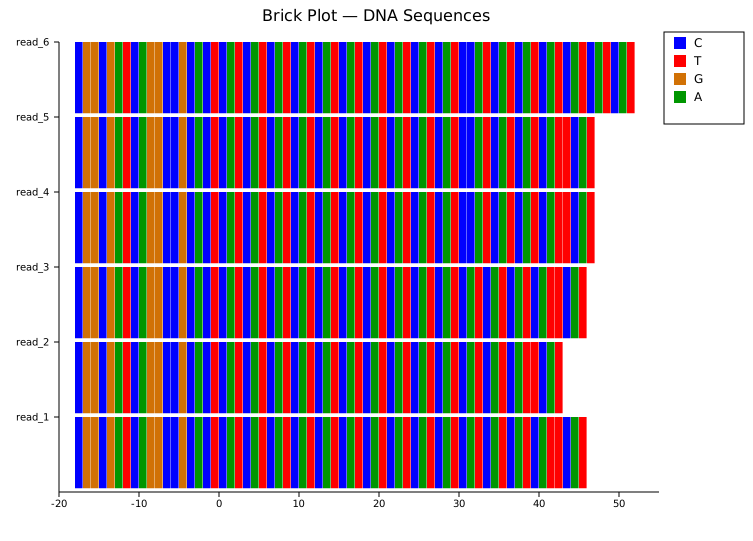
The 18-character flanking prefix is hidden by with_x_offset(18.0). All rows start at the same x = 0, aligning the CAT repeat region across reads.
Per-row offsets
When reads begin at different positions, with_x_offsets accepts one offset per row. Pass None for any row that should fall back to the global x_offset.
#![allow(unused)] fn main() { use kuva::plot::BrickPlot; use kuva::plot::brick::BrickTemplate; use kuva::render::plots::Plot; let plot = BrickPlot::new() .with_sequences(sequences) .with_names(names) .with_template(BrickTemplate::new().dna().template) .with_x_offset(12.0) // global fallback .with_x_offsets(vec![ Some(18.0_f64), // read 1: skip 18 Some(10.0), // read 2: skip 10 Some(16.0), // read 3: skip 16 Some(5.0), // read 4: skip 5 None, // read 5: use global (12) ]); }
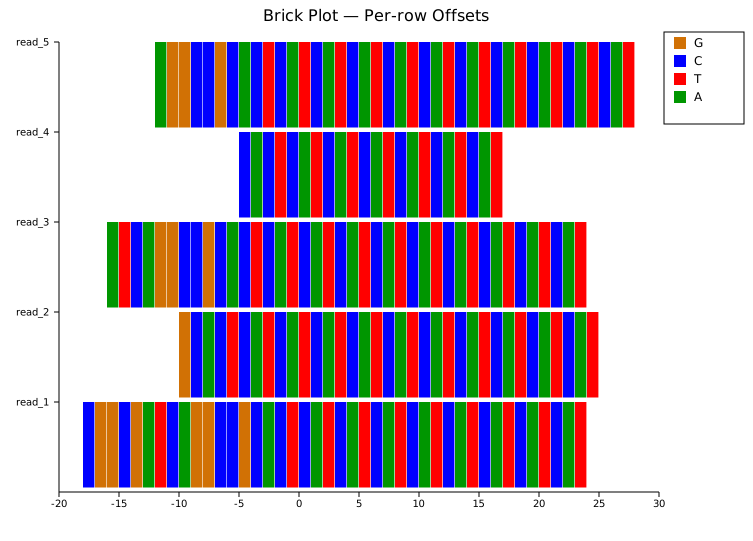
Each row is shifted independently, aligning the repeat boundary across reads with different flanking lengths.
Custom template with value overlay
with_template accepts any HashMap<char, String>. Here a protein secondary-structure alphabet (H, E, C, T) gets custom colors. with_values() prints the character label inside each brick.
#![allow(unused)] fn main() { use std::collections::HashMap; use kuva::plot::BrickPlot; use kuva::render::plots::Plot; let mut tmpl: HashMap<char, String> = HashMap::new(); tmpl.insert('H', "steelblue".into()); // α-helix tmpl.insert('E', "firebrick".into()); // β-strand tmpl.insert('C', "#aaaaaa".into()); // coil tmpl.insert('T', "seagreen".into()); // turn let plot = BrickPlot::new() .with_sequences(vec!["CCCHHHHHHHHHHCCCCEEEEEECCC"]) .with_names(vec!["prot_1"]) .with_template(tmpl) .with_values(); // show letter labels inside bricks }
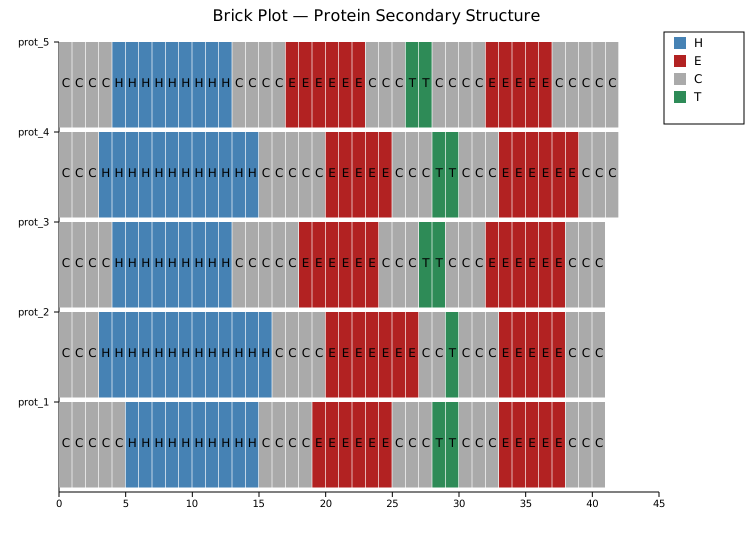
Any single-character alphabet can be used — amino acids, repeat unit categories, chromatin states, etc.
Strigar mode (tandem-repeat motifs)
with_strigars switches to strigar mode for structured tandem-repeat data produced by BLADERUNNER. Each read is described by two strings:
- motif string — maps local letters to k-mers:
"CAT:A,C:B,T:C" - strigar string — run-length encoding of those letters:
"10A1B4A1C1A"
with_strigars normalises k-mers across all reads by canonical rotation, assigns global letters (A, B, C, …) by frequency, auto-generates colors, and renders variable-width bricks proportional to each motif's nucleotide length.
#![allow(unused)] fn main() { use kuva::plot::BrickPlot; use kuva::render::plots::Plot; let strigars: Vec<(String, String)> = vec![ ("CAT:A,C:B,T:C".to_string(), "10A1B4A1C1A".to_string()), ("CAT:A,T:B".to_string(), "14A1B1A".to_string()), ("CAT:A,C:B,GGT:C".to_string(), "10A1B8A1C5A".to_string()), // ... ]; let plot = BrickPlot::new() .with_names(names) .with_strigars(strigars); // sequences not needed — derived from strigars }

Bricks are proportional to motif length (CAT = 3 bp wide; single-nucleotide interruptions are narrower). The dominant repeat unit (CAT) is assigned letter A and the first color; rarer motifs receive subsequent letters and colors.
Bladerunner format contract
A row carries one flat motif namespace: every letter in the strigar string is
looked up in that row's own motif string, and letters are local to the row.
Letters are bijective base-26 (A..Z, then AA, AB, ...), so a row can
reference more than 26 distinct motifs. The tokeniser consumes the maximal run
of uppercase characters, which is why a multi-character letter such as 3AA is
read as three copies of AA and not as 3A plus a stray A.
motif string AATGG:A,CAG:B,TTTTC:AA
strigar string 10A2B3AA
^ ^ ^
| | +-- 3 copies of TTTTC
| +----- 2 copies of CAG
+--------- 10 copies of AATGG
A count is a number of copies of that letter's k-mer, not a number of
nucleotides: 10A with AATGG:A is 10 bricks of 5 nt each.
The superseded | / @ format is rejected
An earlier bladerunner contract joined candidates with | separators and
encoded inter-candidate gaps as N@ (or @:SEQUENCE for a small gap). Neither
character has meaning now, and the segment structure they carried cannot be
recovered from what is left, so rows containing them are rejected rather than
reinterpreted.
This is deliberate. The tokeniser skips characters it cannot use, so an old-format row would otherwise quietly lose its separators and still draw: the wrong bricks in the wrong order, looking exactly like a valid row. Failing is the safer default when the alternative is a plausible but wrong figure.
A rejected row keeps its slot in the plot (so names and offsets stay aligned with the other rows) but draws no bricks, and the reason is reported:
#![allow(unused)] fn main() { use kuva::plot::BrickPlot; use kuva::plot::brick::StrigarIssue; let plot = BrickPlot::new().with_strigars(vec![ ("ACCCTA:A".to_string(), "2A|36@".to_string()), // old format ]); for issue in plot.strigar_issues() { match issue { StrigarIssue::LegacyFormat { row, marker } => { eprintln!("row {row}: superseded STRIGAR format (found {marker:?})"); } StrigarIssue::Unparseable { row, fragment } => { eprintln!("row {row}: cannot read {fragment:?}"); } } } }
Validation runs before the motif-frequency passes, so a rejected row cannot influence the canonical-rotation ranking, global letters, or colours that the remaining rows share.
Regenerate STRIGAR strings from a current bladerunner, or build rows through the builder API instead.
Aligning reads by genomic position
Use with_start_positions to pass the reference coordinate where each read begins. Reads are shifted on the shared x-axis so repeat regions line up visually. Combine with with_x_origin to anchor a biologically meaningful position (e.g. the repeat start) to x = 0.
#![allow(unused)] fn main() { use kuva::plot::BrickPlot; use kuva::render::plots::Plot; // read_1: A-repeat (16 nt) + small gap GAA (3 nt) + AGA-repeat. // AGA region starts at reference position 19. // read_2: AGA-repeat only, starting at reference position 19. // // with_start_positions aligns both reads on the shared reference axis. // with_x_origin(19) places x=0 at the repeat start; the pre-repeat // flanking region of read_1 appears at negative x values. let strigars: Vec<(String, String)> = vec![ ("A:A,GAA:B,AGA:C".to_string(), "16A1B9C".to_string()), ("AGA:A".to_string(), "12A".to_string()), ]; let plot = BrickPlot::new() .with_names(vec!["read_1", "read_2"]) .with_strigars(strigars) .with_start_positions(vec![0.0_f64, 19.0]) // genomic start coord per read .with_x_origin(19.0); // x=0 at the repeat start }
with_start_positions is equivalent to with_x_offsets with negated values but expresses intent clearly: pass the actual reference start coordinate for each read and kuva handles the shift. with_x_origin is a separate, independent axis shift applied on top — it does not interact with per-row offsets and can be used with or without with_start_positions.
Flanked strigars
with_flanked_strigars is a convenience wrapper for workflows where each read carries DNA flanking sequence on both sides of the STR region. Pass an iterator of (left_flank, motif_string, strigar_string, right_flank) tuples. Flanks are rendered with standard bioinformatics DNA colors (A=green, C=blue, G=orange, T=red) immediately adjacent to the STR bricks.
#![allow(unused)] fn main() { use kuva::plot::BrickPlot; use kuva::render::plots::Plot; let flanked = vec![ // (left_flank, motifs, strigar, right_flank) ("ACGTACGT", "CAG:A,CAA:B", "6A1B8A", "TGCATGCA"), ("ACGTACGT", "CAG:A", "16A", "TGCATGCA"), ]; let plot = BrickPlot::new() .with_names(vec!["consensus", "read_1"]) .with_flanked_strigars(flanked); }
The motif and strigar strings are processed identically to with_strigars. The flank strings are treated as raw DNA sequences — each character becomes one brick with the standard base color.
Right-anchoring
By default all rows are left-aligned (STR start at x = 0 for all reads after offset adjustment). with_anchor(BrickAnchor::Right) instead aligns the trailing edges of all rows, which is useful when reads end at the same reference position but differ in length.
#![allow(unused)] fn main() { use kuva::plot::brick::BrickAnchor; use kuva::plot::BrickPlot; use kuva::render::plots::Plot; let plot = BrickPlot::new() .with_names(names) .with_strigars(strigars) .with_anchor(BrickAnchor::Right); }
BrickAnchor::Left is the default. BrickAnchor::Right shifts shorter rows rightward so all trailing edges line up on the same vertical.
Consensus-anchored rotation
When multiple reads cover the same STR locus, different reads may describe the same repeat unit using different rotations of the same k-mer (e.g. CAG, AGC, GCA). By default the rotation chosen for the legend is the most frequent one across all reads. with_consensus_row(i) locks the rotation to whatever row i uses, so the legend always reflects the reference or assembly read:
#![allow(unused)] fn main() { use kuva::plot::BrickPlot; use kuva::render::plots::Plot; let strigars = vec![ ("CAG:A".to_string(), "12A".to_string()), // consensus — uses CAG ("AGC:A".to_string(), "10A".to_string()), // same unit, different rotation ]; let plot = BrickPlot::new() .with_names(vec!["consensus", "read_1"]) .with_consensus_row(0) // lock rotation to row 0's k-mers .with_strigars(strigars); // must be called after with_consensus_row }
with_consensus_row must be set before with_strigars (or with_flanked_strigars), as rotation resolution happens during strigar parsing.
Primary motif marker
with_mark_primary() appends * to the legend label of global letter A (the dominant motif by brick count). This is a visual cue that A is the canonical repeat unit when the plot is shown alongside other data:
#![allow(unused)] fn main() { use kuva::plot::BrickPlot; let plot = BrickPlot::new() .with_names(names) .with_mark_primary() .with_strigars(strigars); // Legend entry for A reads "CAG*" instead of "CAG" }
Per-block notation labels
with_notations renders (kmer)count labels above the bricks for each consecutive run of the same motif. Pass one Option<String> per row: Some(_) enables labels for that row, None disables them. The string content is ignored — labels are always auto-generated from the run-length structure of the expanded strigar.
#![allow(unused)] fn main() { use kuva::plot::BrickPlot; use kuva::render::plots::Plot; let plot = BrickPlot::new() .with_names(vec!["consensus", "read_1", "read_2"]) .with_consensus_row(0) .with_flanked_strigars(flanked) .with_notations(vec![ Some("".to_string()), // enable labels for consensus row None, // no labels for read_1 None, // no labels for read_2 ]); }
For a consensus row with strigar 6A1B2A1C10A and motifs CAG:A, CAA:B, CCG:C, this renders five separate labels above the corresponding brick runs: (CAG)6, (CAA)1, (CAG)2, (CCG)1, (CAG)10. Gap bricks (@) are skipped.
When labels from adjacent runs overlap in pixel space they are staggered vertically across up to four tiers. The plot canvas automatically gains extra top-margin headroom when any row has notations enabled.
Marker lines
with_vline(x) draws a dashed vertical line across every row at reference coordinate x, handy for marking a locus, primer boundary, or variant position. with_vline_labeled(x, label) adds a label at the top. For full control over colour, dash pattern, and orientation, pass a ReferenceLine to with_marker_line.
#![allow(unused)] fn main() { use kuva::plot::BrickPlot; use kuva::render::annotations::ReferenceLine; let plot = BrickPlot::new() // ... sequences, names, template ... .with_vline_labeled(150.0, "exon boundary") .with_vline(200.0) .with_marker_line(ReferenceLine::vertical(250.0).with_color("blue").with_dasharray("2 2")); }
The lines are drawn in the plot's own reference-coordinate system, so they honour with_x_offset / with_x_origin just like the bricks.
Row ordering
Row 0 is always rendered at the top of the plot. The first entry in with_names appears at the top of the y-axis. This matches the natural reading order when row 0 is a reference/consensus sequence.
Bladerunner full-pipeline example
Combining all of the above for a typical bladerunner workflow:
#![allow(unused)] fn main() { use kuva::plot::BrickPlot; use kuva::plot::brick::BrickAnchor; use kuva::render::plots::Plot; use kuva::render::layout::Layout; use kuva::render::render::render_multiple; use kuva::backend::svg::SvgBackend; let flanked = vec![ // consensus row — row 0, shown at the top with notation labels ("ACGTACGT", "CAG:A,CAA:B,CCG:C", "6A1B2A1C10A", "TGCATGCA"), // supporting reads — no labels ("ACGTACGT", "CAG:A,CCG:B", "8A1B10A", "TGCATGCA"), ("ACGTACGT", "CAG:A", "20A", "TGCA"), ]; let plot = BrickPlot::new() .with_names(vec!["consensus", "read_1", "read_2"]) .with_consensus_row(0) .with_mark_primary() .with_flanked_strigars(flanked) .with_notations(vec![Some("".to_string()), None, None]); let plots = vec![Plot::Brick(plot)]; let layout = Layout::auto_from_plots(&plots).with_title("STR locus"); let svg = SvgBackend.render_scene(&render_multiple(plots, layout)); std::fs::write("brick_locus.svg", svg).unwrap(); }
Built-in templates
| Method | Alphabet | Colors |
|---|---|---|
BrickTemplate::new().dna() | A C G T | green / blue / orange / red |
BrickTemplate::new().rna() | A C G U | green / blue / orange / red |
Access the populated map via .template and pass it to with_template().
API reference
| Method | Description |
|---|---|
BrickPlot::new() | Create with defaults |
.with_sequences(iter) | Load character sequences (one string per row) |
.with_names(iter) | Load row labels (one per sequence); row 0 appears at the top |
.with_template(map) | Set HashMap<char, CSS color> |
.with_x_offset(f) | Global x-offset applied to all rows (shift left by f nt) |
.with_x_offsets(iter) | Per-row offsets (f64 or Option<f64>; None → global fallback) |
.with_start_positions(iter) | Per-row genomic start coordinates; shifts each read so it begins at that x position |
.with_x_origin(f) | Reference coordinate mapped to x = 0; applied on top of all per-row offsets |
.with_values() | Draw character labels inside bricks |
.with_strigars(iter) | Load strigar data and switch to strigar mode; accepts bladerunner stitched format |
.with_flanked_strigars(iter) | Like with_strigars but each row also carries DNA left/right flanking sequences |
.with_anchor(BrickAnchor) | BrickAnchor::Left (default) or BrickAnchor::Right to align trailing edges |
.with_consensus_row(i) | Lock k-mer rotation to row i's motifs; must be called before with_strigars |
.with_mark_primary() | Append * to the legend label for global letter A (the dominant motif) |
.with_notations(iter) | Per-row Option<String>; Some(_) = render per-block (kmer)count labels above that row |
BrickTemplate::new().dna() | Pre-built DNA (A/C/G/T) color template |
BrickTemplate::new().rna() | Pre-built RNA (A/C/G/U) color template |
See also: Synteny Plot for genome-to-genome structural comparison.
CIGAR bars
with_cigars draws a thin band above each row, coloured by that read's CIGAR
operations, so you can see which bases are supported by the reference and
which are insertions or soft clips.
#![allow(unused)] fn main() { use kuva::plot::{BrickPlot, BrickSort}; let plot = BrickPlot::new() .with_strigars([ ("CAG:A,CAA:B", "3A3B9A1B1A1B18A"), ("CAG:A,CAA:B", "3A3B9A1B1A1B17A"), ]) .with_names(["Hap1", "Hap2"]) .with_cigars(["108M", "42M3D63M"]) .with_sort(BrickSort::Cigar); }
The bar is drawn in read space, the same coordinate the bricks use, so an
operation always lines up with the bases beneath it. M, =, X, I and S
consume read bases and are drawn with width. D and N consume only
reference, so they appear as a zero-width caret at the junction rather than
opening a gap in the row: a contraction relative to the reference is often the
most informative thing on an STR plot, and gaps would break the brick grid.
Deduplication and run brackets
Consecutive rows sharing a CIGAR draw a single bar, bracketed in the gutter
with an xN count. A block of identical reads therefore states its CIGAR once
and a bar appears only where something changes. Vertical space is charged only
to rows that draw a bar, so an unchanging run keeps its normal row pitch.
Turn either off with with_cigar_dedup(false) or
with_cigar_run_bracket(false).
Sorting
with_sort(BrickSort::Cigar) groups identical CIGARs, which lets dedup draw
the fewest possible bars: one per distinct CIGAR. Any other order can split a
CIGAR across non-adjacent rows and repeat its bar.
BrickSort::Custom(Vec<usize>) takes a row order you computed yourself, for
example a distance-from-consensus ranking. kuva applies the order without
needing to know how it was derived. Indices that are out of range or repeated
are ignored, and omitted rows keep their original relative order at the end.
cigar_bar_count() reports how many bars will be drawn, which is a quick way
to see whether the bars are earning their vertical space at a given locus.
What the bar is telling you
A CIGAR describes how a read differs from the reference, not how one allele differs from another. Two rows whose bars look different are not necessarily different from each other, and two rows with identical bars can still carry different repeat structures.
Note also that an indel's position inside a tandem repeat reflects where the aligner placed it. kuva draws it where the CIGAR says, without normalising.
Colours
Operation colours are reserved outside the motif palette, so a motif brick can
never be mistaken for an insertion. Override them with with_cigar_colors:
#![allow(unused)] fn main() { use kuva::plot::{BrickPlot, CigarOp}; let plot = BrickPlot::new().with_cigar_colors([(CigarOp::Insertion, "#f2c53d")]); }
Validation
A CIGAR whose read-consuming length disagrees with its row is rejected rather
than drawn, and reported by cigar_issues(). A bar that is short by a few
bases misaligns every operation after the first while still looking like a
valid annotation, which is far worse than no bar at all.
Supply the CIGAR for every base the row draws, flanks included. A row
built with with_flanked_strigars is drawn as left flank, then STRIGAR
bricks, then right flank, and the CIGAR must span all three; row_base_len(i)
returns exactly the length it has to consume. In sequence mode it is just the
sequence length. The bar starts at the row's first drawn base, so the flanks
are annotated along with the repeat.
Do not re-derive the CIGAR from locus coordinates: only whatever produced the row knows where its own span begins and ends, and an insertion anchored on the span boundary cannot be attributed correctly from coordinates alone.
Brick Pop Plot
A brick pop plot is a population view of a single short tandem repeat (STR) locus. It shows one row per unique allele, sorted by frequency, and lines up three panels on the same rows:
- a horizontal frequency bar on the left (how common each allele is),
- a strip of metric heatboxes (per-allele values such as methylation, motif entropy, or longest pure run, each on its own colour scale),
- the motif bricks on the right (the allele's repeat structure, left anchored so expansions run off to the right).
BrickPopPlot is a composite figure, in the same family as Coverage Plot and
Figure, not a bottom level plot type. It wraps a
Brick Plot for the brick column and draws the frequency bar, heatboxes, colourbars,
and a bottom motif legend around it. The panels stay aligned because the embedded brick's row band
is pinned to the same pixel span the side panels use, so every panel agrees on the row count and row
height.
Type: kuva::render::brick_pop::BrickPopPlot
Basic usage
Build a BrickPlot with your alleles (STRIGAR motif data plus names), then wrap it in
BrickPopPlot, attach the per-row frequencies and metric columns, and render. Everything is
positional: the frequencies and each metric's values are indexed by row, in the same order as the
brick's rows. Call .sorted_by_frequency() to order every panel together so you do not have to sort
each vector by hand.
#![allow(unused)] fn main() { use kuva::plot::{BrickPlot, ColorMap}; use kuva::render::brick_pop::{BrickPopPlot, MetricColumn}; use kuva::backend::svg::SvgBackend; use std::collections::HashMap; // One colour per motif, keyed by canonical k-mer, so a motif keeps its colour everywhere. let mut colours = HashMap::new(); colours.insert("AATGG".to_string(), "#4c78a8".to_string()); colours.insert("AAGGG".to_string(), "#e45756".to_string()); let brick = BrickPlot::new() .with_names(vec!["allele_a", "allele_b", "allele_c"]) .with_motif_colors(colours) .with_strigars(vec![ ("AATGG:A".to_string(), "12A".to_string()), ("AATGG:A".to_string(), "40A".to_string()), ("AATGG:A,AAGGG:B".to_string(), "18A6B20A".to_string()), ]); let scene = BrickPopPlot::new(brick) .with_title("RFC1 locus: population alleles") .with_frequencies(vec![0.30, 0.45, 0.25]) .with_metric("methylation", vec![Some(0.7), Some(0.9), None], ColorMap::Viridis) .with_metric_column( MetricColumn::new("motif entropy", vec![Some(0.1), Some(0.05), Some(0.8)], ColorMap::Inferno) .with_range(0.0, 1.0), ) .sorted_by_frequency() .render(880.0); let svg = SvgBackend::new().render_scene(&scene); std::fs::write("brick_pop.svg", svg).unwrap(); }

Alleles are drawn top to bottom in the order you supply, so sort by frequency first (or call
.sorted_by_frequency(), which permutes the rows, the frequencies, and every metric together).
The frequency scale
The frequency bar auto-scales to [0, 1] when the values look like proportions (all in that range),
and to [0, max] otherwise. This matters for small cohorts: twelve singleton haplotypes at 0.083
each render as short, equal bars rather than every bar filling to the maximum, so a polymorphic
locus and a single-dominant-allele locus look obviously different and bars stay comparable across
loci. Pin the scale explicitly with .with_frequency_range(vmin, vmax) when you want a fixed axis
(for example counts on a shared [0, N] range).
Metrics and colourbars
Each MetricColumn is one strip of heatboxes coloured by a ColorMap.
The value range is taken from the finite values unless you pin it with .with_range(vmin, vmax), and
missing values (None) render in the NA colour. The colourbars are drawn side by side on the right,
each with its title running vertically on its left, and the motif legend sits along the bottom (as a
Legend Plot grid) so it can wrap to as many rows as a complex locus needs.
Values in the box
For a small number of alleles with tall rows, .with_metric_values(true) writes the number inside
each cell and moves the heat colour to the cell border, which is easier to read exactly. Cells that
are too small fall back to a solid fill automatically.
#![allow(unused)] fn main() { use kuva::plot::{BrickPlot, ColorMap}; use kuva::render::brick_pop::BrickPopPlot; let brick = BrickPlot::new().with_names(vec!["a", "b"]).with_strigars(vec![("AATGG:A".to_string(), "20A".to_string()), ("AATGG:A".to_string(), "10A".to_string())]); let scene = BrickPopPlot::new(brick) .with_row_height(28.0) .with_metric_values(true) .with_frequencies(vec![0.6, 0.4]) .with_metric("methylation", vec![Some(0.86), Some(0.44)], ColorMap::Viridis) .render(760.0); }
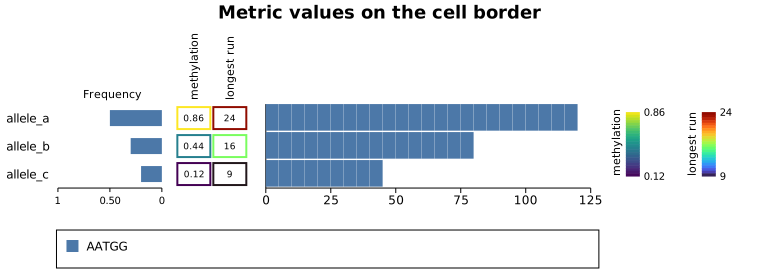
Large cohorts
For long expansions across many alleles (RFC1, BEAN1, and similar), enable run-length merging on the
brick (BrickPlot::with_merge_runs(true)) and use a small row height. Merging collapses a run of
identical motifs into one bar where the per-unit width would be sub-pixel anyway, keeping very long
alleles legible and cheap to draw. Allele name labels shrink to fit dense rows and are dropped when
rows get too small.
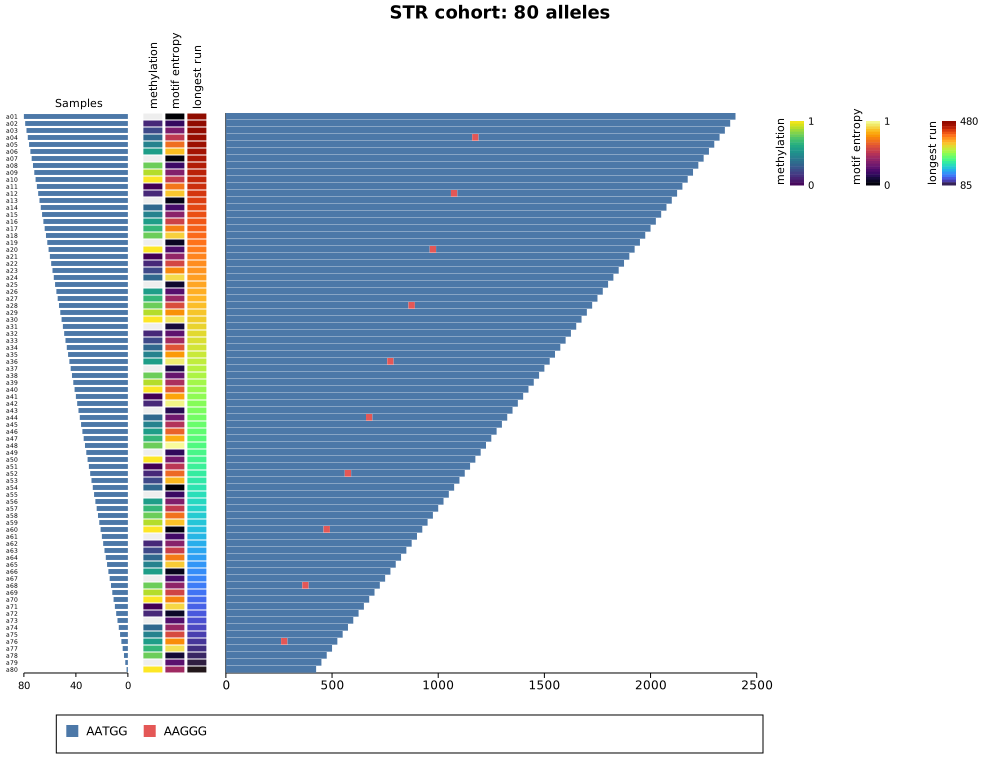
Options
| Method | Effect |
|---|---|
BrickPopPlot::new(brick) | Wrap a pre-built BrickPlot (its rows are the alleles). |
.with_frequencies(values) | Frequency-bar value per row (same order as the rows). |
.with_frequency_range(vmin, vmax) | Pin the frequency-bar scale (default: [0, 1] for proportions, else [0, max]). |
.with_frequency_label(text) | Header for the frequency panel (default "Frequency"). |
.with_freq_bar_color(css) | Colour of the frequency bars. |
.with_metric(label, values, colormap) | Append a metric heatbox column (auto colour range). |
.with_metric_column(column) | Append a fully specified MetricColumn (e.g. a pinned range). |
.with_metric_values(on) | Write values in the cells with the heat on the border (large cells only). |
.with_na_color(css) | Fill for missing (None) metric cells. |
.sorted_by_frequency() | Sort alleles by descending frequency, permuting rows, frequencies, and metrics together. |
.with_row_height(px) | Pixel height per allele row (drives the auto-sized canvas height). |
.with_title(text) | Figure title in a band at the top. |
.with_theme(theme) | Visual theme. |
.render(width) / .render_sized(width, height) | Produce the Scene. |
MetricColumn::new(label, values, colormap) builds a column; .with_range(vmin, vmax) pins its
colour scale instead of auto-computing it from the data.
Note:
BrickPopPlothas no CLI subcommand or--emit-codesupport, because it is a composite figure rather than a singlerender_multiplecall. Use the library API above.
See also: Brick Plot for the read-level brick view and the STRIGAR format, and Coverage Plot for genome-browser style tracks on a shared locus.
3D Scatter Plot
Renders 3D point data using orthographic projection with a depth-sorted painter's algorithm. Points are projected onto a 2D canvas with a matplotlib-style open-box wireframe, back-pane fills, and grid lines on all three back walls. Supports z-colormap coloring, depth shading, per-point colors and sizes, and six marker shapes.
Import path: kuva::plot::scatter3d::Scatter3DPlot
Basic usage
Pass (x, y, z) tuples via with_data():
#![allow(unused)] fn main() { use kuva::plot::scatter3d::Scatter3DPlot; use kuva::backend::svg::SvgBackend; use kuva::render::render::render_multiple; use kuva::render::layout::Layout; use kuva::render::plots::Plot; let scatter = Scatter3DPlot::new() .with_data(vec![(1.0, 2.0, 3.0), (4.0, 5.0, 6.0), (7.0, 8.0, 9.0)]) .with_color("steelblue") .with_x_label("X") .with_y_label("Y") .with_z_label("Z"); let plots = vec![Plot::Scatter3D(scatter)]; let layout = Layout::auto_from_plots(&plots).with_title("3D Scatter"); let scene = render_multiple(plots, layout); let svg = SvgBackend.render_scene(&scene); std::fs::write("scatter3d.svg", svg).unwrap(); }

Z-colormap
Color points by their Z value using a colormap. A colorbar is rendered automatically alongside the plot:
#![allow(unused)] fn main() { use kuva::plot::scatter3d::Scatter3DPlot; use kuva::plot::heatmap::ColorMap; let scatter = Scatter3DPlot::new() .with_data(vec![(1.0, 2.0, 3.0), (4.0, 5.0, 6.0)]) .with_z_colormap(ColorMap::Viridis) .with_z_label("Z"); // also labels the colorbar }
Available colormaps: Viridis, Inferno, Grayscale, Custom.
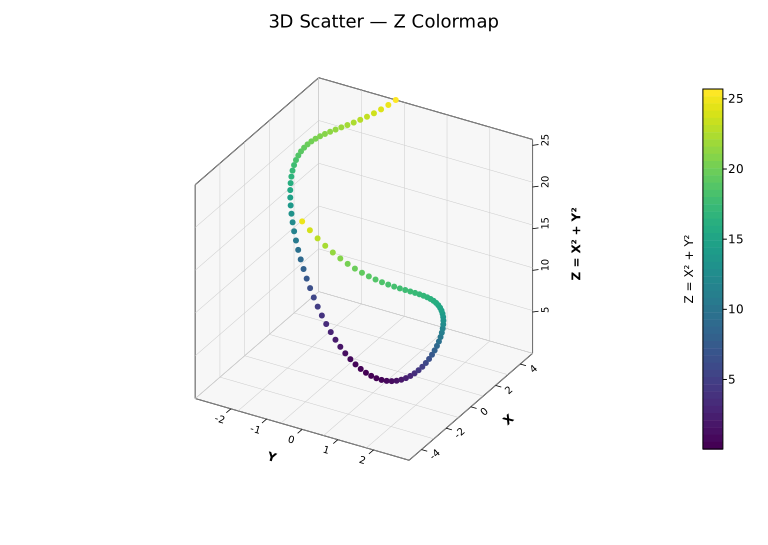
Custom view angles
Adjust the camera position with azimuth and elevation. Enable with_depth_shade() to fade distant points as an additional depth cue:
#![allow(unused)] fn main() { use kuva::plot::scatter3d::Scatter3DPlot; let scatter = Scatter3DPlot::new() .with_data(vec![(1.0, 2.0, 3.0)]) .with_azimuth(-120.0) .with_elevation(20.0) .with_depth_shade(); }
Alternatively, pass a View3D struct directly:
#![allow(unused)] fn main() { use kuva::plot::scatter3d::Scatter3DPlot; use kuva::plot::plot3d::View3D; let scatter = Scatter3DPlot::new() .with_data(vec![(1.0, 2.0, 3.0)]) .with_view(View3D { azimuth: -120.0, elevation: 20.0 }); }
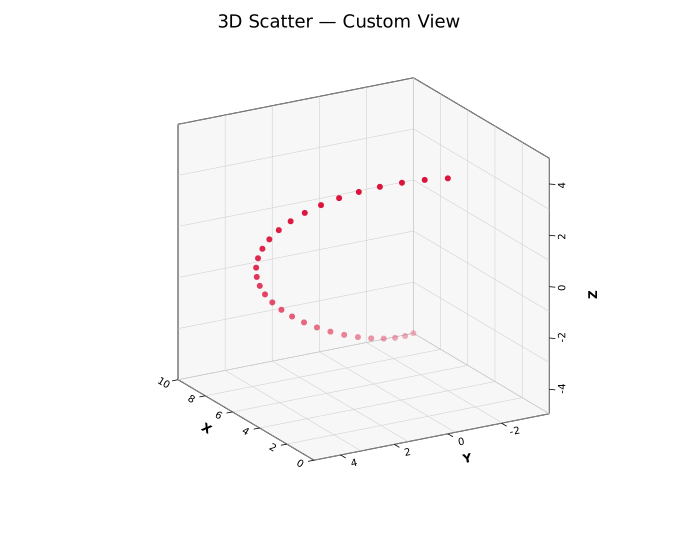
Per-point colors and sizes
#![allow(unused)] fn main() { use kuva::plot::scatter3d::Scatter3DPlot; let data = vec![(0.0, 0.0, 0.0), (1.0, 1.0, 1.0), (2.0, 2.0, 2.0)]; let scatter = Scatter3DPlot::new() .with_data(data) .with_colors(vec!["crimson", "steelblue", "seagreen"]) .with_sizes(vec![4.0, 6.0, 8.0]); }
Builder reference
| Method | Default | Description |
|---|---|---|
.with_data(iter) | — | Set (x, y, z) data points |
.with_points(vec) | — | Set data as Vec<Scatter3DPoint> |
.with_color(css) | "steelblue" | Uniform point color |
.with_size(px) | 3.0 | Marker radius in pixels |
.with_marker(shape) | Circle | Marker shape (Circle, Square, Triangle, Diamond, Cross, Plus) |
.with_colors(iter) | — | Per-point colors (overrides with_color) |
.with_sizes(vec) | — | Per-point radii (overrides with_size) |
.with_marker_opacity(f) | — | Fill opacity (0.0–1.0) |
.with_marker_stroke_width(w) | — | Stroke width around markers |
.with_z_colormap(map) | — | Color by Z value; renders a colorbar automatically |
.with_depth_shade() | off | Fade distant points for depth cue |
.with_azimuth(deg) | -60.0 | Horizontal viewing angle |
.with_elevation(deg) | 30.0 | Vertical viewing angle |
.with_view(View3D) | — | Set azimuth and elevation together |
.with_x_label(s) | — | X-axis label |
.with_y_label(s) | — | Y-axis label |
.with_z_label(s) | — | Z-axis label (also labels the colorbar) |
.with_no_grid() | grid on | Hide grid lines on back walls |
.with_no_box() | box on | Hide the wireframe bounding box |
.with_grid_lines(n) | 5 | Number of grid/tick divisions per axis |
.with_z_axis_right(bool) | auto | Force Z axis to right (true) or left (false) |
.with_z_axis_auto() | — | Reset to automatic placement (default) |
.with_legend(s) | — | Legend entry label |
CLI
# Basic
kuva scatter3d data.tsv --x x --y y --z z \
--title "3D Scatter" --x-label "X" --y-label "Y" --z-label "Z"
# Group colors with legend
kuva scatter3d data.tsv --x x --y y --z z --color-by group
# Z colormap with depth shading
kuva scatter3d data.tsv --x x --y y --z z \
--z-color viridis --depth-shade
# Custom view, no grid
kuva scatter3d data.tsv --x x --y y --z z \
--azimuth -120 --elevation 20 --no-grid --no-box
CLI flags
| Flag | Default | Description |
|---|---|---|
--x <COL> | 0 | X value column |
--y <COL> | 1 | Y value column |
--z <COL> | 2 | Z value column |
--color-by <COL> | — | One color per unique group value |
--color <CSS> | steelblue | Uniform point color |
--size <PX> | 3.0 | Marker radius |
--z-color <MAP> | — | Color by Z: viridis, inferno, grayscale |
--depth-shade | off | Fade distant points |
--azimuth <DEG> | -60 | Horizontal viewing angle |
--elevation <DEG> | 30 | Vertical viewing angle |
--x-label <S> | — | X-axis label |
--y-label <S> | — | Y-axis label |
--z-label <S> | — | Z-axis label |
--no-grid | grid on | Hide back-wall grid lines |
--no-box | box on | Hide wireframe bounding box |
--grid-lines <N> | 5 | Grid/tick divisions per axis |
--z-axis-left | auto | Force Z axis to the left side |
See also: 3D Surface Plot for a continuous surface instead of points, Scatter Plot for the 2D equivalent.
See also: Shared flags — output, appearance, axes.
3D Surface Plot
Renders a 2D grid of Z values as a depth-sorted quadrilateral mesh with orthographic projection. Each grid cell becomes a filled quad, optionally colored by its average Z value through a colormap. Uses the same open-box wireframe, back-pane fills, and rotated tick labels as the 3D scatter plot.
Import path: kuva::plot::surface3d::Surface3DPlot
Basic usage
Pass a 2D grid of Z values (z_data[row][col]):
#![allow(unused)] fn main() { use kuva::plot::surface3d::Surface3DPlot; use kuva::plot::heatmap::ColorMap; use kuva::backend::svg::SvgBackend; use kuva::render::render::render_multiple; use kuva::render::layout::Layout; use kuva::render::plots::Plot; let z_data: Vec<Vec<f64>> = (0..20).map(|i| { (0..20).map(|j| { let x = (i as f64 - 10.0) / 5.0; let y = (j as f64 - 10.0) / 5.0; x * x + y * y }).collect() }).collect(); let surface = Surface3DPlot::new(z_data) .with_z_colormap(ColorMap::Viridis) .with_x_label("X") .with_y_label("Y") .with_z_label("Z"); let plots = vec![Plot::Surface3D(surface)]; let layout = Layout::auto_from_plots(&plots).with_title("Paraboloid"); let scene = render_multiple(plots, layout); let svg = SvgBackend.render_scene(&scene); std::fs::write("surface3d.svg", svg).unwrap(); }
When with_z_colormap() is set, a colorbar is rendered automatically. with_z_label() also labels the colorbar.

From a function
Generate a surface from a math function over a coordinate range:
#![allow(unused)] fn main() { use kuva::plot::surface3d::Surface3DPlot; use kuva::plot::heatmap::ColorMap; let surface = Surface3DPlot::new(vec![]) .with_data_fn( |x, y| (x * x + y * y).sqrt().sin(), -3.0..=3.0, -3.0..=3.0, 50, 50, ) .with_z_colormap(ColorMap::Viridis); }
The last two arguments are grid resolution (x_res, y_res). Higher values produce smoother surfaces at the cost of more SVG paths.
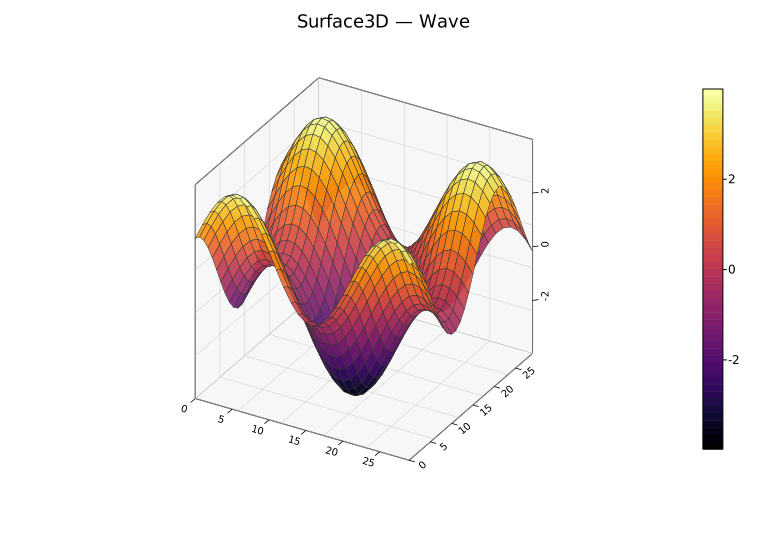
Explicit coordinates
By default axes are labeled 0..nrows / 0..ncols. Supply real coordinates with with_x_coords and with_y_coords:
#![allow(unused)] fn main() { use kuva::plot::surface3d::Surface3DPlot; use kuva::plot::heatmap::ColorMap; let xs: Vec<f64> = (-5..=5).map(|i| i as f64 * 0.5).collect(); let ys: Vec<f64> = (-5..=5).map(|i| i as f64 * 0.5).collect(); let z_data: Vec<Vec<f64>> = ys.iter() .map(|&y| xs.iter().map(|&x| (x * x + y * y).sqrt().sin()).collect()) .collect(); let surface = Surface3DPlot::new(z_data) .with_x_coords(xs) .with_y_coords(ys) .with_z_colormap(ColorMap::Viridis); }
Wireframe and transparency
The wireframe is on by default. Disable it with with_no_wireframe(), or combine it with transparency:
#![allow(unused)] fn main() { use kuva::plot::surface3d::Surface3DPlot; use kuva::plot::heatmap::ColorMap; // Semi-transparent with fine wireframe let surface = Surface3DPlot::new(vec![]) .with_data_fn(|x, y| x * y, -2.0..=2.0, -2.0..=2.0, 20, 20) .with_z_colormap(ColorMap::Viridis) .with_alpha(0.8) .with_wireframe_color("#222222") .with_wireframe_width(0.3); // No wireframe — clean filled surface let surface2 = Surface3DPlot::new(vec![]) .with_data_fn(|x, y| x * y, -2.0..=2.0, -2.0..=2.0, 20, 20) .with_z_colormap(ColorMap::Inferno) .with_no_wireframe(); }
Builder reference
| Method | Default | Description |
|---|---|---|
.with_z_data(grid) | — | Set Z value grid directly |
.with_x_coords(vec) | 0..ncols | Explicit X coordinate per column |
.with_y_coords(vec) | 0..nrows | Explicit Y coordinate per row |
.with_data_fn(f, xr, yr, xn, yn) | — | Generate grid from f(x, y) -> z |
.with_color(css) | "steelblue" | Uniform surface color (when no colormap) |
.with_z_colormap(map) | — | Color faces by average Z; renders a colorbar automatically |
.with_no_wireframe() | wireframe on | Hide wireframe edges |
.with_wireframe_color(css) | "#333333" | Wireframe edge color |
.with_wireframe_width(px) | 0.5 | Wireframe stroke width |
.with_alpha(f) | 1.0 | Surface opacity (0.0–1.0) |
.with_azimuth(deg) | -60.0 | Horizontal viewing angle |
.with_elevation(deg) | 30.0 | Vertical viewing angle |
.with_view(View3D) | — | Set azimuth and elevation together |
.with_x_label(s) | — | X-axis label |
.with_y_label(s) | — | Y-axis label |
.with_z_label(s) | — | Z-axis label (also labels the colorbar) |
.with_no_grid() | grid on | Hide grid lines on back walls |
.with_no_box() | box on | Hide the wireframe bounding box |
.with_grid_lines(n) | 5 | Number of grid/tick divisions per axis |
.with_z_axis_right(bool) | auto | Force Z axis to right (true) or left (false) |
.with_z_axis_auto() | — | Reset to automatic placement (default) |
.with_legend(s) | — | Legend entry label |
CLI
The CLI accepts long format (x, y, z columns) or matrix format (--matrix, one row of Z values per line).
# Long format with colormap
kuva surface3d data.tsv --x x --y y --z z --z-color viridis \
--title "3D Surface" --x-label "X" --y-label "Y" --z-label "Z"
# Upsample a coarse grid to 50×50 with bilinear interpolation
kuva surface3d data.tsv --x x --y y --z z \
--z-color inferno --resolution 50
# Matrix format (no header, each row = one row of Z values)
kuva surface3d matrix.tsv --matrix --z-color viridis --no-header
# Semi-transparent surface, no wireframe
kuva surface3d data.tsv --x x --y y --z z \
--z-color viridis --alpha 0.8 --no-wireframe
# Custom view
kuva surface3d data.tsv --x x --y y --z z \
--z-color viridis --azimuth 45 --elevation 45
CLI flags
| Flag | Default | Description |
|---|---|---|
--x <COL> | 0 | X value column (long format) |
--y <COL> | 1 | Y value column (long format) |
--z <COL> | 2 | Z value column (long format) |
--matrix | off | Read input as a matrix of Z values |
--z-color <MAP> | — | Colormap: viridis, inferno, grayscale |
--color <CSS> | steelblue | Uniform surface color (when no colormap) |
--alpha <F> | 1.0 | Surface opacity (0.0–1.0) |
--resolution <N> | — | Upsample grid to N×N via bilinear interpolation |
--no-wireframe | wireframe on | Hide wireframe edges |
--azimuth <DEG> | -60 | Horizontal viewing angle |
--elevation <DEG> | 30 | Vertical viewing angle |
--x-label <S> | — | X-axis label |
--y-label <S> | — | Y-axis label |
--z-label <S> | — | Z-axis label |
--no-grid | grid on | Hide back-wall grid lines |
--no-box | box on | Hide wireframe bounding box |
--grid-lines <N> | 5 | Grid/tick divisions per axis |
--z-axis-left | auto | Force Z axis to the left side |
See also: 3D Scatter Plot for discrete points instead of a continuous surface, Contour Plot for a 2D projection of similar gridded data, Heatmap for a flat matrix-of-values view.
See also: Shared flags — output, appearance, axes.
Twin-Y Plot
A twin-Y (dual-axis) plot renders two independent sets of data on the same x-axis with separate y-axes — the primary axis on the left and the secondary axis on the right. This is useful when two related series have incompatible scales (e.g. temperature in °C and rainfall in mm) or different units that would otherwise force one series into a thin band near zero.
Render function: kuva::render::render::render_twin_y
Basic usage
Pass two separate Vec<Plot> to render_twin_y — one for the left axis, one for the right. Use Layout::auto_from_twin_y_plots to compute axis ranges for both sides automatically.
#![allow(unused)] fn main() { use kuva::plot::LinePlot; use kuva::backend::svg::SvgBackend; use kuva::render::render::render_twin_y; use kuva::render::layout::Layout; use kuva::render::plots::Plot; let temp: Vec<(f64, f64)> = vec![ (1.0, 5.0), (2.0, 8.0), (3.0, 14.0), (4.0, 20.0), (5.0, 24.0), (6.0, 22.0), ]; let rain: Vec<(f64, f64)> = vec![ (1.0, 80.0), (2.0, 60.0), (3.0, 45.0), (4.0, 30.0), (5.0, 20.0), (6.0, 35.0), ]; let primary = vec![Plot::Line(LinePlot::new().with_data(temp).with_legend("Temperature (°C)"))]; let secondary = vec![Plot::Line(LinePlot::new().with_data(rain).with_legend("Rainfall (mm)"))]; let layout = Layout::auto_from_twin_y_plots(&primary, &secondary) .with_title("Temperature & Rainfall") .with_x_label("Month") .with_y_label("Temperature (°C)") .with_y2_label("Rainfall (mm)"); let scene = render_twin_y(primary, secondary, layout); let svg = SvgBackend.render_scene(&scene); std::fs::write("twin_y.svg", svg).unwrap(); }
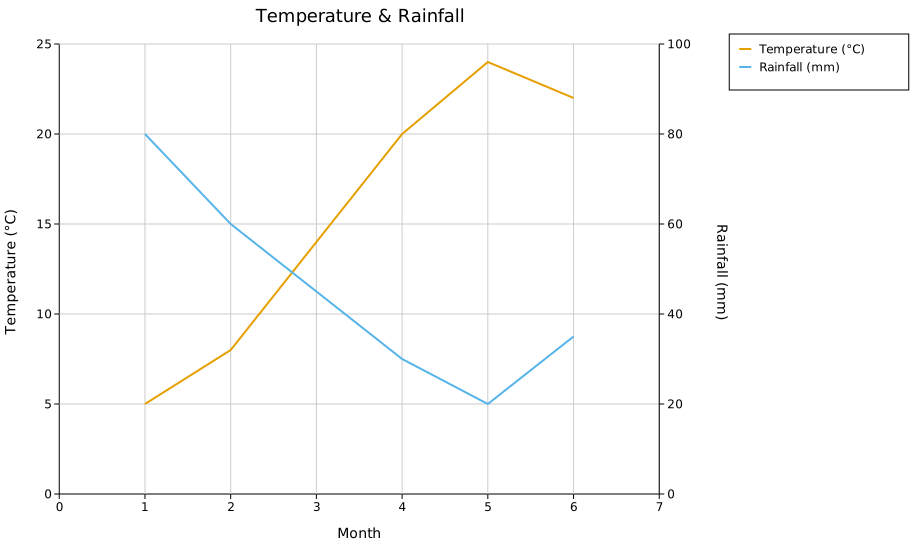
The left axis scales to the primary plots only; the right axis scales to the secondary plots only. Both axes share the same x range.
Axis labels and legend
.with_y_label(s) labels the left axis; .with_y2_label(s) labels the right axis. Both rotate 90° and sit outside their respective tick marks. Legend entries from all plots — primary and secondary — are collected into a single legend.
#![allow(unused)] fn main() { use kuva::plot::{LinePlot, LegendPosition}; use kuva::render::render::render_twin_y; use kuva::render::layout::Layout; use kuva::render::plots::Plot; let primary = vec![Plot::Line(LinePlot::new().with_data(temp).with_color("#e69f00").with_legend("Temperature (°C)"))]; let secondary = vec![Plot::Line(LinePlot::new().with_data(rain).with_color("#0072b2").with_legend("Rainfall (mm)"))]; let layout = Layout::auto_from_twin_y_plots(&primary, &secondary) .with_title("Temperature & Rainfall") .with_x_label("Month") .with_y_label("Temperature (°C)") .with_y2_label("Rainfall (mm)") .with_legend_position(LegendPosition::OutsideRightTop); }
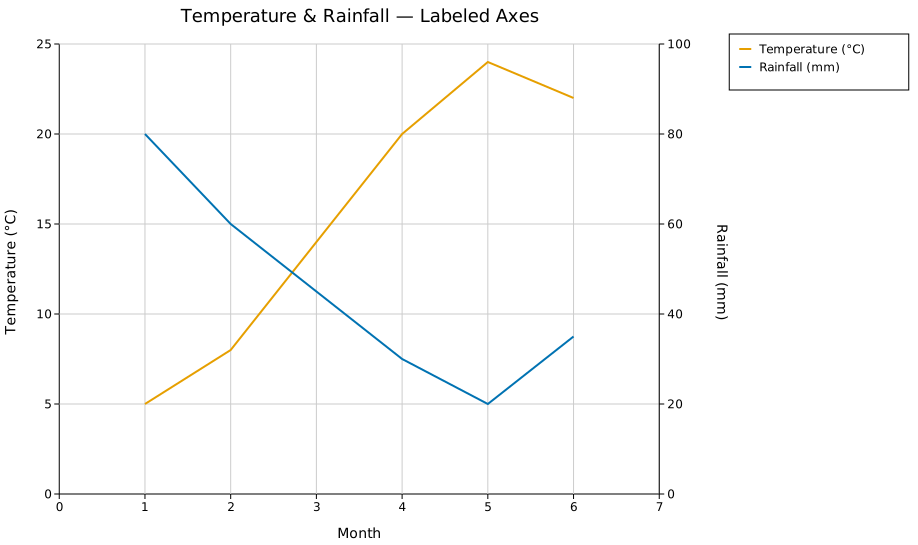
Log scale on the secondary axis
.with_log_y2() switches the right axis to a log₁₀ scale. The left axis is unaffected. Useful when the secondary series spans orders of magnitude (e.g. p-values, read counts) while the primary series is linear.
#![allow(unused)] fn main() { use kuva::render::layout::Layout; use kuva::render::plots::Plot; use kuva::plot::LinePlot; let layout = Layout::auto_from_twin_y_plots(&primary, &secondary) .with_y2_label("Exponential value (log scale)") .with_log_y2(); }
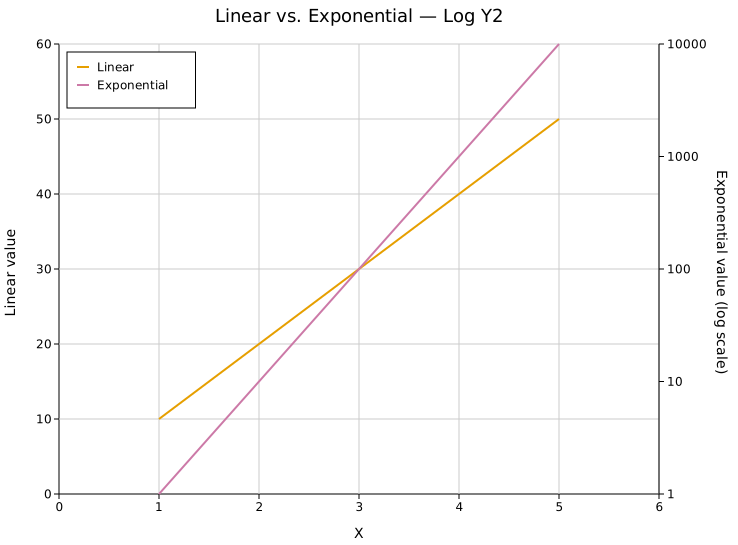
Mixing plot types
Both the primary and secondary Vec<Plot> accept any combination of supported plot types. The example below mirrors a typical WGS GC bias QC chart: a precomputed Histogram and a ScatterPlot on the left (Normalized Coverage), with two LinePlots on the right (Base Quality).
#![allow(unused)] fn main() { use kuva::plot::{LinePlot, LegendPosition}; use kuva::plot::scatter::ScatterPlot; use kuva::plot::histogram::Histogram; use kuva::backend::svg::SvgBackend; use kuva::render::render::render_twin_y; use kuva::render::layout::Layout; use kuva::render::plots::Plot; // Genome GC distribution — precomputed bell-curve histogram (y 0–0.5) let genome_gc = Plot::Histogram( Histogram::from_bins(gc_edges, gc_counts) .with_color("#a8d8f0") .with_legend("Genome GC"), ); // Normalized coverage — U-shaped scatter, saturates to 2.0 at extreme GC let coverage = Plot::Scatter( ScatterPlot::new() .with_data(coverage_pts) .with_color("#4e90d9") .with_size(5.0) .with_legend("Coverage"), ); // Base quality lines on the secondary axis (0–40) let reported = Plot::Line(LinePlot::new().with_data(reported_bq).with_color("#2ca02c").with_legend("Reported BQ")); let empirical = Plot::Line(LinePlot::new().with_data(empirical_bq).with_color("#17becf").with_legend("Empirical BQ")); let primary = vec![genome_gc, coverage]; let secondary = vec![reported, empirical]; let layout = Layout::auto_from_twin_y_plots(&primary, &secondary) .with_title("GC Bias") .with_x_label("GC%") .with_y_label("Normalized Coverage") .with_y2_label("Base Quality") .with_legend_position(LegendPosition::OutsideRightTop); let scene = render_twin_y(primary, secondary, layout); let svg = SvgBackend.render_scene(&scene); std::fs::write("gc_bias.svg", svg).unwrap(); }

Supported plot types on both axes: Line, Scatter, Series, Band, Bar, Histogram, Box, Violin, Strip, Density, StackedArea, Waterfall, Candlestick.
Palette auto-assignment
.with_palette(palette) cycles colors across all primary and secondary plots in order, left-to-right through primary then secondary. Attach .with_legend(s) to each plot to identify them.
#![allow(unused)] fn main() { use kuva::render::layout::Layout; use kuva::Palette; let layout = Layout::auto_from_twin_y_plots(&primary, &secondary) .with_palette(Palette::wong()); }
Manual axis ranges
The auto-computed ranges can be overridden independently for each axis:
#![allow(unused)] fn main() { use kuva::render::layout::Layout; let layout = Layout::auto_from_twin_y_plots(&primary, &secondary) .with_y_axis_min(0.0).with_y_axis_max(2.0) // left axis .with_y2_range(0.0, 40.0); // right axis }
API reference
| Method | Description |
|---|---|
render_twin_y(primary, secondary, layout) | Render a twin-y scene; returns a Scene |
Layout::auto_from_twin_y_plots(primary, secondary) | Compute axis ranges for both sides automatically |
.with_y_label(s) | Left (primary) axis label |
.with_y2_label(s) | Right (secondary) axis label |
.with_y2_label_offset(dx, dy) | Nudge the right axis label position in pixels |
.with_log_y2() | Log₁₀ scale on the secondary axis |
.with_y2_range(min, max) | Suggest a secondary y-axis range; still nice-rounded and capped near the secondary plots' own data (same path as the auto-computed range), so a request far outside that data can end up largely ignored |
.with_y2_axis_min(v) / .with_y2_axis_max(v) | Unconditionally override the secondary y-axis lower/upper bound after auto-ranging — the y2 counterparts to with_y_axis_min/with_y_axis_max. Prefer these over with_y2_range when the requested bound is far from the data |
.with_y2_tick_format(fmt) | Tick format for the secondary axis |
.with_palette(palette) | Auto-assign colors across all primary + secondary plots |
See also: Line Plot and Series Plot for the single-axis building blocks a twin-Y plot combines.
CLI
Input: a tabular file with a shared X column plus one Y column for the primary (left) axis and one for the secondary (right) axis.
Currently supports line and scatter as the plot type on either axis — the two plot types that take plain (x, y) numeric pairs, matching how --x/--y/--y2 select columns. For anything more elaborate (multiple series per axis, bar/histogram/box/etc. on an axis, mixed plot types), build the two Vec<Plot> directly with the Rust API above and call render_twin_y — see the "Mixing plot types" section earlier on this page.
| Flag | Default | Description |
|---|---|---|
--x <COL> | 0 | X-axis column, shared by both series |
--y <COL> | 1 | Primary (left-axis) Y column |
--y2 <COL> | 2 | Secondary (right-axis) Y column |
--primary-type <TYPE> | line | Plot type for the primary series: line or scatter |
--secondary-type <TYPE> | line | Plot type for the secondary series: line or scatter |
--primary-color <CSS> | steelblue | Primary series color |
--secondary-color <CSS> | firebrick | Secondary series color |
--primary-legend <TEXT> | (column name) | Legend label for the primary series (used when --legend is set) |
--secondary-legend <TEXT> | (column name) | Legend label for the secondary series (used when --legend is set) |
--legend | off | Show a legend identifying the primary and secondary series |
kuva twin-y weather.tsv --x month --y temp --y2 rain \
--y-label "Temperature (C)" --y2-label "Rainfall (mm)"
kuva twin-y weather.tsv --x month --y temp --y2 rain \
--primary-color "#e69f00" --secondary-color "#0072b2" \
--primary-legend "Temperature" --secondary-legend "Rainfall" --legend
kuva twin-y weather.tsv --x month --y temp --y2 rain \
--primary-type scatter --secondary-type line
See also: Shared flags — output, appearance, axes, secondary Y axis.
Legend Plot
LegendPlot is a plot cell that renders a legend grid with no axes or data. It is designed for two situations:
- Shared legend in a Figure. Place it in a dedicated cell so multiple data panels can share one legend without duplicating it.
- Standalone use. Render a freestanding legend key to composite with an external image or annotate a layout.
Entries can be populated directly, or collected automatically from a set of plots using collect_legend_entries.
Import path: kuva::plot::LegendPlot (also re-exported from kuva::prelude)
Shared legend below a figure
The most common use case: collect entries from your data plots and place them in a thin row beneath the chart.
#![allow(unused)] fn main() { use kuva::prelude::*; use kuva::render::render::collect_legend_entries; let scatter = ScatterPlot::new() .with_data(vec![(1.0_f64, 2.0), (2.0, 3.5), (3.0, 2.8)]) .with_color("steelblue") .with_legend("Group A"); let data_plots: Vec<Plot> = vec![scatter.into()]; let entries = collect_legend_entries(&data_plots); let legend_cell = LegendPlot::from_entries(entries); let scene = Figure::new(2, 1) .with_cell_size(600.0, 400.0) .with_row_height(1, 60.0) // thin legend row .with_plots(vec![ data_plots, vec![legend_cell.into()], ]) .render(); let svg = SvgBackend.render_scene(&scene); std::fs::write("legend_below.svg", svg).unwrap(); }
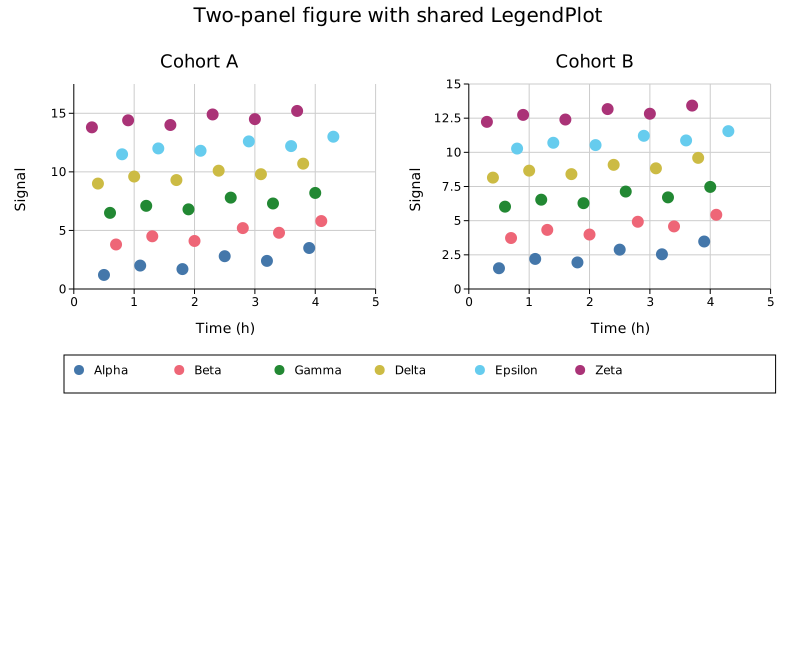
Shared legend to the right
For a side legend, use with_cols(1) to force a single column and place the cell in an adjacent column.
#![allow(unused)] fn main() { use kuva::prelude::*; use kuva::render::render::collect_legend_entries; let data_plots: Vec<Plot> = vec![/* your plots */]; let entries = collect_legend_entries(&data_plots); let legend_cell = LegendPlot::from_entries(entries).with_cols(1); let scene = Figure::new(1, 2) .with_cell_size(500.0, 400.0) .with_col_width(1, 160.0) // narrow legend column .with_plots(vec![ data_plots, vec![legend_cell.into()], ]) .render(); }
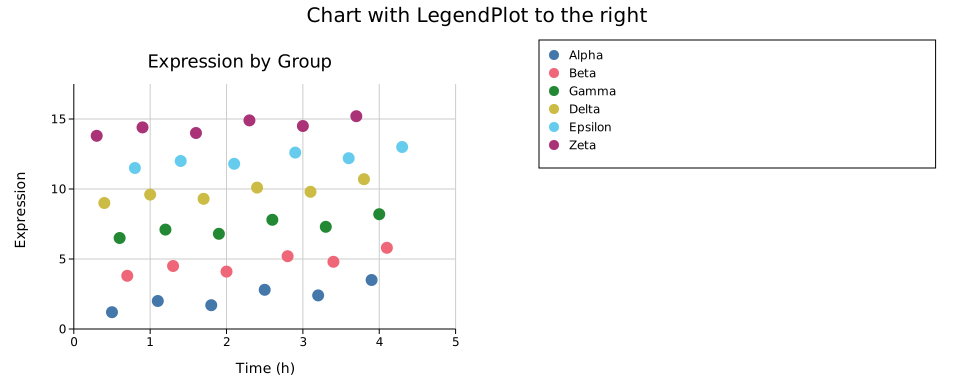
Standalone with title
#![allow(unused)] fn main() { use kuva::prelude::*; let entries = vec![ LegendEntry { label: "Treatment".into(), color: "#4477AA".into(), shape: LegendShape::Rect, dasharray: None }, LegendEntry { label: "Control".into(), color: "#EE6677".into(), shape: LegendShape::Rect, dasharray: None }, LegendEntry { label: "Baseline".into(), color: "#CCBB44".into(), shape: LegendShape::Line, dasharray: None }, ]; let lp = LegendPlot::from_entries(entries) .with_title("Groups") .with_cols(3); let plots: Vec<Plot> = vec![lp.into()]; let layout = Layout::auto_from_plots(&plots); let svg = SvgBackend.render_scene(&render_multiple(plots, layout)); }
OutsideBottomColumns
LegendPlot is the backing renderer for the OutsideBottomColumns legend position. When you use that position on a regular Layout, kuva automatically packs all legend entries into a multi-column grid below the plot and extends the canvas height to fit.
#![allow(unused)] fn main() { use kuva::prelude::*; use kuva::plot::legend::LegendPosition; let layout = Layout::auto_from_plots(&plots) .with_legend_position(LegendPosition::OutsideBottomColumns); }
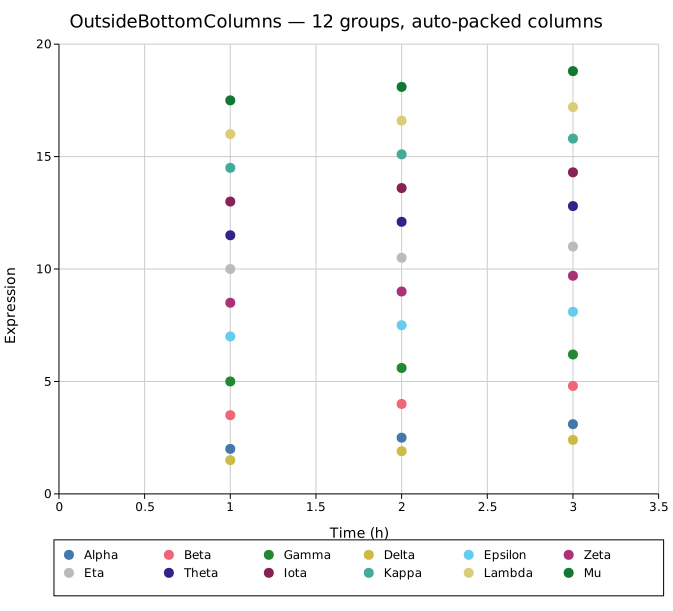
API reference
| Method | Description |
|---|---|
LegendPlot::new() | Empty plot; add entries with .with_entry() |
LegendPlot::from_entries(entries) | Pre-populate from a Vec<LegendEntry> |
.with_entry(entry) | Append a single LegendEntry |
.with_cols(n) | Fix the number of columns; default is auto from cell width |
.with_title(s) | Bold title row above the entries |
.without_box() | Hide the background fill and border |
collect_legend_entries(&plots) — free function in kuva::render::render that walks a Vec<Plot> and returns all LegendEntry items that the renderers would normally draw automatically.
See also: Reference: Legends for the full legend/positioning system this demonstrates.
Text Plot
TextPlot renders formatted, word-wrapped text inside a figure cell. Use it to add methodology notes, statistical summaries, captions, or any prose annotation alongside your data panels.
Import path: kuva::plot::TextPlot
Basic usage
Supply body text with .with_body(). Long lines are automatically word-wrapped to fit the cell width.
#![allow(unused)] fn main() { use kuva::plot::TextPlot; use kuva::render::plots::Plot; use kuva::prelude::*; let note = TextPlot::new() .with_title("Methods") .with_body("Samples were collected from three sites between April and June. \ All measurements are reported as mean ± SD (n = 48)."); let plots: Vec<Plot> = vec![note.into()]; let layout = Layout::auto_from_plots(&plots); let svg = SvgBackend.render_scene(&render_multiple(plots, layout)); std::fs::write("text.svg", svg).unwrap(); }
Markup syntax
Body text supports a small set of line-level markup:
| Syntax | Renders as |
|---|---|
# Heading | Large bold heading |
## Subheading | Medium bold heading |
**bold line** | Bold paragraph |
--- | Horizontal rule |
| Blank line | Paragraph spacing |
#![allow(unused)] fn main() { use kuva::plot::TextPlot; use kuva::render::plots::Plot; let text = TextPlot::new() .with_body("\ Results The treatment group showed a significant improvement. # Primary endpoint **p < 0.001 (log-rank test)** --- Secondary endpoints are reported in the supplementary material."); }
Appearance options
Control the background, border, text color, font size, padding, and alignment:
#![allow(unused)] fn main() { use kuva::plot::{TextPlot, TextAlign}; use kuva::render::plots::Plot; let styled = TextPlot::new() .with_title("Note") .with_body("Significant outliers were removed prior to analysis (n = 3, z > 3.5).") .with_background("#f8f4e8") .with_border("#ccaa66", 1.5) .with_font_size(13) .with_padding(20.0) .with_align(TextAlign::Center) .with_text_color("#333333"); }
Inside a figure
The most common use: place a TextPlot in one cell of a figure alongside data plots.
#![allow(unused)] fn main() { use kuva::prelude::*; use kuva::plot::TextPlot; let scatter = ScatterPlot::new() .with_data(vec![(1.0_f64, 2.3), (2.1, 4.1), (3.4, 3.2), (4.2, 5.8)]) .with_color("steelblue"); let description = TextPlot::new() .with_title("About this data") .with_body("\ Measurements taken from the Northern transect. **n = 48**, collected April–June 2025. --- Outliers excluded per pre-registered protocol."); let data_plots: Vec<Plot> = vec![scatter.into()]; let text_plots: Vec<Plot> = vec![description.into()]; let layout = Layout::auto_from_plots(&data_plots) .with_title("Northern Transect") .with_x_label("Distance (km)") .with_y_label("Concentration (μg/L)"); let scene = Figure::new(1, 2) .with_cell_size(500.0, 380.0) .with_col_width(1, 220.0) .with_plots(vec![data_plots, text_plots]) .with_layouts(vec![layout, Layout::auto_from_plots(&[])]) .render(); let svg = SvgBackend.render_scene(&scene); std::fs::write("figure_with_text.svg", svg).unwrap(); }
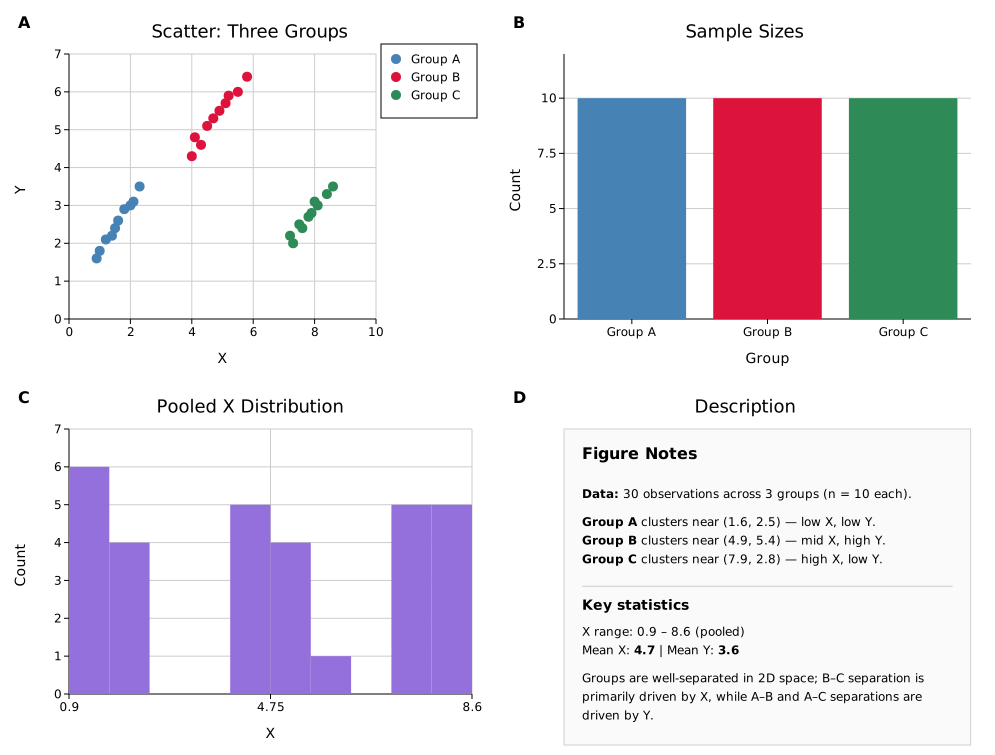
API reference
| Method | Default | Description |
|---|---|---|
TextPlot::new() | — | Empty text plot |
.with_body(s) | "" | Body text; supports markup (see above) |
.with_title(s) | none | Bold title above the body |
.with_font_size(n) | theme default | Font size in pixels |
.with_padding(px) | 16.0 | Inner padding on all sides |
.with_background(css) | none (transparent) | Background fill color |
.with_border(css, width) | none | Border color and stroke width |
.with_align(TextAlign) | Left | Text alignment: Left, Center, or Right |
.with_text_color(css) | theme default | Text color |
See also: Legend Plot for another pixel-space annotation overlay.
kuva CLI
kuva is the command-line front-end for the kuva plotting library. It reads tabular data from a TSV or CSV file (or stdin) and writes an SVG — or PNG/PDF with the right feature flag — to a file or stdout.
kuva <SUBCOMMAND> [FILE] [OPTIONS]
Installation
Step 1 — install Rust
If you don't have Rust installed, get it via rustup:
curl --proto '=https' --tlsv1.2 -sSf https://sh.rustup.rs | sh
Follow the on-screen prompts (the defaults are fine). Then either restart your shell or run:
source ~/.cargo/env
Verify with cargo --version. You only need to do this once.
kuva itself only needs Rust 1.87. The one exception is PDF output: --features pdf/full pulls in krilla, which requires Rust >= 1.92. If rustup show reports an older version and you plan to use --features full or pdf, run rustup update first.
Step 2 — install kuva
From crates.io (recommended once a release is published):
cargo install kuva --features cli # SVG output
cargo install kuva --features cli,full # SVG + PNG + PDF
From a local clone (install to ~/.cargo/bin/ and put it on your $PATH):
git clone https://github.com/Psy-Fer/kuva && cd kuva
cargo install --path . --features cli # SVG output
cargo install --path . --features cli,full # SVG + PNG + PDF
After either method, kuva is available anywhere in your shell — no need to reference ./target/release/kuva or modify $PATH manually. Confirm with:
kuva --help
Building without installing
If you only want to build and run from the repo without installing:
cargo build --release --bin kuva --features cli,full
./target/release/kuva --help
Input
Every subcommand takes an optional positional FILE argument. If omitted or -, data is read from stdin.
# from file
kuva scatter data.tsv
# from stdin
cat data.tsv | kuva scatter
# explicit stdin
kuva scatter - < data.tsv
Delimiter detection
| Priority | Rule |
|---|---|
| 1 | --delimiter flag |
| 2 | File extension: .csv → ,, .tsv/.txt → tab |
| 3 | Sniff first line: whichever of tab or comma appears more often |
Header detection
The first row is treated as a header when either its first field fails to parse as a number, or some column holds a non-numeric label sitting atop an otherwise all-numeric column (so a leading numeric key column no longer hides the header, e.g. 5,data above 0,1 / 1,2).
Two flags override the auto-detection (they are mutually exclusive):
--header: force the first row to be a header even if it looks like data (useful for all-numeric column names such as years).--no-header: force the first row to be data even if it looks like a header.
Column selection
Columns are selected by 0-based integer index or header name:
kuva scatter data.tsv --x 0 --y 1 # by index
kuva scatter data.tsv --x time --y value # by name (requires header)
An all-numeric column name (such as a year) works too. A bare numeric argument is read as an index first; if that index is out of range and the file has a header column literally named by that number, it selects that column instead:
kuva scatter expression.tsv --x 2023 --y 2024 --header # columns named "2023" / "2024"
In-range indices are never reinterpreted, so --x 0 always means the first column. This bare-number fallback only resolves names whose numeric value exceeds the column count (years and similar).
To remove the ambiguity entirely, prefix the value:
| Prefix | Meaning | Example |
|---|---|---|
name: or col: | Always a column name, even an all-digit one | --x name:2024, --group-col col:1 |
idx: or index: or # | Always a 0-based index, never resolved to a name | --x idx:2, --y #3 |
| (none) | Bare token: numeric = index-first (with the fallback above), otherwise a name | --x time, --y 4 |
name: is the way to select a column whose name is a small number that would otherwise be read as an index (e.g. a column literally named 1 in a 5-column file: --x name:1). idx: forces a pure index, so an out-of-range idx: errors rather than falling back to a name. Prefixes work on every column argument (--x, --y, --value-col, --group-col, --color-by, --axes, …) in every subcommand.
Ranges and globs (multi-column arguments)
Multi-column arguments (--y, --value-cols, --samples, --axes) also accept index ranges and name globs, which expand to several columns at once:
| Form | Selects | Example |
|---|---|---|
a..b | Indices a up to (but not including) b | --y 1..4 -> columns 1, 2, 3 |
a..=b | Indices a through b inclusive | --y 1..=3 -> columns 1, 2, 3 |
a.. | Index a to the last column | --y 3.. |
..b | The first column up to b (exclusive) | --y ..4 |
.. | Every column | --y .. |
pat* / *pat / *pat* | Header names matching the glob (* = any run of characters) | --y sum_*, --y *_A |
You can mix all forms in one comma-separated list (duplicates are removed, order preserved):
kuva line data.tsv --x date --y "y1,sum_*" # y1 plus every sum_* column
kuva line data.tsv --x 0 --y 3.. # column 3 to the last
kuva box data.tsv --y "a*" # a single glob is a valid multi-column selection
A single glob or range on its own still routes into the plot's multi-column (grouped/overlaid) path. Globs need a header row; a glob that matches nothing is an error. Ranges are index-based. (For --value-cols/--axes, which take space-separated values rather than commas, pass each selector as its own value: --value-cols a1 b*.)
Missing values (scatter, line, histogram, bar, parallel)
Empty cells, cells holding a missing-value token (NA, NaN, null, N/A, . by default,
case-insensitive), and non-finite values (inf, -inf) are treated as missing rather than
aborting the command (non-finite values would otherwise corrupt axis ranges). A cell that is
neither empty, a token, nor a number is still an error, so selecting the wrong column is caught.
--na-strategy <drop|zero|error>: what to do with a missing value in a selected numeric column.drop(default) removes the row and prints a one-line note;zeroreplaces it with 0;errorrestores the old strict behaviour.--na-values <tokens>: comma-separated tokens to treat as missing, replacing the default set. Empty cells are always missing. Accepts negative sentinels, e.g.--na-values -999,NA.--clamp-min <N>/--clamp-max <N>: clip numeric values to a bound. Finite values outside the bound are clipped, and crucially+infbecomes the max and-infbecomes the min, so an infinite value can be capped at a real number rather than dropped. A common case is capping an infinite-log10(p)(from a p-value of exactly 0):--clamp-max 300. If only one side is set, an infinity on the other side stays missing.
kuva scatter data.tsv --x time --y value # drops rows with missing x or y
kuva histogram data.tsv --value-col v --na-strategy zero # missing -> 0
kuva scatter data.tsv --x pos --y logp --clamp-max 300 # +inf -> 300 instead of dropped
Parquet input
Every subcommand that reads tabular data also accepts .parquet files, not just scatter or any single subcommand: parquet support lives in the shared input layer every subcommand goes through, so it applies uniformly across all of them.
kuva scatter data.parquet --x x --y y -o plot.svg
cat data.parquet | kuva histogram --value-col value # also detected via stdin
Requires building with the parquet feature (cargo build --features cli,parquet, or cli,full,parquet for every backend). Without it, a .parquet file is read as plain text and will fail to parse.
Detection is automatic, no flag needed:
| Input | How it's detected |
|---|---|
| File path | .parquet extension (case-insensitive) |
| stdin | Magic bytes (PAR1 header) sniffed from the piped data |
Column selection (--x, --y, --value-col, etc.) works identically to CSV/TSV, by index or header name. Under the hood, only the requested columns are decoded from disk (a projected Arrow read), so memory and time scale with the columns you actually select rather than the full schema, useful for wide parquet files with many unused columns.
--header, --no-header, and --delimiter are ignored for parquet input (with a warning) since parquet is self-describing: it always carries its own schema and column names, so there's no header row to skip and no delimiter to guess.
Output
| Flag | Effect |
|---|---|
| (omitted) | SVG to stdout |
-o out.svg | SVG to file |
-o out.png | PNG (requires --features png) |
-o out.pdf | PDF (requires --features pdf; needs Rust >= 1.92 to build — higher than kuva's own MSRV, see Installation) |
Format is inferred from the file extension case-insensitively. Output paths must end in .svg, .png, or .pdf; other or missing extensions are rejected before input is read.
Shared flags
These flags are available on every subcommand.
Output & appearance
| Flag | Default | Description |
|---|---|---|
-o, --output <FILE> | stdout (SVG) | .svg, .png, or .pdf output path, case-insensitive (mutually exclusive with --terminal) |
--title <TEXT> | — | Title displayed above the chart |
--subtitle <TEXT> | — | Secondary line under the title, smaller and muted (Reference → Layout) |
--width <PX> | 800 | Canvas width in pixels |
--height <PX> | 500 | Canvas height in pixels |
--theme <NAME> | light | Theme: light, dark, solarized, minimal |
--palette <NAME> | category10 | Color palette for multi-series plots |
--cvd-palette <NAME> | — | Colour-vision-deficiency palette: deuteranopia, protanopia, tritanopia. Overrides --palette. |
--bw | off | Black & white / accessibility mode — replaces colors with grey shades, hatch patterns, dash styles, and marker shapes so the plot stays legible in greyscale |
--background <COLOR> | (theme default) | SVG background color (any CSS color string) |
Fonts
| Flag | Default | Description |
|---|---|---|
--embed-font | off | Embed DejaVu Sans directly in SVG output (mutually exclusive with --terminal) |
By default, SVG output references fonts by name and relies on the viewer to resolve them. This works fine in browsers and on any system where DejaVu Sans, Verdana, Liberation Sans, or Arial is installed. In environments with no system fonts — headless servers, containers, CI pipelines — text may be missing or fall back to an unexpected face.
--embed-font bakes DejaVu Sans as a base64 @font-face block into the SVG <style> element, making the file fully self-contained at the cost of roughly 1 MB of extra size. PNG and PDF output is unaffected: those backends always have the font available regardless of this flag.
# Self-contained SVG for use with rsvg-convert or similar tools in containers
kuva scatter data.tsv --x x --y y --embed-font -o plot.svg
# Pipe into rsvg-convert in a minimal container
kuva scatter data.tsv --x x --y y --embed-font | rsvg-convert -o plot.png
SVG interactivity
| Flag | Default | Description |
|---|---|---|
--interactive | off | Embed browser interactivity in SVG output (ignored for PNG/PDF/terminal) |
When --interactive is set the output SVG contains a self-contained <script> block with no external dependencies. Features:
- Hover tooltip — hovering a data point shows its label and value.
- Click to pin — click a point to keep its highlight; click again or press Escape to clear all pins.
- Search — type in the search box (top-left of the plot area) to dim non-matching points. Escape clears.
- Coordinate readout — mouse position inside the plot area is shown in data-space coordinates.
- Legend toggle — click a legend entry to show/hide that series.
- Save button — top-right button serialises the current SVG DOM (including any pinned/dimmed state). Note: the download is not yet functional.
Supported in this release: scatter, line, bar, strip, volcano. All other subcommands accept --interactive and load the UI chrome (coordinate readout, search box) but do not yet have per-point hover/search — full renderer coverage is planned for a future release.
kuva scatter data.tsv --x x --y y --color-by group --legend --interactive -o plot.svg
kuva volcano hits.tsv --gene gene --log2fc log2fc --pvalue pvalue --legend --interactive -o volcano.svg
Terminal output
| Flag | Default | Description |
|---|---|---|
--terminal | off | Render directly in the terminal using Unicode braille and block characters; mutually exclusive with -o |
--term-width <N> | (auto) | Terminal width in columns (overrides auto-detect) |
--term-height <N> | (auto) | Terminal height in rows (overrides auto-detect) |
Terminal output uses Unicode braille dots (U+2800–U+28FF) for scatter points and continuous curves, full-block characters (█) for bar and histogram fills, and ANSI 24-bit colour. Terminal dimensions are auto-detected from the current tty; pass --term-width and --term-height to override (useful in scripts or when piping).
# Scatter plot directly in terminal
kuva scatter data.tsv --x x --y y --terminal
# Explicit dimensions
kuva bar counts.tsv --label-col gene --value-col count --terminal --term-width 120 --term-height 40
# Manhattan plot on a remote server
cat gwas.tsv | kuva manhattan --chr-col chr --pvalue-col pvalue --terminal
Note: Terminal output is not yet supported for
upset. Runningkuva upset --terminalprints a message and exits cleanly; use-o file.svginstead.
Axes (most subcommands)
| Flag | Default | Description |
|---|---|---|
--x-label <TEXT> | — | X-axis label |
--y-label <TEXT> | — | Y-axis label |
--ticks <N> | 5 | Hint for number of tick marks |
--no-grid | off | Disable background grid |
Log scale (scatter, line, histogram, density, hist2d)
| Flag | Description |
|---|---|
--log-x | Logarithmic X axis |
--log-y | Logarithmic Y axis |
Date/time X axis (scatter, line)
| Flag | Default | Description |
|---|---|---|
--x-date-format <FMT> | — | Parse the X column as a date/time using this strftime-style format (e.g. %Y-%m-%d, %m/%d/%Y %H:%M) instead of a plain number. Formats with no time component parse as midnight UTC. |
--x-date-unit <UNIT> | auto | Tick spacing unit: years, months, weeks, days, hours, or minutes. Omit for auto mode, which inspects the data range and picks one. Ignored unless --x-date-format is set. |
--x-date-tick-format <FMT> | (per-unit default) | Tick label format, overriding the unit's default (see table below). Ignored in auto mode. |
--x-date-tick-step <N> | 1 | Draw one tick every N units instead of every 1. |
Default tick format per unit (used when --x-date-tick-format is omitted):
| Unit | Default format | Example |
|---|---|---|
years | %Y | 2024 |
months | %b %Y | Jan 2024 |
weeks | %b %d | Jan 15 |
days | %Y-%m-%d | 2024-01-15 |
hours | %H:%M | 14:30 |
minutes | %H:%M | 14:30 |
# Auto mode: format and unit picked from the data range
kuva line prices.tsv --x date --y close --x-date-format "%Y-%m-%d"
# Explicit unit and tick format
kuva scatter prices.tsv --x date --y close \
--x-date-format "%Y-%m-%d" --x-date-unit months --x-date-tick-format "%b %y"
# One tick every 2 weeks
kuva line prices.tsv --x date --y close \
--x-date-format "%Y-%m-%d" --x-date-unit weeks --x-date-tick-step 2
See Reference → Date & Time Axes for the underlying DateTimeAxis API.
Secondary Y axis (twin-y)
| Flag | Description |
|---|---|
--y2-label <TEXT> | Label for the secondary (right) Y axis |
--y2-min <F> | Fix the secondary Y axis lower bound; overrides auto-range |
--y2-max <F> | Fix the secondary Y axis upper bound; overrides auto-range |
--log-y2 | Log-scale the secondary Y axis |
--y2-tick-format <FORMAT> | Tick label format for the secondary Y axis: auto (default), int, sci, percent, or fixed:N |
Input
| Flag | Description |
|---|---|
--header | Force first row as a header (overrides auto-detection) |
--no-header | Treat first row as data, not a header |
-d, --delimiter <CHAR> | Override field delimiter |
Subcommands
All 57 subcommands, grouped the same way plot pages are grouped in the sidebar. Each link goes straight to that subcommand's CLI section at the bottom of its library-equivalent page, right next to the Rust API it wraps — so full per-flag documentation, usage examples, and the builder reference live together on one page instead of two.
Distributions
| Subcommand | Description |
|---|---|
| histogram | Frequency histogram from one or more numeric columns |
| hist2d | Two-dimensional histogram (density grid) from two numeric columns |
| density | Kernel density estimate curve |
| ridgeline | Stacked KDE density curves, one per group |
| ecdf | Empirical cumulative distribution function |
| Q-Q (quantile-quantile) plot | |
| box | Box-and-whisker plot |
| violin | Kernel-density violin plot |
| strip | Strip / jitter plot |
| raincloud | Half-violin KDE cloud, box, and jittered points combined |
| hexbin | Hexagonal-bin density plot from two numeric columns |
| heatmap | Color-encoded matrix heatmap |
Relationships & correlation
| Subcommand | Description |
|---|---|
| scatter | Scatter plot of (x, y) point pairs |
| line | Line plot |
| contour | Contour plot from scattered (x, y, z) triplets |
| parallel | Parallel coordinates, one axis per variable |
| polar | Polar coordinate scatter/line plot |
| ternary | Ternary (simplex) scatter plot |
| quiver | 2-D vector field rendered as arrows |
Categorical & comparison
| Subcommand | Description |
|---|---|
| bar | Bar chart from label/value pairs |
| pie | Pie or donut chart |
| waffle | Proportional grid of filled cells |
| funnel | Stage-by-stage attrition funnel |
| pareto | Bars sorted descending, plus a cumulative-percentage line |
| pyramid | Population pyramid (back-to-back horizontal bars) |
| lollipop | Dot-and-stem alternative to bar charts |
| slope | Paired before/after comparisons |
| dot | Dot plot (size + color at categorical positions) |
| mosaic | Mosaic / Marimekko two-way contingency table |
| venn | Venn diagram, 2 to 4 overlapping sets |
| upset | UpSet plot for set-intersection analysis |
| radar | Radar / spider chart |
| rose | Nightingale rose (coxcomb) chart |
Time series
| Subcommand | Description |
|---|---|
| stacked-area | Stacked area chart |
| streamgraph | Flowing stacked area with a displaced baseline |
| candlestick | OHLC candlestick chart |
| waterfall | Running total built from incremental bars |
| horizon | Folded stacked time series for many series in limited height |
| calendar | GitHub-style daily contribution grid |
| gantt | Task bars with milestones and a "now" line |
| bump | Rank changes over time |
Statistical & model evaluation
| Subcommand | Description |
|---|---|
| roc | ROC curve for binary classifiers |
| pr | Precision-recall curve |
| survival | Kaplan-Meier survival curve |
| forest | Point estimates with confidence intervals |
Hierarchical & network
| Subcommand | Description |
|---|---|
| treemap | Tile a rectangle proportionally to values |
| sunburst | Radial hierarchy chart |
| network | Graph diagram from an edge list or adjacency matrix |
| sankey | Sankey / alluvial flow diagram |
| chord | Chord diagram for pairwise flow data |
| phylo | Phylogenetic tree from a Newick string or edge-list |
Genomics & bioinformatics
| Subcommand | Description |
|---|---|
| manhattan | Manhattan plot for GWAS results |
| volcano | Volcano plot for differential expression |
| synteny | Genomic alignment ribbon plot |
3D
| Subcommand | Description |
|---|---|
| scatter3d | 3D scatter plot with orthographic projection |
| surface3d | 3D surface mesh with depth-sorted rendering |
Composite & Utility
| Subcommand | Description |
|---|---|
| twin-y | Two series sharing an x-axis with independent primary/secondary y-scales |
Tips
Pipe to a viewer:
kuva scatter data.tsv | display # ImageMagick
kuva scatter data.tsv | inkscape --pipe # Inkscape
Quick PNG without a file:
kuva scatter data.tsv -o /tmp/out.png # requires --features png
Themed dark output:
kuva manhattan gwas.tsv --chr-col chr --pvalue-col pvalue \
--theme dark --background "#1a1a2e" -o manhattan_dark.svg
Colour-vision-deficiency palette:
kuva scatter data.tsv --x time --y value --color-by group \
--cvd-palette deuteranopia
Terminal Output
The --terminal flag renders any plot directly in the terminal using Unicode braille characters, block fills, and ANSI 24-bit colour. No display, no file, no system dependencies — just a UTF-8 terminal.
This is especially useful on HPC clusters, remote servers, or any environment where opening an SVG or PNG is inconvenient.
Usage
# Auto-detect terminal size
kuva scatter data.tsv --x x --y y --terminal
# Explicit dimensions (useful in scripts or multiplexers)
kuva bar counts.tsv --label-col gene --value-col count --terminal --term-width 120 --term-height 40
# Pipe from stdin
cat gwas.tsv | kuva manhattan --chr-col chr --pvalue-col pvalue --terminal
--terminal is mutually exclusive with -o. When both are absent, output defaults to SVG on stdout.
Flags
| Flag | Default | Description |
|---|---|---|
--terminal | off | Render to the terminal instead of a file |
--term-width N | auto | Terminal width in character columns |
--term-height N | auto | Terminal height in character rows |
Terminal dimensions are auto-detected via ioctl(TIOCGWINSZ) and fall back to 100×30 if detection fails. Override with --term-width / --term-height — useful inside tmux panes, CI logs, or when piping output.
How it works
Each character cell maps to a 2×4 braille dot grid, giving an effective pixel resolution of (cols×2) × (rows×4). Three rendering layers are composited on output, with text taking priority over braille:
| Layer | Characters | Used for |
|---|---|---|
| Braille | U+2800–U+28FF | Scatter points, line paths, curves, contour lines |
| Full block | █ | Bar and histogram fills, legend colour swatches |
| Text | ASCII / UTF-8 | Tick labels, axis titles, legend entries |
Colour is output as ANSI 24-bit escape codes. All SVG path types are supported including cubic Bézier curves (tessellated to 20 segments) and filled polygons (scanline even-odd fill in braille space) — so Sankey ribbons, Chord arcs, Pie slices, and Contour fills all render correctly.
Examples
Scatter

Manhattan

Sankey

Contour

Candlestick

Supported plot types
All subcommands support --terminal except upset.
| Status | Subcommands |
|---|---|
| Supported | scatter, line, bar, histogram, box, violin, strip, pie, waterfall, stacked-area, volcano, manhattan, candlestick, heatmap, hist2d, contour, dot, chord, sankey, phylo, synteny |
| Not supported | upset — prints a message and exits cleanly; use -o file.svg instead |
Figure (Multi-Plot Layout)
Figure arranges multiple independent plots in a grid. Each cell can contain any plot type. Cells can span multiple rows or columns, axes can be shared across cells, and a single legend can be collected from all panels.
Basic grid
#![allow(unused)] fn main() { use kuva::prelude::*; let scatter = ScatterPlot::new() .with_data(vec![(1.0_f64, 2.3), (2.1, 4.1), (3.4, 3.2), (4.2, 5.8)]) .with_color("steelblue"); let line = LinePlot::new() .with_data(vec![(0.0_f64, 0.4), (2.0, 2.0), (4.0, 3.7), (6.0, 4.9), (8.0, 6.3)]) .with_color("crimson"); // Build plot vecs first so layouts can auto-range from the data let plots_a: Vec<Plot> = vec![scatter.into()]; let plots_b: Vec<Plot> = vec![line.into()]; let layout_a = Layout::auto_from_plots(&plots_a).with_title("Scatter").with_x_label("X").with_y_label("Y"); let layout_b = Layout::auto_from_plots(&plots_b).with_title("Line").with_x_label("Time").with_y_label("Value"); let scene = Figure::new(1, 2) // 1 row, 2 columns .with_plots(vec![plots_a, plots_b]) .with_layouts(vec![layout_a, layout_b]) .with_labels() // bold A, B panel labels .render(); let svg = SvgBackend.render_scene(&scene); std::fs::write("figure.svg", svg).unwrap(); }
with_plots takes a Vec<Vec<Plot>> — one inner Vec per panel, in row-major order (left to right, top to bottom). with_layouts takes a Vec<Layout> in the same order.
Build each layout from its plot vec before passing both to the figure — Layout::auto_from_plots needs to see the data to compute axis ranges. with_layouts is optional; omit it and each panel auto-computes its own range.
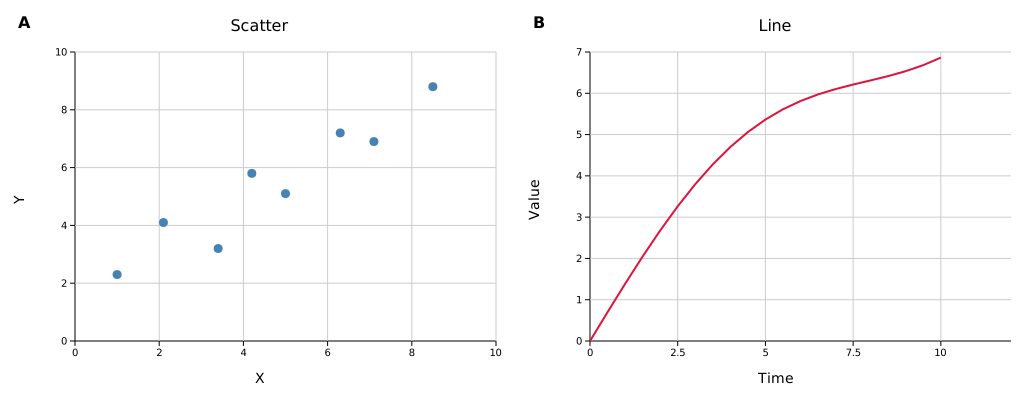
Merged cells
Use with_structure to span cells. The structure is a Vec<Vec<usize>> where each inner vec lists the cell indices (row-major) that form one panel.
#![allow(unused)] fn main() { use kuva::prelude::*; // 2×3 grid: three small plots on top, one wide plot spanning the full bottom row let figure = Figure::new(2, 3) .with_structure(vec![ vec![0], // top-left vec![1], // top-centre vec![2], // top-right vec![3, 4, 5], // bottom row — spans all 3 columns ]) .with_plots(vec![ vec![/* plot A */], vec![/* plot B */], vec![/* plot C */], vec![/* wide plot D */], ]); }
For a tall left panel spanning both rows of a 2×2 grid:
#![allow(unused)] fn main() { // cell indices for a 2×2 grid: // 0 1 // 2 3 Figure::new(2, 2) .with_structure(vec![ vec![0, 2], // left column, both rows — tall panel vec![1], // top-right vec![3], // bottom-right ]); }
Groups must be filled rectangles — L-shapes and other non-rectangular spans are not supported.
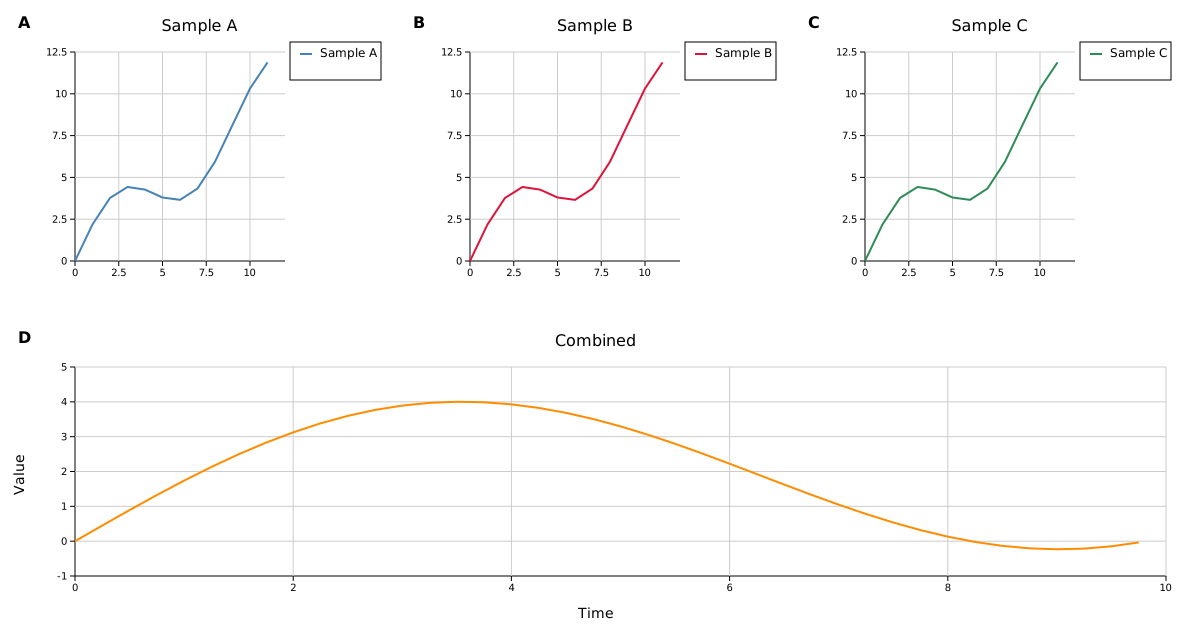
For a tall left panel:
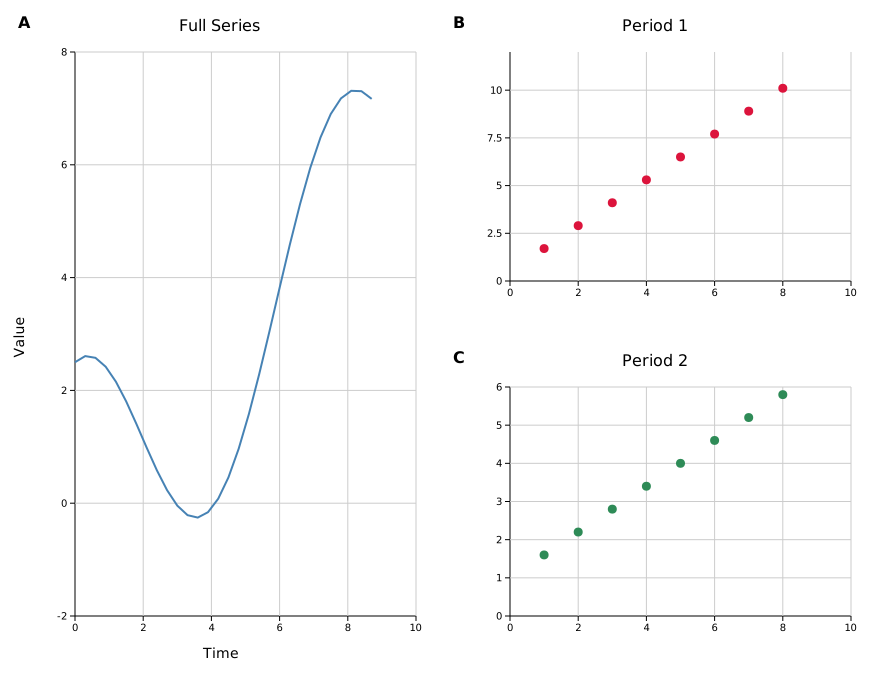
Shared axes
Sharing an axis unifies the range across the linked panels and suppresses duplicate tick labels on inner edges.
#![allow(unused)] fn main() { use kuva::prelude::*; Figure::new(2, 2) // ... .with_shared_y_all() // same Y range across all panels .with_shared_x_all() // same X range across all panels ; }
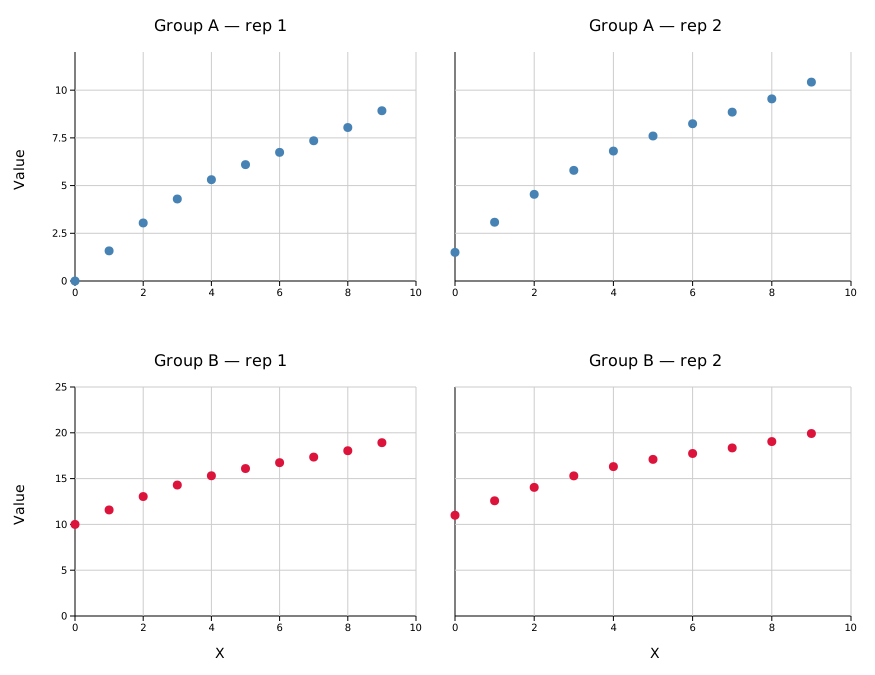
Fine-grained control:
| Method | Effect |
|---|---|
.with_shared_y_all() | Shared Y across every panel |
.with_shared_x_all() | Shared X across every panel |
.with_shared_y(row) | Shared Y within a single row |
.with_shared_x(col) | Shared X within a single column |
.with_shared_y_slice(row, col_start, col_end) | Shared Y for a subset of a row |
.with_shared_x_slice(col, row_start, row_end) | Shared X for a subset of a column |
Panel labels
#![allow(unused)] fn main() { figure.with_labels() // A, B, C, ... (bold, size 16 — default) figure.with_labels_lowercase() // a, b, c, ... figure.with_labels_numeric() // 1, 2, 3, ... // Custom strings — size and bold are the only meaningful config fields here figure.with_labels_custom( vec!["i", "ii", "iii"], LabelConfig { style: PanelLabelStyle::Uppercase, size: 14, bold: false }, ) }
Shared legend
Collect legend entries from all panels into a single figure-level legend. Per-panel legends are suppressed automatically.
#![allow(unused)] fn main() { use kuva::prelude::*; Figure::new(1, 2) // ... .with_shared_legend() // legend to the right (default) .with_shared_legend_bottom() // legend below the grid ; }
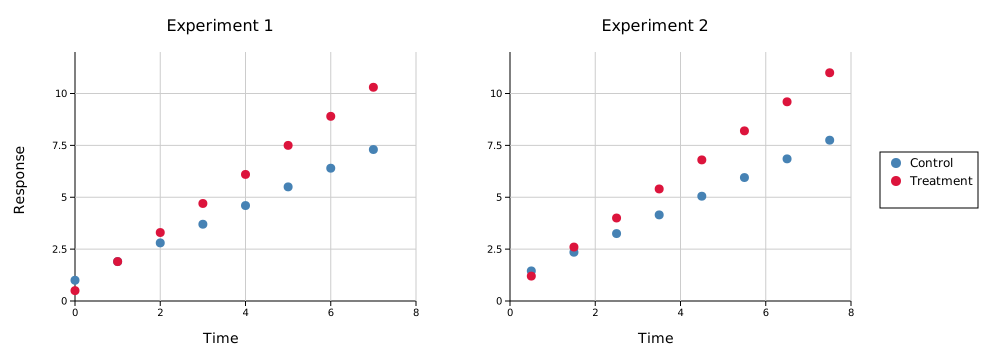
To keep per-panel legends visible alongside the shared one:
#![allow(unused)] fn main() { figure.with_keep_panel_legends() }
To supply manual legend entries instead of auto-collecting:
#![allow(unused)] fn main() { use kuva::plot::{LegendEntry, LegendShape}; figure.with_shared_legend_entries(vec![ LegendEntry { label: "Control".into(), color: "steelblue".into(), shape: LegendShape::Rect }, LegendEntry { label: "Treatment".into(), color: "crimson".into(), shape: LegendShape::Rect }, ]) }
Sizing and spacing
#![allow(unused)] fn main() { Figure::new(2, 3) .with_cell_size(500.0, 380.0) // width × height per cell in pixels (default) .with_spacing(15.0) // gap between cells in pixels (default 15) .with_padding(10.0) // outer margin in pixels (default 10) .with_title("My Figure") // centered title above the grid .with_title_size(20) // title font size (default 20) }
The total SVG dimensions are computed automatically from the cell size, spacing, padding, title height, and any shared legend.
Alternatively, set the total figure size and let cells auto-compute:
#![allow(unused)] fn main() { Figure::new(2, 3) .with_figure_size(900.0, 560.0) // total width × height; cells sized to fit }
with_figure_size takes precedence over with_cell_size when both are set. The cell size budget is computed after reserving space for padding, spacing, title height, and any shared legend — so the output SVG dimensions exactly match what you specify.
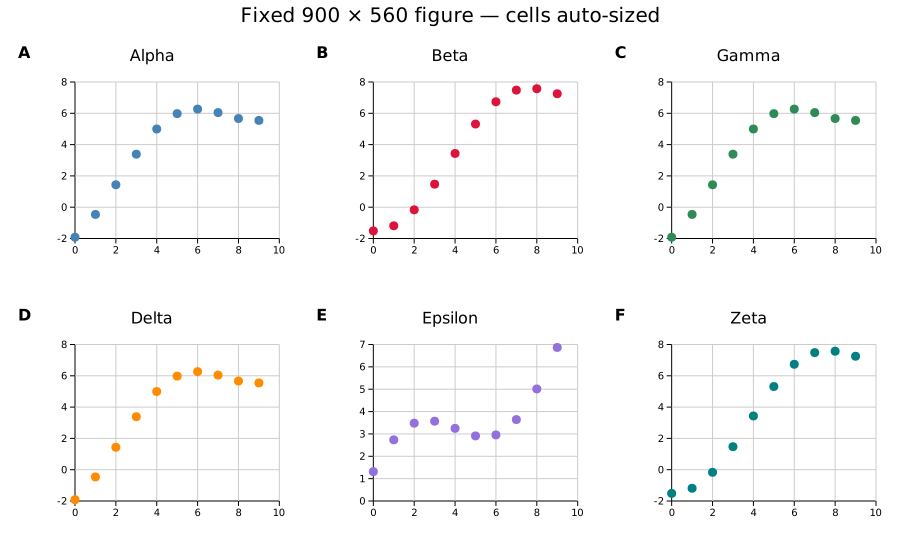
Per-row and per-column overrides
Override the height of individual rows or the width of individual columns while leaving the rest at their default cell size:
#![allow(unused)] fn main() { Figure::new(3, 2) .with_cell_size(500.0, 380.0) .with_row_height(2, 80.0) // third row is a thin annotation strip .with_col_width(1, 180.0) // second column is a narrow legend column }
When combined with with_figure_size, the explicit sizes are subtracted first and the remaining budget is divided equally among unconstrained rows/cols — so the total SVG dimensions are still exactly honoured.
API reference
| Method | Description |
|---|---|
Figure::new(rows, cols) | Create a rows × cols grid |
.with_structure(vec) | Define merged cells; default is one panel per cell |
.with_plots(vec) | Set plot data, one Vec<Plot> per panel |
.with_layouts(vec) | Set layouts; panels without a layout auto-range from data |
.with_title(s) | Centered title above the grid |
.with_title_size(n) | Title font size in pixels (default 20) |
.with_labels() | Bold uppercase panel labels (A, B, C, …) |
.with_labels_lowercase() | Lowercase panel labels (a, b, c, …) |
.with_labels_numeric() | Numeric panel labels (1, 2, 3, …) |
.with_labels_custom(labels, config) | Custom label strings with font config |
.with_shared_y_all() | Shared Y range across all panels |
.with_shared_x_all() | Shared X range across all panels |
.with_shared_y(row) | Shared Y within one row |
.with_shared_x(col) | Shared X within one column |
.with_shared_y_slice(row, c0, c1) | Shared Y for columns c0..=c1 in a row |
.with_shared_x_slice(col, r0, r1) | Shared X for rows r0..=r1 in a column |
.with_shared_legend() | Figure-level legend to the right |
.with_shared_legend_bottom() | Figure-level legend below the grid |
.with_shared_legend_entries(vec) | Override auto-collected legend entries |
.with_keep_panel_legends() | Keep per-panel legends alongside the shared one |
.with_cell_size(w, h) | Cell dimensions in pixels (default 500 × 380) |
.with_figure_size(w, h) | Total figure dimensions; cells auto-compute to fit |
.with_row_height(row, px) | Override height of a single row (0-based); other rows use cell_height |
.with_col_width(col, px) | Override width of a single column (0-based); other columns use cell_width |
.with_spacing(px) | Gap between cells (default 15) |
.with_padding(px) | Outer margin (default 10) |
.render() | Consume the Figure and return a Scene |
Layout & Axes
Layout is the single configuration struct passed to every render function. It controls axis ranges, labels, tick marks, log scale, canvas size, annotations, and typography. Every plot type goes through a Layout before becoming an SVG.
Import path: kuva::render::layout::Layout
Constructors
Layout::auto_from_plots()
The recommended starting point. Inspects the data in a Vec<Plot> and automatically computes axis ranges, padding, legend visibility, and colorbar presence.
#![allow(unused)] fn main() { use kuva::render::layout::Layout; use kuva::render::plots::Plot; let plots: Vec<Plot> = vec![]; let layout = Layout::auto_from_plots(&plots) .with_title("My Plot") .with_x_label("X") .with_y_label("Y"); }
Layout::new()
Sets explicit axis ranges. Use this when you need precise control — for example, when comparing multiple plots that must share the same scale, or when the auto-range would include unwanted padding.
#![allow(unused)] fn main() { use kuva::render::layout::Layout; // x from 0 to 100, y from -1 to 1 let layout = Layout::new((0.0, 100.0), (-1.0, 1.0)) .with_title("Fixed Range") .with_x_label("Time (ms)") .with_y_label("Amplitude"); }
Labels and title
#![allow(unused)] fn main() { use kuva::render::layout::Layout; use kuva::render::plots::Plot; let plots: Vec<Plot> = vec![]; let layout = Layout::auto_from_plots(&plots) .with_title("My Plot") // text above the plot area .with_subtitle("n = 1,234 cells") // smaller, muted line under the title .with_x_label("Concentration") // label below the x-axis .with_y_label("Response (%)"); // label left of the y-axis }
with_subtitle draws a second line centred under the title — useful for a one-line data summary. By default it is sized at round(0.7 × title_size) (override with with_subtitle_size) and coloured by muting the title colour toward the background, so it adapts to light and dark themes. Like the title, it stays on one line unless you set a wrap width — with_subtitle_wrap wraps it independently of the title — and the title block reserves the extra height automatically. CLI: --subtitle and --subtitle-wrap.
Canvas size
The default canvas is 600 × 450 pixels for the plot area, with margins computed automatically from the title, tick labels, and legend. Override either dimension:
#![allow(unused)] fn main() { use kuva::render::layout::Layout; use kuva::render::plots::Plot; let plots: Vec<Plot> = vec![]; let layout = Layout::auto_from_plots(&plots) .with_width(800.0) // total SVG width in pixels .with_height(300.0); // total SVG height in pixels }
Ticks
The number of tick marks is chosen automatically based on the canvas size. Override it with .with_ticks():
#![allow(unused)] fn main() { use kuva::render::layout::Layout; use kuva::render::plots::Plot; let plots: Vec<Plot> = vec![]; let layout = Layout::auto_from_plots(&plots) .with_ticks(8); // request approximately 8 tick intervals }
Tick formats
TickFormat controls how numeric tick labels are rendered. Import it from kuva::TickFormat.
| Variant | Example output | Use case |
|---|---|---|
Auto (default) | 5, 3.14, 1.2e5 | General purpose — integers without .0, minimal decimals, sci notation for extremes |
Fixed(n) | 3.14 (n=2) | Fixed decimal places |
Integer | 5 | Round to nearest integer |
Sci | 1.23e4 | Always scientific notation |
Percent | 45.0% | Multiply by 100 and append % — for data in the range 0–1 |
Custom(fn) | anything | Provide your own fn(f64) -> String |
Auto uses scientific notation for small nonzero values instead of rounding them to a zero label. Integer and Fixed(n) still use the rounding you request.
Apply the same format to both axes, or set them independently:
#![allow(unused)] fn main() { use kuva::TickFormat; use kuva::render::layout::Layout; use kuva::render::plots::Plot; let plots: Vec<Plot> = vec![]; // Same format on both axes let layout = Layout::auto_from_plots(&plots) .with_tick_format(TickFormat::Fixed(2)); // Independent formats let layout = Layout::auto_from_plots(&plots) .with_x_tick_format(TickFormat::Percent) .with_y_tick_format(TickFormat::Sci); // Custom formatter — append a unit suffix let layout = Layout::auto_from_plots(&plots) .with_y_tick_format(TickFormat::Custom( std::sync::Arc::new(|v| format!("{:.0} ms", v)) )); }
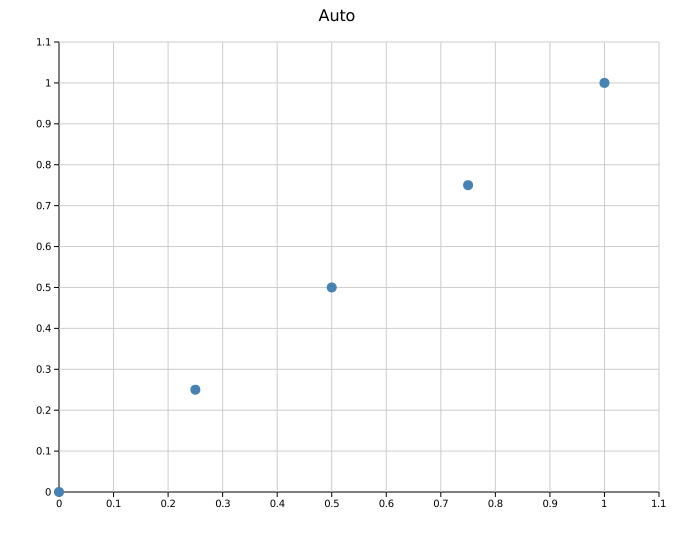 |
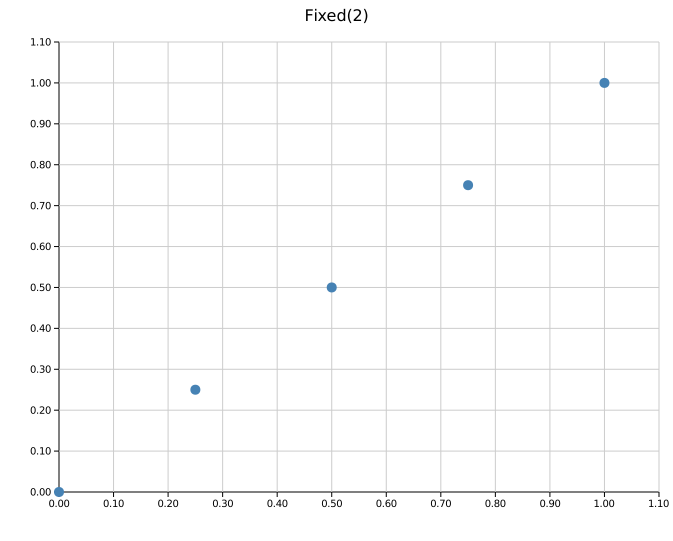 |
Auto |
Fixed(2) |
 |
 |
Percent |
Sci |
Tick rotation
Rotate x-axis tick labels when category names are long:
#![allow(unused)] fn main() { use kuva::render::layout::Layout; use kuva::render::plots::Plot; let plots: Vec<Plot> = vec![]; let layout = Layout::auto_from_plots(&plots) .with_x_tick_rotate(45.0); // degrees; 45 or 90 are common }
Label overlap
When x-axis tick labels are densely packed they can overprint each other.
with_x_label_overlap controls how collisions are resolved:
#![allow(unused)] fn main() { use kuva::AxisLabelOverlap; use kuva::render::layout::Layout; use kuva::render::plots::Plot; let plots: Vec<Plot> = vec![]; // Thin — skip labels that would overlap the previous one let layout = Layout::auto_from_plots(&plots) .with_x_label_overlap(AxisLabelOverlap::Thin); // Stagger — place colliding labels in an alternating second row let layout = Layout::auto_from_plots(&plots) .with_x_label_overlap(AxisLabelOverlap::Stagger); }
The default is Allow — every label is drawn regardless of overlap. Stagger
expands margin_bottom by one tick_size automatically to make room for the
second row.
AxisLabelOverlap applies to standard numeric and category axes, and to
Manhattan chromosome labels. On a Manhattan plot Thin drops narrow
chromosomes whose labels would collide; Stagger keeps all of them and
alternates the row instead.
CLI: --x-label-overlap allow|thin|stagger
Log scale
Enable logarithmic axes for data spanning multiple orders of magnitude. Ticks are placed at powers of 10; narrow ranges add 2× and 5× sub-ticks automatically.
#![allow(unused)] fn main() { use kuva::render::layout::Layout; use kuva::render::plots::Plot; let plots: Vec<Plot> = vec![]; // Both axes log let layout = Layout::auto_from_plots(&plots).with_log_scale(); // X axis only let layout = Layout::auto_from_plots(&plots).with_log_x(); // Y axis only let layout = Layout::auto_from_plots(&plots).with_log_y(); }
All data values must be positive when using a log axis. auto_from_plots uses the raw data range (before padding) to compute log-scale tick positions, so zero-inclusive ranges are handled safely.
Grid
The grid is shown by default. Disable it with:
#![allow(unused)] fn main() { use kuva::render::layout::Layout; use kuva::render::plots::Plot; let plots: Vec<Plot> = vec![]; let layout = Layout::auto_from_plots(&plots) .with_show_grid(false); }
Some plot types (Manhattan, UpSet) suppress the grid automatically.
Axis and stroke widths
Four independent builders control the stroke thickness of every axis chrome element. All values are in pixels at scale = 1.0 and multiply by the current with_scale factor automatically.
| Builder | Controls | Default |
|---|---|---|
.with_axis_line_width(px) | X and Y border lines | 1.0 |
.with_tick_width(px) | All tick mark strokes | 1.0 |
.with_tick_length(px) | Major tick length (minor = 60 %) | 5.0 |
.with_grid_line_width(px) | All grid lines (both axes) | 1.0 |
#![allow(unused)] fn main() { use kuva::render::layout::Layout; use kuva::render::plots::Plot; let plots: Vec<Plot> = vec![]; let layout = Layout::auto_from_plots(&plots) .with_axis_line_width(2.0) // heavier axis borders .with_tick_width(1.5) // slightly heavier ticks .with_tick_length(8.0) // longer tick marks .with_grid_line_width(0.5); // lighter grid }
Each control is fully independent — setting with_grid_line_width does not affect tick strokes, and vice versa. Axis border lines always render on top of grid lines in the SVG, so thick grid lines never visually cut across the axis border.
with_tick_length also affects margins: the left and bottom margins grow automatically to keep tick labels outside the tick marks at any tick length.
 |
 |
| Defaults — axis 1 px, ticks 1 px / 5 px, grid 1 px | axis_line_width=2, tick_width=1.5, tick_length=10, grid_line_width=0.5 |
SVG tooltips
Any plot type that supports .with_tooltips() wraps each data element in a <g class="tt"><title>…</title>…</g> group in the SVG output. Browsers display the <title> as a native hover tooltip, and a small CSS block injected into the SVG dims the hovered element:
#![allow(unused)] fn main() { use kuva::plot::{ScatterPlot, BarPlot}; use kuva::render::plots::Plot; // Auto-generated tooltip text per element let scatter = ScatterPlot::new() .with_data(vec![(1.0f64, 2.0f64), (3.0, 4.0)]) .with_tooltips(); // Custom tooltip strings (one per data point, in order) let bar = BarPlot::new() .with_bar("A", 10.0, "steelblue") .with_bar("B", 25.0, "crimson") .with_tooltip_labels(["Category A: 10 reads", "Category B: 25 reads"]); }
Supported plot types: Scatter, Bar, Histogram, Pie, Heatmap, Strip, Waterfall, Volcano, Manhattan, DotPlot, Candlestick, Polar, Ternary.
Auto-generated text varies by plot type — for example, Scatter shows (x, y), Bar shows label: value, Volcano shows gene (log2fc, −log10p).
Terminal, PNG, and PDF backends silently ignore the tooltip groups — the <title> element and class attribute have no effect outside SVG.
Browser behaviour: tooltips appear after 1 second or so. This is standard browser behaviour for SVG
<title>elements.
Deferred (Tier 3)
LinePlot (needs invisible hit-circles added over the path), BoxPlot, ViolinPlot, SankeyPlot, ChordPlot, BrickPlot.
Annotations
Three types of annotation are available, all added via the Layout builder. Any number of each can be chained.
Text annotation
Places a text label at a data coordinate. Optionally draws an arrow pointing to a different coordinate.
#![allow(unused)] fn main() { use kuva::render::annotations::TextAnnotation; use kuva::render::layout::Layout; use kuva::render::plots::Plot; let plots: Vec<Plot> = vec![]; let layout = Layout::auto_from_plots(&plots) .with_annotation( TextAnnotation::new("Outlier", 5.0, 7.5) // text at (5, 7.5) .with_arrow(6.0, 9.0) // arrow points to (6, 9) .with_color("crimson") .with_font_size(12), // optional, default 12 ); }
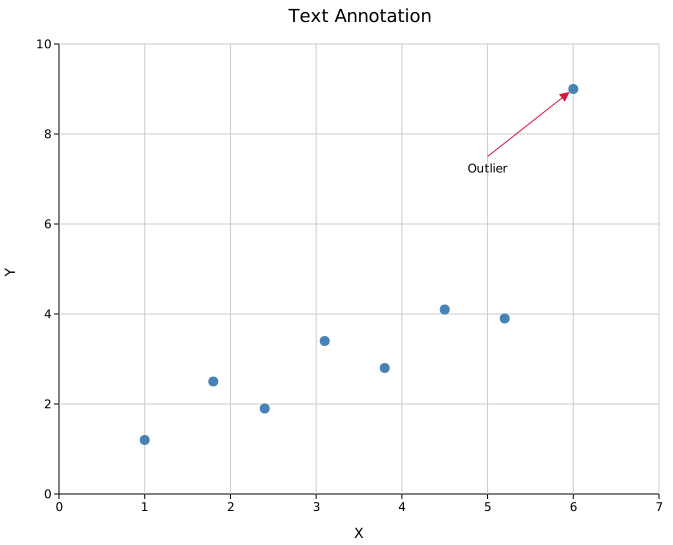
Reference line
Draws a dashed line across the full plot area at a fixed x or y value.
#![allow(unused)] fn main() { use kuva::render::annotations::ReferenceLine; use kuva::render::layout::Layout; use kuva::render::plots::Plot; let plots: Vec<Plot> = vec![]; let layout = Layout::auto_from_plots(&plots) .with_reference_line( ReferenceLine::horizontal(0.05) // y = 0.05 .with_color("crimson") .with_label("p = 0.05"), // optional label at right edge ) .with_reference_line( ReferenceLine::vertical(3.5) // x = 3.5 .with_color("steelblue") .with_label("cutoff") .with_stroke_width(1.5) // optional, default 1.0 .with_dasharray("8 4"), // optional, default "6 4" ); }
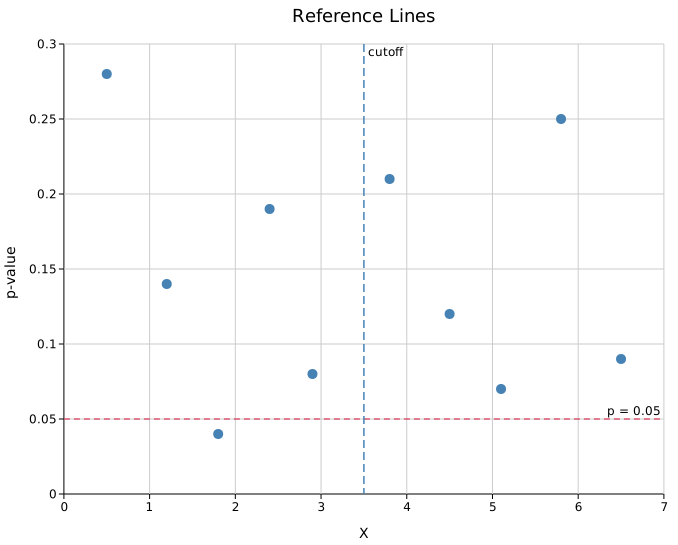
Shaded region
Fills a horizontal or vertical band across the plot area.
#![allow(unused)] fn main() { use kuva::render::annotations::ShadedRegion; use kuva::render::layout::Layout; use kuva::render::plots::Plot; let plots: Vec<Plot> = vec![]; let layout = Layout::auto_from_plots(&plots) .with_shaded_region( ShadedRegion::horizontal(2.0, 4.0) // y band from 2 to 4 .with_color("gold") .with_opacity(0.2), ) .with_shaded_region( ShadedRegion::vertical(10.0, 20.0) // x band from 10 to 20 .with_color("steelblue") .with_opacity(0.15), ); }
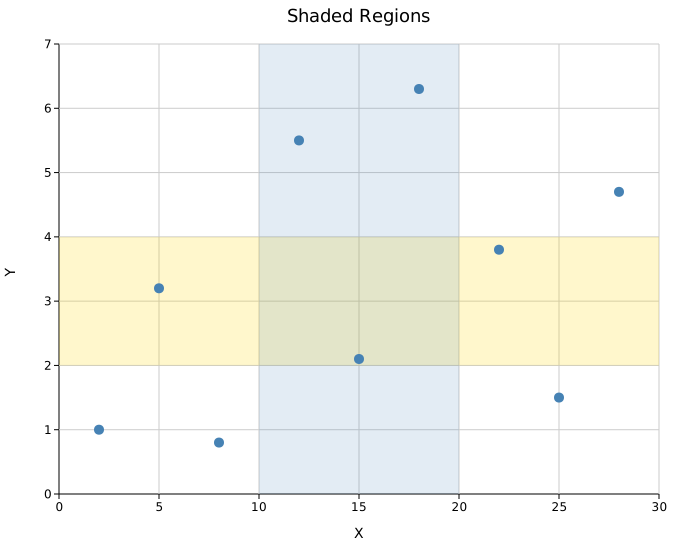
Equal aspect ratio
.with_equal_aspect() expands the shorter axis so that 1 data unit maps to the same number of pixels on both x and y. This is useful for plots where spatial distance matters — scatter plots of geographic coordinates, orbit diagrams, or any visualisation where distorting the axes would be misleading.
#![allow(unused)] fn main() { use kuva::render::layout::Layout; use kuva::render::plots::Plot; let plots: Vec<Plot> = vec![]; let layout = Layout::auto_from_plots(&plots) .with_equal_aspect(); }
with_equal_aspect is a no-op on log-scale axes and on pixel-space plots (polar, ternary, pie, chord, etc.) where kuva controls the coordinate system directly. It also guards against degenerate zero-width ranges.
Scale
with_scale(f) applies a single multiplier to every piece of plot chrome — font sizes, margins, tick mark lengths, stroke widths, legend padding and swatch geometry, and annotation arrow sizes. The default is 1.0 (no change). The canvas width and height are not affected.
#![allow(unused)] fn main() { use kuva::render::layout::Layout; use kuva::render::plots::Plot; let plots: Vec<Plot> = vec![]; let layout = Layout::auto_from_plots(&plots) .with_title("Growth Rate") .with_x_label("Time (weeks)") .with_y_label("Count") .with_scale(2.0); // everything twice as large }
The four scale levels below all use the same default canvas size (600 × 450 plot area). Notice how at 0.5× the chrome feels cramped while at 2.0× tick labels and the legend are clearly legible even when the SVG is scaled down in a browser:
 |
 |
.with_scale(0.5) |
.with_scale(1.0) — default |
 |
 |
.with_scale(1.5) |
.with_scale(2.0) |
Combining scale with canvas size
with_scale makes the chrome proportionally larger but keeps the plot area the same size. At 2.0× the default canvas will feel tight because the margins (which scale) eat into the fixed-size plot area. To keep the same visual balance as the default, scale the canvas dimensions by the same factor:
#![allow(unused)] fn main() { use kuva::render::layout::Layout; use kuva::render::plots::Plot; let plots: Vec<Plot> = vec![]; let scale = 2.0_f64; let layout = Layout::auto_from_plots(&plots) .with_scale(scale) .with_width(1200.0) // 600 * scale .with_height(900.0); // 450 * scale }
The result has the same data density as the default but every pixel measurement is doubled — useful for publication figures that will be embedded at a reduced size.
Limitations — what you must adjust manually
Two categories of user-set values are not auto-scaled because they are specified explicitly when constructing the object, not derived from Layout:
1. TextAnnotation::font_size
TextAnnotation has its own font_size field (default 12). When you call .with_scale(2.0), the annotation arrow and its stroke scale automatically, but the text does not. Scale it in the constructor:
#![allow(unused)] fn main() { use kuva::render::layout::Layout; use kuva::render::plots::Plot; use kuva::render::annotations::TextAnnotation; let plots: Vec<Plot> = vec![]; let scale = 2.0_f64; let layout = Layout::auto_from_plots(&plots) .with_annotation( TextAnnotation::new("Peak", 9.0, 16.0) .with_arrow(9.0, 16.0) .with_font_size((11.0 * scale).round() as u32), // scale manually ) .with_scale(scale); }
The two SVGs below use with_scale(2.0). In the left one the annotation font is the default 11px regardless of scale; in the right one it has been multiplied by 2.0:
 |
 |
| annotation font unchanged (11 px) | annotation font doubled (22 px) |
2. ReferenceLine::stroke_width
ReferenceLine stores its own stroke_width (default 1.0). The line is drawn at exactly that pixel width regardless of with_scale. Multiply it manually:
#![allow(unused)] fn main() { use kuva::render::layout::Layout; use kuva::render::plots::Plot; use kuva::render::annotations::ReferenceLine; let plots: Vec<Plot> = vec![]; let scale = 2.0_f64; let layout = Layout::auto_from_plots(&plots) .with_reference_line( ReferenceLine::horizontal(10.0) .with_stroke_width(1.0 * scale), // scale manually ) .with_scale(scale); }
3. PNG raster output — use DPI scale instead
For raster output, RasterBackend has its own DPI multiplier:
#![allow(unused)] fn main() { use kuva::render::layout::Layout; use kuva::render::plots::Plot; use kuva::render::render::render_multiple; let plots: Vec<Plot> = vec![]; let layout = Layout::auto_from_plots(&plots); #[cfg(feature = "png")] { use kuva::backend::raster::RasterBackend; let scene = render_multiple(plots, layout); // Render at 3× pixel density — no need for with_scale let png = RasterBackend::new().with_scale(3.0).render_scene(&scene); } }
The two mechanisms are independent and can be combined, but doing so is rarely necessary. Use Layout::with_scale when you want a larger SVG; use RasterBackend::with_scale when you want a higher-DPI PNG from an unchanged SVG layout.
Typography
Font family and sizes for all text elements. Sizes are in pixels.
#![allow(unused)] fn main() { use kuva::render::layout::Layout; use kuva::render::plots::Plot; let plots: Vec<Plot> = vec![]; let layout = Layout::auto_from_plots(&plots) .with_font_family("Arial, sans-serif") // default: "DejaVu Sans, Verdana, Liberation Sans, Arial, sans-serif" .with_title_size(20) // default: 18 .with_label_size(14) // default: 14 (axis labels) .with_tick_size(11) // default: 12 (tick labels) .with_body_size(12); // default: 12 (legend, annotations) }
These can also be set via a Theme — see the Themes reference.
For greyscale/print-safe or color-vision-deficient-accessible rendering, see Black & White / Accessibility Mode — Layout::with_bw_mode() replaces palette colors with grey shades, hatch patterns, dash styles, and marker shapes.
Tick label font
with_tick_font_family sets the font family of the axis tick labels only, leaving titles, axis labels, and legends in the main family. Use it for fixed-width category labels such as sequence contexts:
#![allow(unused)] fn main() { use kuva::render::layout::Layout; use kuva::render::plots::Plot; let plots: Vec<Plot> = vec![]; let layout = Layout::auto_from_plots(&plots) .with_x_tick_rotate(-90.0) .with_tick_font_family("monospace"); }
It applies to rotated and upright labels wherever kuva draws a tick label:
| Covered | Not covered (these are titles, and keep the main family) |
|---|---|
| x, y, secondary x and y axis ticks | Plot title and subtitle |
| Manhattan chromosome labels | x, y and secondary axis labels |
| Polar ring (r) values and theta spokes | Ternary corner labels |
| Ternary edge percentages | Parallel-coordinates axis names |
| Radar ring values and spoke names | 3D axis labels |
| Parallel-coordinates per-axis values | Colorbar label |
| 3D x, y and z axis ticks | Legend entries |
| Colorbar tick labels | Data labels (bar values, point labels, gene names) |
Width reservation follows the face: kuva measures a monospace tick label against the bundled DejaVu Sans Mono advance widths, not the sans ones. This matters more than it sounds. A fixed-width face is narrower than DejaVu Sans for digits (0.602 em against 0.636 em) but much wider for thin glyphs: . goes from 0.318 em to 0.602 em, so a decimal y-axis measured with sans metrics reserves a gutter several pixels short and clips its own labels. Setting with_font_family("monospace") (no tick-specific family) reserves tick labels the same way, since they render in that face too.
The family itself decides this, not the presence of the option: a family carrying mono or monospace as a word ("DejaVu Sans Mono", "ui-monospace") or one of the common fixed-width faces that do not ("Consolas", "Fira Code", "Menlo", "Courier New") measures as monospace; anything else keeps the sans metrics. Only the first family in the list counts, the one a renderer picks when it has it.
Backends. SVG and PDF honour the option; the PDF backend resolves the generic monospace family to the bundled DejaVu Sans Mono, so it renders the same on every system. PNG and terminal output ignore it and draw ticks in the bundled DejaVu Sans, exactly as they already ignore with_font_family: kuva rasterises PNG itself rather than handing the SVG to a system font stack. A figure exported both ways will therefore show monospace ticks in the SVG or PDF and sans ticks in the PNG.
Genome browser. A TrackStack builds its own layout per track, so it carries the option itself: TrackStack::with_tick_font_family (and CoveragePlot::with_tick_font_family) applies it to the shared genomic x-axis and to every track's y-axis ticks at once, leaving track names and the axis label alone.
Text wrapping
Long titles, axis labels, and legend entries can be word-wrapped at a character limit instead of forcing the canvas to expand. Wrapping is opt-in — nothing wraps unless you set a character width.
Global wrap
Set all text elements at once. Per-element overrides take precedence when called after with_wrap:
#![allow(unused)] fn main() { use kuva::render::layout::Layout; use kuva::render::plots::Plot; let plots: Vec<Plot> = vec![]; let layout = Layout::auto_from_plots(&plots) .with_title("A very long title that would normally make the top margin huge") .with_wrap(30); // wrap everything at ~30 characters }
Per-element wrap
Override the character width for individual elements:
#![allow(unused)] fn main() { use kuva::render::layout::Layout; use kuva::render::plots::Plot; let plots: Vec<Plot> = vec![]; let layout = Layout::auto_from_plots(&plots) .with_title("A very long title") .with_x_label("A very long x-axis label") .with_wrap(30) // global default .with_title_wrap(50) // title gets more room .with_legend_wrap(20); // legend is narrower }
CLI flags
| Flag | Description |
|---|---|
--wrap <N> | Wrap all text at N characters |
--title-wrap <N> | Wrap title only |
--subtitle-wrap <N> | Wrap subtitle only |
--x-label-wrap <N> | Wrap x-axis label only |
--y-label-wrap <N> | Wrap y-axis label only |
--y2-label-wrap <N> | Wrap secondary y-axis label only |
--legend-wrap <N> | Wrap legend labels and titles only |
What happens when wrapping is enabled
- Title wraps into centred lines;
margin_topgrows to fit. - Subtitle wraps into centred lines below the title;
margin_topgrows to fit. - X label wraps into centred lines;
margin_bottomgrows. - Y label wraps into multiple rotated lines stacked horizontally;
margin_leftgrows. - Y2 label same as y-label but on the right side.
- Legend labels wrap into continuation lines (swatch stays on the first line). The legend box grows taller and the width is capped at
N * 7.2 + 35pixels, preventing the right margin from expanding. - Legend titles and group titles wrap the same way.
Wrapping splits at whitespace boundaries. A single word longer than the limit is hard-broken.
Quick reference
Layout constructors
| Method | Description |
|---|---|
Layout::new(x_range, y_range) | Explicit axis ranges |
Layout::auto_from_plots(&plots) | Auto-compute ranges and layout from data |
Axes and labels
| Method | Description |
|---|---|
.with_title(s) | Plot title |
.with_subtitle(s) | Muted second line under the title (.with_subtitle_size(n) overrides its size) |
.with_x_label(s) | X-axis label |
.with_y_label(s) | Y-axis label |
.with_ticks(n) | Approximate number of tick intervals |
.with_tick_format(fmt) | Same TickFormat for both axes |
.with_x_tick_format(fmt) | TickFormat for x-axis only |
.with_y_tick_format(fmt) | TickFormat for y-axis only |
.with_x_tick_rotate(deg) | Rotate x tick labels by deg degrees |
.with_x_label_overlap(s) | AxisLabelOverlap strategy for dense x tick labels |
.with_log_x() | Logarithmic x-axis |
.with_log_y() | Logarithmic y-axis |
.with_log_scale() | Logarithmic on both axes |
.with_show_grid(bool) | Show or hide grid lines (default true) |
Axis and stroke widths
| Method | Default | Description |
|---|---|---|
.with_axis_line_width(px) | 1.0 | X and Y axis border line stroke width |
.with_tick_width(px) | 1.0 | Tick mark stroke width |
.with_tick_length(px) | 5.0 | Major tick length; minor ticks are 60 % of this |
.with_grid_line_width(px) | 1.0 | Grid line stroke width (both axes) |
Canvas and scale
| Method | Description |
|---|---|
.with_width(px) | Total SVG width in pixels |
.with_height(px) | Total SVG height in pixels |
.with_scale(f) | Uniform scale factor for all plot chrome (default 1.0). Font sizes, margins, tick marks, legend geometry, and arrow sizes all multiply by f. Canvas size is unaffected. TextAnnotation::font_size and ReferenceLine::stroke_width must be scaled manually. |
.with_equal_aspect() | Expand the shorter axis so 1 data unit maps to the same pixel count on both axes. No-op on log axes and pixel-space plots. |
Annotations
| Method | Description |
|---|---|
.with_annotation(TextAnnotation) | Text label with optional arrow |
.with_reference_line(ReferenceLine) | Horizontal or vertical dashed line |
.with_shaded_region(ShadedRegion) | Horizontal or vertical filled band |
Legend
| Method | Description |
|---|---|
.with_legend_entries(Vec<LegendEntry>) | Supply entries directly, bypassing auto-collection; auto-sizes legend_width |
.with_legend_at(x, y) | Place legend at absolute SVG pixel coordinates (Custom variant); no margin reserved |
.with_legend_at_data(x, y) | Place legend at data-space coordinates, mapped through axes at render time |
.with_legend_position(LegendPosition) | Choose a preset legend placement |
.with_legend_box(bool) | Show or hide the legend background and border box (default true) |
.with_legend_title(s) | Render a bold title row above all legend entries |
.with_legend_group(title, entries) | Add a labelled group of entries; multiple calls stack |
.with_legend_width(px) | Override the auto-computed legend box width |
.with_legend_height(px) | Override the auto-computed legend box height |
.with_legend_wrap(n) | Word-wrap legend labels/titles at n characters |
Text wrapping
| Method | Description |
|---|---|
.with_wrap(n) | Wrap all text elements at n characters (title, labels, legend). Call before per-element overrides. |
.with_title_wrap(n) | Wrap title at n characters |
.with_subtitle_wrap(n) | Wrap subtitle at n characters (independent of the title) |
.with_x_label_wrap(n) | Wrap x-axis label at n characters |
.with_y_label_wrap(n) | Wrap y-axis label at n characters |
.with_y2_label_wrap(n) | Wrap secondary y-axis label at n characters |
.with_legend_wrap(n) | Wrap legend labels and titles at n characters |
LegendPosition variants (grouped by placement zone):
Inside the plot axes — overlaid on the data area, 8 px inset from the axis edges:
| Variant | Corner |
|---|---|
InsideTopRight | Upper-right |
InsideTopLeft | Upper-left |
InsideBottomRight | Lower-right |
InsideBottomLeft | Lower-left |
InsideTopCenter | Top edge, centred |
InsideBottomCenter | Bottom edge, centred |
Outside the plot axes — placed in a margin; the canvas expands to accommodate:
| Variant | Placement |
|---|---|
OutsideRightTop (default) | Right margin, top-aligned |
OutsideRightMiddle | Right margin, vertically centred |
OutsideRightBottom | Right margin, bottom-aligned |
OutsideLeftTop | Left margin, top-aligned |
OutsideLeftMiddle | Left margin, vertically centred |
OutsideLeftBottom | Left margin, bottom-aligned |
OutsideTopLeft | Top margin, left-aligned |
OutsideTopCenter | Top margin, centred |
OutsideTopRight | Top margin, right-aligned |
OutsideBottomLeft | Bottom margin, left-aligned |
OutsideBottomCenter | Bottom margin, centred |
OutsideBottomRight | Bottom margin, right-aligned |
OutsideBottomColumns | Bottom margin, auto-packed multi-column grid; canvas height extends to fit all entries |
Freeform — no margin change; you control the position:
| Variant | Placement |
|---|---|
Custom(x, y) | Absolute SVG canvas pixel coordinates |
DataCoords(x, y) | Data-space coordinates mapped through map_x/map_y at render time |
Legend sizing overrides
The legend box dimensions are computed automatically — width from the longest label (at ~8.5 px per character), height from the number of entries and groups. If the auto-sizing is off for your data, override either dimension explicitly:
#![allow(unused)] fn main() { use kuva::render::layout::Layout; use kuva::render::plots::Plot; let plots: Vec<Plot> = vec![]; let layout = Layout::auto_from_plots(&plots) .with_legend_width(180.0) // wider box for long labels .with_legend_height(120.0); // taller box for manual height control }
Typography
| Method | Default | Description |
|---|---|---|
.with_font_family(s) | "DejaVu Sans, Verdana, Liberation Sans, Arial, sans-serif" | CSS font-family string |
.with_tick_font_family(s) | inherits with_font_family | CSS font-family string for axis tick labels only |
.with_title_size(n) | 18 | Title font size (px) |
.with_subtitle_size(n) | 0.7 × title | Subtitle font size (px) |
.with_label_size(n) | 14 | Axis label font size (px) |
.with_tick_size(n) | 12 | Tick label font size (px) |
.with_body_size(n) | 12 | Body text font size (px) |
AxisLabelOverlap strategies
| Variant | Behaviour |
|---|---|
Allow (default) | Every label drawn; may overlap on dense axes |
Thin | Overlapping labels skipped; non-overlapping ones kept |
Stagger | All labels drawn; colliding ones offset to a second row |
TickFormat variants
| Variant | Output example |
|---|---|
Auto | 5, 3.14, 1.2e5 |
Fixed(n) | 3.14 |
Integer | 5 |
Sci | 1.23e4 |
Percent | 45.0% |
Custom(Arc<dyn Fn(f64) -> String>) | user-defined |
Legends
Legends are assembled automatically from the plot data and attached to the canvas via the Layout. Every aspect — position, appearance, content, and sizing — can be overridden with builder methods.
Import paths:
kuva::render::layout::Layout— position and appearance builderskuva::plot::legend::{LegendEntry, LegendShape, LegendPosition, LegendGroup}— entry types
Auto-collected legends
When you call .with_legend("label") on a plot, kuva records the entry automatically. A single Layout::auto_from_plots() call collects all entries and the legend is rendered alongside the canvas.
#![allow(unused)] fn main() { use kuva::prelude::*; let plots: Vec<Plot> = vec![ ScatterPlot::new() .with_data([(1.1, 2.3), (1.9, 3.1), (2.4, 2.7), (3.0, 3.8), (3.6, 3.2)]) .with_color("steelblue").with_legend("Cluster A").with_size(6.0) .into(), ScatterPlot::new() .with_data([(4.0, 1.2), (4.8, 1.8), (5.3, 1.4), (6.0, 2.0), (6.5, 1.6)]) .with_color("orange").with_legend("Cluster B").with_size(6.0) .into(), ScatterPlot::new() .with_data([(2.0, 5.5), (2.8, 6.1), (3.5, 5.8), (4.3, 6.5), (5.0, 6.0)]) .with_color("mediumseagreen").with_legend("Cluster C").with_size(6.0) .into(), ]; let layout = Layout::auto_from_plots(&plots) .with_title("Auto-Collected Legend") .with_x_label("X") .with_y_label("Y"); let svg = SvgBackend.render_scene(&render_multiple(plots, layout)); }
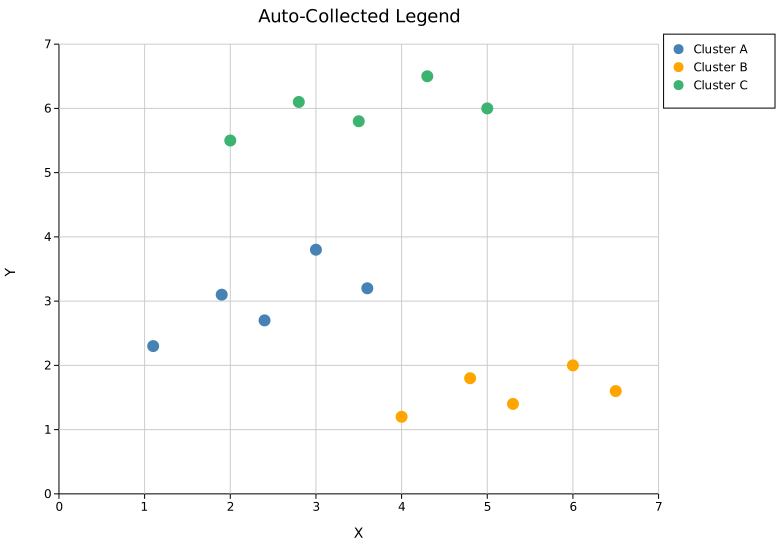
The legend appears to the right of the plot area by default (OutsideRightTop). The canvas widens automatically to fit it — no manual sizing needed.
Legend position
Default — OutsideRightTop
The default position places the legend in the right margin, top-aligned. Call .with_legend_position() on the Layout to change it.
#![allow(unused)] fn main() { use kuva::prelude::*; use kuva::plot::legend::LegendPosition; let layout = Layout::auto_from_plots(&plots) .with_legend_position(LegendPosition::OutsideRightTop); // default — no call needed }
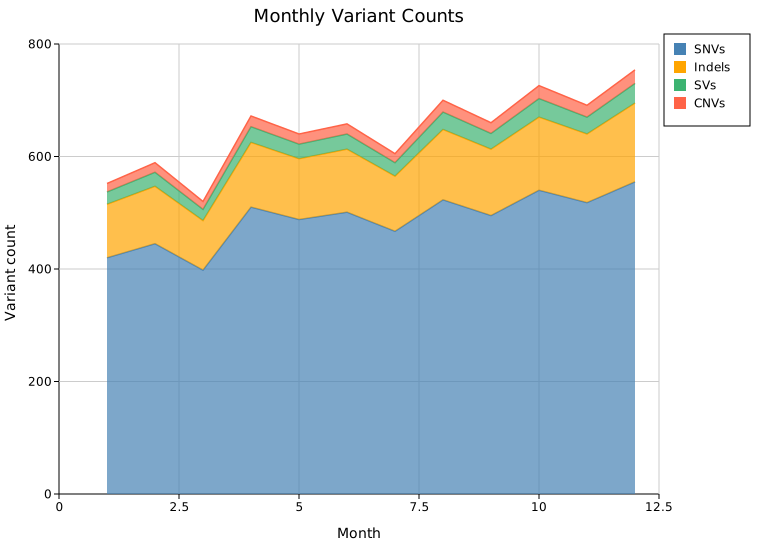
Inside positions
Inside* variants overlay the legend on top of the data area with an 8 px inset from the axes. No extra canvas margin is added. Use these when the data has a corner with enough whitespace to accommodate the legend.
#![allow(unused)] fn main() { use kuva::prelude::*; use kuva::plot::legend::LegendPosition; // Upper-right of the data area let layout = Layout::auto_from_plots(&plots) .with_legend_position(LegendPosition::InsideTopRight); }
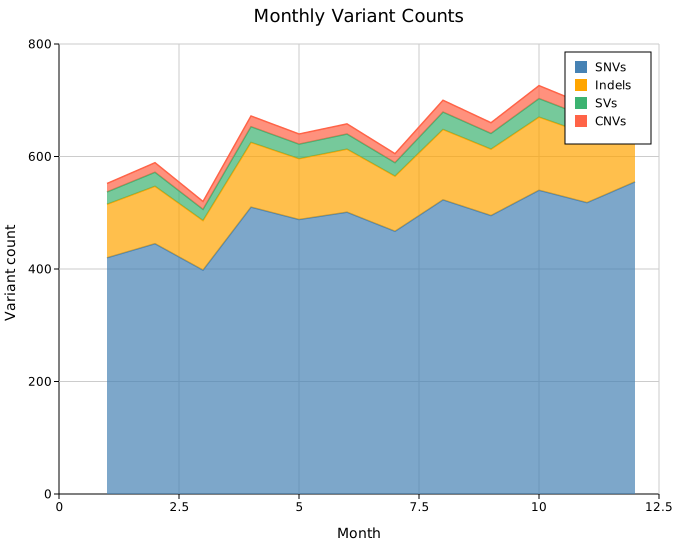
#![allow(unused)] fn main() { // Lower-left of the data area let layout = Layout::auto_from_plots(&plots) .with_legend_position(LegendPosition::InsideBottomLeft); }
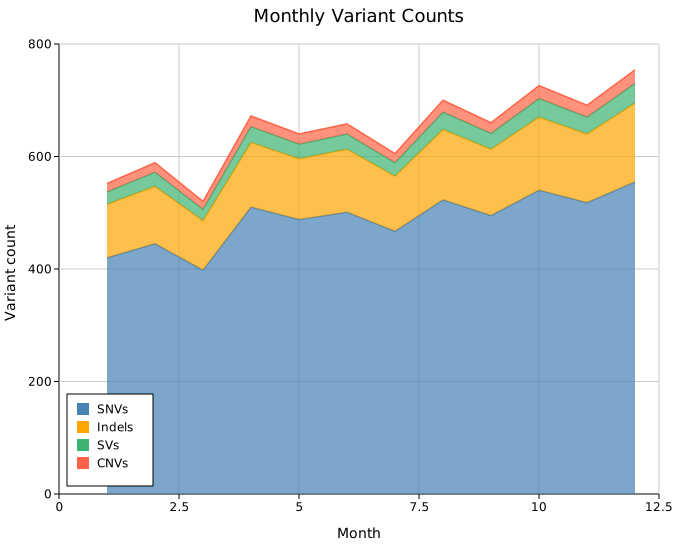
All six Inside* variants:
| Variant | Corner |
|---|---|
InsideTopRight | Upper-right |
InsideTopLeft | Upper-left |
InsideBottomRight | Lower-right |
InsideBottomLeft | Lower-left |
InsideTopCenter | Top edge, centred |
InsideBottomCenter | Bottom edge, centred |
Outside positions
Outside* variants place the legend in a margin outside the plot axes. The canvas expands automatically to fit; each group of variants expands the corresponding edge.
Left margin:
#![allow(unused)] fn main() { use kuva::prelude::*; use kuva::plot::legend::LegendPosition; let layout = Layout::auto_from_plots(&plots) .with_legend_position(LegendPosition::OutsideLeftTop); }
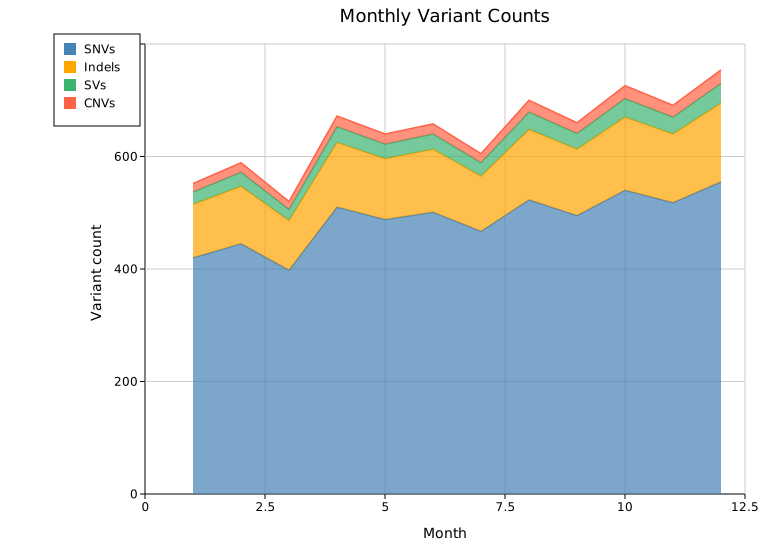
Bottom margin:
#![allow(unused)] fn main() { let layout = Layout::auto_from_plots(&plots) .with_legend_position(LegendPosition::OutsideBottomCenter); }
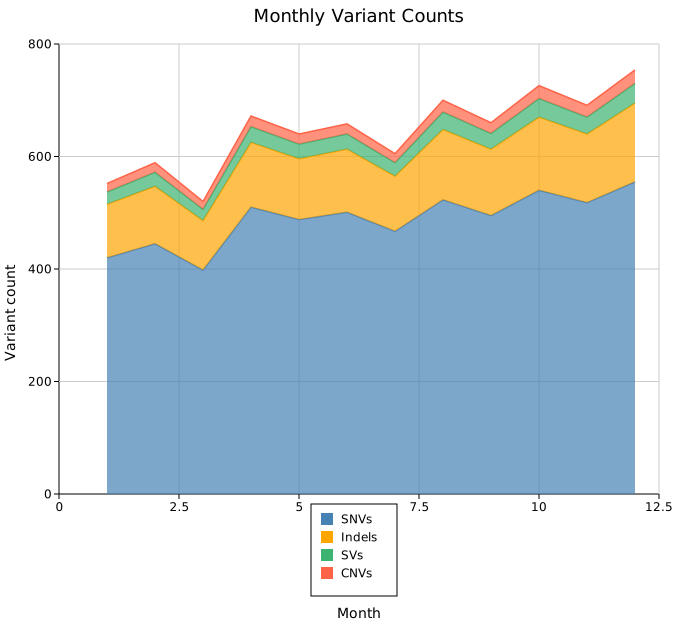
Full set of outside variants:
| Variant | Placement |
|---|---|
OutsideRightTop (default) | Right margin, top-aligned |
OutsideRightMiddle | Right margin, vertically centred |
OutsideRightBottom | Right margin, bottom-aligned |
OutsideLeftTop | Left margin, top-aligned |
OutsideLeftMiddle | Left margin, vertically centred |
OutsideLeftBottom | Left margin, bottom-aligned |
OutsideTopLeft | Top margin, left-aligned |
OutsideTopCenter | Top margin, centred |
OutsideTopRight | Top margin, right-aligned |
OutsideBottomLeft | Bottom margin, left-aligned |
OutsideBottomCenter | Bottom margin, centred |
OutsideBottomRight | Bottom margin, right-aligned |
OutsideBottomColumns | Bottom margin, auto-packed multi-column grid; canvas height extends to fit all entries |
Freeform positions
with_legend_at(x, y) — absolute pixel coordinates
Places the legend at a fixed SVG canvas pixel coordinate. No extra margin is reserved; the legend can land anywhere on the canvas, including inside the data area.
#![allow(unused)] fn main() { use kuva::prelude::*; // Top-left corner of the SVG canvas let layout = Layout::auto_from_plots(&plots) .with_legend_at(30.0, 30.0); }
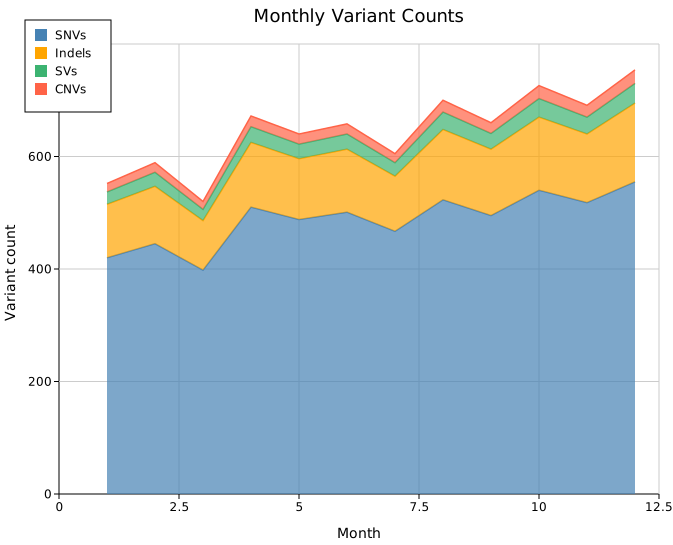
with_legend_at_data(x, y) — data-space coordinates
Places the legend at a position specified in data coordinates. The coordinates are mapped through the axis transforms at render time — the legend tracks the data regardless of the axis range or scale.
#![allow(unused)] fn main() { use kuva::prelude::*; // At month=7, count=450 in data space let layout = Layout::auto_from_plots(&plots) .with_legend_at_data(7.0, 450.0); }
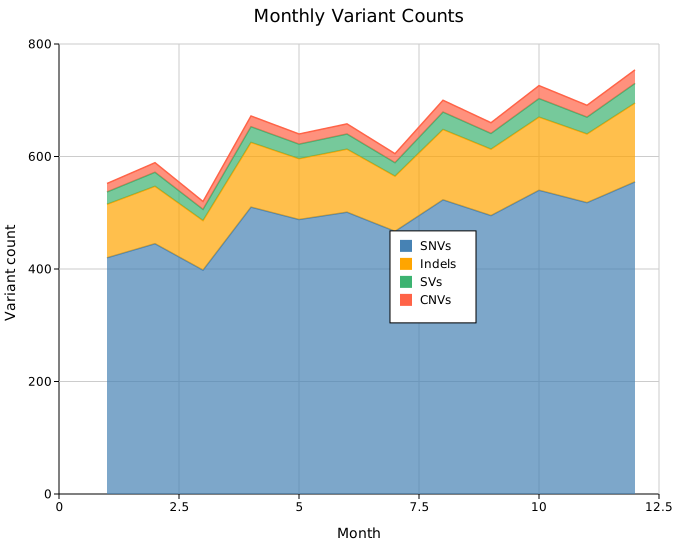
DataCoords is best suited for axis-space plots (scatter, line, bar, etc.). For pixel-space plots such as chord diagrams, Sankey, or phylogenetic trees, use Custom instead.
Appearance
Suppress the box
By default the legend has a filled background and a thin border. .with_legend_box(false) hides both rects while keeping the swatches and labels. This works well with Inside* positions where a box can feel heavy over busy data.
#![allow(unused)] fn main() { use kuva::prelude::*; use kuva::plot::legend::LegendPosition; let layout = Layout::auto_from_plots(&plots) .with_legend_position(LegendPosition::InsideTopRight) .with_legend_box(false); }
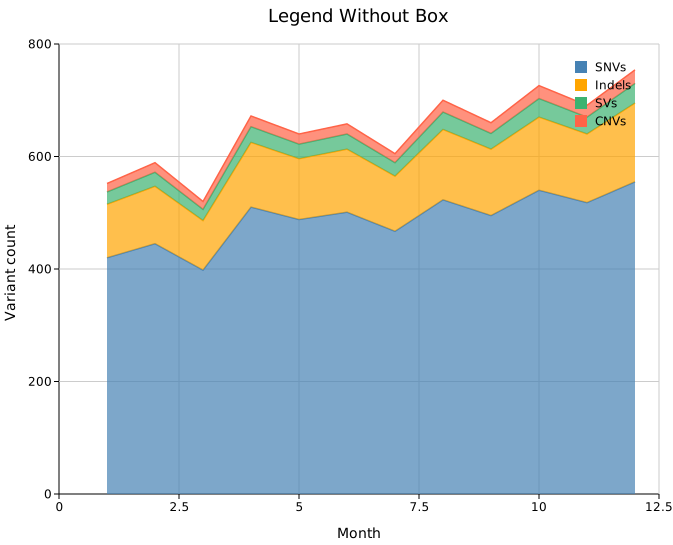
Legend title
.with_legend_title(s) renders a bold header row above all entries.
#![allow(unused)] fn main() { use kuva::prelude::*; let layout = Layout::auto_from_plots(&plots) .with_legend_title("Variant type"); }
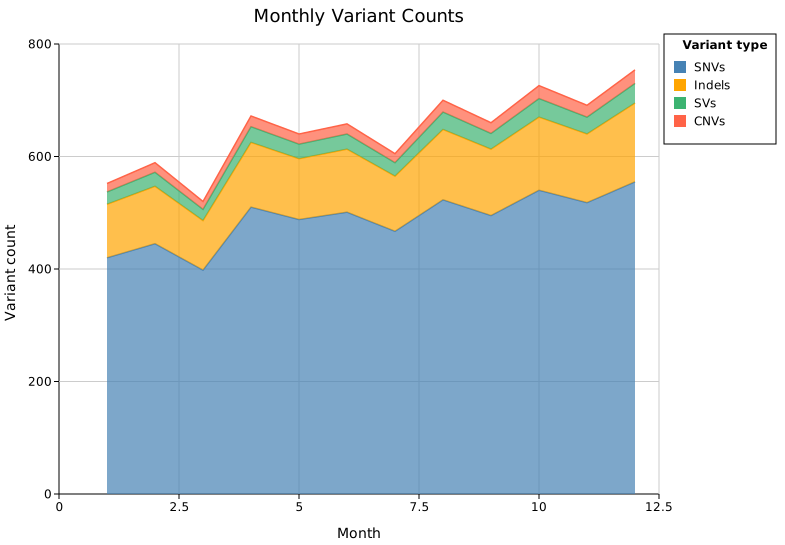
Content
Grouped entries
.with_legend_group(title, entries) divides the legend into named sections. Each call appends a group; multiple calls stack in order. Groups take priority over auto-collected entries and .with_legend_entries().
#![allow(unused)] fn main() { use kuva::prelude::*; use kuva::plot::legend::{LegendEntry, LegendShape, LegendGroup}; let ctrl_entries = vec![ LegendEntry { label: "Control-A".into(), color: "steelblue".into(), shape: LegendShape::Circle, dasharray: None }, LegendEntry { label: "Control-B".into(), color: "#4e9fd4".into(), shape: LegendShape::Circle, dasharray: None }, ]; let trt_entries = vec![ LegendEntry { label: "Treatment-A".into(), color: "tomato".into(), shape: LegendShape::Circle, dasharray: None }, LegendEntry { label: "Treatment-B".into(), color: "#e06060".into(), shape: LegendShape::Circle, dasharray: None }, ]; let layout = Layout::auto_from_plots(&plots) .with_legend_group("Controls", ctrl_entries) .with_legend_group("Treatments", trt_entries); }
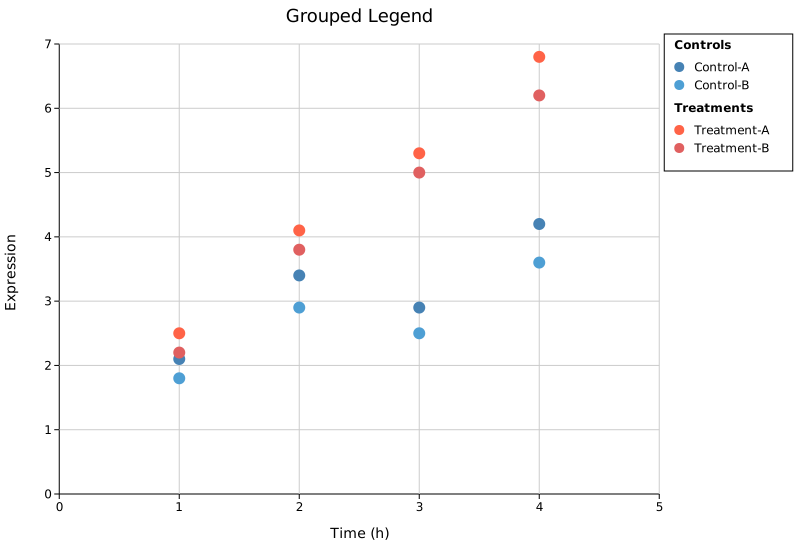
Group titles are rendered in bold. A half-line gap separates consecutive groups.
Manual entries
.with_legend_entries(entries) replaces auto-collected entries with a list you supply directly. Use this when the auto-collected legend is wrong or incomplete — for example, when you want to show a line swatch for a scatter series.
LegendShape controls the swatch drawn next to each label:
| Shape | Appearance |
|---|---|
Rect | Filled rectangle (default for bar/area plots) |
Circle | Filled circle |
Line | Short horizontal line |
Marker(MarkerShape) | Point marker (Square, Triangle, Diamond, Cross) |
CircleSize(f64) | Sized circle (used by dot-plot size legend) |
#![allow(unused)] fn main() { use kuva::prelude::*; use kuva::plot::legend::{LegendEntry, LegendShape}; let entries = vec![ LegendEntry { label: "Healthy".into(), color: "steelblue".into(), shape: LegendShape::Circle, dasharray: None }, LegendEntry { label: "At risk".into(), color: "orange".into(), shape: LegendShape::Rect, dasharray: None }, LegendEntry { label: "Diseased".into(), color: "crimson".into(), shape: LegendShape::Line, dasharray: None }, ]; let layout = Layout::auto_from_plots(&plots) .with_legend_entries(entries); }
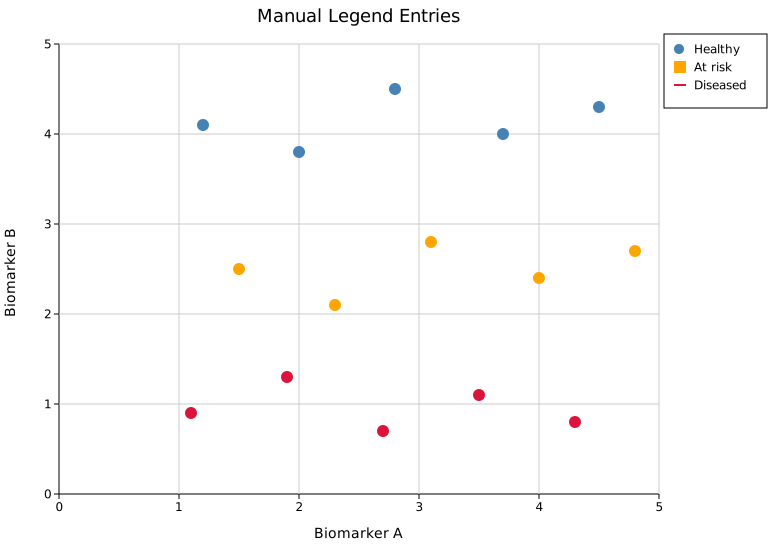
Sizing
Legend dimensions are auto-computed: width from the longest label (~8.5 px per character) and height from the entry count. Override either when the defaults are off for your data.
Width override — long labels
#![allow(unused)] fn main() { use kuva::prelude::*; let layout = Layout::auto_from_plots(&plots) .with_legend_width(230.0); }
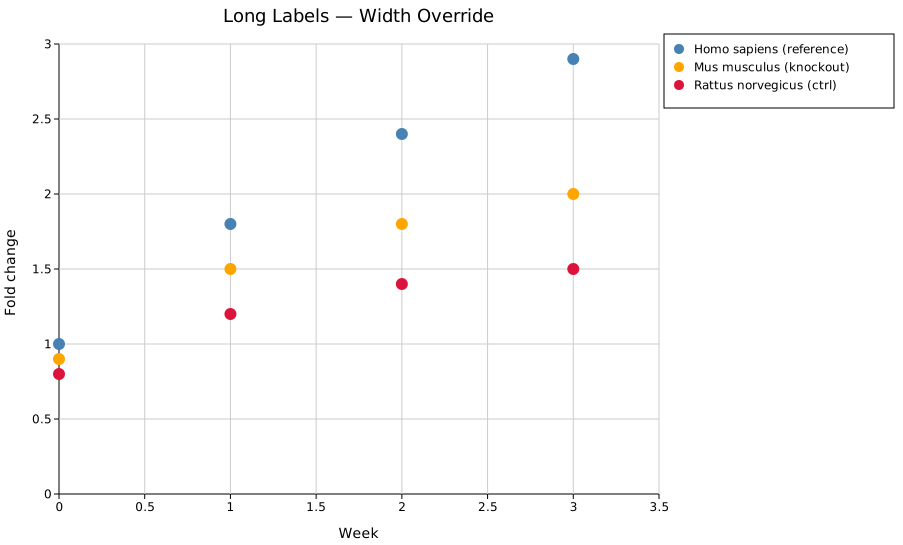
.with_legend_height(px) is the corresponding height override. Both are escape hatches — you rarely need them with ordinary label lengths.
Shared legend in a Figure
When a Figure contains multiple panels with the same series, use .with_shared_legend() to collect all entries into a single figure-level legend. Per-panel legends are suppressed automatically.
#![allow(unused)] fn main() { use kuva::prelude::*; let scene = Figure::new(1, 2) .with_plots(vec![panel_a, panel_b]) .with_layouts(vec![layout_a, layout_b]) .with_shared_legend() // collects entries from all panels; legend to the right .render(); }
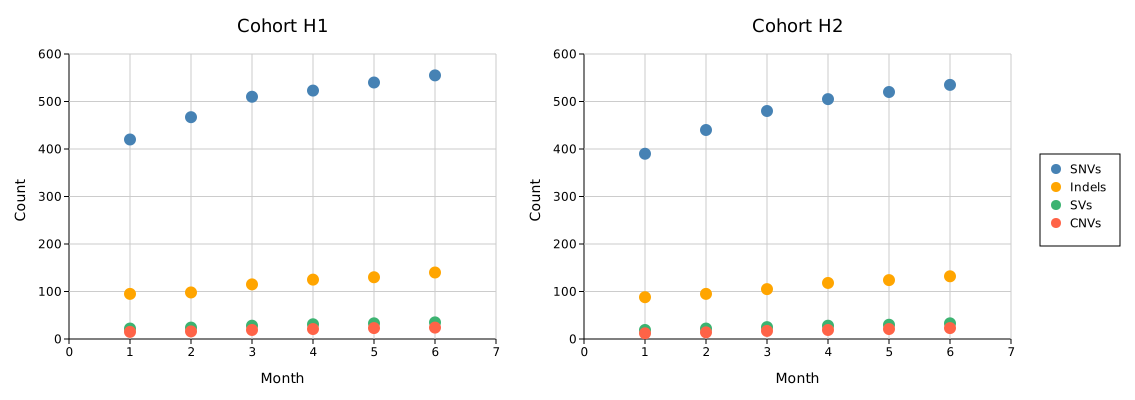
.with_shared_legend_bottom() places the legend below the grid instead. To supply manual entries for the shared legend:
#![allow(unused)] fn main() { use kuva::plot::legend::{LegendEntry, LegendShape}; figure.with_shared_legend_entries(vec![ LegendEntry { label: "SNVs".into(), color: "steelblue".into(), shape: LegendShape::Circle, dasharray: None }, LegendEntry { label: "Indels".into(), color: "orange".into(), shape: LegendShape::Circle, dasharray: None }, LegendEntry { label: "SVs".into(), color: "mediumseagreen".into(), shape: LegendShape::Circle, dasharray: None }, LegendEntry { label: "CNVs".into(), color: "tomato".into(), shape: LegendShape::Circle, dasharray: None }, ]) }
API quick reference
Position builders on Layout
| Method | Description |
|---|---|
.with_legend_position(LegendPosition) | Choose any preset position variant |
.with_legend_at(x, y) | Absolute SVG canvas pixel coordinates (Custom variant) |
.with_legend_at_data(x, y) | Data-space coordinates mapped through axes at render time |
Appearance builders on Layout
| Method | Default | Description |
|---|---|---|
.with_legend_box(bool) | true | Show or hide the background and border rects |
.with_legend_title(s) | — | Bold header row above all entries |
.with_legend_width(px) | auto | Override the auto-computed legend box width |
.with_legend_height(px) | auto | Override the auto-computed legend box height |
Content builders on Layout
| Method | Priority | Description |
|---|---|---|
.with_legend_group(title, entries) | Highest | Add a named group; multiple calls stack |
.with_legend_entries(Vec<LegendEntry>) | Medium | Replace auto-collection with a flat list |
| (auto-collection from plot data) | Lowest | Default; uses .with_legend("label") calls on plots |
LegendPosition variants
Inside (overlay, 8 px inset from axes — no margin added):
InsideTopRight, InsideTopLeft, InsideBottomRight, InsideBottomLeft, InsideTopCenter, InsideBottomCenter
Outside (canvas expands to fit):
OutsideRightTop (default), OutsideRightMiddle, OutsideRightBottom,
OutsideLeftTop, OutsideLeftMiddle, OutsideLeftBottom,
OutsideTopLeft, OutsideTopCenter, OutsideTopRight,
OutsideBottomLeft, OutsideBottomCenter, OutsideBottomRight,
OutsideBottomColumns
Freeform (no margin change):
Custom(f64, f64) — pixel coordinates; DataCoords(f64, f64) — data coordinates
Themes
Themes control the colours of all plot chrome — background, axes, grid lines, tick marks, text, and legend. Plot data colours are not affected by themes; those come from the color passed to each plot or from a Palette.
Four built-in themes are available. The default is light.
Applying a theme
Rust API
#![allow(unused)] fn main() { use kuva::render::layout::Layout; use kuva::render::theme::Theme; let layout = Layout::auto_from_plots(&plots) .with_theme(Theme::dark()); }
CLI
kuva scatter data.tsv --x x --y y --theme dark
kuva bar data.tsv --label-col gene --value-col count --theme minimal
Available CLI values: light, dark, minimal, solarized.
Built-in themes
light (default)
White background, black axes and text, light gray grid lines.
| Property | Value |
|---|---|
| Background | white |
| Axes / ticks / text | black |
| Grid | #ccc |
| Legend background | white |
| Legend border | black |
| Font | DejaVu Sans, Verdana, Liberation Sans, Arial, sans-serif (default) |
| Grid shown | yes |
dark
Dark charcoal background, light gray text and axes.
| Property | Value |
|---|---|
| Background | #1e1e1e |
| Axes / ticks | #cccccc |
| Text | #e0e0e0 |
| Grid | #444444 |
| Legend background | #2d2d2d |
| Legend border | #666666 |
| Font | DejaVu Sans, Verdana, Liberation Sans, Arial, sans-serif (default) |
| Grid shown | yes |
minimal
White background, no grid, serif font, no legend border. Suited for publication figures where grid lines add visual noise.
| Property | Value |
|---|---|
| Background | white |
| Axes / ticks / text | black |
| Grid | #e0e0e0 |
| Legend border | none |
| Font | serif |
| Grid shown | no |
solarized
Warm cream background based on Ethan Schoonover's Solarized palette.
| Property | Value |
|---|---|
| Background | #fdf6e3 |
| Axes / ticks | #586e75 |
| Text | #657b83 |
| Grid | #eee8d5 |
| Legend background | #fdf6e3 |
| Legend border | #93a1a1 |
| Font | DejaVu Sans, Verdana, Liberation Sans, Arial, sans-serif (default) |
| Grid shown | yes |
Fonts and portability
The default font stack — DejaVu Sans, Verdana, Liberation Sans, Arial, sans-serif — is resolved by the viewer or renderer at display time. This works on any desktop system but can fail in minimal environments (containers, CI pipelines, bioconda recipes) where no system fonts are installed.
kuva handles this in two ways depending on output format:
PNG and PDF always work, regardless of system fonts. DejaVu Sans is bundled inside the crate and loaded into the font database before the system font scan, so text renders correctly even in a bare container.
SVG references fonts by name and relies on the viewer. If your SVG will be processed by rsvg-convert, Inkscape, or a similar tool on a font-free system, pass --embed-font on the CLI or call .with_embedded_font(true) on SvgBackend:
#![allow(unused)] fn main() { use kuva::backend::svg::SvgBackend; use kuva::render::render::render_multiple; let scene = render_multiple(plots, layout); let svg = SvgBackend::new() .with_embedded_font(true) .render_scene(&scene); }
This injects a base64 @font-face block into the SVG, making it self-contained at the cost of roughly 1 MB of added file size. Leave it off (the default) for normal SVG output where smaller files are preferable.
Custom themes
Build a Theme struct directly to set any combination of properties:
#![allow(unused)] fn main() { use kuva::render::theme::Theme; let theme = Theme { background: "#0d1117".into(), // GitHub dark background axis_color: "#8b949e".into(), grid_color: "#21262d".into(), tick_color: "#8b949e".into(), text_color: "#c9d1d9".into(), legend_bg: "#161b22".into(), legend_border: "#30363d".into(), pie_leader: "#8b949e".into(), box_median: "#0d1117".into(), violin_border: "#8b949e".into(), colorbar_border: "#8b949e".into(), font_family: None, // None inherits the default: "DejaVu Sans, Verdana, Liberation Sans, Arial, sans-serif" show_grid: true, }; let layout = Layout::auto_from_plots(&plots).with_theme(theme); }
Color Palettes
A Palette is a named, ordered list of colors that auto-cycles across plots. Palettes are used to assign consistent, visually distinct colors to multiple series without specifying each one manually.
Using a palette
Auto-cycle across plots
Pass a palette to Layout::with_palette() and kuva assigns colors in order to each plot that does not already have an explicit color set:
#![allow(unused)] fn main() { use kuva::render::layout::Layout; use kuva::render::palette::Palette; let layout = Layout::auto_from_plots(&plots) .with_palette(Palette::wong()); }
Manual indexing
Index directly into a palette with []. Indexing wraps with modulo, so pal[n] is always valid regardless of palette size:
#![allow(unused)] fn main() { let pal = Palette::tol_bright(); let color_a = &pal[0]; // "#4477AA" let color_b = &pal[1]; // "#EE6677" let color_c = &pal[7]; // wraps: same as pal[0] }
CLI
kuva scatter data.tsv --x x --y y --palette wong
kuva line data.tsv --x-col time --y-col value --color-by group --palette tol_muted
Available CLI values: wong, okabe_ito, tol_bright, tol_muted, tol_light, ibm, category10, pastel, bold, plus the LTC palettes below: paloma, maya, dora, ploen, olga, mterese, franscoise, fernande, sylvie, expevo, minou, alger, seafarer, luminaries, casa-natal (an optional ltc- prefix is accepted, e.g. ltc-maya).
For convenience, --cvd-palette TYPE selects a colorblind-safe palette by condition name: deuteranopia, protanopia, tritanopia.
Built-in palettes
Colorblind-safe
| Constructor | N | Colors |
|---|---|---|
Palette::wong() | 8 | #E69F00 #56B4E9 #009E73 #F0E442 #0072B2 #D55E00 #CC79A7 #000000 |
Palette::okabe_ito() | 8 | Same as Wong — widely known by both names |
Palette::tol_bright() | 7 | #4477AA #EE6677 #228833 #CCBB44 #66CCEE #AA3377 #BBBBBB |
Palette::tol_muted() | 10 | #CC6677 #332288 #DDCC77 #117733 #88CCEE #882255 #44AA99 #999933 #AA4499 #DDDDDD |
Palette::tol_light() | 9 | #77AADD #EE8866 #EEDD88 #FFAABB #99DDFF #44BB99 #BBCC33 #AAAA00 #DDDDDD |
Palette::ibm() | 5 | #648FFF #785EF0 #DC267F #FE6100 #FFB000 |
Recommendations:
wong/okabe_ito— best general choice; safe for deuteranopia and protanopia (~7% of males)tol_bright— safe for tritanopia; good for presentationstol_muted— 10 colors for larger datasets; safe for all common CVD typesibm— compact 5-color set from the IBM Design Language
Colorblind condition aliases
These are convenience constructors that return an appropriate palette for a specific condition:
| Constructor | Returns | Safe for |
|---|---|---|
Palette::deuteranopia() | Wong | Red-green (~6% of males) |
Palette::protanopia() | Wong | Red-green (~1% of males) |
Palette::tritanopia() | Tol Bright | Blue-yellow (rare) |
General-purpose
| Constructor | N | Colors |
|---|---|---|
Palette::category10() | 10 | #1f77b4 #ff7f0e #2ca02c #d62728 #9467bd #8c564b #e377c2 #7f7f7f #bcbd22 #17becf |
Palette::pastel() | 10 | #aec7e8 #ffbb78 #98df8a #ff9896 #c5b0d5 #c49c94 #f7b6d2 #c7c7c7 #dbdb8d #9edae5 |
Palette::bold() | 10 | #e41a1c #377eb8 #4daf4a #984ea3 #ff7f00 #a65628 #f781bf #999999 #66c2a5 #fc8d62 |
category10 is the default when no palette is set.
LTC palettes
Curated qualitative palettes from loukesio/ltc-color-palettes (MIT licensed), named after Picasso's muses and a few places. They are hand-picked for small-cardinality categorical series where the ColorBrewer/Tableau defaults feel clinical. Hex values are shown so you can lift them directly.
Palette::paloma() (5 colours): soft coral, sage, and butter
#83AF9B #C8C8A9 #F8DA8A #F7BF95 #FE8CA1
Palette::maya() (5 colours): navy, sky, ice, coral, ink
#3D5A80 #98C1D9 #E0FBFC #EE6C4D #293241
Palette::dora() (5 colours): teal, plum, and warm reds
#52777A #542437 #C02942 #D95B43 #ECD078
Palette::ploen() (5 colours): slate blues, mauve, and peach
#3F5671 #83A1C3 #CEB5C8 #FAC898 #B17776
Palette::olga() (5 colours): pastel green, teal, gold, apricot, mauve
#C9E3C2 #8BC8CB #ECCD80 #F5AB70 #9C87A1
Palette::mterese() (5 colours): cream, apricot, pink, and cornflower
#F7DDAA #FAC3AD #F897A1 #9298BA #9CBEED
Palette::franscoise() (5 colours): blues, mauve, and warm reds
#5980B1 #B96A8D #A55062 #E05256 #E9A986
Palette::fernande() (4 colours): coral, yellow, green, blue
#FF7676 #F9D662 #7CAB7D #75B7D1
Palette::sylvie() (5 colours): gold, coral, lavender, teal, pink
#E8B961 #E88170 #C6BDE8 #5DB7C4 #FD95BC
Palette::expevo() (6 colours): high-contrast orange, gold, teal, plum, navy, grey
#FC4E07 #E7B800 #00AFBB #8B4769 #1D457F #808080
Palette::minou() (6 colours): teal, red, gold, green, ink, slate
#00798C #D1495B #EDAE49 #66A182 #2E4057 #8D96A3
Palette::alger() (5 colours): black, teal, sage, gold, red
#000000 #1A5B5B #ACC8BE #F4AB5C #D1422F
Palette::seafarer() (5 colours): deep teal, cream, sage, moss, sand
#013D5A #FCF3E3 #BDD3CE #708C69 #E4A25B
Palette::luminaries() (6 colours): orange, teal, charcoal, ivory, gold, mist
#FF5B04 #075056 #233038 #FDF6E3 #F4D47C #D3DBDD
Palette::casa_natal() (9 colours): vibrant nine-colour set for larger categorical scales
#245E55 #ED773C #808BC5 #C63F3E #EAC119 #EAA7C7 #9ED6DF #1D1D1B #EAE4DA
Custom palettes
#![allow(unused)] fn main() { use kuva::render::palette::Palette; let pal = Palette::custom( "my_palette", vec!["#264653".into(), "#2a9d8f".into(), "#e9c46a".into(), "#f4a261".into(), "#e76f51".into()], ); let layout = Layout::auto_from_plots(&plots).with_palette(pal); }
API reference
| Method | Description |
|---|---|
Palette::wong() | Bang Wong 8-color colorblind-safe palette |
Palette::okabe_ito() | Alias for Wong |
Palette::tol_bright() | Paul Tol qualitative bright, 7 colors |
Palette::tol_muted() | Paul Tol qualitative muted, 10 colors |
Palette::tol_light() | Paul Tol qualitative light, 9 colors |
Palette::ibm() | IBM Design Language, 5 colors |
Palette::deuteranopia() | Alias for Wong |
Palette::protanopia() | Alias for Wong |
Palette::tritanopia() | Alias for Tol Bright |
Palette::category10() | Tableau/D3 Category10, 10 colors (default) |
Palette::pastel() | Pastel variant of Category10, 10 colors |
Palette::bold() | High-saturation vivid, 10 colors |
Palette::paloma() … Palette::casa_natal() | LTC qualitative palettes (see the LTC section above) |
Palette::custom(name, colors) | User-defined palette |
pal[i] | Color at index i; wraps with modulo |
pal.len() | Number of colors |
pal.colors() | Slice of all color strings |
pal.iter() | Cycling iterator (never returns None) |
Colormaps
A ColorMap maps a normalized value in [0.0, 1.0] to a CSS color string. Use it wherever a plot encodes a continuous quantity as color: heatmap cell values, hexbin/2D-histogram density, treemap/sunburst second-dimension coloring, 3D surface height, and more. This is a different tool from a Palette: a palette assigns distinct colors to separate categorical series, while a colormap encodes one continuous variable along a gradient.
All 38 built-in variants
Every gradient below is rendered directly from the real ColorMap::map() function, not a hand-approximated copy.
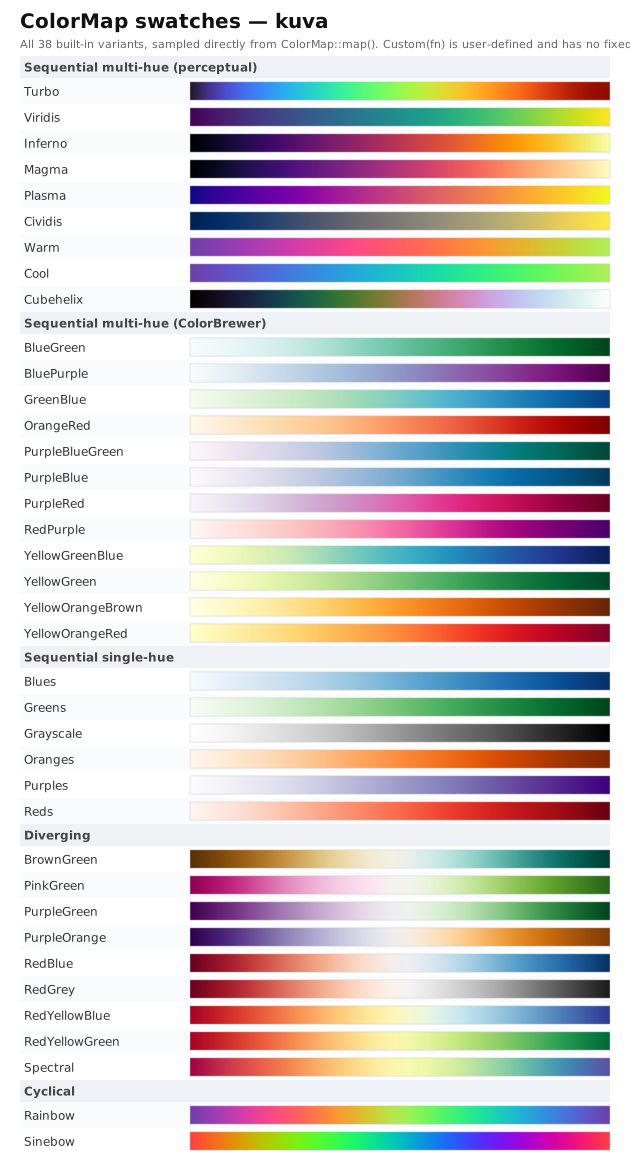
Using a colormap
On a plot
Most plot types that encode continuous values take a colormap via .with_color_map() (or a type-specific equivalent):
#![allow(unused)] fn main() { use kuva::plot::{ColorMap, Heatmap}; let heatmap = Heatmap::new() .with_data(vec![vec![1.0, 2.0], vec![3.0, 4.0]]) .with_color_map(ColorMap::Viridis); }
Sampling directly
ColorMap::map(value) returns the CSS color at that point on the gradient, useful for building custom legends, annotations, or your own derived visuals:
#![allow(unused)] fn main() { use kuva::plot::ColorMap; let cmap = ColorMap::Turbo; let low = cmap.map(0.0); // color at the start of the gradient let mid = cmap.map(0.5); // color at the midpoint let high = cmap.map(1.0); // color at the end }
CLI
Most subcommands that support a colormap accept --colormap <name>:
kuva heatmap data.tsv --colormap viridis
kuva hexbin data.tsv --x x --y y --colormap turbo
kuva treemap data.tsv --color-by value --colormap plasma
Accepted names are case-insensitive and accept either a bare word or a hyphenated ColorBrewer-style alias (e.g. yellow-green-blue, yellowgreenblue, and ylgnbu all resolve to the same colormap). An unrecognized name falls back to viridis with a warning rather than failing.
Custom colormaps
Wrap any f64 -> String mapping in ColorMap::Custom for a colormap kuva doesn't ship:
#![allow(unused)] fn main() { use std::sync::Arc; use kuva::plot::ColorMap; // Blue-to-red diverging scale let cmap = ColorMap::Custom(Arc::new(|t: f64| { let r = (t * 255.0) as u8; let b = ((1.0 - t) * 255.0) as u8; format!("rgb({r},0,{b})") })); }
Custom has no fixed swatch since its output depends entirely on the closure you provide.
API reference
| Variant category | Variants |
|---|---|
| Sequential multi-hue (perceptual) | Turbo, Viridis, Inferno, Magma, Plasma, Cividis, Warm, Cool, Cubehelix |
| Sequential multi-hue (ColorBrewer) | BlueGreen, BluePurple, GreenBlue, OrangeRed, PurpleBlueGreen, PurpleBlue, PurpleRed, RedPurple, YellowGreenBlue, YellowGreen, YellowOrangeBrown, YellowOrangeRed |
| Sequential single-hue | Blues, Greens, Grayscale, Oranges, Purples, Reds |
| Diverging | BrownGreen, PinkGreen, PurpleGreen, PurpleOrange, RedBlue, RedGrey, RedYellowBlue, RedYellowGreen, Spectral |
| Cyclical | Rainbow, Sinebow |
| Custom | Custom(Arc<dyn Fn(f64) -> String + Send + Sync>) (user-defined) |
| Method | Description |
|---|---|
cmap.map(value) | CSS color string at value (clamped to [0.0, 1.0]) |
Picking a colormap:
Viridisis the default for most plots; perceptually uniform and colorblind-safe, a safe general choice.- Reach for
Grayscalewhen a plot needs to survive black & white printing (see Black & White / Accessibility Mode). - Use a diverging colormap (
RedBlue,PurpleGreen,Spectral, ...) when the data has a meaningful zero or midpoint, e.g. log-fold-change or a correlation coefficient, so the two directions read as visually distinct. - Use
RainboworSinebowonly for genuinely cyclical data (e.g. angle, day-of-year, phase), never for a plain sequential quantity: cyclical colormaps wrap back to their starting hue, which reads as a false discontinuity on any variable that doesn't actually wrap.
Black & White / Accessibility Mode
BW mode redraws every plot so it stays legible without relying on color: discrete series are told apart by hatch pattern and grey shade instead of hue, lines cycle through dash styles, scatter markers cycle through shapes, and continuous colormaps are forced to a grayscale ramp. It exists for two overlapping needs — figures that will be printed or photocopied in greyscale, and readers with color-vision deficiencies who can't rely on hue-only encoding.
For a colored (not greyscale) approach to color-vision deficiency, see --cvd-palette in Shared flags instead — it remaps hues so a deuteranope/protanope/tritanope reader can still distinguish series by color. BW mode is the stronger guarantee: it works even when color reproduction fails entirely.
Enabling it
Rust API
.with_bw_mode() is the only change needed — everything else about the plot stays the same:
#![allow(unused)] fn main() { use kuva::backend::svg::SvgBackend; use kuva::plot::BarPlot; use kuva::render::layout::Layout; use kuva::render::plots::Plot; use kuva::render::render::render_multiple; let plot = BarPlot::new() .with_group("Q1", vec![(18.0, "steelblue"), (12.0, "crimson"), (9.0, "seagreen")]) .with_group("Q2", vec![(22.0, "steelblue"), (17.0, "crimson"), (14.0, "seagreen")]) .with_legend(vec!["Product A", "Product B", "Product C"]) .with_stacked(); let plots = vec![Plot::Bar(plot)]; let layout = Layout::auto_from_plots(&plots) .with_bw_mode() .with_title("BW mode"); let scene = render_multiple(plots, layout); let svg = SvgBackend.render_scene(&scene); std::fs::write("bw_mode.svg", svg).unwrap(); }
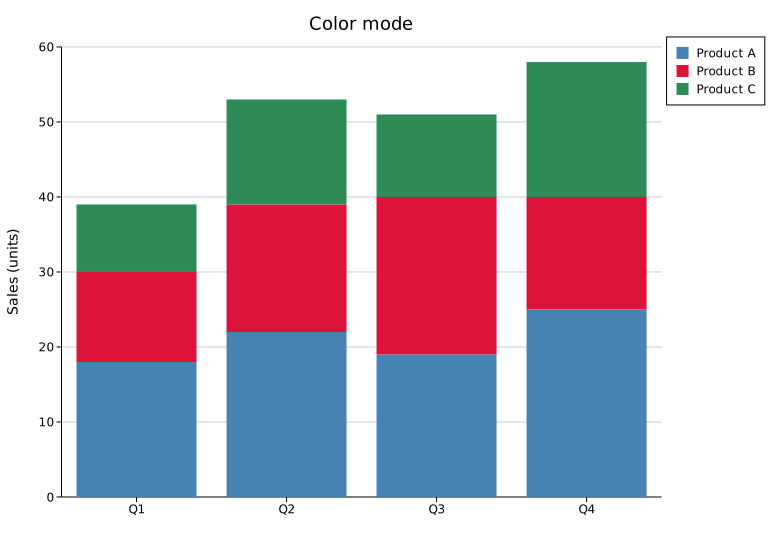 |
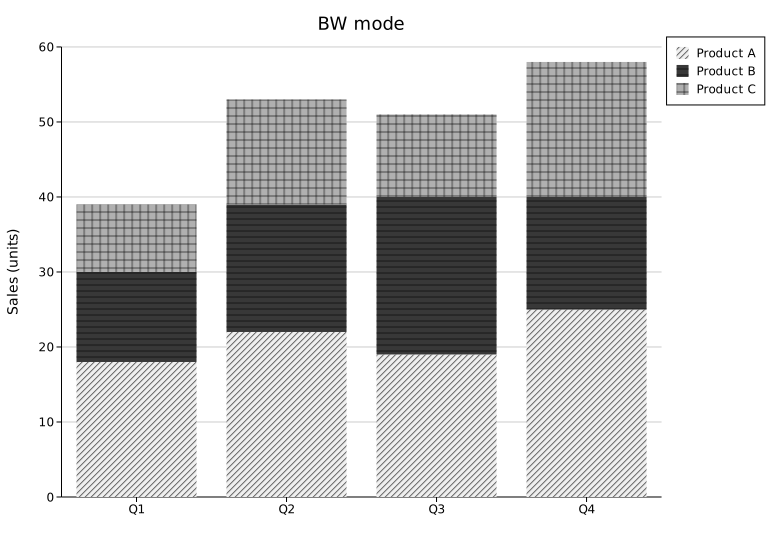 |
CLI
kuva scatter data.tsv --x x --y y --color-by group --legend --bw
kuva bar data.tsv --label-col category --value-col count --bw
--bw works on every subcommand and composes with --theme/--background — BW mode changes data encoding (series differentiation, colormaps), not chrome colors.
What changes
Discrete series (bar, box, violin, pie, area, and similar fills)
Each series/group gets one of 5 grey shades combined with one of 7 hatch patterns — 35 unique combinations before any repeat, so even plots with many groups stay distinguishable:
| Pattern | Description |
|---|---|
DiagonalForward | Forward-diagonal lines (///) |
Horizontal | Horizontal parallel lines |
Crosshatch | Horizontal + vertical grid |
Vertical | Vertical parallel lines |
Dots | Evenly spaced dots |
DiagonalBack | Back-diagonal lines (\\\) |
DiagonalCrosshatch | Forward + back diagonal grid (×××) |
Hatch line weight is a light 0.6px stroke (tuned so patterns read as texture, not bold stripes — see the CHANGELOG for the full comparison).
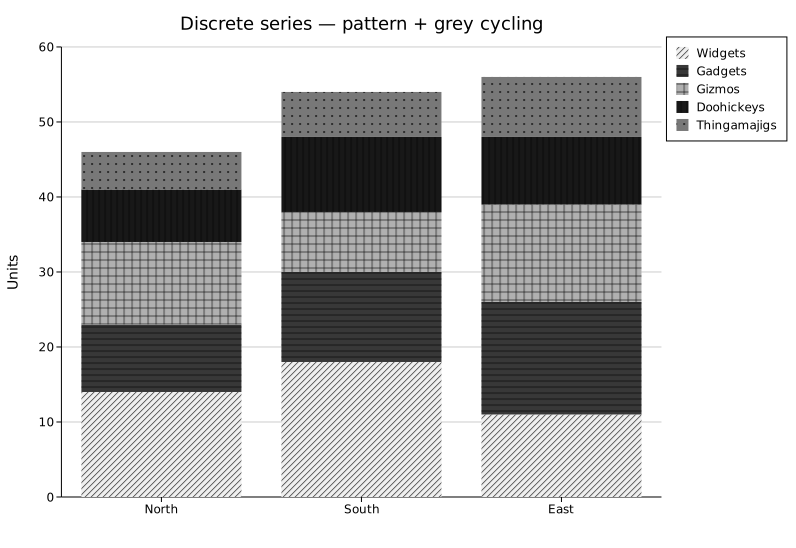
Lines
Each line series cycles through 4 dash styles: Solid, Dashed, Dotted, DashDot.
#![allow(unused)] fn main() { use kuva::backend::svg::SvgBackend; use kuva::plot::LinePlot; use kuva::render::layout::Layout; use kuva::render::plots::Plot; use kuva::render::render::render_multiple; let series: Vec<Plot> = vec![ ("Control", vec![(0.0, 2.0), (1.0, 2.4), (2.0, 2.1), (3.0, 2.8), (4.0, 3.0)]), ("Low dose", vec![(0.0, 2.0), (1.0, 3.1), (2.0, 3.6), (3.0, 4.0), (4.0, 4.5)]), ("High dose", vec![(0.0, 2.0), (1.0, 4.5), (2.0, 6.2), (3.0, 7.6), (4.0, 8.7)]), ] .into_iter() .map(|(name, data)| Plot::Line(LinePlot::new().with_data(data).with_legend(name))) .collect(); let layout = Layout::auto_from_plots(&series).with_bw_mode(); let svg = SvgBackend.render_scene(&render_multiple(series, layout)); std::fs::write("bw_lines.svg", svg).unwrap(); }
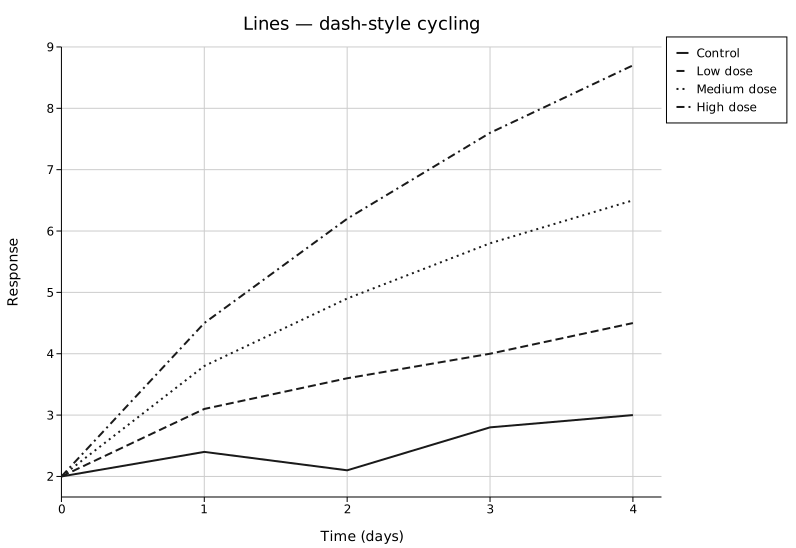
Scatter / point markers
Each series cycles through 6 marker shapes: Circle, Square, Triangle, Diamond, Cross, Plus.
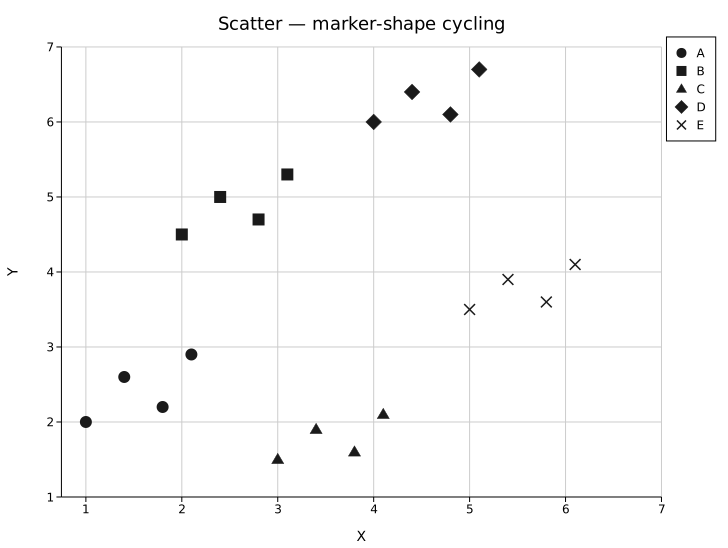
Continuous colormaps (heatmap, hexbin, contour, calendar, and similar)
Plots that encode a continuous numeric value via a colormap (rather than discrete series) swap their configured ColorMap for ColorMap::Grayscale — a white-to-black ramp — at render time. This is unconditional and doesn't require picking a colormap yourself; the swap happens automatically whenever bw_mode is on.
Scatter3D's colorbar is suppressed entirely in BW mode rather than grayscaled, since its point fills already ignore z_colormap in favor of a flat marker color.
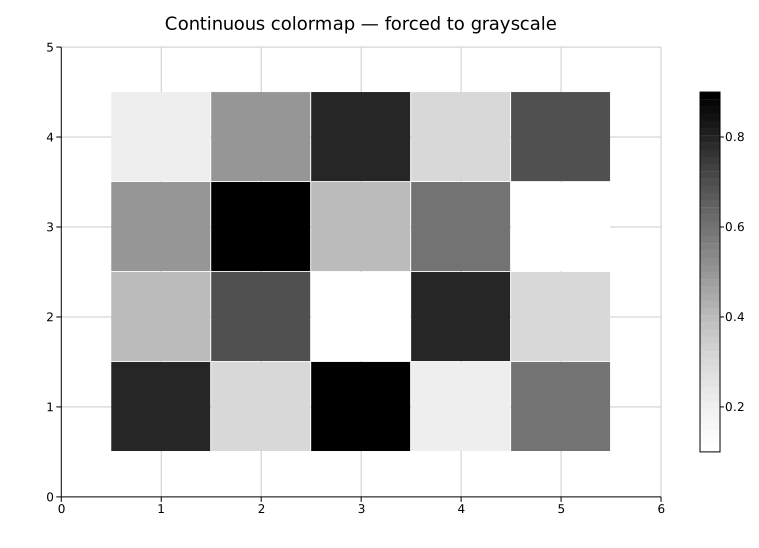
Coverage
All plot types in kuva support BW mode — pixel-space/composite plots (Chord, Sankey, PhyloTree, Synteny, Network, Treemap, Sunburst, Clustermap) included, each with its own bespoke fill/stroke treatment since they don't share a common bar/line/marker helper.
Known limitations
A few characteristics are accepted trade-offs rather than bugs, tracked for a future pass:
- Sankey / Synteny node borders. Ribbons intentionally share their source node's/sequence's pattern, so a node's rectangle boundary can be hard to see where a ribbon touches it with an identical pattern. Both get a thin outline in BW mode to mitigate this, but it isn't a complete fix — only about half the nominal stroke width survives, since the pattern-overlay rect drawn on top eclipses the inner half of the stroke.
- Hexbin / DotPlot / Quiver at the low end of the grayscale range.
ColorMap::Grayscaleruns white-to-black, so a data point near the low end renders very close to white — genuinely hard to see against a white page for plots whose fill primitive has no default outline (unlike Heatmap/Clustermap/Contour, where adjacent cells already have a border). Horizontalpattern at small cell sizes (e.g. Waffle's default cell size) can look nearly solid rather than textured — the tile period (6-8px) is comparable to the cell size itself, so thinning the stroke further doesn't help.
Custom pattern control
There is currently no user-facing way to choose which patterns/dashes/shapes are used or in what order, or to define custom patterns — BW mode always cycles through the fixed sequences above. A more flexible styling system (custom pattern palettes, additional built-in palette presets) is a candidate for a future release.
SVG Interactivity
kuva can embed browser interactivity directly into SVG output — no server, no external dependencies, no JavaScript CDN. Everything is self-contained in the .svg file.
Try it
The volcano plot below is fully interactive. Click inside it and try:
- Type
BRCA1in the search box to find it instantly - Try
TP53,MYC,KRAS,EGFR, or any gene name - Hover any point to see the gene name, fold change, and p-value
- Click a point to pin it; Escape to clear
- Click Up or Down in the legend to toggle those series
Generated with: kuva volcano data.tsv --name-col gene --x-col log2fc --y-col pvalue --legend --interactive --top-n 15 -o volcano.svg
Enabling it
Library:
#![allow(unused)] fn main() { let layout = Layout::auto_from_plots(&plots) .with_interactive(); }
CLI:
kuva scatter data.tsv --x x --y y --color-by group --legend --interactive -o plot.svg
The flag is accepted by every subcommand. Open the output file in any modern browser (Chrome, Firefox, Safari, Edge).
Features
| Feature | How to use |
|---|---|
| Hover tooltip | Move the cursor over any data point to see its label and value |
| Click to pin | Click a point to keep it highlighted; click again or press Escape to clear |
| Search | Type in the search box (top-left of the plot area) to dim non-matching points; Escape clears |
| Coordinate readout | While the cursor is inside the plot area, the current x/y in data space is shown near the cursor |
| Legend toggle | Click a legend entry to hide that series; click again to show it |
| Save SVG | The Save button (top-right) captures the current DOM state. Download is not yet functional. |
Plot support
Interactivity is fully wired (hover, search, legend toggle) for:
scatterlinebarstripvolcano
All other subcommands accept --interactive and render the coordinate readout and search UI, but individual data points do not yet respond to hover or search. Full renderer coverage is planned for a future release.
Non-SVG contexts
--interactive is silently ignored when:
- Output is PNG (
--features png) or PDF (--features pdf) - Output is the terminal (
--terminal) - The SVG is opened in Inkscape or Illustrator (script tags are stripped)
Non-interactive plots are byte-identical to today — the flag is purely additive.
Date & Time Axes
kuva plots use f64 for all axis values. Dates and times are represented as Unix timestamps in seconds, and the DateTimeAxis type tells the renderer how to format and space tick marks on a date axis.
Three helpers are exported from the prelude:
| Symbol | Description |
|---|---|
ymd(y, m, d) | Unix timestamp for a calendar date at midnight UTC |
ymd_hms(y, m, d, h, min, s) | Unix timestamp for a date + time UTC |
DateTimeAxis | Axis configuration: tick unit, step, and strftime format string |
Quick start
Convert your dates to f64 with ymd(), pass them as the x (or y) coordinate, and attach a DateTimeAxis to the layout:
#![allow(unused)] fn main() { use kuva::prelude::*; // Monthly temperature readings let data: Vec<(f64, f64)> = vec![ (ymd(2024, 1, 1), 3.2), (ymd(2024, 2, 1), 4.8), (ymd(2024, 3, 1), 8.1), // ... ]; let plot = LinePlot::new() .with_data(data) .with_color("steelblue"); let plots = vec![Plot::Line(plot)]; let layout = Layout::auto_from_plots(&plots) .with_title("Monthly Temperature") .with_x_label("Month") .with_y_label("°C") .with_x_datetime(DateTimeAxis::months("%b %Y")); let svg = render_to_svg(plots, layout); }
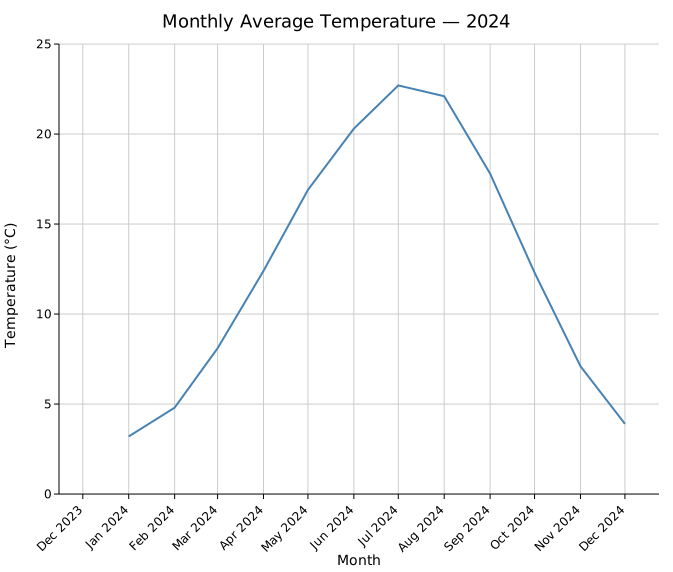
DateTimeAxis constructors
Each constructor takes a strftime-style format string for tick labels. The format is passed directly to chrono's NaiveDateTime::format.
| Constructor | Tick unit | Typical format |
|---|---|---|
DateTimeAxis::years(fmt) | 1 year | "%Y" |
DateTimeAxis::months(fmt) | 1 month | "%b %Y" |
DateTimeAxis::weeks(fmt) | 1 week (Mon) | "%b %d" |
DateTimeAxis::days(fmt) | 1 day | "%Y-%m-%d" |
DateTimeAxis::hours(fmt) | 1 hour | "%H:%M" |
DateTimeAxis::minutes(fmt) | 1 minute | "%H:%M" |
DateTimeAxis::auto(min, max) | auto-selected | auto |
.with_step(n) on any constructor places a tick every n units instead of every 1:
#![allow(unused)] fn main() { // Tick every 2 months DateTimeAxis::months("%b").with_step(2) }
Auto mode
DateTimeAxis::auto(min, max) inspects the axis range (in seconds) and selects an appropriate unit and format automatically. It is convenient when you don't know the data range ahead of time:
#![allow(unused)] fn main() { let min = data.iter().map(|(x, _)| *x).fold(f64::MAX, f64::min); let max = data.iter().map(|(x, _)| *x).fold(f64::MIN, f64::max); let layout = Layout::auto_from_plots(&plots) .with_x_datetime(DateTimeAxis::auto(min, max)); }
Scatter plot with dates
ymd() works the same for scatter plots — each point's x coordinate is a timestamp:
#![allow(unused)] fn main() { use kuva::prelude::*; let measurements: Vec<(f64, f64)> = vec![ (ymd(2024, 1, 3), 87.2), (ymd(2024, 1, 15), 85.7), (ymd(2024, 2, 5), 90.2), // ... ]; let plot = ScatterPlot::new() .with_data(measurements) .with_color("steelblue") .with_size(5.0); let plots = vec![Plot::Scatter(plot)]; let layout = Layout::auto_from_plots(&plots) .with_x_datetime(DateTimeAxis::weeks("%b %d")) .with_x_tick_rotate(-45.0); }
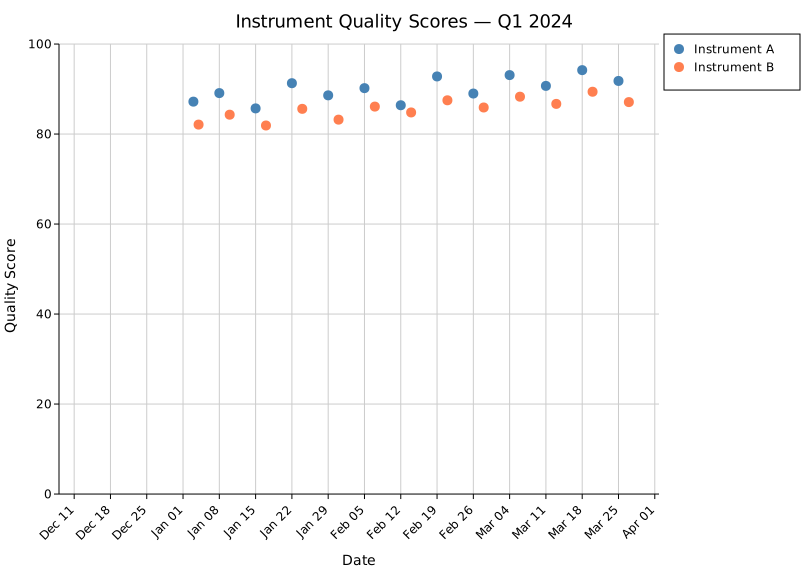
Multi-series with dates
Add .with_legend("name") to each plot to get a legend; the layout shows it automatically:
#![allow(unused)] fn main() { use kuva::prelude::*; let plots = vec![ Plot::Line( LinePlot::new() .with_data(series_a) .with_color("steelblue") .with_legend("Protocol A"), ), Plot::Line( LinePlot::new() .with_data(series_b) .with_color("coral") .with_legend("Protocol B"), ), ]; let layout = Layout::auto_from_plots(&plots) .with_x_datetime(DateTimeAxis::months("%b")); }
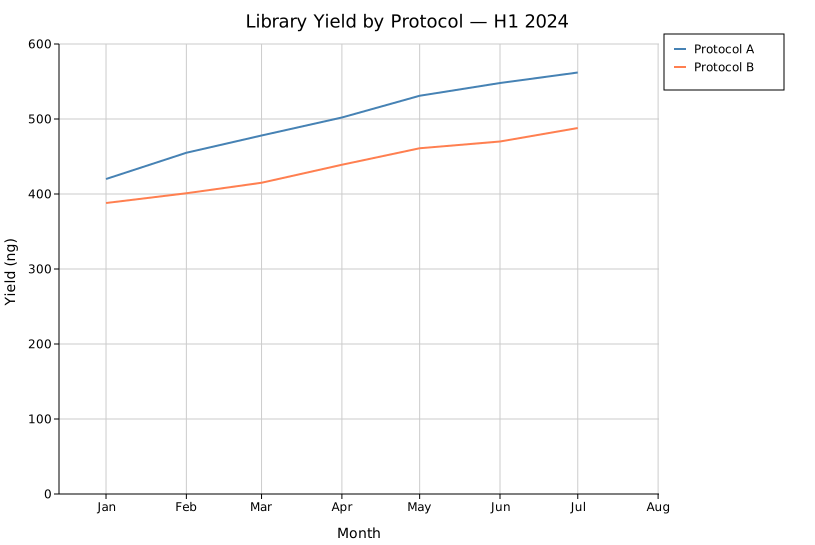
Sub-day granularity
For hourly or finer data, use ymd_hms() and a matching DateTimeAxis:
#![allow(unused)] fn main() { use kuva::prelude::*; let data: Vec<(f64, f64)> = vec![ (ymd_hms(2024, 6, 12, 8, 0, 0), 12.4), (ymd_hms(2024, 6, 12, 9, 0, 0), 34.7), (ymd_hms(2024, 6, 12, 10, 0, 0), 58.2), // ... ]; let layout = Layout::auto_from_plots(&plots) .with_x_datetime(DateTimeAxis::hours("%H:%M")); }
Applying to the y-axis
with_y_datetime() works identically to with_x_datetime() for plots where time is on the vertical axis:
#![allow(unused)] fn main() { let layout = Layout::auto_from_plots(&plots) .with_y_datetime(DateTimeAxis::days("%Y-%m-%d")); }
Converting from other date libraries
kuva stores dates as Unix timestamps (seconds, f64). Converting from any date library is straightforward:
chrono:
#![allow(unused)] fn main() { use chrono::NaiveDate; let ts = NaiveDate::from_ymd_opt(2024, 6, 1).unwrap() .and_hms_opt(0, 0, 0).unwrap() .and_utc() .timestamp() as f64; }
time crate:
#![allow(unused)] fn main() { use time::{Date, Month, PrimitiveDateTime, Time}; let dt = PrimitiveDateTime::new( Date::from_calendar_date(2024, Month::June, 1).unwrap(), Time::MIDNIGHT, ); let ts = dt.assume_utc().unix_timestamp() as f64; }
std::time::SystemTime:
#![allow(unused)] fn main() { use std::time::{SystemTime, UNIX_EPOCH}; let ts = SystemTime::now() .duration_since(UNIX_EPOCH) .unwrap() .as_secs_f64(); }
From the CLI
kuva scatter and kuva line accept --x-date-format <FMT> to parse the X column as a date/time directly from a TSV/CSV file, instead of converting to timestamps beforehand:
kuva line prices.tsv --x date --y close --x-date-format "%Y-%m-%d"
See CLI → Date/time X axis for the full flag reference (tick unit, tick format, and tick step overrides).
Stats Box
A stats box is a small bordered inset that displays pre-formatted text lines — R², p-values, AUC, sensitivity, or any other metric — inside the plot area. It solves a specific presentation problem: floating text placed directly on the canvas with .with_equation() or .with_correlation() can overlap data, lacks visual separation from the chart content, and is difficult to reposition without manual coordinate tuning.
The stats box is a Layout feature, not a plot-type feature. It works with any plot that uses standard axes.
Import path: kuva::render::layout::Layout (no additional import needed)
Basic usage
Pass a Vec of pre-formatted strings to .with_stats_box(). The box is placed in the top-left corner of the plot area by default.
#![allow(unused)] fn main() { use kuva::plot::scatter::{ScatterPlot, TrendLine}; use kuva::backend::svg::SvgBackend; use kuva::render::render::render_multiple; use kuva::render::layout::Layout; use kuva::render::plots::Plot; let data: Vec<(f64, f64)> = (1..=20) .map(|i| (i as f64, i as f64 * 1.9 + (i as f64 * 0.5).sin())) .collect(); let plot = ScatterPlot::new() .with_data(data) .with_color("steelblue") .with_size(5.0) .with_trend(TrendLine::Linear) .with_trend_color("crimson"); let plots = vec![Plot::Scatter(plot)]; let layout = Layout::auto_from_plots(&plots) .with_title("Gene Expression vs. Time") .with_x_label("Time (h)") .with_y_label("Expression (RPKM)") .with_stats_box(vec!["R² = 0.971", "p < 0.0001", "y = 1.9x + 0.4"]); let svg = SvgBackend.render_scene(&render_multiple(plots, layout)); }

You control the text content entirely — format the strings however your application computes them.
Adding a title
.with_stats_title() renders a bold heading above the entries. Useful when the box contains heterogeneous metrics.
#![allow(unused)] fn main() { use kuva::render::layout::Layout; use kuva::render::plots::Plot; let plots: Vec<Plot> = vec![]; let layout = Layout::auto_from_plots(&plots) .with_stats_title("Linear fit") .with_stats_box(vec!["R² = 0.971", "p < 0.0001", "y = 1.9x + 0.4"]); }
Positioning
.with_stats_box_at(position, entries) sets the position and entries in one call. All LegendPosition variants are accepted.
#![allow(unused)] fn main() { use kuva::plot::legend::LegendPosition; use kuva::render::layout::Layout; use kuva::render::plots::Plot; let plots: Vec<Plot> = vec![]; // Inside variants — overlaid on the plot area with an 8 px inset let layout = Layout::auto_from_plots(&plots) .with_stats_box_at( LegendPosition::InsideBottomRight, vec!["AUC = 0.883", "95% CI: 0.841–0.925"], ); // Outside variants — placed in the margin, same as legend Outside positions let layout = Layout::auto_from_plots(&plots) .with_stats_box_at( LegendPosition::OutsideRightTop, vec!["n = 240", "R² = 0.847"], ); }
The full set of position variants is documented on the Legends page.
Alternatively, set the position and entries separately:
#![allow(unused)] fn main() { use kuva::plot::legend::LegendPosition; use kuva::render::layout::Layout; use kuva::render::plots::Plot; let plots: Vec<Plot> = vec![]; let layout = Layout::auto_from_plots(&plots) .with_stats_entry("Sensitivity = 0.843") .with_stats_entry("Specificity = 0.779"); }
.with_stats_entry() appends one line at a time and is useful when building entries programmatically in a loop.
Hiding the border
The background rect and border are shown by default. Suppress them for a cleaner look when placing the box on a light background with well-separated data:
#![allow(unused)] fn main() { use kuva::render::layout::Layout; use kuva::render::plots::Plot; let plots: Vec<Plot> = vec![]; let layout = Layout::auto_from_plots(&plots) .with_stats_box(vec!["R² = 0.971", "p < 0.0001"]) .with_stats_box_border(false); }
Combining with a legend
When the stats box and the legend are at the same position they stack automatically — the stats box appears below the legend entries. No manual coordinate arithmetic is required.
#![allow(unused)] fn main() { use kuva::plot::scatter::{ScatterPlot, TrendLine}; use kuva::plot::legend::LegendPosition; use kuva::render::layout::Layout; use kuva::render::plots::Plot; use kuva::backend::svg::SvgBackend; use kuva::render::render::render_multiple; fn make_data(offset: f64) -> Vec<(f64, f64)> { (1..=20).map(|i| (i as f64, i as f64 * 1.9 + offset)).collect() } let a = ScatterPlot::new() .with_data(make_data(0.0)) .with_color("steelblue") .with_legend("Group A") .with_trend(TrendLine::Linear); let b = ScatterPlot::new() .with_data(make_data(5.0)) .with_color("crimson") .with_legend("Group B"); let plots = vec![Plot::Scatter(a), Plot::Scatter(b)]; let layout = Layout::auto_from_plots(&plots) .with_title("Two Groups") .with_stats_box_at( LegendPosition::InsideTopRight, vec!["R² = 0.971", "slope = 1.9"], ); }
ROC curve: sensitivity and specificity at a threshold
The stats box pairs naturally with RocPlot to show point metrics at a chosen operating threshold. Compute the values from your data, then format and pass them in:
#![allow(unused)] fn main() { use kuva::plot::{RocPlot, RocGroup}; use kuva::plot::legend::LegendPosition; use kuva::render::layout::Layout; use kuva::render::plots::Plot; fn logistic_dataset(n: usize, mu: f64, scale: f64) -> Vec<(f64, bool)> { vec![] } let group = RocGroup::new("Classifier") .with_raw(logistic_dataset(150, 1.0, 0.5)) .with_optimal_point(); let roc = RocPlot::new().with_group(group); let plots = vec![Plot::Roc(roc)]; // Values computed externally at the Youden-J optimal threshold: let layout = Layout::auto_from_plots(&plots) .with_title("ROC Curve") .with_x_label("1 − Specificity") .with_y_label("Sensitivity") .with_stats_box_at( LegendPosition::InsideBottomRight, vec![ "Optimal threshold", "Sensitivity = 0.843", "Specificity = 0.779", ], ); }
Scatter + trend line: preferred approach
The .with_equation() and .with_correlation() methods on ScatterPlot render the fit statistics as floating text directly in the data area, which can clash with dense point clouds. The stats box is the preferred approach for any plot where overlap is a concern:
#![allow(unused)] fn main() { use kuva::plot::scatter::{ScatterPlot, TrendLine}; use kuva::render::layout::Layout; use kuva::render::plots::Plot; // Preferred: stats box keeps statistics legible at any data density let data: Vec<(f64, f64)> = vec![]; let plot = ScatterPlot::new() .with_data(data) .with_color("steelblue") .with_trend(TrendLine::Linear); let plots = vec![Plot::Scatter(plot)]; let layout = Layout::auto_from_plots(&plots) .with_stats_box(vec!["R² = 0.847", "p < 0.0001", "y = 2.1x − 0.3"]); }
See the Scatter Plot page for the .with_equation() / .with_correlation() floating-text approach.
API reference
All methods are on Layout.
| Method | Default | Description |
|---|---|---|
.with_stats_box(entries) | — | Set the stats box entries; replaces any previously set entries |
.with_stats_entry(entry) | — | Append a single line to the stats box |
.with_stats_box_at(position, entries) | — | Set position and entries in one call |
.with_stats_title(title) | — | Bold heading rendered above the entries |
.with_stats_box_border(bool) | true | Show or hide the background rect and border |
Position default
The default position is LegendPosition::InsideTopLeft. Use .with_stats_box_at() to override it.
Math in Labels
Any label (plot title, axis labels, TextPlot markdown bodies) may embed math
inside $...$ using LaTeX-ish syntax. There are two rendering tiers, chosen by
how you build kuva:
-
Lookup tier (always available, zero dependencies): math is lowered to inline Unicode text at render time, in every backend including the terminal. The tables below show its output.
-
Typst tier (feature
typst-math): the whole label is typeset by the Typst compiler (linked as a library, no external binary) and embedded in SVG/PNG/PDF output as real 2-D math: stacked fractions, radicals with vinculum, large operators, math italic. The terminal always uses the lookup tier (a character grid can't hold typeset math).typst-mathis opt-in and is not part offull: it pulls a large dependency tree (the Typst compiler) and needs Rust 1.89 or newer, so you enable it explicitly with--features typst-math. The pre-built CLI binaries from the releases page do ship with it, since a downloaded binary has no way to opt in afterwards.
The same $...$ source drives both tiers, so code never changes; only the
fidelity of the output does.
#![allow(unused)] fn main() { Layout::new((0.0, 3.0), (0.0, 10.0)) .with_x_label("$\\log_2$ fold change") .with_y_label("$-\\log_{10}(p)$") .with_title("Differential expression ($\\alpha = 0.05$)"); }
A literal dollar sign is written \$. A $ without a closing partner is left
untouched as plain text.
Quick examples (lookup tier)
| Input | Output |
|---|---|
$\sigma^2$ | σ² |
$x_i$ | xᵢ |
$\mu \pm \sigma$ | μ ± σ |
$a \leq b \cdot c$ | a ≤ b · c |
$\frac{a+b}{c}$ | (a+b)/c |
$\sqrt{x^2+y^2}$ | √(x²+y²) |
$\sum_{i=1}^{n} x_i$ | ∑ᵢ₌₁ⁿ xᵢ |
$-\log_{10}(p)$ | -log₁₀(p) |
$\sin(\theta)$ | sin(θ) |
$\exp(-t)$ | exp(-t) |
$f \circ g$ | f ∘ g |
Supported syntax
Greek letters
Both cases: \alpha…\omega (lowercase) and \Gamma, \Delta, \Theta,
\Lambda, \Xi, \Pi, \Sigma, \Phi, \Psi, \Omega (uppercase).
Variants: \varepsilon → ε, \varphi → φ.
Operators, relations, arrows
\pm ±, \mp ∓, \times ×, \cdot ·, \div ÷, \circ ∘,
\leq ≤, \geq ≥, \neq ≠, \approx ≈, \equiv ≡, \sim ∼,
\propto ∝, \ll ≪, \gg ≫,
\in ∈, \notin ∉, \subset ⊂, \cup ∪, \cap ∩,
\infty ∞, \partial ∂, \nabla ∇, \degree °, \angle ∠,
\forall ∀, \exists ∃, \ldots …, \cdots ⋯,
\sum ∑, \prod ∏, \int ∫,
\to/\rightarrow →, \leftarrow ←, \Rightarrow ⇒, \Leftarrow ⇐,
\leftrightarrow ↔.
Operator names
Standard LaTeX function names pass through as plain text; their arguments and subscripts lower normally:
| Command | Output | Typical use |
|---|---|---|
\log | log | $\log_{10} x$ → log₁₀ x |
\ln | ln | $\ln(n)$ → ln(n) |
\exp | exp | $\exp(-t)$ → exp(-t) |
\sin | sin | $\sin(\theta)$ → sin(θ) |
\cos | cos | $\cos(\phi)$ → cos(φ) |
\tan | tan | $\tan(\alpha)$ → tan(α) |
\arcsin | arcsin | $\arcsin(x)$ → arcsin(x) |
\arccos | arccos | |
\arctan | arctan | |
\min | min | $\min(a,b)$ → min(a,b) |
\max | max | |
\lim | lim | $\lim_{x \to 0}$ → lim_(x → 0) |
\limsup | lim sup | |
\liminf | lim inf | |
\sup | sup | |
\inf | inf | (infimum, not infinity: use \infty for ∞) |
\arg | arg | |
\det | det | |
\dim | dim | |
\ker | ker | |
\gcd | gcd | |
\lcm | lcm | |
\Pr | Pr | |
\deg | deg |
Superscripts and subscripts
^ and _ take a single character or a {...} group. These are
all-or-nothing: every character in the group must have a Unicode
super/subscript form, otherwise the whole group falls back to a clean
x^(…) or x_(…), never a half-substituted mix.
x^2 → x² (digit, maps cleanly)
x^{2n} → x²ⁿ (both have superscript forms)
x^{2q} → x^(2q) (q has no superscript: clean fallback)
x_i → xᵢ
x_{i+1} → xᵢ₊₁
Braceless command operands work too: x^\alpha → x^(α), x_\beta → x_(β).
Fractions and radicals
\frac{a}{b} → a/b; multi-term parts are parenthesised: \frac{a+b}{c} →
(a+b)/c. Rendering is always inline: the output is plain text that flows
anywhere a label can go, including rotated y-axis titles and terminal grids.
\sqrt{x} → √x, \sqrt{x+y} → √(x+y), \sqrt[3]{x} → ³√x.
Typst tier
With the typst-math feature, $...$ labels upgrade automatically from the
inline Unicode above to real typeset math. A compile failure never breaks a plot:
the label falls back to the lookup tier and a one-time warning names the
expression and Typst's hint.
Typst math is not LaTeX. The $...$ body is LaTeX-flavoured for
familiarity, but in Typst a multi-letter run is a single identifier: mc is
not m × c, so $E = mc^2$ fails to compile (and falls back to the lookup
tier). Write the factors separated:
$E = m c^2$ ✓
$E = mc^2$ ✗ (lookup tier + a one-time warning)
Math in TextPlot bodies
$...$ inside a markdown TextPlot body is spliced into the wrapped
paragraph as a typeset fragment: kuva's own word-wrap treats each fragment as
one unbreakable word, the surrounding words stay real (selectable) text, and
a line holding a tall fragment (stacked fraction, radical) grows its leading
so neighbouring lines never collide.
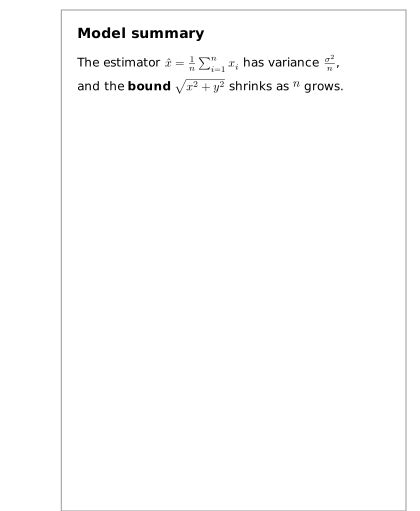
Emitting Typst markup (TypstBackend)
The typst-math feature typesets math into kuva's own output. The separate
typst feature does the opposite: it emits a .typ source document that you
compile yourself, so $...$ regions stay native Typst math and are typeset
with the fonts of the surrounding document rather than kuva's bundled ones.
That matters when a figure has to match the body text of a thesis or paper.
The feature has zero dependencies (it writes markup, it does not link the
compiler) and is not part of full:
kuva = { version = "0.6", features = ["typst"] }
#![allow(unused)] fn main() { use kuva::backend::typst::TypstBackend; let scene = render_multiple(plots, layout); let typ = TypstBackend::default().render_scene(&scene); std::fs::write("figure.typ", typ)?; }
Then compile it to PDF, SVG or PNG:
typst compile figure.typ
The output is a complete document built on CETZ
(pinned to a known-good version so a new CETZ release cannot break it).
Primitive coverage is full: Path lowers to CETZ merge-path calls with arcs
converted to cubic Beziers, so arrowheads, chord ribbons, sankey flows and venn
outlines survive; clip regions map to Typst's box(clip: true), so quiver and
network arrowheads and plot-area clipping round-trip correctly.
This backend is library-only. The CLI's -o accepts .svg, .png and
.pdf only, so a .typ is produced by constructing a TypstBackend in Rust.
Plot examples
Generated by cargo run --features full,typst-math --example math, so these
show the typst tier. Without typst-math the same code produces the
lookup tier's inline-Unicode forms instead:
Scientific axes
The standard RNA-seq and GWAS axis pair, $\log_2$ fold change /
$-\log_{10}(p)$:
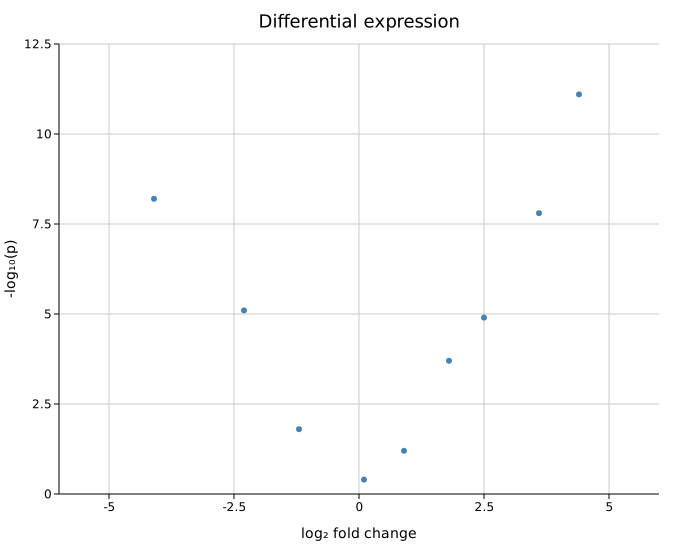
Trigonometric labels
$\sin(\theta)$ in the title and y-axis label:
Exponential decay
$\exp(-t)$ on the y-axis:
Greek letters and symbols
$\mu \pm \sigma$ on the x-axis:
Superscripts
$x^2 + y^2 = r^2$ as the x-axis label:
Fractions
$\frac{a+b}{c}$ → (a+b)/c:
Square root
$\sqrt{x^2+y^2}$ → √(x²+y²):
Summation with limits
$\sum_{i=1}^{n} x_i$ → ∑ᵢ₌₁ⁿ xᵢ:
Quadratic formula
$x = \frac{-b \pm \sqrt{b^2 - 4 a c}}{2 a}$. The lookup tier lowers this to x = (-b ± √(b² - 4 a c))/(2 a):
Mixed text and math
Rotated y-axis title
Energy $E = m c^2$. Math works in rotated labels too:
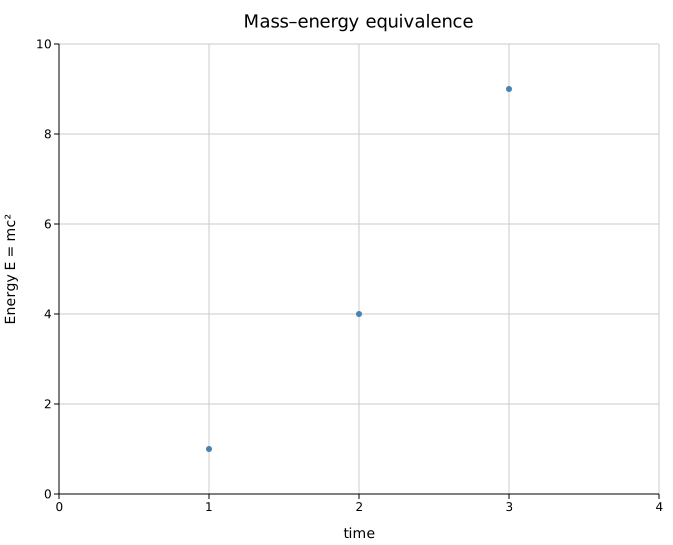
CLI
Math works in any label flag; no extra flags needed:
kuva scatter data.tsv \
--x log2fc --y neg_log10_pvalue \
--x-label '$\log_2$ fold change' \
--y-label '$-\log_{10}(p)$' \
--title 'Differential expression ($\alpha = 0.05$)' \
-o volcano.svg
The same labels render in the terminal backend with --terminal; the lowered
Unicode lands directly on the character grid.
Shell quoting
$ and \ are special characters in most shells. Single quotes are the
simplest way to pass math labels literally: the shell treats everything between
'...' as plain text:
--x-label '$\log_2$ fold change' # single quotes: $ and \ are literal
If you need to interpolate a shell variable into a label that also contains math, mix quote styles:
SAMPLE="$(basename "$file" .tsv)"
--title '$\sigma^2$ for '"$SAMPLE"
# ^^^^^^^^^^^^^^^^ literal ^^^^^^^^^ variable expands
Or use double quotes and escape both $ and \:
--title "\$\\sigma^2\$ for $SAMPLE"
# \$ → $, \\ → \, $SAMPLE → expands
On Windows (cmd.exe / PowerShell), $ and \ have no special meaning in
double-quoted strings, so no escaping is needed:
kuva scatter data.tsv --x-label "$\log_2$ fold change"
Benchmarks
kuva uses Criterion for statistical micro-benchmarks. All numbers on this page were collected on a release build (opt-level = 3) on AMD64 Linux. Timing is median wall-clock; HTML reports with per-sample distributions live in target/criterion/ after running.
Running the benchmarks
# All benchmark groups (requires the png + pdf backends to compile cleanly)
cargo bench --features full
# A single group
cargo bench --features full -- render
# HTML report (opens in browser)
open target/criterion/report/index.html
Criterion runs a 3-second warm-up then collects 100 samples per benchmark. The measurement is median time; outlier detection flags any samples more than 2 IQRs from the median.
Benchmark files
| file | what it measures |
|---|---|
benches/render.rs | Full pipeline (scene build + SVG emit) and SVG-only for scatter, scatter+errorbars, line, violin, manhattan, heatmap |
benches/kde.rs | simple_kde in isolation at 100 → 100k samples |
benches/svg.rs | SvgBackend::render_scene alone, N Circle primitives, no rendering pipeline |
Results
kde — Gaussian KDE (simple_kde, 256 evaluation points)
The truncated kernel sorts the input once then binary-searches for the window [x ± 4·bw] around each evaluation point. Only values inside that window contribute (Gaussian weight beyond 4σ is < 0.003%).
| n samples | time |
|---|---|
| 100 | 85.7 µs |
| 1,000 | 621 µs |
| 10,000 | 4.07 ms |
| 100,000 | 28.0 ms |
Scaling: ~6.8× per decade of n. For uniformly distributed data the window captures ~10% of points, giving roughly O(n^0.8 × samples) total work instead of the naive O(n × samples). On bounded data (e.g. sin-shaped violin groups) the window covers ~30% of points, yielding a ~3× improvement over naive.
render — scatter and line
| n=100 | n=1k | n=10k | n=100k | n=1M | |
|---|---|---|---|---|---|
| scatter scene+svg | 41 µs | 314 µs | 3.10 ms | 34.5 ms | 414 ms |
| scatter svg-only | 34 µs | 294 µs | 3.07 ms | 31.2 ms | 317 ms |
| scatter scene build | ~7 µs | ~20 µs | ~30 µs | ~3 ms | ~97 ms |
| line scene+svg | 39 µs | 262 µs | 2.49 ms | 28.6 ms | 308 ms |
At 1M points the SVG emit accounts for 317 ms (77% of total). The scene build — coordinate mapping, Vec allocation — costs ~97 ms. SVG generation rate: ~200 ns/element.
render — scatter with error bars
Each error bar adds 3 Line primitives (cap–shaft–cap), so n=100k scatter+errorbars emits 400k primitives vs 100k for plain scatter.
| n | plain scatter | with y_err | overhead |
|---|---|---|---|
| 100 | 41 µs | 175 µs | 4.3× |
| 1,000 | 314 µs | 1.70 ms | 5.4× |
| 10,000 | 3.10 ms | 18.8 ms | 6.1× |
| 100,000 | 34.5 ms | 222 ms | 6.5× |
render — violin (3 groups)
Violin SVG is cheap — three KDE curves emit ~10 path primitives regardless of n. All time is in KDE.
| n per group | scene+svg | svg-only | KDE cost |
|---|---|---|---|
| 100 | 557 µs | 20 µs | ~537 µs |
| 1,000 | 2.00 ms | 19 µs | ~1.98 ms |
| 10,000 | 12.7 ms | 25 µs | ~12.7 ms |
| 100,000 | 89.0 ms | 34 µs | ~89 ms |
The violin SVG time is flat at ~25 µs across all scales. KDE matches 3× the kde bench values exactly. Practical advice: violin plots are fast at the scales bioinformatics data actually produces (100–5000 points per group); 100k/group is an extreme stress test.
render — manhattan (22 chromosomes)
Pre-bucketing builds a HashMap<chr → Vec<idx>> once before the span loop, reducing chromosome lookups from O(22 × n) to O(n).
| n SNPs | time |
|---|---|
| 1,000 | 372 µs |
| 10,000 | 3.88 ms |
| 100,000 | 42.0 ms |
| 1,000,000 | 501 ms |
Scales linearly: each 10× increase in n costs ~10–12× more time. At 1M SNPs (a full GWAS): 501 ms including scene build and SVG emit. Note: this is render-only; file I/O for a 1M-row TSV adds read time on top.
render — heatmap (n×n matrix)
| n | cells | no values | with values | text overhead |
|---|---|---|---|---|
| 10 | 100 | 61.7 µs | 114 µs | 1.85× |
| 50 | 2,500 | 1.18 ms | 2.54 ms | 2.15× |
| 100 | 10,000 | 4.86 ms | 10.4 ms | 2.14× |
| 200 | 40,000 | 24.6 ms | — | — |
| 500 | 250,000 | 154 ms | — | — |
Scales with n² (doubling n quadruples cells). The single-loop merge means show_values costs exactly ~2× no-values — one extra format! and Text primitive per cell.
svg — raw string generation
Measures SvgBackend::render_scene on a scene containing only Circle primitives. Isolates the string formatting cost with no rendering pipeline.
| n circles | time | ns/element |
|---|---|---|
| 1,000 | 198 µs | 198 |
| 10,000 | 1.99 ms | 199 |
| 100,000 | 19.9 ms | 199 |
| 1,000,000 | 213 ms | 213 |
Perfectly linear. String::with_capacity pre-allocation eliminates reallocation variance. ~200 ns/element is the baseline cost of format! through the std::fmt machinery.
Interpretation
SVG string generation dominates at scale. For scatter/line at 1M points, 77% of total time is in SvgBackend::render_scene. Improving the SVG backend (e.g. write-to-file streaming, avoiding format! for simple floats) would have the most impact at extreme scales.
Violin is all KDE. The SVG stage for a violin scene is ~25 µs at any n — it's a handful of path curves. For n > 10k/group, consider whether that resolution is actually needed; downsampling to 10k rarely changes the visible shape.
Manhattan is now O(n). Pre-bucketing reduced chromosome filtering from O(22n) to O(n). A 1M-SNP GWAS renders in ~500 ms end-to-end (render only, excluding file I/O).
Error bars are expensive at scale. 3 extra primitives per point means 4–6× the cost of plain scatter. For large n with error bars, consider downsampling or rendering only bars for significant points.
Heatmap with values is 2×. The single-pass loop keeps the overhead exactly proportional — no wasted traversal.
PNG rendering
These benchmarks measure end-to-end wall time for producing PNG output — scene build, rasterisation, and encode. They cover three libraries on the same data at the same canvas size (1600×1200 @2× = 3200×2400 px effective).
Numbers below are means over 3 runs on AMD64 Linux, release build. Charton uses resvg for PNG; plotters draws directly into a pixel buffer; kuva uses its own direct rasteriser (added in v0.2.0).
Line plot
| library | 85k pts | 170k pts | 850k pts |
|---|---|---|---|
| kuva v0.2.0 baseline (via resvg) | 0.94 s | 2.29 s | 14.0 s |
| kuva v0.2.0 new-raster | 0.72 s | 1.39 s | 6.77 s |
| kuva v0.2.0 polyline-opt | 0.58 s | 1.09 s | 5.59 s |
| kuva v0.2.0 stadium | 0.63 s | 1.21 s | 6.19 s |
| charton (resvg) | 1.32 s | 3.26 s | 23.3 s |
| plotters | 0.035 s | 0.072 s | 0.33 s |
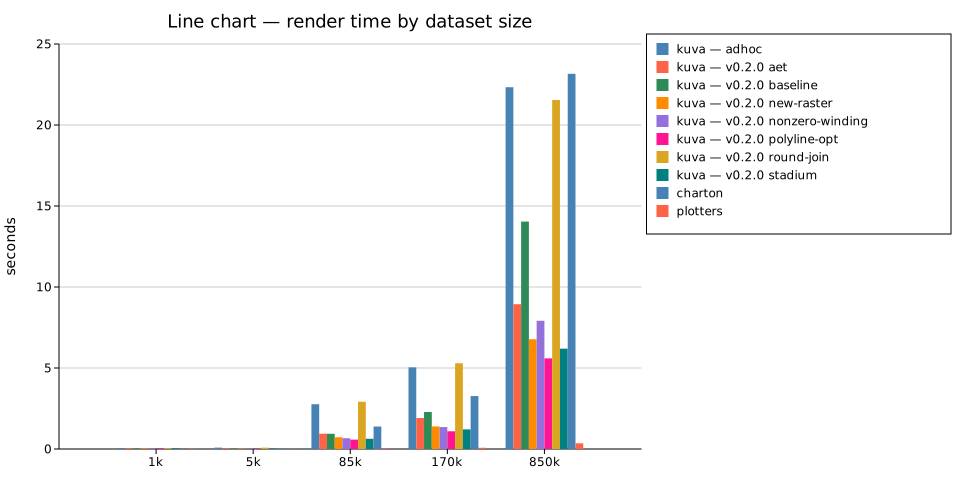
The stadium renderer is the current default for thick polylines. Each segment is rasterized as the exact set of pixels within hw of that segment (a capsule/stadium shape); adjacent stadiums overlap at joins to form correct round joins with no polygon construction, no self-intersection artifacts, and no join arc overshoot. It is ~30% faster than the AET polygon approach. Plotters is faster still because it draws hairlines with no anti-aliasing; kuva renders AA thick strokes.
Scatter plot
| library | 500k pts | 5M pts |
|---|---|---|
| kuva v0.2.0 baseline (via resvg) | 1.12 s | 11.2 s |
| kuva v0.2.0 stadium | 0.11 s | 0.93 s |
| charton (resvg) | 1.79 s | 17.2 s |
| plotters | 0.060 s | 0.53 s |
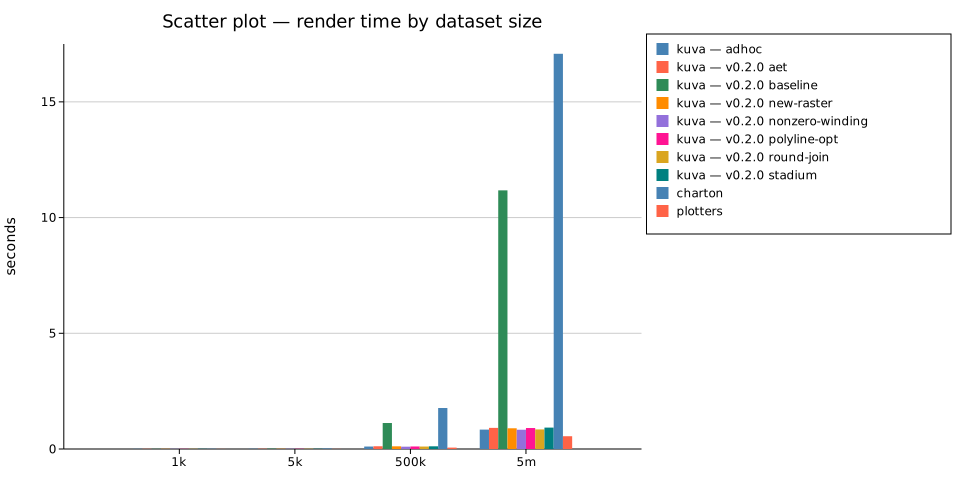
Scatter improved 12× vs the baseline. Most of the gain is from direct SDF circle rasterisation replacing the resvg SVG circle path. The stadium renderer does not affect scatter (scatter uses CircleBatch, not polylines).
Histogram
| library | 1M bins | 10M bins |
|---|---|---|
| kuva v0.2.0 baseline (via resvg) | 0.023 s | 0.183 s |
| kuva v0.2.0 stadium | 0.020 s | 0.199 s |
| charton (resvg) | 0.108 s | 1.045 s |
| plotters | 0.004 s | 0.005 s |
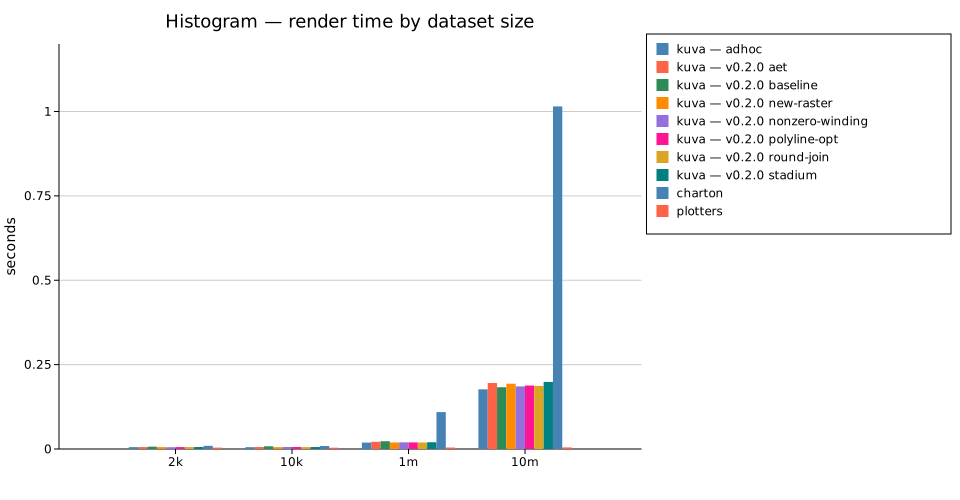
Histogram is dominated by bar rect primitives, which are cheap for all backends. plotters is essentially flat because it skips anti-aliasing on rects entirely; kuva renders AA-edged rects.
Running the comparison benchmarks
cd benches/rust_bench
# Run with a custom label (appends to benchmark_results.csv)
RUN_ID="my-tag" ITERATIONS=5 bash run_benchmarks.sh
Once benchmark_results.csv exists, bash scripts/gen_docs.sh (run from the repo root) will automatically rebuild plot_results, regenerate the SVGs, and copy them into docs/src/assets/bench/.
Optimisations applied
These were identified by profiling before benchmarks existed and confirmed by the benchmark numbers above:
| change | file | expected gain |
|---|---|---|
| Truncated KDE kernel (sort + binary search) | render_utils.rs | ~8× at 100k uniform data |
| Manhattan pre-bucketing (HashMap) | render.rs | ~22× at 1M SNPs with 22 chr |
Heatmap single-loop + no flat Vec | render.rs | ~2× for show_values; -1 alloc |
String::with_capacity in SVG backend | svg.rs | eliminates O(log n) reallocs |
| Direct raster backend (Wu lines, SDF circles, AET fill) | backend/raster.rs | 12× scatter, 2.5× line vs resvg |
Primitive::PolyLine — bypass SVG round-trip | render/render.rs, backend/raster.rs | ~17% improvement vs per-segment SVG path |
| Per-segment stadium fill for thick polylines | backend/raster.rs | ~30% faster than AET polygon; eliminates join artifacts |
DOOM
kuva generates scientific plots. It also generates a fully self-contained, playable DOOM SVG.
The file below is a single .svg. No server, no network requests, no external dependencies. Open it in any browser and play. Everything (engine, game data, all ~15 MB of it) is embedded inside.
Click the game to focus it, then use arrow keys or WASD to move, Ctrl to shoot, Space to open doors, Enter to start.
Generate your own
The doom feature is opt-in and separate from the plotting library. Building it downloads a pre-compiled Chocolate Doom engine (GPL v2) and the shareware DOOM WAD (© id Software, free redistribution permitted) from the kuva GitHub releases on first build, then compiles them directly into the binary.
cargo build --bin kuva --features cli,doom
./target/debug/kuva doom -o doom.svg
Open doom.svg in Chrome or Firefox. That's it.
The output is ~15 MB. It's mostly the game data base64-encoded into the SVG. The file is self-contained and works offline.
Release build
cargo build --release --bin kuva --features cli,doom
./target/release/kuva doom -o doom.svg
How it works
kuva doom generates an SVG with a <foreignObject> containing an HTML canvas and an embedded <script>. The script base64-decodes the WASM engine and WAD at load time, writes the WAD into Emscripten's virtual filesystem, and calls callMain to start the game. The whole thing is valid SVG-XML. Any browsers that support foreignObject (Chrome, Firefox, Safari, Edge) render it as a fully interactive page.
This means a kuva doom SVG is fully self-contained and portable.
Licenses
- kuva — MIT
- Chocolate Doom engine (embedded WASM) — GPL v2 · cloudflare/doom-wasm
- DOOM shareware WAD — © id Software / ZeniMax Media · free redistribution permitted under original shareware terms